Basic Fixes
- Check your internet connection: The Google Assistant will display search results using your internet connection.
- Bring your remote closer to your TV: Every Android TV remote has a specific range. Ensure you are not keeping the remote too far from your Android TV.
- Check your speakers or soundbar: Enable Wi-Fi and Bluetooth if you have speakers with Google Assistant support.
- Update Android TV OS version: Open Settings > System > About > Software Update > Install if one is available.
Fix 1: Enable Google Assistant
Though it comes enabled by default, you can check and enable Google Assistant.
Open Settings > Device Preferences > Google Assistant > Enable the feature.

Fix 2: Check Microphone Permissions
Just like on your phone, you need to allow microphone usage to summon Google Assistant on your Android TV.
Step 1: Open Settings > Apps > Apps permissions > Microphone.

Step 2: Scroll down and then select Show System Apps.
Step 3: Scroll down and then turn on the toggle next to Google.

Fix 3: Clear Google Play Service Data
While using Google apps and services on your Android TV, Google Play Services collects data in the background to improve your experience. The data can get corrupted over time just like the app cache. So we suggest clearing it on your Android TV.
Long-press the Google Play Store icon > Info > Clear data.

Tip: Learn how to clear the app cache on your Android TV.
Fix 4: Disable and Enable Voice Match in Google Home App
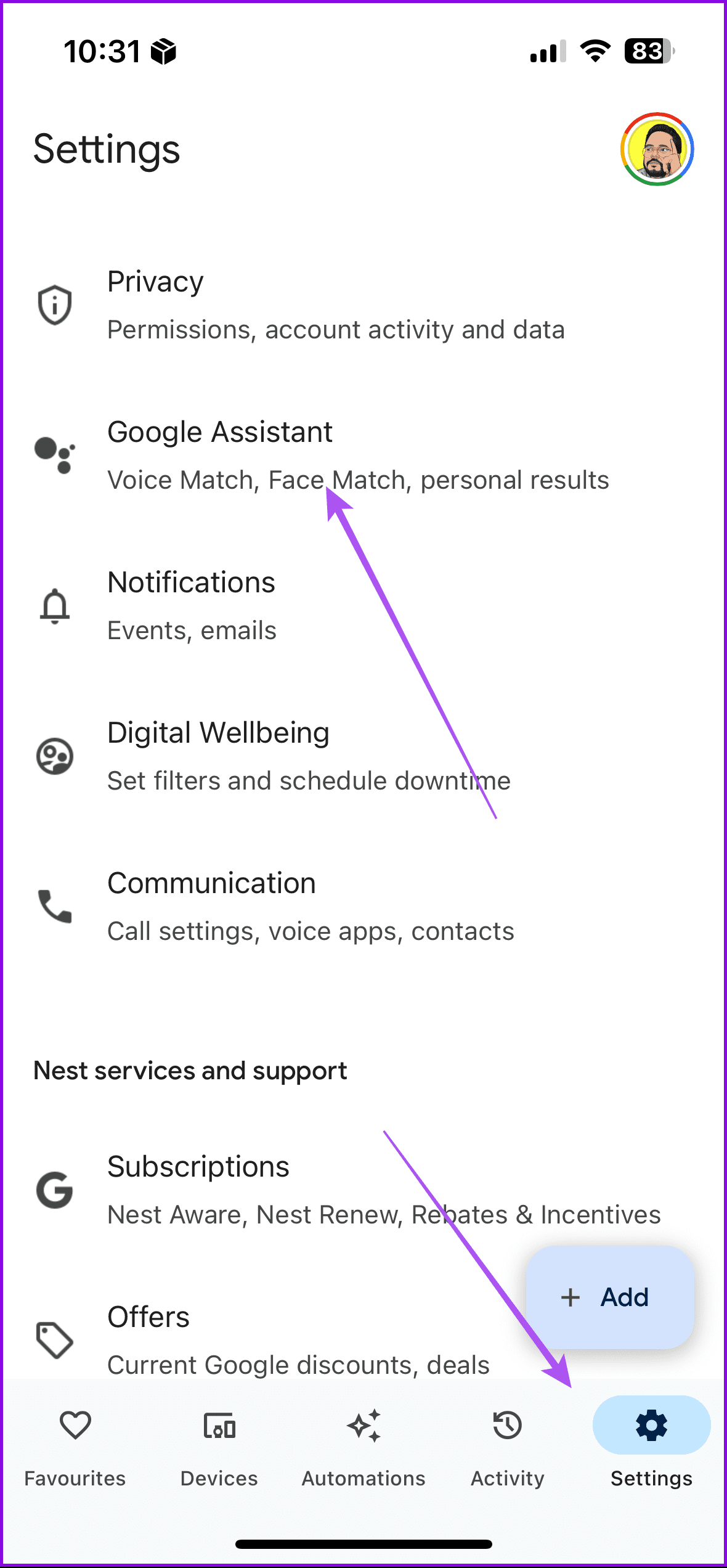
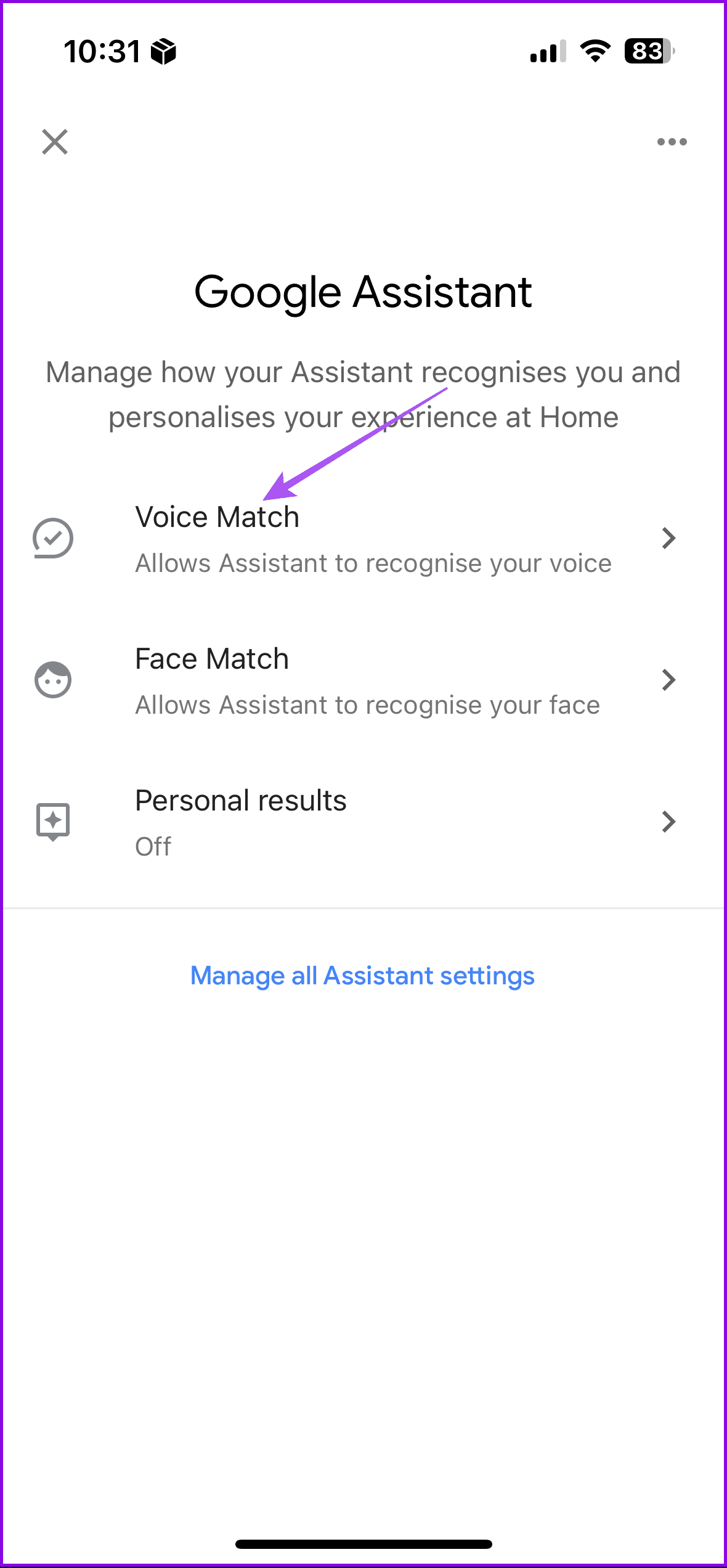
Voice Match gives you personalized results on your Android TV while using Google Assistant. You can use the Google Home app to set up and control this feature.
Open the Google Home app > Settings > Google Assistant > Voice Match > Disable and enable the feature.
Tip: Refer to our post if your Android TV gets stuck on the loading screen.
Was this helpful?
Last updated on 12 August, 2024
Read Next
 4 Fixes for ‘Google Assistant Is Not Available on This Device’ Error
Basic Fixes: Restart your phone: A simple reboot can help fix common issues you might encounter on your smartphone as it restarts all device services.
4 Fixes for ‘Google Assistant Is Not Available on This Device’ Error
Basic Fixes: Restart your phone: A simple reboot can help fix common issues you might encounter on your smartphone as it restarts all device services.
 Top 9 Ways to Fix Google Assistant Not Working in Samsung Galaxy Phones
Bixby, Samsung's digital assistant, comes pre-loaded for Galaxy phones despite the popularity of Google Assistant.
Top 9 Ways to Fix Google Assistant Not Working in Samsung Galaxy Phones
Bixby, Samsung's digital assistant, comes pre-loaded for Galaxy phones despite the popularity of Google Assistant.
 12 Hidden Google Games You Can Play on Chrome, Android, Earth, Search, and Assistant
Google is a company like no other.
12 Hidden Google Games You Can Play on Chrome, Android, Earth, Search, and Assistant
Google is a company like no other.
 How to Open Google Assistant on Samsung and Other Android Phones
Google Assistant is designed to make our lives easy.
How to Open Google Assistant on Samsung and Other Android Phones
Google Assistant is designed to make our lives easy.
 5 Ways to Fix Google Assistant Not Speaking Answers
Fix 1: Enable Voice Output Ensure you have not set the speech output to None in Google app settings.
5 Ways to Fix Google Assistant Not Speaking Answers
Fix 1: Enable Voice Output Ensure you have not set the speech output to None in Google app settings.
 How to Open Google Assistant Settings
On Android Method 1: Use the "Hey Google, open Assistant Settings" Command The easiest way to open Google Assistant settings is to ask the Assistant itself to open the settings
How to Open Google Assistant Settings
On Android Method 1: Use the "Hey Google, open Assistant Settings" Command The easiest way to open Google Assistant settings is to ask the Assistant itself to open the settings
 How to Solve It Looks like That Device Hasn’t Been Setup yet Error in Google Assistant
Google Assistant is smart, like really smart.
How to Solve It Looks like That Device Hasn’t Been Setup yet Error in Google Assistant
Google Assistant is smart, like really smart.
 4 Ways to Switch Back to Google Assistant From Gemini
Method 1: Using Google App Step 1: Open the Google app on your Android phone.
4 Ways to Switch Back to Google Assistant From Gemini
Method 1: Using Google App Step 1: Open the Google app on your Android phone.
The article above may contain affiliate links which help support Guiding Tech. The content remains unbiased and authentic and will never affect our editorial integrity.