Fix 1: Check Display Dimming Settings
Step 1: Open Settings > click on Battery from the left menu.
Step 2: Scroll to the bottom on the right side > select Options.
Step 3: Disable Slightly dim the display on battery > click on Done.

Fix 2: Check Keyboard Function Key Settings
The F1 and F2 Function Keys on your Mac keyboard are meant to change the display brightness manually. But if they have been made to be used as Standard Function Keys, you can’t use them to change the brightness levels. Here’s how to check the same.
Step 1: Open System Settings > click on Keyboard from the left menu.
Step 2: Click on Keyboard Shortcuts.
Step 3: Click on Function Keys in the bottom-left corner and ensure to disable the toggle for Use F1, F2, etc. keys as standard function keys. Then, click on Done at the bottom-right corner.

Step 4: Close the window and try changing the display brightness using the F1 and F2 keys.
Fix 3: Reset SMC and NVRAM
Let us discuss some advanced solutions if you still can’t solve the problem. You can try SMC Reset for your Intel-based Mac or iMac. This solution won’t work on Apple M-series chipset-based Macs.
Step 1: Press and hold the Power Button until your Mac shuts down.
Step 2: After your Mac shuts down, wait a few seconds and press Shift + Left Option + Left Control keys. Press and hold the Power Button as well.
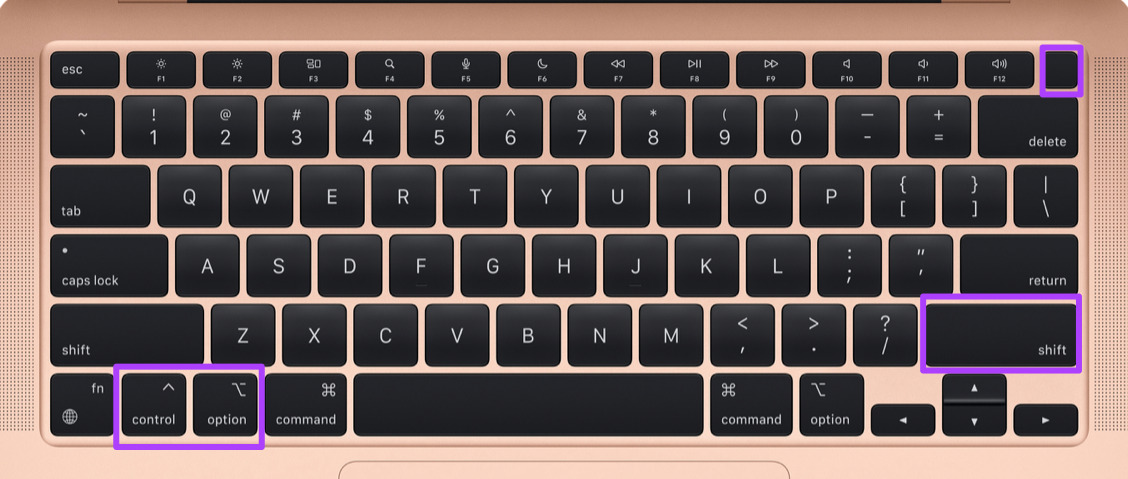
Keep pressing the four keys for another 7 seconds. If your Mac turns on, it will play the default startup chime again while you hold down those keys. When you see the Apple logo, the display will turn on normally. After that, check if you can change the display brightness.
After that, proceed with resetting NVRAM. For Mac models with M-series chips, a simple restart is equivalent to an NVRAM reset.
Step 1: Long-press the Power Button on your Mac. After your Mac shuts down, press the Power Button again to restart it.
Step 2: While your Mac is turning on, press Command + Option + P + R for 20 seconds.

Fix 4: Boot Your MacBook in Safe Mode
A third-party app might be interfering with your Mac’s brightness levels. To fix this, we suggest booting your Mac in Safe Mode.
For Macs With M-series Chip
Step 1: Click the Apple logo at the top-left corner > select Shut Down.
Step 2: After your Mac shuts down, press and hold the Power Button until you see the two startup options—Macintosh HD and Options.
Step 3: Select Macintosh HD while holding the Shift key and select Continue in Safe Mode.

For Macs With Intel Chip
Step 1: Click the Apple logo at the top-left corner and select Restart. Then press and hold the Shift key when your Mac restarts. Release the Shift key when you see the login window.
Step 2: Sign in and check if the problem is solved.
Was this helpful?
Last updated on 19 April, 2024
Read Next
 6 Best Ways to Adjust the Display Brightness on Windows 11
Whether you're working late into the night or working outdoors, having the perfect brightness level on your Windows machine can make all the difference.
6 Best Ways to Adjust the Display Brightness on Windows 11
Whether you're working late into the night or working outdoors, having the perfect brightness level on your Windows machine can make all the difference.
 3 Ways to Control External Monitor Brightness From Mac
1.
3 Ways to Control External Monitor Brightness From Mac
1.
 4 Ways to Fix Adaptive Brightness Not Working on Android
Try Basic Fixes Install Android updates: Software updates are crucial for any device.
4 Ways to Fix Adaptive Brightness Not Working on Android
Try Basic Fixes Install Android updates: Software updates are crucial for any device.
 3 Ways to Fix Auto Brightness Not Working on iPhone
Try Basic Fixes Remove the screen protector: Your iPhone uses the built-in ambient light sensor to detect your current lighting conditions and adjust the brightness accordingly.
3 Ways to Fix Auto Brightness Not Working on iPhone
Try Basic Fixes Remove the screen protector: Your iPhone uses the built-in ambient light sensor to detect your current lighting conditions and adjust the brightness accordingly.
 5 Ways to Fix Brightness Not Working on Windows 11 Laptops
https://youtu.be/S3hafZeGwBU Try Basic Fixes Adjust brightness from the Quick Settings panel or Settings app: If you can’t seem to adjust the screen brightness using the function keys on your keyboard,
5 Ways to Fix Brightness Not Working on Windows 11 Laptops
https://youtu.be/S3hafZeGwBU Try Basic Fixes Adjust brightness from the Quick Settings panel or Settings app: If you can’t seem to adjust the screen brightness using the function keys on your keyboard,
 4 Ways to Fix Mac Display Not Working After Waking From Sleep
Basic Fixes Check screen brightness levels using the keyboard: If your Mac's display doesn't work properly after going into sleep mode, start pressing the Function keys on your Mac to
4 Ways to Fix Mac Display Not Working After Waking From Sleep
Basic Fixes Check screen brightness levels using the keyboard: If your Mac's display doesn't work properly after going into sleep mode, start pressing the Function keys on your Mac to
 6 Ways to Fix iPhone Brightness Keeps Changing
Basic Fixes Turn off True Tone: The True Tone feature on your iPhone controls brightness and screen colors based on your surroundings.
6 Ways to Fix iPhone Brightness Keeps Changing
Basic Fixes Turn off True Tone: The True Tone feature on your iPhone controls brightness and screen colors based on your surroundings.
 12 Ways to Prevent Apps from Controlling Brightness on Android
Isn’t it annoying when certain apps take over your phone's brightness settings and change the brightness level on their own?
12 Ways to Prevent Apps from Controlling Brightness on Android
Isn’t it annoying when certain apps take over your phone's brightness settings and change the brightness level on their own?
The article above may contain affiliate links which help support Guiding Tech. The content remains unbiased and authentic and will never affect our editorial integrity.