How to Add Google Drive to the Files App
Step 1: Download the Google Drive app on your iPhone. Sign in with your credentials.
Step 2: Open the Files app and go to the Browse menu. Tap on the three dots icon at the top right, select Edit, and toggle on Google Drive.
You can use the same menu to disconnect and remove Google Drive from the Files app.


Also Read: How to download photos and files from Google Drive to iPhone
How to Select Account for Google Drive on Files
If you have multiple accounts in the Google Drive app, you must be wondering which account the Files app shows data from.
If you open the Google Drive app and tap on the profile picture at the top right, the account at the top is the selected one. This is the account that will be synced to the Files app.
To change the account, tap on another account. It will be moved to the top and reflected on the Files app.


How to Add Files to Google Drive on Files
It’s all the same – Google Drive simply exists as another directory or a location in the Files app.
To copy a file from your iPhone to Google Drive, tap and hold the file and select copy. Then, go to Drive from the Browse menu, open a folder, tap and hold any empty space, and select Paste.


Alternatively, tap and hold a file and select Move. On the next screen, select Drive > navigate to the folder you want to paste it in > select Copy.


Similarly, you can copy and paste from Google Drive to any local directory in the Files app.
FAQs
Yes. You can recover the deleted files from the Bin section in the Google Drive app.
Yes. You can create a folder in your Google Drive from the Files app. Tap on the three-dots icon at the top right and select New Folder.
No. Unless you copy the file to a local directory on your iPhone, you can’t access Google Drive from the Files app without internet.
Also Read: How to fix Google Drive not syncing on iPhone
Was this helpful?
Last updated on 16 July, 2024
Read Next
 How to Add and Remove Holidays Calendar in Apple Calendar App
How to Use Holidays Calendar on iPhone The Apple Calendar app offers a built-in regional calendar, displaying the common holidays (occasions and festivals) from that area.
How to Add and Remove Holidays Calendar in Apple Calendar App
How to Use Holidays Calendar on iPhone The Apple Calendar app offers a built-in regional calendar, displaying the common holidays (occasions and festivals) from that area.
 Samsung My Files vs Google Files: Which File Manager Is Better on Galaxy Phones
Samsung apps are bundled to replace the official Google Apps in the One UI.
Samsung My Files vs Google Files: Which File Manager Is Better on Galaxy Phones
Samsung apps are bundled to replace the official Google Apps in the One UI.
 How to Remove Shared Files from Google Drive
Remove Shared Files on Google Drive You may remove shared files on Google Drive from the web service or the mobile application.
How to Remove Shared Files from Google Drive
Remove Shared Files on Google Drive You may remove shared files on Google Drive from the web service or the mobile application.
 How to Add or Remove Contacts From Favorites on iPhone
Managing your contacts is hard, especially when you have the same device for personal and professional use.
How to Add or Remove Contacts From Favorites on iPhone
Managing your contacts is hard, especially when you have the same device for personal and professional use.
 How to Add or Remove App Timer on Android
Method 1: Use App Settings to Add or Remove App Timer To limit your screen time, you can configure a timer for individual apps through the app settings.
How to Add or Remove App Timer on Android
Method 1: Use App Settings to Add or Remove App Timer To limit your screen time, you can configure a timer for individual apps through the app settings.
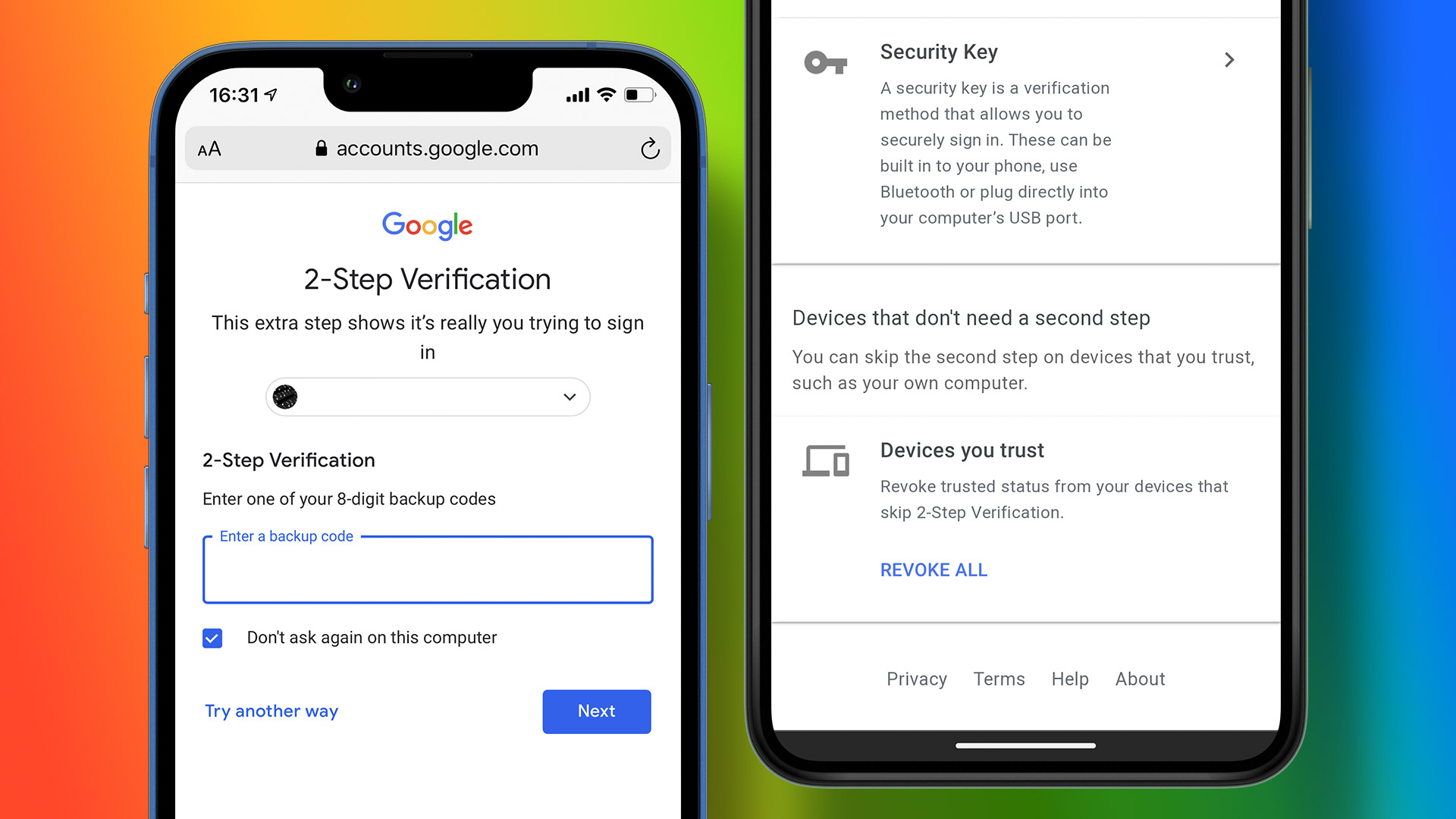 How to Add or Remove a Trusted Device From Your Google Account
How to Add a Trusted Device to Your Google Account Follow the steps below to add a trusted device to your Google account using your PC, or your smartphone.
How to Add or Remove a Trusted Device From Your Google Account
How to Add a Trusted Device to Your Google Account Follow the steps below to add a trusted device to your Google account using your PC, or your smartphone.
 3 Ways to Add or Remove Gridlines in Google Sheets
Method 1: Add or Remove Google Sheets Gridlines From View Menu The easiest way to remove or add gridlines from Google Sheets is using the View menu.
3 Ways to Add or Remove Gridlines in Google Sheets
Method 1: Add or Remove Google Sheets Gridlines From View Menu The easiest way to remove or add gridlines from Google Sheets is using the View menu.
 How to Add and Remove Line Numbers in Google Docs
How to Add Line Numbers in Google Docs You can add line numbers to the entire document or select sections in Google Docs.
How to Add and Remove Line Numbers in Google Docs
How to Add Line Numbers in Google Docs You can add line numbers to the entire document or select sections in Google Docs.
The article above may contain affiliate links which help support Guiding Tech. The content remains unbiased and authentic and will never affect our editorial integrity.