

Basic Fixes
- Remove browser extensions: You can remove any extensions from your browser that you don’t use anymore. Some extensions can cause such issues if they stop receiving updates.
- Remove symbols or emojis from your document: Adding symbols or emojis can also prevent Google Docs from downloading your file as a PDF.
- Switch to Incognito mode: This will prevent any browser preferences from interrupting you from opening Google Docs.
- Update your web browser: Install the latest version of your preferred browser.
Fix 1: Check File Permissions
Google Docs gives you the option to share your files with your contacts. You can also assign permissions while sharing a file. If you cannot download a Google Doc file as a PDF that has been shared with you, your permission to access the document may have been restricted.
Step 1: Open your document in Google Docs.
Step 2: Click on File > Share > Share with others.

Step 3: Check the file sharing permissions and make changes accordingly.
Fix 2: Use the Print Function to Download PDF
If you still can’t download the PDF file despite checking permissions, we suggest using the Print function to download the file on your computer. Google Docs lets you print your files directly or save them as PDFs. Here’s how to do it.
Step 1: Open Google Docs and sign in to your account.
Step 2: Open the document you want to download as a PDF.
Step 3: When the document opens, click on File > Print.
You can also press Command + P (macOS) or Control + P (Windows).

Step 4: In the Print window, click on the Printer drop-down menu and choose Save as PDF.

Step 5: Click on Save at the bottom to download the PDF file.
Fix 3: Check for Faulty Browser Extensions
If you can’t download the PDF file after using the Print function, check the extensions installed on your browser. Some extensions might not have received updates and are no longer compatible with your browsers. A buggy browser extension can lead to such issues with Google Docs.
For Google Chrome
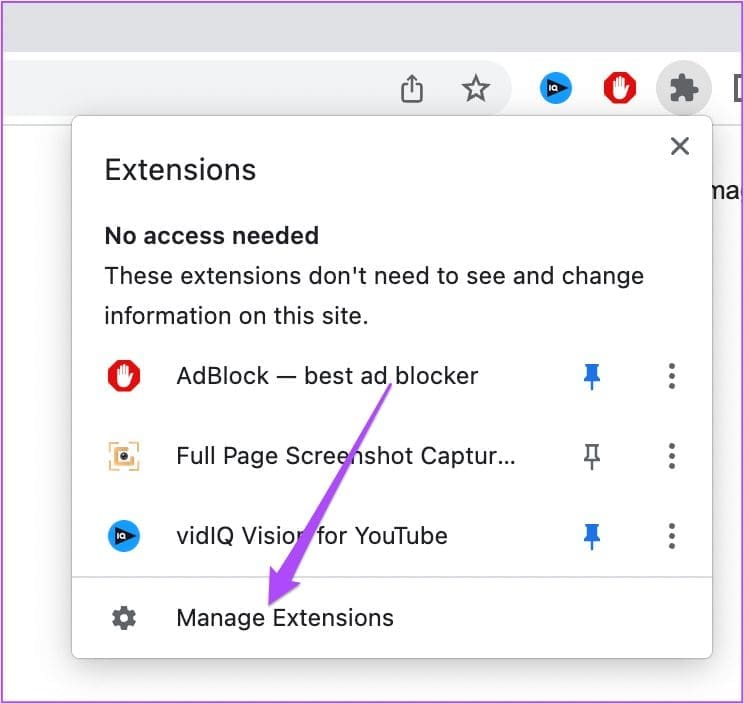
Step 1: Open Google Chrome > click the Extensions icon at the top-right corner of the Chrome homepage > choose Manage Extensions.
Step 2: On the Extensions page, click on Remove below an extension that you don’t require anymore.
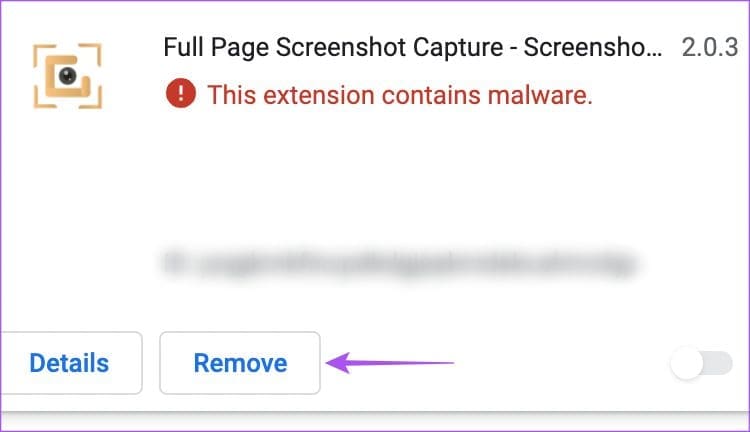
Step 3: Open Google Docs in a separate tab and check if you can print the PDF file after removing that extension.
If not, keep repeating the same steps to check which extension is faulty.
For Firefox
Step 1: Open Firefox and go to Settings.
Step 2: In the Settings page, scroll down and look for Language and Appearance.
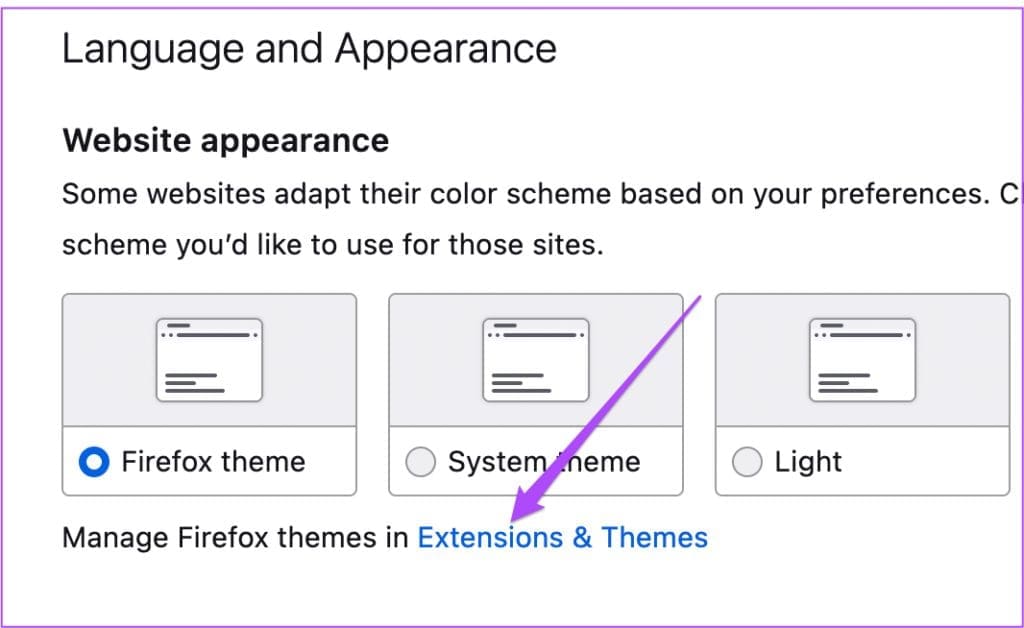
Step 3: Click on Extensions & Themes.
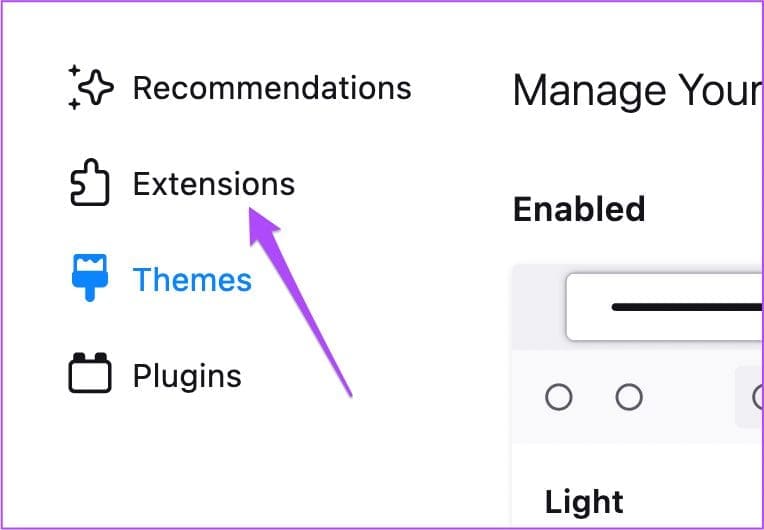
Step 4: Select Extensions from the left menu.
Step 5: When you see all the installed extensions, choose the one you wish to delete.
Step 6: Click the three dots next to the toggle and select Remove.

For Safari
Step 1: Open Safari > click on Safari at the top-left corner > choose Settings.
Step 2: Click on the Extensions tab.

Step 3: When you see all your Safari Extensions on your screen, select the one you wish to remove from the left menu.
Step 4: Click on Uninstall below the Extension name.
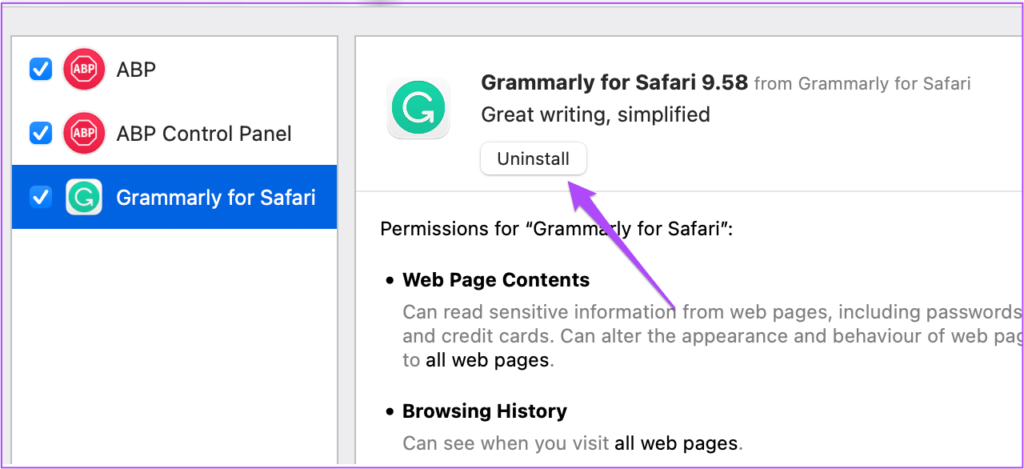
Check if that solves the problem in Google Docs.
Alternative: Use Google Docs App if Nothing Works
If none of the aforementioned steps worked for you, try downloading the PDF file using the Google Docs app on your Android or iPhone. Here’s how to download the PDF file using Google Docs app.
Step 1: Open Google Docs on your Android or iPhone.
Step 2: Tap on the document you wish to download.
Step 3: Tap on the three dots at the top-right corner > select Share and export.


Step 4: Tap on Send A Copy > choose PDF > tap on Ok.
Step 5: You can now share the PDF file using the app of your choice.
Tip: You can also use features like changing margins on desktop and mobile while printing your documents.
Was this helpful?
Last updated on 24 July, 2024
1 Comment
Leave a Reply
Read Next
 5 Ways to Fix Google Docs Not Downloading Issues
Basic Fixes Disable Extension: There can be a few extensions in your browser that are actually preventing downloads from Google Docs.
5 Ways to Fix Google Docs Not Downloading Issues
Basic Fixes Disable Extension: There can be a few extensions in your browser that are actually preventing downloads from Google Docs.
 How to Convert Google Forms to PDF, Google Docs, or Word
How to Convert Google Forms to PDF Google Forms doesn’t have a native option to convert it into PDF.
How to Convert Google Forms to PDF, Google Docs, or Word
How to Convert Google Forms to PDF Google Forms doesn’t have a native option to convert it into PDF.
 How to Save Google Docs as PDF on Desktop and Mobile
Save Google Docs as PDF Despite a few differences, the steps are similar for Android, iOS, and Desktop devices.
How to Save Google Docs as PDF on Desktop and Mobile
Save Google Docs as PDF Despite a few differences, the steps are similar for Android, iOS, and Desktop devices.
 3 Fixes for YouTube Premium Not Downloading Videos Offline
Basic Fixes Check Internet Connectivity: Ensure your device is connected to a Wi-Fi network or cellular data with good signal strength and an active plan.
3 Fixes for YouTube Premium Not Downloading Videos Offline
Basic Fixes Check Internet Connectivity: Ensure your device is connected to a Wi-Fi network or cellular data with good signal strength and an active plan.
 5 Fixes for WhatsApp Desktop Not Downloading Images
Fix 1: Check Internal Storage If you can't download images using WhatsApp Desktop, start by checking your internal storage on Mac or Windows PC.
5 Fixes for WhatsApp Desktop Not Downloading Images
Fix 1: Check Internal Storage If you can't download images using WhatsApp Desktop, start by checking your internal storage on Mac or Windows PC.
 4 Fixes for Outlook App Not Downloading Attachments
Basic Fixes Check the device's internal storage: You should have enough internal storage on your device so that the attachments can be saved.
4 Fixes for Outlook App Not Downloading Attachments
Basic Fixes Check the device's internal storage: You should have enough internal storage on your device so that the attachments can be saved.
 2 Fixes When Google Docs Auto Saving Is Not Working
Basic Fixes: Confirm you have a stable internet: Before exploring further fixes, confirm your internet connection is stable and strong.
2 Fixes When Google Docs Auto Saving Is Not Working
Basic Fixes: Confirm you have a stable internet: Before exploring further fixes, confirm your internet connection is stable and strong.
 3 Ways to Fix Google Drive Not Downloading Files on Android and iPhone
Try Basic Fixes Ask the file owner to enable download access: If you can't download a file shared with you, the file owner may have restricted your access with the
3 Ways to Fix Google Drive Not Downloading Files on Android and iPhone
Try Basic Fixes Ask the file owner to enable download access: If you can't download a file shared with you, the file owner may have restricted your access with the
The article above may contain affiliate links which help support Guiding Tech. The content remains unbiased and authentic and will never affect our editorial integrity.
“Step 2: Press Command + Shit + N (Mac) or Control + Shift + N (Windows) to launch Incognito Mode window.” lmfao