Windows Store Error Code 0x801901F7, sometimes called the “Server Stumbled” error, is a frustrating bug you may encounter when trying to open the Microsoft Store. It’s typically caused by corrupted cache files, network proxy issues, pending Windows updates that the Store needs, or outages on the server-side.
Fortunately, it’s generally pretty simple to resolve. Try these steps to restore normal access to the Microsoft Store.
Restart Your PC
Like so many other PC errors, a simple restart is often all it takes. A reboot should clear any temporary service glitches and pending Windows servicing operations that may be blocking Store access.
Reset the Windows Store Cache
If a reboot doesn’t work, try resetting the Windows Store cache next.
Step 1. Press Windows Key + R to open the Run dialog.
Step 2. Type “wsreset.exe” and press “Enter.”

This command automatically resets the Store cache. After the blank Command Prompt window closes, the Store app should relaunch automatically with normal access restored.
Disable Proxy Settings
If the reset doesn’t restore your access to the Store, a misconfigured proxy could be the problem. Disabling your proxy settings may resolve the issue.
Step 1. Open Settings > Network & Internet > Proxy.

Step 2. Turn off any manual proxy by setting “Use a proxy server” to “Off” under “Manual Proxy Setup.”
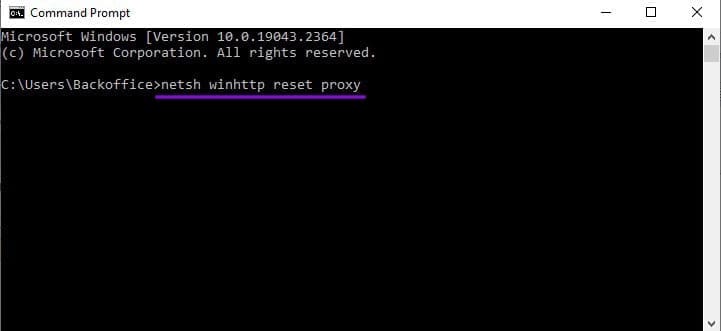
Step 3. Alternatively, open Command Prompt as Administrator and type: netsh winhttp reset proxy.
Re-Register the Microsoft Store App
If the cache and proxy resets fail to restore access, you’ll need to re-register the Store app. You do this using the PowerShell app.
Step 1. Open PowerShell as an Administrator.

Step 2. Run the following command in the PowerShell window:
PowerShell -ExecutionPolicy Bypass -Command “Get-AppxPackage -allusers Microsoft.WindowsStore | Foreach {Add-AppxPackage -DisableDevelopmentMode -Register \”$($_.InstallLocation)\AppxManifest.xml\”}”
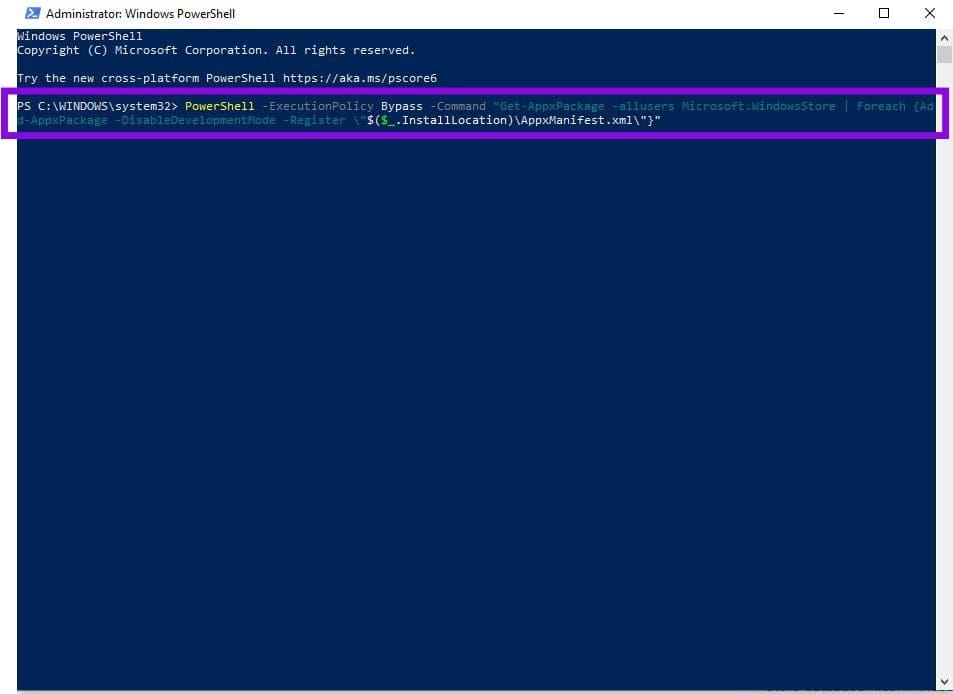
Pro-tip: Instead of typing that lengthy command out manually, you can copy it and paste it into the PowerShell window by right-clicking.
Update Windows and the Microsoft Store
If you’re still unable to access the Store, make sure your system and the Store are fully updated.
Step 1. Check Settings > Windows Update for pending updates.
Step 2. If the Store is accessible, check for Store updates via Microsoft Store > Library > Get updates. Depending on your Store version, the “Update” option may appear under your profile picture or in the “Downloads” menu, instead of under “Library.”

Delete the DataStore.edb File
If Windows Store Error Code 0x801901F7 still persists after installing any new updates, you can try clearing the Windows Update DataStore database. This may resolve corruption in the local update database.
Step 1. In File Explorer, navigate to C:\Windows\SoftwareDistribution\DataStore.
Step 2. Stop the Windows Update service, then delete or rename the DataStore.edb file before restarting the service.

Check Microsoft Service Status
If all these local fixes fail, the issue could be related to a temporary problem with Microsoft’s services. Check Microsoft’s service health status page to see whether an outage or service issue is affecting the Store or Windows Update.
You can also check sites like Downdetector for “Microsoft Store” or “Windows Update” to see if other users are reporting the same error. Sometimes these sites pick up outages before Microsoft has had time to post notifications about it.

If there’s an outage, you’ll have to wait for Microsoft to resolve it, and then try accessing the Store again.
Was this helpful?
Last updated on 19 September, 2026
Read Next
 4 Ways to Fix “Account Not in This Store” Error in App Store for iPhone
Try Basic Fixes Disable VPN: The 'Account Not In This Store' error may be appearing due to a VPN connection.
4 Ways to Fix “Account Not in This Store” Error in App Store for iPhone
Try Basic Fixes Disable VPN: The 'Account Not In This Store' error may be appearing due to a VPN connection.
 Top 3 Ways to Fix OneDrive Connectivity Error Code 0x8004de40 in Windows 10
OneDrive is arguably one of the best cloud storage and backup solutions for Windows computers.
Top 3 Ways to Fix OneDrive Connectivity Error Code 0x8004de40 in Windows 10
OneDrive is arguably one of the best cloud storage and backup solutions for Windows computers.
 4 Ways to Fix the Login Error Code E84 in Steam for Windows
Switch to a different network connection: A slow or intermittent internet connection can also cause login errors in Steam.
4 Ways to Fix the Login Error Code E84 in Steam for Windows
Switch to a different network connection: A slow or intermittent internet connection can also cause login errors in Steam.
 4 Ways to Fix Graphics Device Driver Error Code 22 on Windows
Fix 1: Enable and Update the Graphics Driver You may see error code 22 on Windows if you have previously disabled the graphics driver or if it's outdated.
4 Ways to Fix Graphics Device Driver Error Code 22 on Windows
Fix 1: Enable and Update the Graphics Driver You may see error code 22 on Windows if you have previously disabled the graphics driver or if it's outdated.
 4 Ways to Fix Error Code 0xc000000f in Windows 11
Basic Fixes: Disconnect all external devices: Error code 0xc00000f can indicate issues with the boot configuration data (BCD), but sometimes, it may arise due to conflicts with external devices like
4 Ways to Fix Error Code 0xc000000f in Windows 11
Basic Fixes: Disconnect all external devices: Error code 0xc00000f can indicate issues with the boot configuration data (BCD), but sometimes, it may arise due to conflicts with external devices like
 4 Ways to Fix Error Code 0x80070570 in Windows
Fix 1: Re-Download Windows ISO Finding the correct Windows ISO for your PC is crucial for proper installation.
4 Ways to Fix Error Code 0x80070570 in Windows
Fix 1: Re-Download Windows ISO Finding the correct Windows ISO for your PC is crucial for proper installation.
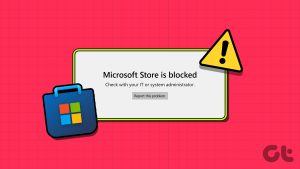 3 Ways to Fix the “Microsoft Store Is Blocked” Error on Windows 11
Basic Fixes: Use Run to reset the Microsoft Store app: The wsreset.exe Run command will help you clear the Microsoft Store’s cache and reset other data that interfere with regular
3 Ways to Fix the “Microsoft Store Is Blocked” Error on Windows 11
Basic Fixes: Use Run to reset the Microsoft Store app: The wsreset.exe Run command will help you clear the Microsoft Store’s cache and reset other data that interfere with regular
 How to Fix Printer Not Activated (Error Code 30) on Windows 11
Basic Fixes Reconnect printer: If you're using a wired printer, its loose USB connection to your PC may result in 'Printer not activated (Error Code 30)'.
How to Fix Printer Not Activated (Error Code 30) on Windows 11
Basic Fixes Reconnect printer: If you're using a wired printer, its loose USB connection to your PC may result in 'Printer not activated (Error Code 30)'.
The article above may contain affiliate links which help support Guiding Tech. The content remains unbiased and authentic and will never affect our editorial integrity.