AMD Software: Adrenalin Edition™ is billed as a powerful, simple interface that gives you more control over your graphics processing units (GPUs). It includes AI- and machine-learning-based features designed to improve graphics quality and gaming performance.
But does AMD Adrenalin cause issues? Some Windows users have found that, since installing Adrenalin, they experience errors such as lagging, freezing, and even the screen going completely black. Some of these issues may be caused by AMD Adrenalin driver clashes with other existing drivers or software, but thus far, AMD has not addressed what’s causing these faults. However, you can try the following fixes to reduce AMD Adrenalin driver crashes and get back to full-performance gaming.
AMD Adrenalin Driver Crashes: Fix No. 1 – Turn Off Extra Features
Before you start:
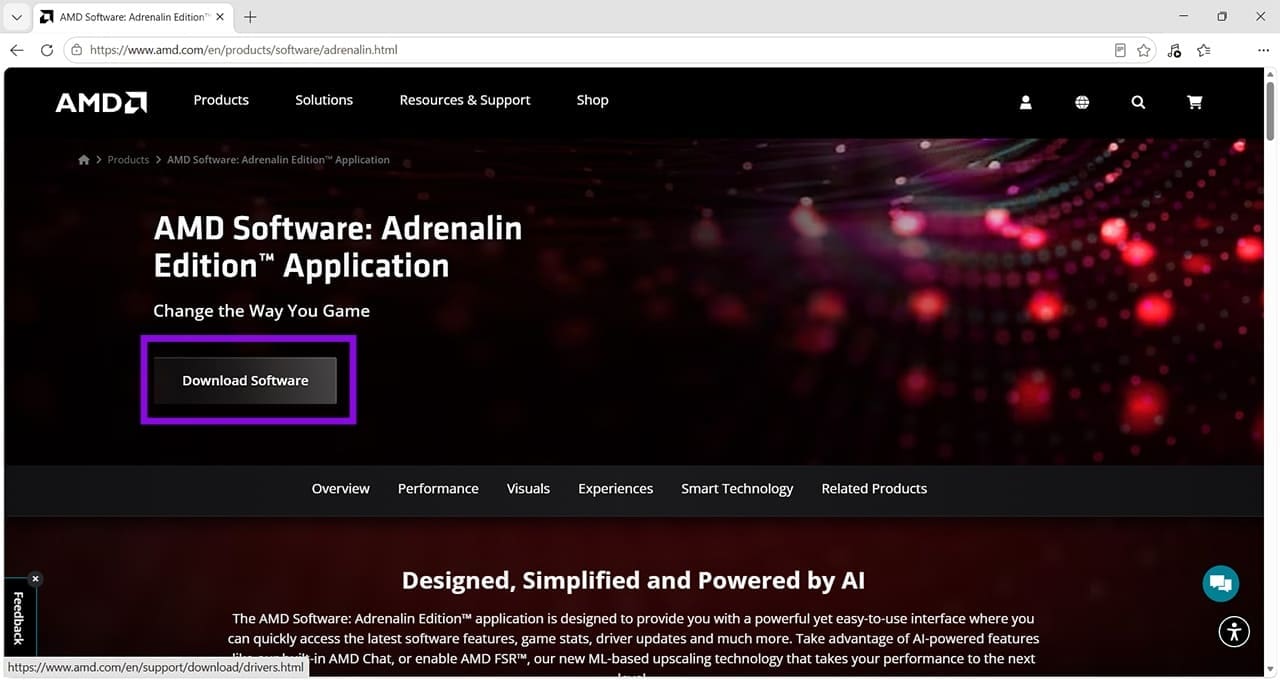
Make sure you’ve downloaded AMD Adrenalin from the official website:
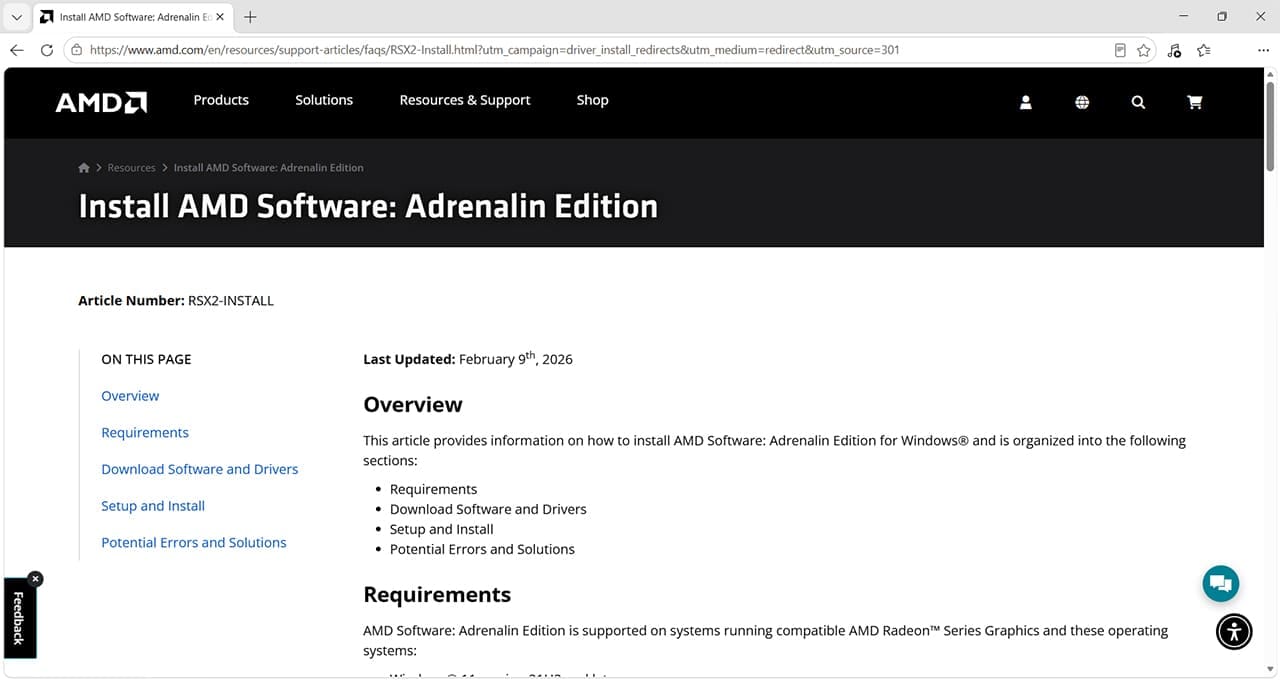
Follow the installation instructions at this link, and check that your computer meets the requirements:
Choose the additional software components you want during installation.

Once installed, if you find that games or apps are suddenly freezing or glitching graphically, try switching off the following features:
- In-game overlay
- Live streaming and recording features
- AMD image inspector
- AMD user experience program
Any features or preferences that you don’t need can be accessed via the AMD software interface. Open the software, use the search bar to search for “Preferences,” then click “Preferences Settings” to make the necessary changes.
AMD Adrenalin Driver Crashes: Fix No. 2 – Disable Multiplane Overlay (MPO)
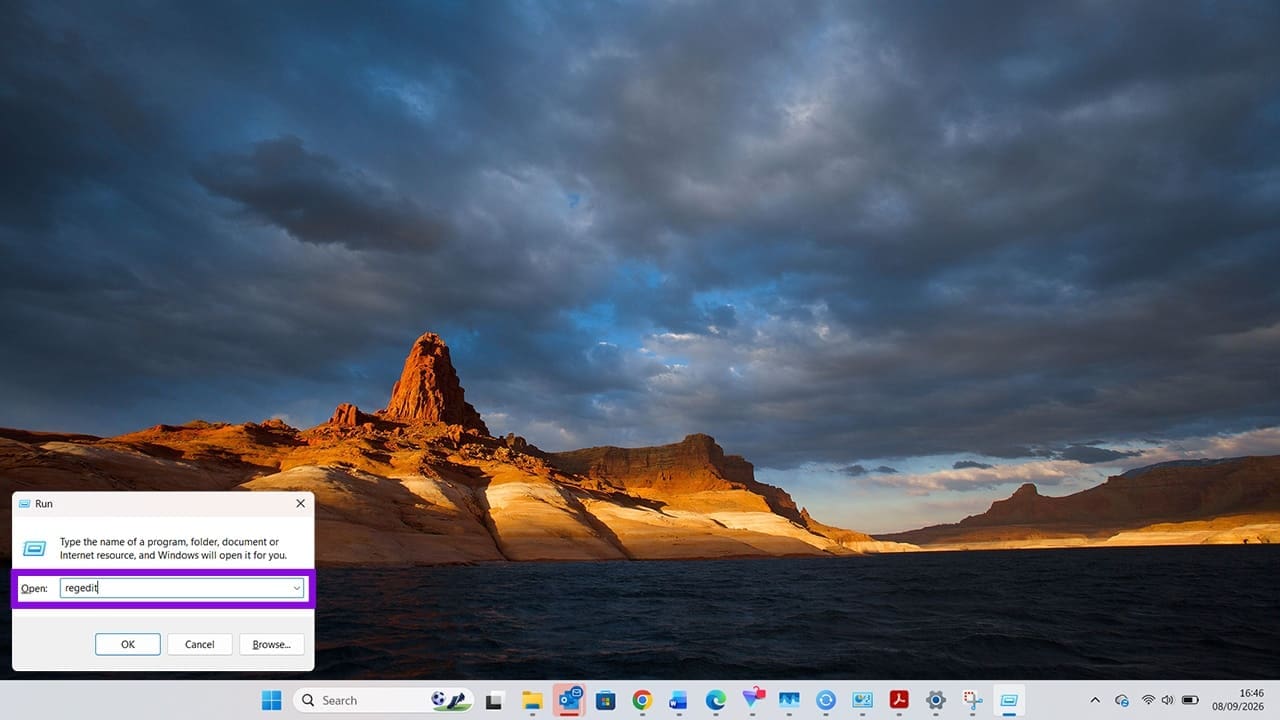
Step 1. MPO is a Windows display-composition feature that can sometimes be associated with display glitches or compatibility problems. To ensure AMD doesn’t switch this function on, you have to make a tweak in your Windows registry. Start by pressing Windows + R to open the Run box, type “regedit,” and press “Enter.”
Step 2. Navigate to HKEY_LOCAL_MACHINE\SOFTWARE\Microsoft\Windows\Dwm.

Step 3. Right-click in the right-hand pane and choose “New > DWORD (32-bit) Value.”
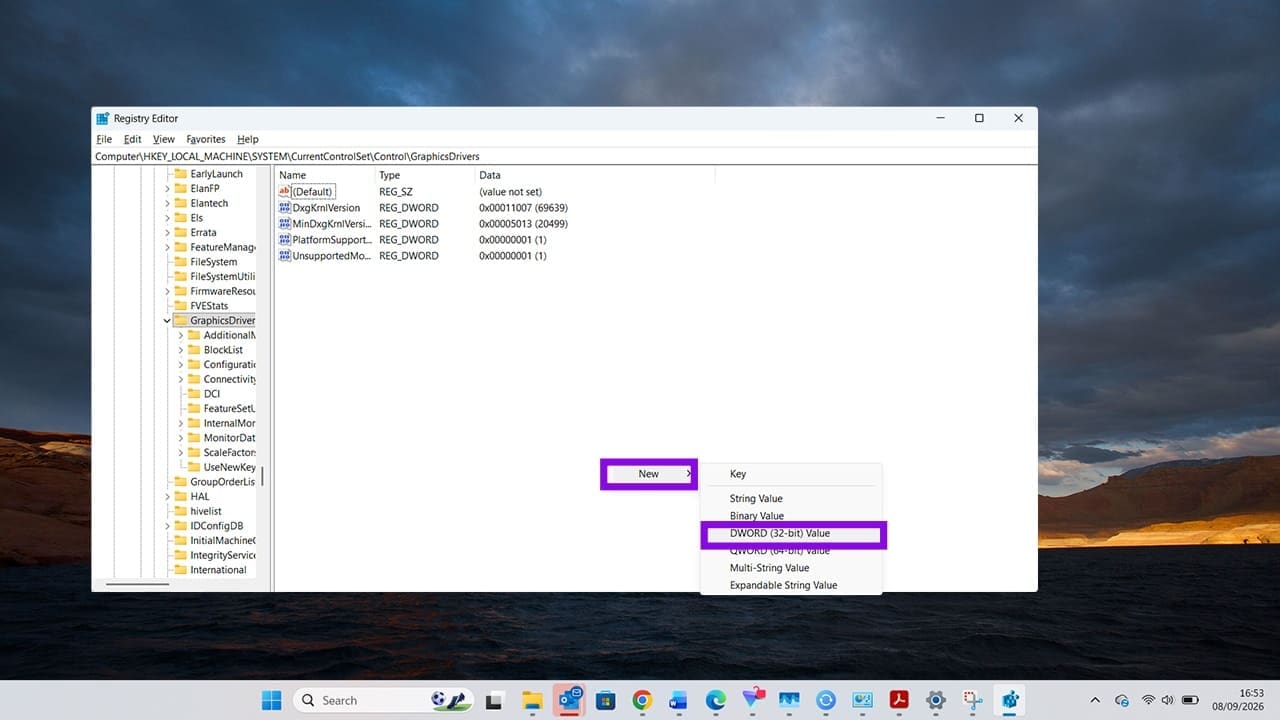
Step 4. Name this value “OverlayTestMode.”
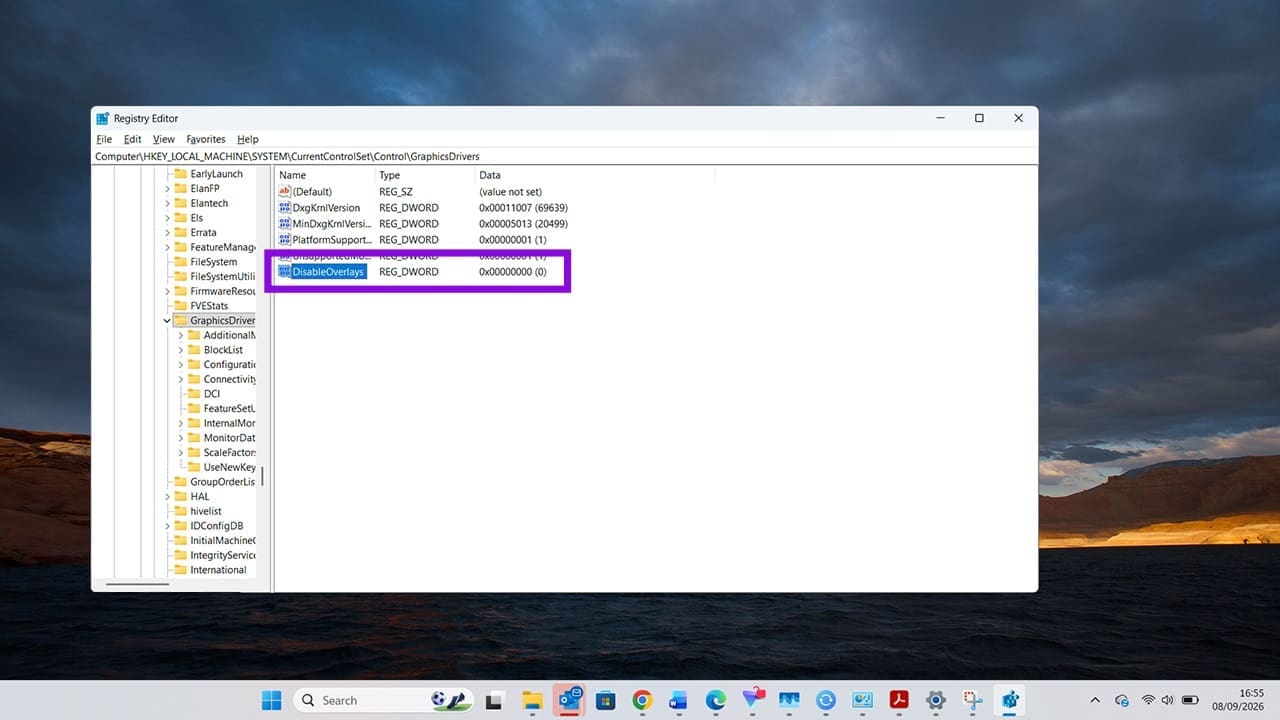
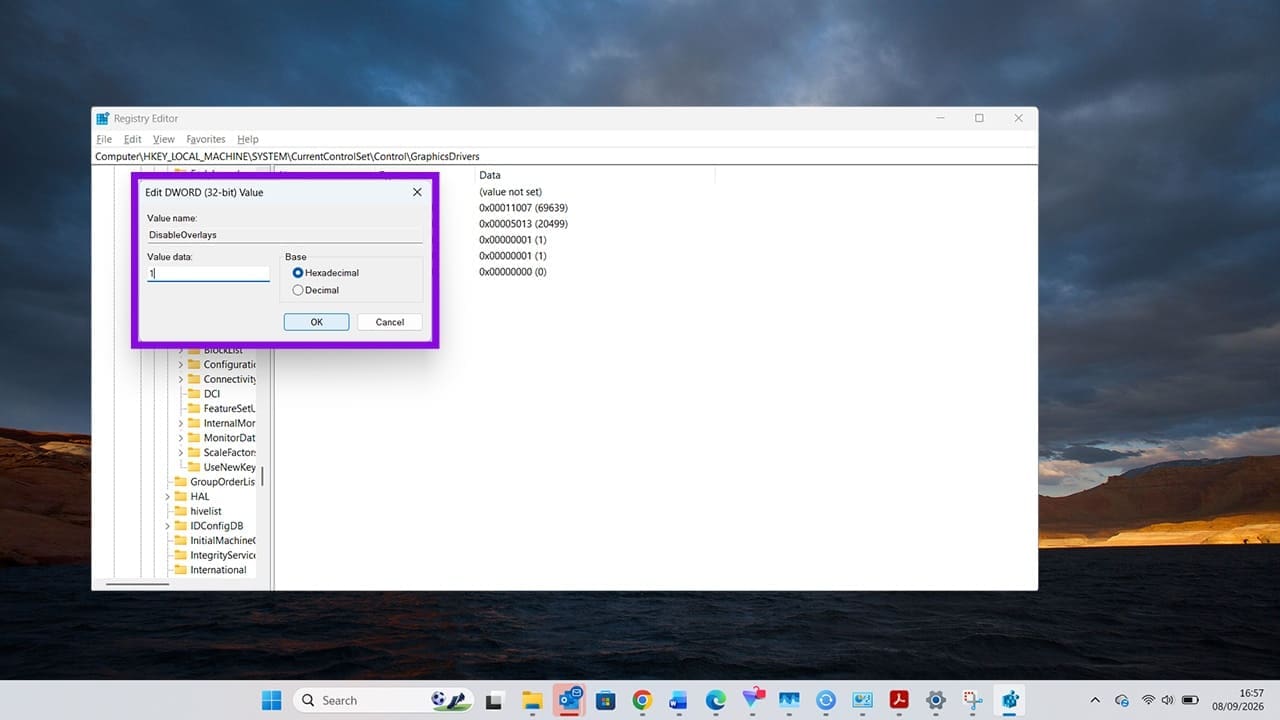
Step 5. Double-click the new value and set Value data to 5
Step 6: Restart your computer for the change to take effect. If you want to revert this setting at any point, simply delete the value you created from the Windows Registry. Note that editing the Windows Registry incorrectly can cause system problems. If possible, back up the Registry before making changes.
AMD Adrenalin Driver Crashes: Fix No. 3 – Reset AMD Adrenalin to Factory Settings
Sometimes glitches don’t occur due to bad AMD drivers or instructions, but because multiple advanced features are clashing. Follow these steps to reset AMD Adrenalin to its default settings:
- Open the AMD software.
- Go to “Settings.”
- Look for “System.”
- Click “Check for updates.”
- Click “Reinstall driver,” where you will find the option for “Factory Reset.”
A factory reset will clear any customization and tuning, helping you start fresh with the Adrenalin default settings, which should reduce crashes and glitches.
Was this helpful?
Last updated on 12 September, 2026
Read Next
 7 Fixes for AMD Adrenalin Software Not Working or Opening
Fix 1: Run AMD Radeon Software With Admin Privileges If your AMD Adrenalin software is not working or opening, one of the initial fixes to perform is to run it
7 Fixes for AMD Adrenalin Software Not Working or Opening
Fix 1: Run AMD Radeon Software With Admin Privileges If your AMD Adrenalin software is not working or opening, one of the initial fixes to perform is to run it
 How to Fix Windows Update Replaced Your AMD Graphics Driver
If you have an AMD graphics card installed in your PC, then you may have run into an error where Windows informs you that it has replaced your graphics driver,
How to Fix Windows Update Replaced Your AMD Graphics Driver
If you have an AMD graphics card installed in your PC, then you may have run into an error where Windows informs you that it has replaced your graphics driver,
 Installing AMD Graphics Driver From Scratch Step by Step
If you’re having issues with a flickering screen, or if a new update of Windows has your system doing strange things, you’re probably looking for an answer.
Installing AMD Graphics Driver From Scratch Step by Step
If you’re having issues with a flickering screen, or if a new update of Windows has your system doing strange things, you’re probably looking for an answer.
 Why Is AMD GPU Driver Disabled After an Update?
Some days it seems that Windows Updates can cause more problems than they fix.
Why Is AMD GPU Driver Disabled After an Update?
Some days it seems that Windows Updates can cause more problems than they fix.
 Screen Brightness Drops During Remote Desktop – 4 Solutions
It’s the little things that become irritating quickly, and the little things you need to solve become irritating even quicker.
Screen Brightness Drops During Remote Desktop – 4 Solutions
It’s the little things that become irritating quickly, and the little things you need to solve become irritating even quicker.
 How to Overclock a Monitor: NVIDIA, AMD, and Intel GPUs
When gaming, having a high-performance monitor can make a significant difference in your overall experience.
How to Overclock a Monitor: NVIDIA, AMD, and Intel GPUs
When gaming, having a high-performance monitor can make a significant difference in your overall experience.
 How to Use AMD FSR3 on NVIDIA RTX GPUs
If you already own an NVIDIA GPU, one of the best features available is DLSS technology.
How to Use AMD FSR3 on NVIDIA RTX GPUs
If you already own an NVIDIA GPU, one of the best features available is DLSS technology.
 AMD Folder Getting Increasingly Large – What to Do
Over time, you might notice that your C drive is starting to run out of space, which can force you to stop updating apps or even Windows entirely.
AMD Folder Getting Increasingly Large – What to Do
Over time, you might notice that your C drive is starting to run out of space, which can force you to stop updating apps or even Windows entirely.
The article above may contain affiliate links which help support Guiding Tech. The content remains unbiased and authentic and will never affect our editorial integrity.