Enable Multiple Instances in KMPlayer
If you prefer KMPlayer over VLC Media Player and want to play multiple videos at once, you can adjust its settings to run multiple instances. Once enabled, you can play different media files simultaneously, making it easier to multitask or save time when opening individual KMPlayer instances.
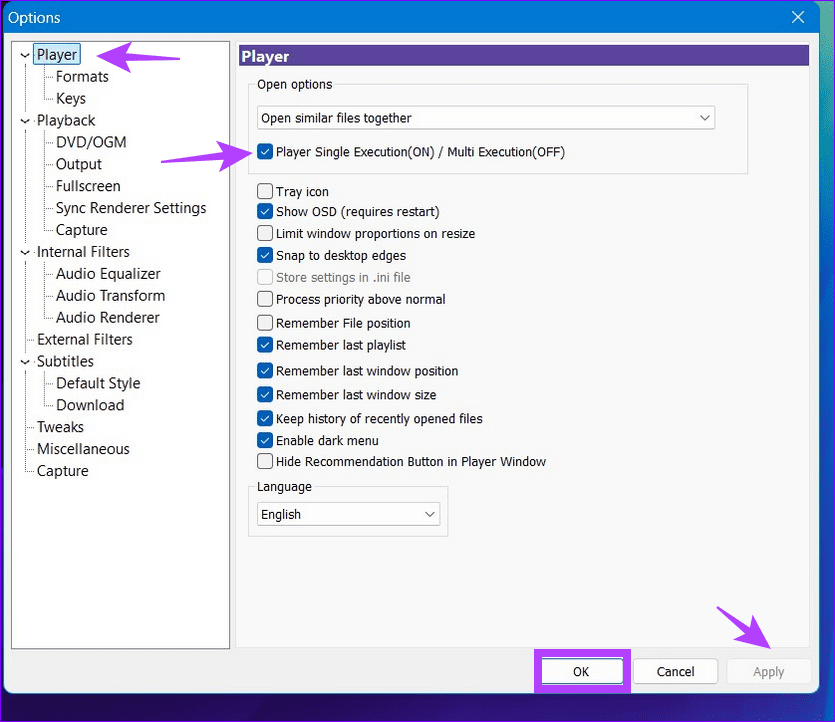
Step 1: Open KMPlayer, click its menu at the top left, and select Options.

Step 2: Select Player from the left sidebar, and uncheck ‘Player Single Execution (ON)/Multi Execution (OFF) ‘. Click Apply followed by OK to save changes.
Launch the KMPlayer Instance in Full Screen Mode
By default, KMPlayer opens videos in a small window. If you wish to play it in fullscreen, tweak its settings manually to adjust the instance size.
Step 1: Press F2 in the KMPlayer app to open its Settings, select Fullscreen from the left sidebar, and enable ‘Launch files in fullscreen‘.
Step 2: Click Apply followed by OK to save changes and reopen your desired video to play it in the full-screen mode.

Change Audio Language in the KMPlayer Instance
If your video file has multiple audio tracks, you can switch its language in KMPlayer with these easy steps:
Step 1: Play your desired video file in KMPlayer and right-click anywhere to view more options.
Step 2: Select Audio Track from the right-click context menu and pick your desired audio language.

Step 3: If the audio lags, select Options > Audio Transform, and enable Audio time shift (ms). Type your desired value and click Apply to sync the audio.

Was this helpful?
Last updated on 01 September, 2024
Read Next
 10 Awesome Sets of KMPlayer Keyboard Shortcuts
1.
10 Awesome Sets of KMPlayer Keyboard Shortcuts
1.
 Play YouTube Videos (and From Other Sites) in KMPlayer
What’s your first choice of media player?
Play YouTube Videos (and From Other Sites) in KMPlayer
What’s your first choice of media player?
 How to Sync Subtitles and Videos Easily Using KMPlayer
I love watching movies and love to explore different genres and kinds of movies from every part of the world.
How to Sync Subtitles and Videos Easily Using KMPlayer
I love watching movies and love to explore different genres and kinds of movies from every part of the world.
 How to Add Multiple Clocks on Your Windows 10 PC
Adding Multiple Clocks to the Start Menu Note: I'll add a new clock for an entirely different timezone/region (Baltimore - a city in Maryland, USA).
How to Add Multiple Clocks on Your Windows 10 PC
Adding Multiple Clocks to the Start Menu Note: I'll add a new clock for an entirely different timezone/region (Baltimore - a city in Maryland, USA).
 How to Create and Use Multiple Profiles in Microsoft Edge Like a Pro
Microsoft's shift toward the Chromium engine for its Edge browser has significantly changed things for the better.
How to Create and Use Multiple Profiles in Microsoft Edge Like a Pro
Microsoft's shift toward the Chromium engine for its Edge browser has significantly changed things for the better.
 3 Ways to Fix Keyboard Typing Multiple Letters in Windows 11/10
Basic Fixes Clean keyboard: Over time, your keyboard might gather small dust particles under the keys.
3 Ways to Fix Keyboard Typing Multiple Letters in Windows 11/10
Basic Fixes Clean keyboard: Over time, your keyboard might gather small dust particles under the keys.
 2 Ways to Print Multiple Files on Windows 11
Method 1: Print Multiple Word, Excel, and Other Media We will first show you how to launch the current print queue on Windows.
2 Ways to Print Multiple Files on Windows 11
Method 1: Print Multiple Word, Excel, and Other Media We will first show you how to launch the current print queue on Windows.
 6 Ways to Fix Multiple Connections to a Server or Shared Resource by the Same User
Network and file sharing issues can be frustrating, especially when encountering errors like 'Multiple Connections to a Server or Shared Resource by the Same User.' In this article, we'll delve
6 Ways to Fix Multiple Connections to a Server or Shared Resource by the Same User
Network and file sharing issues can be frustrating, especially when encountering errors like 'Multiple Connections to a Server or Shared Resource by the Same User.' In this article, we'll delve
The article above may contain affiliate links which help support Guiding Tech. The content remains unbiased and authentic and will never affect our editorial integrity.