Why Is Your YouTube Homepage Blank
Here are a few of the reasons your YouTube homepage is currently blank:
- Watch History is off for the selected YouTube account. This will result in the YouTube app not storing any data from your previous visits and, as a result, might keep your home screen blank.
- You haven’t cleared the cache for your YouTube app in a while. This might cause issues with the app, such as the homepage going blank.
- The YouTube app is out-of-date and hasn’t been updated in a while. This has caused the app to miss critical fixes and feature updates.
- The app or YouTube page is experiencing temporary issues, which might be resolved after a refresh.
Basic Fixes:
- Watch a few videos: After turning on Watch History, YouTube might need time to give you relevant suggestions. This can also be the case if your YouTube account is relatively new. In this case, wait and watch a few videos while logged in to your YouTube account.
- Check YouTube server status: If YouTube is currently down, you might see a blank home screen. To ensure this is not the case, go to Downdetector and check YouTube’s server status. If issues have been reported, wait before checking again.
- Restart the YouTube app: If the YouTube mobile app is affected by a temporary bug or glitch, it might not show the home screen recommendations. So, force close and restart the YouTube mobile app, and check again.
- Update YouTube app: App updates contain important security patches and bug fixes. So, if you’ve turned off automatic app updates or haven’t updated the YouTube app in a while, we recommend checking and installing the YouTube app updates.
Fix 1: Enable Watch History
Due to the recent YouTube update, many users might see the YouTube app’s home feed empty if the Watch History is turned off. This is because YouTube uses your Watch History to show recommendations on your homepage. In this case, enable YouTube Watch History and check again. Here’s how to do it.
Note: This will enable Watch History across all devices using the same account.
On Mobile
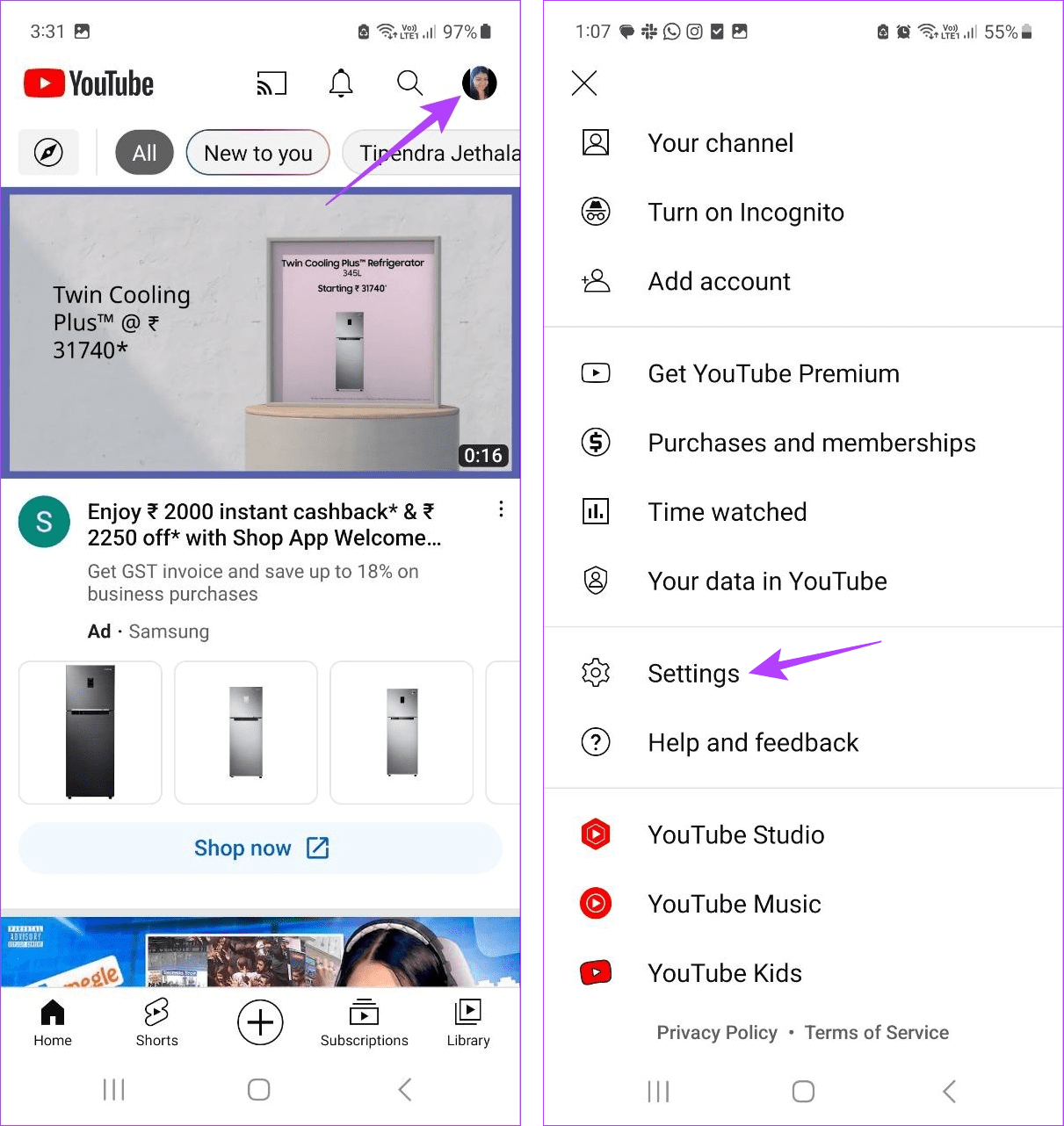
Step 1: Open the YouTube mobile app. In the top-right corner, tap on your profile icon. Scroll down and tap on Settings.
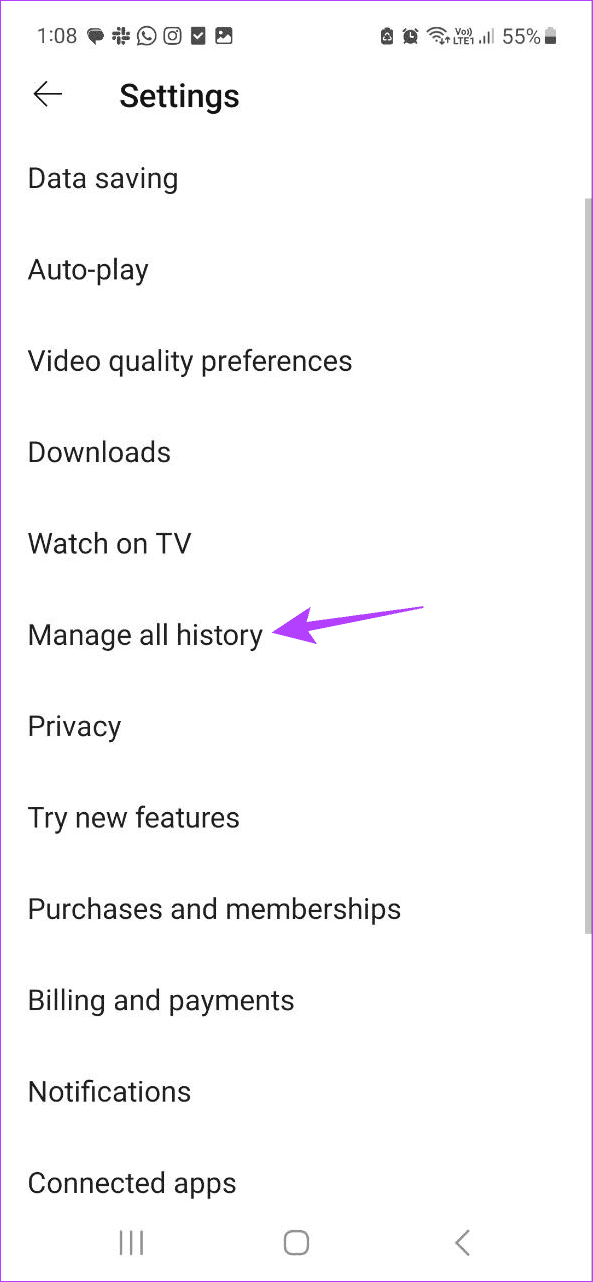
Step 2: Here, tap on Manage all history. Go to the YouTube History section and tap on Turn On.
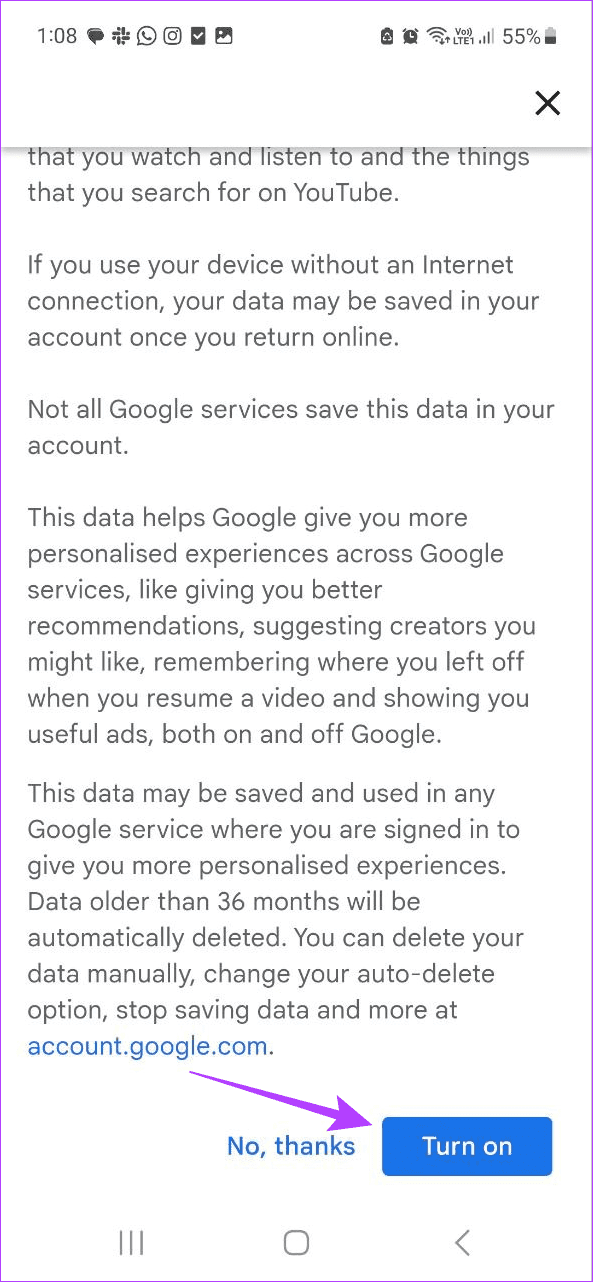
Step 3: Scroll through this page and tap on Turn on at the bottom.

On Desktop
Step 1: Open the Google My Activity page on any web browser. Here, click on YouTube History.

Step 2: Click on Turn on.

Step 3: Again, click on Turn on to confirm.
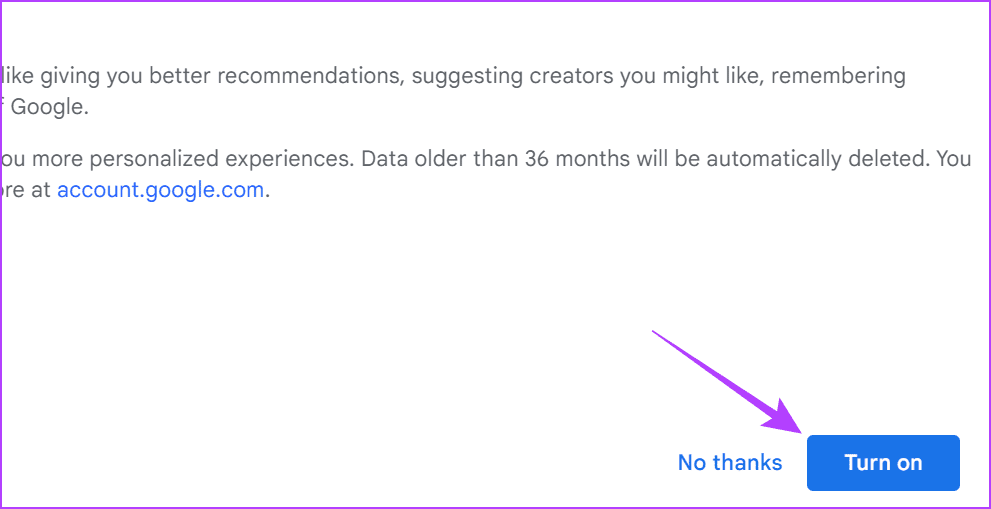
This will enable Watch History for all your devices. Then, open YouTube and check if this fixed the issue.
Fix 2: Clear YouTube Cache
The app cache can help load the app faster by using data from your previous visits. However, if any of this data is corrupted or too big, it might cause issues when using the app, like the homepage not showing on YouTube. To fix this, clear the cache for YouTube. Follow the below steps to do it.
On Android
Step 1: Open the Settings menu > tap on Apps > YouTube.

Step 2: Tap on Storage > Clear cache.

This should clear the cache for the YouTube Android app. If you’re using YouTube on your iOS device, offload the YouTube app to clear the cache.
On Edge Browser
Step 1: Open Edge and click on the three-dot icon at the top-right corner. Click on Settings.

Step 2: Click on Cookies and site permissions from the menu options. Then, click on Manage and delete cookies and site data.

Step 3: Click on See all cookies and site data to see cookies and site data.

Step 4: Click on YouTube. Then, go to the cache files and click on the bin icon.

On Firefox Browser
Step 1: Open Firefox on your desktop and go to YouTube.
Step 2: Then, go to the menu bar and click on the lock icon > Clear cookies and site data.

Step 3: When prompted, click on Remove.
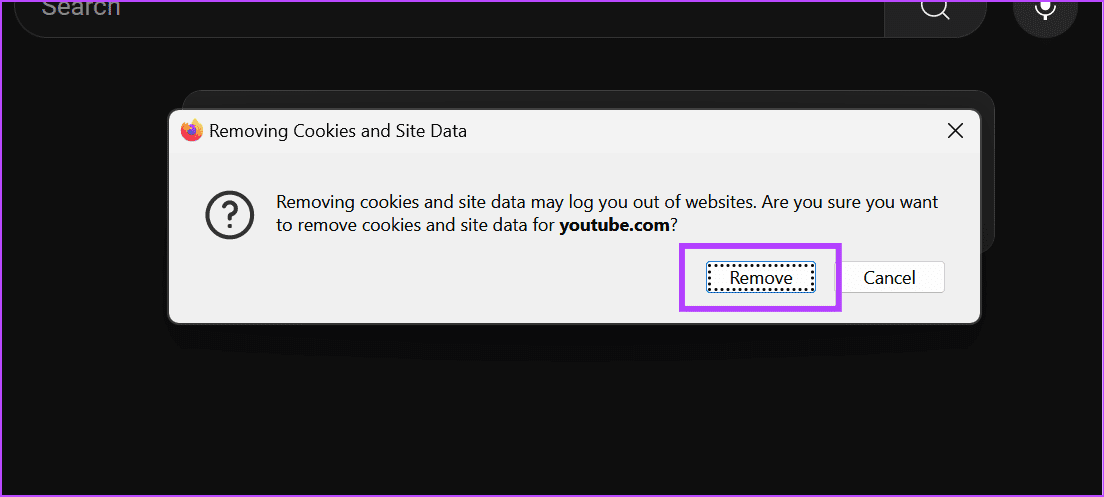
This will clear the cache for YouTube on Firefox. Check our other article to learn more about clearing the cache only for one site on Chrome. Then, open YouTube again to see if this fixed the issue.
Was this helpful?
Last updated on 26 June, 2024
Read Next
 Why Do You See Blank Thumbnails on Netflix?
1.
Why Do You See Blank Thumbnails on Netflix?
1.
 4 Ways to Fix Blank White Screen in Microsoft Teams on Windows 11
Common Fixes Force close and reopen Microsoft Teams: Press the Ctrl + Shift + Esc shortcut to open Task Manager.
4 Ways to Fix Blank White Screen in Microsoft Teams on Windows 11
Common Fixes Force close and reopen Microsoft Teams: Press the Ctrl + Shift + Esc shortcut to open Task Manager.
 5 Ways to Fix Google Chrome Showing Untitled Blank Page
Basic Fixes: Close and restart Chrome: Temporary browser glitches can cause Chrome to show an untitled blank page.
5 Ways to Fix Google Chrome Showing Untitled Blank Page
Basic Fixes: Close and restart Chrome: Temporary browser glitches can cause Chrome to show an untitled blank page.
 3 Ways to Delete Blank or Extra Pages in Word
The Easiest Way to Delete a Page on Microsoft Word All you need to do is select the text or content on the page and hit the Backspace or Delete
3 Ways to Delete Blank or Extra Pages in Word
The Easiest Way to Delete a Page on Microsoft Word All you need to do is select the text or content on the page and hit the Backspace or Delete
 How to Delete a Blank Page in Google Docs on Any Device
How to Remove Empty Pages Using the Google Docs Mobile App Although the Google Docs mobile app does not have as many options as the desktop version, it still gets
How to Delete a Blank Page in Google Docs on Any Device
How to Remove Empty Pages Using the Google Docs Mobile App Although the Google Docs mobile app does not have as many options as the desktop version, it still gets
 How to Send a Blank Message on WhatsApp
Sending long-winded messages has become a thing of the past.
How to Send a Blank Message on WhatsApp
Sending long-winded messages has become a thing of the past.
 Top 9 Ways to Fix Microsoft Excel Opening a Blank Document
Microsoft Excel remains an integral part of many businesses and enterprises.
Top 9 Ways to Fix Microsoft Excel Opening a Blank Document
Microsoft Excel remains an integral part of many businesses and enterprises.
 Fix: Mac Mail Showing Blank Message Body for Exchange Emails
Basic Fixes Check your Outlook account details: Open Mail > Mail at the top-left corner > Accounts > Exchange account > Check your account details.
Fix: Mac Mail Showing Blank Message Body for Exchange Emails
Basic Fixes Check your Outlook account details: Open Mail > Mail at the top-left corner > Accounts > Exchange account > Check your account details.
The article above may contain affiliate links which help support Guiding Tech. The content remains unbiased and authentic and will never affect our editorial integrity.