


Basic Fixes:
- Restart the YouTube app: If the issue of button controls showing up is due to a temporary bug, restarting the app should fix it. Open background apps and close them all. Then, restart only the YouTube app and check.
- Exit and re-enter full-screen mode: Sometimes, the button controls get stuck when you initially enter full-screen mode. So, exit the full-screen mode and re-enter it to see if this fixes the issue.
- Check for app updates: Software-based bugs can also cause the button controls to show up even after you’ve entered full-screen mode on YouTube. To fix it, check and ensure the YouTube app is updated.
- Reinstall the YouTube app: Certain custom app settings can cause the button controls to show up unprompted. You can uninstall the YouTube app and reinstall a fresh app copy. Please note this is only possible if YouTube is not a system app.
Fix 1: Disable Accessibility Menu
Certain Accessibility settings, like the Accessibility menu, ensure buttons are visible on your Android device for easy access. However, this can cause issues when using the YouTube app in full-screen mode. To ensure this does not happen, use the below steps to turn off this feature on your Android phone.
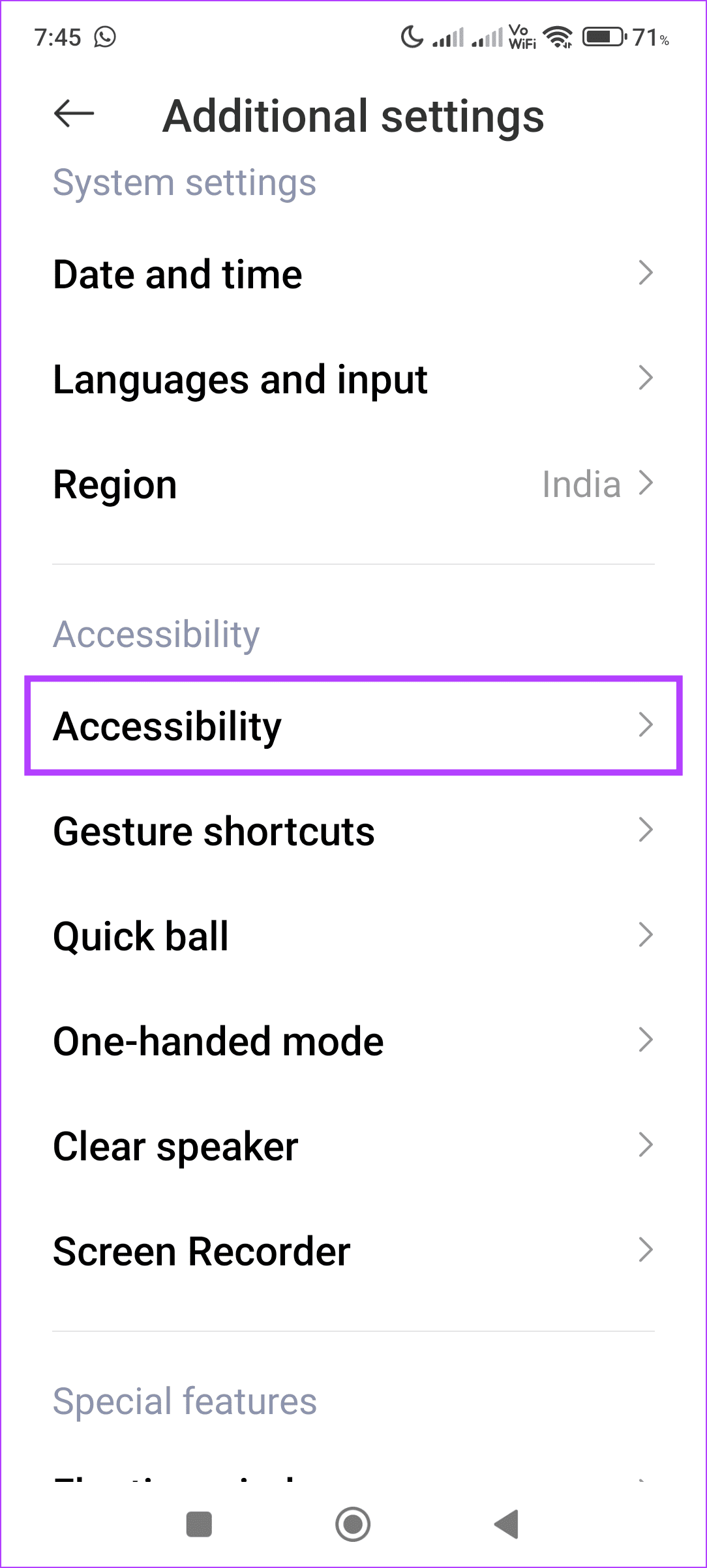
Step 1: Open Settings and tap on Additional settings. Tap on Accessibility.

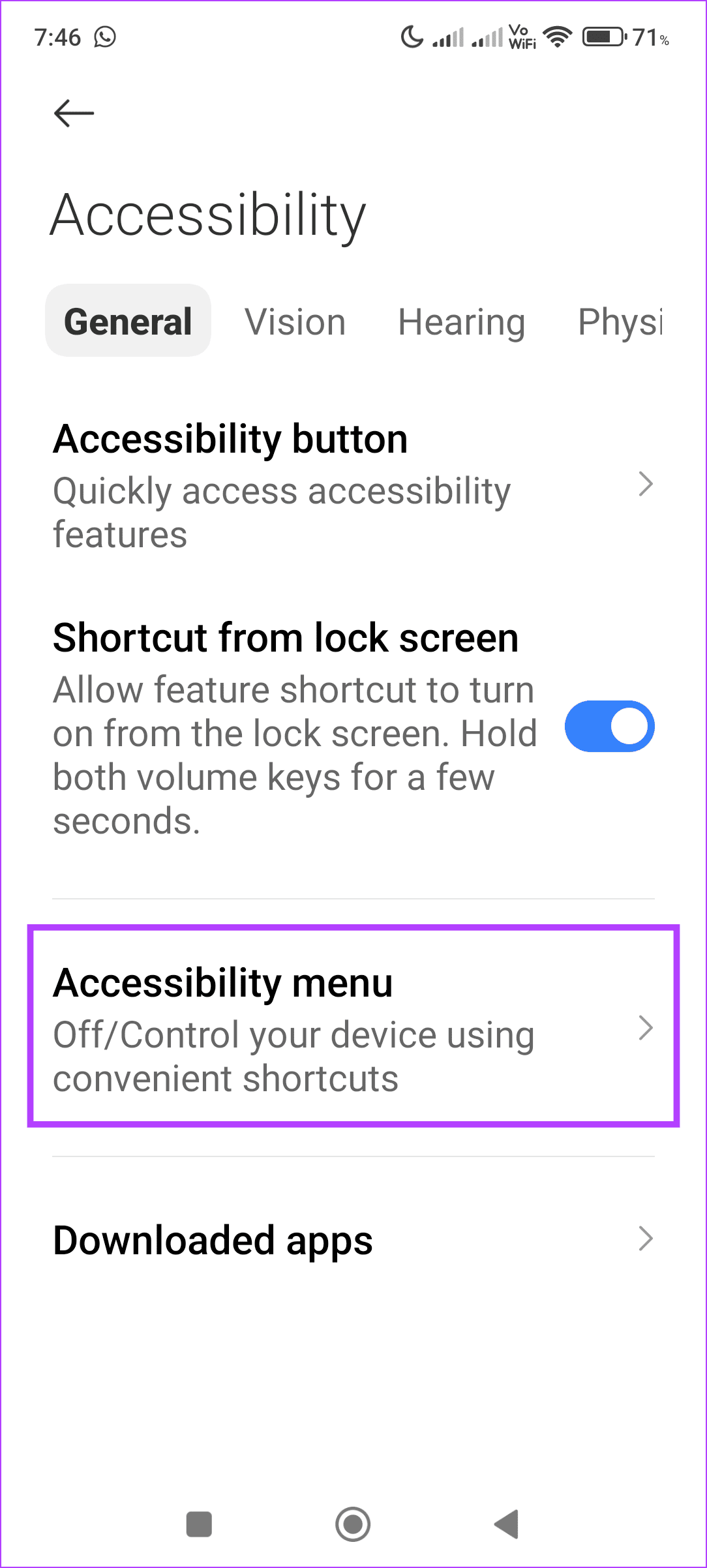
Step 2: Tap on Accessibility menu and turn the Accessibility menu shortcut toggle off.

Also Read: How to fix closed captions not working on YouTube
Fix 2: Turn off App Permissions
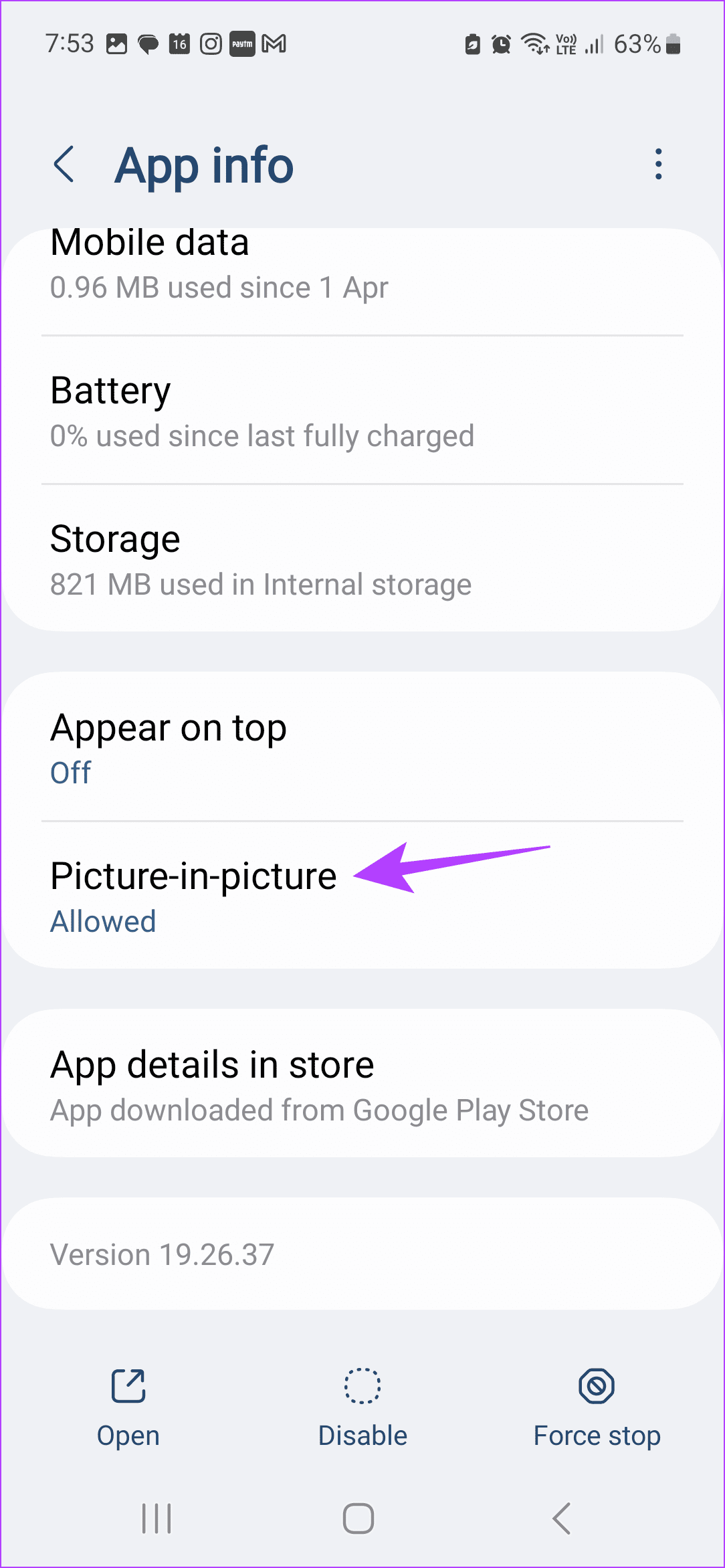
If YouTube has permission to open in picture-in-picture mode or as a floating window, chances are the button controls will still be visible. To prevent this from happening, disable the relevant settings and ensure YouTube opens in full-screen mode within the app. Here’s how to do it.
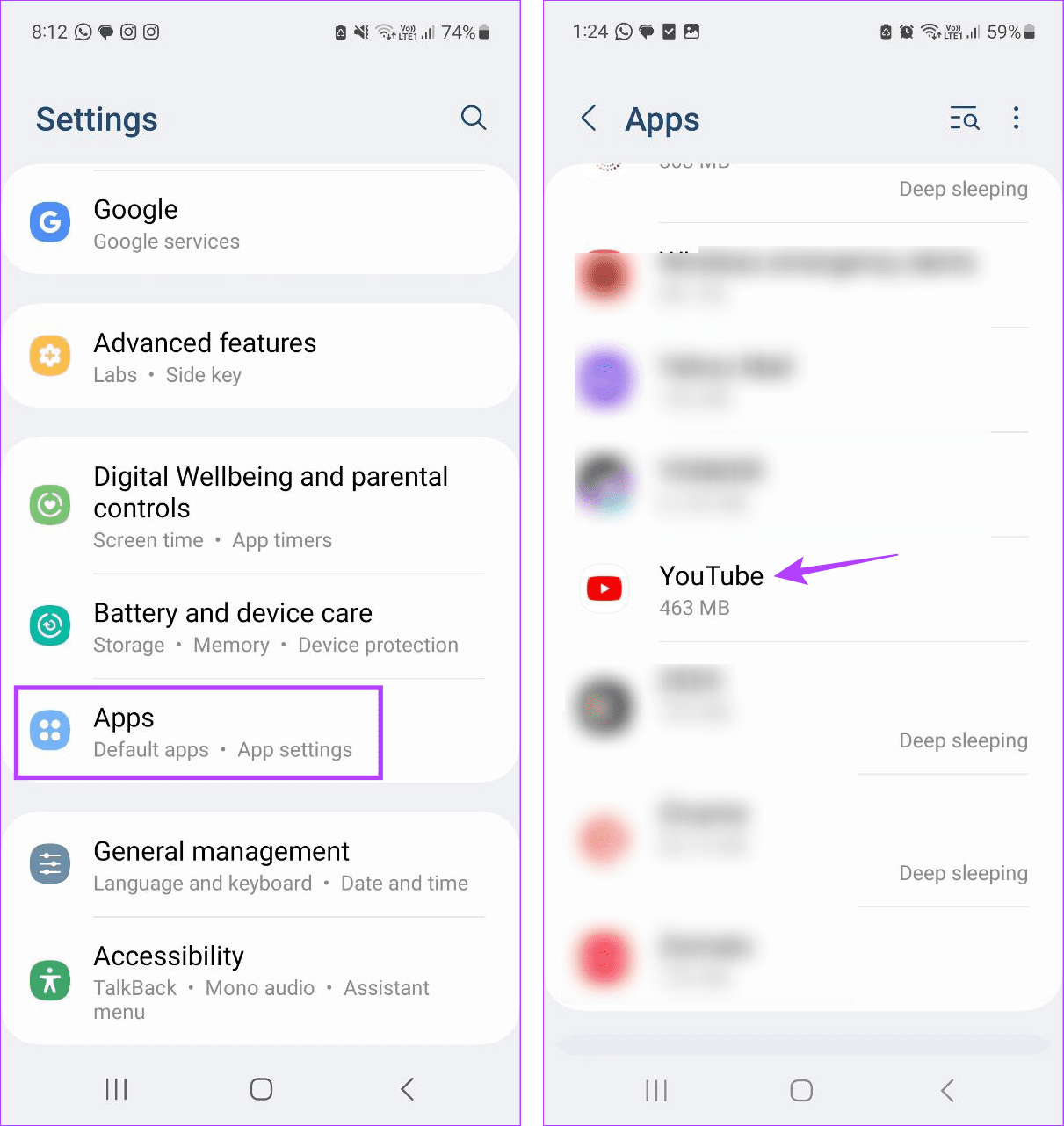
Step 1: Open Settings and tap on Apps. Tap on YouTube.
Step 2: Scroll down and tap on Appear on top. Turn the toggle off.
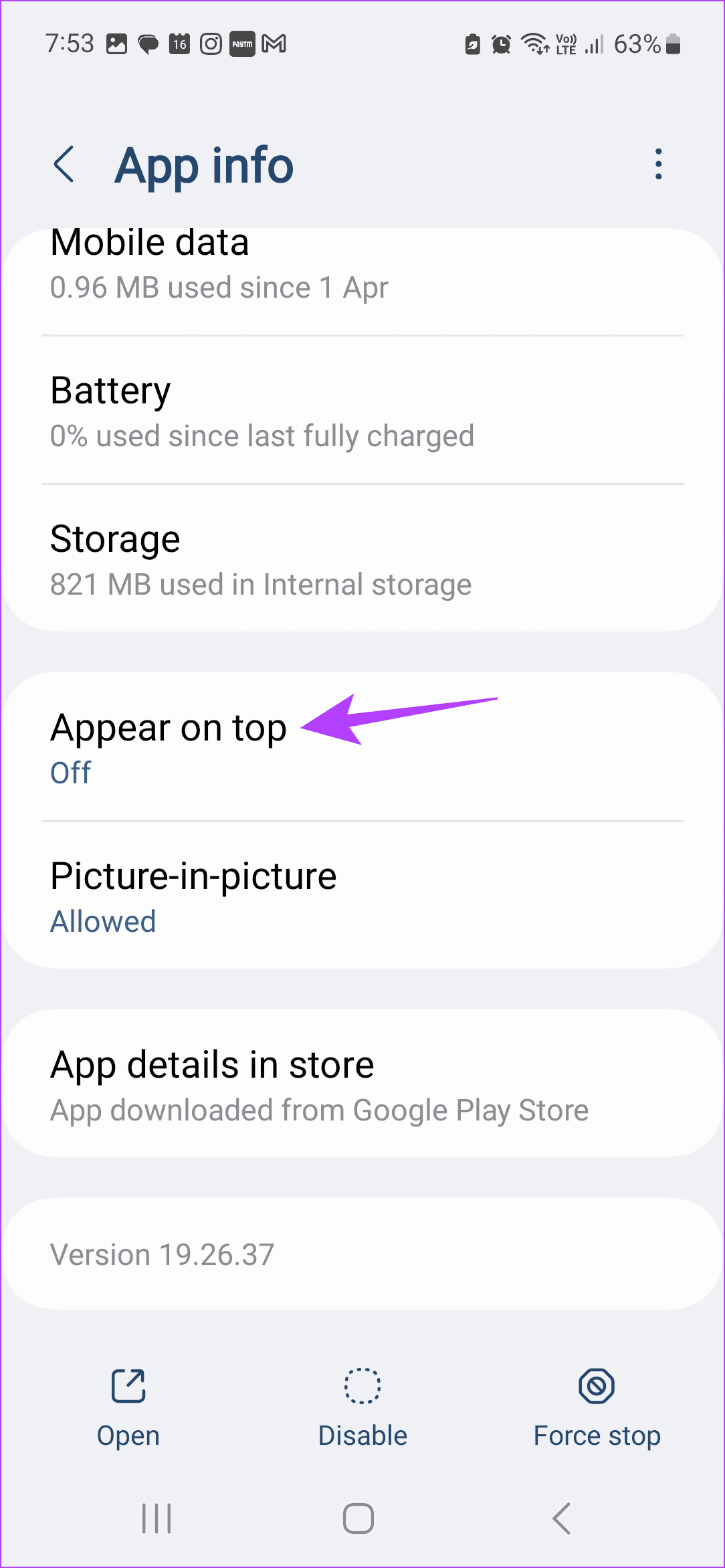

Step 3: Go back to the menu page and tap on Picture-in-picture. Turn the toggle off.

Also Read: How to fix white screen on YouTube on any device
Fix 3: Clear the YouTube App Cache
Caches help your apps in loading content faster. However, if there is an issue with this cache data, it can backfire and cause the app to behave in unusual ways. To ensure this is not the case, you can clear the cache for the YouTube app using the below steps.
Step 1: Open Settings and tap on Apps → YouTube.
Step 2: Then, tap on Storage. Tap on Clear cache.

Fix 4: Uninstall YouTube App Updates
In case YouTube is a system app, you might not find the option to uninstall it. So, you can do the next best thing and uninstall all app updates. This will ensure any bugs or glitches from any updates will be deleted. Then, try using the app in full-screen mode again to check. Here’s how to do it.
Step 1: Open Settings → Apps → tap on YouTube.
Step 2: Tap the three-dot icon in the top-right corner and tap Uninstall updates.


Confirm when prompted. Once done, restart the YouTube app and try playing something in full screen again to see if the issue has been resolved.
Was this helpful?
Last updated on 16 July, 2024
Read Next
 How to Fix Windows 11 Taskbar Not Hiding Automatically
https://youtu.be/-5aFwU1B6AE Fix 1: Restart Windows Explorer The quickest way to remove any Taskbar issue is to restart the Windows Explorer.
How to Fix Windows 11 Taskbar Not Hiding Automatically
https://youtu.be/-5aFwU1B6AE Fix 1: Restart Windows Explorer The quickest way to remove any Taskbar issue is to restart the Windows Explorer.
 How to Manage and Customize Controls on OnePlus Buds
Install and Set Up the HeyMelody App Step 1: Download and install the HeyMelody app from the Play Store or App Store.
How to Manage and Customize Controls on OnePlus Buds
Install and Set Up the HeyMelody App Step 1: Download and install the HeyMelody app from the Play Store or App Store.
 How to Access and Manage Your Google Activity Using Google Activity Controls
Google offers a wide range of products in the technology space.
How to Access and Manage Your Google Activity Using Google Activity Controls
Google offers a wide range of products in the technology space.
 5 Fixes for Touch Controls Not Working on AirPods and AirPods Pro
Fix 1: Clean the Outer Surface of the AirPods The touch sensors on the AirPods need to detect proper contact with your fingers to register a touch or a press.
5 Fixes for Touch Controls Not Working on AirPods and AirPods Pro
Fix 1: Clean the Outer Surface of the AirPods The touch sensors on the AirPods need to detect proper contact with your fingers to register a touch or a press.
 6 Best RGB Corner Floor Lamps With Smart Controls
Adding a hint of color to your home is never a bad thing.
6 Best RGB Corner Floor Lamps With Smart Controls
Adding a hint of color to your home is never a bad thing.
 How to Set Up and Use Fire TV Stick Parental Controls
Most services now have their app on streaming devices like the Fire TV Stick.
How to Set Up and Use Fire TV Stick Parental Controls
Most services now have their app on streaming devices like the Fire TV Stick.
 How to Set Up Parental Controls on Snapchat
What You Need to Know About Snapchat Parental Controls Snapchat includes the option of the Family Center for setting up Parental Controls.
How to Set Up Parental Controls on Snapchat
What You Need to Know About Snapchat Parental Controls Snapchat includes the option of the Family Center for setting up Parental Controls.
 4 Ways to Fix Cast Button Missing on YouTube
Basic Fixes Connect devices to the same Wi-Fi network: Ensure your computer or smartphone is connected to the same Wi-Fi network as the cast device (e.g.
4 Ways to Fix Cast Button Missing on YouTube
Basic Fixes Connect devices to the same Wi-Fi network: Ensure your computer or smartphone is connected to the same Wi-Fi network as the cast device (e.g.
The article above may contain affiliate links which help support Guiding Tech. The content remains unbiased and authentic and will never affect our editorial integrity.

