Fix 1: Turn off the Full-Screen Setting
Microsoft offers a native setting that allows users to switch from the normal Start Menu to the expanded one. Sometimes, the same setting is activated, and that’s why the Start Menu is always open on your PC. To close the full-screen Start Menu, you must disable that setting.
Step 1: Open Settings on your Windows 10 PC from the Start Menu.

Step 2: Click on Personalization.
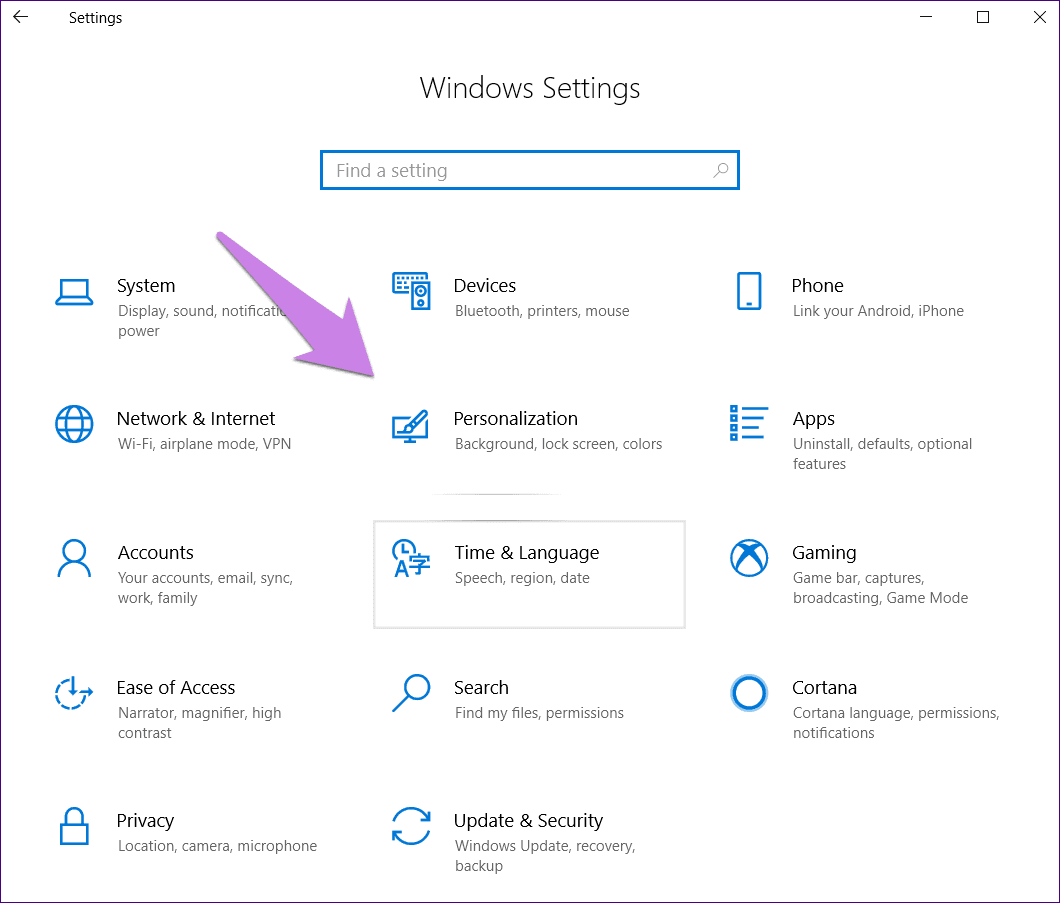
Step 3: Click on Start present in the left sidebar. Then, turn off the toggle for Use Start full screen. If it is turned off, turn it on and disable it again.

Step 4: Even though the changes will reflect immediately, restart your computer.
Fix 2: Turn off Tablet Mode
Microsoft has improved the tablet mode on Windows computers. For instance, the icons become big when you activate the tablet mode. The same goes for the Start Menu, where a full-screen menu replaces the usual one with no desktop. You may experience the Start menu problem if you have activated this setting.
Step 1: Open Action Center on your computer by clicking the right-most icon in the taskbar or pressing the Windows key + A to launch it.

Step 2: Look for the Tablet mode option. The blue icon indicates that it is on. Click on it once to turn it off.
Note: If the Tablet mode option is missing, click on Expand to view all the buttons in the Action Center.

Fix 3: Disable Tablet Mode at Start
If the above solution does not work, and the full-screen Start Menu doesn’t disappear, you need to change another setting related to tablet mode.
Step 1: Open Settings using the Windows + I keys shortcut on your computer and go to System.

Step 2: Click on Tablet mode in the left pane. Then, under When I sign in the drop-down box, select Use desktop mode or Use the appropriate mode for my hardware.

Was this helpful?
Last updated on 28 May, 2024
Read Next
 Top 6 Ways to Fix Games Not Opening in Full Screen on Windows 11
Fix 1: Use the Keyboard Shortcut Sometimes, the games may open in windowed mode by default, and you might have hit the Maximize window shortcut on your computer.
Top 6 Ways to Fix Games Not Opening in Full Screen on Windows 11
Fix 1: Use the Keyboard Shortcut Sometimes, the games may open in windowed mode by default, and you might have hit the Maximize window shortcut on your computer.
 Top 5 Ways to Fix Windows 10 Stuck on Welcome Screen
It’s common for Windows computers to get stuck during usage or on either end of the power spectrum—startup and shutdown.
Top 5 Ways to Fix Windows 10 Stuck on Welcome Screen
It’s common for Windows computers to get stuck during usage or on either end of the power spectrum—startup and shutdown.
 4 Ways to Fix Windows 11 Stuck on Shutting Down Screen
Try These Things First Try to force shutdown: Sometimes the problem can occur due to a temporary bug or glitch.
4 Ways to Fix Windows 11 Stuck on Shutting Down Screen
Try These Things First Try to force shutdown: Sometimes the problem can occur due to a temporary bug or glitch.
 5 Ways to Fix Windows 11 Stuck on Restarting Screen
Try Basic Fixes Perform a force shutdown: While your Windows PC is stuck on restarting, press and hold the Windows key + X + power button until it turns off
5 Ways to Fix Windows 11 Stuck on Restarting Screen
Try Basic Fixes Perform a force shutdown: While your Windows PC is stuck on restarting, press and hold the Windows key + X + power button until it turns off
 6 Ways to Fix Windows PC Stuck on Please Wait for GPSVC Screen
Fix 1: Restart Your PC Sometimes, temporary glitches with your system can cause Windows to become stuck on the "Please wait for the gpsvc" screen.
6 Ways to Fix Windows PC Stuck on Please Wait for GPSVC Screen
Fix 1: Restart Your PC Sometimes, temporary glitches with your system can cause Windows to become stuck on the "Please wait for the gpsvc" screen.
 4 Fixes When the Windows 11 Volume Slider Is Stuck on the Screen
Basic Fixes: Restart the computer: A reboot forces all services and processes to shut down, fixing glitches and temporary bugs.
4 Fixes When the Windows 11 Volume Slider Is Stuck on the Screen
Basic Fixes: Restart the computer: A reboot forces all services and processes to shut down, fixing glitches and temporary bugs.
 Start Menu on Windows 10 Won’t Open: Here Are 11 Ways to Fix It
Windows Start Menu is a gateway to all the apps and software available on your system.
Start Menu on Windows 10 Won’t Open: Here Are 11 Ways to Fix It
Windows Start Menu is a gateway to all the apps and software available on your system.
 6 Ways to Fix Icons Missing From Start Menu on Windows 11
Fix 1: Restart Windows Explorer Windows Explorer process is responsible for providing the graphical interface for several utilities, including the Start menu.
6 Ways to Fix Icons Missing From Start Menu on Windows 11
Fix 1: Restart Windows Explorer Windows Explorer process is responsible for providing the graphical interface for several utilities, including the Start menu.
The article above may contain affiliate links which help support Guiding Tech. The content remains unbiased and authentic and will never affect our editorial integrity.