In most cases, if VMware Workstation cannot scan local directory, chances are there’s a folder access issue surrounding the file. In rarer cases, the virtual machine itself might not have been set up properly to access your files. When you cannot scan local directory, VMware might be able to overcome this with a few setting changes or by using a different file. Here’s how.
Fix 1 – Cannot Scan Local Directory, VMware Needs Read Access.
In some cases, VMware Workstation may not be able to access a folder because the Windows account lacks the necessary permissions. You can check the folder’s permissions in File Explorer.
Step 1. Find the folder you’re trying to copy from.
Step 2. Right-click on the folder and select “Properties.”
Step 3. Go to the “Security” tab.

Step 4. Find your account’s name. It should have either “Full Control” or both “Write” and “Read” permissions. If not, go to “Edit” and add the permissions.
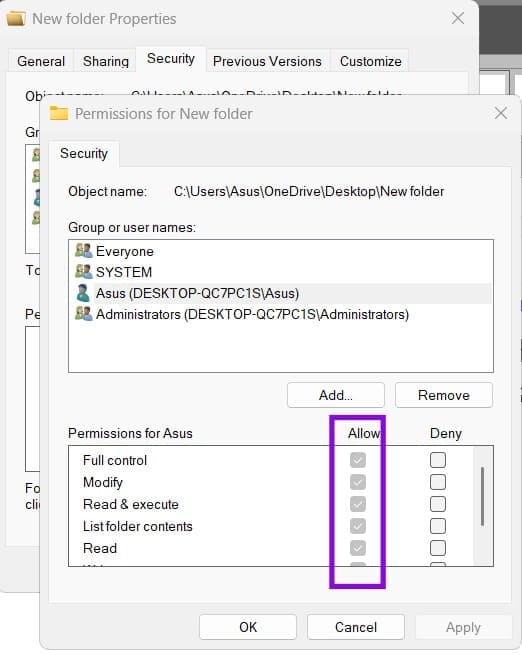
Step 5. Click on “Apply” to save the changes, close out of the dialogs, and try again.
Fix 2 – Move the Folder Out of Protected Space
In some cases, security settings or file permissions may prevent VMware Workstation from accessing files in protected folders, such as Desktop, or folders managed by OneDrive.
Step 1. Find the folder you’re trying to access.
Step 2. Create a new folder in an accessible location on your C: or D: drive. Name it something you’ll remember, such as “VM Copy” or “VM Backup.”
Step 3. Add the files you’re trying to copy to the new folder.
Step 4. Try to access the new folder from VM Workstation.
Fix 3 – Close All Apps That Might Be Interfering
If another application is using or locking a file you’re trying to copy, it may prevent the file from being accessed or transferred. Closing the application can help rule out this possibility.
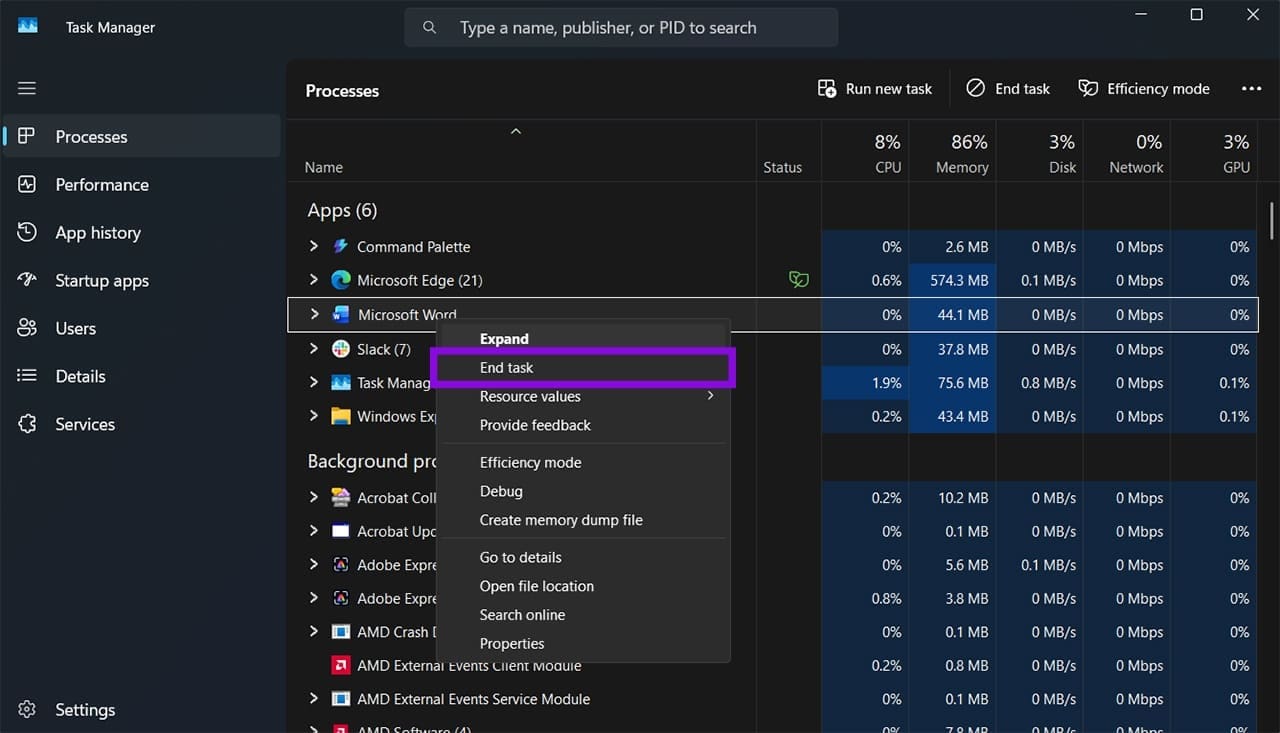
Step 1. Open the Task Manager on the host PC.
Step 2. Find any active apps that might be using files that you’re accessing. These could include Office applications, other file-transfer utilities, terminal windows running file operations, or backup and synchronization tools such as OneDrive.
Step 3. Right-click on the apps and select “End task.”
Fix 4 – Create a Zipped Folder
If you can’t drag and drop from the operating system into the virtual machine, a separate zipped folder might work since it doesn’t contain the entire path or branches that VMware can’t parse.
Step 1. Use Windows’ built-in ZIP support or download WinRAR and install it.
Step 2. Right-click the folder you want to copy, open the “WinRAR” submenu, and select “Add to [name].rar.” This creates a RAR archive in the same directory.

Step 3. Copy over the new zipped file to the virtual machine by dragging and dropping.
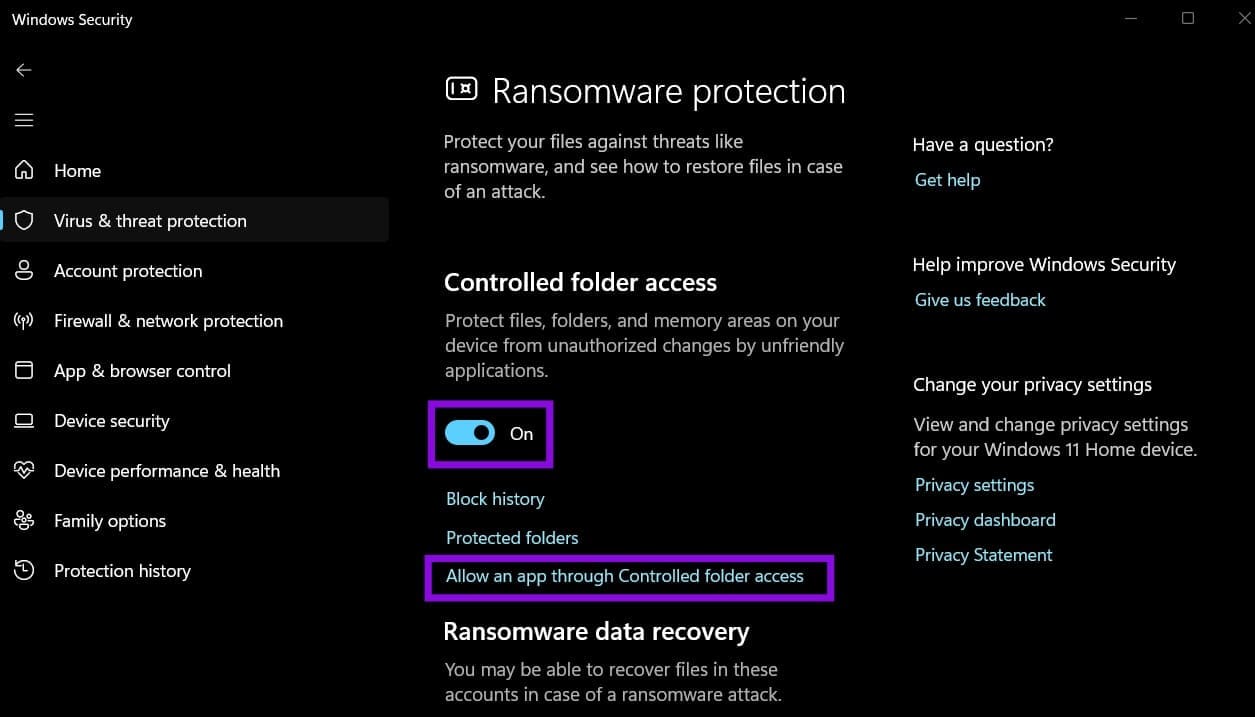
Fix 5 – Disable Controlled Folder Access
One setting that might override traditional read/write permissions is Microsoft Defender’s “Controlled folder access.” It can block untrusted applications from making changes to files in protected folders, so check whether it has blocked VMware Workstation.
Step 1. Search for “Windows Security” in the search bar or “Settings” and open it.
Step 2. Select “Virus & threat protection.”
Step 3. Scroll down and select “Manage Controlled folder access.”
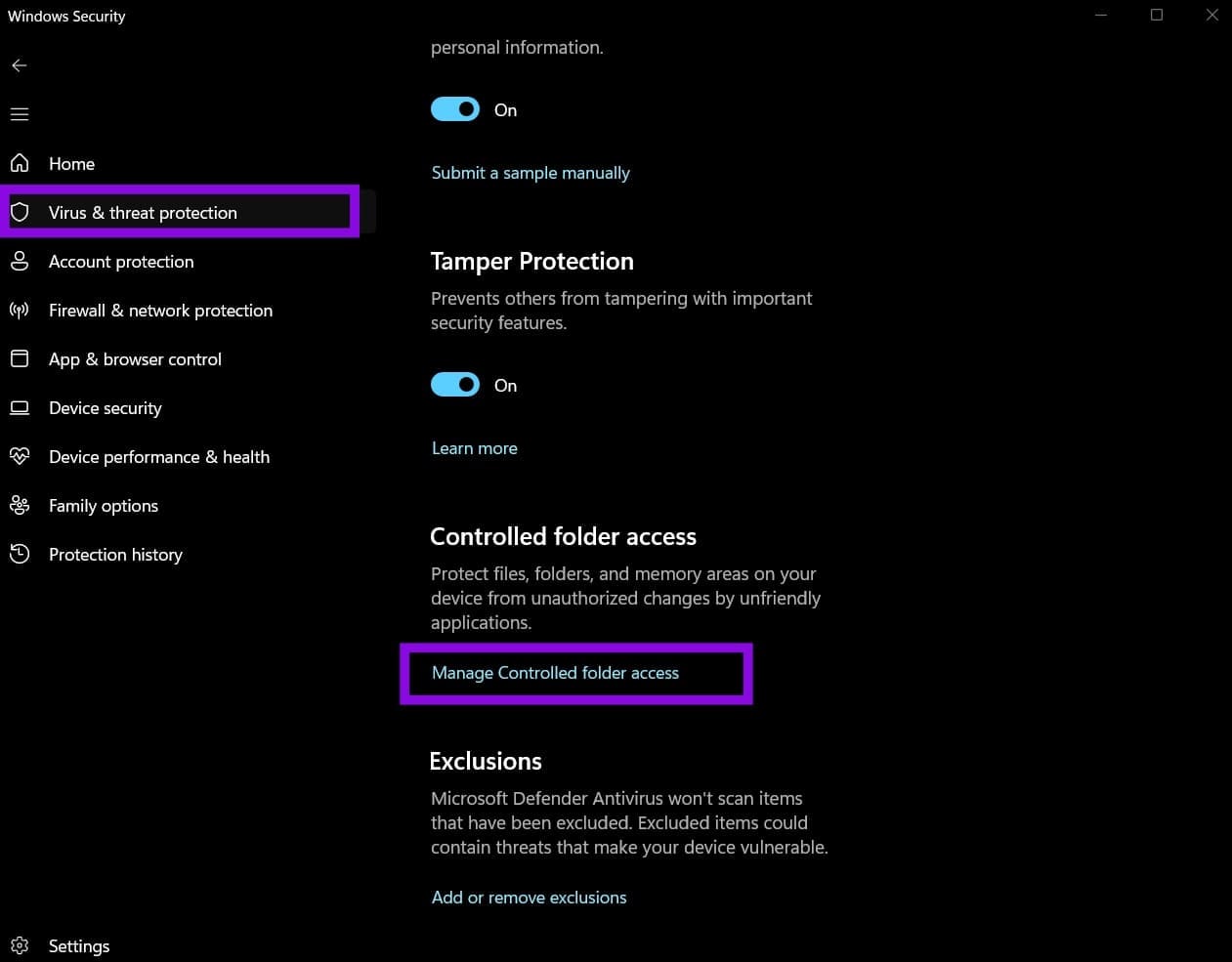
Step 4. Set the setting to “Off” or select “Allow an app through Controlled folder access,” then add VMware Workstation to the list.
Was this helpful?
Last updated on 21 October, 2026
Read Next
 How To Enable Remote Desktop or RDP in VMware – Guiding Tech
There are multiple methods of connecting to a virtual machine in VMware.
How To Enable Remote Desktop or RDP in VMware – Guiding Tech
There are multiple methods of connecting to a virtual machine in VMware.
 How to Fix Malfunctioning Microphone in VMWare
Not getting any sound in VMware can be a nuisance to troubleshoot because it can stem from either yours or the remote system’s settings.
How to Fix Malfunctioning Microphone in VMWare
Not getting any sound in VMware can be a nuisance to troubleshoot because it can stem from either yours or the remote system’s settings.
 Adobe Scan vs Genius Scan: Which Document Scanner App Is Better on iPhone
You can recollect the times you ran around looking for an actual scanner to get a digital copy of a document.
Adobe Scan vs Genius Scan: Which Document Scanner App Is Better on iPhone
You can recollect the times you ran around looking for an actual scanner to get a digital copy of a document.
 How to Set Up Local Folder Sharing Between Windows and Mac
If you use both a Windows PC and a Mac, you might be spending quite some time fumbling around with flash drives to transfer data between them.
How to Set Up Local Folder Sharing Between Windows and Mac
If you use both a Windows PC and a Mac, you might be spending quite some time fumbling around with flash drives to transfer data between them.
 3 Ways to Fix “The Local Device Name Is Already in Use” Error on Windows 11/10
Fix 1: Assign or Change Drive Letter Step 1: Right-click the Windows Start button, locate Disk management, and click to open.
3 Ways to Fix “The Local Device Name Is Already in Use” Error on Windows 11/10
Fix 1: Assign or Change Drive Letter Step 1: Right-click the Windows Start button, locate Disk management, and click to open.
 2 Ways to Reset Local Group Policy Settings on Windows 11
Method 1: Reset Local Group Policy Settings Using the Group Policy Editor To reset local group policy settings on Windows 11, set all policies to 'Not Configured' individually using the
2 Ways to Reset Local Group Policy Settings on Windows 11
Method 1: Reset Local Group Policy Settings Using the Group Policy Editor To reset local group policy settings on Windows 11, set all policies to 'Not Configured' individually using the
 6 Ways to Open Local Security Policy in Windows 10 and 11
Method 1: Using Windows Search Step 1: Press the Windows key on your keyboard or click the on-screen Windows icon. Step 2: Type Local Security Policy and click Run as
6 Ways to Open Local Security Policy in Windows 10 and 11
Method 1: Using Windows Search Step 1: Press the Windows key on your keyboard or click the on-screen Windows icon. Step 2: Type Local Security Policy and click Run as
 3 Ways to Play Local MP3 Files on iPhone
Method 1: Using the Files App The native Files app on your iPhone offers an easy way to play local MP3 files.
3 Ways to Play Local MP3 Files on iPhone
Method 1: Using the Files App The native Files app on your iPhone offers an easy way to play local MP3 files.
The article above may contain affiliate links which help support Guiding Tech. The content remains unbiased and authentic and will never affect our editorial integrity.