If you’re used to having Copilot as a familiar tool in Word or Excel, only to find that now it’s vanished, you’re definitely looking for answers. As of April 15, 2026, many Microsoft 365 users with the Basic or unlicensed versions of Copilot have lost access to this feature.
In this article, we’ll be exploring this move by Microsoft and what to do if you can’t access the Copilot AI button.
The Push Towards Premium
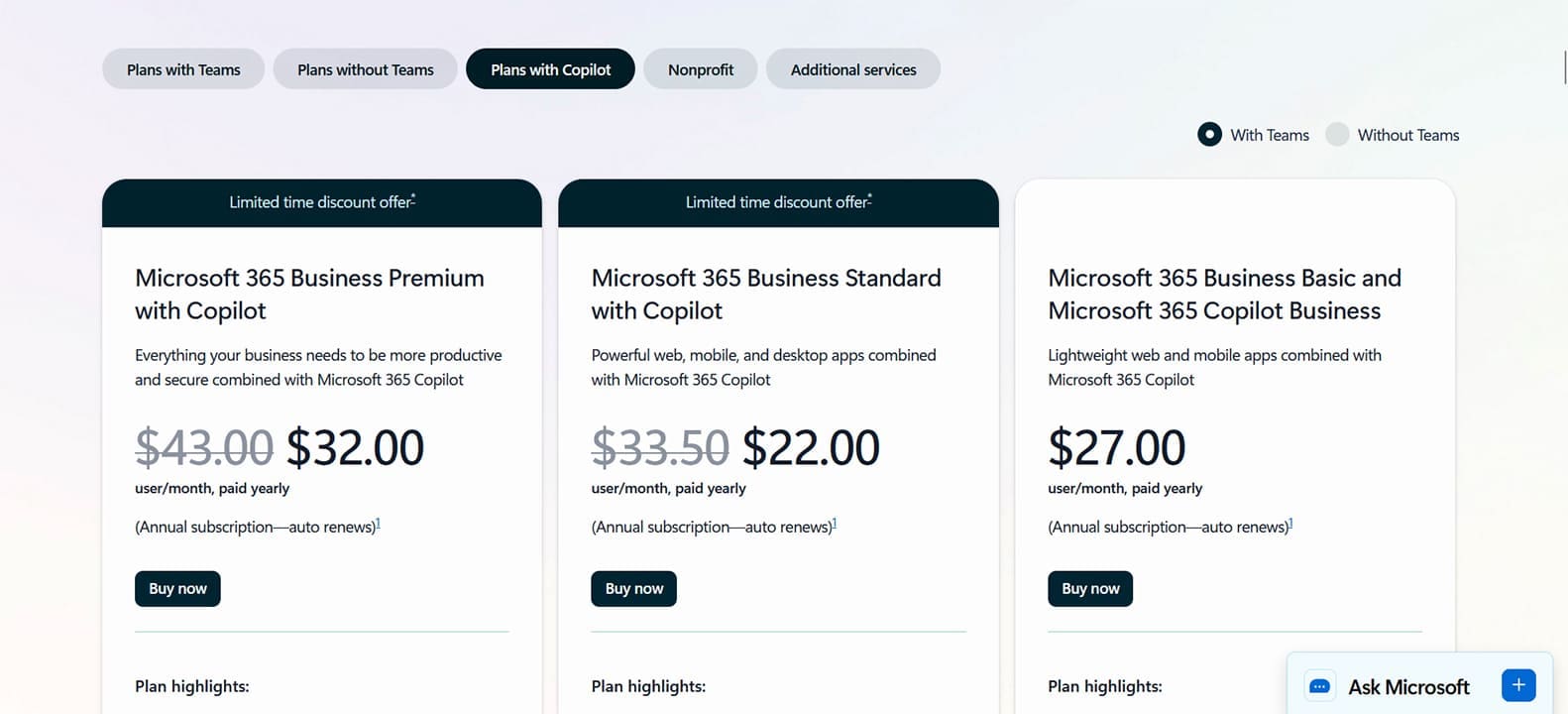
In April of this year, Microsoft made more of a push towards users signing up for Premium Copilot Licensing. The disappearance of the Copilot button from Office apps is one such way of distinguishing licenses.
For basic 365 users, Copilot chat, as it’s called under this license, is used only for talking inside apps like SharePoint and Office, without access to the Web feature. While the Copilot button was previously available at this tier, it no longer is.
It’s not only the subscription tier that affects this, but also organization size. For companies of over 2,000 users, the button will no longer appear, requiring a more advanced license to work.
Users will still be able to access Copilot via the Desktop app, browser page, Edge toolbar, or Outlook, but the convenience of the Copilot pane in Office is now reserved for Premium tier users.
Fixing a Missing Copilot AI Button
If you don’t suspect your subscription tier as the reason your Copilot button is missing, we’ve also got a few troubleshooters to help you out:
Check Your Subscription
The fastest way to see if your license is active or expired is to log in to your Microsoft account:
Step 1. Open Microsoft in any browser and log in with your credentials.
Step 2. Once logged in, head to your account profile (located in the top-right) and click it.
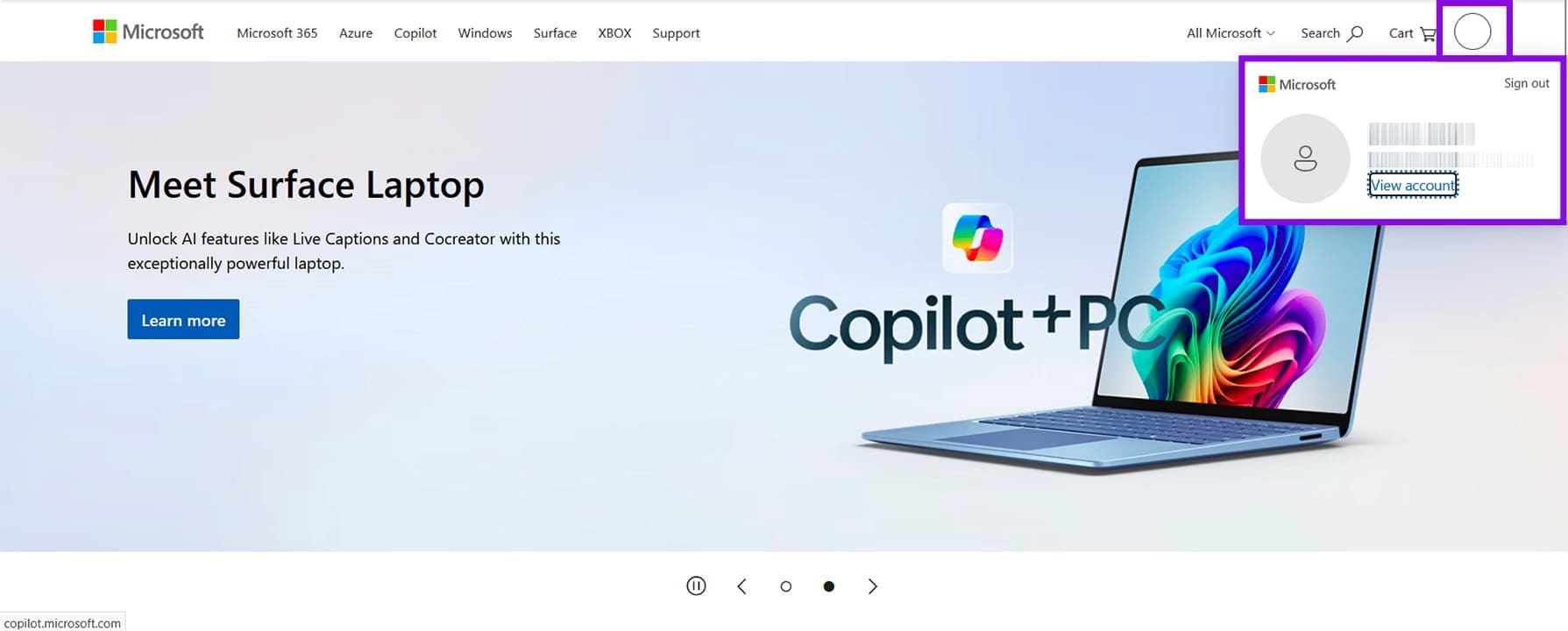
Step 3. Click “View account.”
Step 4. In the new tab that opens, click “Subscriptions” in the sidebar.
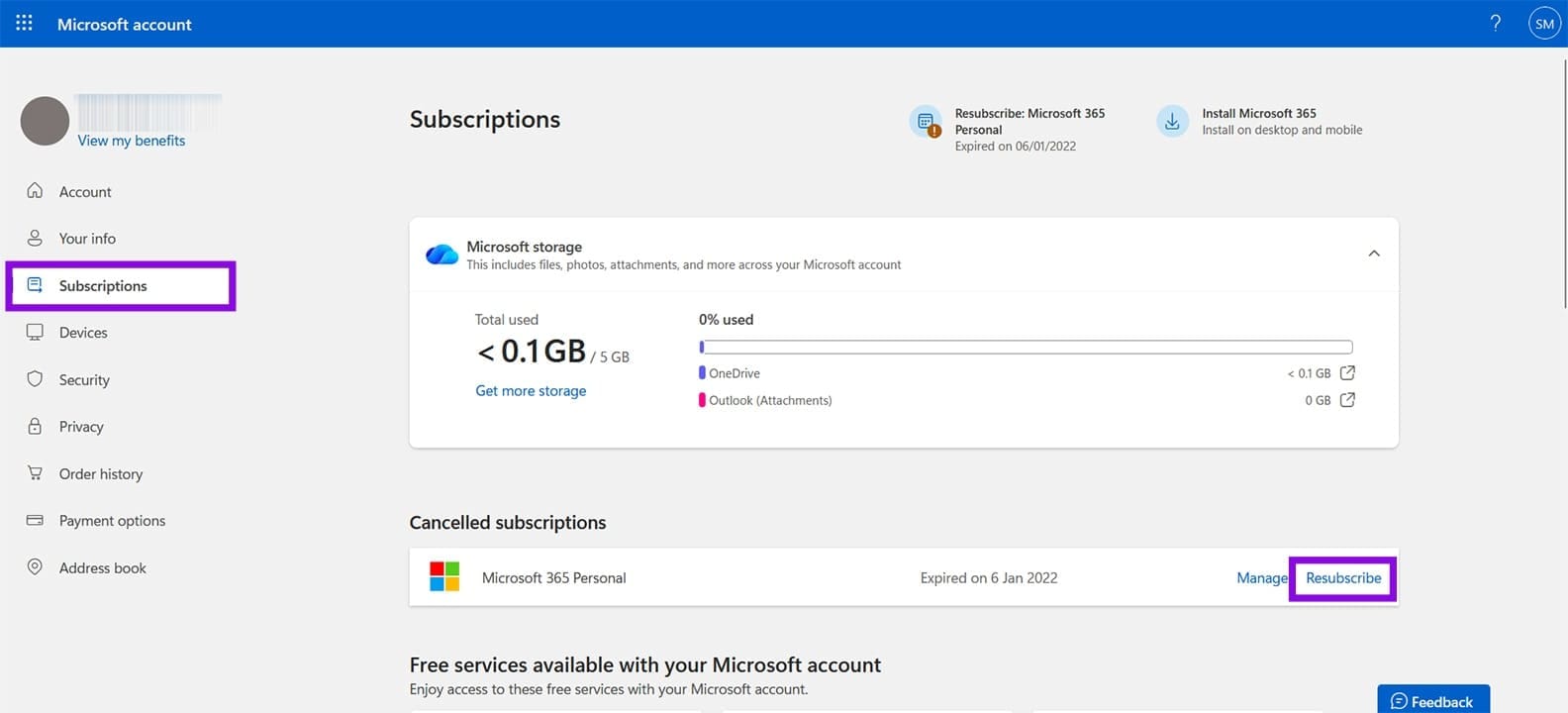
Step 5. Click the “Resubscribe” button near the top to renew an expired subscription.
Updating Your License
If you want to update your license to a Premium tier and get the Copilot button back in Office 365, you can do the following:
Step 1. Click the “File” tab in any 365 app, then click “Account” in the sidebar.
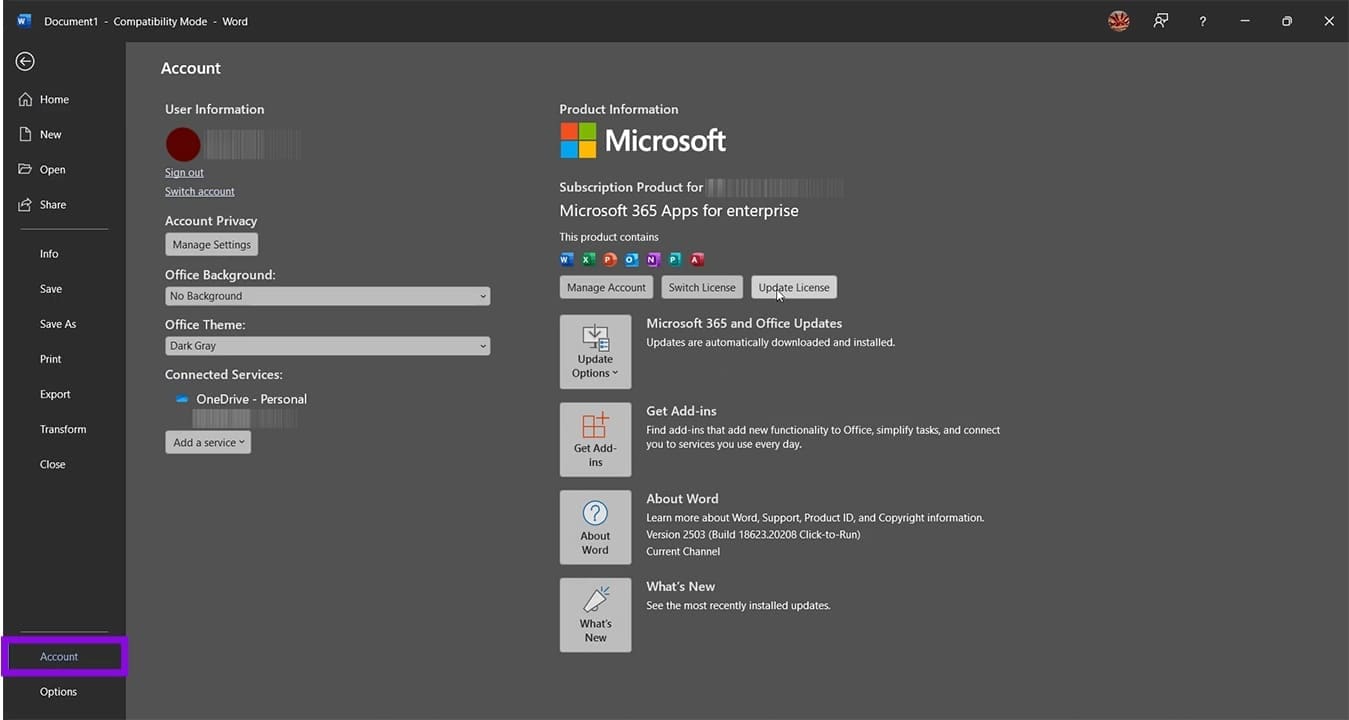
Step 2. Sign in to your account if you haven’t already.
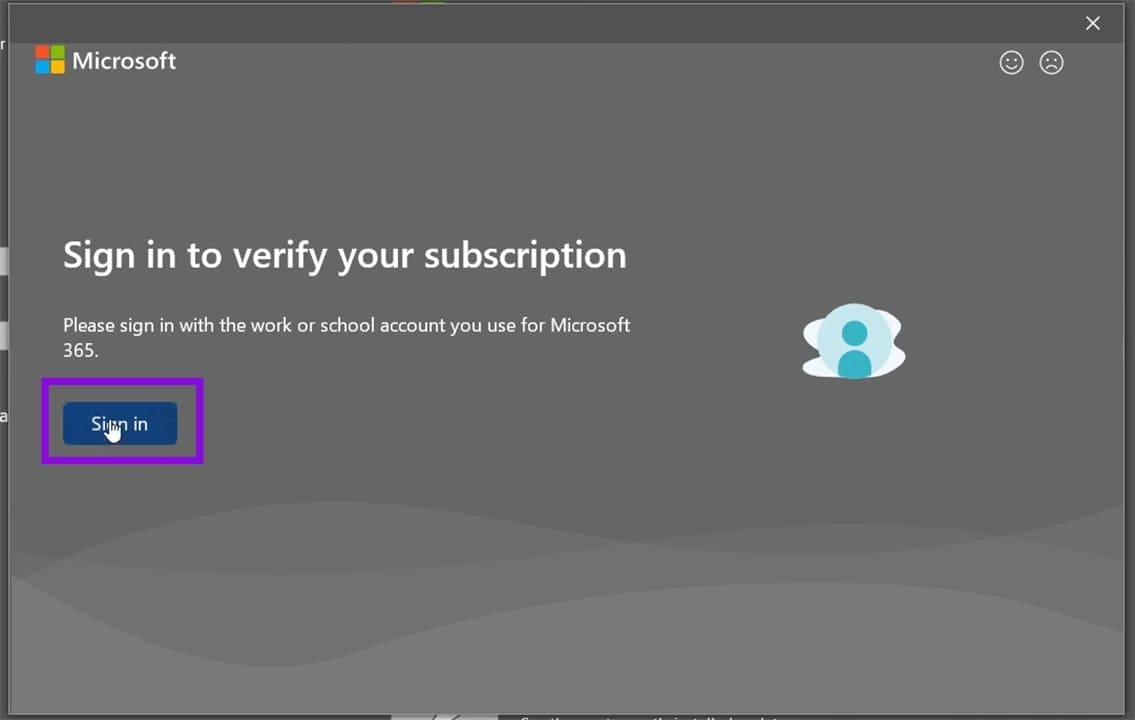
Step 3. Reverify your account or enter a new Update License to activate your new subscription.
Ensure You’re Using the Right Account
It can happen sometimes that the account you’re signed in with is not the one that will allow the Copilot button to appear. Just double-check your profile icon in the top-right of your menu bar to make sure. If not, change accounts and restart your Office app.
Enable Settings
Privacy-related settings can also be the reason the Copilot button won’t appear. To fix this, you’ll need to enable two settings in your “Account Privacy”:
Step 1. Click the “File” tab and “Account.”
Step 2. Click “Manage Settings” under “Account Privacy.”
Step 3. Ensure that “Turn on optional connected experiences” and “Experiences that analyze your content” are both checked.
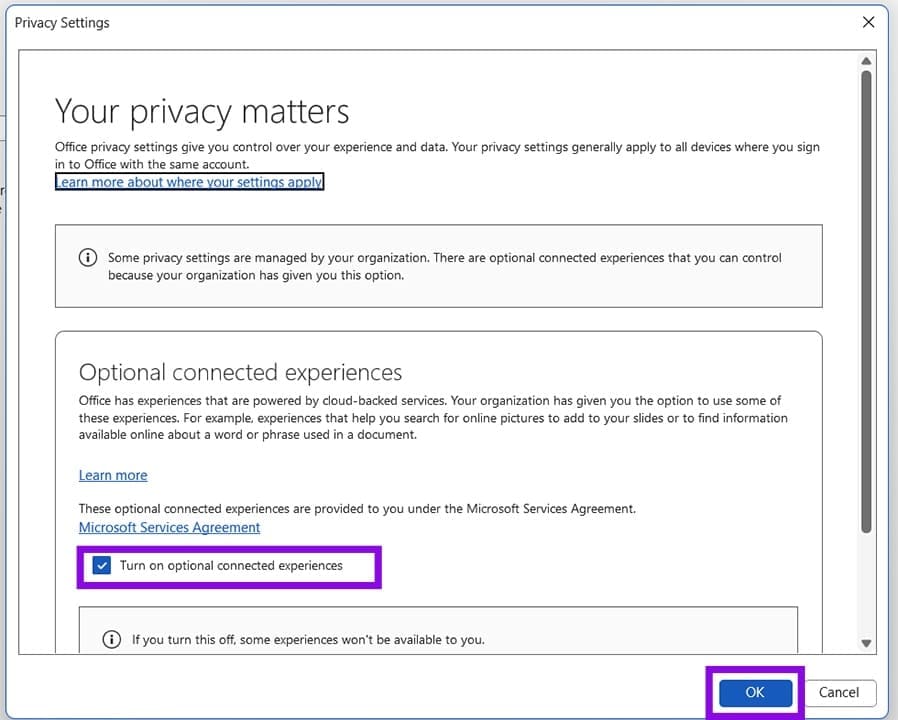
Step 4. Click “OK” to finalize and restart your app.
Was this helpful?
Last updated on 22 June, 2026
Read Next
 Why Do WhatsApp Messages Disappear and Can You Recover Them?
Why Do WhatsApp Messages Disappear?
Why Do WhatsApp Messages Disappear and Can You Recover Them?
Why Do WhatsApp Messages Disappear?
 4 Fixes for Events Disappear from Calendar App on iPhone
Basic Fixes Check the internet connection: You must check if you use a strong internet connection to sync all your events quickly.
4 Fixes for Events Disappear from Calendar App on iPhone
Basic Fixes Check the internet connection: You must check if you use a strong internet connection to sync all your events quickly.
 How to Fix Copilot Not Working in Microsoft Office Apps
Microsoft has leaned hard into integrating its AI assistant Copilot into as many of its subscription-based apps as possible, not to mention its operating system.
How to Fix Copilot Not Working in Microsoft Office Apps
Microsoft has leaned hard into integrating its AI assistant Copilot into as many of its subscription-based apps as possible, not to mention its operating system.
 Tired of the AI Assistance? Here’s How to Disable Copilot in Office 365
Copilot is an AI assistant that comes as standard in most Microsoft 365 subscriptions.
Tired of the AI Assistance? Here’s How to Disable Copilot in Office 365
Copilot is an AI assistant that comes as standard in most Microsoft 365 subscriptions.
 5 Best Copilot AI Alternatives for MS Office
Microsoft Copilot is the tech giant’s proprietary AI tool that works as both a chatbot and document editor.
5 Best Copilot AI Alternatives for MS Office
Microsoft Copilot is the tech giant’s proprietary AI tool that works as both a chatbot and document editor.
 Microsoft CoPilot+ PCs: Why You Should and Shouldn’t Be Excited
Microsoft has officially taken its next big step in the AI race with its latest generation of devices: the Copilot+ PCs.
Microsoft CoPilot+ PCs: Why You Should and Shouldn’t Be Excited
Microsoft has officially taken its next big step in the AI race with its latest generation of devices: the Copilot+ PCs.
 Office 365 vs. Office 2024 – Which Is Right for You?
The choice between Microsoft 365 (or Office 365) vs.
Office 365 vs. Office 2024 – Which Is Right for You?
The choice between Microsoft 365 (or Office 365) vs.
 How to Delete Copilot Chat History
When you’re logged into it, Copilot keeps a history of your chats for up to 18 months to give you a record of your activity or to just let you
How to Delete Copilot Chat History
When you’re logged into it, Copilot keeps a history of your chats for up to 18 months to give you a record of your activity or to just let you
The article above may contain affiliate links which help support Guiding Tech. The content remains unbiased and authentic and will never affect our editorial integrity.