If you cannot duplicate slides in PowerPoint, the cause is usually something simple like selecting an object instead of the slide, working in a restricted file, or using a version with different slide-import features. In most cases, it will show up as disabled copy buttons.
Here’s what’s going on and how to get duplicating working again.
Fix 1 – Select the Slide Thumbnail First if You Cannot Duplicate Slides in PowerPoint via Shortcut
If you clicked into a text box or image on the slide, “Ctrl + D” duplicates only the object rather than the slide, and “Duplicate Slide” might not show up in the right-click menu. You’ll need to work with entire slides.
Step 1. Click on the slide thumbnail in the left-hand panel (while in “Normal” view), so it gets a highlighted border.
Step 2. Hit “Ctrl + D” (“Command + D” for Mac) or right-click on the thumbnail and select “Duplicate Slide.”
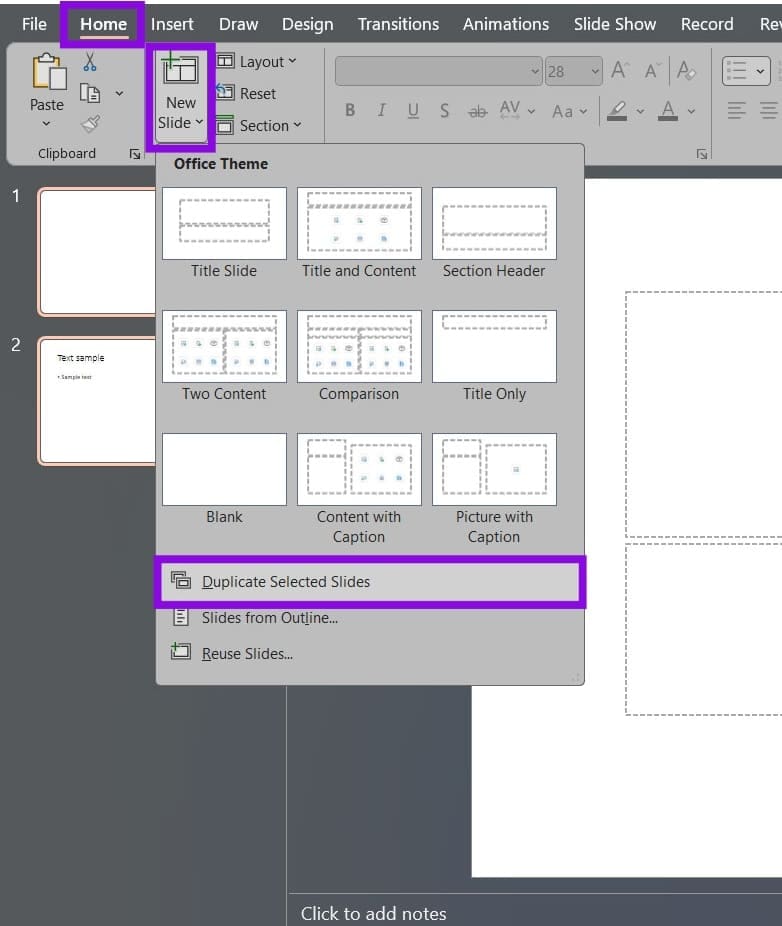
Alternatively, you can go to the “Home” tab, click the arrow under “New Slide,” then select “Duplicate Selected Slides.” This also works if you select multiple slides by holding “Ctrl” and clicking on the slides you want to copy.
Fix 2 – PowerPoint Duplicate Slide Not Working Because “Reuse Slides” Was Removed
If you’re used to copying slides over from another presentation, Microsoft has retired “Reuse Slides” in Microsoft 365, and opening it shows a message that it’s been removed. However, the feature “Reuse Slides” is still there for PowerPoint 2021 and other perpetual desktop versions.
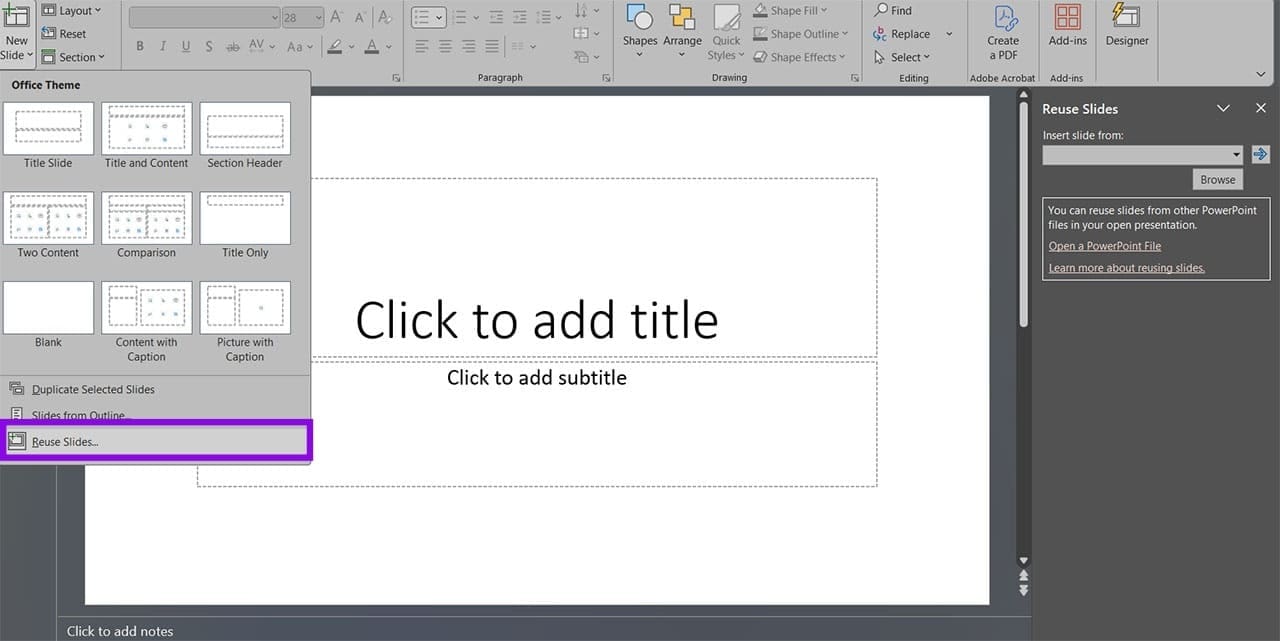
If you’re used to the feature when working with multiple different PowerPoint presentations, here’s what to do instead.
Step 1. Open both files.
Step 2. Go to the “View” tab and click “Arrange All” to place the windows side by side. It will be under “Window” options if PowerPoint isn’t full-screen.
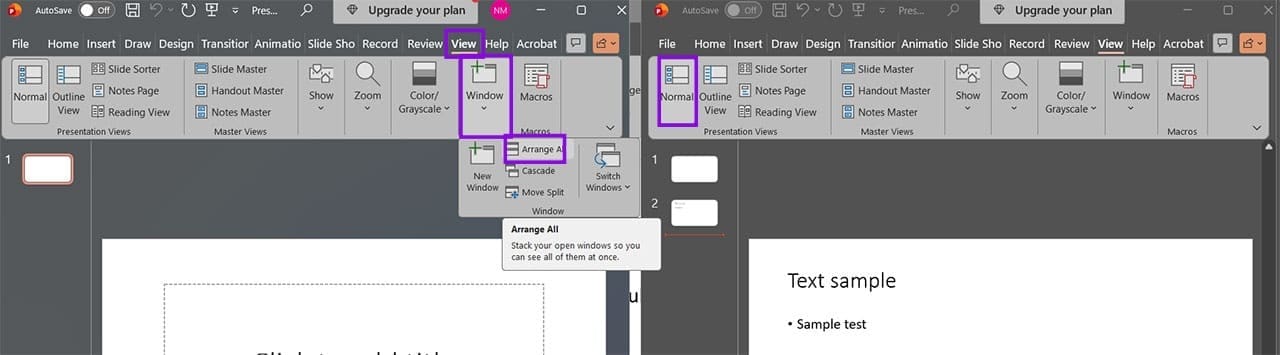
Step 3. Switch both files to “Normal” view, then drag and drop slides between them to copy them over. You can also use traditional copy and paste shortcuts, and you can choose “Keep Source Formatting” instead of “Use Destination Theme” from the right-click context menu for pasting to modify it for the second file’s defaults.
Fix 3 – Make Sure the File Is Editable
A PowerPoint file downloaded from the internet may open in Protected View, which limits editing until you enable it.
Step 1. If a yellow or red bar appears under the ribbon and you know who sent you the file, click on “Enable Editing” (or “Edit Anyway”).
Step 2. Go to “File” and then the “Info” section, then check “Protect Presentation.” If the file is marked as final, the pane will be highlighted.

Step 3. If “Mark as Final” is enabled, select it again to override the status and allow it to be editable. If the presentation is protected with a password, you’ll need to input it.
If the file is an old .ppt, you may need to convert it to a .pptx file first.
Fix 4 – Restart PowerPoint and Test Another Presentation
In some cases, a large file might’ve just happened to go over your device’s memory limit and got stuck or parts of it can’t load.
Step 1. Save the presentation and shut down PowerPoint.
Step 2. Reopen PowerPoint and create a new blank presentation.
Step 3. Add two or three slides and then try “Duplicate Slide” from the thumbnail pane.
Step 4. If duplication works in the new presentation, the original file may be damaged or have a compatibility problem.
You can also try using a different device with more RAM or increase the paging file size to improve working memory.
Fix 5 – Update or Repair Office
If none of the above helps, you can try to repair Office.
Step 1. Go to Settings and open “Apps.”
Step 2. Under “Installed apps,” find Microsoft Office or Microsoft 365, then click on its three-dot menu and select “Modify.”

Step 3. Choose the “Quick Repair” option first, then recheck if duplication works. If not, try an “Online Repair” if needed.
Was this helpful?
Last updated on 09 October, 2026
Read Next
 How to Create and Add Watermark in PowerPoint Slides
Create and Add Watermarks to Slides Use the Master Slide feature to add it to all the slides in one go.
How to Create and Add Watermark in PowerPoint Slides
Create and Add Watermarks to Slides Use the Master Slide feature to add it to all the slides in one go.
 PowerPoint vs. Google Slides – The Three Key Differences
PowerPoint vs.
PowerPoint vs. Google Slides – The Three Key Differences
PowerPoint vs.
 How to Add Live Translation to Slides in PowerPoint
If you’re asked to give a live presentation using PowerPoint, there’s a good chance that not everyone in the audience will have English as their first language.
How to Add Live Translation to Slides in PowerPoint
If you’re asked to give a live presentation using PowerPoint, there’s a good chance that not everyone in the audience will have English as their first language.
 How to Format All PowerPoint Slides the Same Way
Getting a PowerPoint presentation to look consistent can be tedious if you’re fixing slides one by one.
How to Format All PowerPoint Slides the Same Way
Getting a PowerPoint presentation to look consistent can be tedious if you’re fixing slides one by one.
 6 Ways to Duplicate a Word Document on Any Device
Duplicating a Word document might seem like a simple task, but it holds significance in various scenarios.
6 Ways to Duplicate a Word Document on Any Device
Duplicating a Word document might seem like a simple task, but it holds significance in various scenarios.
 How to Merge and Remove Duplicate Contacts on iPhone
How to Merge Duplicate Contacts Automatically With iOS 16, Apple introduced a feature that automatically merges duplicate contacts on your iPhone.
How to Merge and Remove Duplicate Contacts on iPhone
How to Merge Duplicate Contacts Automatically With iOS 16, Apple introduced a feature that automatically merges duplicate contacts on your iPhone.
 How to Clean up Duplicate Photos on iPhone
Method 1: Use the Duplicates Feature in the Photos App Finding and deleting duplicate photos individually on your iPhone can be a tough nut to crack.
4 Ways to Remove Duplicate Photos on Android
Method 1: Using Files by Google App The Files by Google app consistently scans your device storage to identify duplicate media and categorizes it for cleaning.
How to Clean up Duplicate Photos on iPhone
Method 1: Use the Duplicates Feature in the Photos App Finding and deleting duplicate photos individually on your iPhone can be a tough nut to crack.
4 Ways to Remove Duplicate Photos on Android
Method 1: Using Files by Google App The Files by Google app consistently scans your device storage to identify duplicate media and categorizes it for cleaning.
The article above may contain affiliate links which help support Guiding Tech. The content remains unbiased and authentic and will never affect our editorial integrity.