Preliminary Fixes
- Restart Browser and PC: Sometimes, temporary glitches in the browser or PC can prevent WhatsApp Web from functioning correctly. Restarting the browser and PC can often resolve these issues.
- Check Network Connection: A stable internet connection is essential for WhatsApp Web to function correctly. If your network connection is weak or unstable, it can cause issues with downloading files.
- Check Date and Time: Incorrect date and time settings on your PC can cause synchronization issues with WhatsApp Web, leading to problems with downloading files.
- Disable Ad Blockers: Ad blockers and other browser extensions can sometimes interfere with the functionality of websites, including WhatsApp Web.
Fix 1: Reconnect WhatsApp Web
You should also try logging in again into the WhatsApp Web. For that, first, you need to log out of it.
Step 1: Open WhatsApp Web and click on the three-dot icon.
Step 2: Select Log out from it.
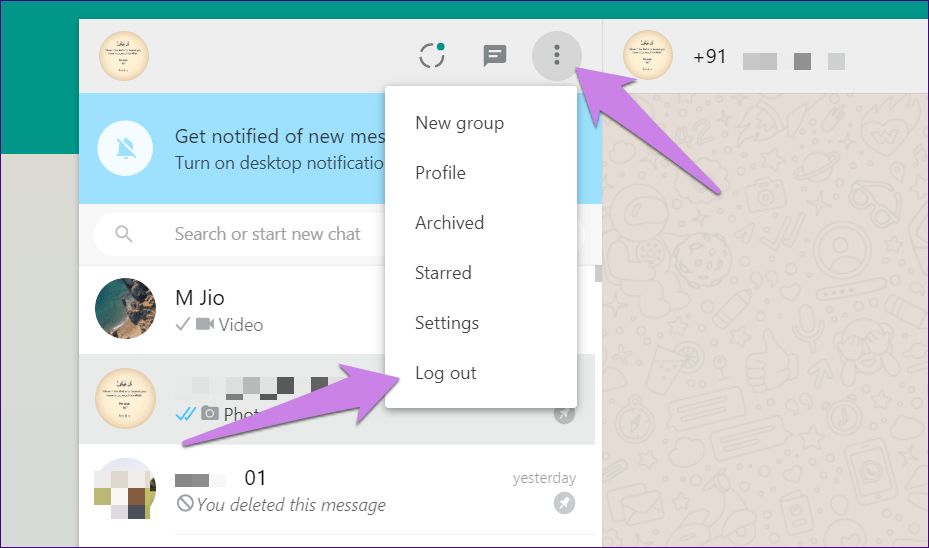
Once logged out, you will be asked to scan the QR code again. Then try downloading files.
Fix 2: Clear Browser Cache and Cookies
Step 1: Open Google Chrome and click on the three-dot icon at the top. Then select Settings.
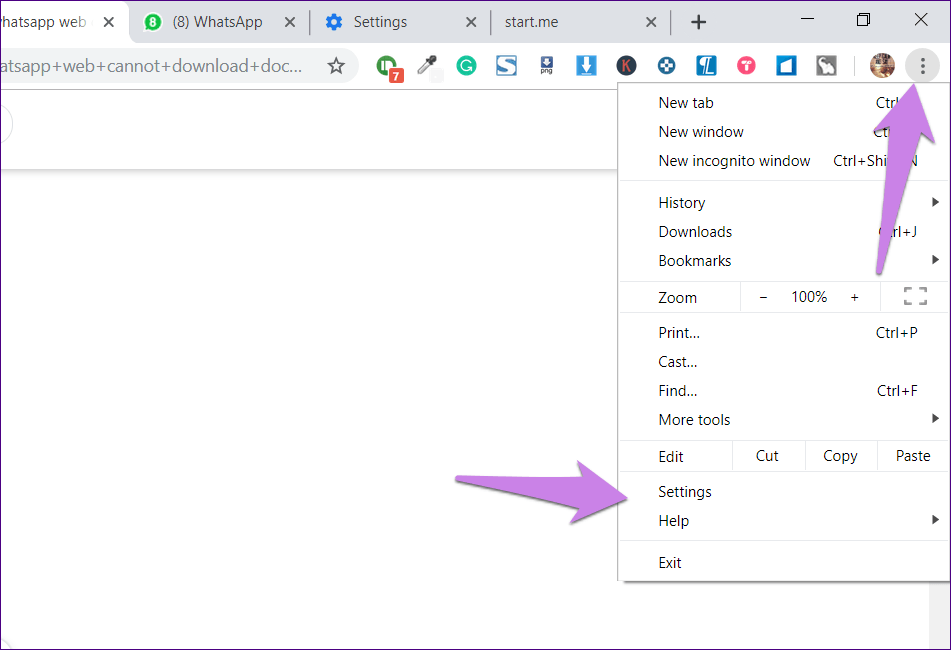
Step 2: Scroll down and click on Advanced. Then, click on Clear browsing data.

Step 3: Select the checkbox next to Cookies and other site data and Cached images and files. Then, hit the Clear data button.

Step 4: Close your browser and log in to WhatsApp again.
Fix 3: Download Media Files Properly from WhatsApp Web
If none of the methods mentioned above work, check if you are correctly downloading the files.
Download Photos and Videos from WhatsApp Web
To download any type of photo, such as JPG, PNG, etc., from WhatsApp Web,
Step 1: Open the chat in WhatsApp Web from where you want to download the image.
You will notice the image is already available without you clicking any button. However, it’s not downloaded yet.
Step 2: To download, click on the image to view it. Then, hit the download icon at the top.

Alternatively, you can also right-click on the image > select Save image as > click Save to download the image.
The steps are the same for videos too. The only difference is that you need to wait for a bit to hit the download button.
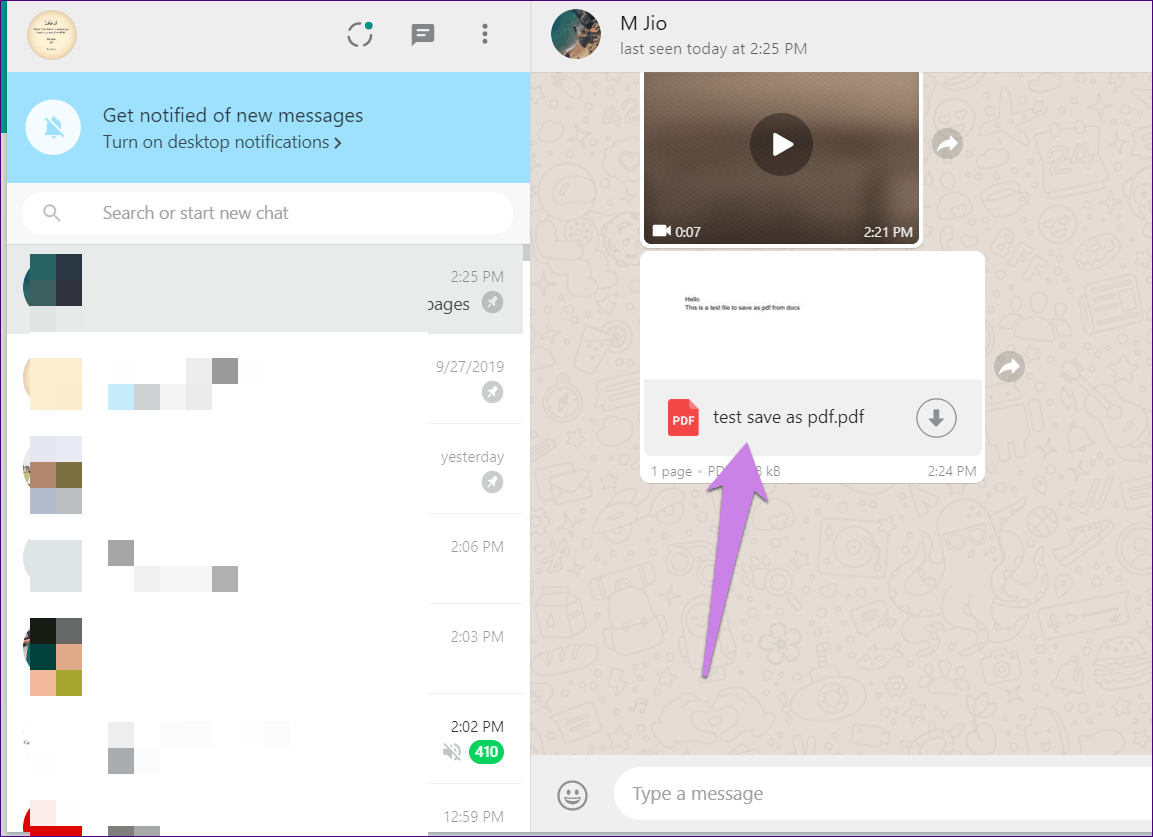
Download PDFs and Other Documents from WhatsApp Web
Downloading PDFs or other documents from WhatsApp Web is easy. Just click on the PDF file once. It will open the Save as dialog box. Choose the download location and hit the Save button.
Download Audio from WhatsApp Web
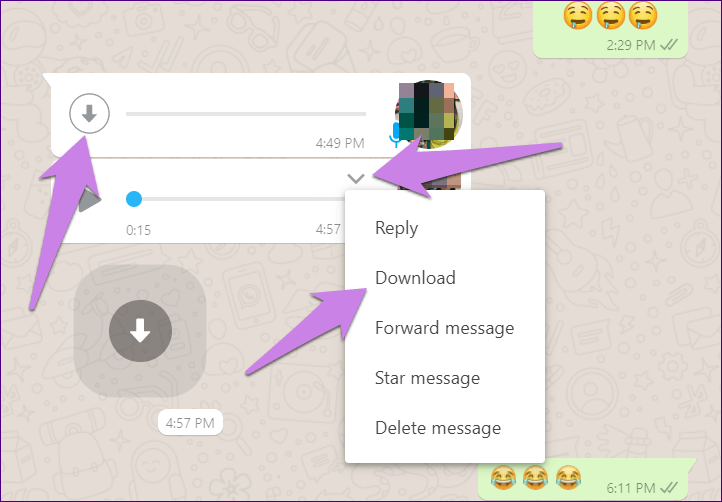
Step 1: Click on the download arrow next to the audio clip. It will change into a play icon.
Step 2: Then, hover your mouse over the audio clip and hit the small down arrow. Select Download from the menu.
If the issue persists, download the WhatsApp application for Windows and Mac. The dedicated app will let you download files without any issues.
Was this helpful?
Last updated on 23 July, 2024
Read Next
 2 Ways to Fix if You Cannot Send Files on WhatsApp Web
Basic Fixes Check internet speeds: We suggest connecting to a 5GHz Wi-Fi network.
2 Ways to Fix if You Cannot Send Files on WhatsApp Web
Basic Fixes Check internet speeds: We suggest connecting to a 5GHz Wi-Fi network.
 5 Ways to Fix Microsoft Edge Not Downloading Files
Try Basic Fixes Check antivirus settings: Third-party antivirus programs can sometimes block downloads from the internet to protect your PC from suspicious files.
5 Ways to Fix Microsoft Edge Not Downloading Files
Try Basic Fixes Check antivirus settings: Third-party antivirus programs can sometimes block downloads from the internet to protect your PC from suspicious files.
 3 Ways to Fix Google Drive Not Downloading Files on Android and iPhone
Try Basic Fixes Ask the file owner to enable download access: If you can't download a file shared with you, the file owner may have restricted your access with the
3 Ways to Fix Google Drive Not Downloading Files on Android and iPhone
Try Basic Fixes Ask the file owner to enable download access: If you can't download a file shared with you, the file owner may have restricted your access with the
 How to Fix Google Drive Not Downloading Files After Zipping
Basic Fixes Check internet connection: Check whether you have a stable internet connection on your desktop for downloading heavy files.
How to Fix Google Drive Not Downloading Files After Zipping
Basic Fixes Check internet connection: Check whether you have a stable internet connection on your desktop for downloading heavy files.
 6 Ways to Fix Google Chrome Crashes When Downloading Files on Windows
Fix 1.
6 Ways to Fix Google Chrome Crashes When Downloading Files on Windows
Fix 1.
 7 Ways to Fix Safari Not Downloading Files on iPhone and Mac
Basic Fixes Check network connection: Safari won’t download media or other files if the data connection on your iPhone or Mac is spotty.
7 Ways to Fix Safari Not Downloading Files on iPhone and Mac
Basic Fixes Check network connection: Safari won’t download media or other files if the data connection on your iPhone or Mac is spotty.
 How to Add New Contacts via WhatsApp Web
Use InTouch App to Add New Contacts Using WhatsApp Web InTouchApp is a contacts manager app that lets you add contacts directly via WhatsApp Web.
How to Add New Contacts via WhatsApp Web
Use InTouch App to Add New Contacts Using WhatsApp Web InTouchApp is a contacts manager app that lets you add contacts directly via WhatsApp Web.
 5 Ways to Fix WhatsApp Not Downloading PDFs on Phone
Basic Fixes Check WhatsApp server status: Use Downdetector to check an active WhatsApp service outage.
5 Ways to Fix WhatsApp Not Downloading PDFs on Phone
Basic Fixes Check WhatsApp server status: Use Downdetector to check an active WhatsApp service outage.
The article above may contain affiliate links which help support Guiding Tech. The content remains unbiased and authentic and will never affect our editorial integrity.