When it comes to network storage and accessing virtual drives, the Microsoft iSCSI service is one of the most important services out there. If it stops running, Windows cannot sign in to or access iSCSI targets through the initiator.
It goes without saying that’s a problem. In this article, we’re going to show you fixes to try when the iSCSI service is not running.
What Causes This Error?
If your iSCSI service failed to start or won’t run in general, the issue is usually one to do with network permissions and configurations rather than hardware. Some major causes include:
- The service’s startup configuration is preventing it from starting when required
- Your account lacks proper permissions
- Windows system-file or configuration corruption affecting the service
- The Windows Event Log service is broken
The iSCSI Service is not running – Fixes to Try
Now you know some of the major reasons; let’s get into the fixes:
Start and Confirm the iSCSI Status
The first step is to check the status and startup type of the MSiSCSI service and try starting it. Here’s what you need to do:
Step 1. Open the Run dialog (Win + R) and type “services.msc” before hitting “Enter.”
Step 2. Scroll down to “Microsoft iSCSI Initiator Service” and check its status and “Startup Type.”
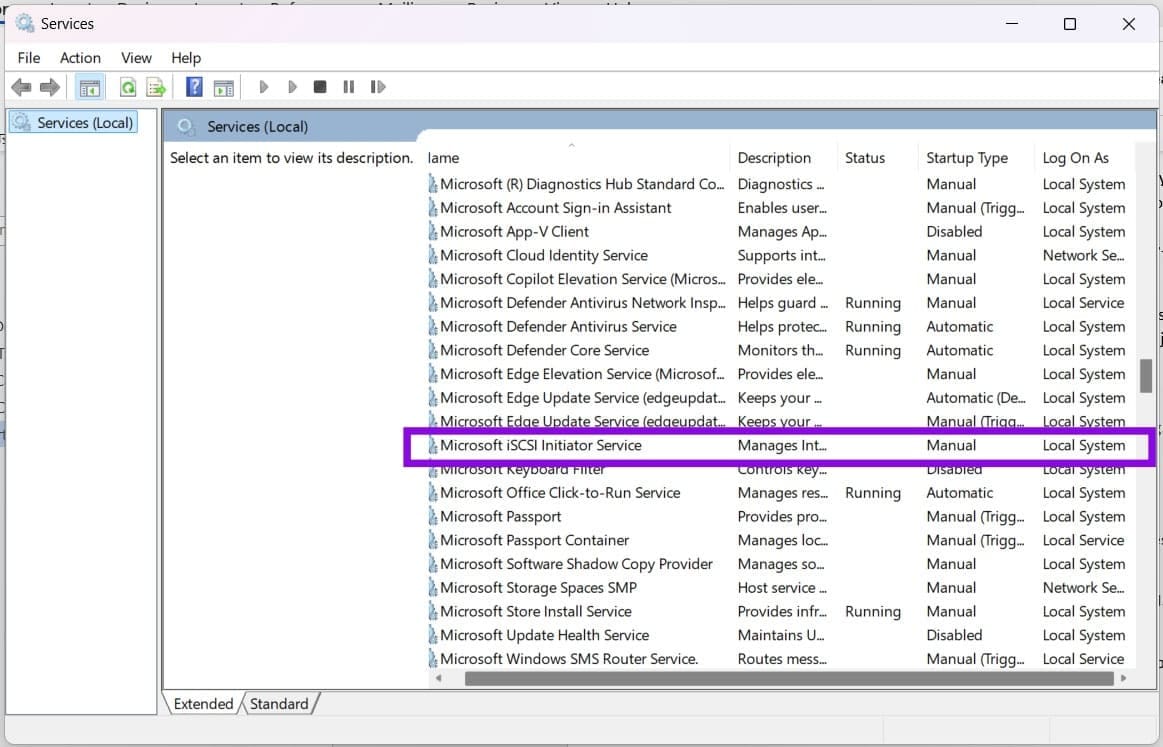
Step 3. To start the service, simply right-click it and choose “Start” from the context menu.
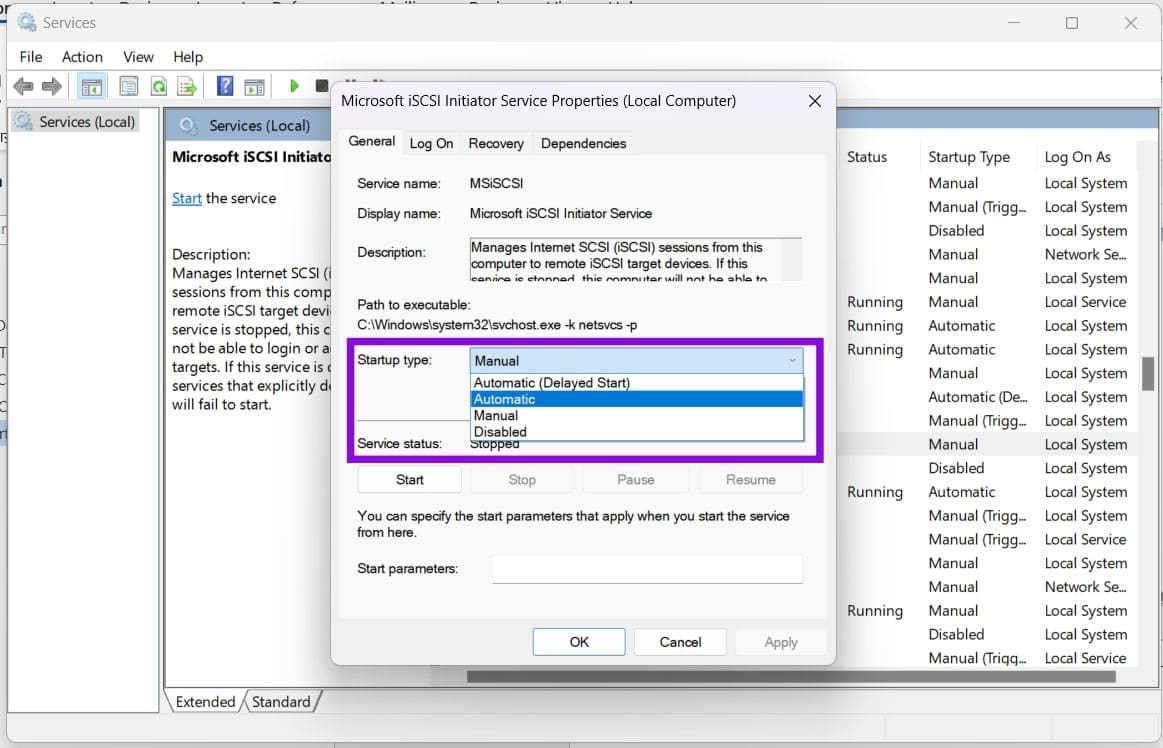
Step 4. Double-click the service and, if you need it to start automatically at boot, change “Startup type” to “Automatic.” Then click “Apply” and “OK.”
Restart the Windows Event Log
If this doesn’t help, it’s time to troubleshoot in the “Event Log” in “Services.” Here’s how:
Step 1. In “Services,” scroll down to “Windows Event Log” and make sure the service is running and its startup configuration has not been disabled or altered.
Step 2. If not, double-click the service and change the “Startup type” in the window that pops up.

Step 3. Click “Apply” and “OK” to finalize.
Change the Registry
Changing registry permissions incorrectly can cause Windows problems. Only modify these permissions if an Event Log or service error indicates that they are contributing to the problem, and back up the registry key first:
Step 1. Open the Run dialog (Win + R), type “regedit,” and hit (Ctrl + Shift + Enter) to run as Admin.
Step 2. In the Registry, enter the following path into the address bar at the top: “HKEY_LOCAL_MACHINE\SYSTEM\CurrentControlSet\Services\EventLog\System”.
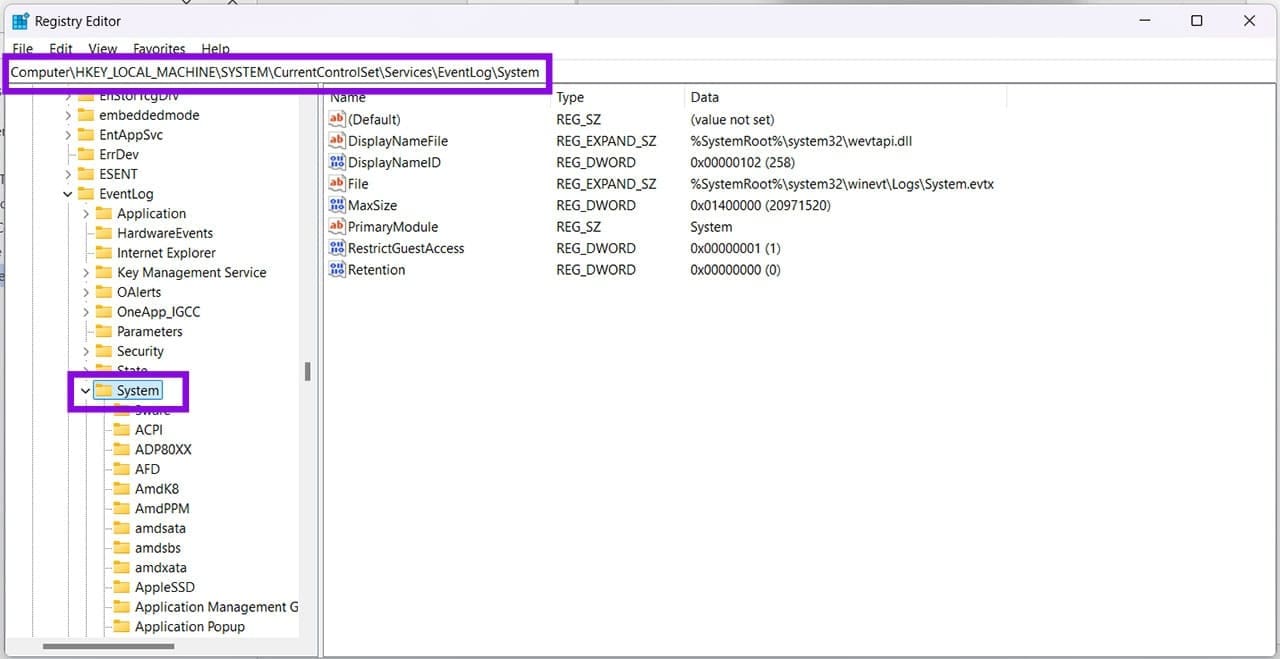
Step 3. Right-click the “System” key (the folder in the sidebar) and choose “Permissions” from the context menu.
Step 4. Check the permissions for the SYSTEM account. Do not change them unless the relevant error indicates that SYSTEM lacks the permissions required to write to the System event log.

Step 5. Press “OK” to finalize.
Force Start with PowerShell
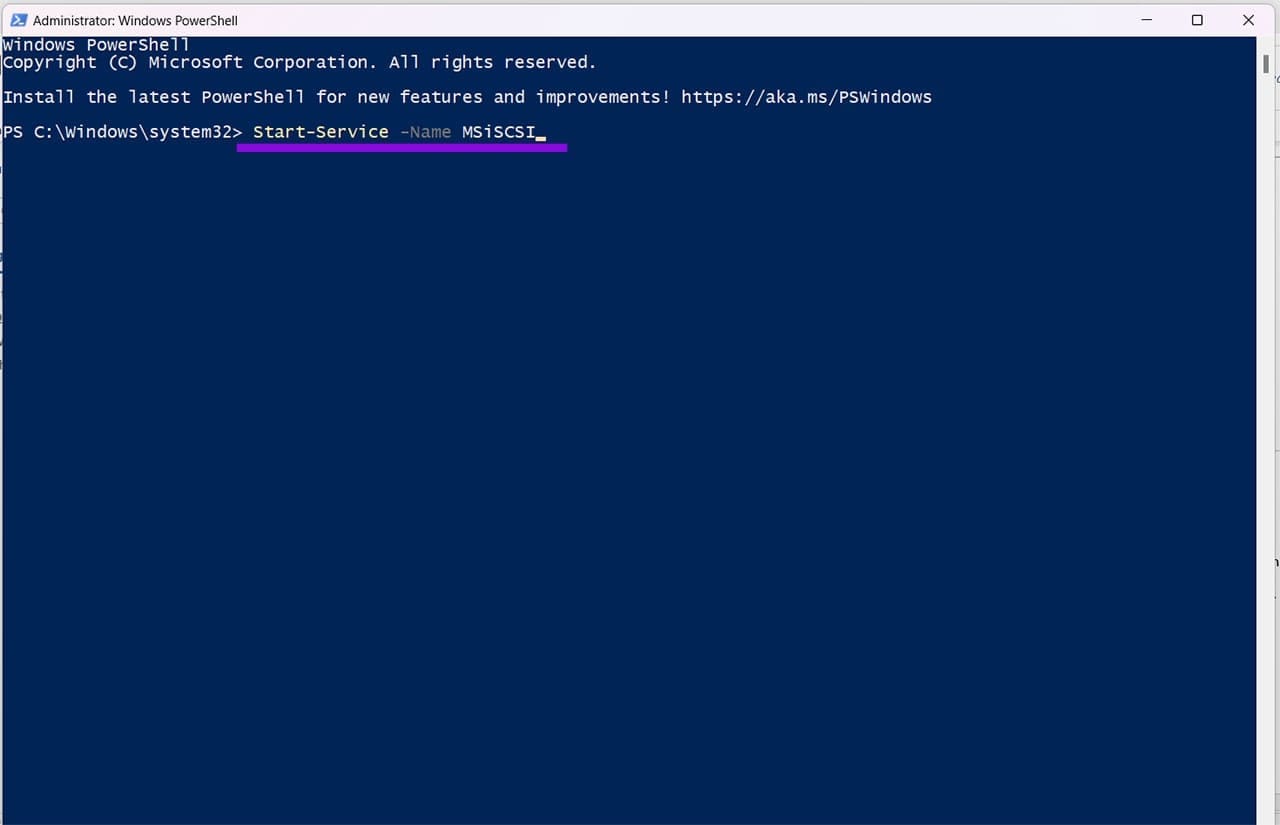
If you’re tired of asking, you can always get PowerShell to force start things and ensure the iSCSI service is running. Here’s how:
Step 1. Open the Run dialog and type “powershell” before hitting (Ctrl + Shift + Enter) to run as Admin.
Step 2. In PowerShell, type “Start-Service -Name MSiSCSI” and hit “Enter.” See if this starts the service.
Check Your Firewall
If the iSCSI service starts but Windows cannot connect to an iSCSI target, check whether a firewall is blocking the target connection. Open yours and ensure that the “TCP Port 3260” is permitted both for Inbound and Outbound rules.
Was this helpful?
Last updated on 30 September, 2026
Read Next
 How to Fix “Wireless AutoConfig Service Not Running” Issue on Windows 11
Basic Fixes Reboot PC: Press the Windows + X shortcut to open the Power User Menu, select Shut down or sign out, and click Restart.
How to Fix “Wireless AutoConfig Service Not Running” Issue on Windows 11
Basic Fixes Reboot PC: Press the Windows + X shortcut to open the Power User Menu, select Shut down or sign out, and click Restart.
 7 Ways to Fix Microsoft Edge Running Slow on Windows 11
Basic Fixes Update or reinstall Microsoft Edge: Open the Microsoft Store, search Microsoft Edge browser, and click Update.
7 Ways to Fix Microsoft Edge Running Slow on Windows 11
Basic Fixes Update or reinstall Microsoft Edge: Open the Microsoft Store, search Microsoft Edge browser, and click Update.
 3 Ways to Fix “Steam Must be Running to Play This Game” Error
Basic Fixes: Ensure Steam is installed on your computer: If you play Steam games, ensure the client is installed on your computer.
3 Ways to Fix “Steam Must be Running to Play This Game” Error
Basic Fixes: Ensure Steam is installed on your computer: If you play Steam games, ensure the client is installed on your computer.
 3 Ways to Fix Microsoft Edge Keeps Running in Background Issue
Basic Fixes: Stop Edge using Task Manager: You can use Task Manager to check Edge's resource usage and stop it from running in the background if it is using too
3 Ways to Fix Microsoft Edge Keeps Running in Background Issue
Basic Fixes: Stop Edge using Task Manager: You can use Task Manager to check Edge's resource usage and stop it from running in the background if it is using too
 How to Prevent Users From Running Certain Programs on Windows 11
Method 1: Prevent Users From Running Certain Programs via the Group Policy Editor The Local Group Policy Editor on Windows makes it easy to apply system-wide changes on a computer.
How to Prevent Users From Running Certain Programs on Windows 11
Method 1: Prevent Users From Running Certain Programs via the Group Policy Editor The Local Group Policy Editor on Windows makes it easy to apply system-wide changes on a computer.
 What Is Optional Diagnostic Data, and Do I Need It Running?
Windows 11 (as well as previous versions) has built-in reporting systems that send user information to Microsoft.
What Is Optional Diagnostic Data, and Do I Need It Running?
Windows 11 (as well as previous versions) has built-in reporting systems that send user information to Microsoft.
 4 Ways to Fix Storage Space Running Out Alert on Android
Basic Fixes: Clear the recycle bin: Most Android apps have a dedicated recycle bin or trash folder that holds deleted items for up to 30 days if you change your
4 Ways to Fix Storage Space Running Out Alert on Android
Basic Fixes: Clear the recycle bin: Most Android apps have a dedicated recycle bin or trash folder that holds deleted items for up to 30 days if you change your
 5 Best TWS Earbuds with Ear Hooks for Running
TWS earbuds are a godsend for health freaks as they help fuel their workout without cluttering up their personal space.
5 Best TWS Earbuds with Ear Hooks for Running
TWS earbuds are a godsend for health freaks as they help fuel their workout without cluttering up their personal space.
The article above may contain affiliate links which help support Guiding Tech. The content remains unbiased and authentic and will never affect our editorial integrity.