One of the many benefits of using Clipchamp to compile and edit your videos is the wide array of effects available to spruce things up. If, however, they refuse to load and you’re greeted with a grid of blank squares, you’ll be frantically looking for answers. Hopefully, we’ve got the solution that helps you.
This article will cover what to do when Clipchamp effects won’t load.
Fixes to Try When Clipchamp Effects Won’t Load
There are quite a few reasons that your Effects in Clipchamp aren’t loading properly, so we’ve included a few troubleshooters to cover them below. Let’s get started:
Obvious Fixes
They may be common-sense fixes, but that doesn’t make them any less important. If you’re struggling with loading effects (or any part) of Clipchamp, your internet connection should be the first thing you check. The always-connected Clipchamp relies on a stable connection. Restart your router and double-check your cables to ensure the network isn’t the problem.
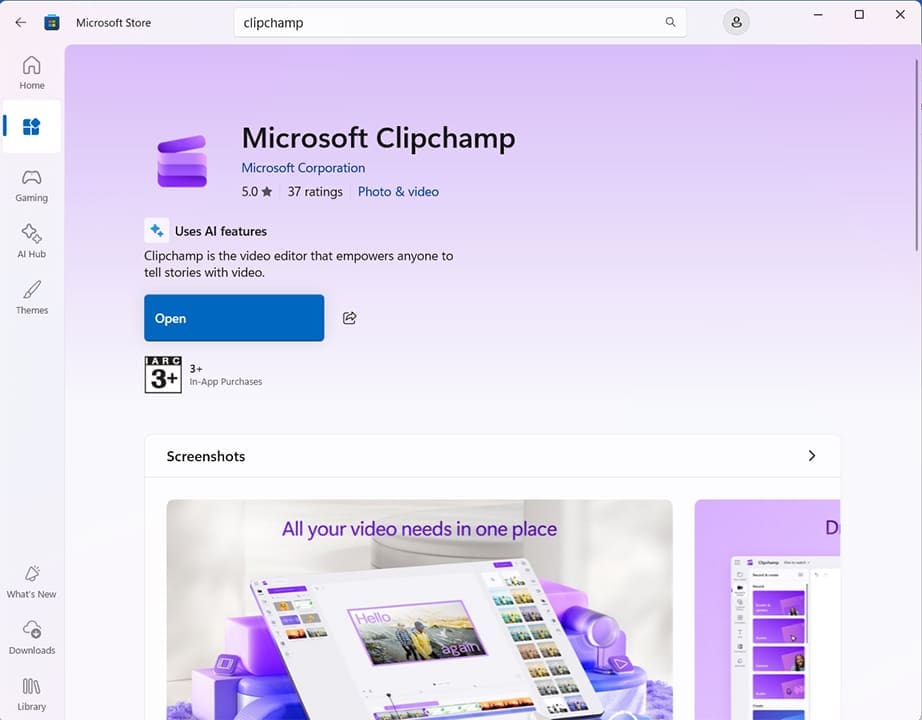
Once that’s done, your next step should be to update Clipchamp if it isn’t the latest version already. Open the Microsoft Store via the search bar and look up “Clipchamp.” If there’s no “Update” button, everything should be current. Otherwise, click it to install.
Repair the App
If using the Clipchamp app, data might have been corrupted on your machine. In this case, repairing things is a good way to fix errors. After terminating Clipchamp in the Task Manager, here’s what to do:
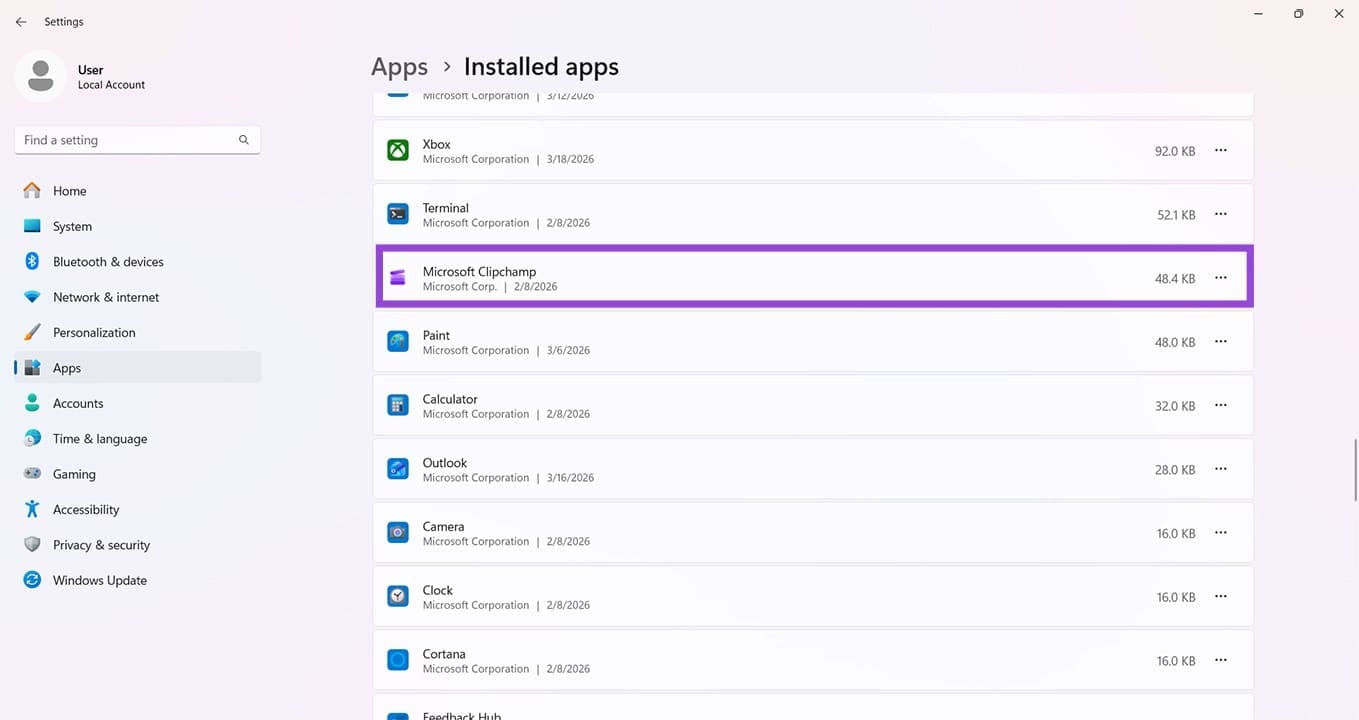
Step 1. Open Settings (Win + I) and click “Apps” in the sidebar.
Step 2. Click “Installed apps” in the main window.
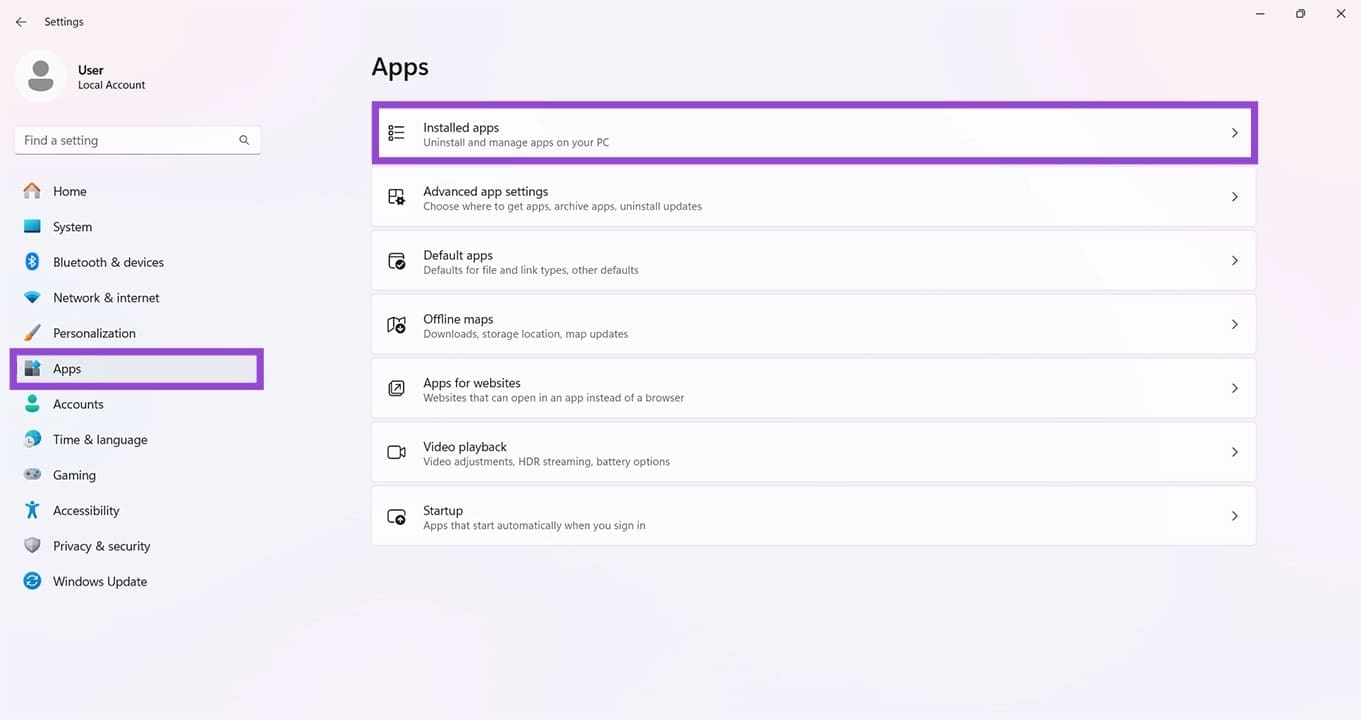
Step 3. Navigate down to “Microsoft Clipchamp” and select the three dots next to it.
Step 4. Click “Modify” and click the “Repair” button to start checking for and fixing problems.
Try a Different Login
If your current Clipchamp profile is misbehaving, it could be a good idea to try logging in with a different profile (or creating one) to see if it solves things. Simply click your profile icon to log out and try another.
Clear Cookies and Disable Extensions
If you’re using Clipchamp via your web browser, then a corrupted cache or additional third-party extensions might be interfering with the editor’s ability to load effects properly. To clear your cache in a Chromium browser like Edge:
Step 1. Press Ctrl + Shift + Del to bring up the “Delete browsing data” window.
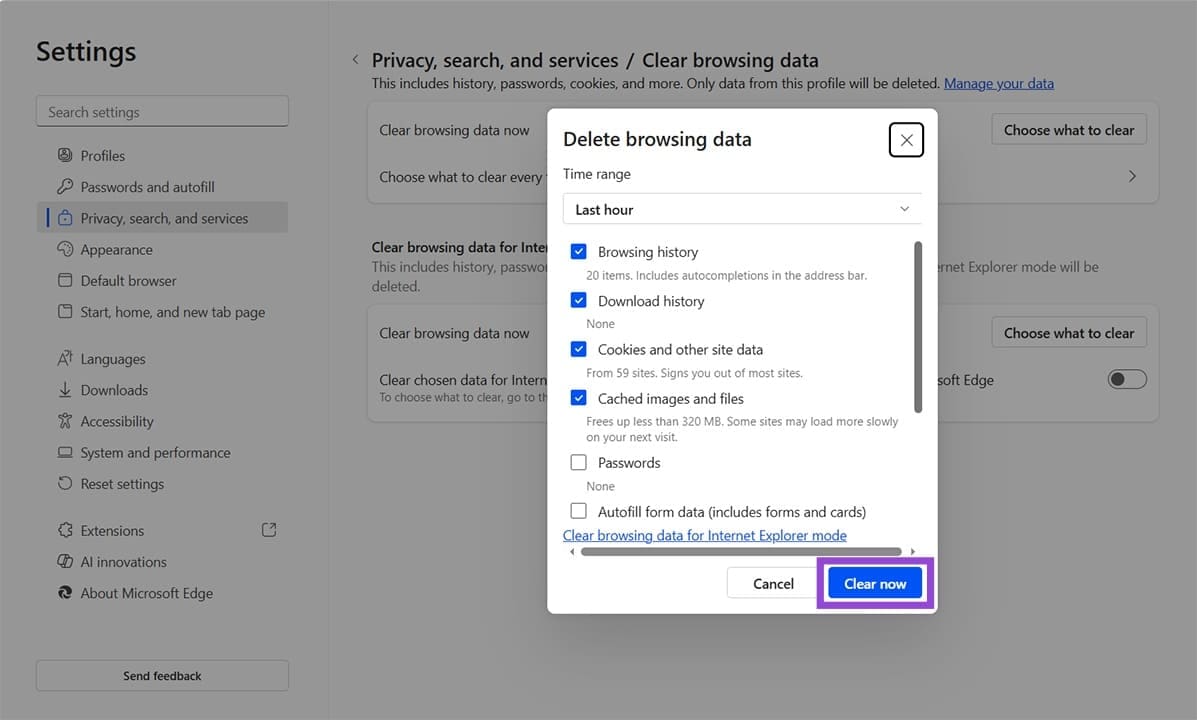
Step 2. Select what you want to delete by checking the boxes, then click “Clear now” to finalize.
To disable extensions:
Step 1. Click the three dots in the Top Menu.
Step 2. Click “Extensions” from the dropdown and select “Manage Extensions.”
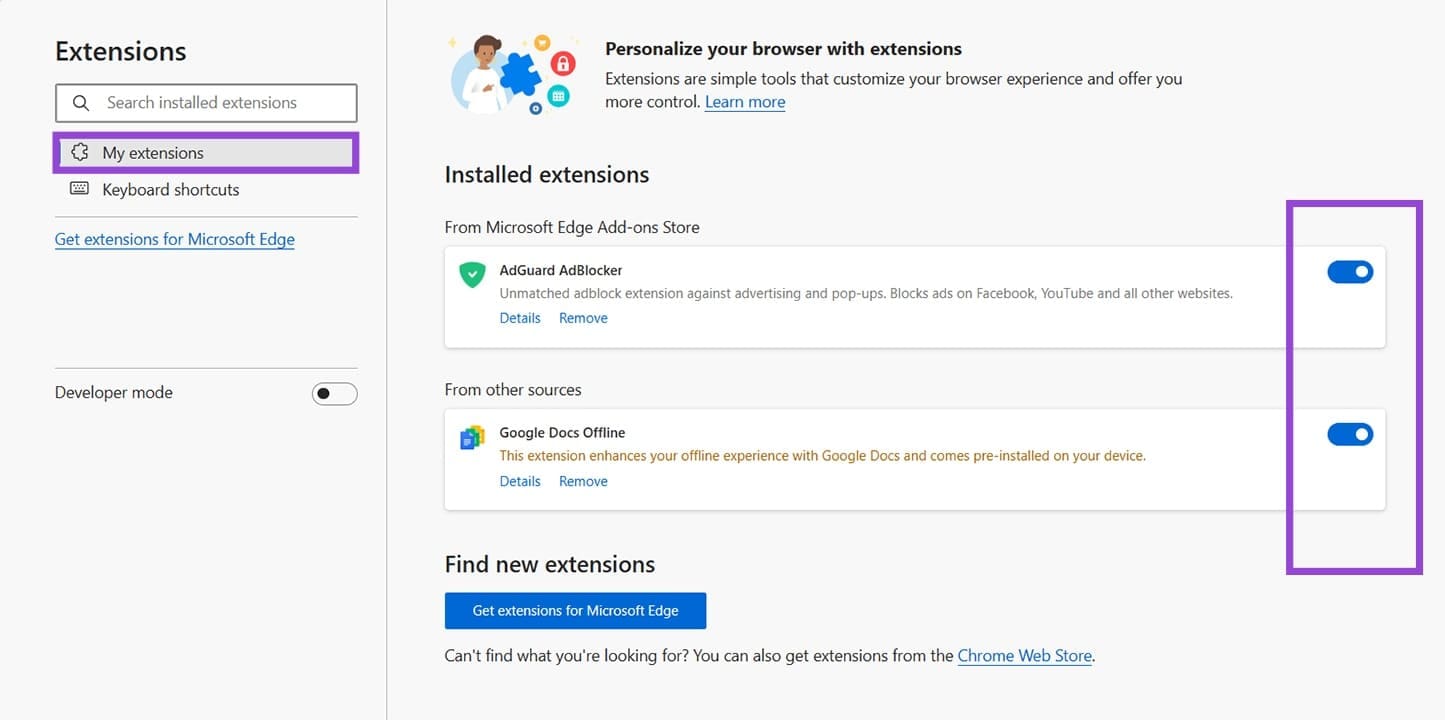
Step 3. Disable all extensions by dragging their sliders to “Off” and see if Clipchamp’s effects load. If so, turn on the extensions one by one to isolate the troublemaker.
Was this helpful?
Last updated on 28 March, 2026
Read Next
 Clipchamp Keeps Looping on Login
Clipchamp is a fantastic video editing tool from Microsoft, but as with many apps in Windows 11, you need to be logged into your account to benefit from all the
Clipchamp Keeps Looping on Login
Clipchamp is a fantastic video editing tool from Microsoft, but as with many apps in Windows 11, you need to be logged into your account to benefit from all the
 How to Fix ClipChamp Not Working in Windows 11
Since it’s a built-in app, ClipChamp not working in Windows 11 typically doesn’t get resolved by updating the app or changing app-specific settings.
How to Fix ClipChamp Not Working in Windows 11
Since it’s a built-in app, ClipChamp not working in Windows 11 typically doesn’t get resolved by updating the app or changing app-specific settings.
 Clipchamp Can’t Export Video – How to Fix
Clipchamp is a fantastic video editing and movie-making tool that’s user-friendly and simple to use.
Clipchamp Can’t Export Video – How to Fix
Clipchamp is a fantastic video editing and movie-making tool that’s user-friendly and simple to use.
 Top 7 Ways to Fix Google Chrome Failed to Load Extension
Extensions play an important role in the Chrome ecosystem.
Top 7 Ways to Fix Google Chrome Failed to Load Extension
Extensions play an important role in the Chrome ecosystem.
 Top 7 Ways to Fix Google Docs Unable to Load File Issue
Google Docs is one of the popular word-processing software out there.
Top 7 Ways to Fix Google Docs Unable to Load File Issue
Google Docs is one of the popular word-processing software out there.
 3 Ways to Fix Discord Messages Failed to Load Error
Basic Fixes Force Restart Discord: You can force quit Discord on your PC or Mac using Task Manager or Activity Monitor.
3 Ways to Fix Discord Messages Failed to Load Error
Basic Fixes Force Restart Discord: You can force quit Discord on your PC or Mac using Task Manager or Activity Monitor.
 4 Fixes for “Failed to Load Module” Error on Twitch
Try Basic Fixes Ensure Twitch servers are working: Before trying anything, it's a good idea to ensure that the Twitch servers are working.
4 Fixes for “Failed to Load Module” Error on Twitch
Try Basic Fixes Ensure Twitch servers are working: Before trying anything, it's a good idea to ensure that the Twitch servers are working.
 5 Ways to Fix “A Driver Cannot Load on This Device” Error on Windows 11
Fix 1: Update the Problematic Driver If a driver is incompatible, Windows may fail to load it.
5 Ways to Fix “A Driver Cannot Load on This Device” Error on Windows 11
Fix 1: Update the Problematic Driver If a driver is incompatible, Windows may fail to load it.
The article above may contain affiliate links which help support Guiding Tech. The content remains unbiased and authentic and will never affect our editorial integrity.