A slow PC is a surefire cause of frustration, but sometimes your hardware isn’t to blame. It’s clear that it’s still taking some users time to get used to Windows 11, but we’re here to help you master things.
If your downloads folder loads slowly, then never fear. We’ve assembled a few potential fixes and troubleshooting tips to help it open as quickly as your other folders.
Why Windows 11 Downloads Load Slowly
If you’re stuck with a Downloads folder that crashes, is “working on it” for way too long, or just not being as fast as other Explorer windows, then you’re probably wondering why.
Three main areas could be affecting these loading times:
- Optimization – Your Downloads folder isn’t properly optimized for the content inside it, and takes more time to load properly.
- Thumbnails – You either have too many files in your Downloads folder that require thumbnail generation, or have the Explorer view set to “Thumbnails,” which takes time to load.
- Too many files – If your Downloads folder is badly organized or overcrowded, Windows 11 will struggle to produce the metadata for everything quickly.
Older hardware may also play a role, but we’re going to stick to the software side of things in our fixes.
What to Do When Your Downloads Folder Loads Slowly
If you’ve had enough of a sluggish Downloads folder, try the fixes below to speed things up again:
Optimize Your Downloads Folder
If your Windows 11 Downloads load slowly, this might be a sign of a folder not properly optimized for its task. Fixing this is quite straightforward:
Step 1. Right-click your Downloads folder in Explorer and select “Properties” from the dropdown menu.
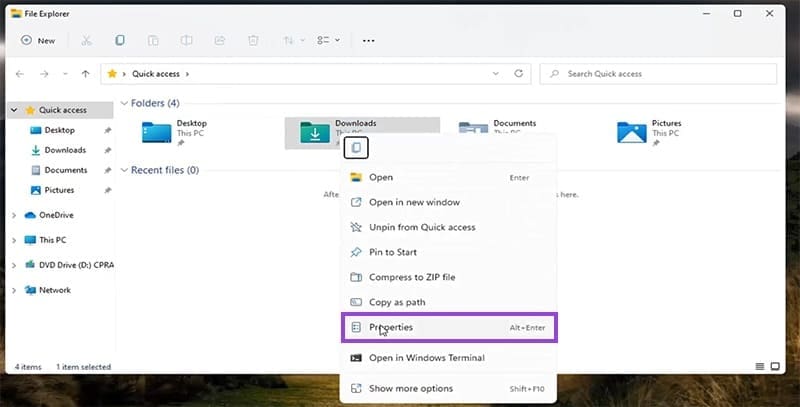
Step 2. The Downloads Properties window will pop up. Choose the dropdown menu under “Optimize this folder for:” and select “General items” for your various downloads.
Step 3. Click “Apply” and “OK” to finalize and test the speed.
Adjust File Explorer Settings
One way to stop Explorer from struggling with tons of thumbnails is to not have them load in the first place. You can use Explorer’s Folder Options to help you do this. Here’s how:
Step 1. Open up the Downloads folder.
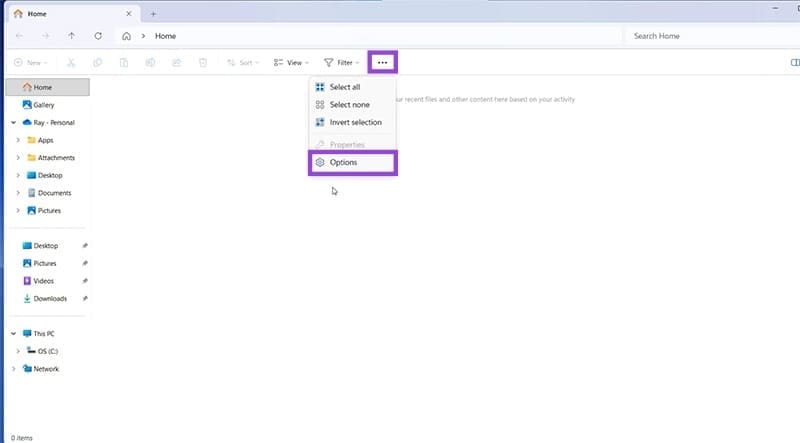
Step 2. Click the More button (three dots) and select “Options” from the menu.
Step 3. Folder Options will pop up. Check “Always show icons, never thumbnails” on the list. Additionally, you can hide hidden folders from view by selecting “Don’t show hidden files, folders, or drives.”
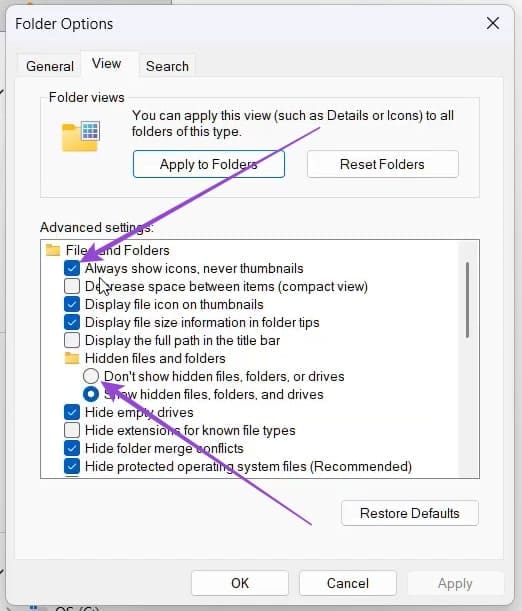
Step 4. Click “Apply” and “OK” and test your loading speed.
Disable “Launch Folder Windows in a Separate Process”
Another way to lessen the burden on your PC is to stop Explorer from opening new folders as separate processes. While this improves Explorer stability and protects it from blanket crashes, it can also slow Download’s loading speed. You can also fix it in Folder Options:
Step 1. Open the Downloads folder and click the “More” button.
Step 2. Select “Options” and head to the “View” tab in the Folder Options window.
Step 3. Navigate down until you see “Launch Folder Windows in a Separate Process” and uncheck it.
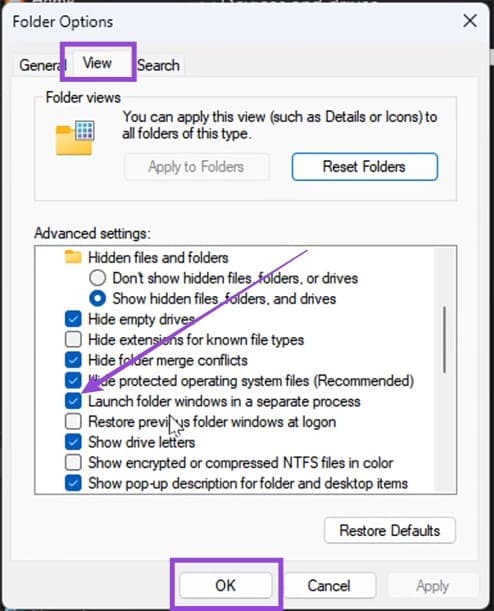
Step 4. Click “Apply” and “OK” and check the loading speed again.
Tidy Up
We left this tip until last because while it’s minor, it can still make a difference. Clean up your Downloads folder. Move unnecessary files out of it and, if necessary, create subfolders to store things. Fewer files, thumbnails, and metadata to account for means faster loading speeds.
Was this helpful?
Last updated on 21 November, 2025
Read Next
 5 Ways to Fix Windows Explorer Loading Slowly
Basic Fixes Restart PC: Restart your PC to get rid of temporary bugs and glitches Close unwanted apps: Close unwanted apps using Task Manager to free up memory, and improve
5 Ways to Fix Windows Explorer Loading Slowly
Basic Fixes Restart PC: Restart your PC to get rid of temporary bugs and glitches Close unwanted apps: Close unwanted apps using Task Manager to free up memory, and improve
 11 Easy Ways to Fix iPhone Charging Slowly
You have thirty minutes to leave for work and plug your iPhone to charge.
11 Easy Ways to Fix iPhone Charging Slowly
You have thirty minutes to leave for work and plug your iPhone to charge.
 How to Make Steam Downloads Faster in Windows 11
Try These Fixes First Close network hogging apps from the background: Unnecessary apps running in the background, especially those connected to the internet, can dramatically slow down your download speed
How to Make Steam Downloads Faster in Windows 11
Try These Fixes First Close network hogging apps from the background: Unnecessary apps running in the background, especially those connected to the internet, can dramatically slow down your download speed
 7 Ways to Fix Mozilla Firefox Downloads Failing on Windows 11
Basic Fixes: Pause and resume the download: After restarting a failed download, it can get stuck and fail again.
7 Ways to Fix Mozilla Firefox Downloads Failing on Windows 11
Basic Fixes: Pause and resume the download: After restarting a failed download, it can get stuck and fail again.
 How to Find Google Chrome Downloads on Mobile and Desktop
Find Google Chrome Downloads on Mac Step 1: Open Google Chrome and wait for the download process to complete.
How to Find Google Chrome Downloads on Mobile and Desktop
Find Google Chrome Downloads on Mac Step 1: Open Google Chrome and wait for the download process to complete.
 4 Ways to Fix Chrome Downloads Keep Pausing on Android
Basic Fixes: Close and restart Chrome: You can open all background apps and close Chrome.
4 Ways to Fix Chrome Downloads Keep Pausing on Android
Basic Fixes: Close and restart Chrome: You can open all background apps and close Chrome.
 How to view and Manage Safari downloads on iPhone and iPad
Safari is usually easygoing, whether using Safari Tabs, Private browsing, or even changing the default search engine.
How to view and Manage Safari downloads on iPhone and iPad
Safari is usually easygoing, whether using Safari Tabs, Private browsing, or even changing the default search engine.
 How to Manage Downloads in Telegram
Use Telegram Download Manager on iPhone It's easy to use the Telegram download manager on iPhone.
How to Manage Downloads in Telegram
Use Telegram Download Manager on iPhone It's easy to use the Telegram download manager on iPhone.
The article above may contain affiliate links which help support Guiding Tech. The content remains unbiased and authentic and will never affect our editorial integrity.