

If you suddenly find yourself without space on your hard drive, the easiest way to check for the culprit is with a hard-drive file visualizer like WinDirStat. If you see a file consuming dozens, or even hundreds, of gigabytes, it could be the Capability Access Manager. A bug affecting Windows 11 24H2 and 25H2 has caused this legitimate service to get a log file that’s unexpectedly large. Here’s what you need to know and how to fix potential Windows Capability Access Manager disk spaceissues.
What Is Capability Access Manager
Capability Access Manager is a built-in Windows service (internally called “camsvc”) that manages which apps are allowed to use privacy-sensitive resources, such as the camera, microphone, and location. Whenever an app requests one of these, Capability Access Manager checks your saved choice and either grants or blocks the access, then logs that.
Windows records these changes in a write-ahead log named CapabilityAccessManager.db-wal, which is periodically written back into another file for longer-term storage. The files for the utility are located at:
C:\ProgramData\Microsoft\Windows\CapabilityAccessManager

In normal conditions, the .db-wal file should stay somewhere between 1 MB and 4 MB. However, a bug can put the camsvc service into a loop, causing it to write entries to that log continuously. Left unchecked, the file will write over and over until it doesn’t have any space left, which prompts Windows to send a “low on disk space” warning.
Some third-party software could also be a part of the problem, in particular Dell SmartByte and the system-monitoring tool Rainmeter. They have also issued updates or prompted users to temporarily disable the service for a fix.
How to Manage Windows Capability Access Manager Disk Space
Because the file is actively used by Windows, it shouldn’t be deleted while the service is running.
You can turn off the service by going to the “Run” utility (via “Win + R”) then going to “services.msc.” In there, find the Capability Access Manager Service on the list and disable it. After that, you should be able to delete the file, restart the PC, restart the service, and check if it works.
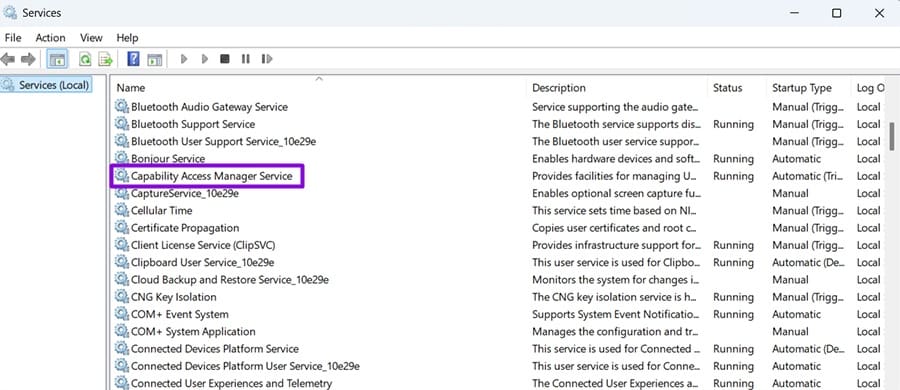
If Windows won’t let you stop the service normally, booting into Safe Mode allows you to remove the log.
Step 1. Restart your PC and boot into Safe Mode. This can be done by holding “Shift” while selecting “Restart” from the Start menu, then go to “Troubleshoot,” “Advanced options,” “Startup Settings,” Restart,” and press “4” or “F4” once the menu appears.
Step 2. Once in Safe Mode, open Command Prompt as an administrator.
Step 3. Stop the Capability Access Manager service first with the command:
net stop camsvc
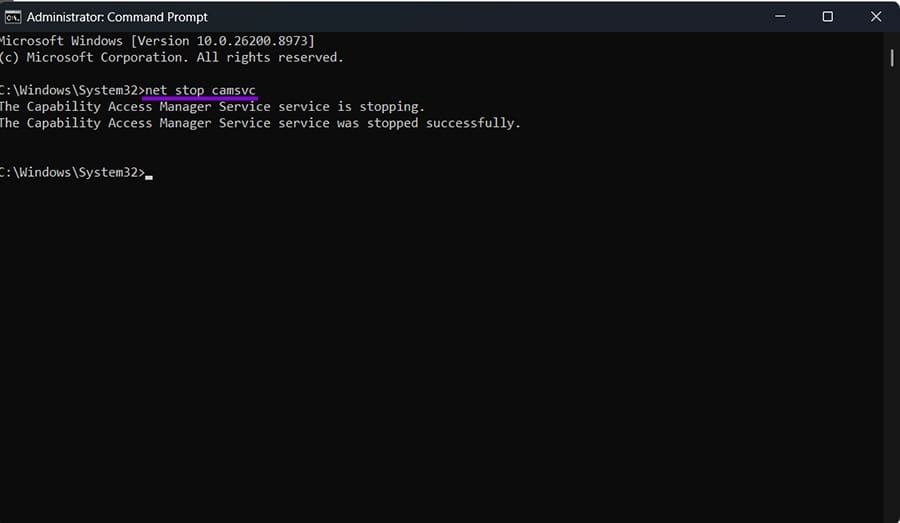
Step 4. Use the following command:
takeown /f “C:\ProgramData\Microsoft\Windows\CapabilityAccessManager” /r /d y

Step 5. Here’s the next command to grant full permissions of the folder:
icacls “C:\ProgramData\Microsoft\Windows\CapabilityAccessManager” /grant administrators:F /t

Step 6. Delete only the WAL log file with the following:
del “C:\ProgramData\Microsoft\Windows\CapabilityAccessManager\CapabilityAccessManager.db-wal”
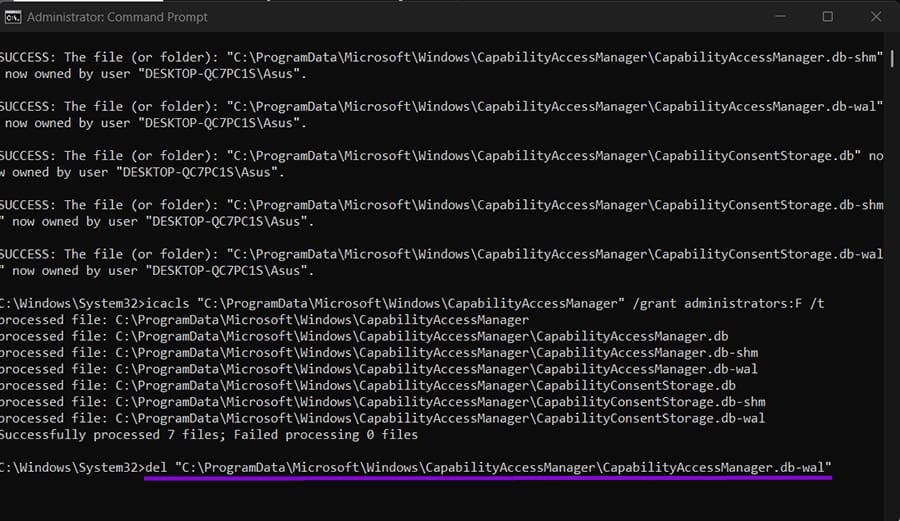
Step 7. Restart your PC (in “regular” mode). Windows should recreate the log file automatically at its usual size.
If Wi-Fi, screenshots, or other features stop working after this process, it’s almost always because the permissions weren’t fully reset afterward.
You can restore default permissions on the folder with a command (icacls “C:\ProgramData\Microsoft\Windows\CapabilityAccessManager” /reset /t /c) and make sure the Capability Access Manager Service is running again in services.msc before rebooting normally resolves it.
If you keep getting the Windows Capability Access Manager disk space issue, here are some other options:
- Temporarily disable Location Services in “Settings.”
- Uninstall or disable Dell SmartByte or Rainmeter if either is installed, since both have been directly tied to this issue.
- Install the latest Windows updates. Microsoft’s update KB5095093 issued in June 2026 specifically improves disk space usage for the CapabilityAccessManager.db-wal file, which should fix the underlying cause of the bug.
Was this helpful?
Last updated on 01 August, 2026
Read Next
 Stale Value Formatting in Excel – What Is It and Why Does It Matter
If you’ve just started using Microsoft Excel, you might get used to the program automatically applying any changes and recalculating cell results for all formulas inside a datasheet.
Stale Value Formatting in Excel – What Is It and Why Does It Matter
If you’ve just started using Microsoft Excel, you might get used to the program automatically applying any changes and recalculating cell results for all formulas inside a datasheet.
 Why Does My PC Beep When I Turn It On
You might hear beeping when turning on your PC.
Why Does My PC Beep When I Turn It On
You might hear beeping when turning on your PC.
 What Does the Secure Boot Folder Do on Your PC? (And Why It’s Hidden)
If you’ve suddenly found a strange folder in Windows Explorer labelled Secure Boot, you’re no doubt wondering where it came from and if it’s legit.
What Does the Secure Boot Folder Do on Your PC? (And Why It’s Hidden)
If you’ve suddenly found a strange folder in Windows Explorer labelled Secure Boot, you’re no doubt wondering where it came from and if it’s legit.
 Why Does the SD Card Bring My PC to a Halt?
External storage devices are always very useful thanks to their portability and speed.
Why Does the SD Card Bring My PC to a Halt?
External storage devices are always very useful thanks to their portability and speed.
 How to Access and Use Credential Manager on Windows 10 and 11
How to Access Sign-in Details in Credential Manager First, let's see how you can access Credential Manager on Windows to view and update your saved passwords.
How to Access and Use Credential Manager on Windows 10 and 11
How to Access Sign-in Details in Credential Manager First, let's see how you can access Credential Manager on Windows to view and update your saved passwords.
 Why Does Spotify Take Up So Much Storage – 3 Methods to Fix It
Why Does Spotify Use So Much Storage Ever wondered how Spotify enables you to listen to music offline?
Why Does Spotify Take Up So Much Storage – 3 Methods to Fix It
Why Does Spotify Use So Much Storage Ever wondered how Spotify enables you to listen to music offline?
 Why Does Netflix Keep Logging Me Out and 3 Ways to Fix It
Why Netflix Logged You Out Automatically There are a few reasons why Netflix asks for sign-in every time you open the service.
Why Does Netflix Keep Logging Me Out and 3 Ways to Fix It
Why Netflix Logged You Out Automatically There are a few reasons why Netflix asks for sign-in every time you open the service.
 5 Ways to Free Up Space in OneDrive Quickly
OneDrive offers different storage limits for users, from as low as 5GB up to 100GB or even 1TB per user.
5 Ways to Free Up Space in OneDrive Quickly
OneDrive offers different storage limits for users, from as low as 5GB up to 100GB or even 1TB per user.
The article above may contain affiliate links which help support Guiding Tech. The content remains unbiased and authentic and will never affect our editorial integrity.

