

External storage devices are always very useful thanks to their portability and speed. Even though it isn’t used as often as a USB flash drive or external hard drive, the SD card is also quite efficient. But what happens when the card is slow or slowing down your machine in the bargain?
In this article, we look at the reasons behind an SD card, making computer slow or being slow and provide some possible fixes.
SD Card Making Computer Slow – Possible Causes
So, what is it that causes your SD card to slow down and slow down your PC’s responsiveness in the process? Let’s take a look at some of the major reasons:
- Card Corruption – Storage fragmentation, incomplete files, or other corruption can cause a card to become less stable, or even unresponsive.
- Outdated Drivers – Older drivers can conflict with newer software and cause all sorts of problems, including speed. External devices might go long periods without updating.
- Type of SD Card – Some lower-quality or older SD cards (Class 2 and 4, for example) run at lower speeds and therefore affect all programs and processes connected to it.
- Full Storage – As your SD card slowly fills up, its responsiveness drops. There are more files to go through and process.
- Port Speeds – Sometimes the card reader you’re using might clash with the speed of the USB port it’s plugged into. A USB 3.x card reader connected to a 2.0 port will be limited to USB 2.0 transfer speed.
- File Format – Older file formats, like FAT 32, take longer to read and write than newer formats, so slow things down.
- Wear and Tear – It might be physical damage to your SD card slowing things down, but also rewrites. All rewritable media has a finite number of rewrites, with some being higher endurance than others.
Fixes to Try
If you’re suffering from speed drops related to your SD cards, it’s important to clean up junk files and inspect the SD card, your reader, and your ports for damage. In addition, here are some troubleshooters you can try:
Convert Your File Format
Older file formats are a primary offender behind slow SD cards. You can update yours to NTFS for faster response times. You can do this via a third-party tool with no data loss, or you can use Disk Management on Windows 11, after backing things up, of course:
Step 1. Right-click “This PC” on your Desktop and choose “Manage.”
Step 2. Click “Disk Management” in the sidebar.
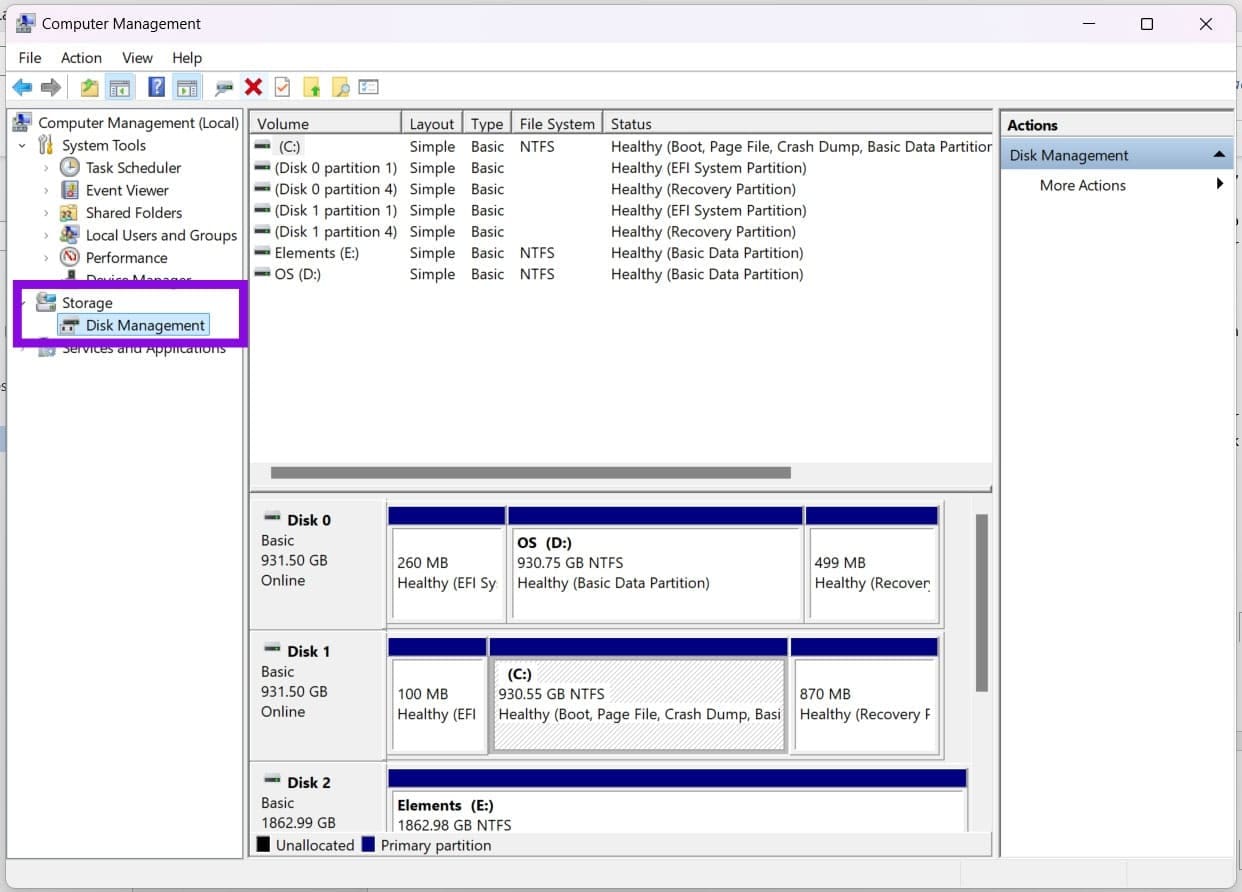
Step 3. In the main window, right-click your SD card drive and select “Format” from the menu.
Step 4. Choose “NTFS” from the dropdown next to “File System” and click “OK” to begin the format. Remember to back up all important files beforehand, as this process will wipe your card.
Disable Search Indexing
If your SD card is slow due to age or file format, having search indexing run on it can slow everything down even further. You can disable this like so:
Step 1. Right-click on your SD card in Windows Explorer and select “Properties.”
Step 2. Head to the “General” tab and uncheck “Allow files on this drive to have contents indexed.”
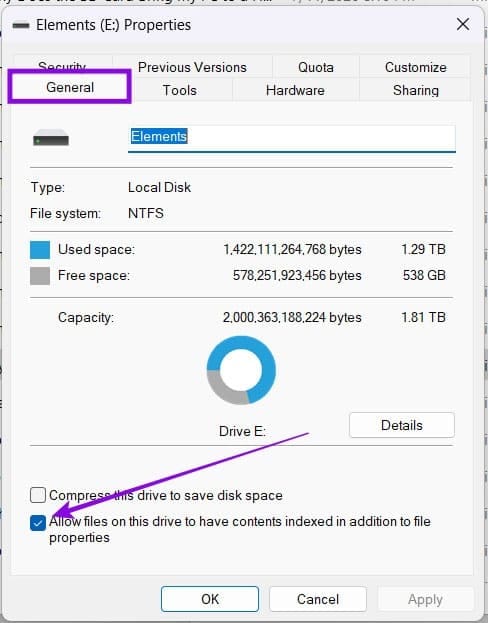
Step 3. Click “Apply,” then “OK” to finalize.
Enable Better Performance
In this Properties menu, you can also improve your card’s performance:
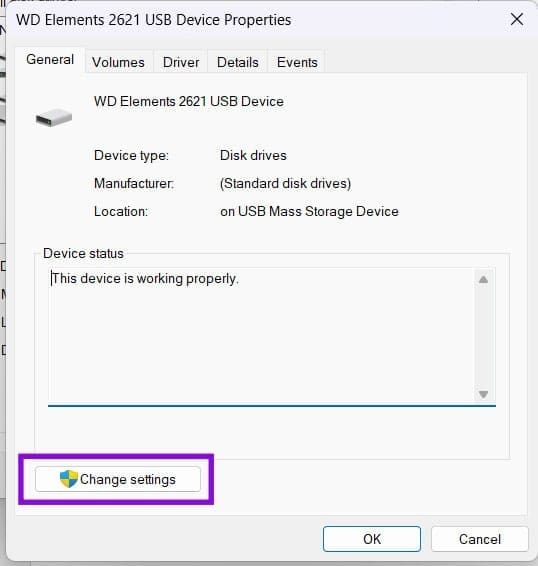
Step 1. Click the “Hardware” tab, click your SD card in the list, then click the “Properties” button.

Step 2. Click “Change settings.”
Step 3. In the “Policies” tab, select “Better performance” and click “OK” to finalize.
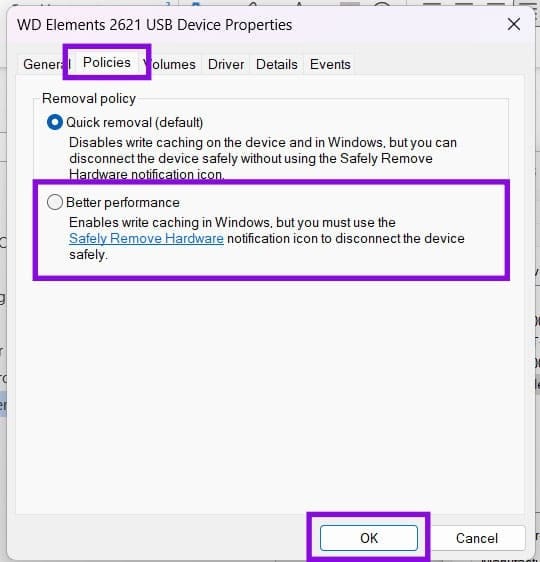
When Better Performance is enabled, always eject the SD card safely before removing it to avoid data corruption.
Was this helpful?
Last updated on 19 July, 2026
Read Next
 Copilot Missing on Windows 11? Here’s How to Bring It Back
Get Copilot From the Microsoft Store If you can't find Microsoft Copilot on your Windows 11 system, install it from the Microsoft Store to get started.
Copilot Missing on Windows 11? Here’s How to Bring It Back
Get Copilot From the Microsoft Store If you can't find Microsoft Copilot on your Windows 11 system, install it from the Microsoft Store to get started.
 How to Bring Up Clipboard History in Windows 11
Whenever you copy something on a Windows PC or laptop, be it a piece of text, a hyperlink, or an image, it goes to a temporary storage area called the
How to Bring Up Clipboard History in Windows 11
Whenever you copy something on a Windows PC or laptop, be it a piece of text, a hyperlink, or an image, it goes to a temporary storage area called the
 How to Bring Back the Missing “Customize Chrome” Button
Fix 1: Check the Requirements First things first.
How to Bring Back the Missing “Customize Chrome” Button
Fix 1: Check the Requirements First things first.
 Stale Value Formatting in Excel – What Is It and Why Does It Matter
If you’ve just started using Microsoft Excel, you might get used to the program automatically applying any changes and recalculating cell results for all formulas inside a datasheet.
Stale Value Formatting in Excel – What Is It and Why Does It Matter
If you’ve just started using Microsoft Excel, you might get used to the program automatically applying any changes and recalculating cell results for all formulas inside a datasheet.
 Why Does My PC Beep When I Turn It On
You might hear beeping when turning on your PC.
Why Does My PC Beep When I Turn It On
You might hear beeping when turning on your PC.
 What Does the Secure Boot Folder Do on Your PC? (And Why It’s Hidden)
If you’ve suddenly found a strange folder in Windows Explorer labelled Secure Boot, you’re no doubt wondering where it came from and if it’s legit.
What Does the Secure Boot Folder Do on Your PC? (And Why It’s Hidden)
If you’ve suddenly found a strange folder in Windows Explorer labelled Secure Boot, you’re no doubt wondering where it came from and if it’s legit.
 Why Does Spotify Take Up So Much Storage – 3 Methods to Fix It
Why Does Spotify Use So Much Storage Ever wondered how Spotify enables you to listen to music offline?
Why Does Spotify Take Up So Much Storage – 3 Methods to Fix It
Why Does Spotify Use So Much Storage Ever wondered how Spotify enables you to listen to music offline?
 Why Does Netflix Keep Logging Me Out and 3 Ways to Fix It
Why Netflix Logged You Out Automatically There are a few reasons why Netflix asks for sign-in every time you open the service.
Why Does Netflix Keep Logging Me Out and 3 Ways to Fix It
Why Netflix Logged You Out Automatically There are a few reasons why Netflix asks for sign-in every time you open the service.
The article above may contain affiliate links which help support Guiding Tech. The content remains unbiased and authentic and will never affect our editorial integrity.

