What Happens on Using Free Up Space in Google Photos?
Whenever you use the Free Up Space option in Google Photos, all photos and videos safely backed up to the cloud are removed from your device’s local storage.
- This means that you can’t access the photos offline. You will not be able to view these photos on your gallery apps.
- As the photos are backed up on the cloud, you can connect your device to the internet and view them on Google Photos.
Note: If photos are uploading in compressed quality, using the Free Up Space option deletes the original quality photos from your device, leaving only the compressed versions on Google Photos. Change the upload quality to original if you want to back up high-quality photos.
How to Get Photos Back After Freeing Up Space
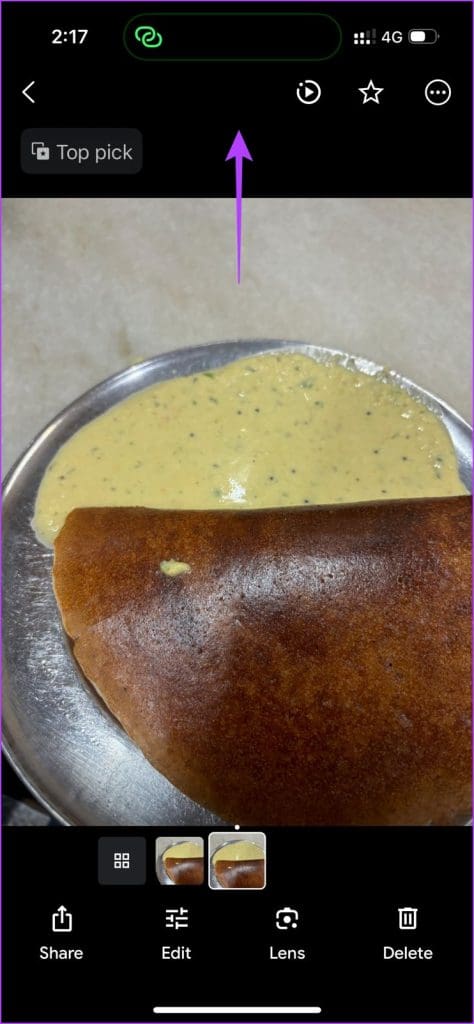
You can always open the photo on Google Photos, swipe up, and use the Download option. The photo will download to the local storage on your device.

Also Read: How to download photos from Google Photos
How to Free Up Space on Google Photos
Open Google Photos > tap on your profile icon at the top right > use the Free up space option > allow Google Photos to delete photos from your device.
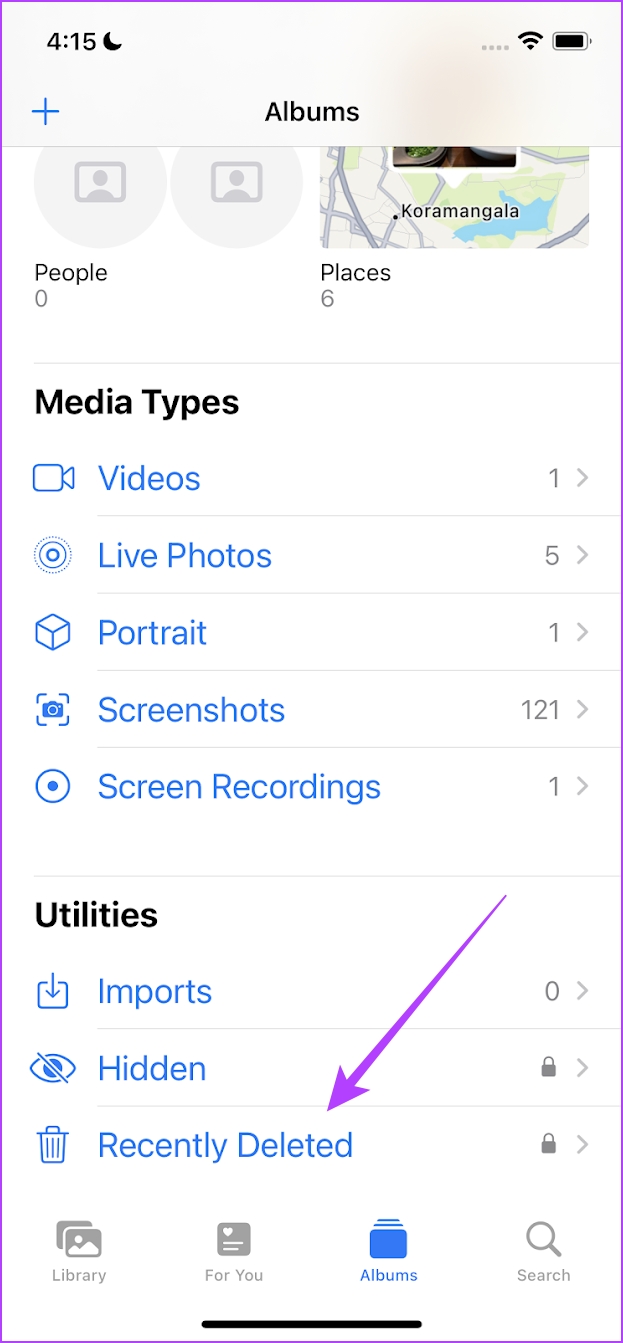
If your device moves deleted photos to a Trash/Recently Deleted folder, clear it to delete the photos from your device permanently.
If you don’t want to delete all backed-up photos from your device at once, delete photos individually. Swipe up on an image and select the Delete From Device option.


Also Read: How to delete photos from iPhone but not Google Photos.
Was this helpful?
Last updated on 15 May, 2024
Read Next
 What Happens When You Delete Photos from Google Photos
If you use the gallery app on your phone without the cloud storage service, things are pretty easy.
What Happens When You Delete Photos from Google Photos
If you use the gallery app on your phone without the cloud storage service, things are pretty easy.
 3 Ways to Free Up Space in Telegram
Method 1: Clear App Cache Telegram allows you to send and receive files up to 2GB in size.
3 Ways to Free Up Space in Telegram
Method 1: Clear App Cache Telegram allows you to send and receive files up to 2GB in size.
 What Happens When You Uninstall Google Photos App
What Happens When You Uninstall Google Photos When you uninstall the Google Photos app, your photos/videos will stop backing up to the cloud.
What Happens When You Uninstall Google Photos App
What Happens When You Uninstall Google Photos When you uninstall the Google Photos app, your photos/videos will stop backing up to the cloud.
 How to Free up Space on C Drive in Windows
Fix 1: Clear the Recycle Bin Let's begin with some simple yet effective solutions.
How to Free up Space on C Drive in Windows
Fix 1: Clear the Recycle Bin Let's begin with some simple yet effective solutions.
 4 Ways to Free Up Space on Android Without Deleting Apps
Basic Fixes: Find and remove large files: You can use Google's Files app to auto-detect and remove large files from your phone.
4 Ways to Free Up Space on Android Without Deleting Apps
Basic Fixes: Find and remove large files: You can use Google's Files app to auto-detect and remove large files from your phone.
 6 Ways to Free Up Space on Windows 11 Without Deleting Apps
Method 1.
6 Ways to Free Up Space on Windows 11 Without Deleting Apps
Method 1.
 5 Fixes for iPhone Photos Taking Up Space Even After Deleting Them
Fix 1: Delete the Recently Deleted Folder Step 1: Open the Photos app, and go to the Recently Deleted folder.
5 Fixes for iPhone Photos Taking Up Space Even After Deleting Them
Fix 1: Delete the Recently Deleted Folder Step 1: Open the Photos app, and go to the Recently Deleted folder.
 How to Use Google Sky Maps to Explore Outer Space
Most individuals might know of Google Maps, but not many people know about Google Sky Maps, another offering for those interested in space.
How to Use Google Sky Maps to Explore Outer Space
Most individuals might know of Google Maps, but not many people know about Google Sky Maps, another offering for those interested in space.
The article above may contain affiliate links which help support Guiding Tech. The content remains unbiased and authentic and will never affect our editorial integrity.