


Consequences of Clearing Chat on WhatsApp
- All messages in the cleared chat are deleted from your device, and you can’t see the conversation history for that chat.
- If new messages are received after clearing the chat, you will get notifications for them as usual, and they will appear in the chat when you open it.
- Clearing the chat will not delete media files downloaded and saved to your device’s gallery. However, the chat window will remove media that was not downloaded (or not set to download automatically).
- Cleared messages will no longer appear in search results within WhatsApp.
Differences Between Clear Chat and Delete Chat
When you clear a chat on WhatsApp, all the messages from the conversation are deleted. However, you can still see the main page’s chat thread (it remains empty until you receive or send a new message).
When you delete a chat thread, WhatsApp removes all the messages and threads from the home page. You must go to the contacts menu to compose a new message.
How to Clear Chat on WhatsApp
On Android
Step 1: Open WhatsApp on your Android phone.
Step 2: Select a chat and tap the three-dot menu at the top right.
Step 3: Click More and tap Clear chat.
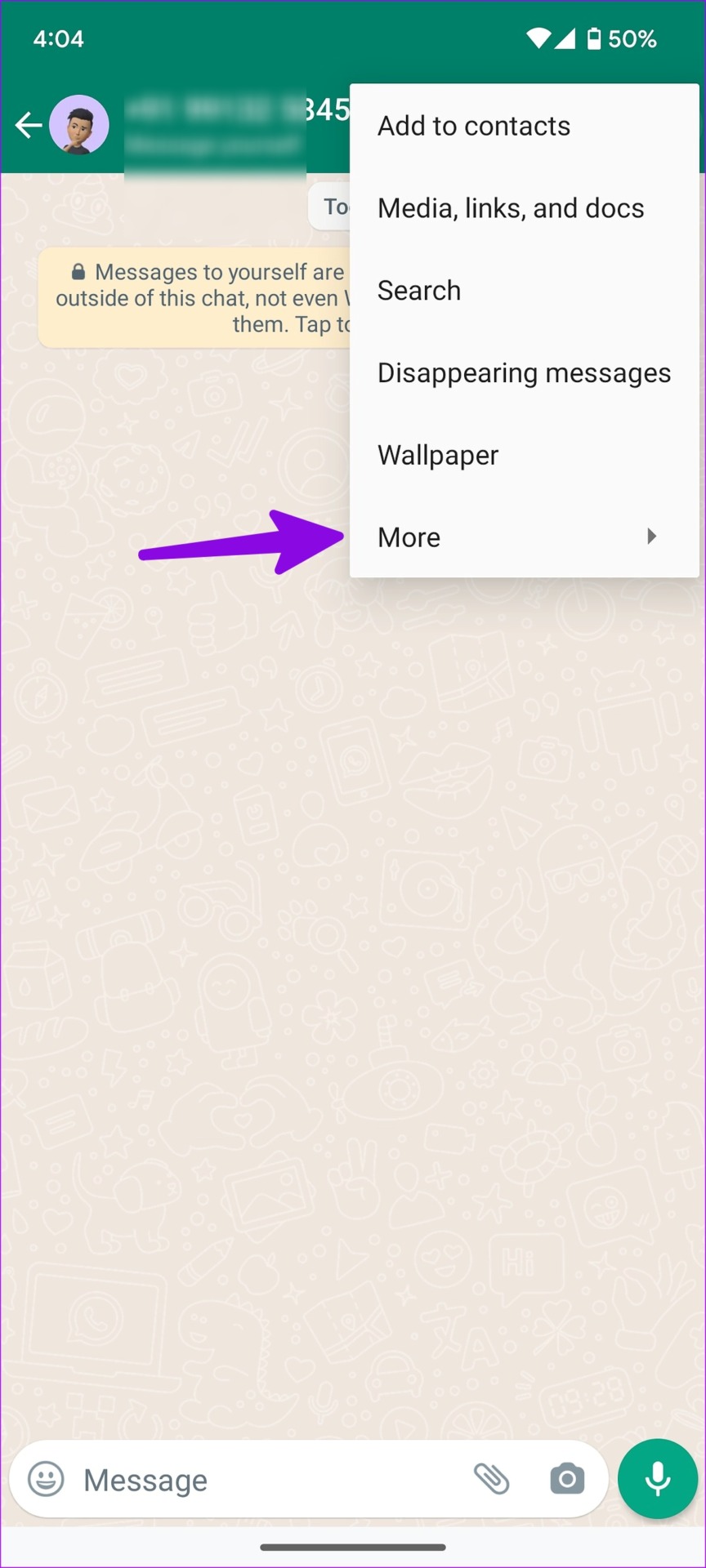
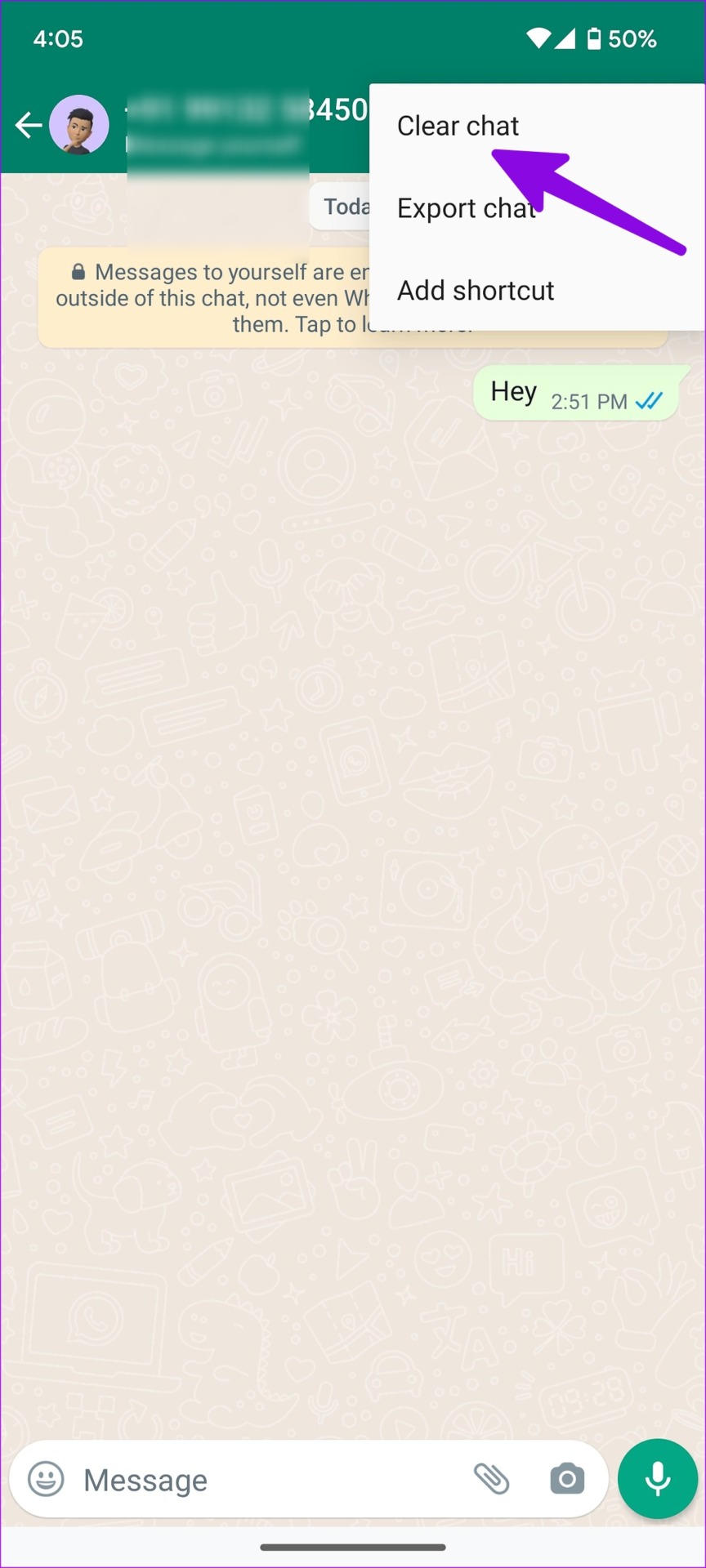
Step 4: In the confirmation pop-up, tap Clear chat.
WhatsApp for Android also lets you delete media received in the chat from the device gallery. This is a handy trick for deleting unnecessary photos and videos from your phone’s storage.
On iOS
Step 1: Launch WhatsApp on your iPhone.
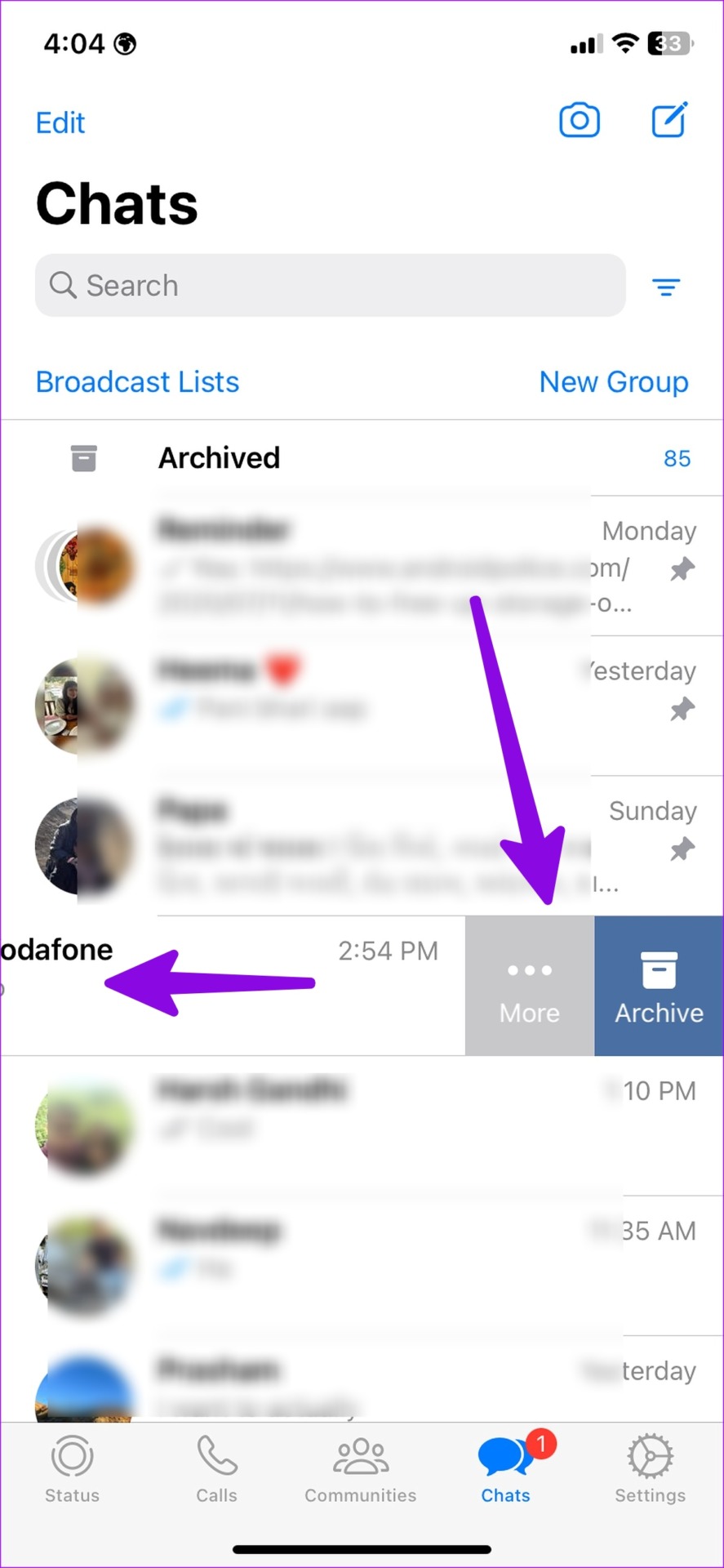
Step 2: When you come across an irrelevant chat, swipe left on it.
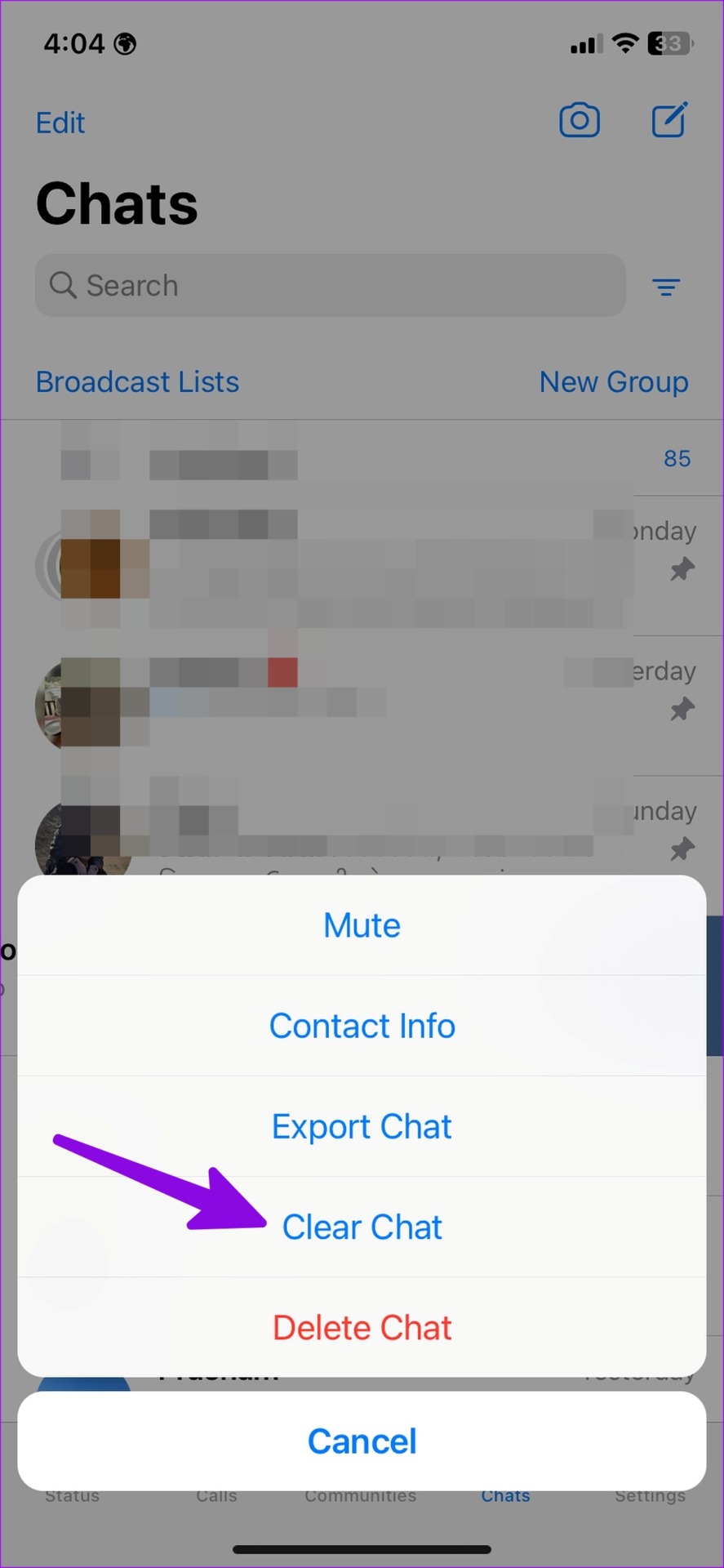
Step 3: Tap More and select Clear Chat.
Step 4: Confirm the same.
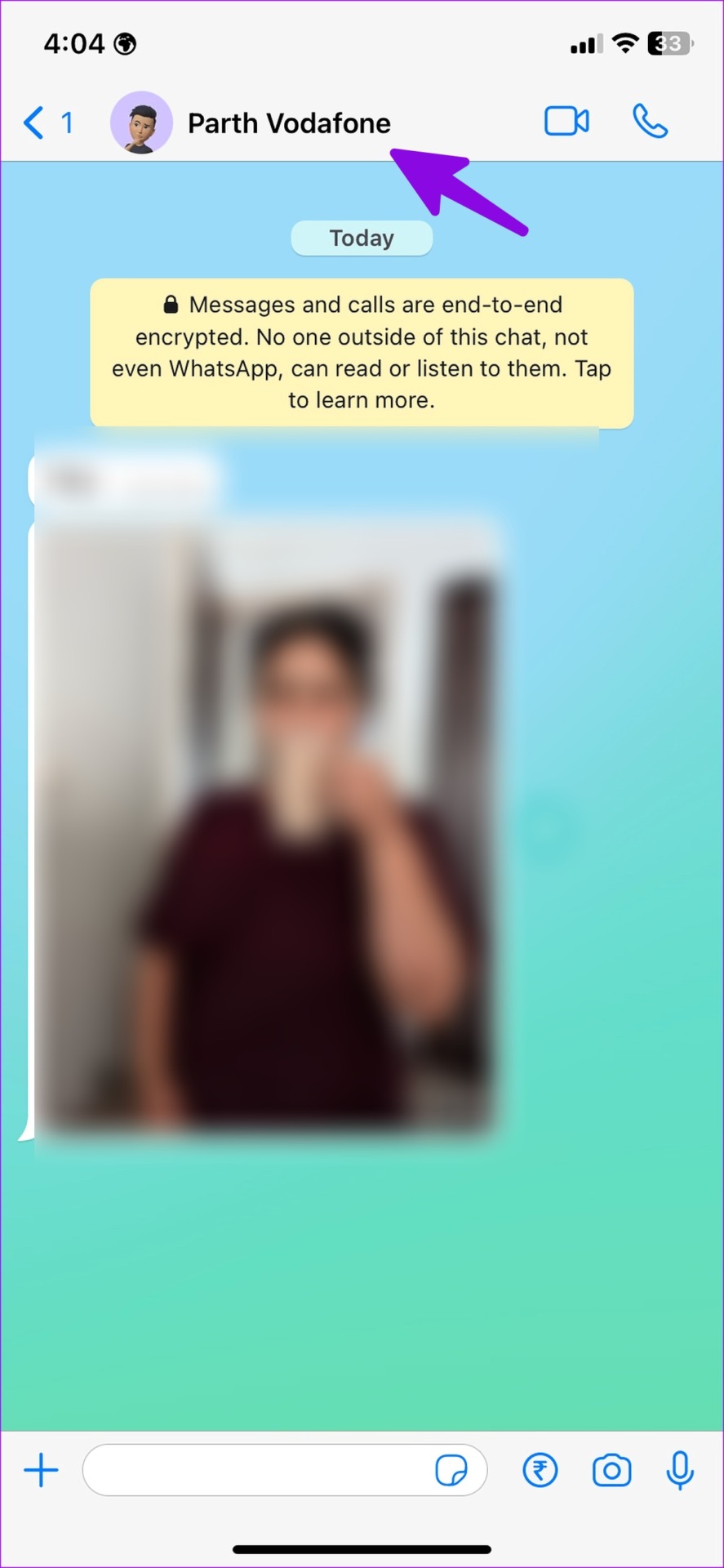
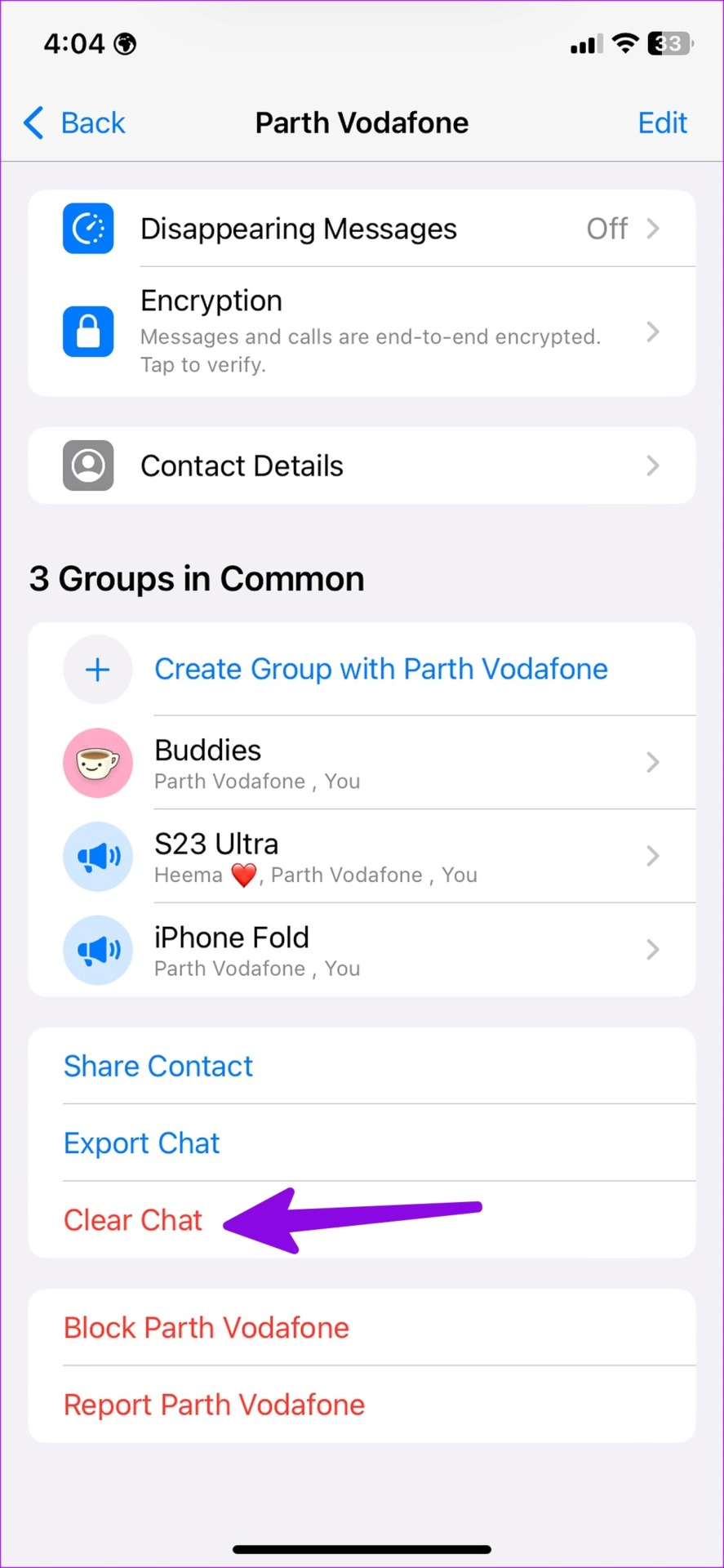
You can clear chat from the contact info menu, too; continue reading.
Step 1: Open any conversation on WhatsApp.
Step 2: Tap the contact name at the top.
Step 3: Scroll to Clear Chat and delete all messages.
Also Read: How to delete, deactivate, or exit WhatsApp Community
On Desktop
The steps are the same for both Windows and Mac. However, for demonstration purposes, we are using Windows.
Step 1: Open WhatsApp on your Windows desktop.
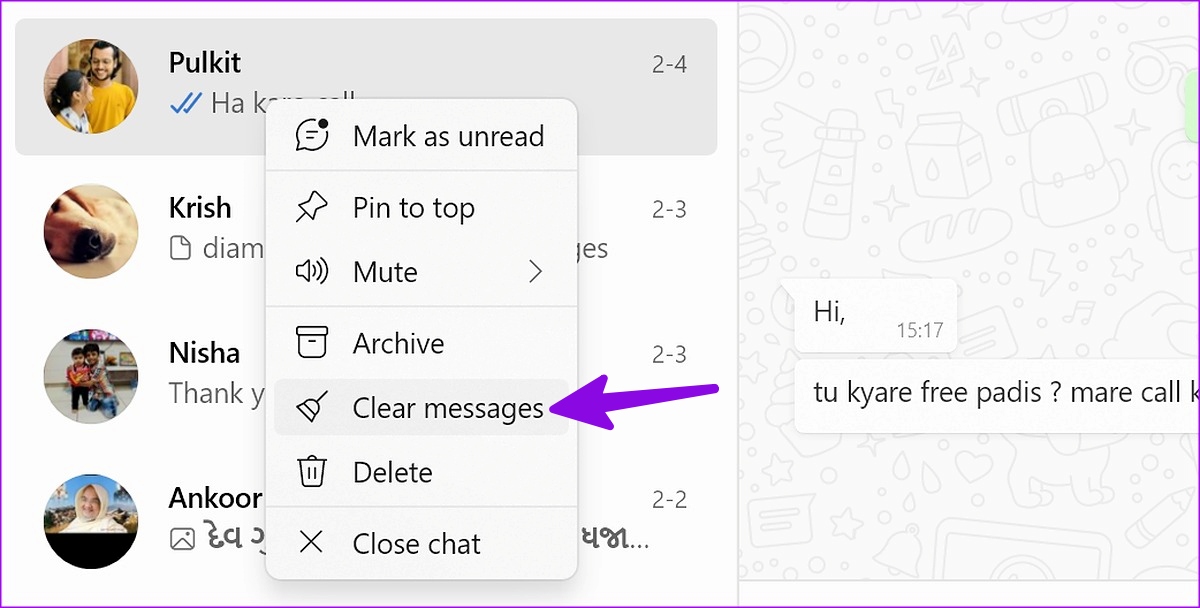
Step 2: Right-click on a chat you want to clear and choose Clear messages.
Note: For Mac, right-click on the chat > choose More > Clear chat.
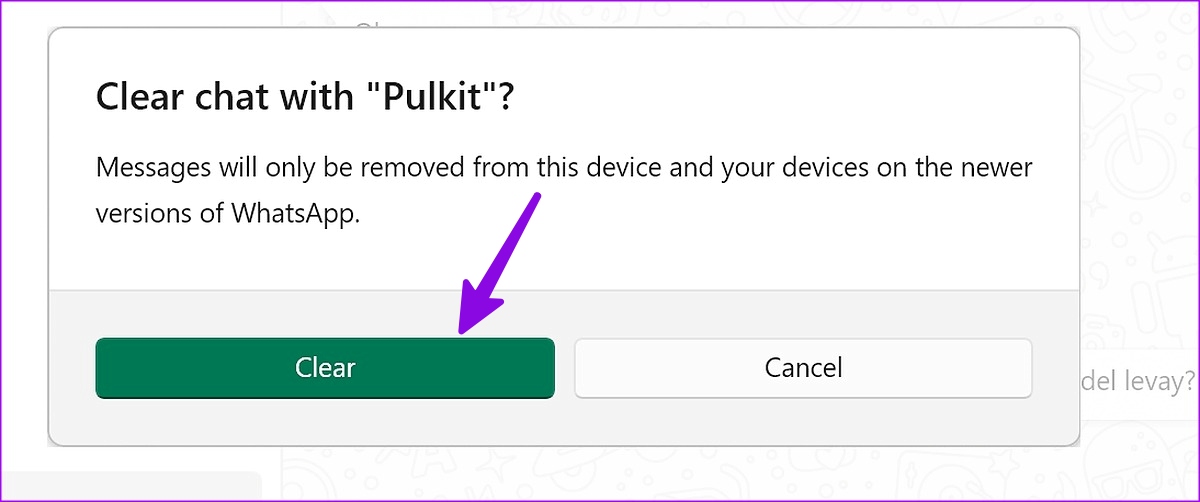
Step 3: In the pop-up, click Confirm.
FAQs
No, it doesn’t. WhatsApp only clears messages on your side. The same messages remain visible on the recipient’s phone.
There is no direct way to recover messages after clearing a chat on WhatsApp, and the company doesn’t offer an undo button to reverse the decision. However, there is a workaround. Before WhatsApp performs the next backup on Google Drive or iCloud, you can restore the previous backup file and get your messages back.
You can permanently delete WhatsApp messages from both sides within 48 hours. After that, you will only see an option to delete messages on your phone.
Note: If a specific account spams you with messages, consider blocking the account.
Was this helpful?
Last updated on 01 August, 2024
2 Comments
Leave a Reply
Read Next
 What is Archive in WhatsApp and What Happens When You Archive a Chat
What is Archive in WhatsApp Archive is a chat organization and privacy feature that lets you hide WhatsApp chats from the main list (chats tab).
What is Archive in WhatsApp and What Happens When You Archive a Chat
What is Archive in WhatsApp Archive is a chat organization and privacy feature that lets you hide WhatsApp chats from the main list (chats tab).
 3 Ways to Clear Cache on Snapchat
What Happens When You Clear Cache from Snapchat Clearing the cache on Snapchat removes temporary files and junk files from the app.
3 Ways to Clear Cache on Snapchat
What Happens When You Clear Cache from Snapchat Clearing the cache on Snapchat removes temporary files and junk files from the app.
 What Happens When You Clear Browsing Data in Chrome
What Counts as Browsing Data in Chrome When you browse the web using Google Chrome, the browser collects various types of data related to your internet activities.
What Happens When You Clear Browsing Data in Chrome
What Counts as Browsing Data in Chrome When you browse the web using Google Chrome, the browser collects various types of data related to your internet activities.
 What Happens When You Clear Cache on Instagram?
What Does Clearing Instagram Cache Do Here are a few queries regarding clearing the Instagram app cache: Will this delete your Instagram photos and messages?: No, clearing the cache doesn't
What Happens When You Clear Cache on Instagram?
What Does Clearing Instagram Cache Do Here are a few queries regarding clearing the Instagram app cache: Will this delete your Instagram photos and messages?: No, clearing the cache doesn't
 How to Clear Cache on Spotify and What Happens When You Do
What Happens When You Clear Cache From Spotify?
How to Clear Cache on Spotify and What Happens When You Do
What Happens When You Clear Cache From Spotify?
 What Happens When You Clear Data of an Android App: Popular Apps Explained
What Happens When You Clear Data From an Android App You will be signed out of the account present in the app.
What Happens When You Clear Data of an Android App: Popular Apps Explained
What Happens When You Clear Data From an Android App You will be signed out of the account present in the app.
 What Happens When You Block Someone on WhatsApp
How To Block Someone on WhatsApp And What Happens After Blocking What Happens When You Block Someone on WhatsApp A series of changes occur when you block someone on WhatsApp,
What Happens When You Block Someone on WhatsApp
How To Block Someone on WhatsApp And What Happens After Blocking What Happens When You Block Someone on WhatsApp A series of changes occur when you block someone on WhatsApp,
 What Happens When You Uninstall Whatsapp
Chat History When you uninstall WhatsApp, your chat history is not deleted from WhatsApp servers, and you can access it whenever you reinstall the app and retrieve the backup.
What Happens When You Uninstall Whatsapp
Chat History When you uninstall WhatsApp, your chat history is not deleted from WhatsApp servers, and you can access it whenever you reinstall the app and retrieve the backup.
The article above may contain affiliate links which help support Guiding Tech. The content remains unbiased and authentic and will never affect our editorial integrity.


What should I do to make all my old and new messages simply disappear from all conversations and groups?
I want to completely clear them so that my friends also lose all my messages, along with photos.
To make all your messages, including photos, disappear from all conversations and groups on WhatsApp, you need to delete your messages within 48 hours using the “Delete for Everyone” feature. However, this only works within the time limit, and your friends may still have a copy if they were quick to back up or save the chat.
Unfortunately, there’s no way to forcefully remove messages from someone else’s phone after the time window has passed.