

Basic Fixes
- Ask the other party to save your contact: Depending on the profile picture settings of the other party, you may not be able to view their DP if your contact isn’t saved on their phone. If you think this is the case, simply ask the other party to save your contact.
- Clear your phone’s storage: Downloading a WhatsApp profile picture takes up storage on your phone. So if your phone’s storage is full, it’s time to make some space. You can also clear the Other Storage on your iPhone if you’ve run out of things to delete.
- Switch to the stable version of WhatsApp: The beta versions of apps add cool new features but can introduce several bugs. So, it’s advisable to quit the beta program by hitting the Leave button on the app’s page on the Google Play Store.
Fix 1: Check Profile Picture Visibility Settings
WhatsApp — just like Telegram and Signal — allows you to choose who can see your profile picture. If you have set this option to Nobody — either deliberately or by mistake — your profile pic will be blank. It won’t be visible even to your contacts.
Here’s how to check and change the visibility if your WhatsApp profile picture suddenly disappears.
On Android
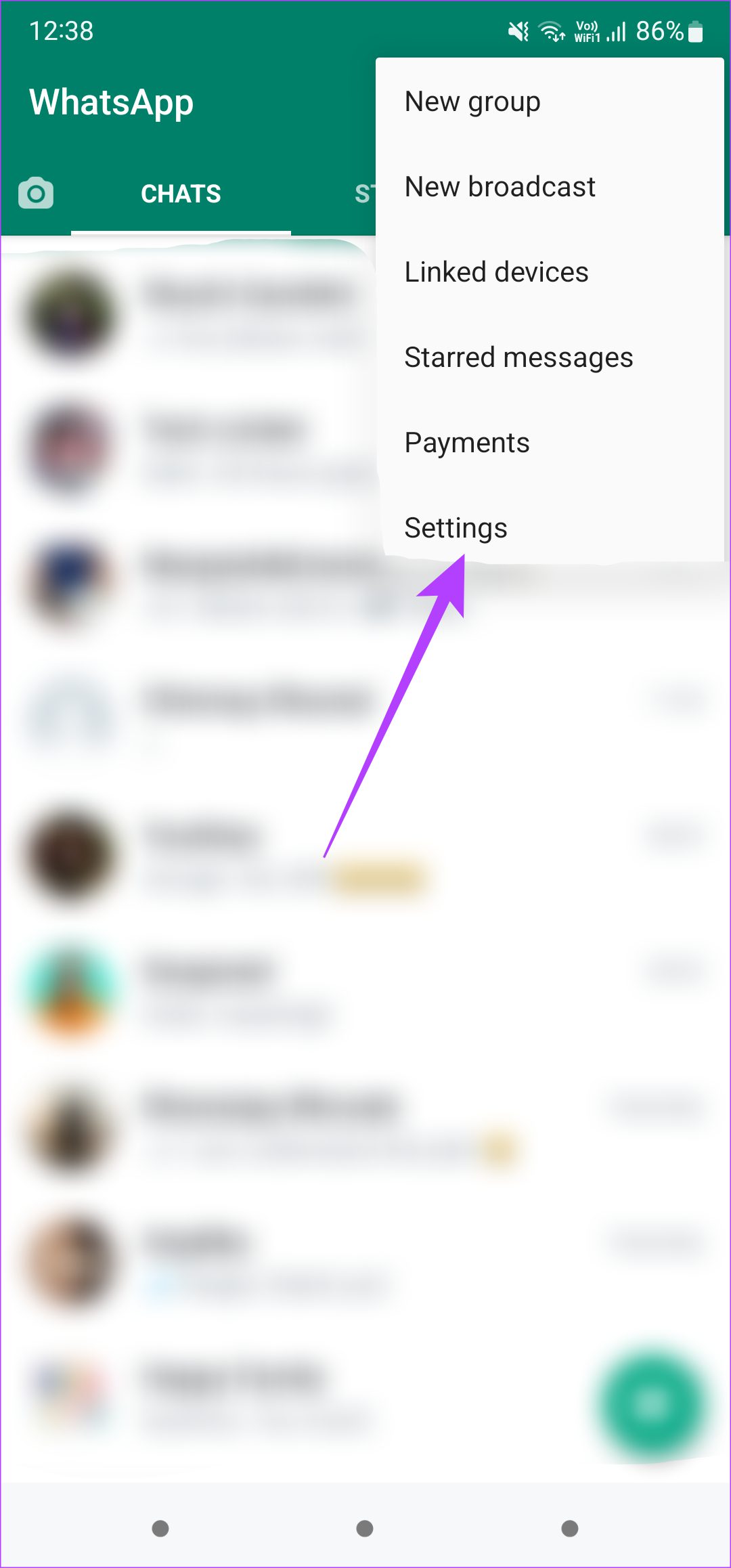
Step 1: Open WhatsApp on your phone and tap on the three-dot menu at the top-right corner. Tap on Settings to bring up WhatsApp settings.

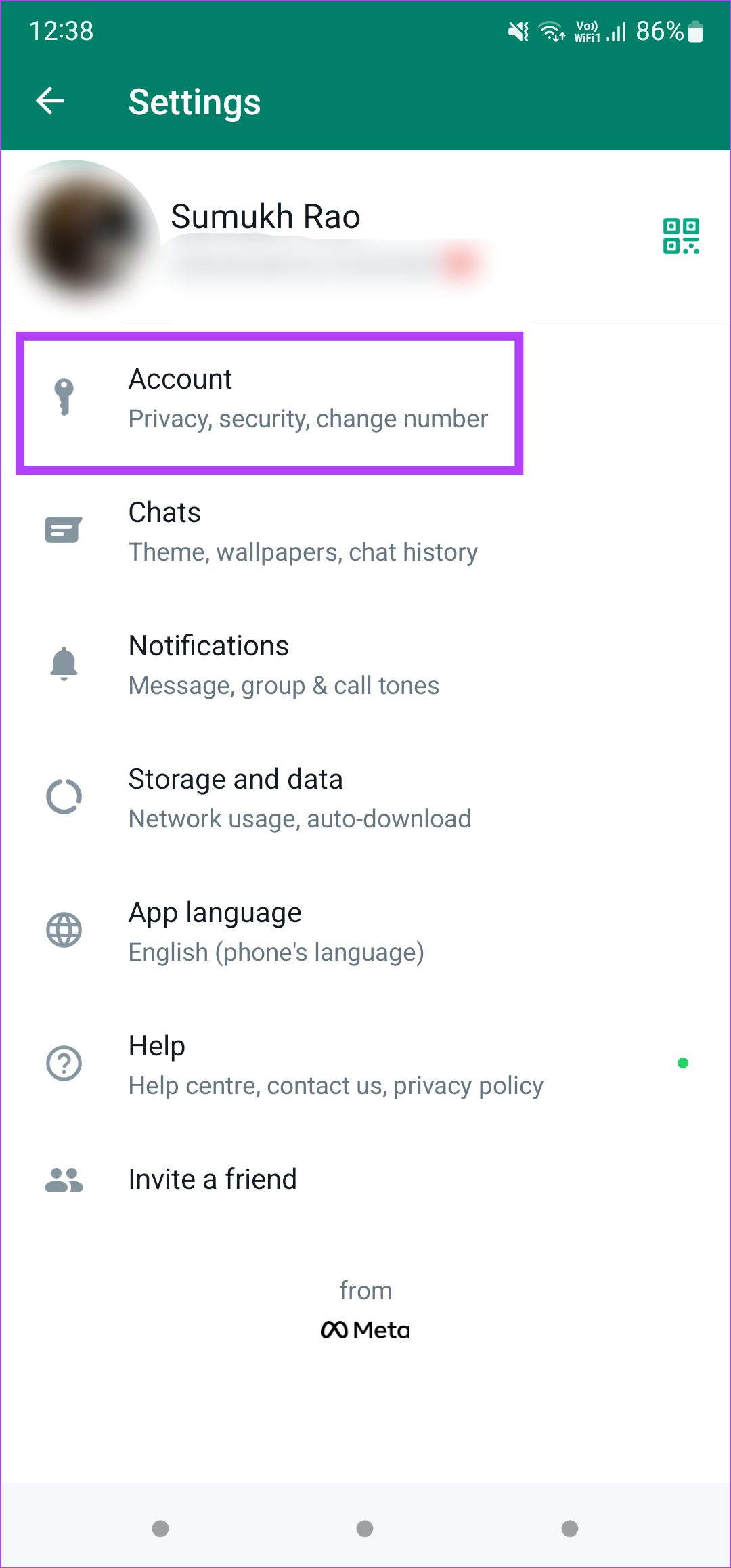
Step 2: Select the Account option at the top. Tap on the Privacy setting.

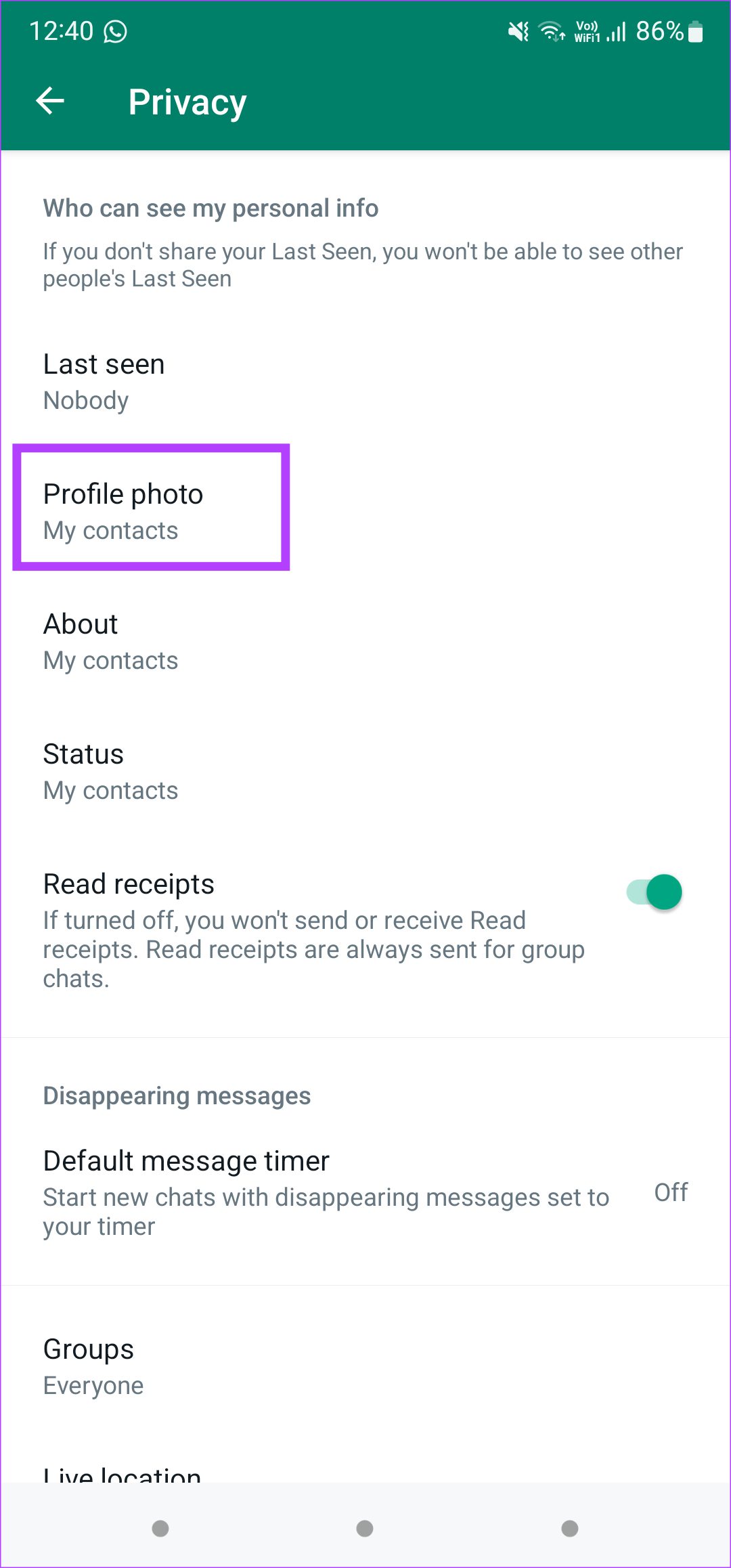
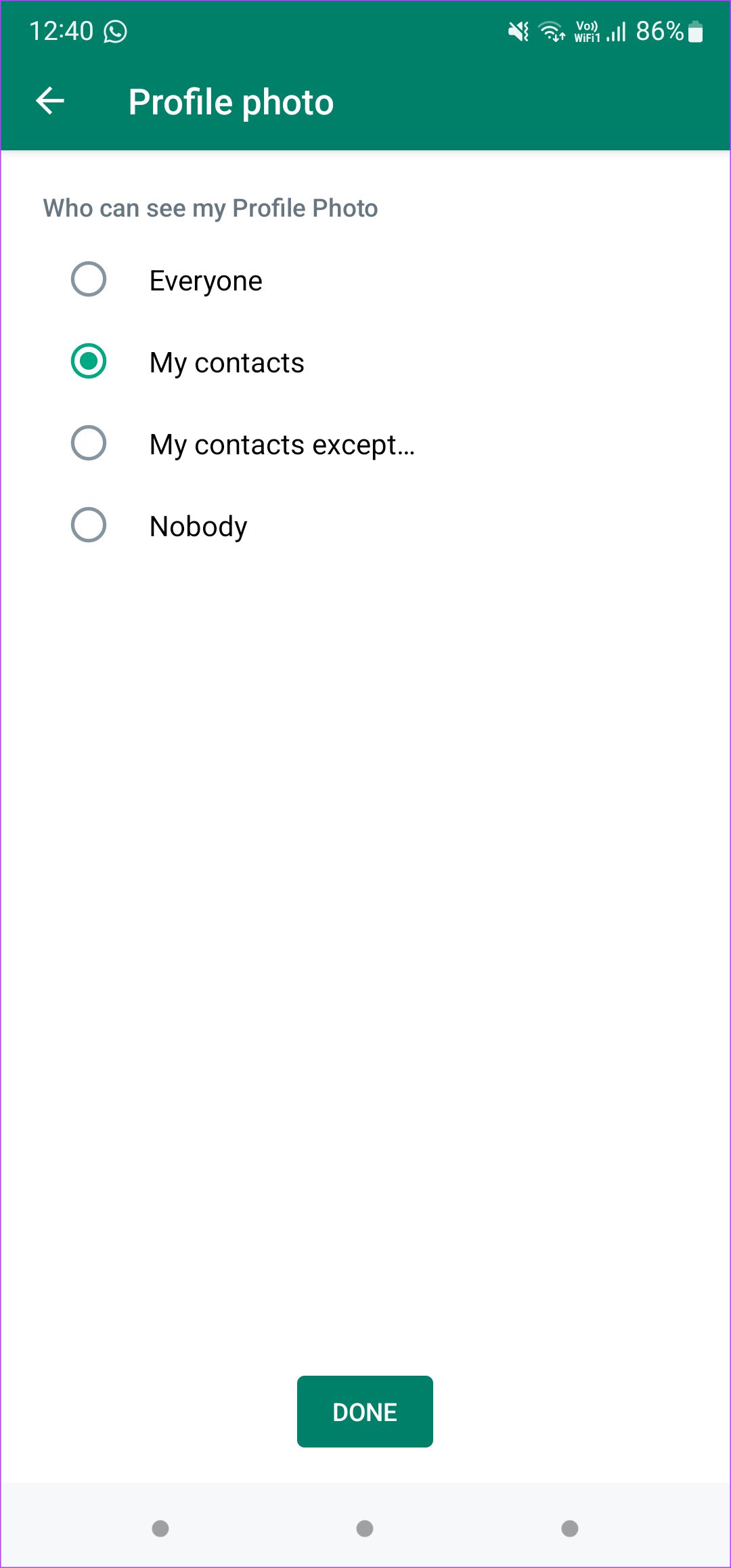
Step 3: Select Profile photo and choose the relevant option. You can either set it to My contacts or Everyone depending on who you want to share your profile picture with.
On iPhone
Step 1: Open WhatsApp and tap on the Settings tab at the bottom-right corner. Select Account.

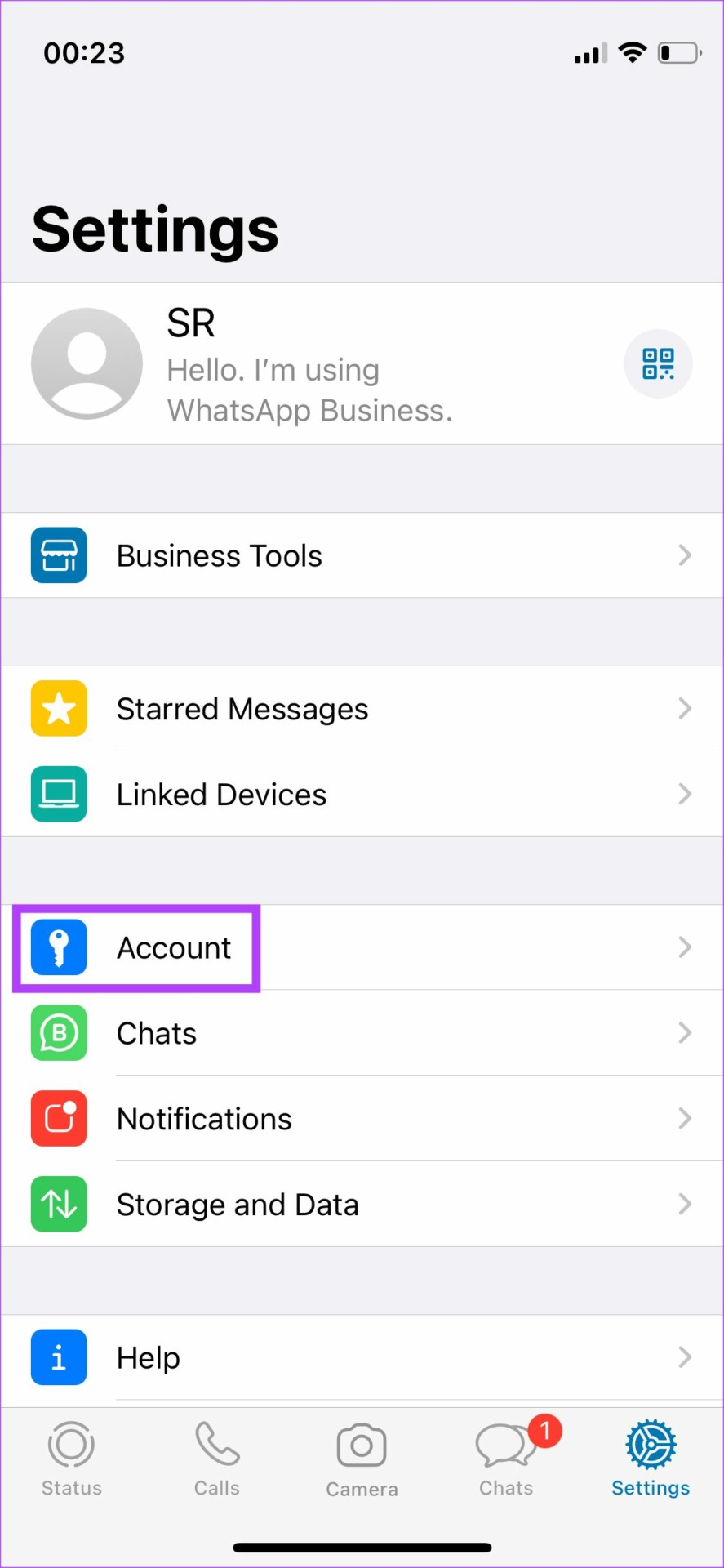
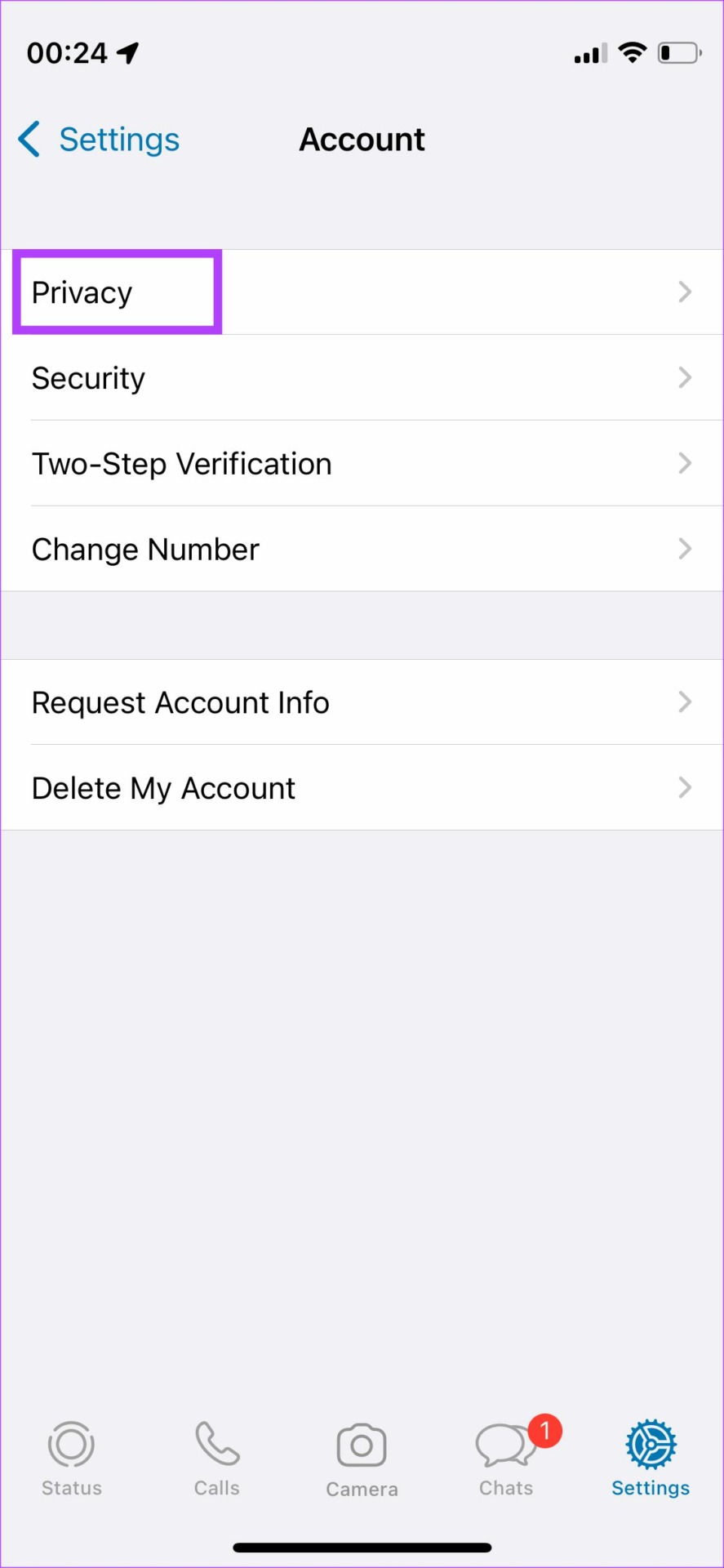
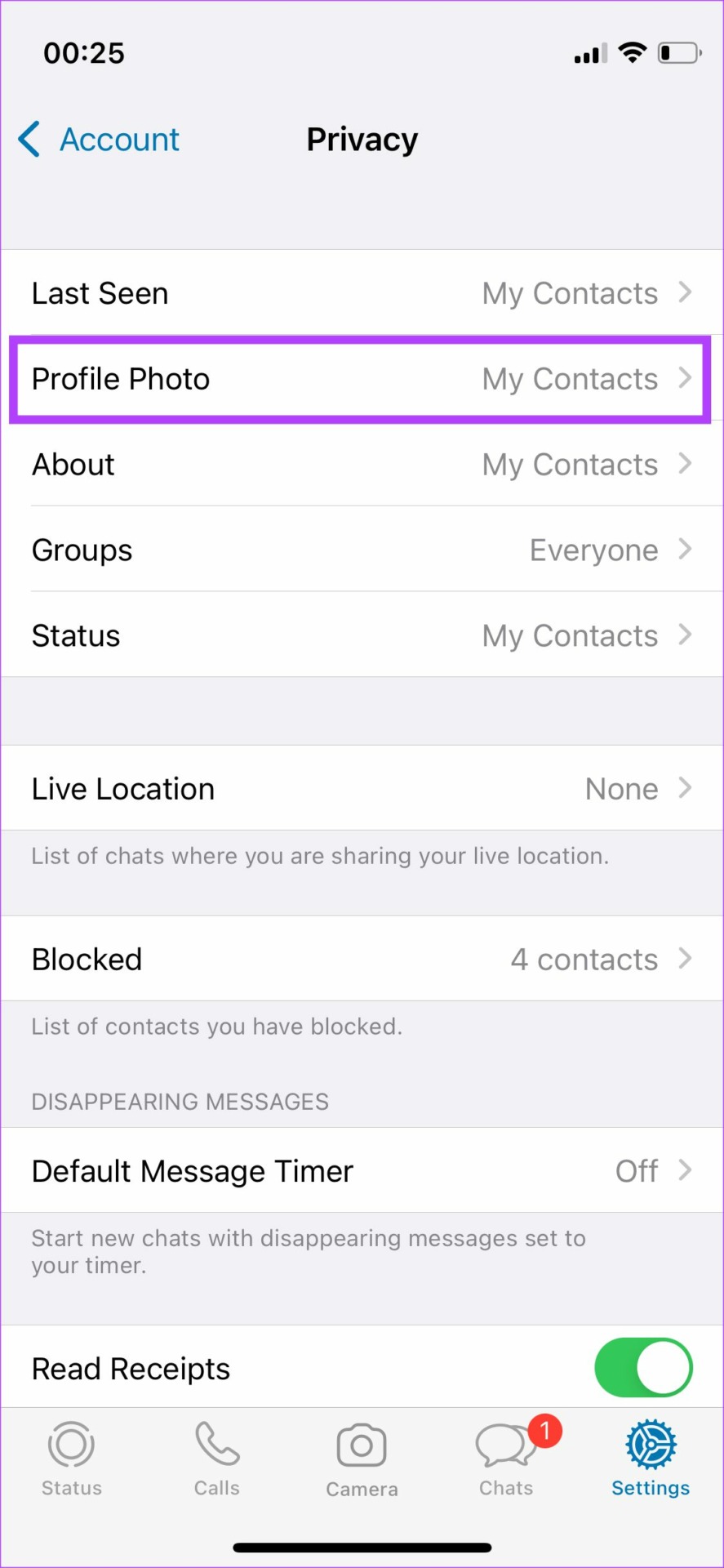
Step 2: Now, tap on the Privacy option. Select the Profile Photo option and then choose My Contacts or Everyone.

Fix 2: Grant the Right Permission to WhatsApp
Every app requires access to certain permissions to function correctly. If you’ve set your profile picture to be visible only to your contacts, WhatsApp needs to know who your contacts are. That’s why WhatsApp requires access to your phone’s contacts and asks your permission for the same. Otherwise, you’ll see there’s no WhatsApp picture for anyone.
If you missed permitting WhatsApp access to your phone’s contacts, here’s how to fix it.
Enabling Permission on Android
Step 1: Tap on hold on WhatsApp in your app drawer. Select the ‘i‘ button to access the app’s settings. Select the Permissions option.

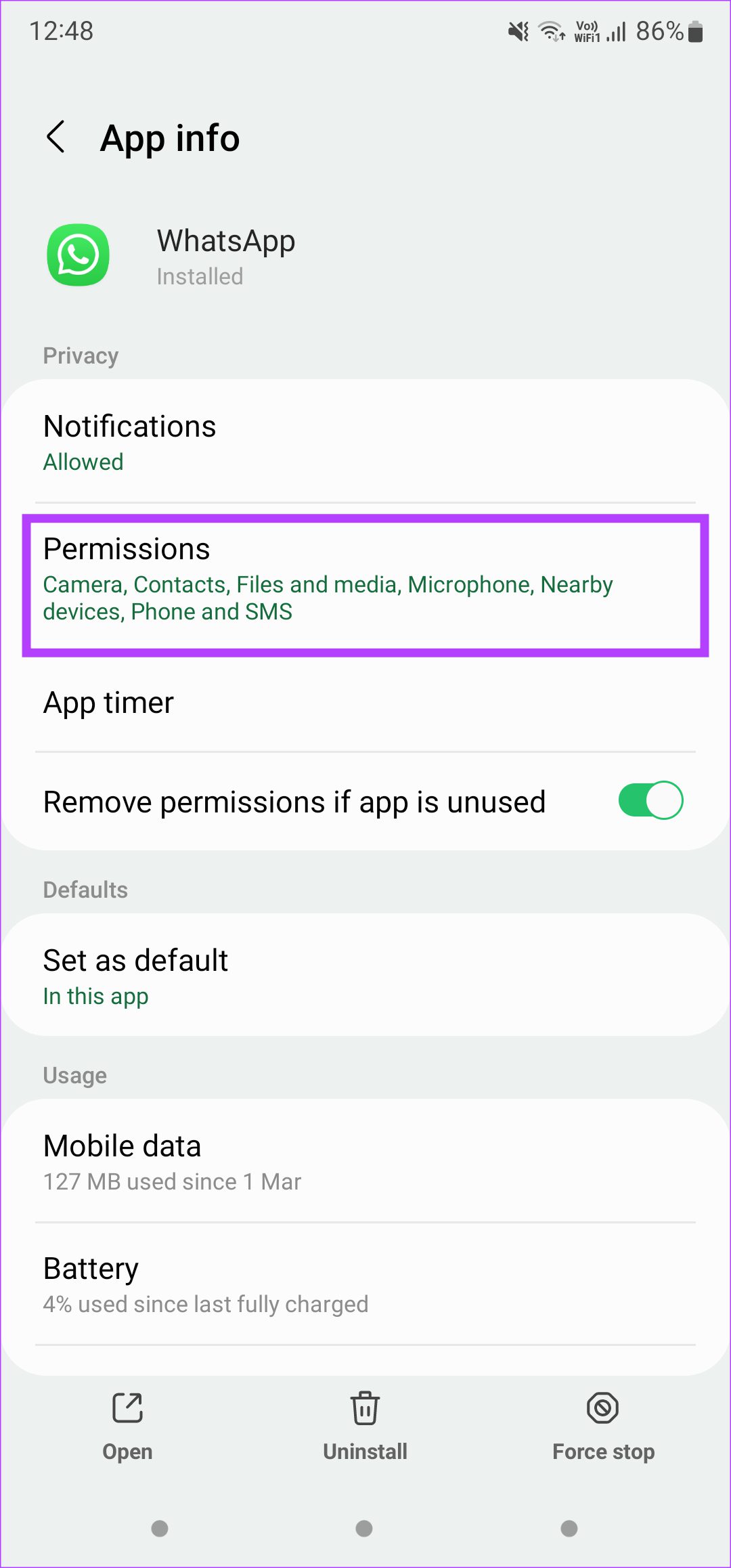
Step 2: Now, tap on Contacts and select Allow.
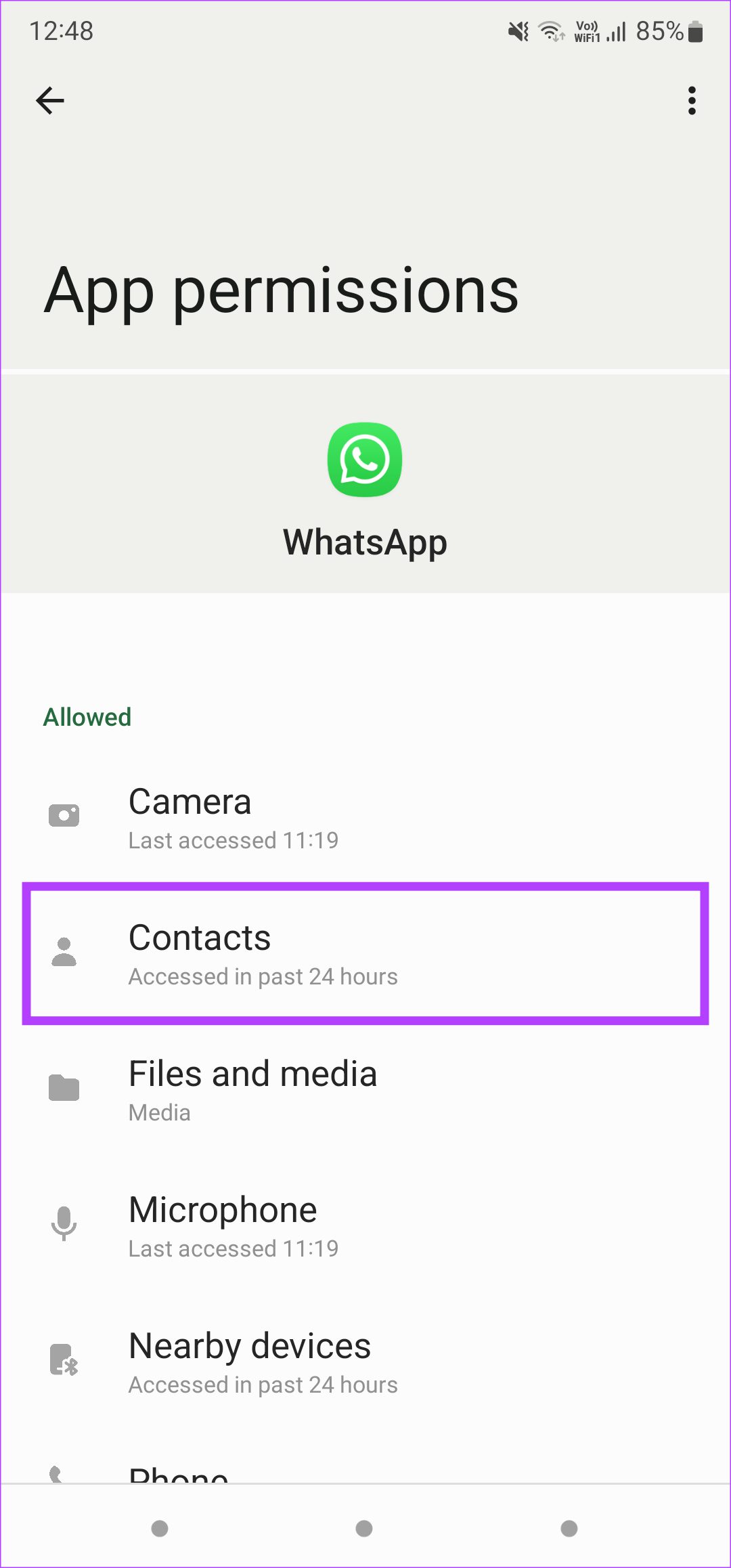
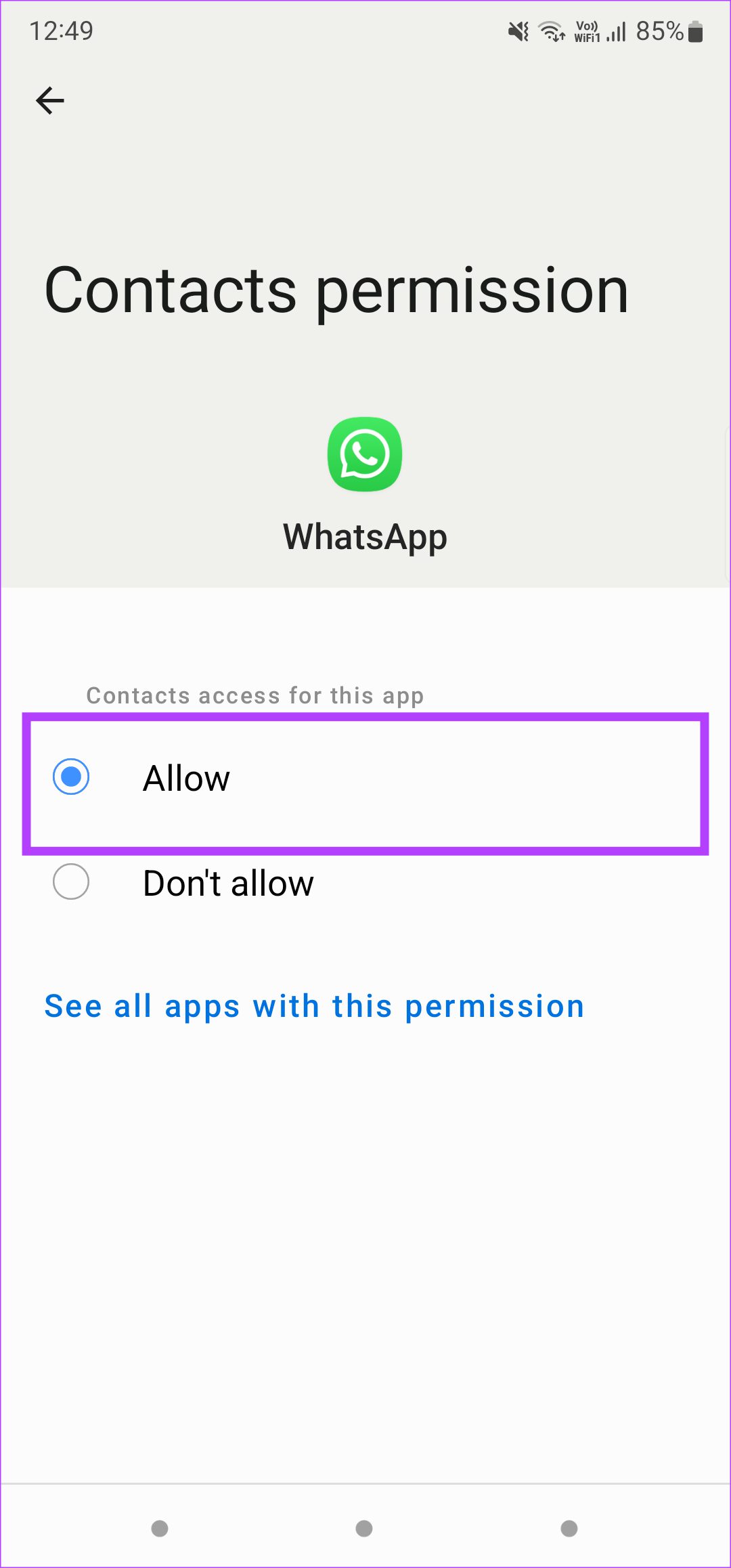
Give WhatsApp a couple of minutes to sync your contacts. After that, your profile picture should be visible to your contacts.
Enabling Permission on iPhone
Open the Settings app on your iPhone and scroll down till you find WhatsApp. Tap on it. Turn on the toggle next to Contacts.
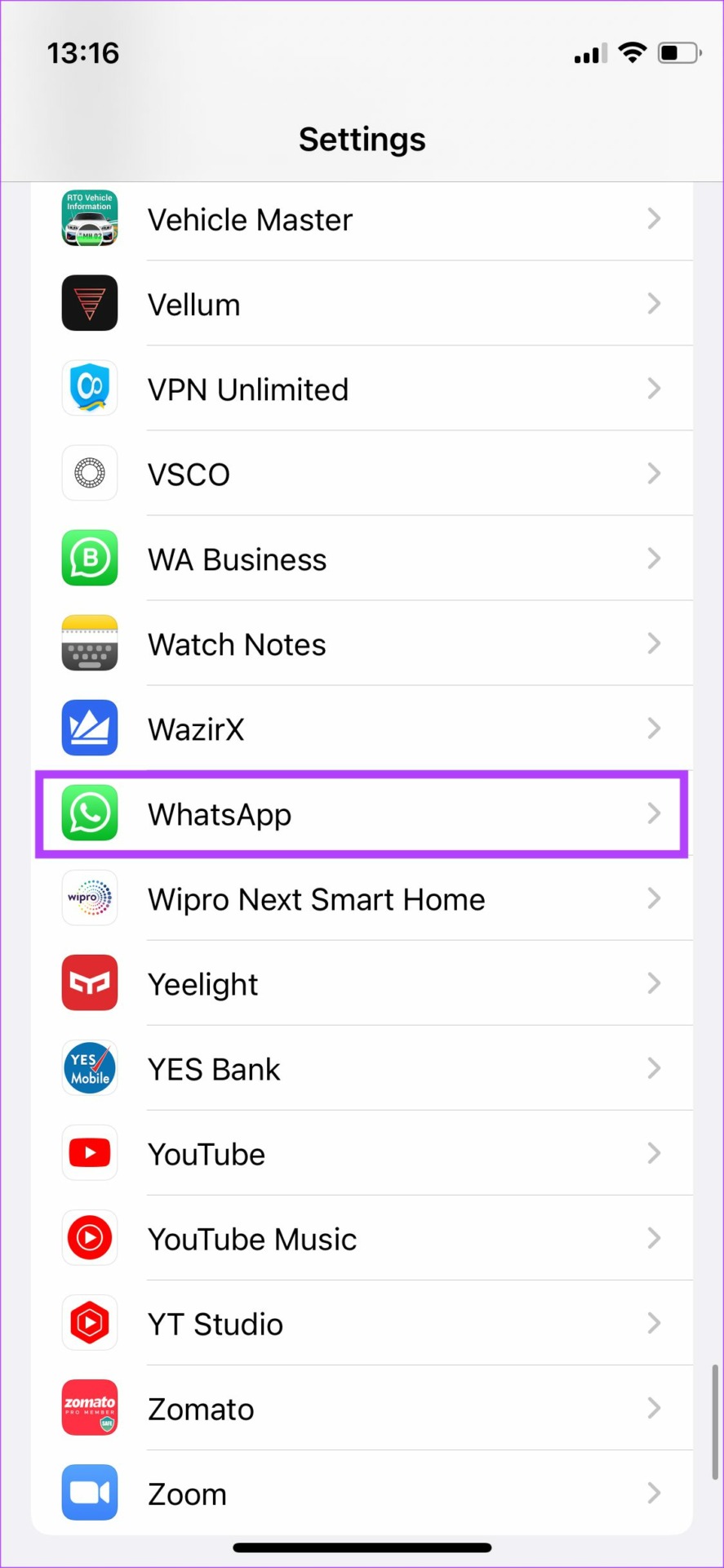

Reopen WhatsApp and wait for it to sync your contacts.
Also Read: 6 ways to fix WhatsApp Web Not Syncing
Fix 3: Remove and Re-Add a Profile Picture
If you’re switching from an older phone to a new one, your WhatsApp data including your profile picture is generally transferred over to the new phone. At times, it doesn’t always work, especially when you switch from Android to iPhone or vice-versa.
Hence, it’s best to remove your profile picture and add it again. Here’s how to do it.
On Android
Step 1: Open WhatsApp on your phone and tap on the three-dot menu at the top-right corner. Tap on Settings to bring up WhatsApp settings.
Step 2: Select your existing profile picture by tapping on it.
Step 3: You will now see your profile picture, name, about, and phone number. Tap on the small camera icon below the profile picture. Now, tap on the delete icon to remove your profile picture.


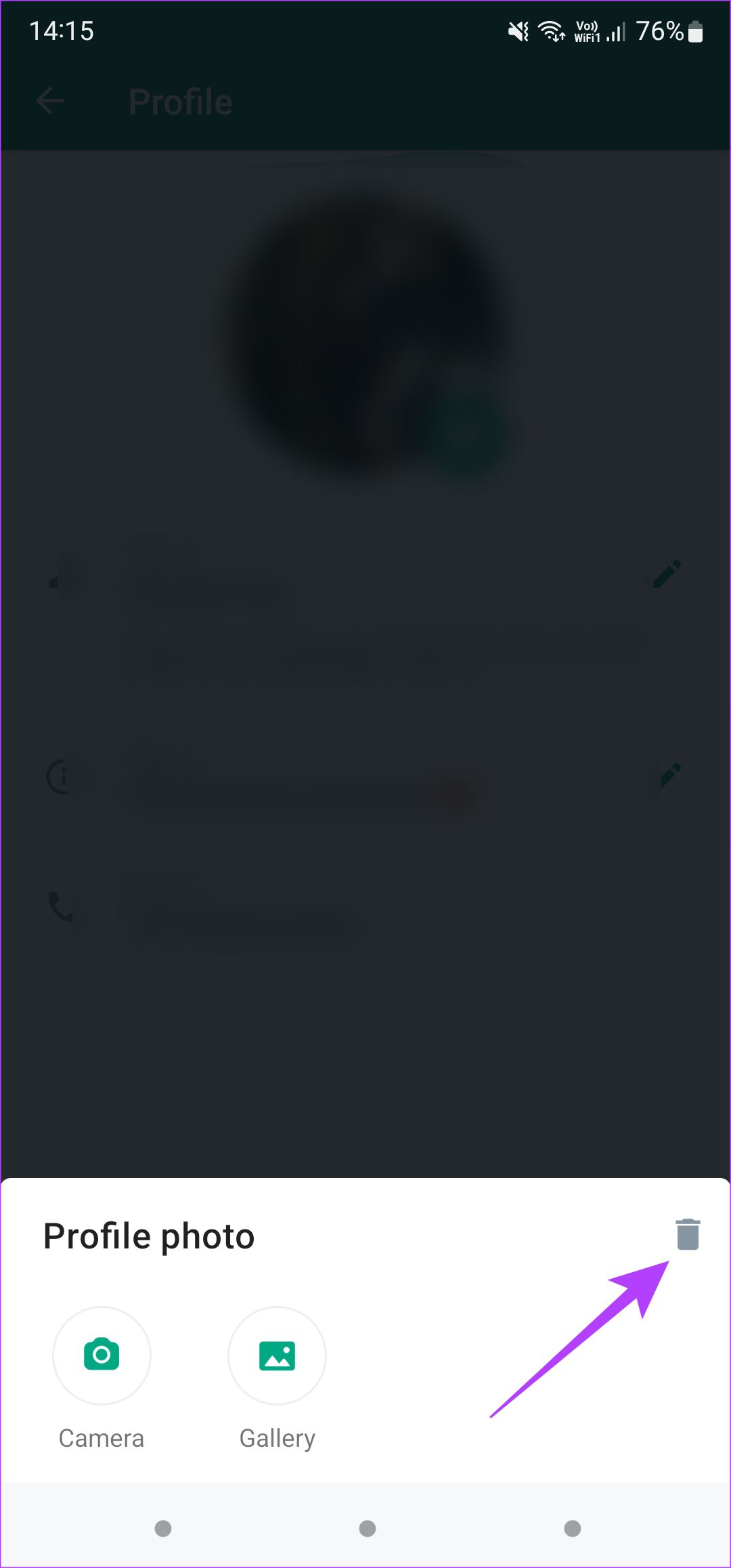
Step 4: Next, tap on the same camera icon again and choose whether you want to upload a new picture from your phone’s Gallery app or capture it using the camera.
On iPhone
Step 1: Open WhatsApp and tap on the Settings tab at the bottom-right corner. Tap on the profile picture that is displayed.

Step 2: Select the Edit button below your photo and then tap on Delete Photo.

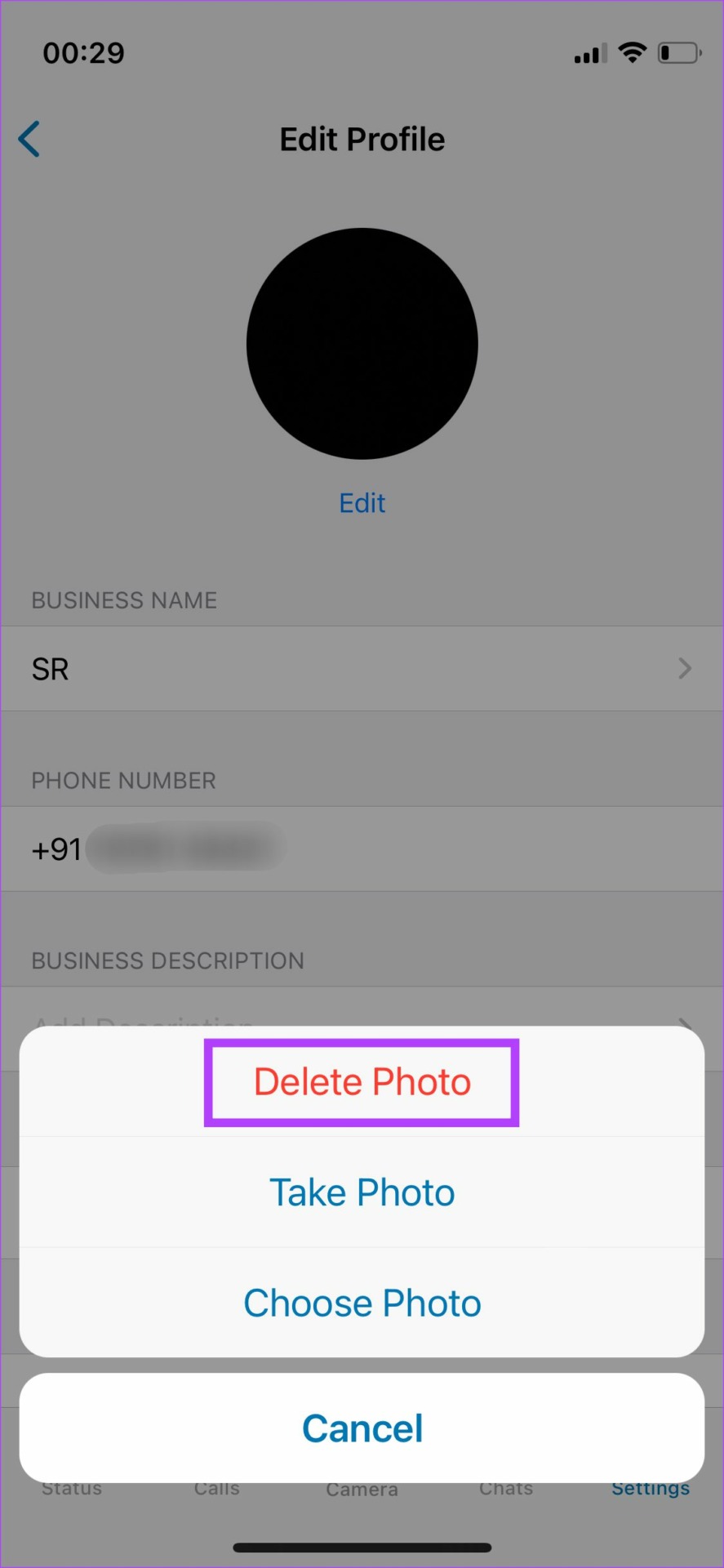
Step 3: Select Add Photo and then tap on Take Photo or Choose Photo depending on whether you want to click a new picture or add one from the Photos app.


Fix 4: Clear WhatsApp Cache
Clearing the cache can sometimes fix problems like these quickly. Here’s how to do it.
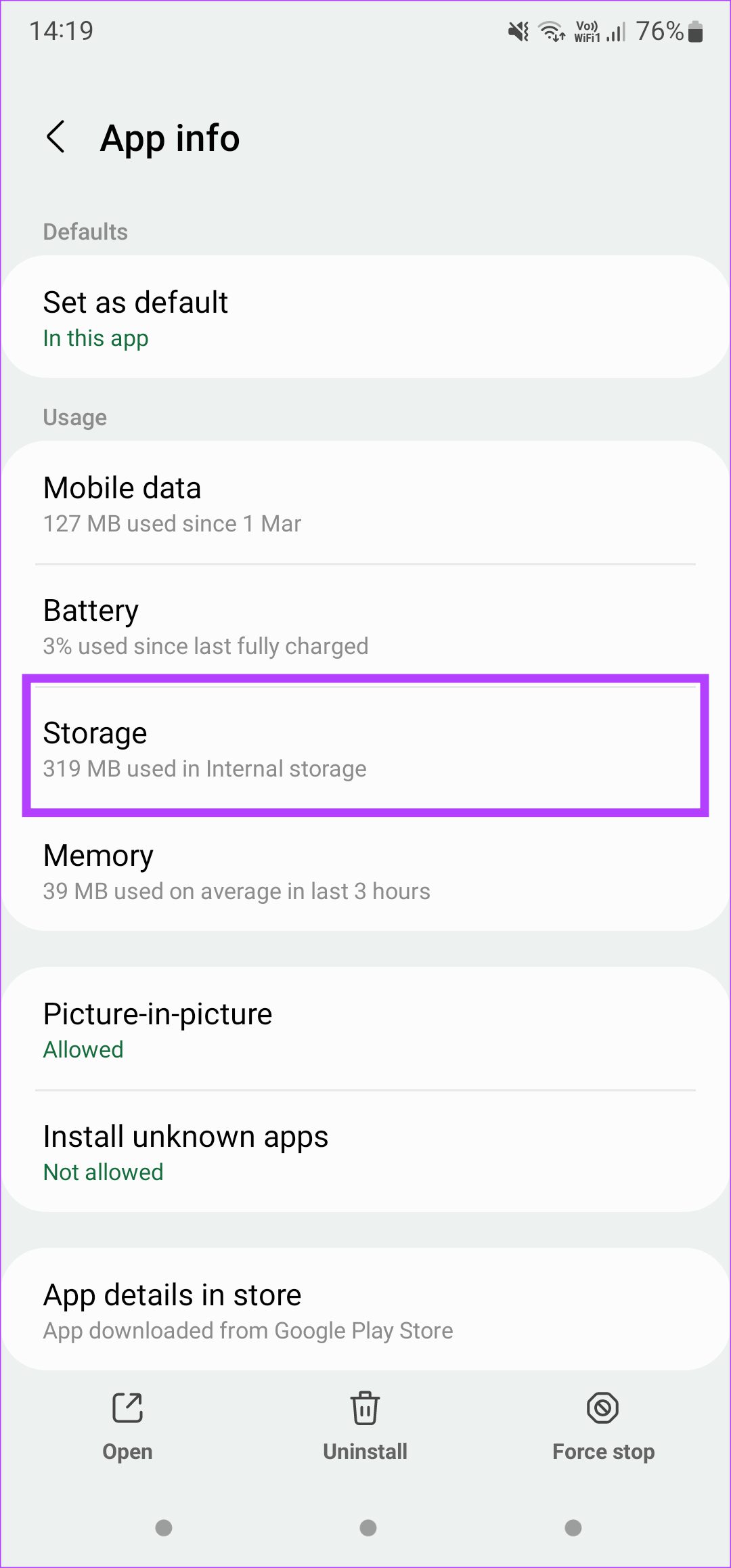
Step 1: Tap on hold on WhatsApp in your app drawer. Select the ‘i‘ button to access the app’s settings. Select the Storage option.
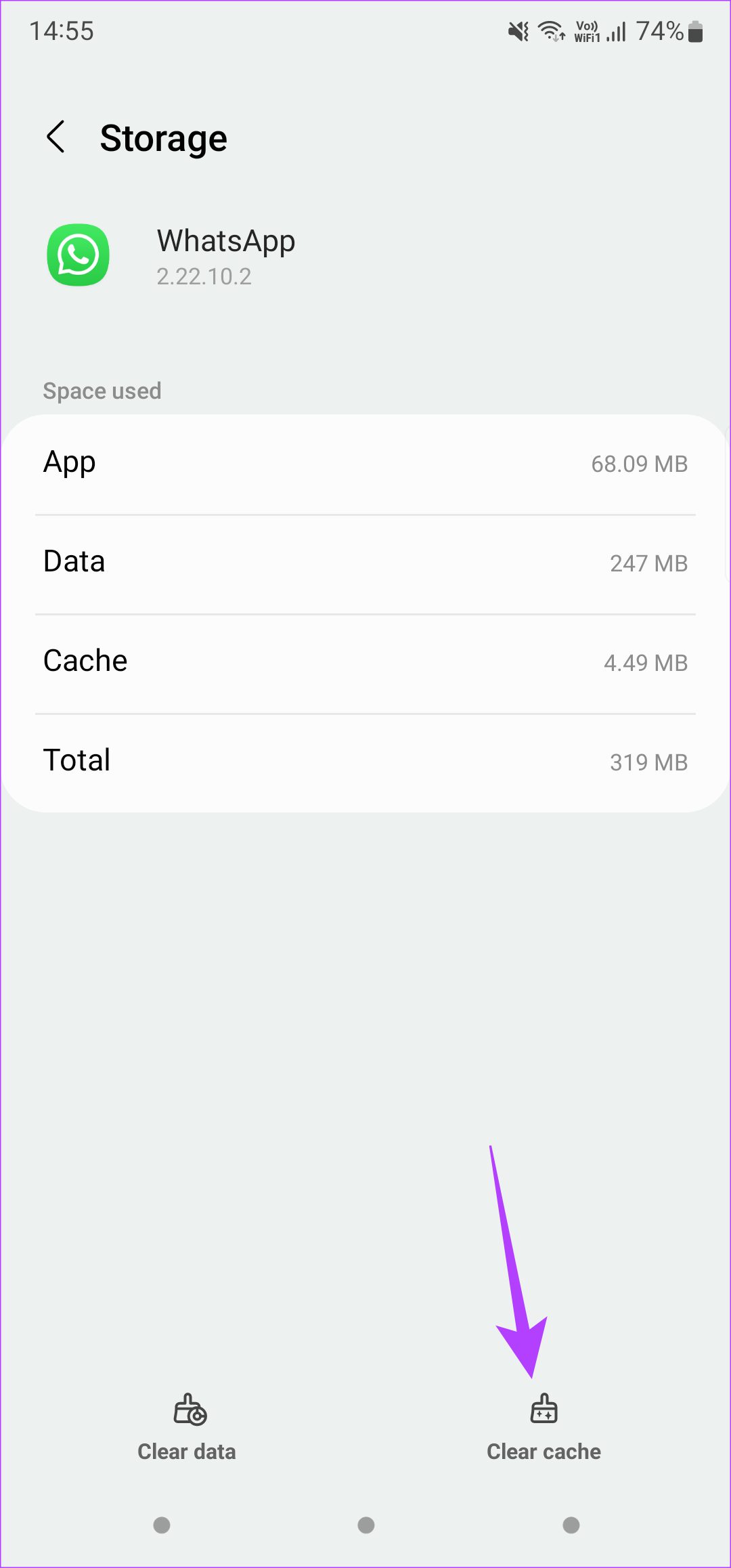
Step 2: Select Clear cache.
Also Read: How to change photo upload quality on WhatsApp
Fix 5: Unblock a Contact if You Blocked Them by Mistake
Blocked contacts and phone numbers on WhatsApp cannot see your profile picture. You can check the list of your blocked contacts to see if you’ve blocked someone by mistake. Unblock the relevant contacts and they will be able to see your profile picture again.
On Android
Step 1: Open WhatsApp on your phone and tap on the three-dot menu at the top-right corner. Tap on Settings to bring up WhatsApp settings.
Step 2: Select the Account option at the top. Now, tap on the Privacy setting.
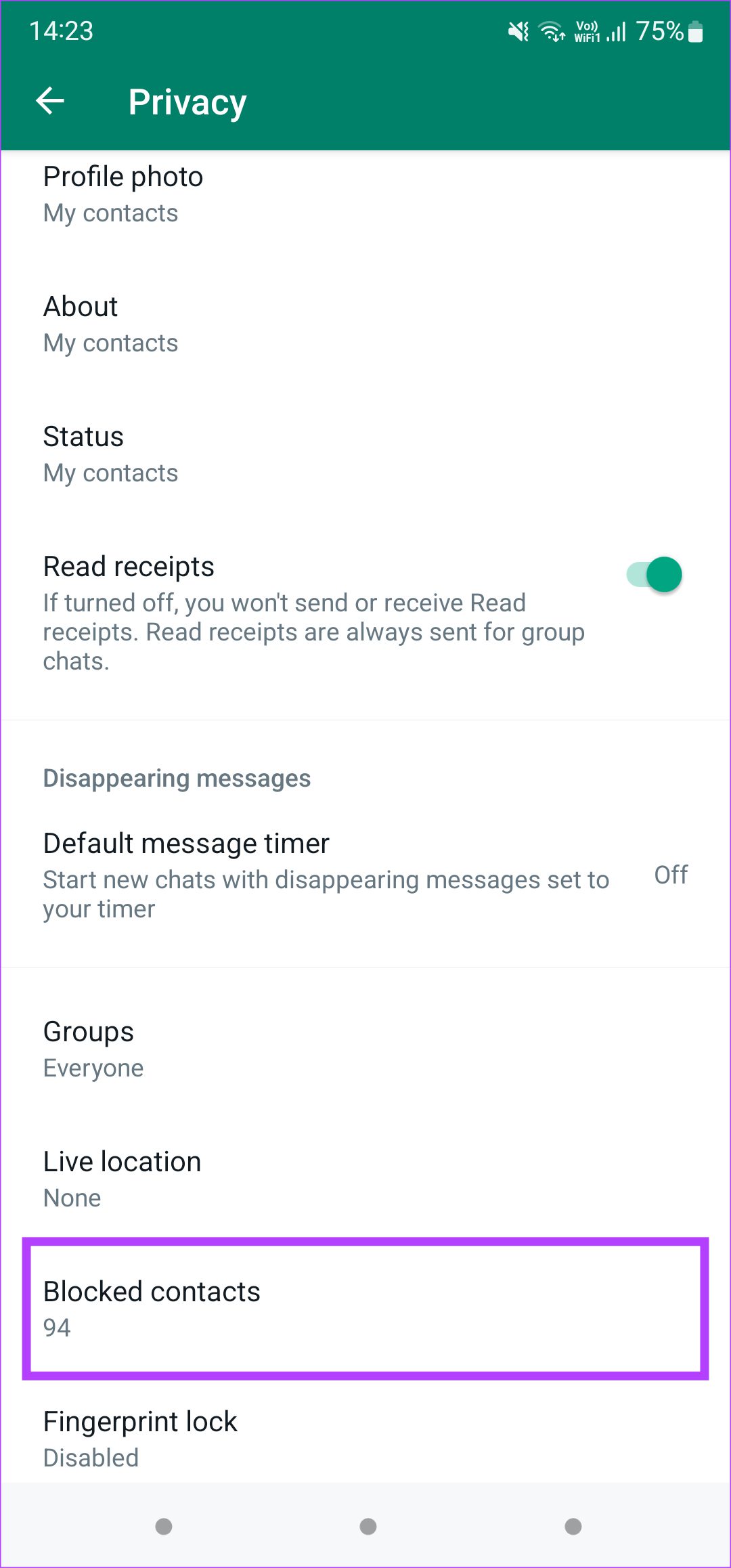
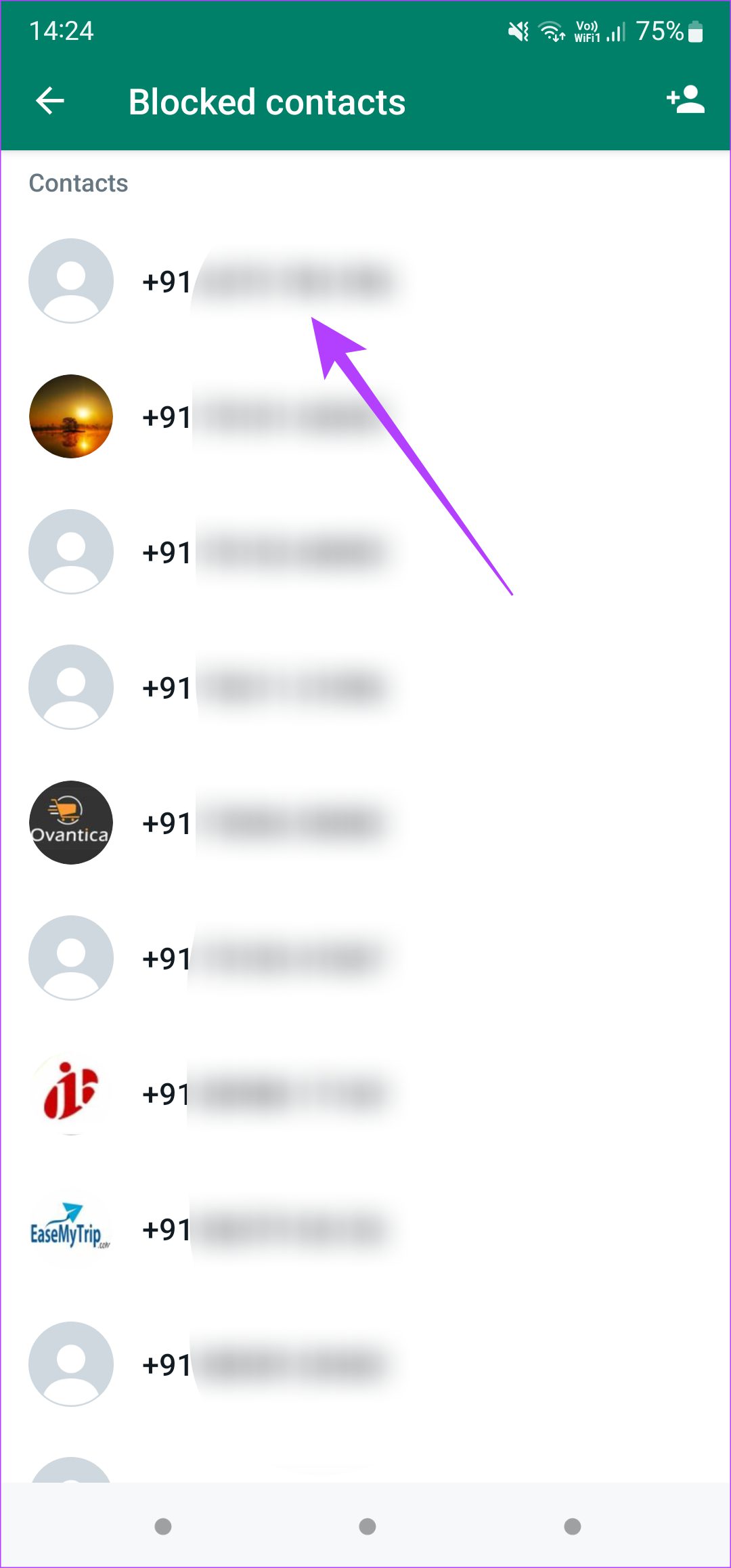
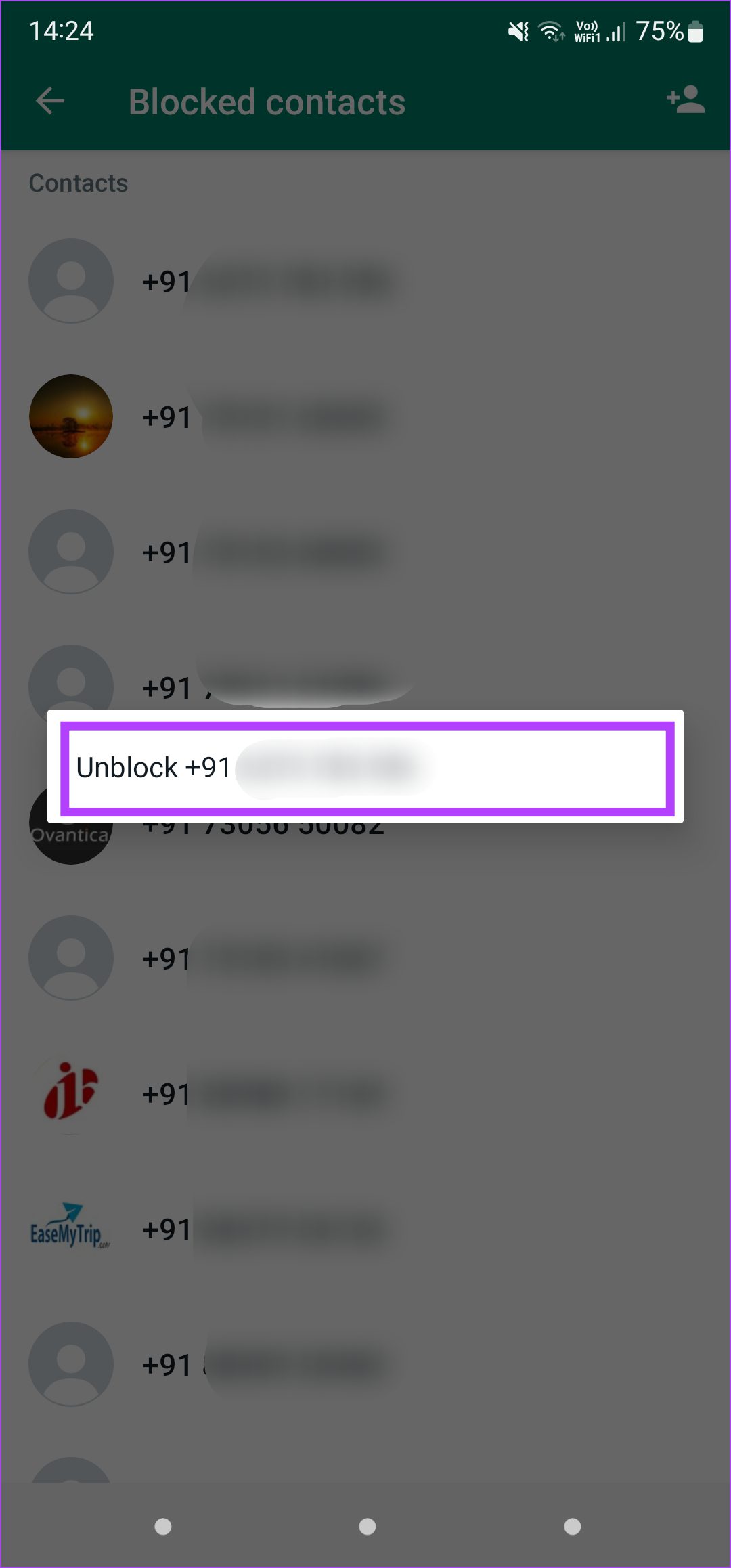
Step 3: Scroll down and select Blocked Contacts. You’ll see a list of phone numbers and contacts that you’ve blocked. To unblock them, tap on a phone number and select Unblock.
On iPhone
Step 1: Open WhatsApp and tap on the Settings tab at the bottom-right corner. Select Account.
Step 2: Now, tap on the Privacy option. Select the Blocked banner.
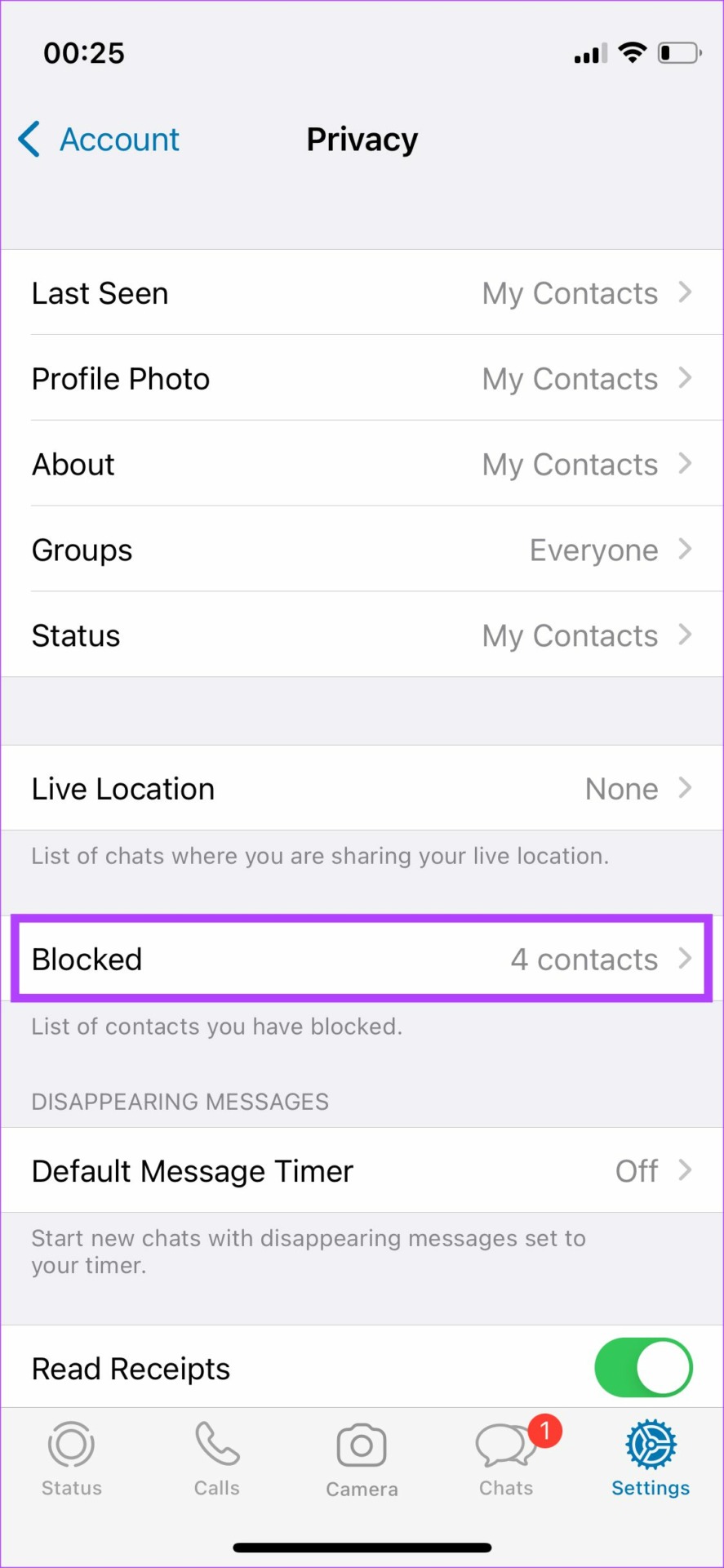
Step 3: Tap on Edit at the top-right corner. Hit the red ‘–‘ key in front of a contact or number you want to unblock and then tap on Unblock.



FAQs for WhatsApp Profile Picture Not Showing
No, your WhatsApp profile picture’s visibility can be different from someone else’s.
Yes, you can send a WhatsApp message without saving a contact. It’s possible on both Android and iOS. In fact, you can even call the other party.
The best way to save someone’s WhatsApp profile picture is by taking a screenshot of it.
Was this helpful?
Last updated on 29 July, 2024
2 Comments
Leave a Reply
Read Next
 What Is WhatsApp Profile Picture Size and How to Add Any Picture to It
What’s the Best Size for a WhatsApp profile Picture While WhatsApp has opened up to many new features, from sharing HD photos to screen sharing, it remains stringent on its
What Is WhatsApp Profile Picture Size and How to Add Any Picture to It
What’s the Best Size for a WhatsApp profile Picture While WhatsApp has opened up to many new features, from sharing HD photos to screen sharing, it remains stringent on its
 4 Ways to Fix WhatsApp Picture-In-Picture Not Working
Basic Fixes Update WhatsApp: Open the Google Play Store or Apple App Store, search WhatsApp, and tap Update (if available).
4 Ways to Fix WhatsApp Picture-In-Picture Not Working
Basic Fixes Update WhatsApp: Open the Google Play Store or Apple App Store, search WhatsApp, and tap Update (if available).
 4 Ways to Fix Instagram Not Showing Profile Picture
Basic Fixes Check internet connectivity: Ensure your device is connected to a Wi-Fi network or cellular data with good signal strength and an active plan.
4 Ways to Fix Instagram Not Showing Profile Picture
Basic Fixes Check internet connectivity: Ensure your device is connected to a Wi-Fi network or cellular data with good signal strength and an active plan.
 How to Hide Your Profile Picture From Specific Contacts on WhatsApp
What Happens When You Hide Your Profile Picture From Specific Contacts on WhatsApp The selected WhatsApp contacts can no longer view your account photo.
How to Hide Your Profile Picture From Specific Contacts on WhatsApp
What Happens When You Hide Your Profile Picture From Specific Contacts on WhatsApp The selected WhatsApp contacts can no longer view your account photo.
 3 Fixes When Your Zoom Profile Picture Is Not Showing in Meetings
Basic Fix: Connect from an app or an alternative platform: Connecting from an alternative platform, such as your mobile device, maybe an easy workaround for the problem.
3 Fixes When Your Zoom Profile Picture Is Not Showing in Meetings
Basic Fix: Connect from an app or an alternative platform: Connecting from an alternative platform, such as your mobile device, maybe an easy workaround for the problem.
 4 Ways to Fix Picture-In-Picture Mode Not Working on Android
Try Basic Fixes Update the problematic app: If the picture-in-picture mode is not working due to a buggy app build, you should be able to fix it by updating the
4 Ways to Fix Picture-In-Picture Mode Not Working on Android
Try Basic Fixes Update the problematic app: If the picture-in-picture mode is not working due to a buggy app build, you should be able to fix it by updating the
 3 Ways to Fix Profile Picture Not Updating on iPhone
Basic Fixes Select your Apple ID: Open a native iOS app such as Settings and tap your Apple ID to force the device to download your profile picture from the
3 Ways to Fix Profile Picture Not Updating on iPhone
Basic Fixes Select your Apple ID: Open a native iOS app such as Settings and tap your Apple ID to force the device to download your profile picture from the
 3 Ways to Fix Picture-In-Picture Not Working in Facebook Messenger
Common Fixes Restart device - Long-press the physical Power button and tap Reboot to restart Android.
3 Ways to Fix Picture-In-Picture Not Working in Facebook Messenger
Common Fixes Restart device - Long-press the physical Power button and tap Reboot to restart Android.
The article above may contain affiliate links which help support Guiding Tech. The content remains unbiased and authentic and will never affect our editorial integrity.

As of yesterday, I now get peoples contact pictures alongside my messages, I hate this, I think it’s a new feature from wattsapp is there a way to disable this please
1st of all thx for this detailed explanation: TOP
I read it all, made some changes etc, but so far my problem excists.
My Whatsapp was working perfectly till a few weeks ago butsince then:
Most of the time my Whatsapp contact names are NOT showing, only their profile photo and their phone number.
When this happens nobody of mycontacts sees MY profile picture
Then, out of the blue suddenly I see the names of all my Whatsapp contacts and on that moment MY profile pictre is visible for my contacts.
I reinstalled WhatsApp: didn’t solve it
I rebooted my phone; didn’t solve it
So I’m out of options and maybe you know which settings I have to change to fix this issue ?
Phone Xiaomi Mi Max 3