


Why Does My iPhone Screen Go Black During Call?
Several factors can affect your call experience on an iPhone. Here are some common reasons for a black screen during active calls on an iPhone.
- A hard case messing up the side button on the iPhone
- A thick screen protector
- Incorrect settings
- Water damage
- Outdated software system
- Buggy proximity sensor
Basic Fixes
- Force restart the iPhone: There can be times when you can’t access the iPhone home screen after the call. The reboot option won’t work here, as you can’t see the screen in the first place, so you’ll have to force restart the device.
- Clean the screen and sensor: If your iPhone’s proximity sensor malfunctions, the screen may remain black during a call. Placed above the receiver, the sensor kicks in and turns off the screen when you answer a call and put the iPhone near your ear. Clean the top part of your iPhone and try accessing phone options during a call.
- Remove the screen protector case: Thick screen protectors can mess up the proximity sensor on your iPhone. The sensor can’t detect when you place or move the phone beside your ears. Remove such a screen protector and try taking calls again. Hopefully, you won’t notice the screen going black during a call.
- Awake the screen manually: Tap the display to switch on the panel. Don’t press the side button as it ends the calls on your phone.
- Update iOS: Updates can usually fix bug-related issues. So, head to Settings → General → Software Update, and update the device if available.
Fix 1. Disable Reduce Motion From Accessibility
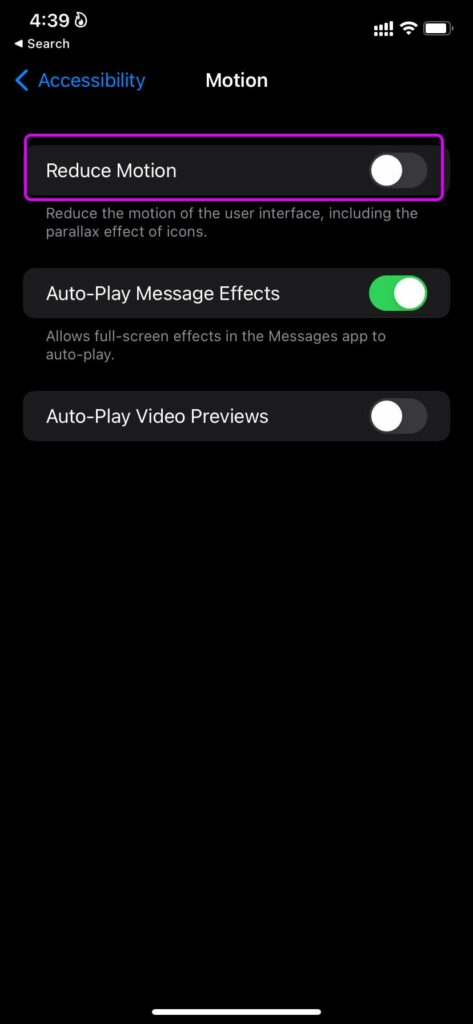
The Reduce Motion option eliminates animations from iOS and makes your phone feel faster. If you have enabled the Reduce Motion option, disable it to fix the iPhone whose screen goes black during a call.
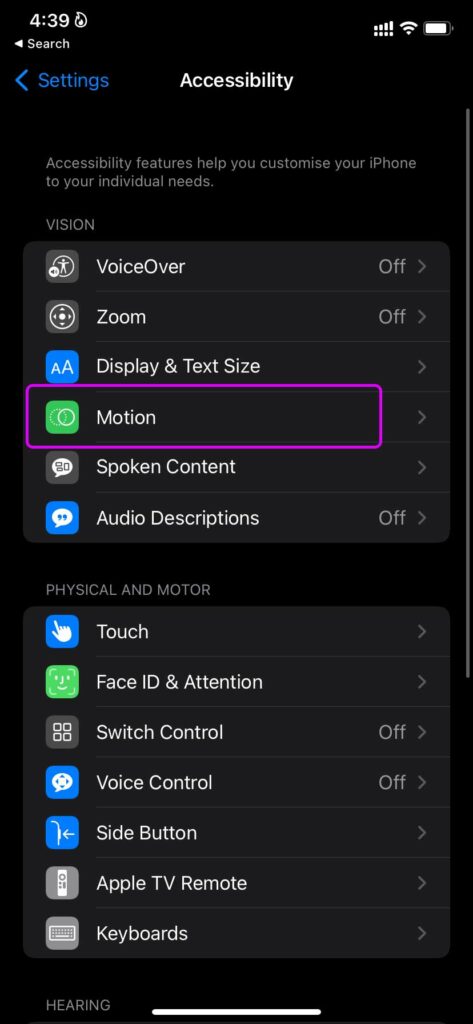
Step 1: Open the Settings app. Head to the Accessibility menu.
Step 2: Select Motion.
Step 3: Disable the Reduce Motion toggle from the following menu.
Fix 2. Reset All Settings
A wrong setting tweak can also make the screen black during a call, especially if you’re not holding the phone close to your face. Follow the steps below to reset the settings on your iPhone.
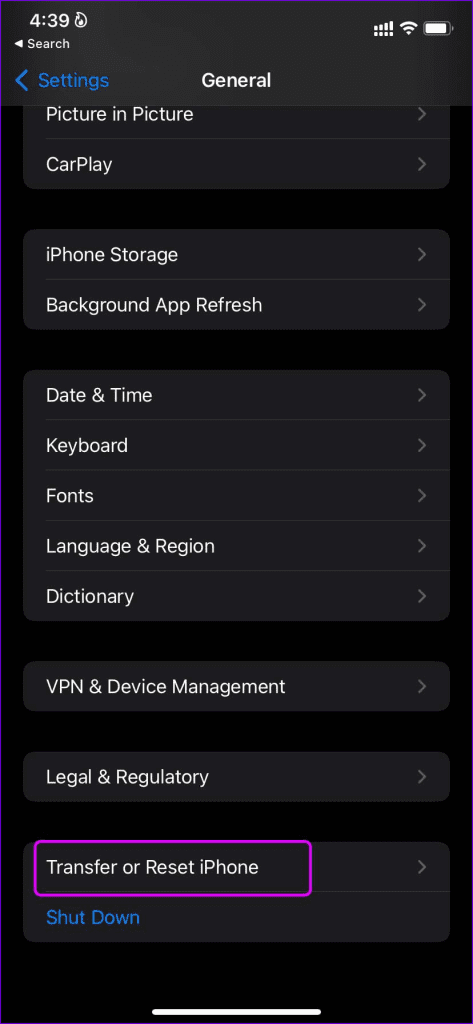
Step 1: Open the Settings. Head to the General menu.
Step 2: Scroll down and select Transfer or Reset iPhone.
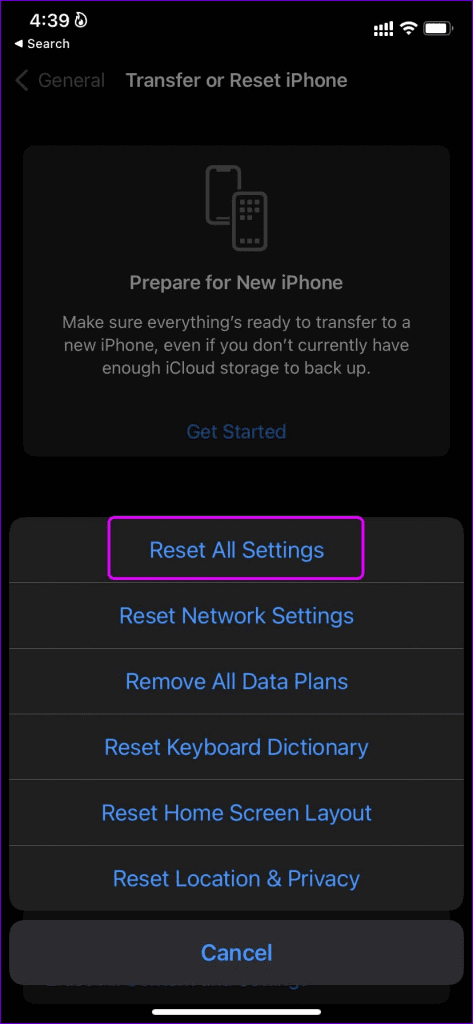
Step 3: Tap on Reset and select Reset All Settings.
Fix 3. Visit Apple Center
Did you apply all the tricks above and still see the iPhone screen going black during the call? Though unlikely, the chances are that your iPhone’s proximity sensor needs a replacement. Book an appointment at the nearest Apple service center, explain the problem, and they should diagnose and fix it.
Was this helpful?
Last updated on 07 August, 2024
3 Comments
Leave a Reply
Read Next
 5 Ways to Fix Android Phone Screen Goes Black During a Call
Before you begin, try restarting your Android device and update it to the latest available software version.
5 Ways to Fix Android Phone Screen Goes Black During a Call
Before you begin, try restarting your Android device and update it to the latest available software version.
 How to Fix Samsung Phone Screen Goes Black During Call
Basic Fixes Restart the phone: Sometimes, the screen goes black due to a minor software glitch.
How to Fix Samsung Phone Screen Goes Black During Call
Basic Fixes Restart the phone: Sometimes, the screen goes black due to a minor software glitch.
 3 Ways to Fix Monitor Goes Black While Watching Netflix
Basic Fixes Disable G-SYNC in NVIDIA Control Panel: If your monitor is flickering or the screen goes black, disable G-SYNC in NVIDIA Control Panel.
3 Ways to Fix Monitor Goes Black While Watching Netflix
Basic Fixes Disable G-SYNC in NVIDIA Control Panel: If your monitor is flickering or the screen goes black, disable G-SYNC in NVIDIA Control Panel.
 5 Ways to Fix Monitor Goes Black Randomly on Windows 11
Basic Fixes Check the monitor connection: Ensure the monitor cable isn't loose.
5 Ways to Fix Monitor Goes Black Randomly on Windows 11
Basic Fixes Check the monitor connection: Ensure the monitor cable isn't loose.
 7 Best Ways to Fix Hibernate Goes to Lock Screen Error on Windows 10
The Hibernate mode, not to be confused with the Sleep feature, on Windows OS saves battery, but the best part is, you can close your lid to activate it.
7 Best Ways to Fix Hibernate Goes to Lock Screen Error on Windows 10
The Hibernate mode, not to be confused with the Sleep feature, on Windows OS saves battery, but the best part is, you can close your lid to activate it.
 6 Ways to Fix iPhone Automatically Goes to Silent Mode
Basic Fixes: Check sound settings: First, check the ringer and alert volume on your iPhone.
6 Ways to Fix iPhone Automatically Goes to Silent Mode
Basic Fixes: Check sound settings: First, check the ringer and alert volume on your iPhone.
 4 Ways to Fix Android Phone Automatically Goes into Silent Mode
Basic Fixes Restart device: Restart your Android device to fix temporary bugs and glitches.
4 Ways to Fix Android Phone Automatically Goes into Silent Mode
Basic Fixes Restart device: Restart your Android device to fix temporary bugs and glitches.
 7 Ways to Fix Volume Level Automatically Goes Up or Down in Windows 11
Fix 1: Run the Audio Troubleshooter Microsoft offers several troubleshooters to help you identify and resolve common system-related issues on Windows.
7 Ways to Fix Volume Level Automatically Goes Up or Down in Windows 11
Fix 1: Run the Audio Troubleshooter Microsoft offers several troubleshooters to help you identify and resolve common system-related issues on Windows.
The article above may contain affiliate links which help support Guiding Tech. The content remains unbiased and authentic and will never affect our editorial integrity.

Tanks, hopefully these things will fix my black screen
There shouldn’t be a need for a fix or a hack. It’s just more proof of engineering stupidity.
my phone is blacked out