


How to Stop Google Drive Uploads in Progress on Android
Before we get started on how to fix the issue of Google Drive uploads getting stuck, let us have a quick look at how you can stop an upload once it is stuck. To do this, use the cancel option and then force the Google Drive app to close in case the cancel option doesn’t work. Here’s how to do it.
Step 1: Go to the relevant upload in the Google Drive app and tap the x icon. Exit the app.
Step 2: Long-press the Google Drive app icon and tap the i icon. Tap on Force stop and confirm.
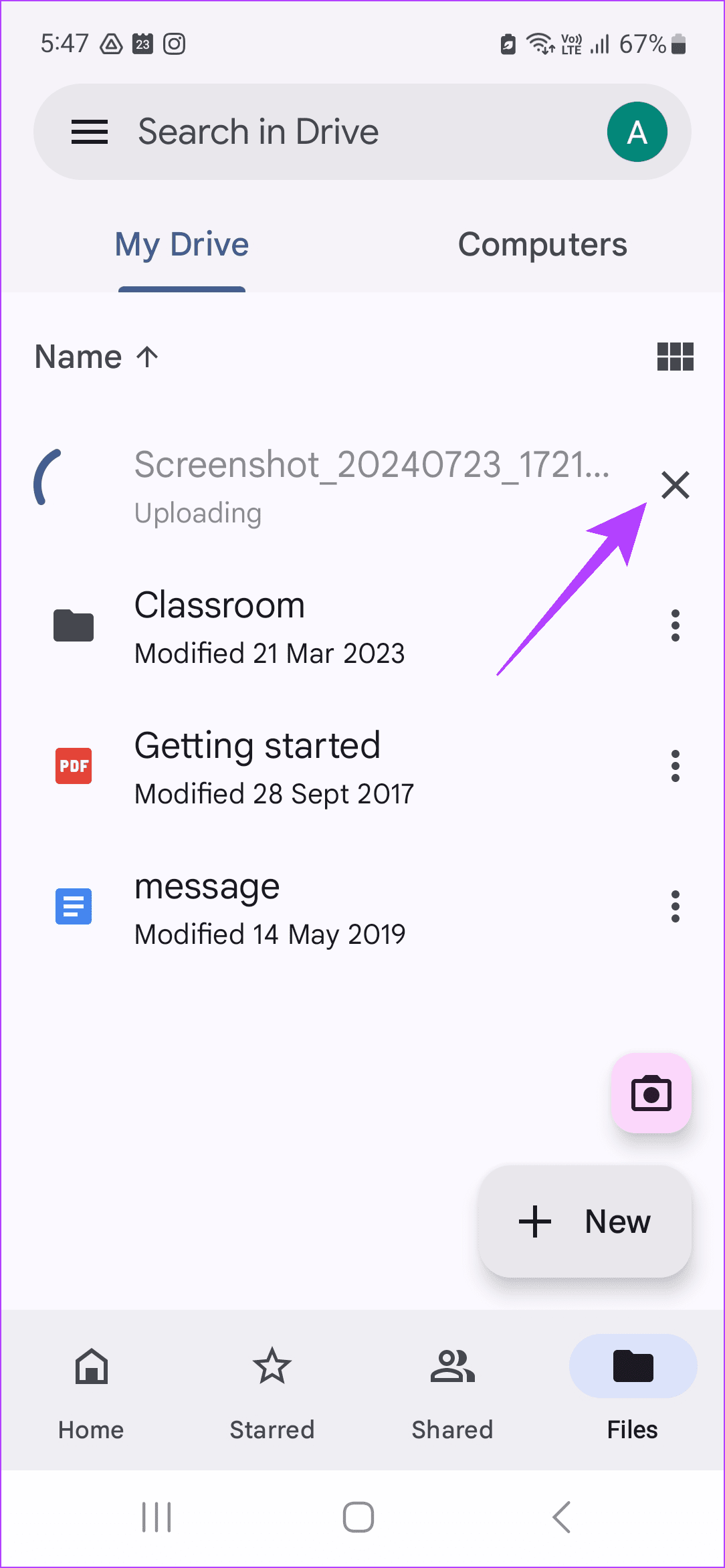

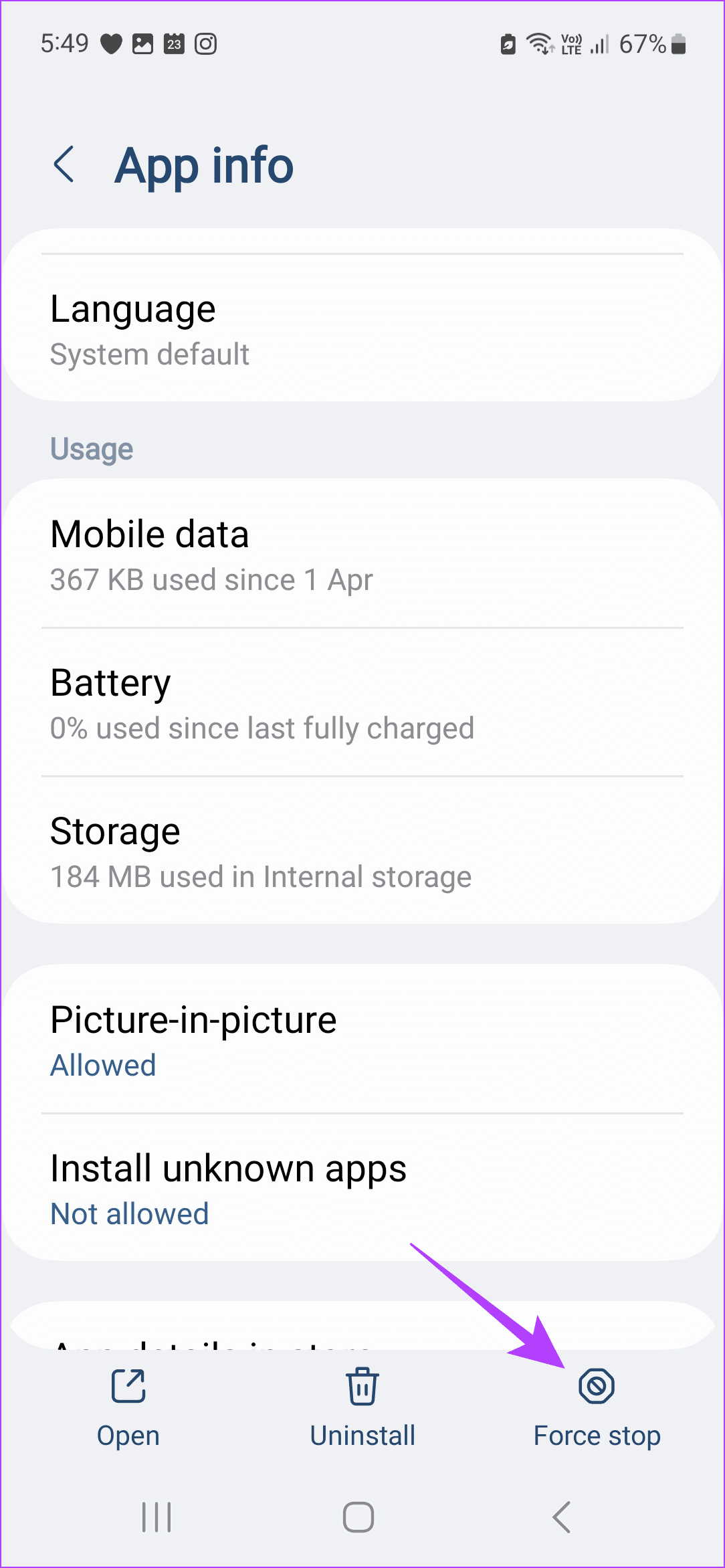
This should help you cancel the upload that is currently in progress in Google Drive on your Android device.
How to Fix Google Drive Upload Stuck on Android
Once the current upload has been canceled, use the below-mentioned ways to fix the issue of Google Drive uploads getting stuck on Android.
Basic Fixes:
- Try switching to Wi-Fi: If your mobile data does not have adequate speed or is not working properly, it can cause your Google Drive uploads to stall. In this case, switch to a reliable Wi-Fi connection and see if the upload resumes.
- Close and restart Google Drive: Open all background apps and close them. Then, restart only the Google Drive app and try uploading the file again. This can help get rid of temporary app glitches.
- Check Google Drive storage: If your Google Drive storage is full or almost full, it might stop current uploads mid-way. So check and ensure your Google account has enough storage space available.
- Use a different device: Sometimes, the issue lies with your Android device. To check, try uploading the same file on the same Google Drive account using a different device, like your desktop. If the upload is successful, you might need to check the device settings.
- Check for app updates: Software-related bugs can cause uploads to stall mid-way or just when they’re almost done. To ensure this is not the case with your device, ensure the Google Drive app is updated.
Fix 1: Upload the File to a Different Folder
Google Drive allows you to create different folders within the app. So, if you’re unable to upload the file to the main drive, create a new folder using the below steps and try uploading the file to this folder instead.
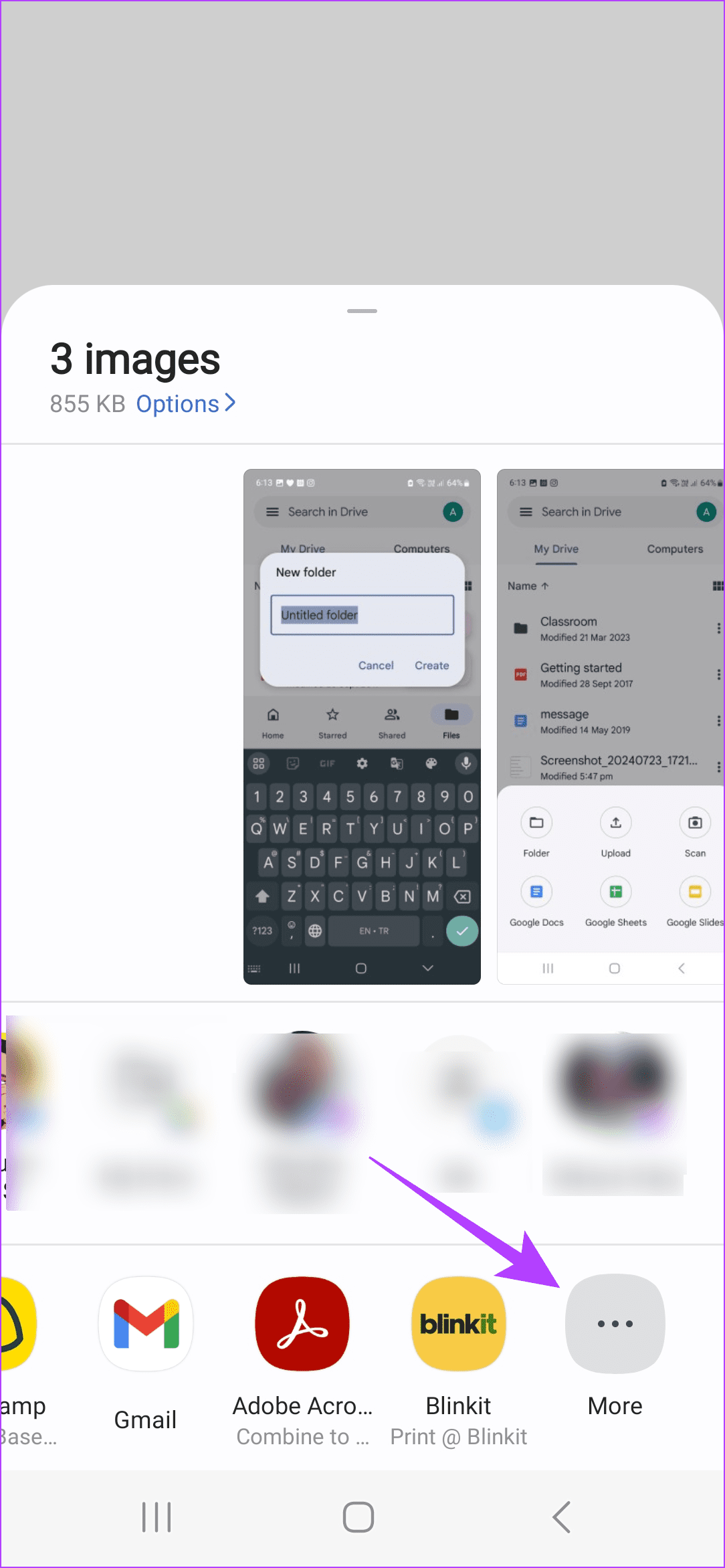
Step 1: Open the Google Drive app and tap on New. Tap on Folder.
Step 2: Rename the folder as you want and tap on Create.
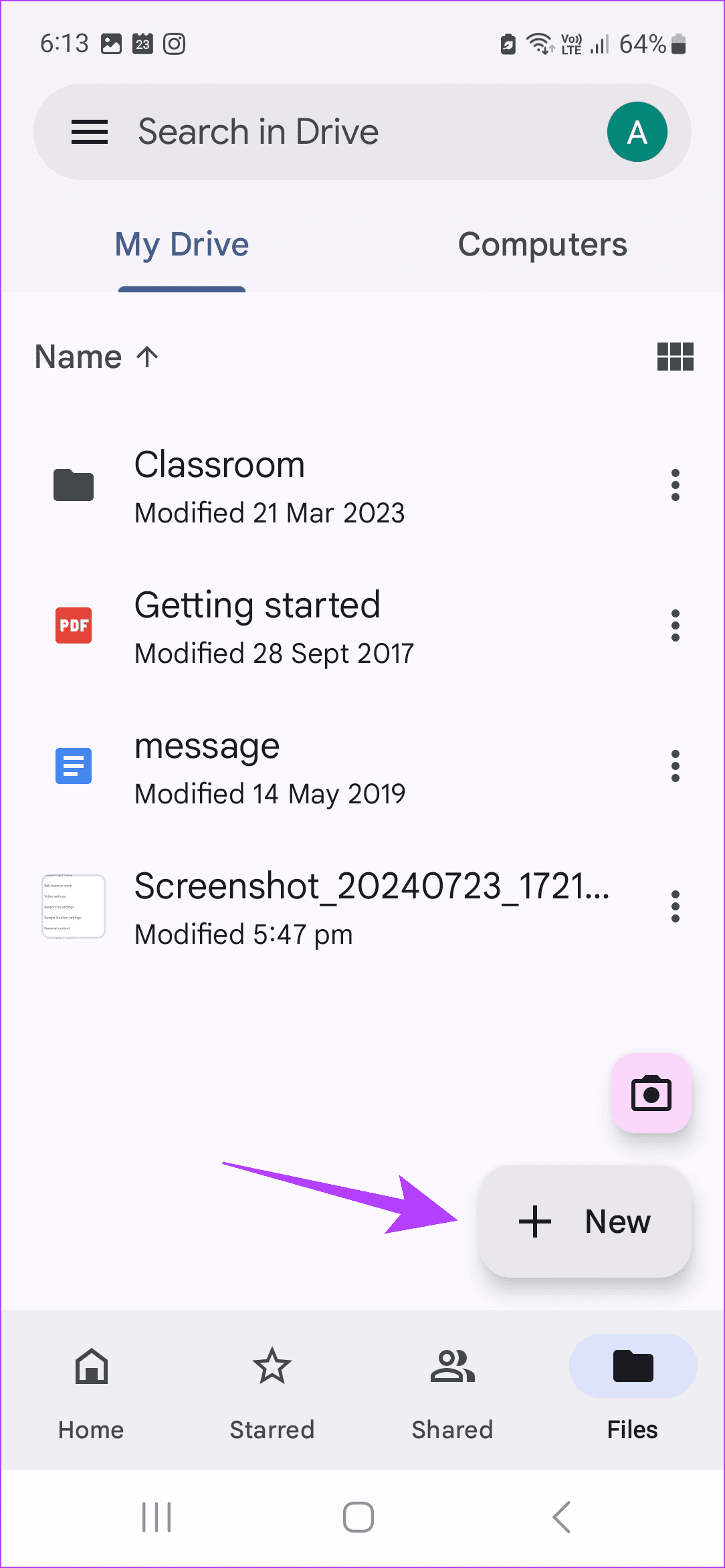
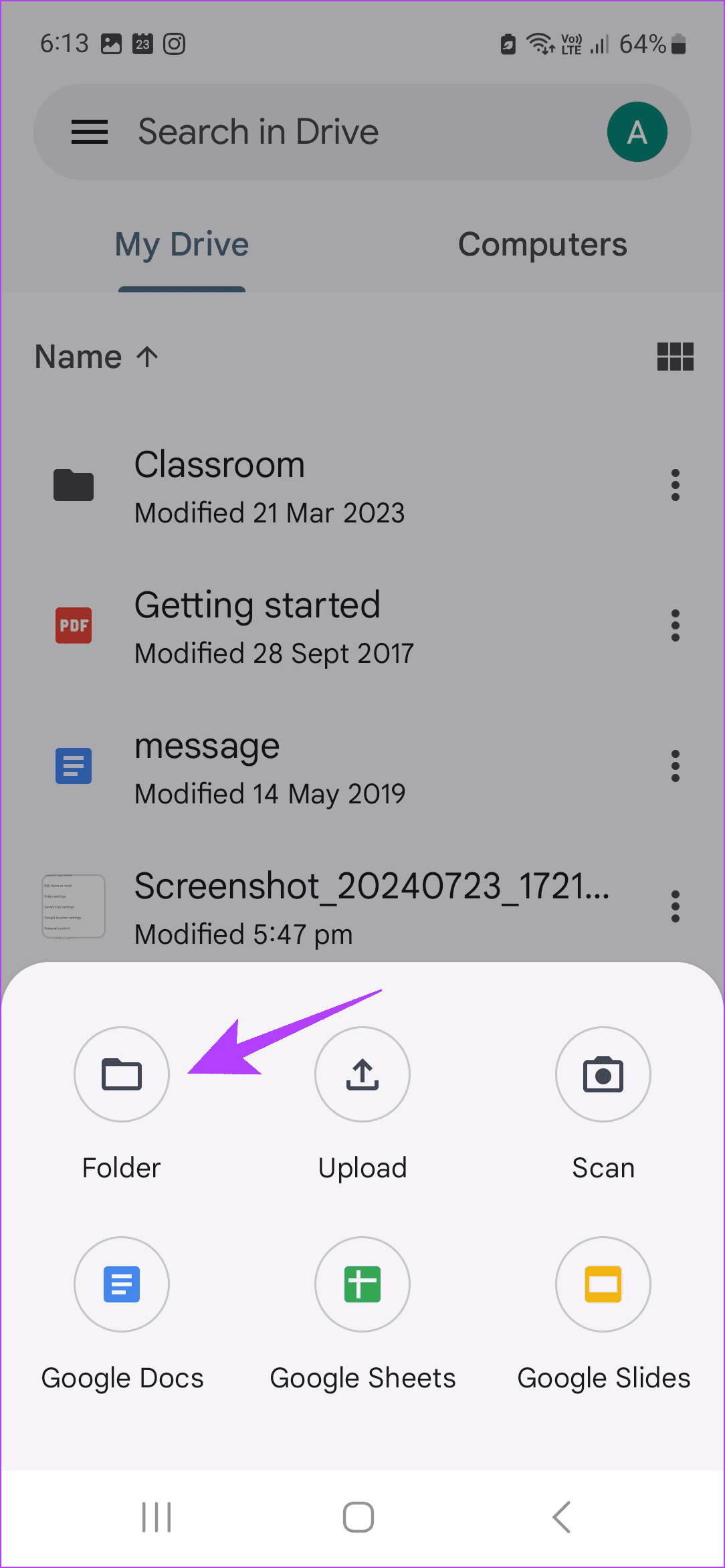

Once the new folder is created, you can now proceed to upload the relevant file or document to this folder in Google Drive.
Fix 2: Compress the File Before Uploading
You can face issues when uploading heavy files to your Google Drive on a sketchy internet connection. To ensure this does not happen, you can compress or zip the file on your Android phone and then upload it to Google Drive. This will help reduce the file size, resolving any related issues.
Fix 3: Use the Share Option
Directly using the upload or drag-and-drop option might cause your file uploads to fail. When this happens, you can use the share option on your Android phone to share the file to the Google Drive app. Once done, it will automatically start the file upload. Here’s how to do it.
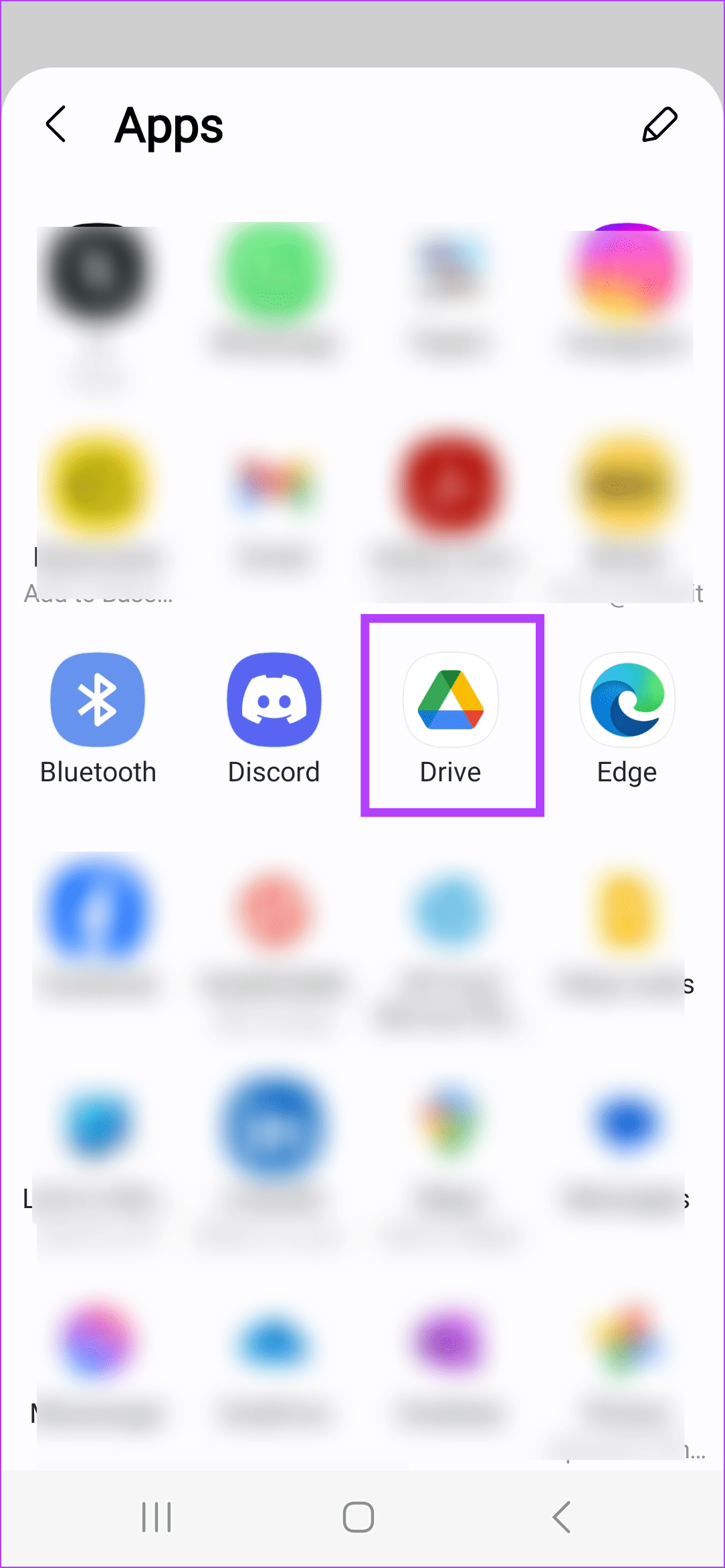
Step 1: Select the relevant file and tap on Share. Tap on More.

Step 2: From the options, select Drive. Tap on Save. This should start the file upload.

Fix 4: Clear Google Drive Cache
While app caches are useful in speeding up processes, they can also be the cause of app issues. So, if your Google Drive uploads have been failing or getting stuck for a while, try clearing the cache for the Google Drive app on your Android device using the following steps.
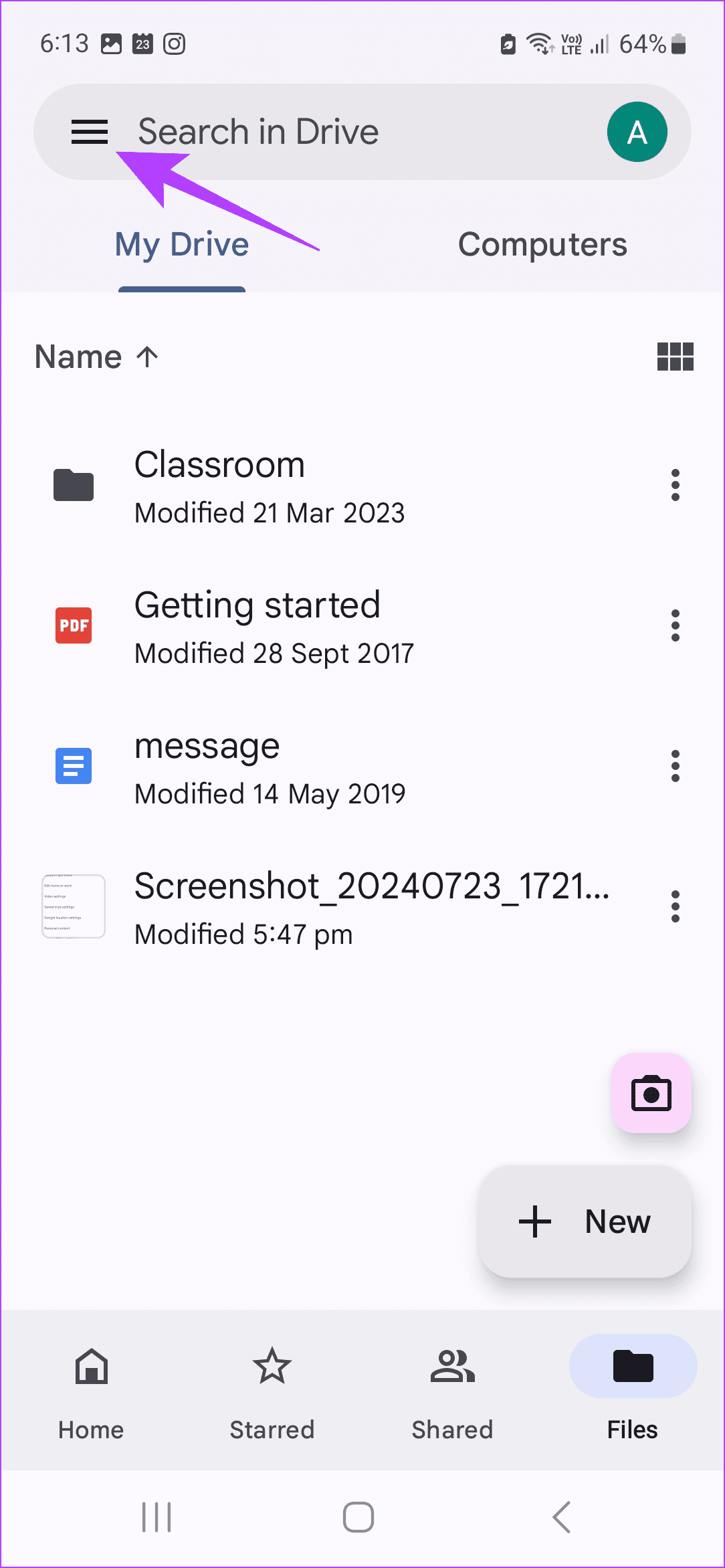
Step 1: Open the Google Drive app and tap the hamburger icon. Tap on Settings.

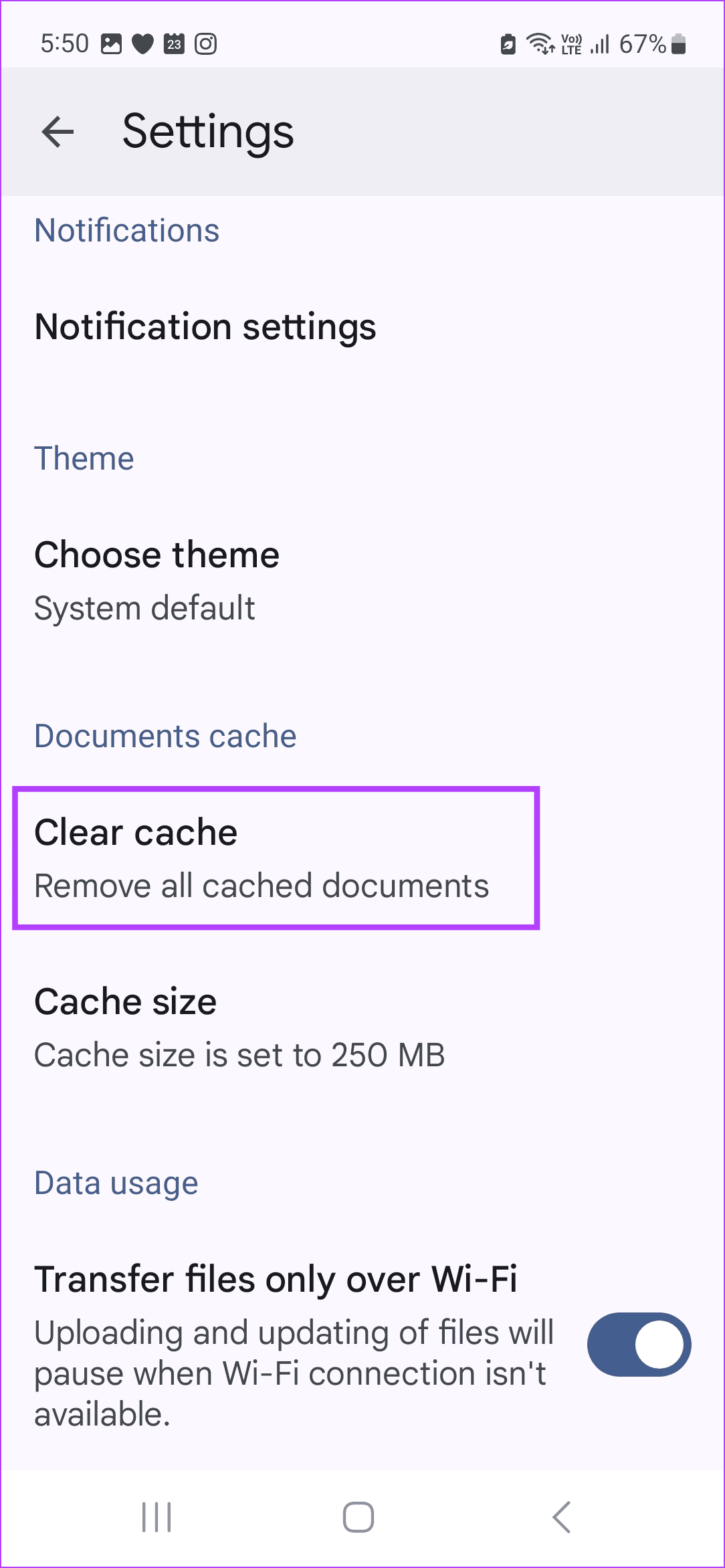
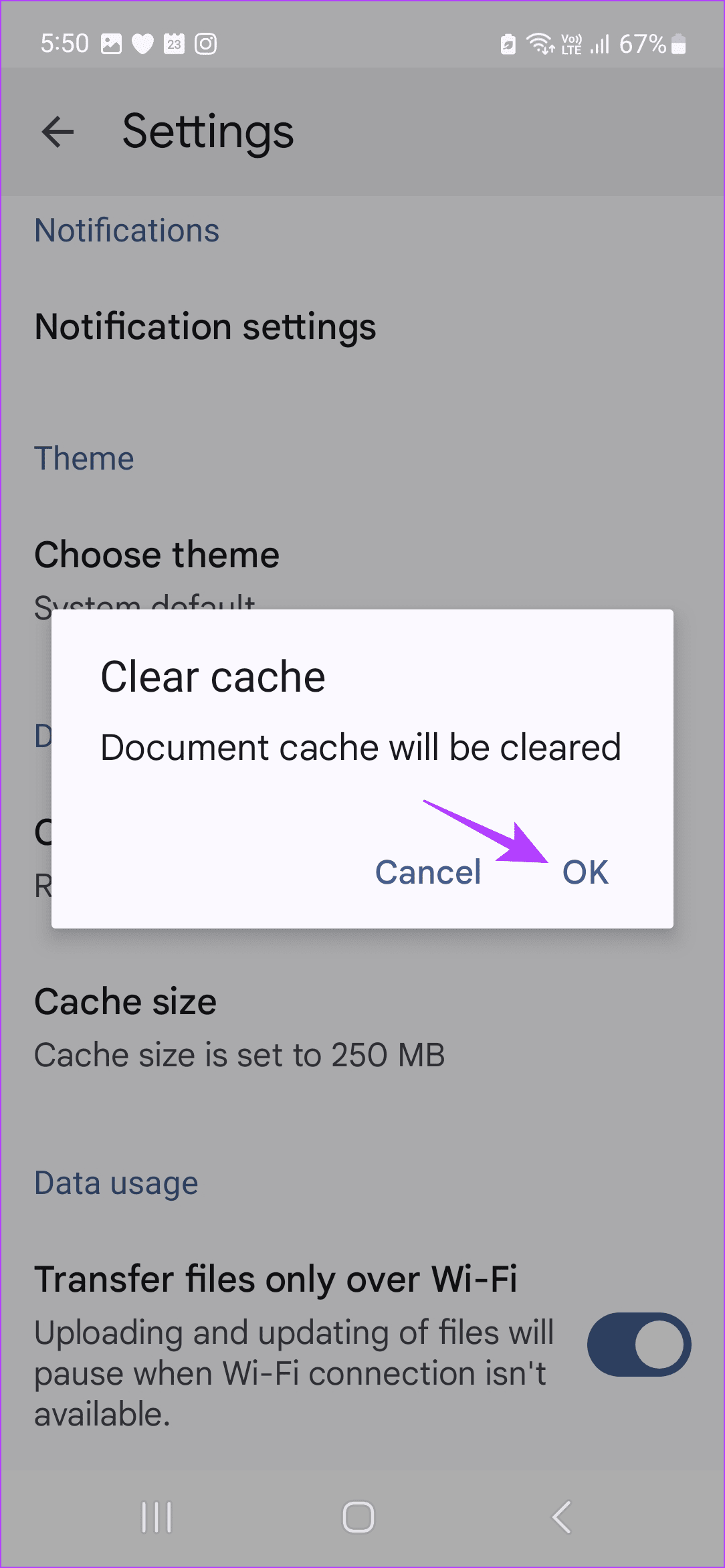
Step 2: Scroll down and tap on Clear cache. Tap on OK. Restart the app and check.
Fix 5: Turn off Transfer Files Only Over Wi-Fi
Google Drive allows you to block uploads over mobile data. While this can be helpful if you’re on a metered connection, it can end up stopping your uploads the moment you switch to mobile data. To ensure this does not happen, disable the relevant Google Drive setting using the below steps.
Step 1: Open Google Drive and tap the hamburger icon. Tap on Settings.
Step 2: Turn off the Transfer files only over Wi-Fi toggle.
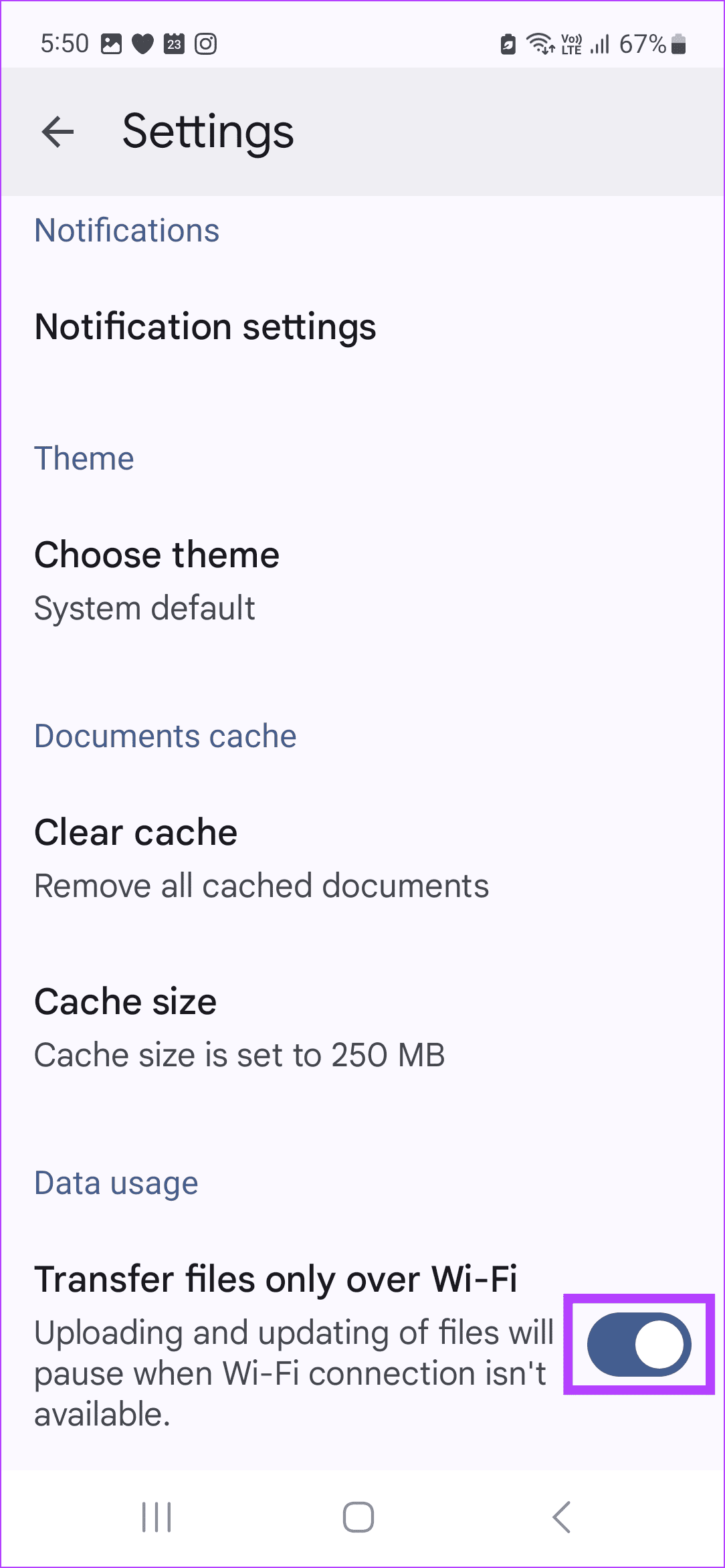
Now, Google Drive will be able to upload files regardless of whether your Android phone is currently on mobile data or Wi-Fi.
Was this helpful?
Last updated on 23 July, 2024
1 Comment
Leave a Reply
Read Next
 4 Ways to Fix Microsoft Excel Stuck at Starting on Windows 11/10
Preliminary Fixes Force restart Microsoft Excel: When Microsoft Excel is stuck at starting on Windows 11, a force restart can often resolve the issue.
4 Ways to Fix Microsoft Excel Stuck at Starting on Windows 11/10
Preliminary Fixes Force restart Microsoft Excel: When Microsoft Excel is stuck at starting on Windows 11, a force restart can often resolve the issue.
 How to Fix “Android Is Starting Optimizing App” Error
https://youtu.be/NcFLqP6nUrE Why Does Android Get Stuck at Optimizing Apps on Startup Before we get started on fixing this issue, let us briefly look at what might be causing your Android
How to Fix “Android Is Starting Optimizing App” Error
https://youtu.be/NcFLqP6nUrE Why Does Android Get Stuck at Optimizing Apps on Startup Before we get started on fixing this issue, let us briefly look at what might be causing your Android
 3 Ways to Fix Google Drive Not Starting on Startup (Windows and Mac)
Preliminary Fixes Restart your computer: A restart clears the system cache, refreshes the operating system, and can eliminate any temporary glitches or conflicts preventing Google Drive from launching properly.
3 Ways to Fix Google Drive Not Starting on Startup (Windows and Mac)
Preliminary Fixes Restart your computer: A restart clears the system cache, refreshes the operating system, and can eliminate any temporary glitches or conflicts preventing Google Drive from launching properly.
 3 Best Ways to Upload Photos to Google Drive From Android
Google Drive, the cloud-storage service from Google, has simplified our lives in several ways.
3 Best Ways to Upload Photos to Google Drive From Android
Google Drive, the cloud-storage service from Google, has simplified our lives in several ways.
 Top 3 Ways to Stop Microsoft Teams From Starting Automatically on Windows 10
Microsoft Teams app is great for team management and communication.
Top 3 Ways to Stop Microsoft Teams From Starting Automatically on Windows 10
Microsoft Teams app is great for team management and communication.
 3 Ways to Fix Google Drive Waiting to Upload Error
Basic Fixes Check Google Drive storage status: Check how much storage space is left in your Google Drive account.
3 Ways to Fix Google Drive Waiting to Upload Error
Basic Fixes Check Google Drive storage status: Check how much storage space is left in your Google Drive account.
 How to Create and Share Link of YouTube Videos Starting at a Certain Time
YouTube, one of the most popular video-streaming community, actually has a lot of tricks that power users like you must be aware of, but if you’re specifically looking for a
How to Create and Share Link of YouTube Videos Starting at a Certain Time
YouTube, one of the most popular video-streaming community, actually has a lot of tricks that power users like you must be aware of, but if you’re specifically looking for a
 6 Fixes for Slow Upload and Download Speeds on Google Drive
Preliminary Fixes Check your internet speed: Since Google Drive relies on your internet connection, a change in your internet speed will directly impact the upload and download speeds.
6 Fixes for Slow Upload and Download Speeds on Google Drive
Preliminary Fixes Check your internet speed: Since Google Drive relies on your internet connection, a change in your internet speed will directly impact the upload and download speeds.
The article above may contain affiliate links which help support Guiding Tech. The content remains unbiased and authentic and will never affect our editorial integrity.

None of these works for me. The “only over Wi-Fi” choice is already correct. “Force stop” shows an old interface; the (i) info icon and tool bar no longer appear in the Google Drive app. Other methods don’t work, or don’t apply.