


Basic Fixes
- Check internet speeds: Check whether your Android phone is connected to a strong internet network.
- Avoid third-party keyboard: Sometimes the Messenger lag might not be due to the app itself but related to typing lag on Android. Switch to Gboard for a smooth experience.
- Free up RAM on your Android device: n this case, if you see a visible lag or the device keeps freezing when doing the easiest tasks, consider clearing the RAM on your Android phone.
- Force quit and relaunch Messenger: This will give the app a fresh start on your Android phone if it has been running in the background.
- Update the Messenger app: Install the latest version of the Messenger app on your Android phone to get rid of bugs.
Fix 1: Remove Custom Themes
Facebook has released an option to use custom themes in the app. We aren’t talking about simple dark or light themes here. You can now customize chat themes as well.
These custom chat themes require additional CPU power to open the conversation and run smoothly. You can avoid using custom themes for different conversations in the Messenger app to fix the lag.
Step 1: Open the app > Go to the chat > Tap the profile icon.
Step 2: Go to the Theme menu and then it will open Customize your chat option.
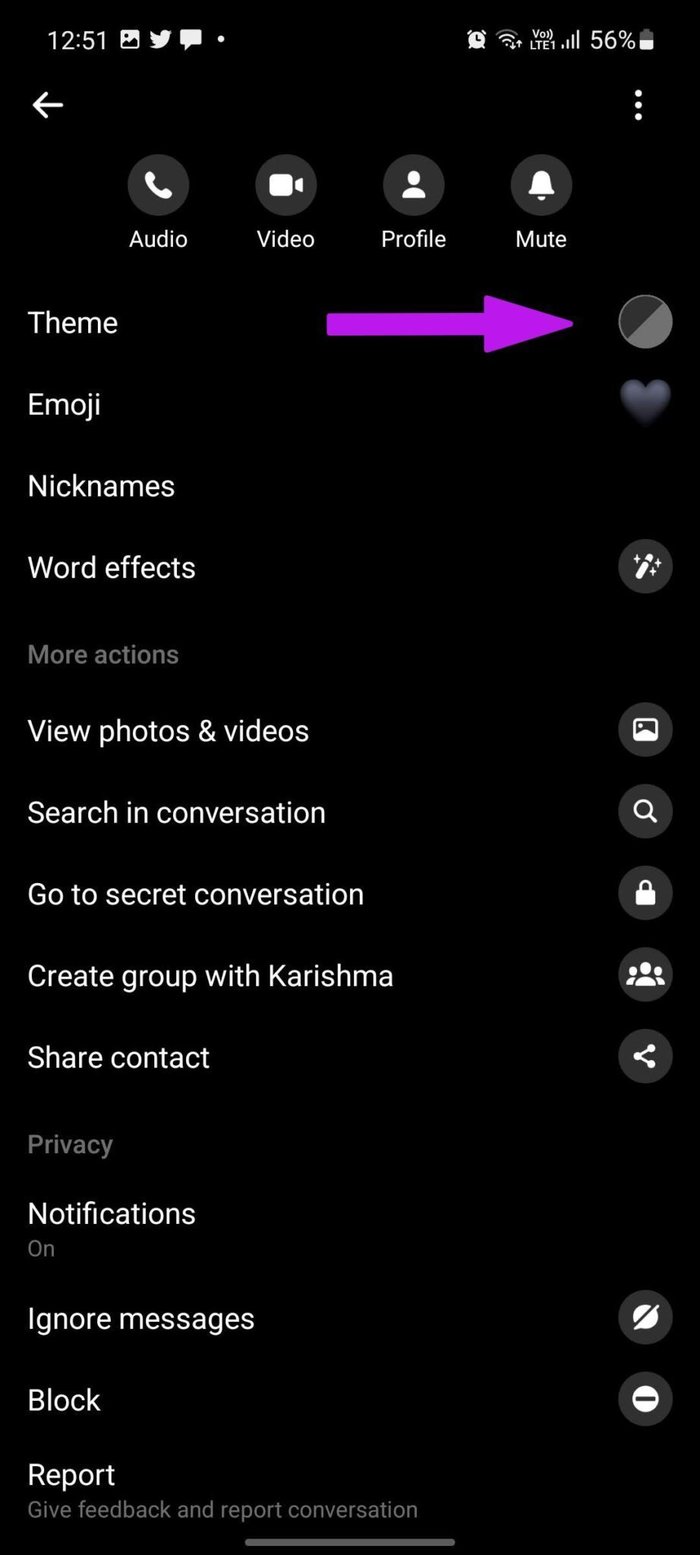

Don’t go with a theme that has high graphics. Scroll down and then select a simple color or gradient theme for the conversation.
Fix 2: Remove Other Facebook Accounts
Facebook allows you to manage multiple accounts and Facebook pages from the Messenger app. If you have added three or four Facebook accounts with the Messenger app, it’s time to remove other accounts and keep the primary one for lag-free operations.
Step 1: Open the Messenger app on Android and then tap on the profile picture at the top.
Step 2: Tap on Manage accounts.
Step 3: Swipe left on an account that you want to remove and then tap on the delete icon.
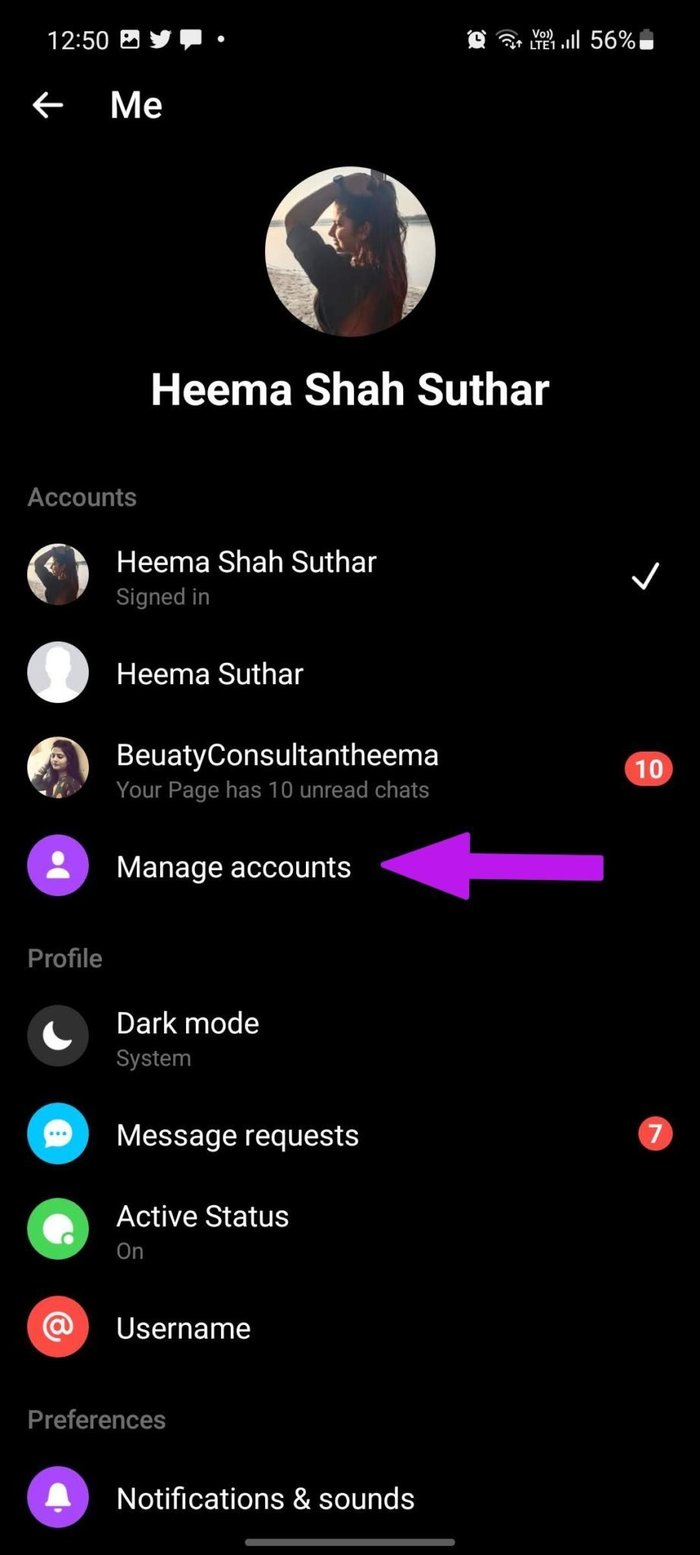

Do that for all the irrelevant accounts and keep your main account active in the app.
Fix 3: Disable Data Saver Mode
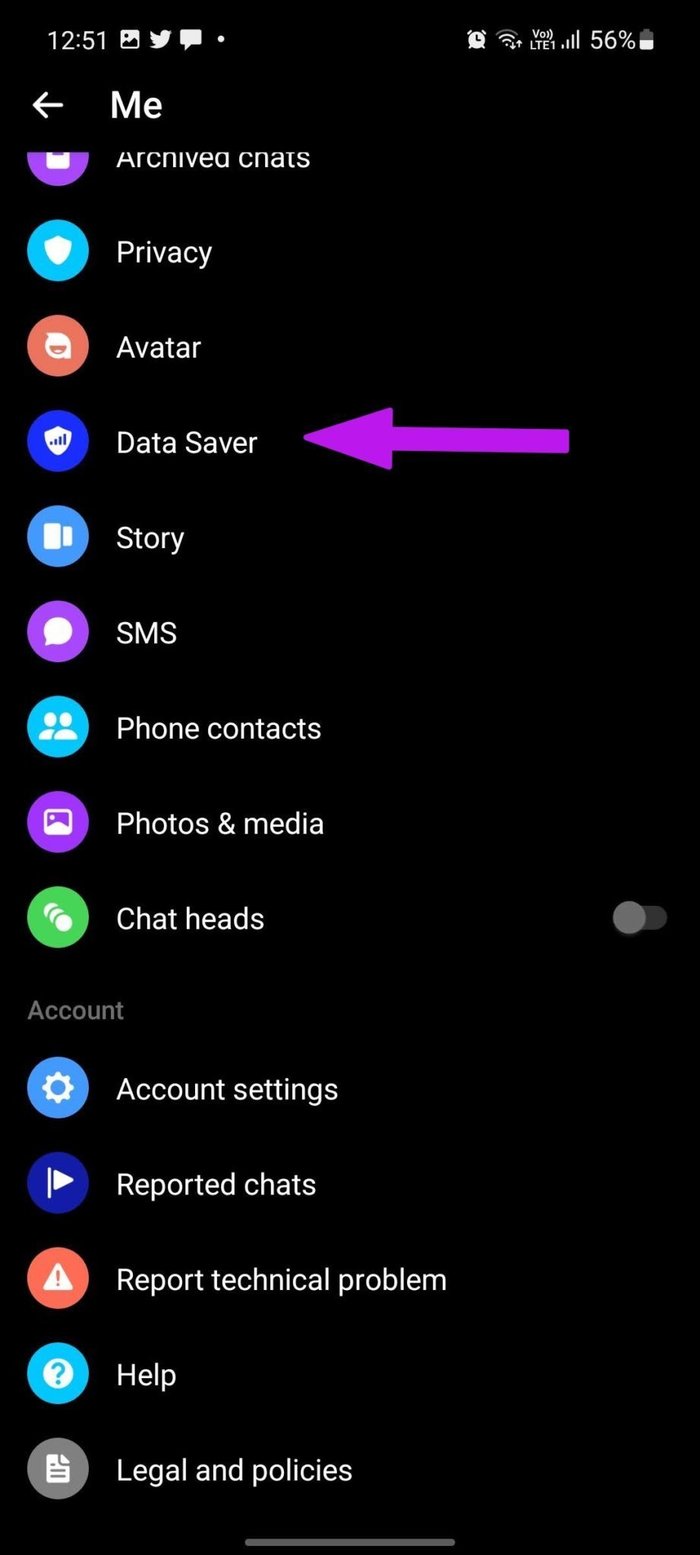
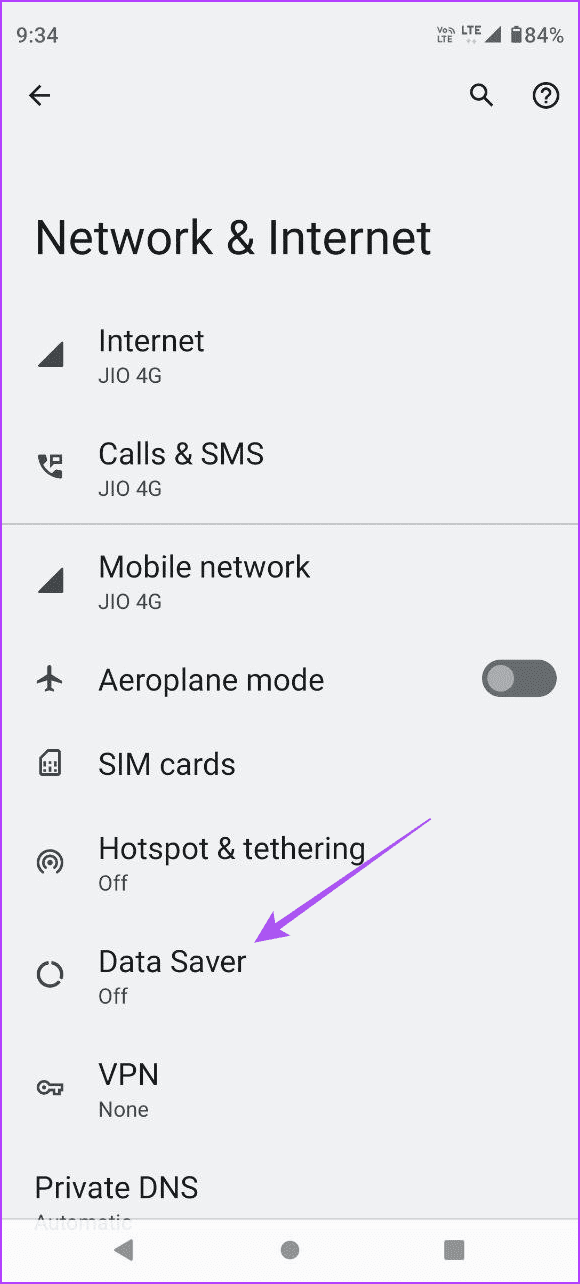
You might notice Messenger lag when Data Saver mode is on. Messenger will apply brakes to data consumption, leading to undesirable experiences at times. Follow the steps below to disable the Data Saver mode in Messenger and on your Android phone.
On Messenger App
Open Messenger > Settings > Data Saver > Disable Data Saver.

On Android Phone
Open Settings > Network and Internet > Data saver > Disable Data Saver.

Fix 4: Clear Messenger App Cache
This one is aimed to power Messenger users. If you have been a Messenger user for a long time, chances are you have collected quite a good amount of cache data in the background. You should clear the Messenger app cache and start from scratch.
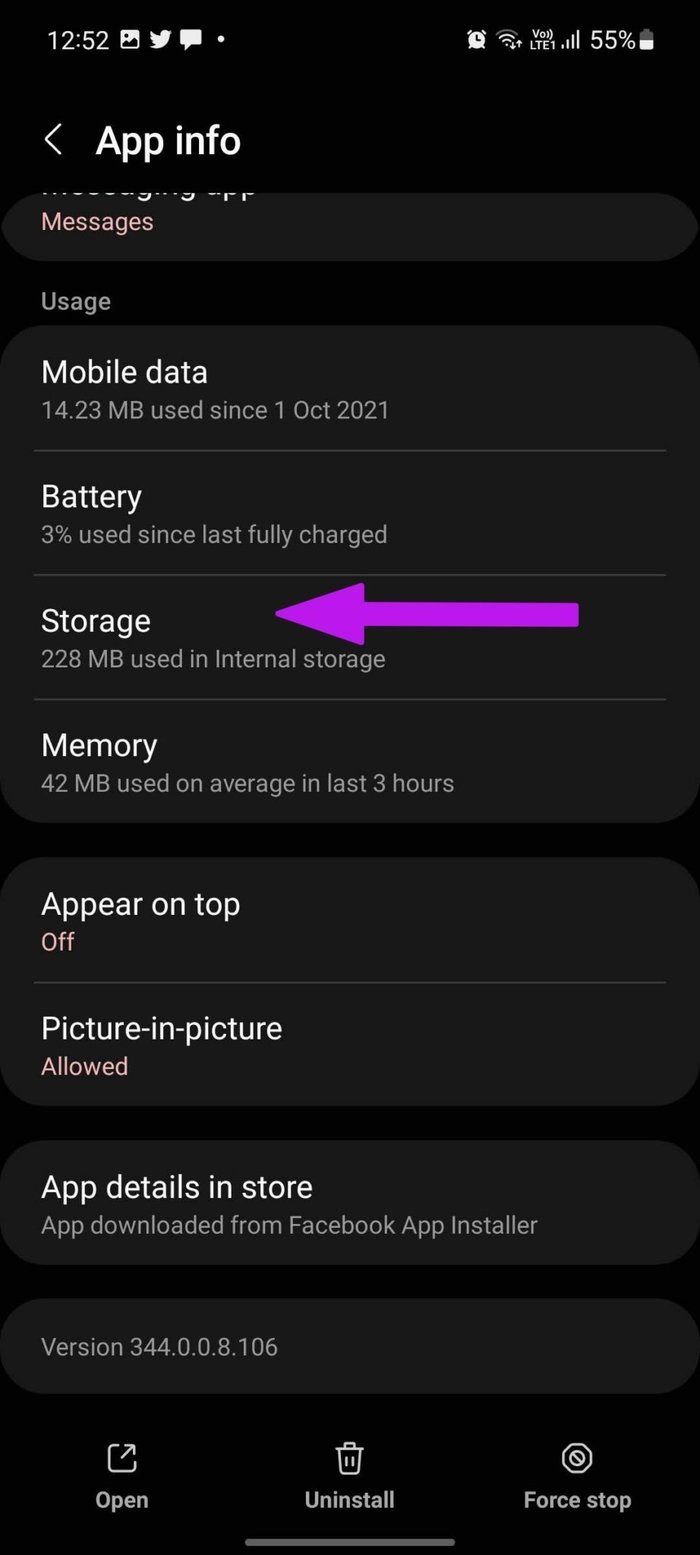
Open Messenger App Info > Storage > Clear cache.

Was this helpful?
Last updated on 13 August, 2024
2 Comments
Leave a Reply
Read Next
 6 Ways to Fix Keyboard Typing Lag on Android
Basic Fixes: Let your phone cool down: After a long gaming season or extensive video recording, your Android phone might feel warm to touch on the sides.
6 Ways to Fix Keyboard Typing Lag on Android
Basic Fixes: Let your phone cool down: After a long gaming season or extensive video recording, your Android phone might feel warm to touch on the sides.
 4 Ways to Fix Camera Lag on Android
Try Basic Fixes Close recent apps: Keeping too many apps running in the background can hold your phone’s memory and make the camera app slow.
4 Ways to Fix Camera Lag on Android
Try Basic Fixes Close recent apps: Keeping too many apps running in the background can hold your phone’s memory and make the camera app slow.
 4 Ways to Fix Snapchat Camera or Flash Lag on Your Phone
Basic Fixes: Restart the Snapchat app: Restarting the Snapchat app will close all app functions and start them afresh.
4 Ways to Fix Snapchat Camera or Flash Lag on Your Phone
Basic Fixes: Restart the Snapchat app: Restarting the Snapchat app will close all app functions and start them afresh.
 5 Ways to Fix Instagram Lag on iPhone and Android
Preliminary Fixes Use Fast Internet Speeds: A slow or unstable internet connection is one of the primary causes of lag on Instagram.
5 Ways to Fix Instagram Lag on iPhone and Android
Preliminary Fixes Use Fast Internet Speeds: A slow or unstable internet connection is one of the primary causes of lag on Instagram.
 Top 8 Ways to Fix Mouse Lag on Windows 11
A mouse that often stutters or lags can result in an unpleasant computing experience.
Top 8 Ways to Fix Mouse Lag on Windows 11
A mouse that often stutters or lags can result in an unpleasant computing experience.
 5 Ways to Fix Keyboard Lag on Windows 11
Basic Fixes Disconnect and reconnect the keyboard: If your keyboard is lagging due to a minor connection issue, disconnecting and reconnecting it should help.
5 Ways to Fix Keyboard Lag on Windows 11
Basic Fixes Disconnect and reconnect the keyboard: If your keyboard is lagging due to a minor connection issue, disconnecting and reconnecting it should help.
 Top 8 Ways to Fix Windows 11 Lag After an Update
While Windows 11 is a welcome change with the start menu, taskbar, and other design improvements, the upgrade didn’t go well with some users.
Top 8 Ways to Fix Windows 11 Lag After an Update
While Windows 11 is a welcome change with the start menu, taskbar, and other design improvements, the upgrade didn’t go well with some users.
 5 Ways to Fix Discord Lag on Windows and Mac
Basic Fixes Close unused apps: Unused open apps could cause lag in Discord.
5 Ways to Fix Discord Lag on Windows and Mac
Basic Fixes Close unused apps: Unused open apps could cause lag in Discord.
The article above may contain affiliate links which help support Guiding Tech. The content remains unbiased and authentic and will never affect our editorial integrity.
My Facebook is not workong
If it lags only on facebook, it is because of your adblocker. Turn it off and try again, thank me later.