Method 1: Use the Drawing Panel
Using the Drawing panel is probably the most effective way of captioning images in Google Docs. Here’s how to use it.
Step 1: Open your Google Docs document > click Insert > navigate to Drawing > + New.

Step 2: In the Drawing panel, use the Image option from the toolbar to add the image of your choice.

Step 3: Once added, click Text box and draw the box below the image. In the text box, write your caption and format it as you see fit. You can also resize and change the text box’s position.

Step 4: Lastly, click on the Save and Close button, and the image will be added to Google Docs with a caption.
Once added, you can easily change the caption by selecting the image and choosing the Edit option.
Method 2: Using In-Line Text Tool
If you’re looking for a faster way to caption images, use the In-line text tool in Google Docs. Here’s how.
Step 1: Open your Google Docs document and insert the image you want to caption.
Step 2: Select the image and choose In-line text from the available toolbar.
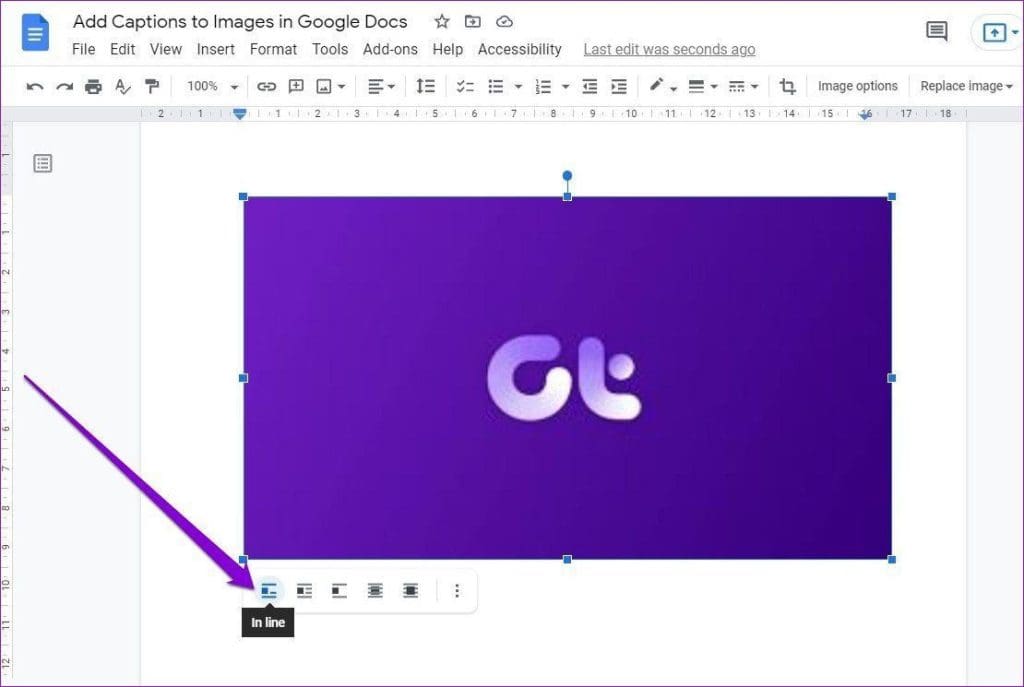
Step 3: Place your cursor below the image and write a caption.

That’s it. The caption has been added to the image. Of course, you can edit and format the text like any other text in Google Docs.
Method 3: Using the Table Feature
Another way to caption images in Google Docs is by inserting a table in Google Docs. It’s a straightforward method that gives you more options than the above methods. Here’s how to do it.
Step 1: Launch your Google Docs document and insert the image you want to caption.
Step 2: Now, open the Insert menu > go to Table > select 1 x 2 as the Grid size.

Step 3: Drag and drop the image in the table’s first cell and enter the caption in the second row.

That’s it. The image has been added with a caption in Google Docs.
If you prefer, you can also change the Table by right-clicking anywhere on the table and selecting Table Properties.
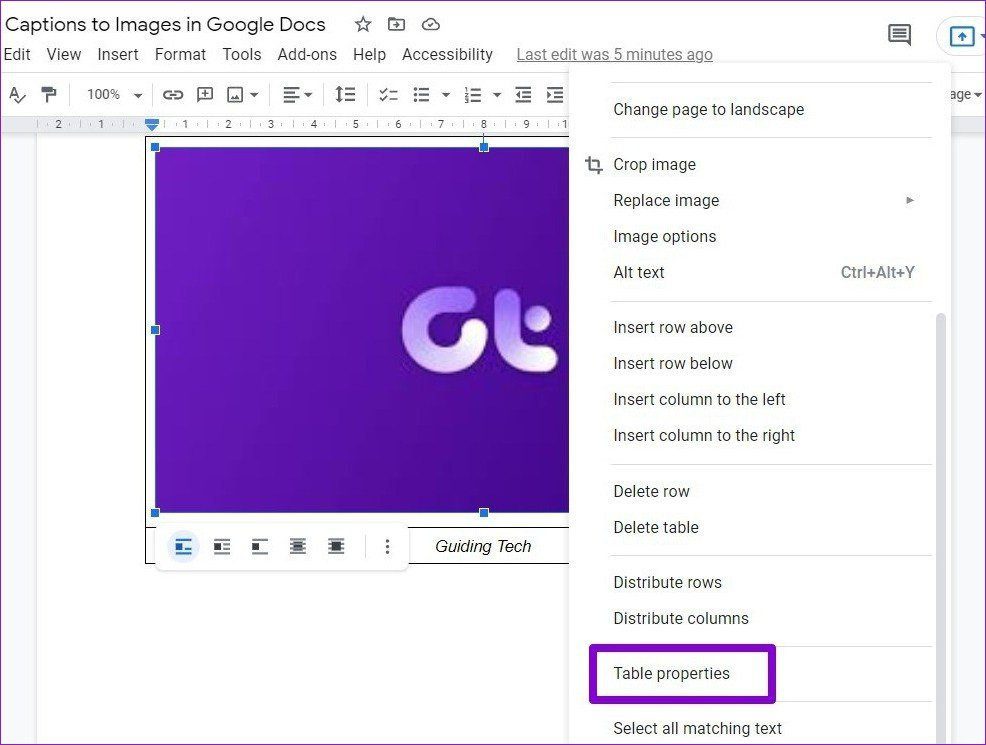
For instance, you can remove the borders by setting the Table border width to 0pt.

You can also tweak the cell’s background color, alignment, and more from the Table properties window.
Method 4: Using an Add-ons
If your work requires you to caption images often, using a dedicated add-on might be a good idea after all. Unfortunately, only a handful of add-ons are available for captioning photos on Google Docs. Out of those, Caption Maker is a popular choice. Here’s how to use it to caption images in Google Docs.
Step 1: Click Extensions > navigate Add-ons > Get add-ons.
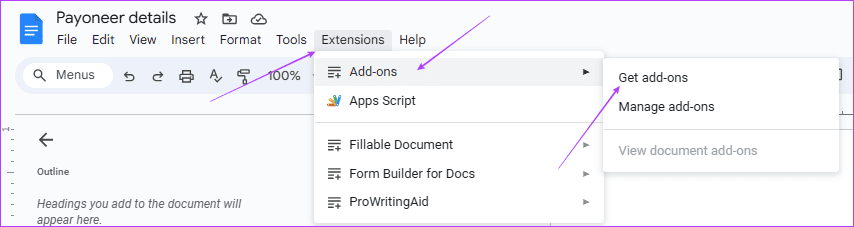
Step 2: Search for Caption Maker, click on it, and click Install.
Step 3: Now, insert the image into your Google Docs document. Then, click the Extensions menu at the top > select Caption Maker > Start.

Step 4: Click the Show options button in the Caption Maker panel.

Step 5: Under Format, enter the caption text in the New field. Next, you can choose caption placements, format, and numbering. There are also some visual settings that you can tweak to change the text’s font, size, and color.

Step 4: Lastly, click on the Captionize button at the bottom.

Was this helpful?
Last updated on 23 August, 2024
Read Next
 4 Ways to Insert Images in Google Docs
Method 1: Add Photos From Camera Roll to Google Docs You can add photos in Google Docs from the Camera Roll of your iPhone or Android phone.
4 Ways to Insert Images in Google Docs
Method 1: Add Photos From Camera Roll to Google Docs You can add photos in Google Docs from the Camera Roll of your iPhone or Android phone.
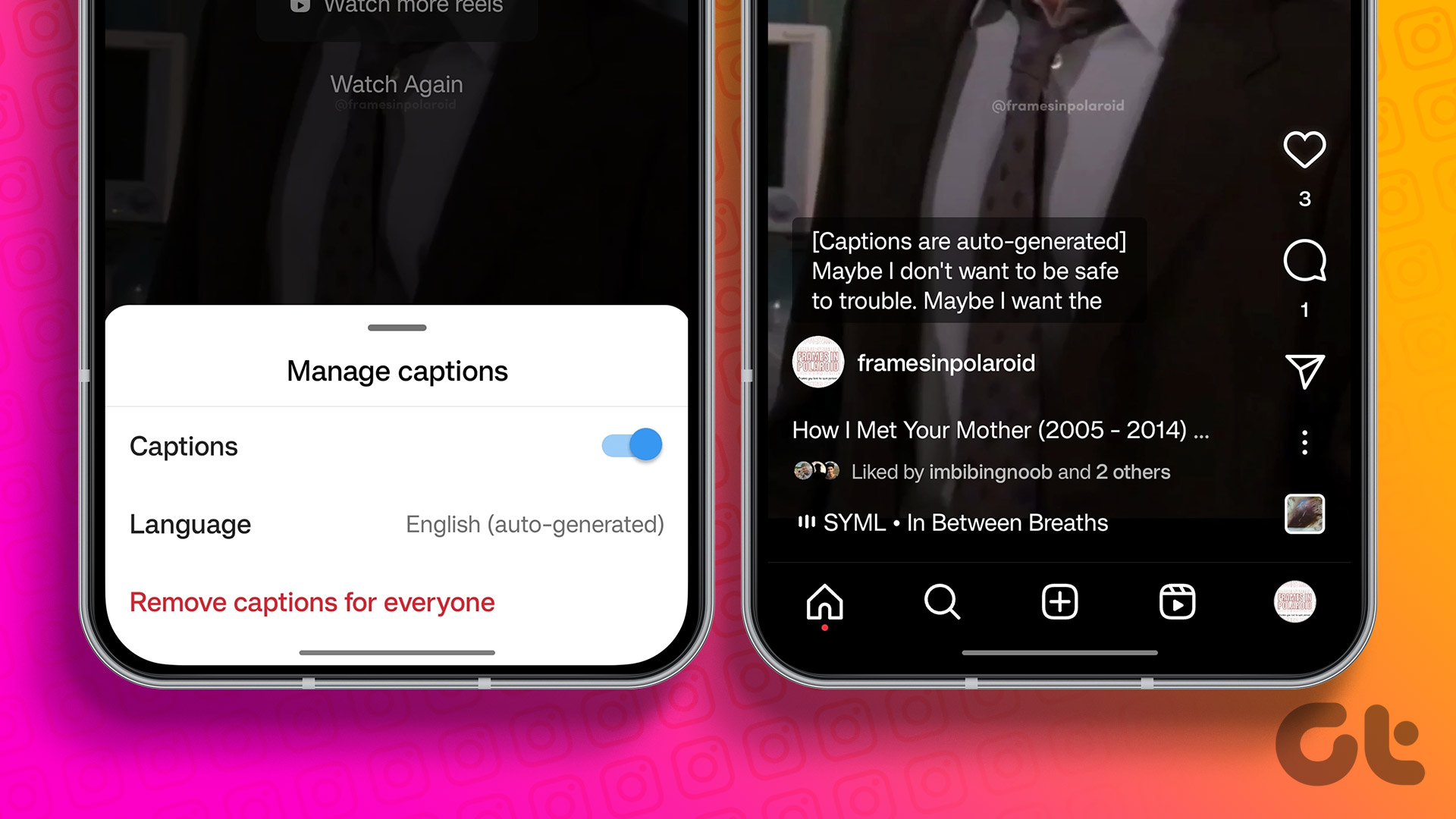 How to Add Captions (Subtitles) to Instagram Reels and Stories
Enable Auto-Generated Captions to any Reels This is similar to YouTube subtitles.
How to Add Captions (Subtitles) to Instagram Reels and Stories
Enable Auto-Generated Captions to any Reels This is similar to YouTube subtitles.
 How to Download and Save Images From Google Docs on Phone and PC
How to Export Images From Google Docs on Desktop Method 1: Save to Google Keep Step 1: Open the Google Docs document to extract an image.
How to Download and Save Images From Google Docs on Phone and PC
How to Export Images From Google Docs on Desktop Method 1: Save to Google Keep Step 1: Open the Google Docs document to extract an image.
 How to Overlap Images or Text in Google Docs
Method 1: Overlap Images in Google Docs With Google Drawings In this method, you must first add your image as a drawing.
How to Overlap Images or Text in Google Docs
Method 1: Overlap Images in Google Docs With Google Drawings In this method, you must first add your image as a drawing.
 How to Change Color of Captions on YouTube on Phone and PC
Change YouTube Caption Color on Desktop When watching YouTube videos, you may have noticed that captions usually appear in white with a black outline.
How to Change Color of Captions on YouTube on Phone and PC
Change YouTube Caption Color on Desktop When watching YouTube videos, you may have noticed that captions usually appear in white with a black outline.
 How to Fix Captions Not Showing Up on Instagram App
Why Do Captions Disappear on Instagram No, you might not have forgotten to add captions to Instagram, instead it was removed by the social media platform itself.
How to Fix Captions Not Showing Up on Instagram App
Why Do Captions Disappear on Instagram No, you might not have forgotten to add captions to Instagram, instead it was removed by the social media platform itself.
 5 Fixes for Closed Captions Not Working on YouTube
Fix 1: Check Captions Font and Style Settings YouTube provides several options for customizing caption colors, styles, sizes, and more.
5 Fixes for Closed Captions Not Working on YouTube
Fix 1: Check Captions Font and Style Settings YouTube provides several options for customizing caption colors, styles, sizes, and more.
 How to Add and Edit Images in Google Forms
How to Add Images in Google Forms on Desktop Method 1: Add an Image Before or After the Question Sometimes, you want to add an image describing what precedes or
How to Add and Edit Images in Google Forms
How to Add Images in Google Forms on Desktop Method 1: Add an Image Before or After the Question Sometimes, you want to add an image describing what precedes or
The article above may contain affiliate links which help support Guiding Tech. The content remains unbiased and authentic and will never affect our editorial integrity.