How to Sync Notes to Gmail from iPhone
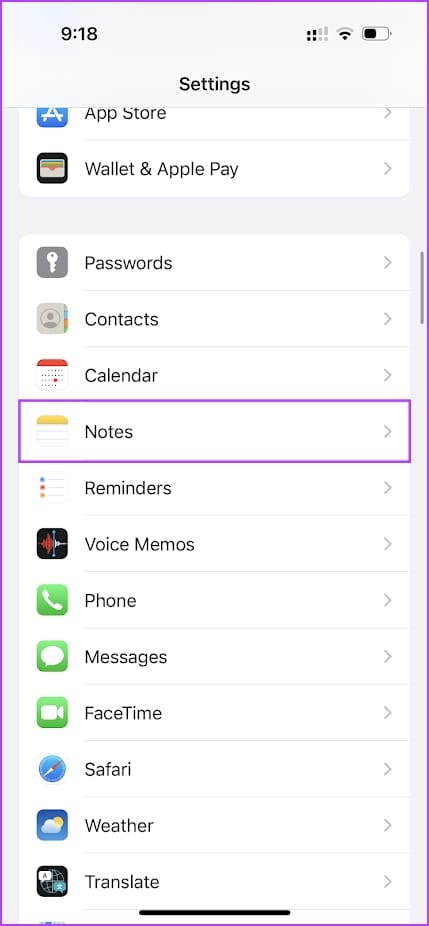
Step 1: Open the Settings app > go to Notes > select Accounts.
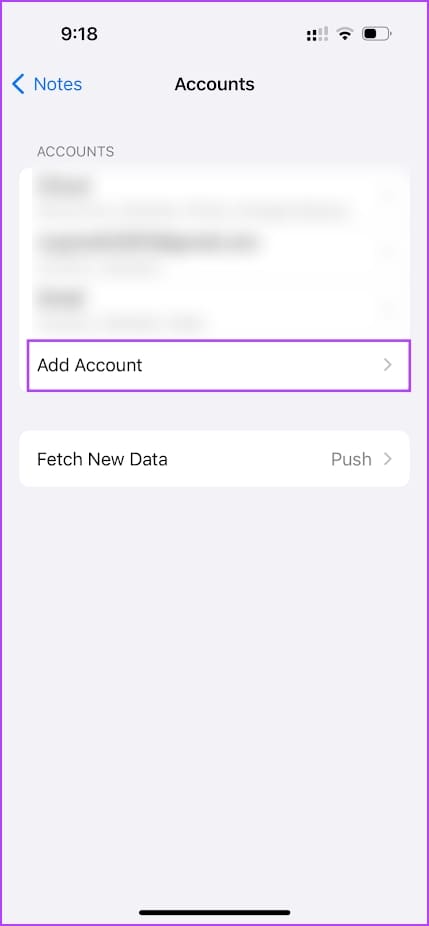
Step 2: If you see your Gmail account listed there, tap on it. If not, select Add Account and add your Google account.

Step 3: Once you tap on the added Gmail account, turn on the toggle for Notes.
Step 4: Open the Notes app > navigate back to the home screen. You will find a section called Gmail or the label under which you added your Google Account.
Step 5: Any note you access in Gmail must be created inside this folder.


Also Read: How to find and recover disappeared iPhone notes.
How to Access Notes from iPhone on Gmail
Open Gmail > log in with the account you enabled Notes for on your iPhone. Then, under the Labels section, you will find a label called Notes.
Open it and access all the notes you’ve written on your iPhone.

Also Read: How to save Apple Notes as PDF on iPhone and Mac
Was this helpful?
Last updated on 22 July, 2024
Read Next
 How to View Apple Notes on Android
Method 1: View Apple Notes on Android Using Web Browser App In this method, you can open the web version of iCloud by going to iCloud.com through the Chrome browser.
How to View Apple Notes on Android
Method 1: View Apple Notes on Android Using Web Browser App In this method, you can open the web version of iCloud by going to iCloud.com through the Chrome browser.
 How to View Samsung Notes on Windows
Samsung Notes app gives a tough competition to the numerous note-taking apps on Android.
How to View Samsung Notes on Windows
Samsung Notes app gives a tough competition to the numerous note-taking apps on Android.
 How to Transfer iPhone Notes to Google Keep
Method 1: Upload to Google Keep Manually This step is the simplest of all and you can easily transfer your notes to Google Keep.
How to Transfer iPhone Notes to Google Keep
Method 1: Upload to Google Keep Manually This step is the simplest of all and you can easily transfer your notes to Google Keep.
 3 Fixes for Face ID Not Working in Notes on iPhone
Basic Fixes Clean the true-depth camera: Apple recommends using a clean, damp-free lint cloth and some warm, soapy water for this purpose.
3 Fixes for Face ID Not Working in Notes on iPhone
Basic Fixes Clean the true-depth camera: Apple recommends using a clean, damp-free lint cloth and some warm, soapy water for this purpose.
 3 Fixes for Notes App Not Scanning Documents on iPhone
Basic Fixes Check camera permission: Go to Settings > Notes > enable the app to use iPhone Camera.
3 Fixes for Notes App Not Scanning Documents on iPhone
Basic Fixes Check camera permission: Go to Settings > Notes > enable the app to use iPhone Camera.
 How to Save Apple Notes as PDF on iPhone and Mac
https://youtu.be/8tn8DnmObLk How to Export iPhone Notes as PDF Method 1: Save Notes to Files Here's how to use the Markup tool to save Apple Notes as PDF on your iPhone.
How to Save Apple Notes as PDF on iPhone and Mac
https://youtu.be/8tn8DnmObLk How to Export iPhone Notes as PDF Method 1: Save Notes to Files Here's how to use the Markup tool to save Apple Notes as PDF on your iPhone.
 How to Change Font Style in Notes App on iPhone, iPad and Mac
Change Font Style in Notes App on iPhone and iPad Let's first show you how to change the font style of your notes in the Notes app on your iPhone
How to Change Font Style in Notes App on iPhone, iPad and Mac
Change Font Style in Notes App on iPhone and iPad Let's first show you how to change the font style of your notes in the Notes app on your iPhone
 3 Ways to Send Scanned Documents From iPhone Notes
Method 1: Send in Apps Directly The Notes app automatically creates a PDF file when you scan documents.
3 Ways to Send Scanned Documents From iPhone Notes
Method 1: Send in Apps Directly The Notes app automatically creates a PDF file when you scan documents.
The article above may contain affiliate links which help support Guiding Tech. The content remains unbiased and authentic and will never affect our editorial integrity.