


Use Beauty Filter in Zoom App on Desktop
On Mac
Step 1: Open the Zoom app on your Mac and go to Settings.
Step 2: Go to the Video menu.
Step 3: Enable the Touch up my appearance toggle from the My Video menu.
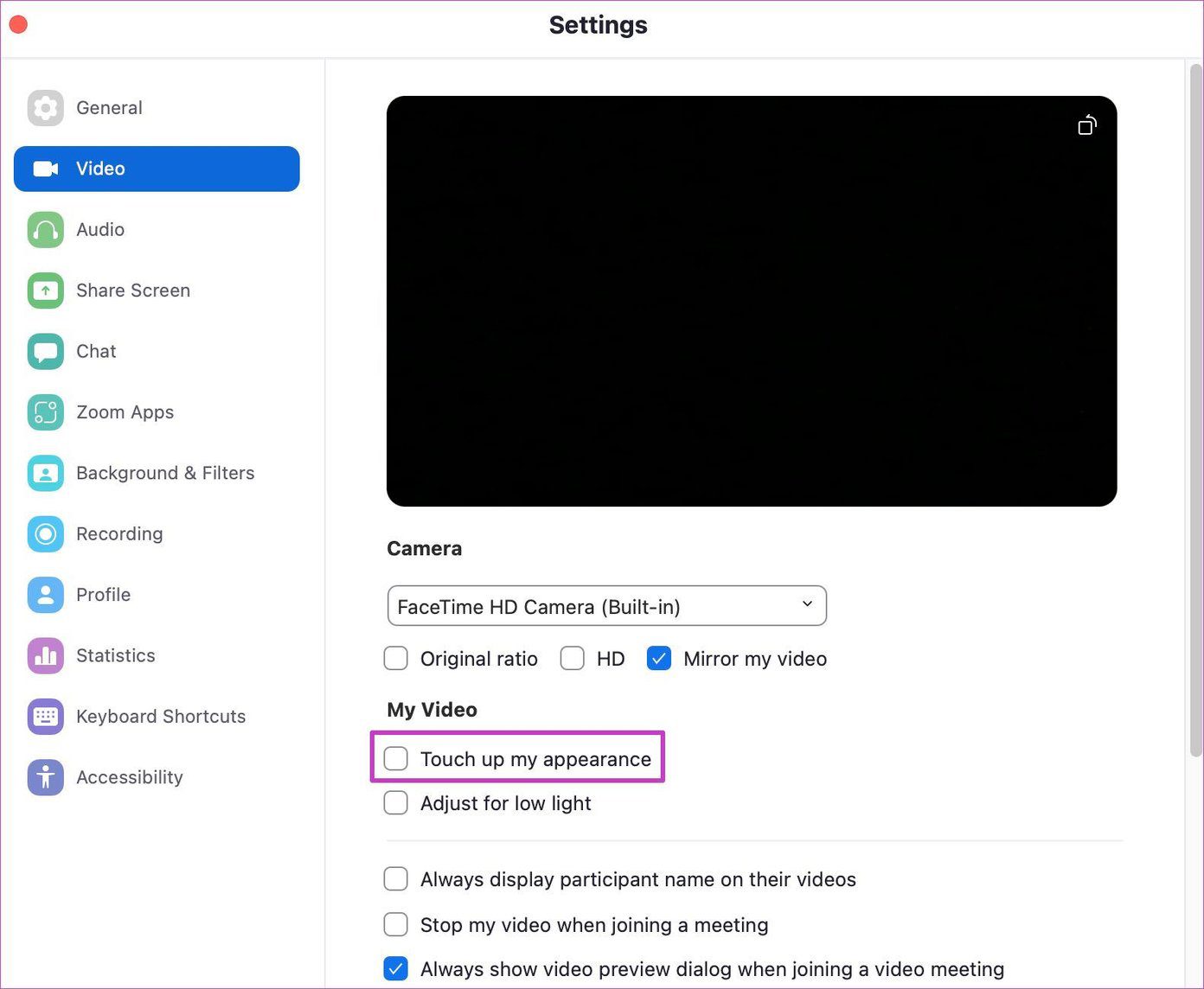
Step 4: From the same menu, you can enable adjustment for low light as well.
After enabling the touch up option, you will feel the soft skin tones during Zoom video calls.
On Windows
Zoom’s desktop apps have identical interfaces and functions. That said, you can use Zoom’s beauty mode and video filters during live Zoom meetings. Follow the steps below to use beauty mode in Zoom on Windows.
Step 1: Go to Zoom and click the Settings icon.
Step 2: Check the box for Touch up my appearance.
Step 3: You can use the slider and adjust the intensity of the beauty mode.
Step 4: Enable Adjust for low light for improved brightness in the video preview.

You can also use video filters during live Zoom calls. Here’s how.
Step 1: During Zoom video meetings, click on the up arrow beside the Stop Video button and select Choose Video Filter.

Step 2: It will open a dedicated Background & Filters menu.
From here, you can apply Boost, Cinnamon, Sepia, Seafoam, Pride, and more filters to a Zoom call. If you want to enhance the experience, click on Studio Effects at the bottom right and change your Eyebrows, Mustache, Beard, and even Lip color from the side menu.
If you are satisfied with the results, don’t forget to apply to all future meetings toggle at the top. Zoom will remember your changes and use the video filters in all your future Zoom meetings.
If you want to use Zoom beauty mode during the live meeting, click on the upper arrow beside the Stop Video menu and select Video Settings. It will take you to the same menu as we discussed above. From there, you can use touch up appearance and optimize Zoom video for better low-light performance.
Use Beauty Filter in the Zoom App on Mobile
As we mentioned above, the ability to apply beauty mode is also present on Zoom mobile apps. We will use the Zoom iPhone app for demonstration. For Android devices, you must have 3GB or higher RAM, an ARM64 8-core processor, and the Zoom App version 5.3.0 or higher.
Since the Zoom app on iPhone and Android are identical, you can apply the same steps on Android.
Step 1: Open Zoom on iPhone or Android and go to Settings.
Step 2: Go to the Meetings tab.
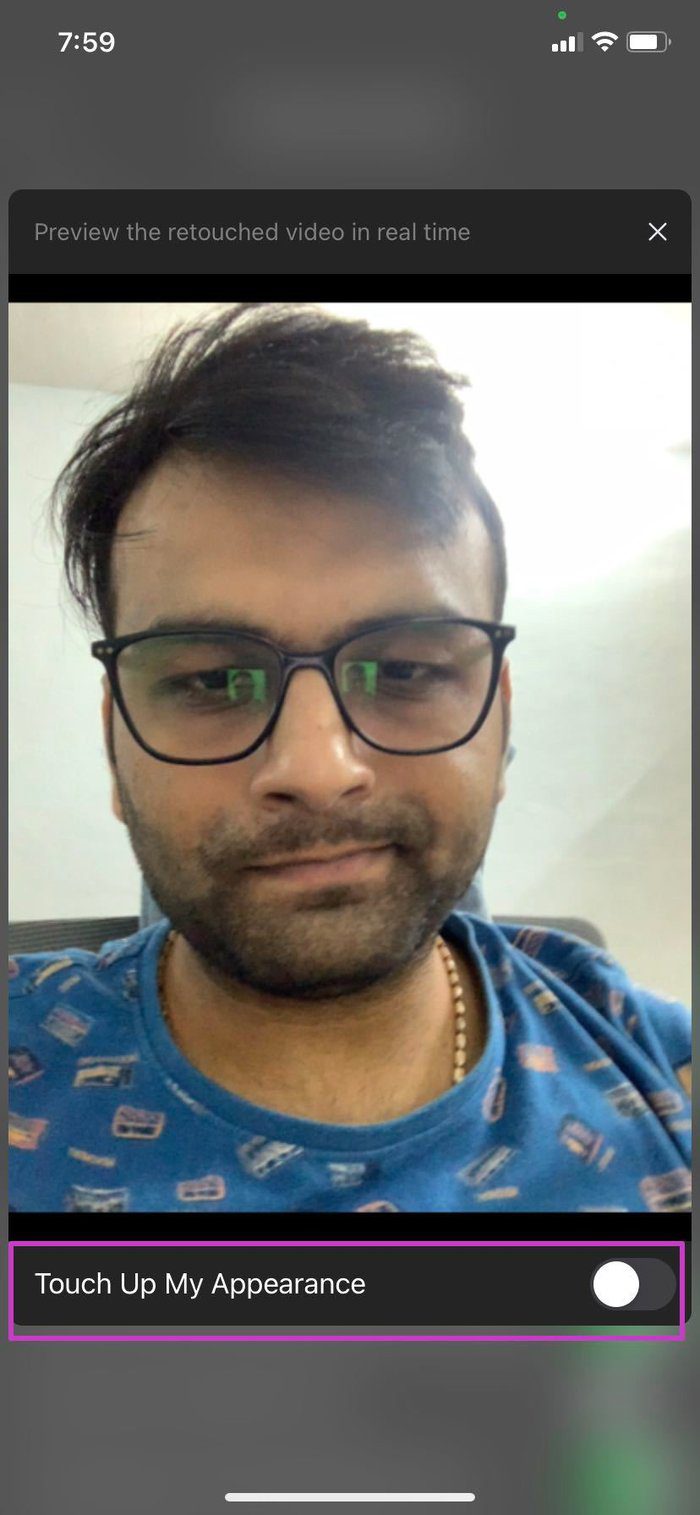
Step 3: Tap on Touch Up My Appearance. It will open the camera preview.
Step 4: Enable the toggle for Touch Up My Appearance and turn up the slider to see changes.

Zoom video filters are available here, too. To make changes, tap on the More button from the live Zoom meeting and go to the Background and Filters menu.
Tip: Learn how to use the Zoom app on your Apple TV 4K.
Was this helpful?
Last updated on 07 August, 2024
2 Comments
Leave a Reply
Read Next
 3 Fixes When Your Zoom Profile Picture Is Not Showing in Meetings
Basic Fix: Connect from an app or an alternative platform: Connecting from an alternative platform, such as your mobile device, maybe an easy workaround for the problem.
3 Fixes When Your Zoom Profile Picture Is Not Showing in Meetings
Basic Fix: Connect from an app or an alternative platform: Connecting from an alternative platform, such as your mobile device, maybe an easy workaround for the problem.
 How to Use Notes in Zoom Meetings on Mobile and Desktop
How to Use Zoom Notes in Meetings on Desktop Before we get started, ensure that you have installed the latest version of the Zoom app on your Mac or Windows
How to Use Notes in Zoom Meetings on Mobile and Desktop
How to Use Zoom Notes in Meetings on Desktop Before we get started, ensure that you have installed the latest version of the Zoom app on your Mac or Windows
 How to Add Zoom Meetings to Outlook Calendar and Google Calendar
How to Add Zoom Meetings to Google Calendar The easiest way is using the Zoom for Google Workspace Google calendar add-on.
How to Add Zoom Meetings to Outlook Calendar and Google Calendar
How to Add Zoom Meetings to Google Calendar The easiest way is using the Zoom for Google Workspace Google calendar add-on.
 Teams: Disable All Chat Notifications During Meetings
Method 1: Enable Do Not Disturb for Your Account One of the quickest ways to disable chat notifications during meetings is to set your status to Do Not Disturb.
Teams: Disable All Chat Notifications During Meetings
Method 1: Enable Do Not Disturb for Your Account One of the quickest ways to disable chat notifications during meetings is to set your status to Do Not Disturb.
 How to Block or Filter Tags on Tumblr
Inarguably, Tumblr ranks right up among the craziest places on the internet.
How to Block or Filter Tags on Tumblr
Inarguably, Tumblr ranks right up among the craziest places on the internet.
 Declutter Your Inbox: How to Filter Unread Emails in Gmail
Method 1: Using a Query in the Search Field Like Google Search, there are various tips and tricks for using Gmail Search to get the desired results.
Declutter Your Inbox: How to Filter Unread Emails in Gmail
Method 1: Using a Query in the Search Field Like Google Search, there are various tips and tricks for using Gmail Search to get the desired results.
 How to Create Rules to Filter Emails in Gmail
Most Gmail users are familiar with the email service's interface.
How to Create Rules to Filter Emails in Gmail
Most Gmail users are familiar with the email service's interface.
 How to Use the Filter and Sort Data Function in Microsoft Excel
Things to Note About Using the Filter and Sort Function The Filter function allows you to extract data from a data set that fits your criteria.
How to Use the Filter and Sort Data Function in Microsoft Excel
Things to Note About Using the Filter and Sort Function The Filter function allows you to extract data from a data set that fits your criteria.
The article above may contain affiliate links which help support Guiding Tech. The content remains unbiased and authentic and will never affect our editorial integrity.


Touch up my appearance feature not available for Android app, perhaps you should update this article
I have the same problem. It doesn’t work on my Android phone.