How to Unsubscribe From All YouTube Channels at Once Using Extension
If you are using a browser with extension support, you can use the help of an extension to mass unsubscribe channels on YouTube. While there are plenty of extensions to choose from, we recommend using Automa.
Step 1: Open the Automa extension page on your Chromium based web-browser. Then, click on ‘Add to Chrome.’
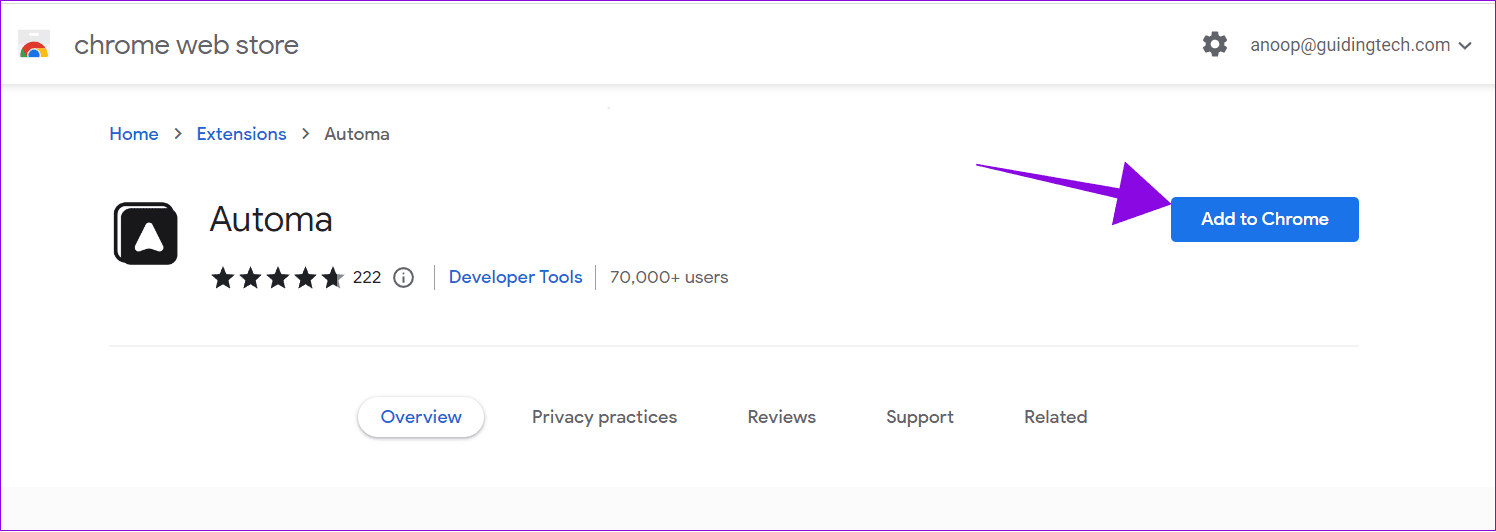
Alternatively, you can install it on your Mozilla Firefox browser using the Automa add-on.
Step 2: Click Add extension to confirm.

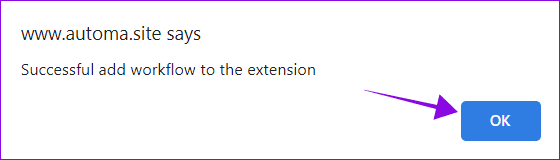
Step 3: Next, visit the Automa workflow page. Here, under YouTube mass unsubscriber, click on ‘Add to extension’ at the bottom.

Step 4: Choose OK to confirm.
Step 5: Now, access Automa from the extensions page and hit play next to ‘Youtube mass unsubscriber.’

And that’s it. You will be redirected to the YouTube Subscriptions page, where the code will automatically unsubscribe from all the channels. If you don’t want to mass unsubscribe, move to the next section.
How to Unsubscribe From Individual YouTube Channels
YouTube is a great way to find and watch videos on various topics. But if you’ve subscribed to someone you don’t want to, you can unsubscribe from a single channel.
Using YouTube App on Android or iOS
Inside the YouTube app, switch to the Subscriptions tab from the bottom bar. Then, select All. Now, tap the bell icon next to the channel you want to unsubscribe and choose Unsubscribe.


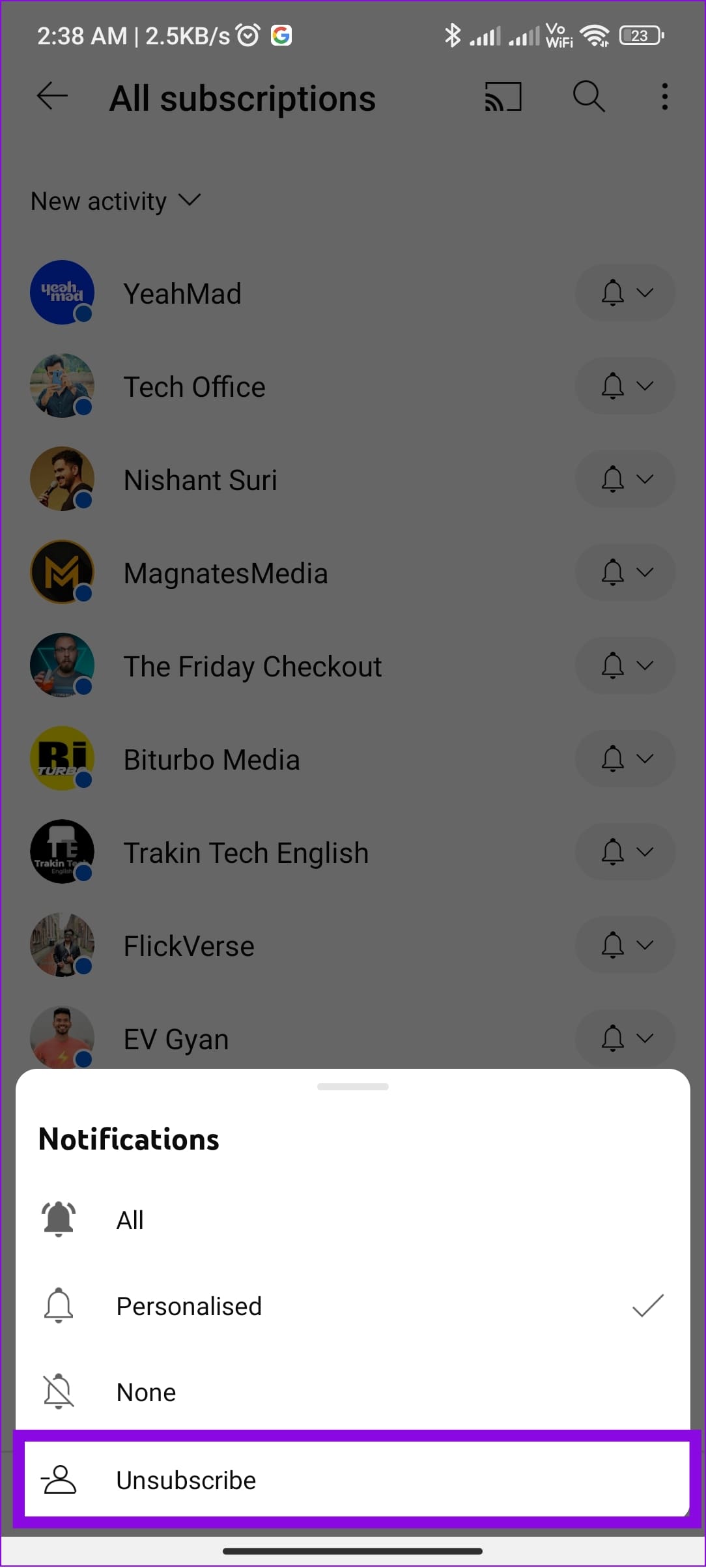
Besides this, you can visit a channel you want to unsubscribe > choose the Subscribed button, and tap on Unsubscribe.
On Desktop Browser
Step 1: Head over to YouTube, and switch to the Subscriptions tab from the sidebar.

Step 2: Select Manage.
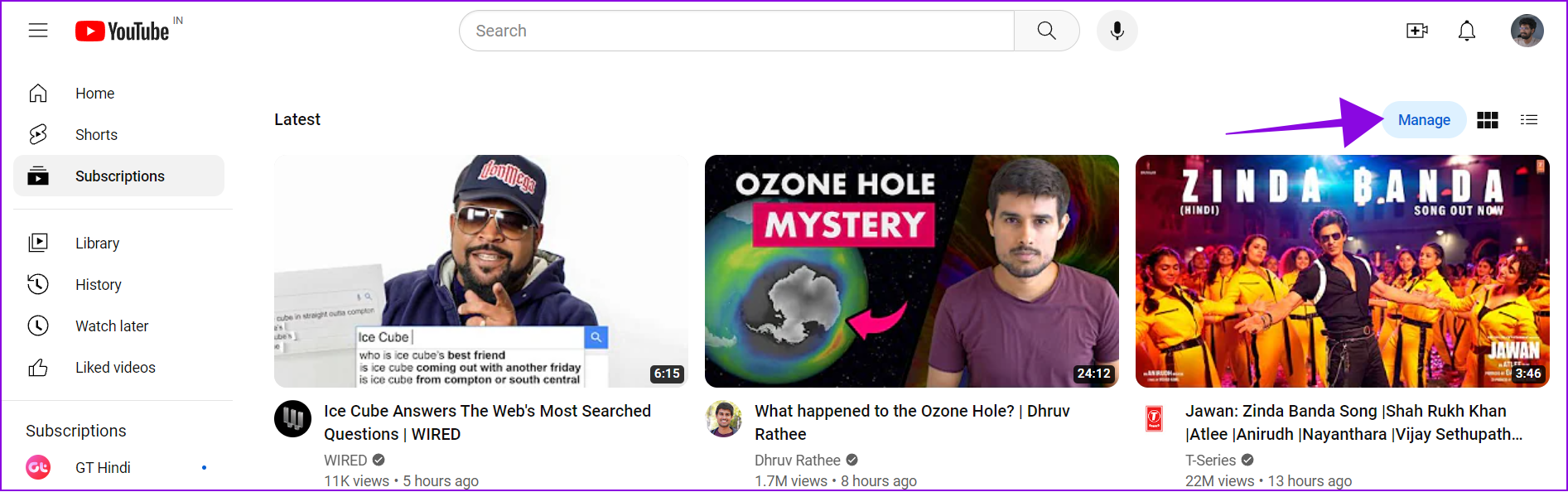
Step 3: Hit the down arrow next to the channel you want to unsubscribe and choose Unsubscribe.

Step 4: Select Unsubscribe to confirm.
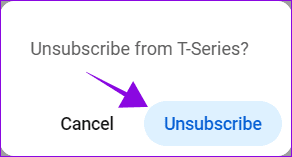
That’s it! You have unsubscribed from the YouTube channel.
How to Stop YouTube Channel Notifications
If you’re just annoyed by the amount of notifications you get from the subscribed channels, you can easily mute the notifications instead of unsubscribing the channel. Here are the steps:
Step 1: Open YouTube and visit the channel you want to disable notifications.
Step 2: Click on the downward-facing arrow button and select None.
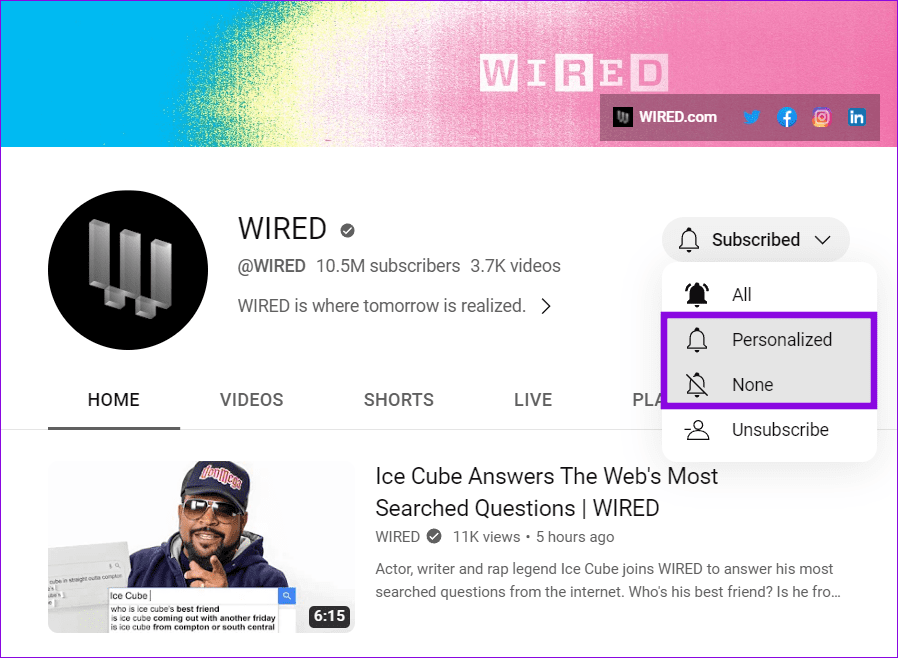
Tip: You can also choose Personalized to get custom notifications based on the videos you view.
FAQs on Mass Unsubscribing YouTube Channels
1. Can Youtubers see if you unsubscribe?
No. YouTubers don’t get any notification when a user unsubscribes. However, they might notice a difference in subscriber count upon checking.
2. Does YouTube remove fake subscribers?
YouTube makes efforts to detect and remove fake subscribers from channels when detected. Fake subscribers include bot accounts or inactive accounts created to inflate a channel’s subscriber count.
Was this helpful?
Last updated on 27 June, 2024
Read Next
 WhatsApp Channels vs Telegram Channels: Know the Differences
WhatsApp Channels vs Telegram Channels: Key Differences Feature WhatsApp Channels Telegram ChannelsEngagement and Interaction One-way broadcast One-way broadcastSix basic emojisOptional group linking for discussionsSubscribers vs.
WhatsApp Channels vs Telegram Channels: Know the Differences
WhatsApp Channels vs Telegram Channels: Key Differences Feature WhatsApp Channels Telegram ChannelsEngagement and Interaction One-way broadcast One-way broadcastSix basic emojisOptional group linking for discussionsSubscribers vs.
 10 Best Live YouTube Channels From Around The World
YouTube is the biggest and the most widely-used global video platform on the Internet.
10 Best Live YouTube Channels From Around The World
YouTube is the biggest and the most widely-used global video platform on the Internet.
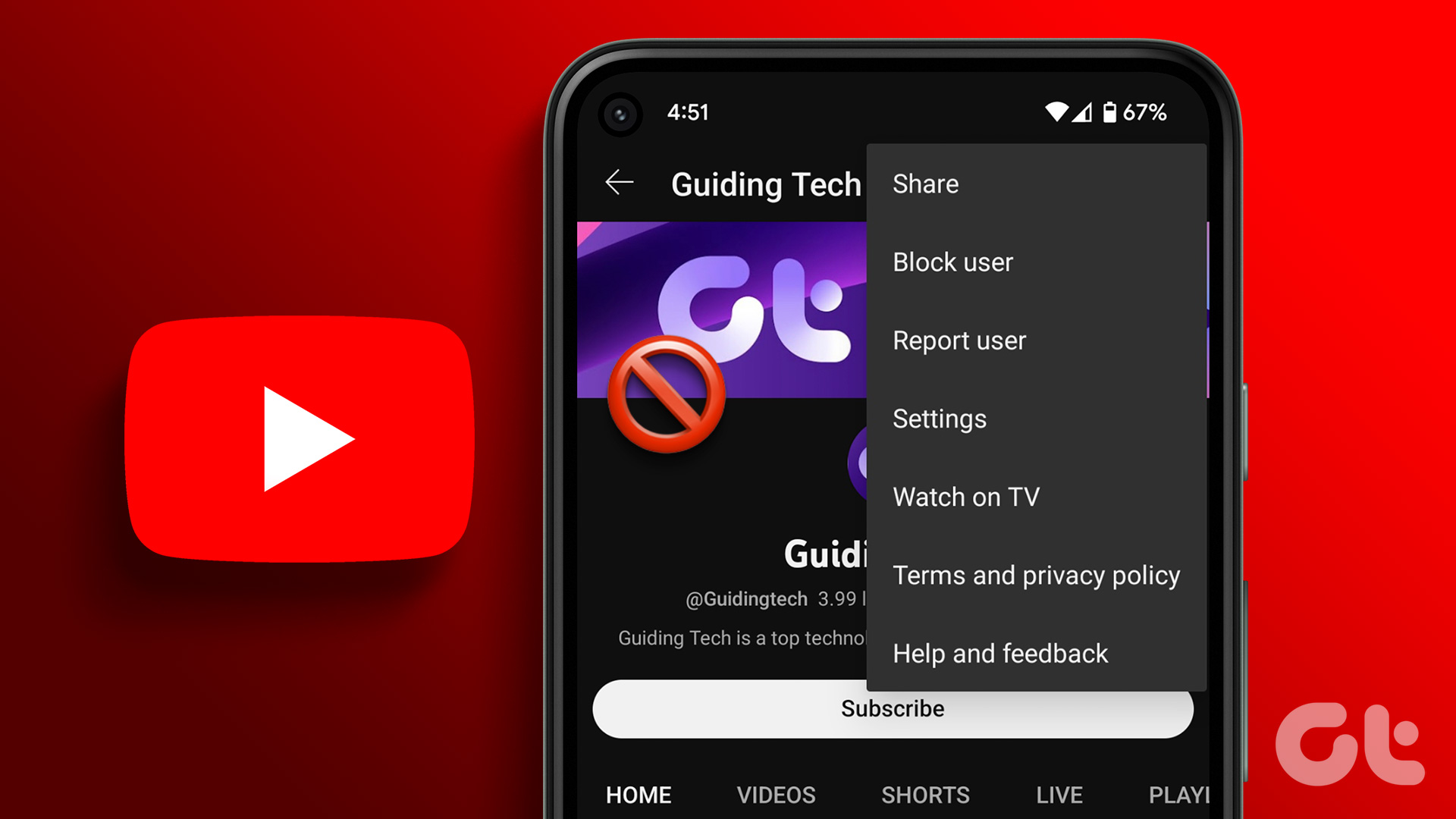 2 Ways to Block YouTube Channels on Desktop and Mobile
Method 1: Block a YouTube Channel From Appearing on Your Feed If you want to stop a YouTube channel from appearing in your feed without fully blocking it, you can
2 Ways to Block YouTube Channels on Desktop and Mobile
Method 1: Block a YouTube Channel From Appearing on Your Feed If you want to stop a YouTube channel from appearing in your feed without fully blocking it, you can
 Google Chrome Release Channels: Stable vs. Beta vs. Canary vs. Dev
What Is Chrome Canary?
Google Chrome Release Channels: Stable vs. Beta vs. Canary vs. Dev
What Is Chrome Canary?
 How to Search for Telegram Groups and Channels
How to Find and Join Public Telegram Groups and Channels Joining public groups or channels on Telegram is easy if you know the exact name or username.
How to Search for Telegram Groups and Channels
How to Find and Join Public Telegram Groups and Channels Joining public groups or channels on Telegram is easy if you know the exact name or username.
 What Are WhatsApp Channels and How to Access and Join Them
A lot of work goes into managing your followers across different social media platforms.
What Are WhatsApp Channels and How to Access and Join Them
A lot of work goes into managing your followers across different social media platforms.
 How to Enable or Disable NSFW Channels on Discord
Discord provides the option to change the status of your Discord channel.
How to Enable or Disable NSFW Channels on Discord
Discord provides the option to change the status of your Discord channel.
 How to Unlike or Unsave All Posts on Instagram at Once
How to Unlike All Posts on Instagram On Mobile App The steps are identical on Android devices and iPhones.
How to Unlike or Unsave All Posts on Instagram at Once
How to Unlike All Posts on Instagram On Mobile App The steps are identical on Android devices and iPhones.
The article above may contain affiliate links which help support Guiding Tech. The content remains unbiased and authentic and will never affect our editorial integrity.