Basic Fixes:
- Restart your Apple Watch: Restarting your Apple Watch can help eliminate any temporary bugs or glitches that cause the passcode option to disappear or gray out. Once done, you can set the passcode on your Apple Watch.
- Check for software updates: Software updates contain essential security patches and bug fixes to help make your devices more secure and perform better. So, if you’re continuously facing issues setting up a passcode, check and ensure you are using the updated Apple Watch’s software.
Fix 1: Check Screen Time Settings
If password changes have been disabled in Screen Time settings on your iPhone, it might gray out the passcode option on your Apple Watch. In this case, use the Screen Time settings menu to enable this and check again. Here’s how to do it.
Step 1: Open Settings > tap on Screen Time > Content & Privacy Restrictions.
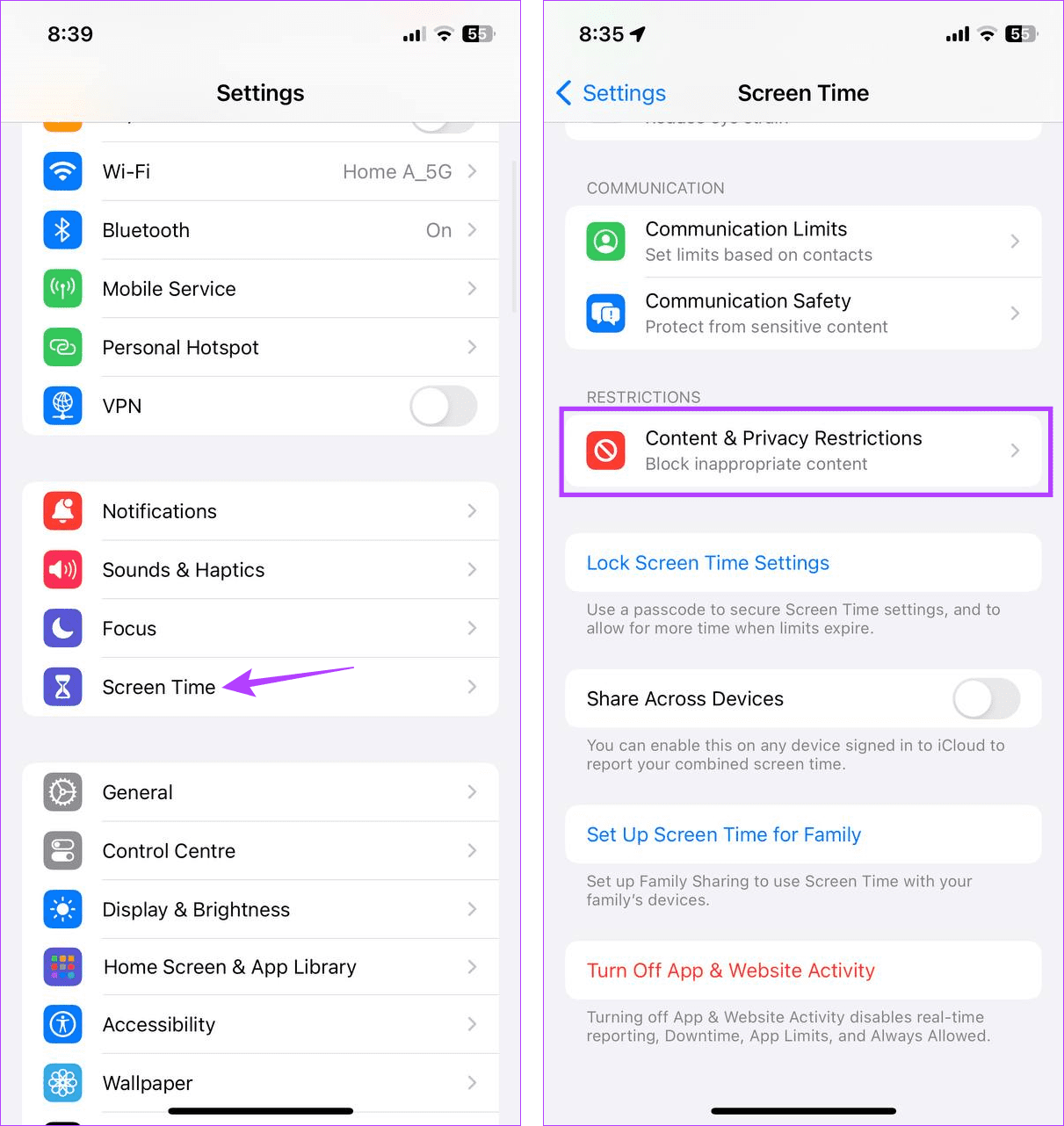
Step 2: Go to the Allow Changes section and tap on Passcode Changes > Allow.
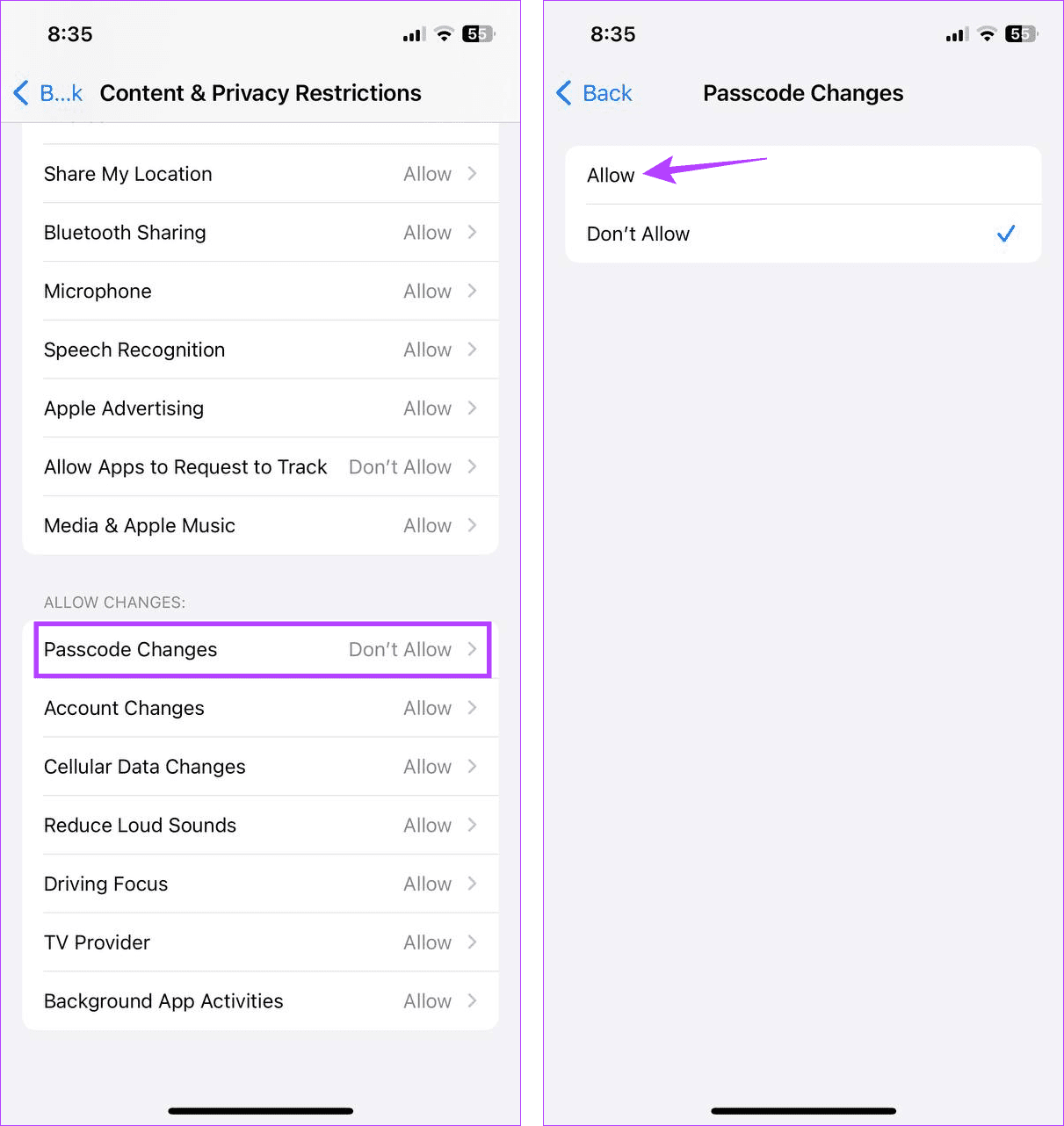
Now, restart the Watch app on your iPhone and see if the passcode option is visible.
Fix 2: Using Wrist Detection and Other Settings
If turning on password changes doesn’t work, turn off the Wrist Detection settings along with app and website activity. This can help passcode settings to work on your Watch app. Notably, this fix has helped many users. So, here’s how to do it.
Step 1: Open Settings > tap on Screen Time > Turn Off App & Website Activity.
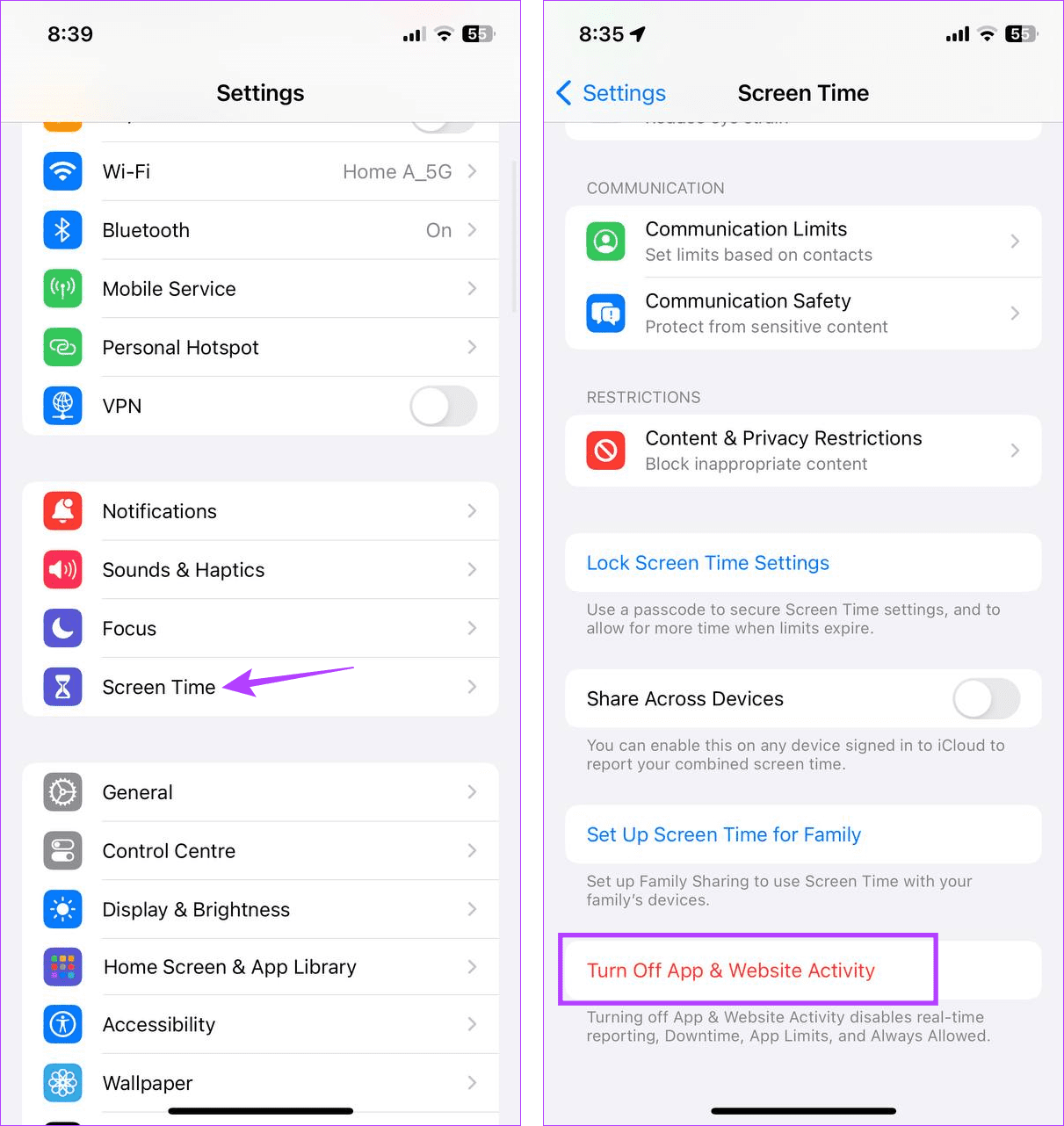
Step 2: Tap on Turn Off App & Website Activity to confirm.
Step 3: Once done, open the Watch app and tap on Passcode.


Step 4: Turn off the toggle for Wrist Detection > Turn Off to confirm.
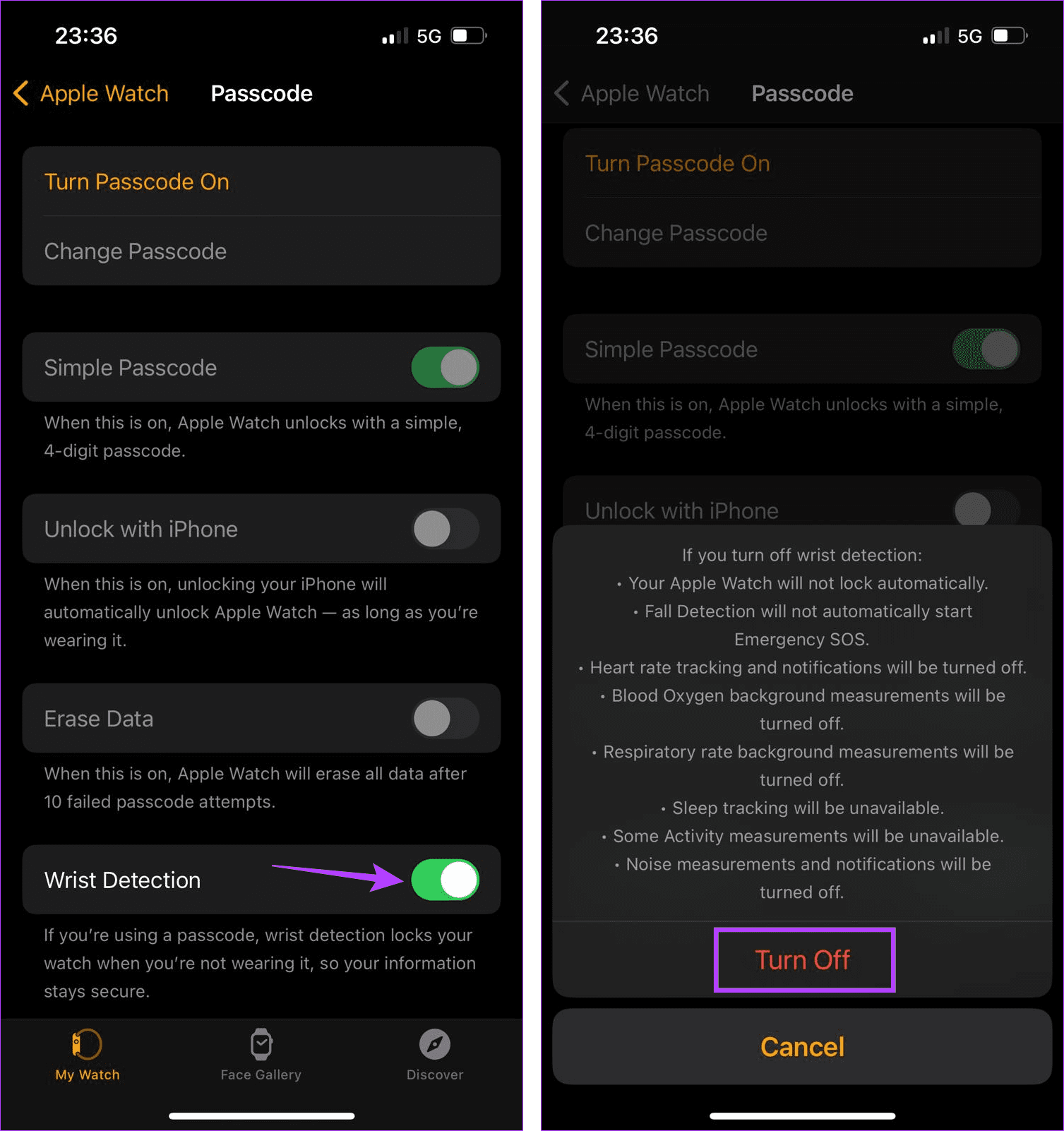
Now, restart the Watch app and use the settings menu to set a passcode for your Apple Watch.
Fix 3: Try Setting the Passcode Using Your iPhone
Besides using your Apple Watch, you can use the Watch app on your iPhone to set the Apple Watch passcode. Do this if you can’t set the passcode on your Apple Watch due to the option being grayed out or unavailable. Here’s how.
Step 1: Open the Watch app > tap on Passcode > Turn Passcode On.
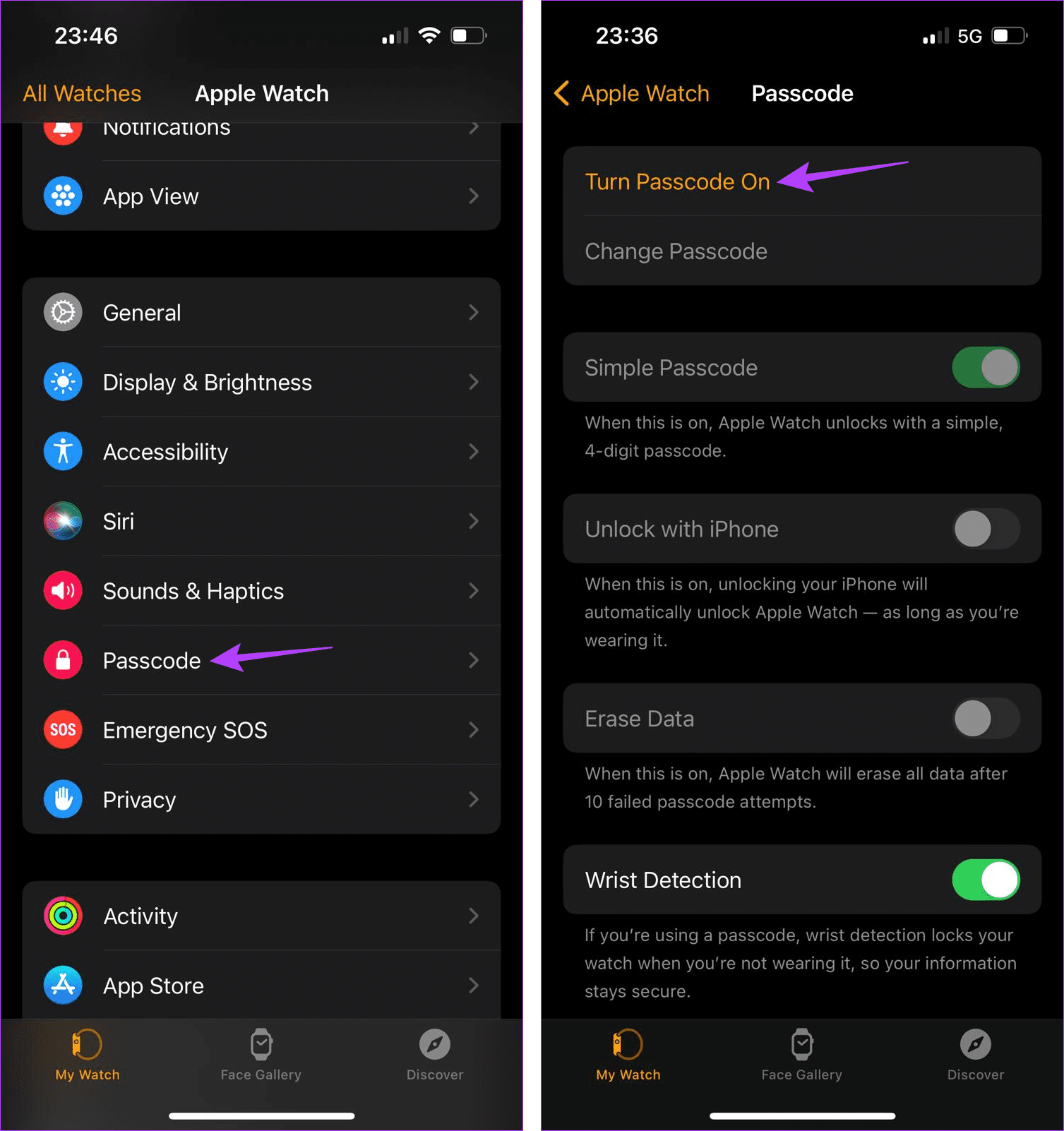
You should now get prompted on your Apple Watch to finish the passcode setting process. If that doesn’t happen, move your Apple Watch closer to your iPhone and try again.
Also Read: How to fix Apple Watch not tracking sleep
Fix 4: Reset Your Apple Watch
If you’ve tried all the above fixes and the passcode option is still unavailable, reset your Apple Watch as your last resort. Doing this will delete all previous custom settings and watch data. If enabled, you can restore some Watch data via backups. Follow the below steps to do it.
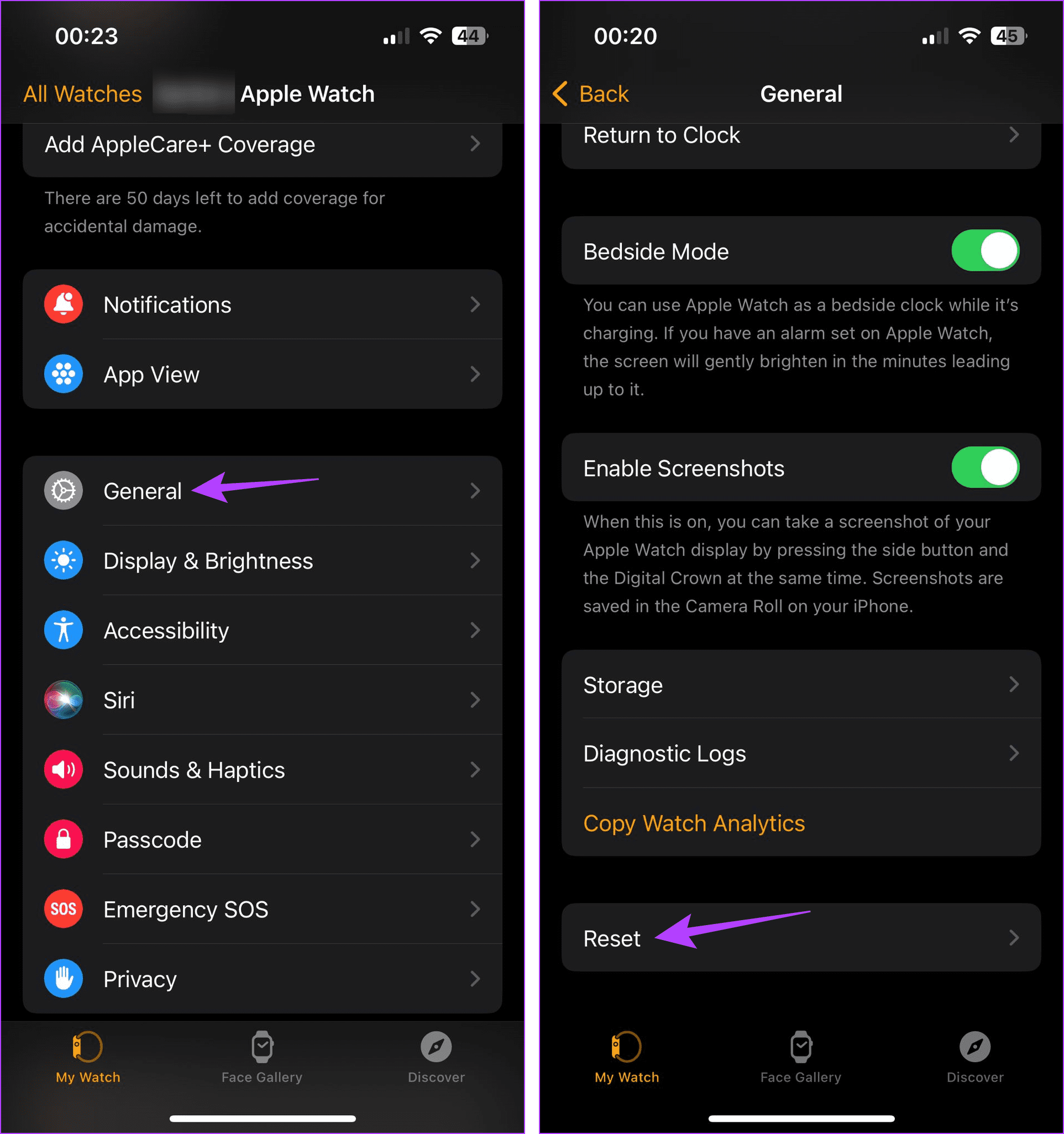
Step 1: Open the Watch app > tap on General > Reset.
Step 2: Tap on Erase Apple Watch Content and Settings and confirm the same.
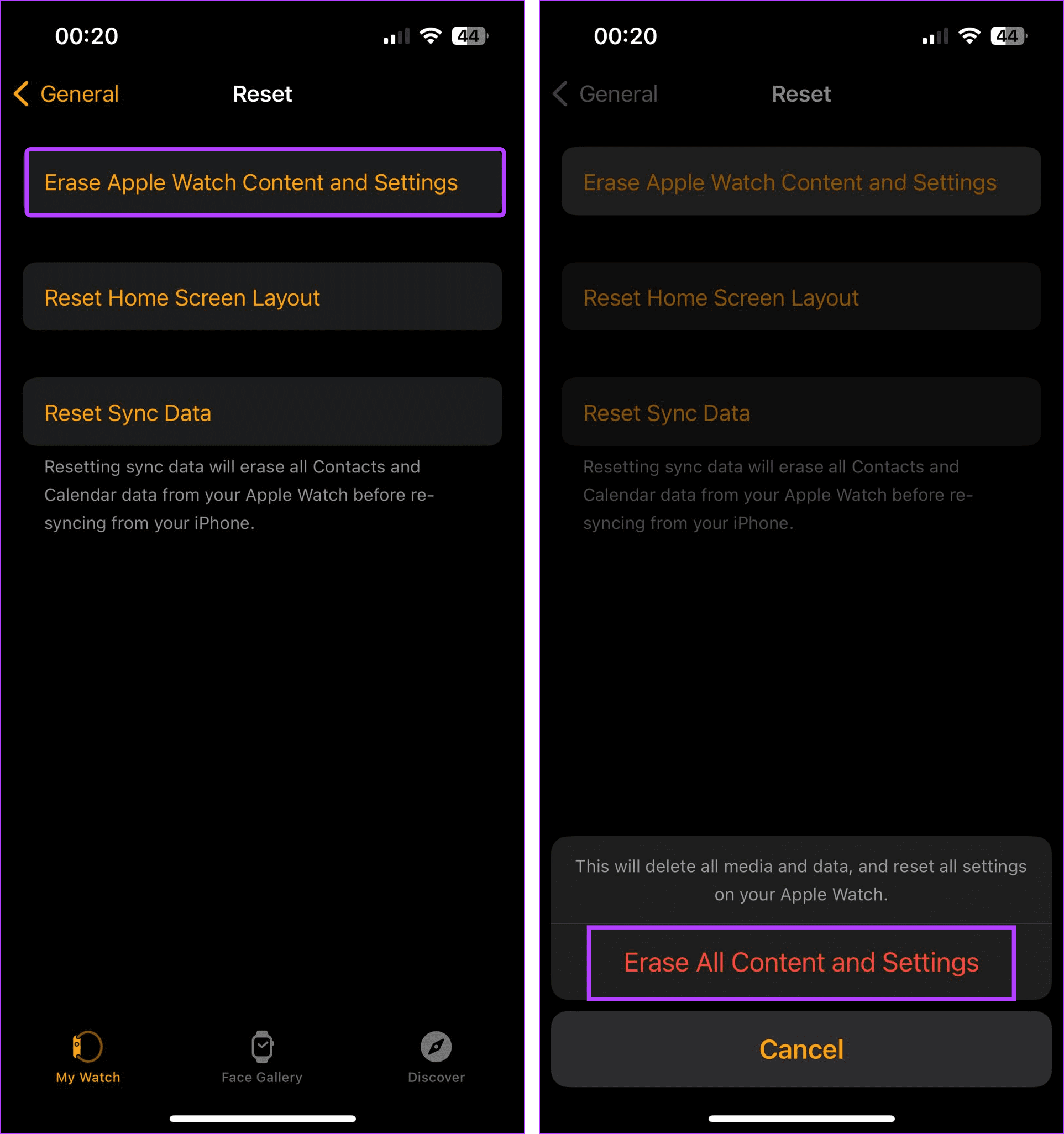
Now, wait for the reset process to finish. Once done, re-pair your Apple Watch, recover any available data, and try setting the passcode again.
Was this helpful?
Last updated on 30 August, 2024
Read Next
 How to Change Apple Watch Face from iPhone or Watch
Traditional watches had the problem that you couldn't change their clock face.
How to Change Apple Watch Face from iPhone or Watch
Traditional watches had the problem that you couldn't change their clock face.
 How to Remove or Reset a Forgotten Screen Time Passcode on iPhone and Mac
Screen Time settings are a useful addition to the iPhone, iPad, and Mac.
How to Remove or Reset a Forgotten Screen Time Passcode on iPhone and Mac
Screen Time settings are a useful addition to the iPhone, iPad, and Mac.
 2 Awesome Tools to Recover Screen Time Passcode on iPhone Easily
Screen Time is a refreshing addition to iOS.
2 Awesome Tools to Recover Screen Time Passcode on iPhone Easily
Screen Time is a refreshing addition to iOS.
 How to Secure iPhone Using Screen Time Passcode
What Is Screen Time on iPhone?
How to Secure iPhone Using Screen Time Passcode
What Is Screen Time on iPhone?
 Forgot iPhone Passcode: How to Reset iPhone Without Losing Data
Don't we all dread the sight of our phones not unlocking when we enter the password?
Forgot iPhone Passcode: How to Reset iPhone Without Losing Data
Don't we all dread the sight of our phones not unlocking when we enter the password?
 4 Fixes for Unable to Log in to Apple Music for Android
Try Basic Fixes Check your Apple ID and password: Accidentally entering an incorrect Apple ID or password in the Apple Music app might be causing the failure to sign in
4 Fixes for Unable to Log in to Apple Music for Android
Try Basic Fixes Check your Apple ID and password: Accidentally entering an incorrect Apple ID or password in the Apple Music app might be causing the failure to sign in
 4 Ways to Fix Unable to Load Video or Photo Error on iPhone
Basic Fixes Turn off Low Power Mode: Unless your iPhone is running really low on battery, it's best to turn off Low Power Mode since it limits background activities like
4 Ways to Fix Unable to Load Video or Photo Error on iPhone
Basic Fixes Turn off Low Power Mode: Unless your iPhone is running really low on battery, it's best to turn off Low Power Mode since it limits background activities like
 How to Fix “Unable to Start Collaboration” in iPhone Notes
Fix 1: Check iCloud Storage Space Suppose you have multiple notes stored on your iPhone, including media files like scanned documents, photos, and videos.
How to Fix “Unable to Start Collaboration” in iPhone Notes
Fix 1: Check iCloud Storage Space Suppose you have multiple notes stored on your iPhone, including media files like scanned documents, photos, and videos.
The article above may contain affiliate links which help support Guiding Tech. The content remains unbiased and authentic and will never affect our editorial integrity.