Method 1: Using Settings Menu
Step 1: Open the Settings menu.
Step 2: Go to Accessibility > TalkBack.
Step 3: Turn on the Use TalkBack toggle.
Step 4: Tap Allow in the confirmation pop-up to confirm.


Once enabled, your device will read aloud the content on your screen.
To disable it:
Step 1: Repeat the steps and toggle off the Use TalkBack toggle.
Step 2: In the confirmation pop-up, tap Stop to confirm.


Method 2: Using Google Assistant
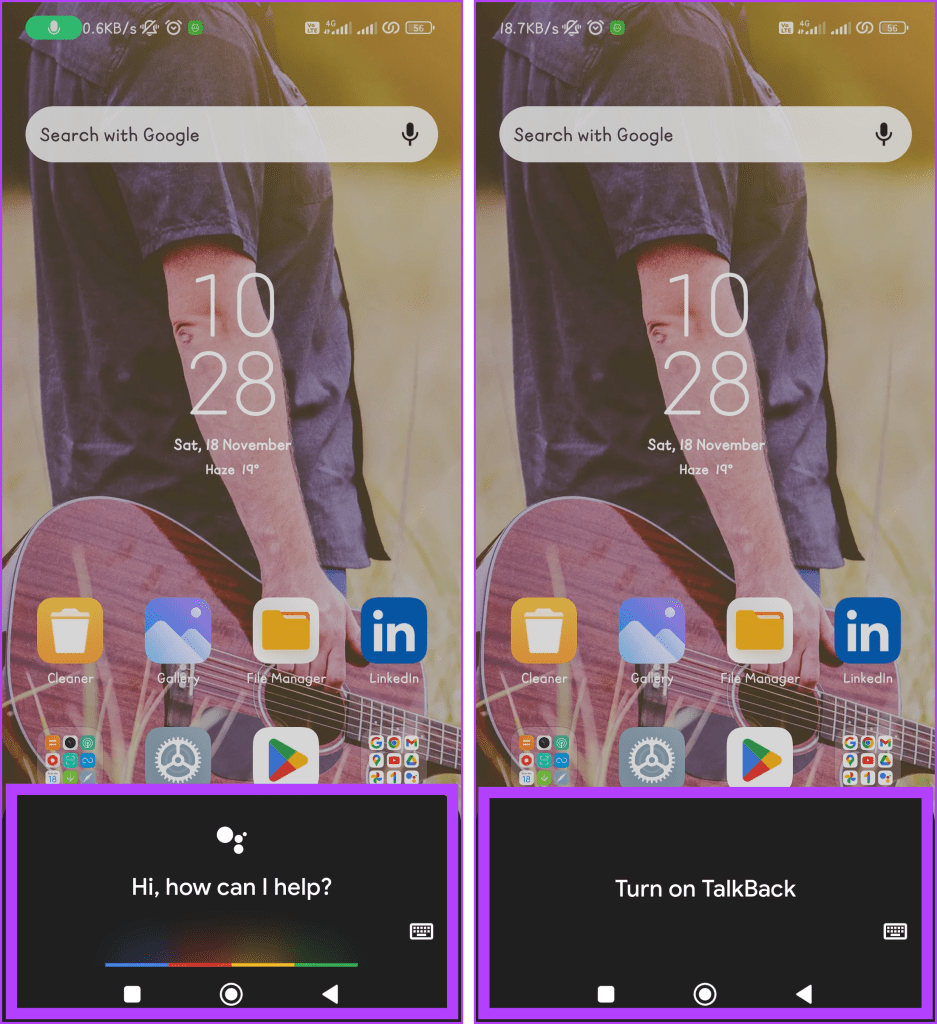
Step 1: Use Hey Google to open Google Assistant.
Step 2: Once it’s active, use voice commands as follows:
- Enable: Turn on TalkBack.
- Disable: Turn off TalkBack.
Also Read: How to switch back to Google Assistant from Gemini
Method 3. Using Volume Key Shortcuts
Another way to disable TalkBack without the Settings app is to use your phone’s volume keys. However, this method might be unavailable on all devices.
Step 1: Press and hold the Volume Up and Volume Down buttons together until your device vibrates.
Step 2: Release both buttons once you hear the audio message.
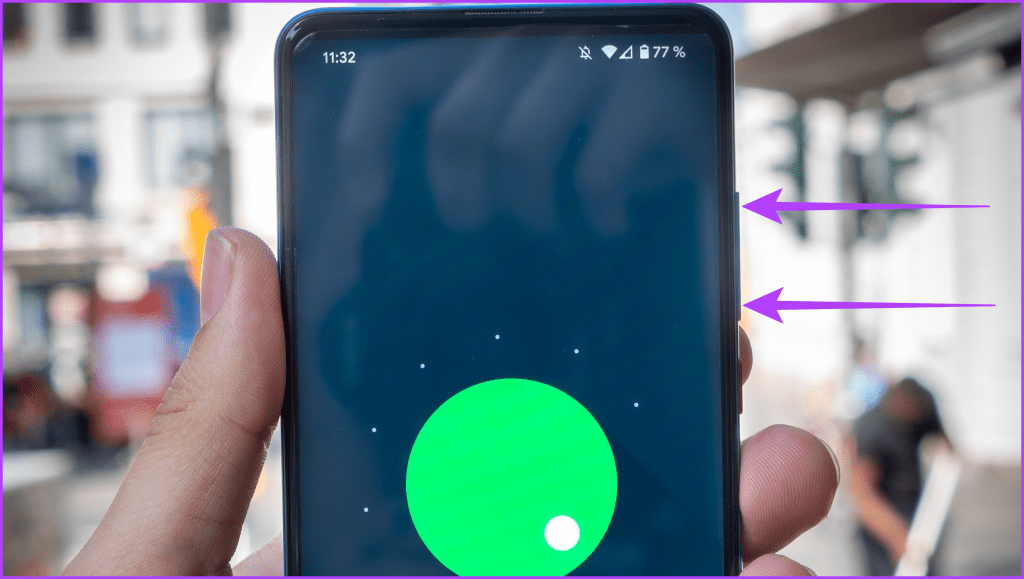
Note: You can stop TalkBack on each device using Volume keys.
Also Read: How to fix volume buttons not working on Android
TalkBack Gestures and Shortcuts
TalkBack highlights its primary focus with a green box to guide you to it. When this feature is active, you can also use various gestures. Here are some TalkBack gestures you should know.
1. Explore by Touch
- Single tap: Select an item.
- Double tap: Activate the selected item.
- Two-finger double tap: Pause or resume speech.
2. Navigation
- Swipe right or left: Move to the next or previous item.
- Swipe up or down: Scroll through the screen content.
3. Text Input
- Single tap and hold, then drag: Select on-screen text.
- Double tap and hold, then drag: Adjust the selection.
4. Home Screen
- Swipe up, then right: Open the app drawer.
- Swipe up, then left: Access notifications.
- Swipe right or left: Navigate through home screen elements.
5. Gestures for Actions
- Swipe up, then right: Open the global context menu.
- Swipe down, then left: Open the local context menu.
- Swipe down, then right: Open the TalkBack settings menu.
6. Customization
- Swipe down, then right from the top: Open TalkBack settings.
- Swipe up, then down, or swipe down, then up: Adjust verbosity (level of spoken feedback).
7. Voice Commands
- Activate voice recognition: Say “OK Google” or “Hey Google” (depending on your settings), followed by your command.
8. Quick Navigation
- Swipe right and left using one finger: Navigate between different sections on the screen.
9. Read From Top or Bottom
- Swipe up, then down or down, then up with two fingers: Read from the top or bottom of the screen, respectively.
10. Zoom Gestures
- Pinch with two fingers: Zoom in and out on the screen.
Was this helpful?
Last updated on 30 August, 2024
Read Next
 5 Ways to Fix Android Accessibility Settings That Turn off Automatically
Fix 1: Check Accessibility Settings Ensure you haven't disabled the accessibility settings for the app you are trying to use.
5 Ways to Fix Android Accessibility Settings That Turn off Automatically
Fix 1: Check Accessibility Settings Ensure you haven't disabled the accessibility settings for the app you are trying to use.
 4 Best Ways to Turn Flashlight On or Off on Android
Have you ever found yourself fumbling around in the dark, desperately searching for the flashlight option on your Android device?
4 Best Ways to Turn Flashlight On or Off on Android
Have you ever found yourself fumbling around in the dark, desperately searching for the flashlight option on your Android device?
 How to Turn off Dynamic Lock Screen (Or Glance) on Android
1.
How to Turn off Dynamic Lock Screen (Or Glance) on Android
1.
 3 Ways to Turn Off RCS on Android, Including Samsung
What Happens When You Disable RCS on Android The main difference between SMS and RCS is that SMS messages are sent over a cellular network, whereas RCS messages require internet
3 Ways to Turn Off RCS on Android, Including Samsung
What Happens When You Disable RCS on Android The main difference between SMS and RCS is that SMS messages are sent over a cellular network, whereas RCS messages require internet
 How to Turn Off Voice Navigation in Google Maps for Android and iPhone
How to Turn Off Google Maps Voice Navigation From In-App Settings The most straightforward way to turn off or mute voice directions in Google Maps is from the in-app settings
How to Turn Off Voice Navigation in Google Maps for Android and iPhone
How to Turn Off Google Maps Voice Navigation From In-App Settings The most straightforward way to turn off or mute voice directions in Google Maps is from the in-app settings
 How to Turn Off Android Phone Sensors and Why You Should Do It
In this fast-paced world, mobile phones help you not only keep up but also work efficiently.
How to Turn Off Android Phone Sensors and Why You Should Do It
In this fast-paced world, mobile phones help you not only keep up but also work efficiently.
 How to Turn Off Sent Message Sound on iPhone and Android
Notifications and sounds tell you about new messages, but some sounds, like the one when you send a message from your phone, may be unnecessary.
How to Turn Off Sent Message Sound on iPhone and Android
Notifications and sounds tell you about new messages, but some sounds, like the one when you send a message from your phone, may be unnecessary.
 6 Ways to Turn off Do Not Disturb on Samsung Galaxy Phones
Basic Ways: Using Quick Settings: Swipe down twice from the top of the screen to open the Quick Settings panel.
6 Ways to Turn off Do Not Disturb on Samsung Galaxy Phones
Basic Ways: Using Quick Settings: Swipe down twice from the top of the screen to open the Quick Settings panel.
The article above may contain affiliate links which help support Guiding Tech. The content remains unbiased and authentic and will never affect our editorial integrity.