

Method 1: Use the Startup Folder
The Startup folder on Windows is designed to launch programs when your computer boots up. Aside from its primary function of launching apps and scripts, the startup folder can also help you automatically open a web page. Here’s how:
Step 1: Open any web browser on your PC and navigate to the website you wish to launch upon boot. Copy the website’s URL from the address bar at the top.
Step 2: Press the Windows key + R keyboard shortcut to open the Run dialog box. Type shell:startup in the box and press Enter.
Step 3: Click the New option at the top right corner and select Shortcut from the list.

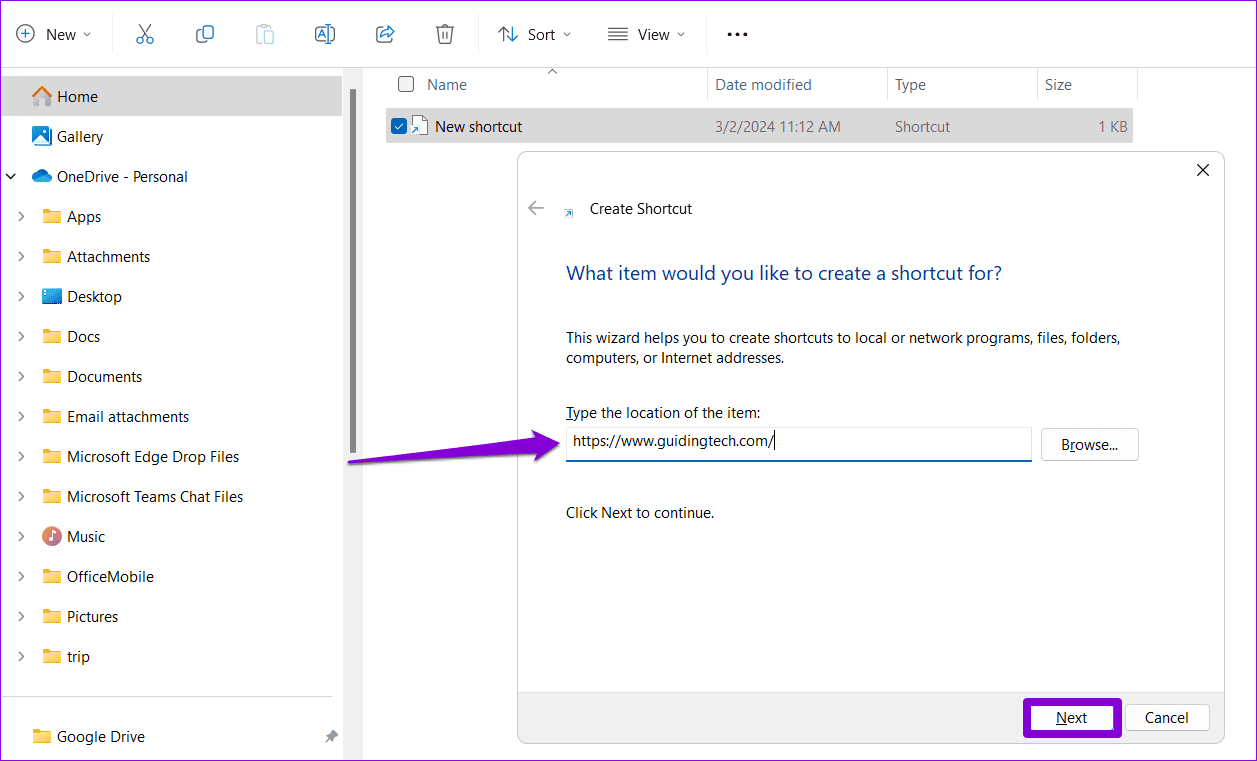
Step 4: In the Create Shortcut window, paste the website’s URL in the box and click Next.
Step 5: Enter a suitable name for the shortcut and click Finish.
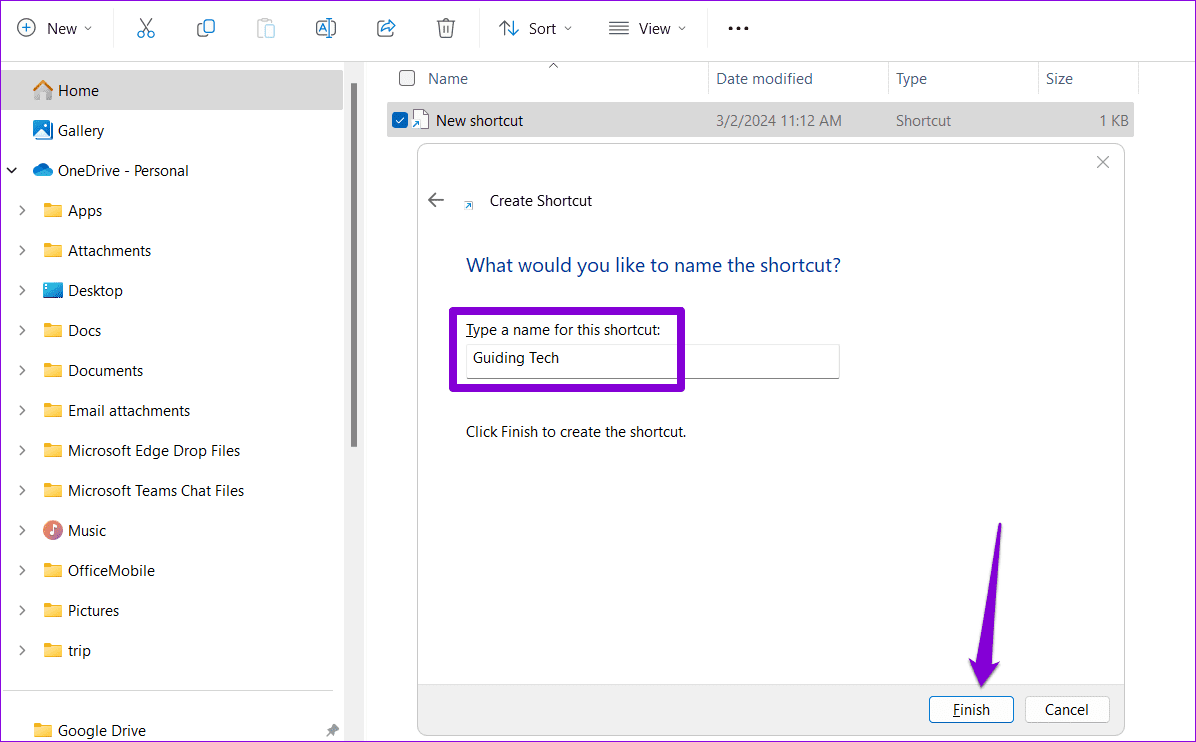
Now that you’ve created a shortcut for the website in the Startup folder, Windows will automatically load the website at startup. Similarly, you can add more shortcuts in the Startup folder to launch multiple websites upon boot.
Method 2: Run a Batch File
Adding a batch file to the Startup folder is another way to make a specific web page open at boot. This approach can be especially handy if you plan to launch multiple websites upon startup.
Step 1: Press the Windows key + R keyboard shortcut to launch the Run dialog, type in shell:startup in the box, and press Enter.
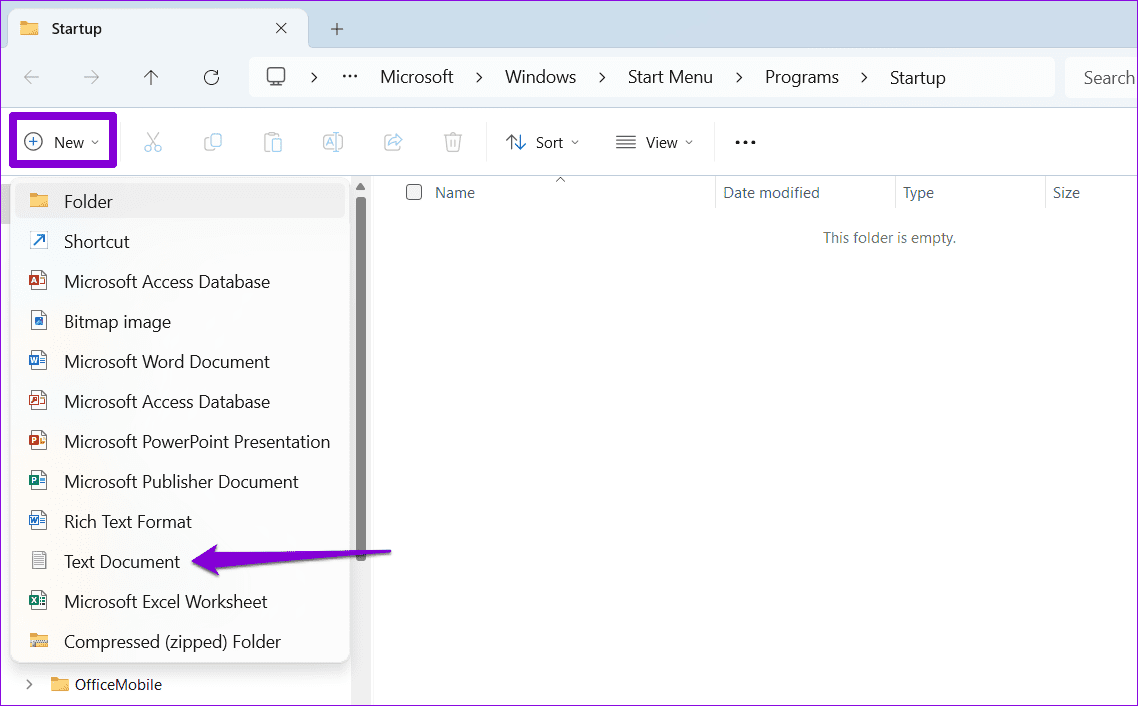
Step 2: Click the New option at the top right corner and select Text Document from the list.
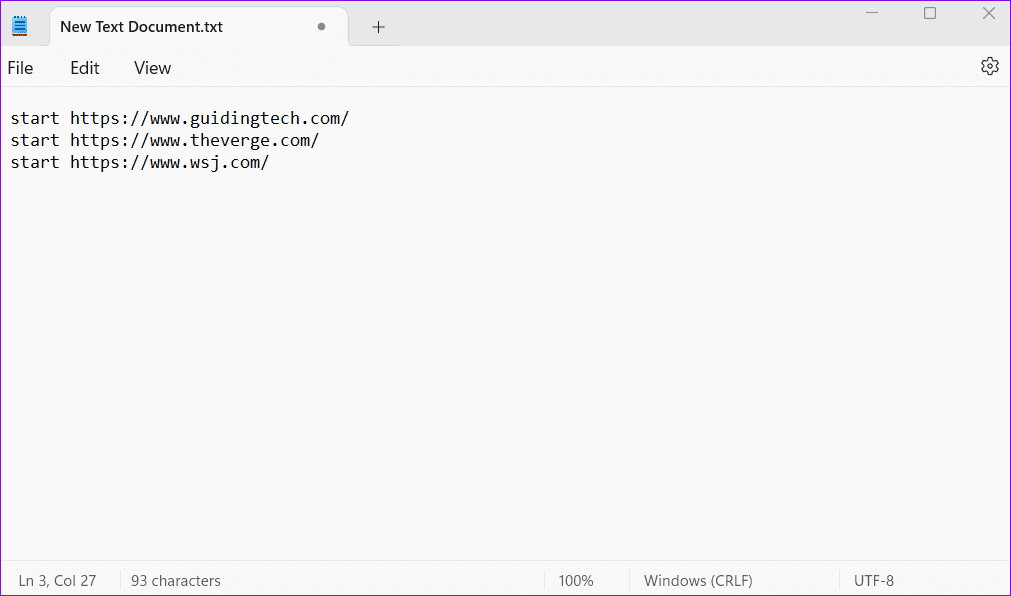
Step 3: Open your newly created text document and paste the command given below.
start [Website URL]
Replace [Website URL] in the above command with the actual site address of the web page you wish to launch.
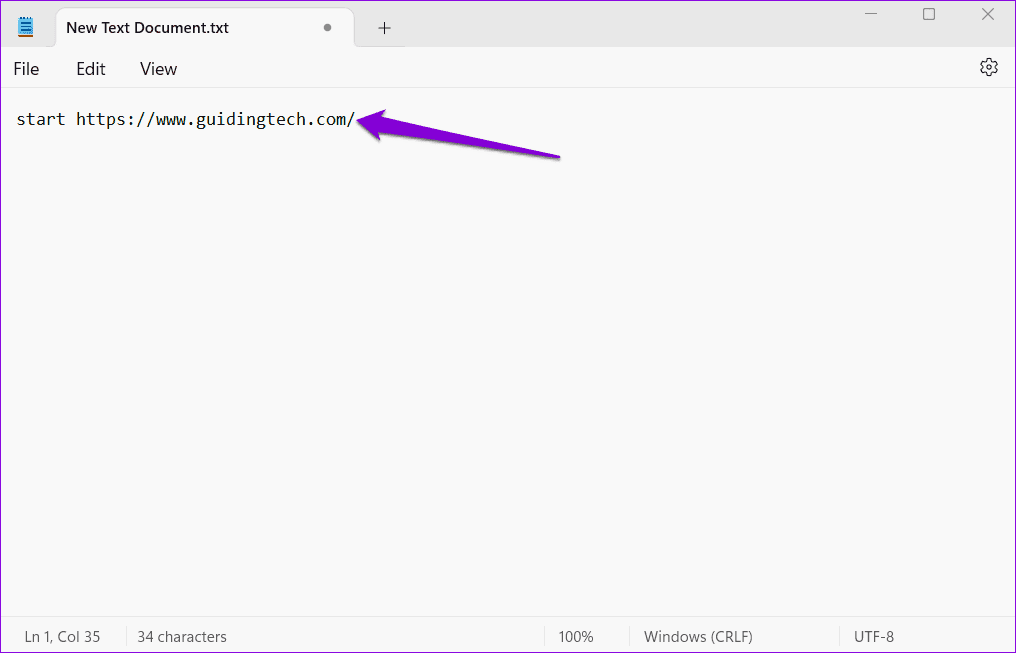
Similarly, to open multiple web pages at startup, you can add more launch commands in your document.
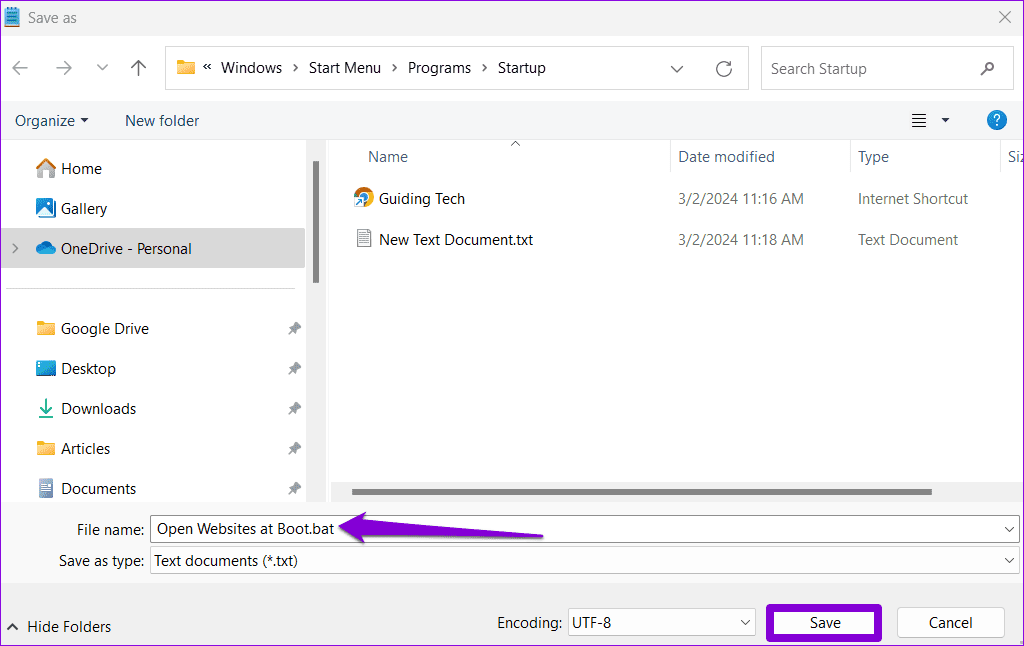
Step 4: Press the Ctrl + Shift + S keyboard shortcut and save the file with the .bat extension.
Method 3: Use Task Scheduler
Task Scheduler is a useful utility on Windows that lets you automate almost any task on your computer. With it, you can launch programs, execute commands, or even schedule your PC to shut down when certain triggers and conditions are met. You can also use this tool to launch websites at startup.
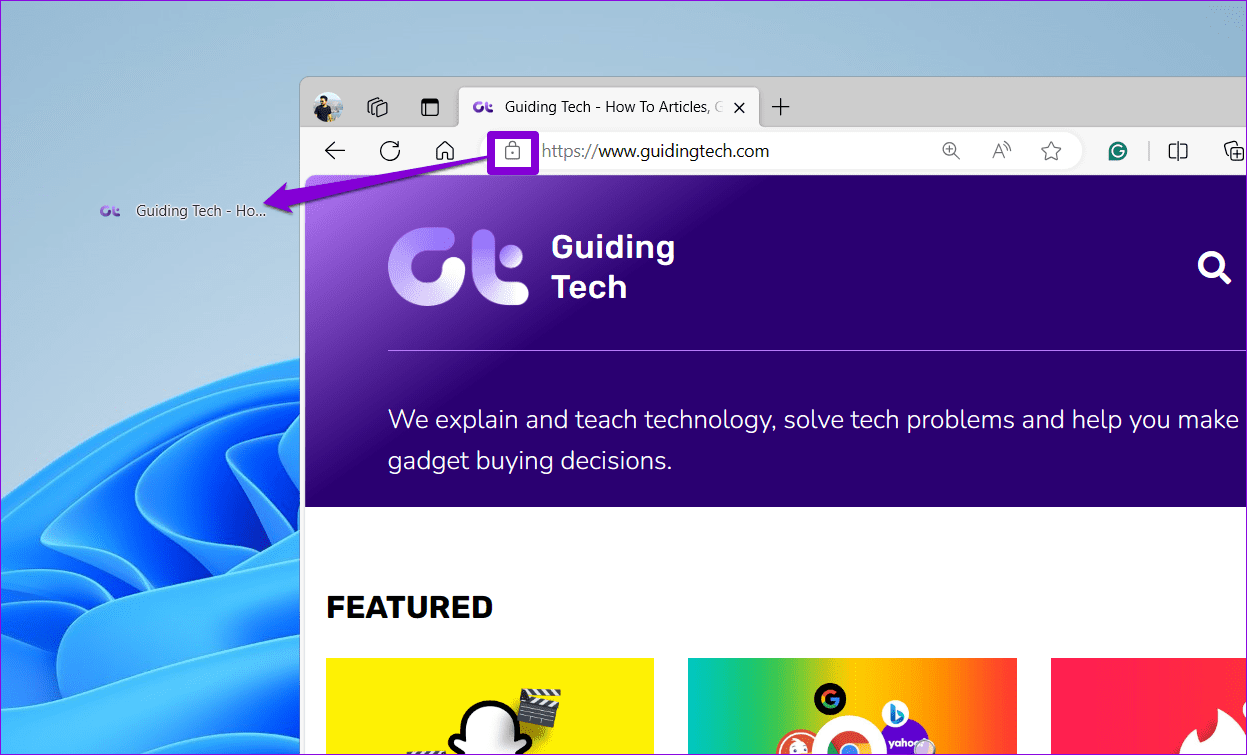
Step 1: Open any web browser on your PC and navigate to the website you wish to launch at startup. Click the lock icon to the left of its URL in the address bar, and drag it onto the desktop.
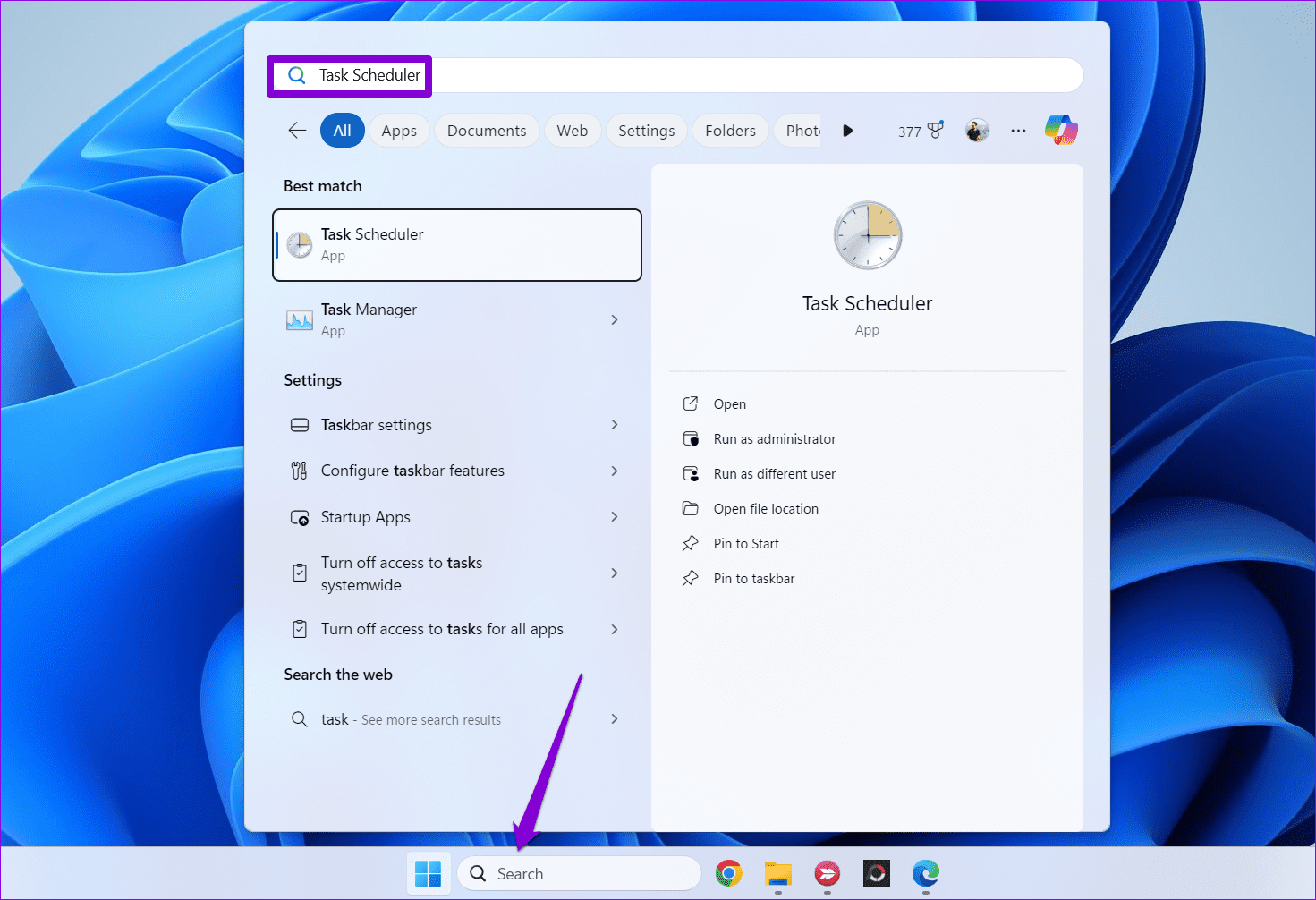
Step 2: Click the search icon on the taskbar, type in task scheduler, and press Enter.
Step 3: In the Actions pane on your right, click the Create Basic Task option.
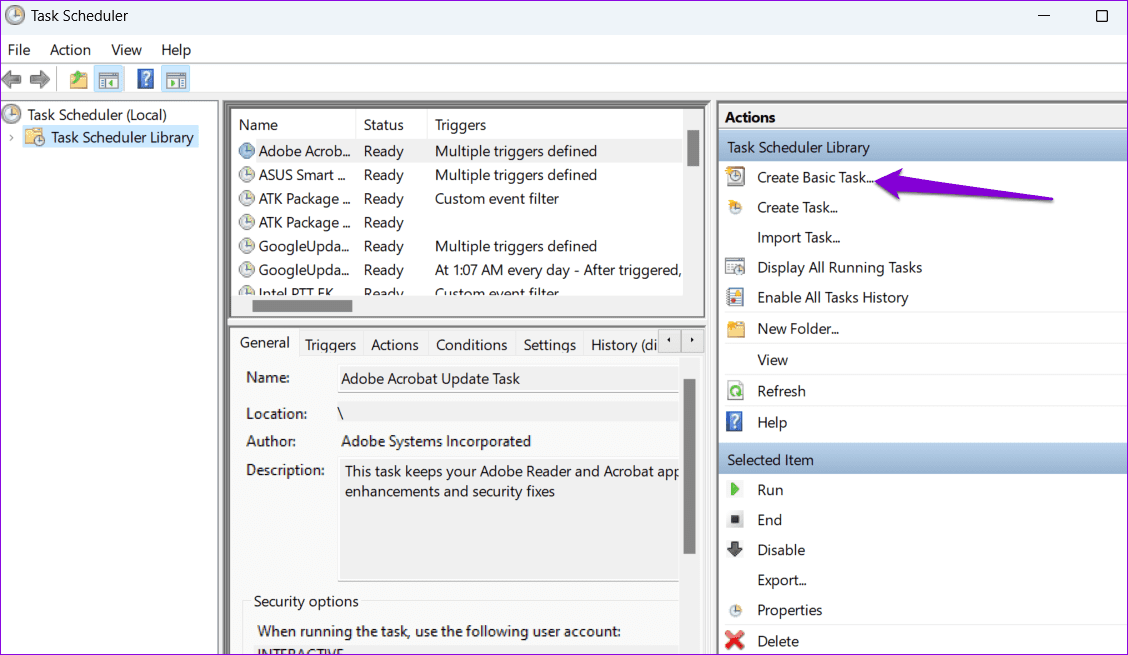
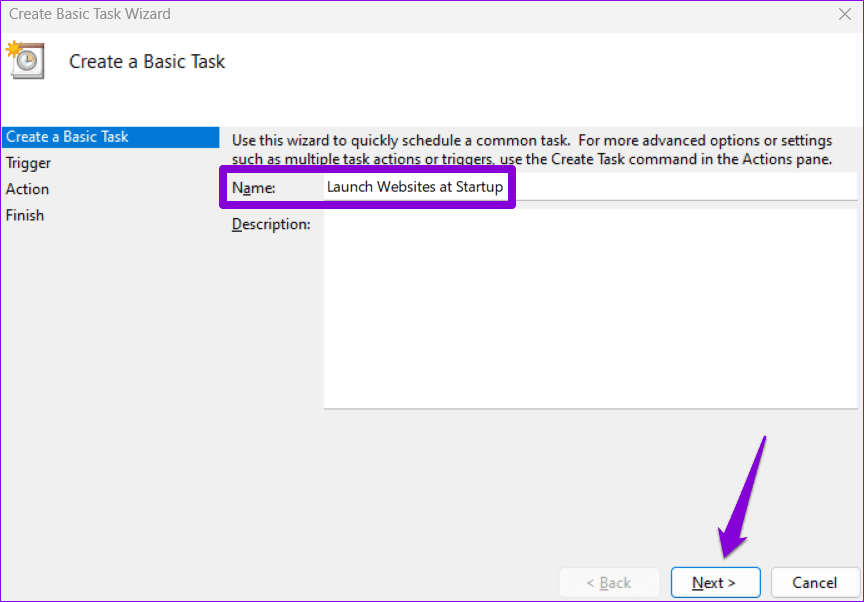
Step 4: In the Create Basic Task Wizard, enter a suitable name for the task. Optionally, you can also write a brief description of the task. Then, click Next.
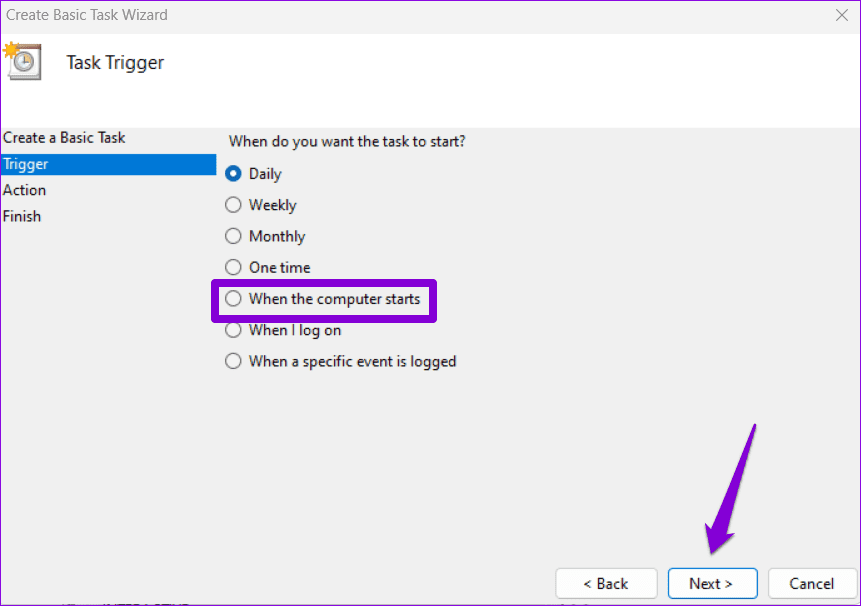
Step 5: Under Trigger, select the When the computer starts option from the list and click Next.
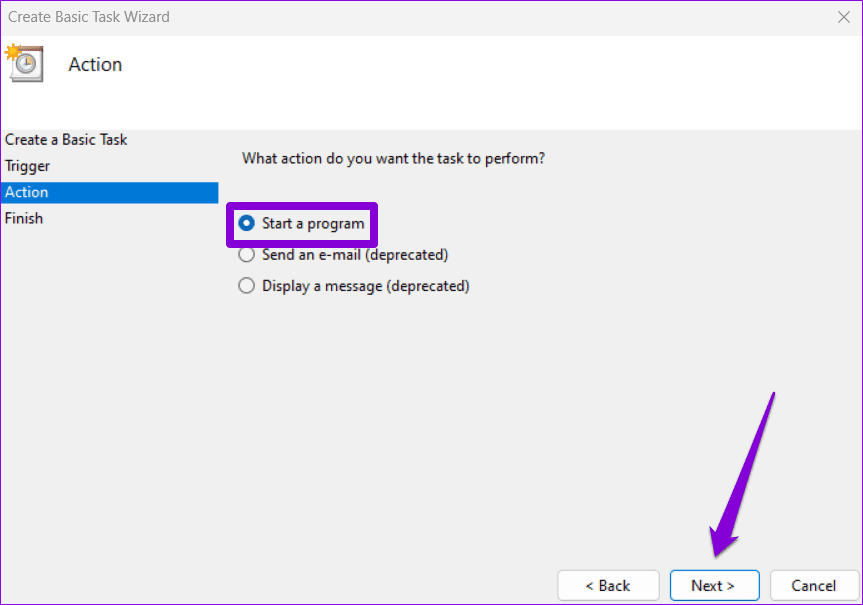
Step 6: In the Action tab, select Start a program and hit Next.
Step 7: Under Program/script, browse the website shortcut created earlier.
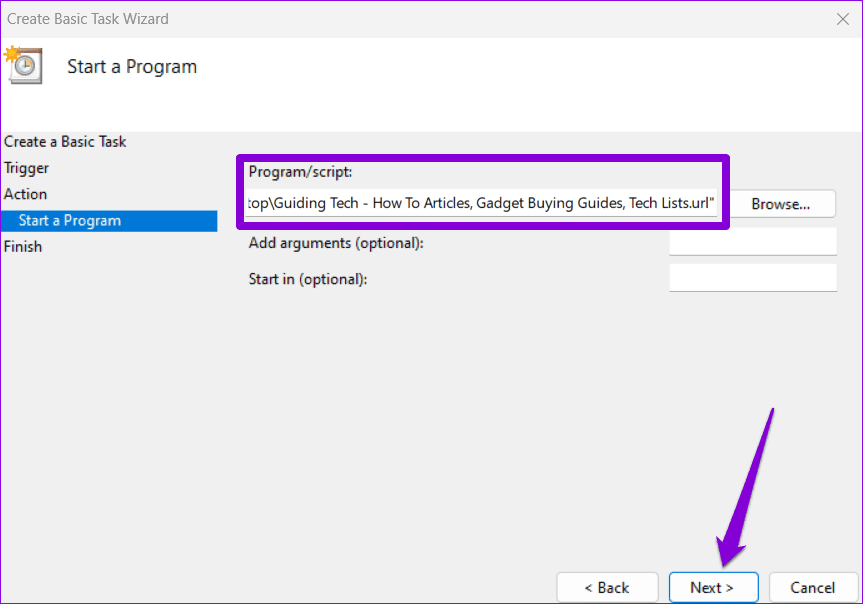
If you want to launch multiple websites at startup, you can create a batch file and paste its file path in the Program/script field.
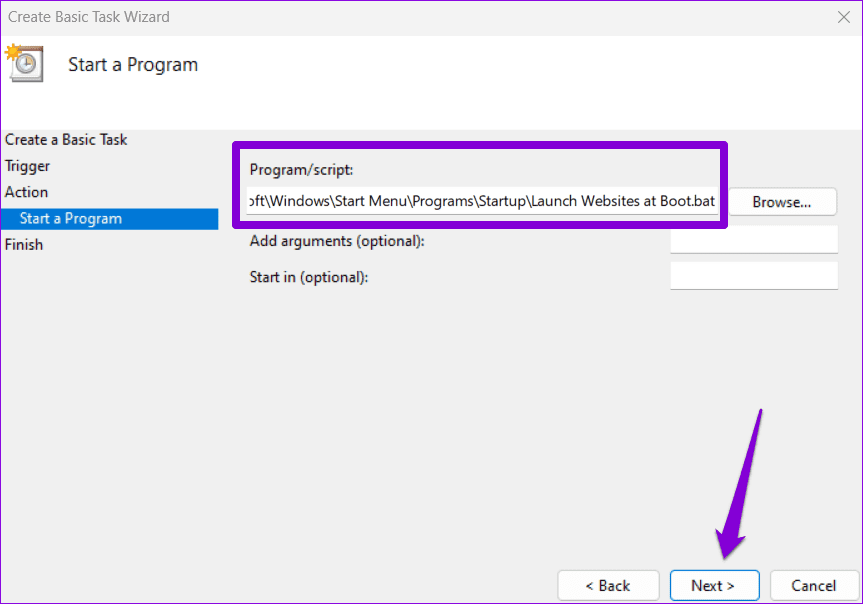
Step 8: Verify the task details and click Finish.

Was this helpful?
Last updated on 18 July, 2024
1 Comment
Leave a Reply
Read Next
 How to Change the Startup and Home Page on Google Chrome
How to Change the Startup Page on Google Chrome The Google logo and a search bar are the first things you'll see when you open the Chrome browser.
How to Change the Startup and Home Page on Google Chrome
How to Change the Startup Page on Google Chrome The Google logo and a search bar are the first things you'll see when you open the Chrome browser.
 6 Ways to Fix Failed to Load Web Page Error in Steam for Windows
Fix 1: Terminate Steam Processes and Reopen the App The "Failed to load web page" error in Steam can occur if one of the app processes is experiencing issues.
6 Ways to Fix Failed to Load Web Page Error in Steam for Windows
Fix 1: Terminate Steam Processes and Reopen the App The "Failed to load web page" error in Steam can occur if one of the app processes is experiencing issues.
 5 Ways to Fix Slow Startup Times on Windows 10 and 11
Basic Fixes Install Windows Updates: Microsoft regularly releases updates that bring security patches, new features, and performance improvements to your Windows PC.
5 Ways to Fix Slow Startup Times on Windows 10 and 11
Basic Fixes Install Windows Updates: Microsoft regularly releases updates that bring security patches, new features, and performance improvements to your Windows PC.
 2 Ways to Fix Discord Black Screen at Startup on Windows 11
Basic Fixes Check the Discord server: Head to the Discord Status page to check an active service outage.
2 Ways to Fix Discord Black Screen at Startup on Windows 11
Basic Fixes Check the Discord server: Head to the Discord Status page to check an active service outage.
 4 Ways to Stop Apps From Opening at Startup in Windows 11
Method 1: Remove Startup Programs via Windows Settings Probably the easiest way to disable or manage startup apps in Windows 11 is via the Settings app.
4 Ways to Stop Apps From Opening at Startup in Windows 11
Method 1: Remove Startup Programs via Windows Settings Probably the easiest way to disable or manage startup apps in Windows 11 is via the Settings app.
 4 Ways to Run Apps at Startup on Windows 11
Method 1: Modify In-App Settings Probably the simplest way to run an app at startup is by tweaking its in-app settings.
4 Ways to Run Apps at Startup on Windows 11
Method 1: Modify In-App Settings Probably the simplest way to run an app at startup is by tweaking its in-app settings.
 4 Ways to Disable Fast Startup on Windows 11
Method 1: Disable Fast Startup Using Control Panel Using the Control Panel is an old-school way of making changes to your Windows computer.
4 Ways to Disable Fast Startup on Windows 11
Method 1: Disable Fast Startup Using Control Panel Using the Control Panel is an old-school way of making changes to your Windows computer.
 4 Ways to Enable or Disable Num Lock at Windows Startup
Method 1: Disable Fast Startup Step 1: Click the search icon on the taskbar, type control panel, and press Enter.
4 Ways to Enable or Disable Num Lock at Windows Startup
Method 1: Disable Fast Startup Step 1: Click the search icon on the taskbar, type control panel, and press Enter.
The article above may contain affiliate links which help support Guiding Tech. The content remains unbiased and authentic and will never affect our editorial integrity.


Can you make this happend on the web navigator google chrome?