Method 1. Remove Temporary Files
You can use the default Storage menu to find and remove temporary files on your PC. Here’s how.
Step 1: Open Windows Settings and navigate to System > Storage.

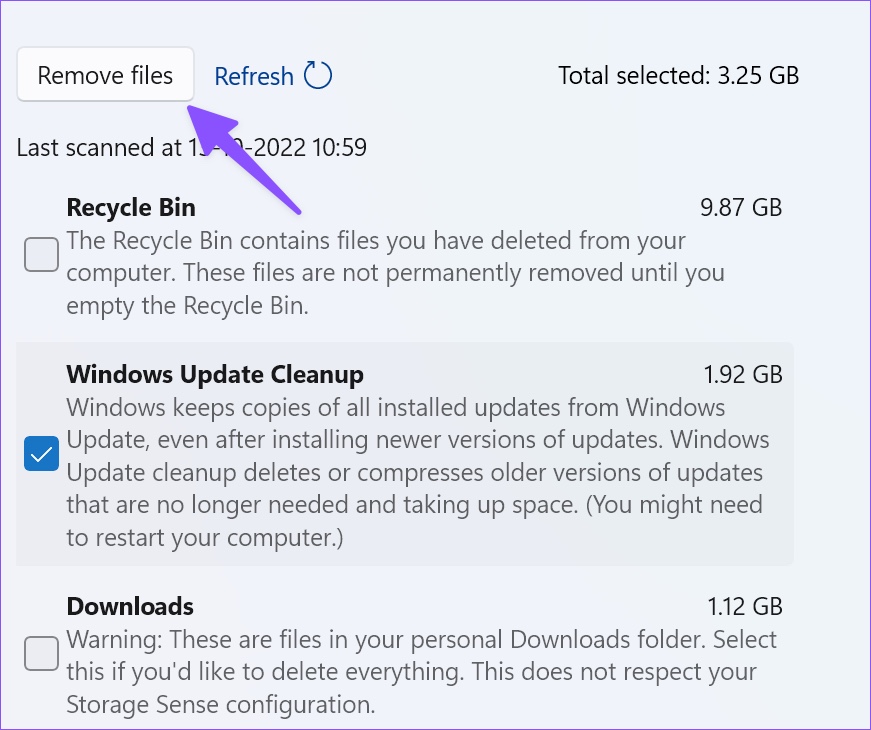
Step 2: Click on Temporary files to open the section where you can check the box for Recycle Bin, Windows Update Cleanup, Delivery Optimization Files, Windows upgrade log files, and other suggestions.
Note: Be careful before enabling the checkmark for Downloads. It will delete all your files from the Downloads folder.
Step 4: Click on Remove files at the top.
Method 2. Check and Remove Other Files
Step 1: Head to the Storage menu in Windows 11 Settings and click on Other.

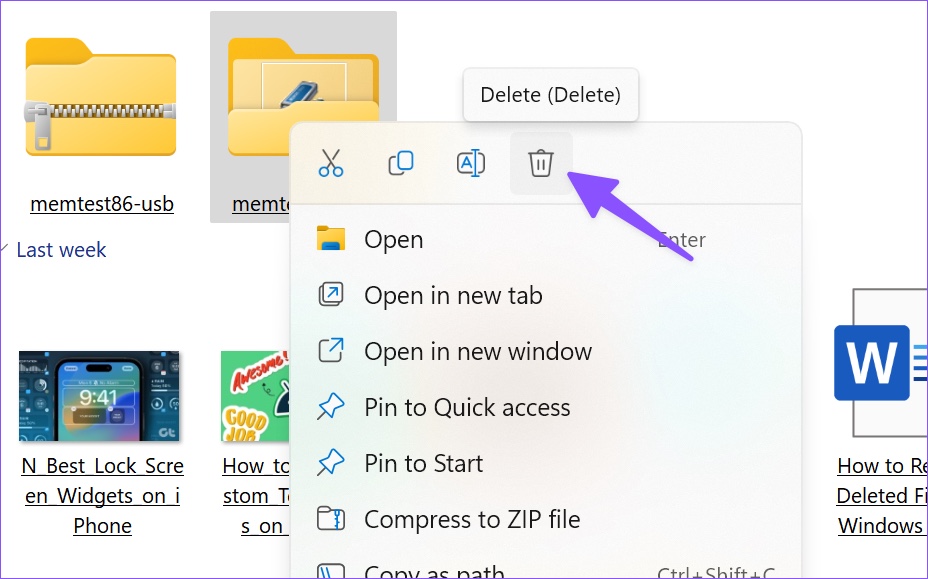
Step 2: It will list large folders and their storage size next to them. Click on it to open them in the File Explorer app, and you’ll find large folders.

Step 3: Right-click on them and press the Delete icon from the context menu. After removing large files, head to the Recycle Bin to empty it.
Method 3. Manage Your Mail Storage
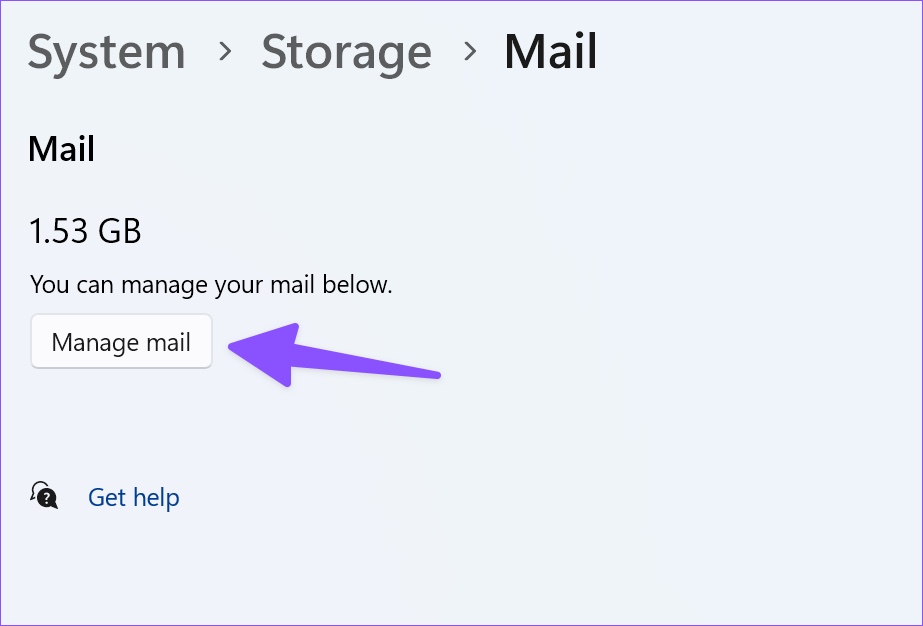
Step 1: Go to the Storage menu in Windows Settings (check the steps above) and click on Mail.
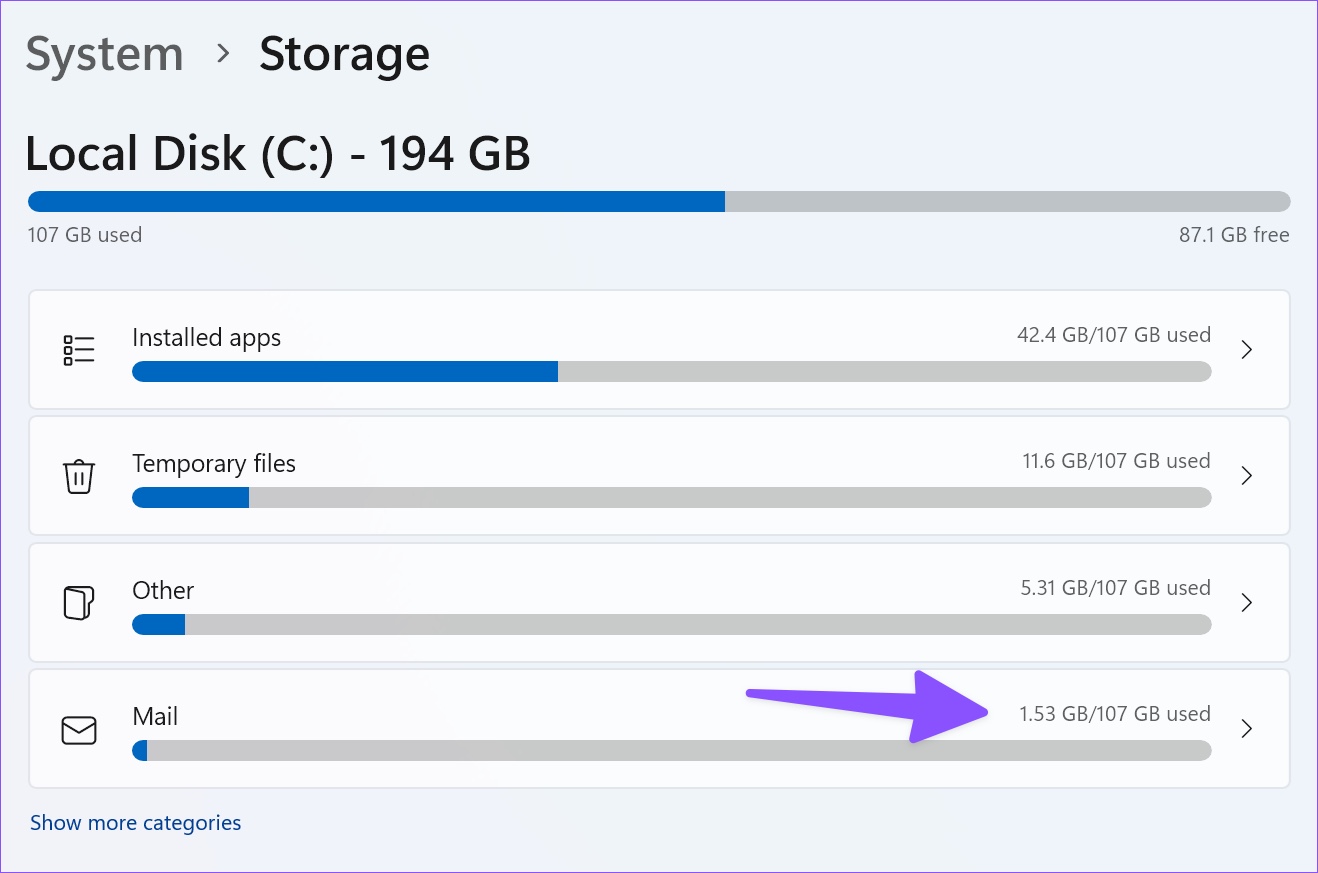
Step 2: Click Manage mail from the following menu and remove unnecessary emails from the default Mail app.
Method 4. Find Large, Unused, and Synced Files
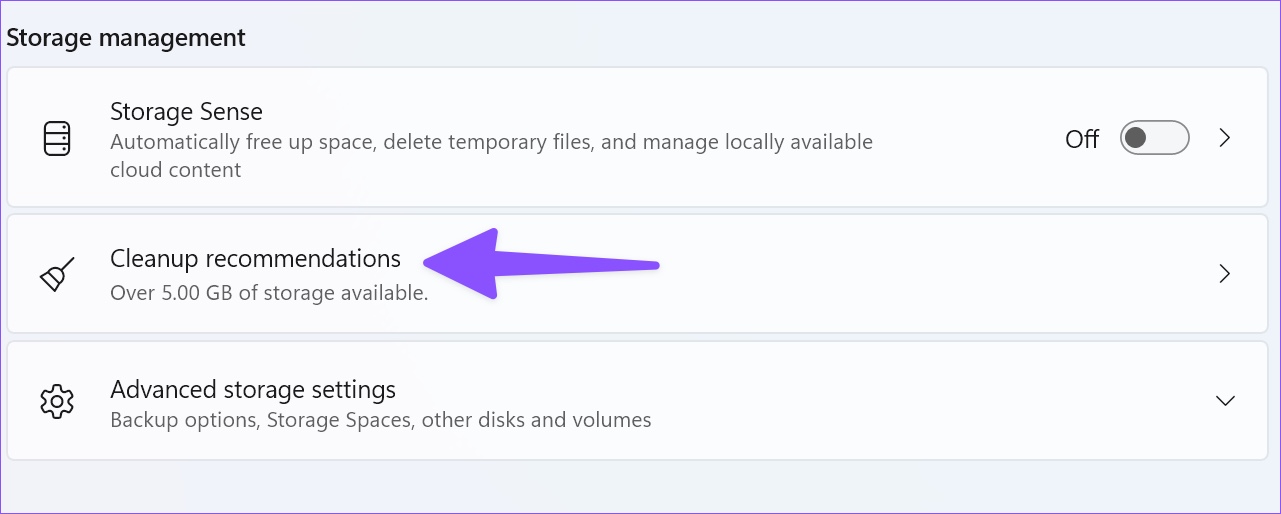
Step 1: Go to the Storage menu in Windows Settings.
Step 2: Select Cleanup recommendations and expand Large and unused files.
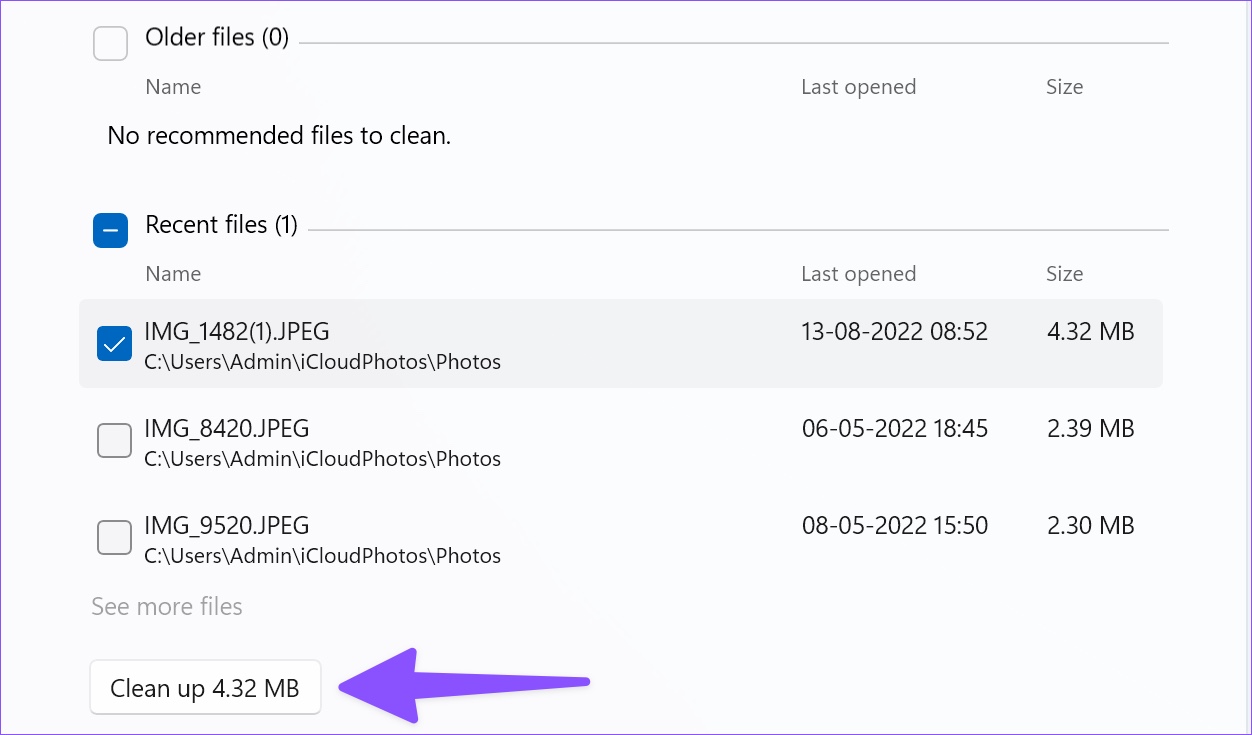
Step 3: Select the files you want to remove and click on Clean up.
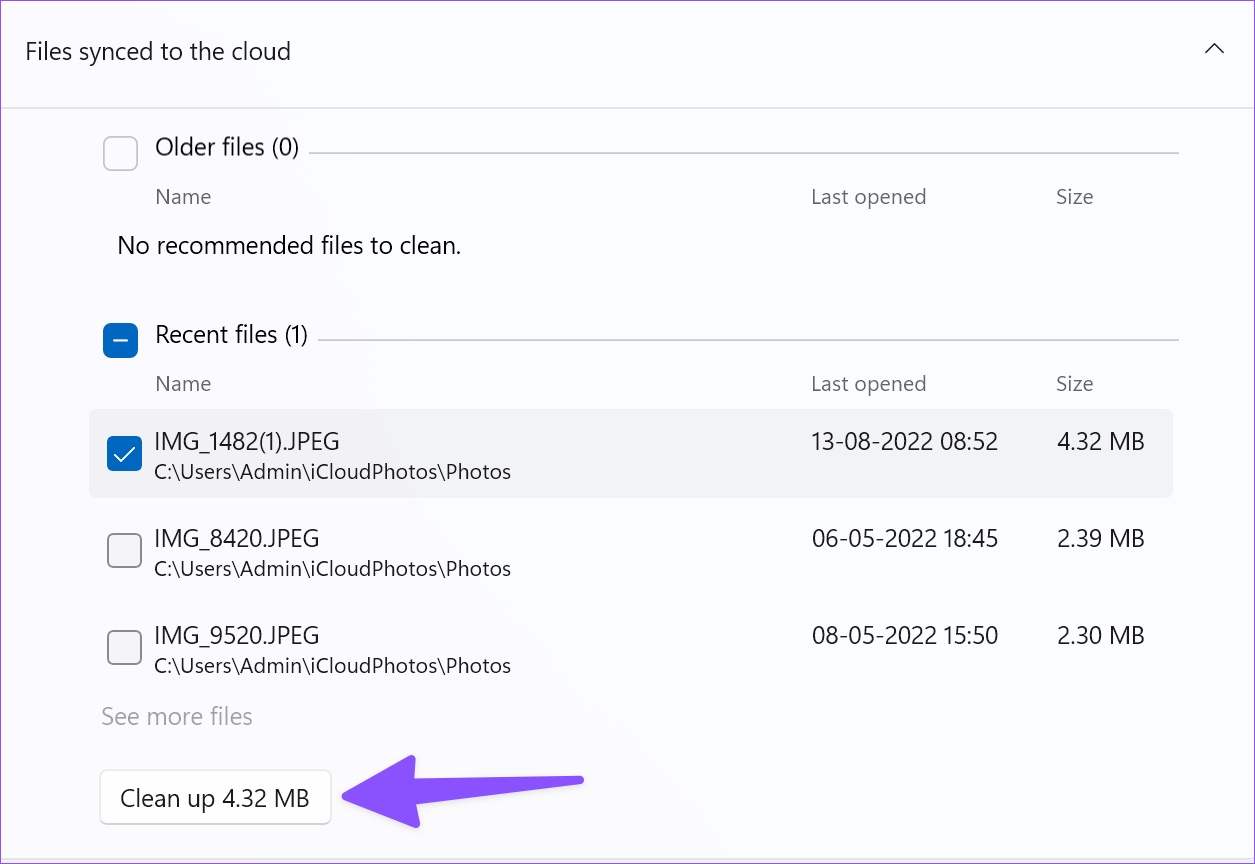
Step 4: Expand Files synced to the cloud, select files, and click on Clean up.
Method 5. Free Up Space Using OneDrive
Thanks to OneDrive files on-demand, you can upload large files to the cloud storage service and make them available offline only when required.
Step 1: Open the File Explorer app (Windows + E keys).
Step 2: Move large files from your local drive to OneDrive.
Step 3: Right-click on such files or folders and select Free up space from the context menu.

File Explorer will remove those files and save them to OneDrive only.
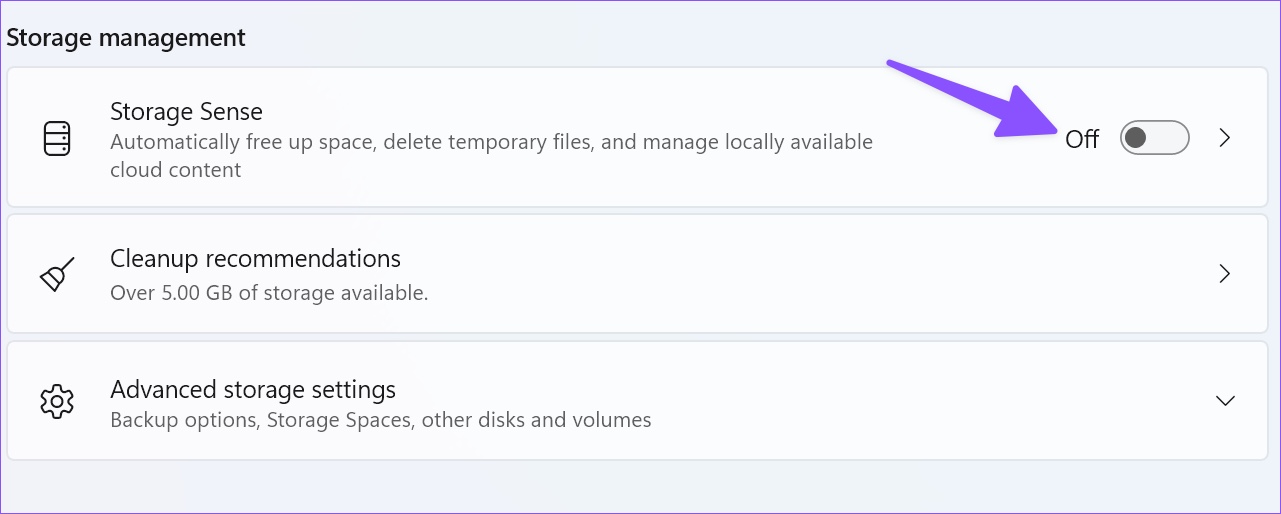
Method 6. Enable Storage Sense
Enabling storage sense automatically frees up space, deletes temporary files, and manages locally available cloud content.
Step 1: Open the Storage menu in Windows Settings
Step 2: Toggle on Storage Sense.
Was this helpful?
Last updated on 08 July, 2024
Read Next
 4 Ways to Free Up Space on Android Without Deleting Apps
Basic Fixes: Find and remove large files: You can use Google's Files app to auto-detect and remove large files from your phone.
4 Ways to Free Up Space on Android Without Deleting Apps
Basic Fixes: Find and remove large files: You can use Google's Files app to auto-detect and remove large files from your phone.
 5 Fixes for iPhone Photos Taking Up Space Even After Deleting Them
Fix 1: Delete the Recently Deleted Folder Step 1: Open the Photos app, and go to the Recently Deleted folder.
5 Fixes for iPhone Photos Taking Up Space Even After Deleting Them
Fix 1: Delete the Recently Deleted Folder Step 1: Open the Photos app, and go to the Recently Deleted folder.
 How to Rearrange Instagram Posts Without Deleting
How to Rearrange Instagram Photos While Publishing 1.
How to Rearrange Instagram Posts Without Deleting
How to Rearrange Instagram Photos While Publishing 1.
 How to Free up Space on C Drive in Windows
Fix 1: Clear the Recycle Bin Let's begin with some simple yet effective solutions.
How to Free up Space on C Drive in Windows
Fix 1: Clear the Recycle Bin Let's begin with some simple yet effective solutions.
 Top 3 Ways to Fix Windows Temporary Files Not Deleting
Fix 1: Use Disk Cleanup Disk Cleanup is a disk maintenance utility built into the Windows operating system to help users clear unwanted system files from their PC's hard drive.
Top 3 Ways to Fix Windows Temporary Files Not Deleting
Fix 1: Use Disk Cleanup Disk Cleanup is a disk maintenance utility built into the Windows operating system to help users clear unwanted system files from their PC's hard drive.
 3 Ways to Stop OneDrive From Deleting Files Automatically on Windows 11
Basic Fixes: Check for Windows updates: An out-of-date Windows version can also cause issues, such as OneDrive moving files to the recycle bin by itself. So, install the latest software updates
3 Ways to Stop OneDrive From Deleting Files Automatically on Windows 11
Basic Fixes: Check for Windows updates: An out-of-date Windows version can also cause issues, such as OneDrive moving files to the recycle bin by itself. So, install the latest software updates
 3 Ways to Free Up Space in Telegram
Method 1: Clear App Cache Telegram allows you to send and receive files up to 2GB in size.
3 Ways to Free Up Space in Telegram
Method 1: Clear App Cache Telegram allows you to send and receive files up to 2GB in size.
 What Happens When You Free Up Space in Google Photos
What Happens on Using Free Up Space in Google Photos?
What Happens When You Free Up Space in Google Photos
What Happens on Using Free Up Space in Google Photos?
The article above may contain affiliate links which help support Guiding Tech. The content remains unbiased and authentic and will never affect our editorial integrity.