

Method 1: Clear App Cache
Telegram allows you to send and receive files up to 2GB in size. Once downloaded, these files are locally stored on your phone’s storage as cached data. If you use Telegram often, this can quickly consume a significant amount of storage space. Fortunately, Telegram provides an option to clear cache data within the app. Here’s how to access it.
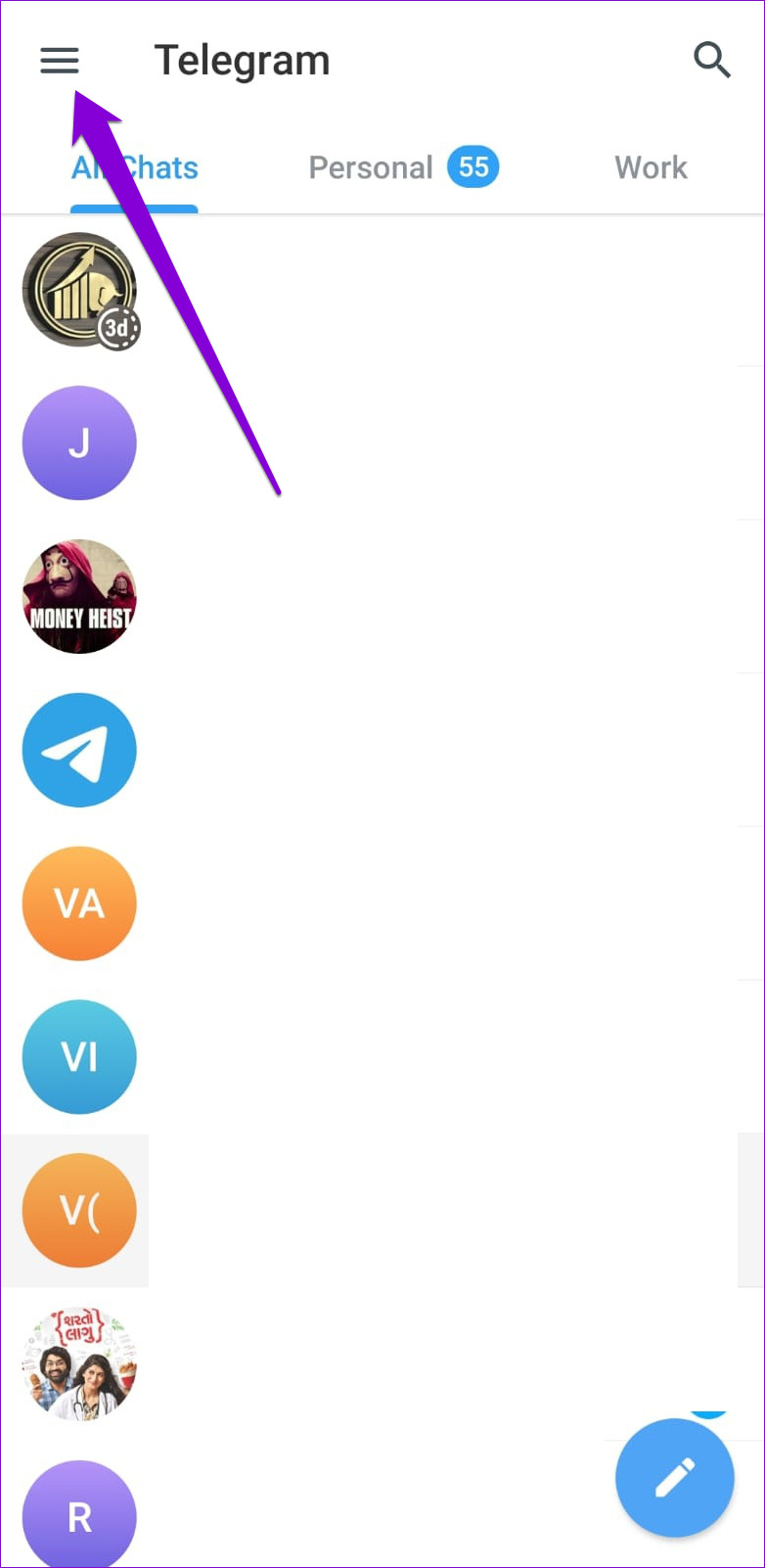
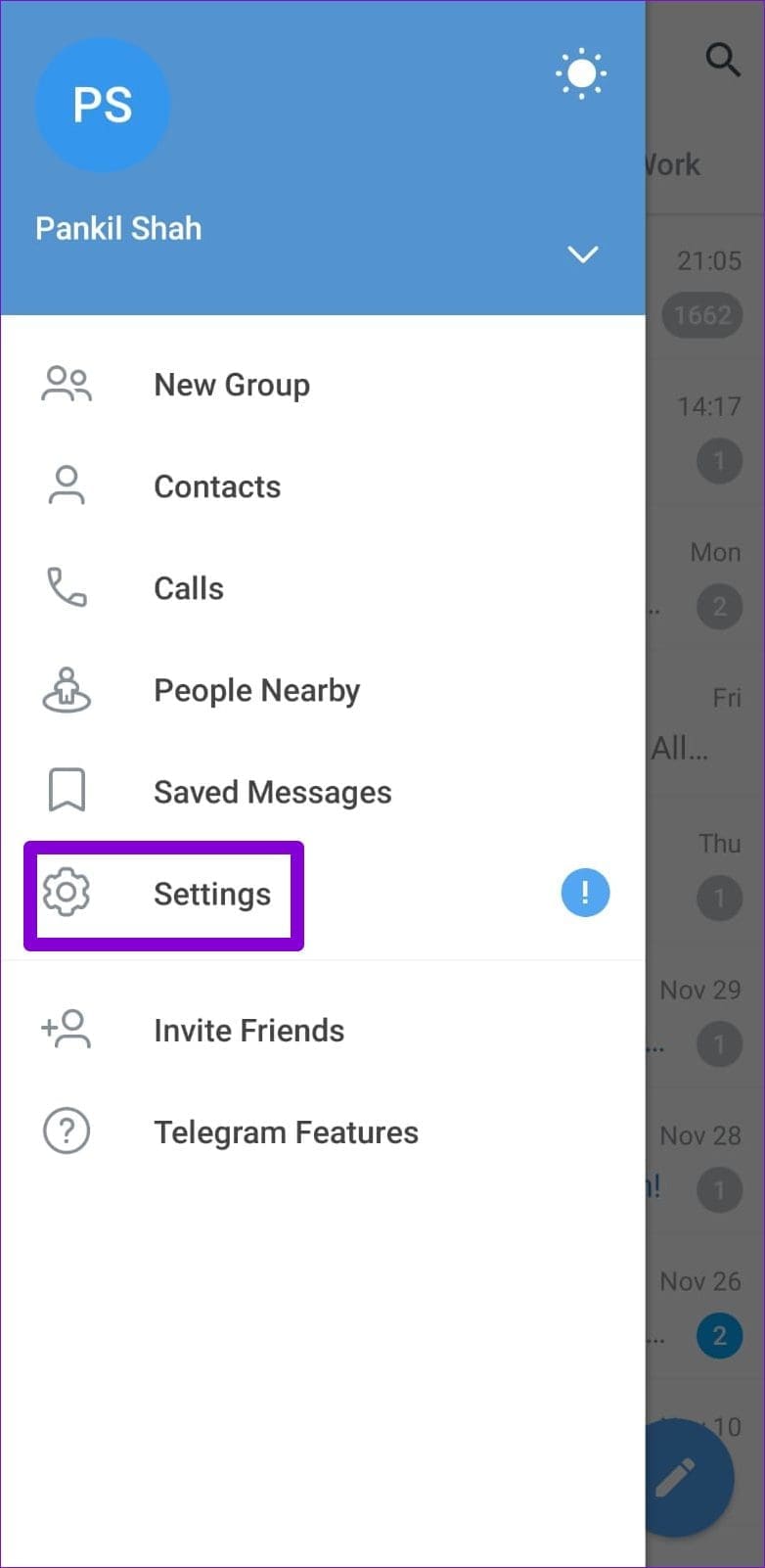
Step 1: Launch the Telegram app on your phone. Tap the three horizontal lines at the top left corner and select Settings.
Step 2: Go to Data and Storage > Storage Usage.
Step 3: Under Device storage, you’ll see how much space has been occupied by Telegram Cache. Tap the Clear Telegram Cache button to remove it.


That should free up a significant amount of storage space and help the app run smoothly. Additionally, you can adjust the slider under “Keep Media” to specify a period after which Telegram should automatically purge photos and videos you haven’t accessed.
Method 2: Turn Off Auto-Download
Another thing you can do to prevent Telegram from filling up your storage space is to disable automatic media downloads. Here’s how.
Step 1: Open the Settings menu in the Telegram app.
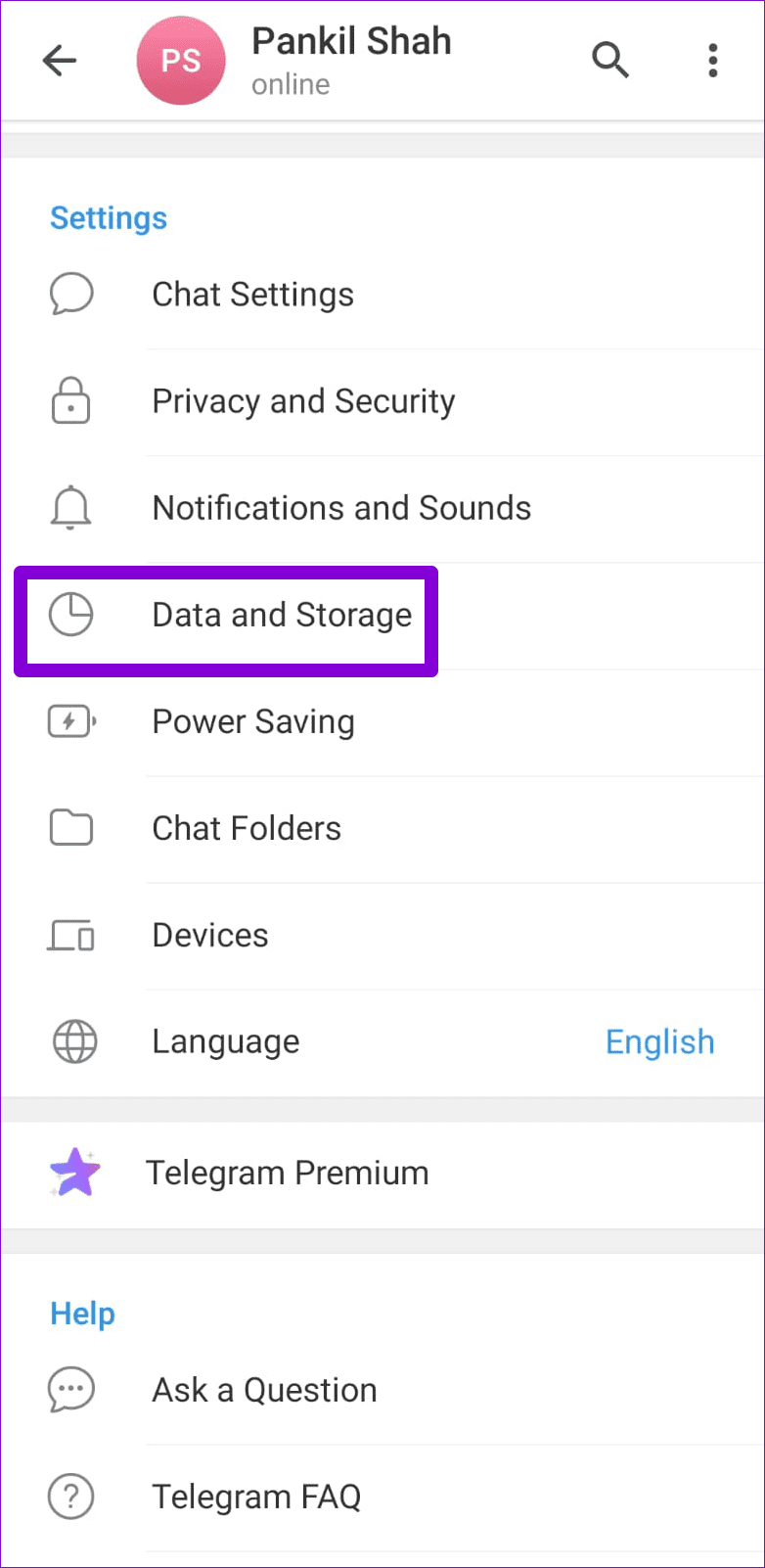
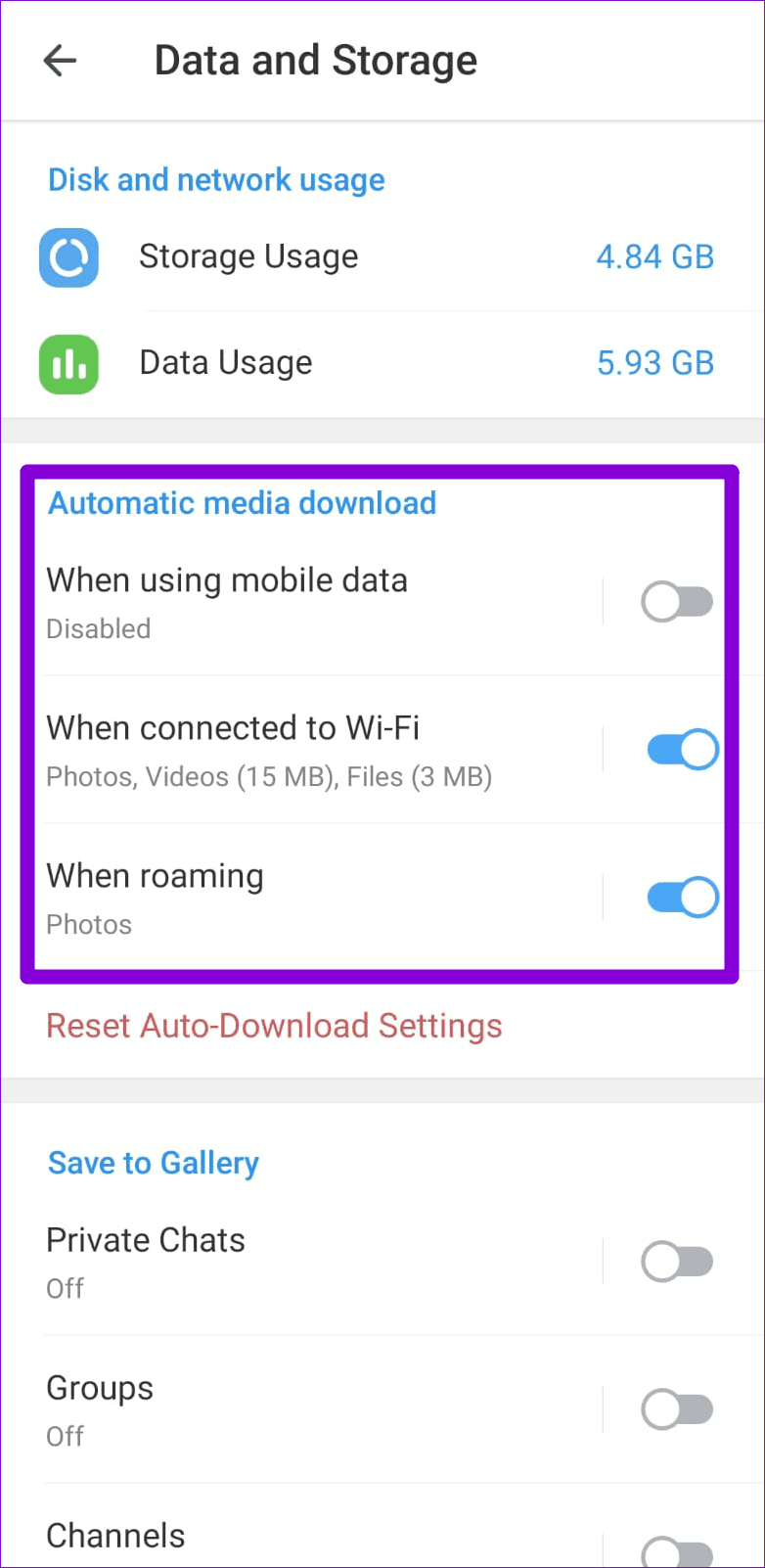
Step 2: Go to Data and Storage and disable automatic media download when using mobile data, Wi-Fi, and roaming.
Method 3: Remove Unwanted Sticker Packs
Do you use a lot of stickers on Telegram? All these sticker packs combined can occupy a significant amount of storage on your device. You can free up that valuable space by removing sticker packs that you no longer use. Here’s how.
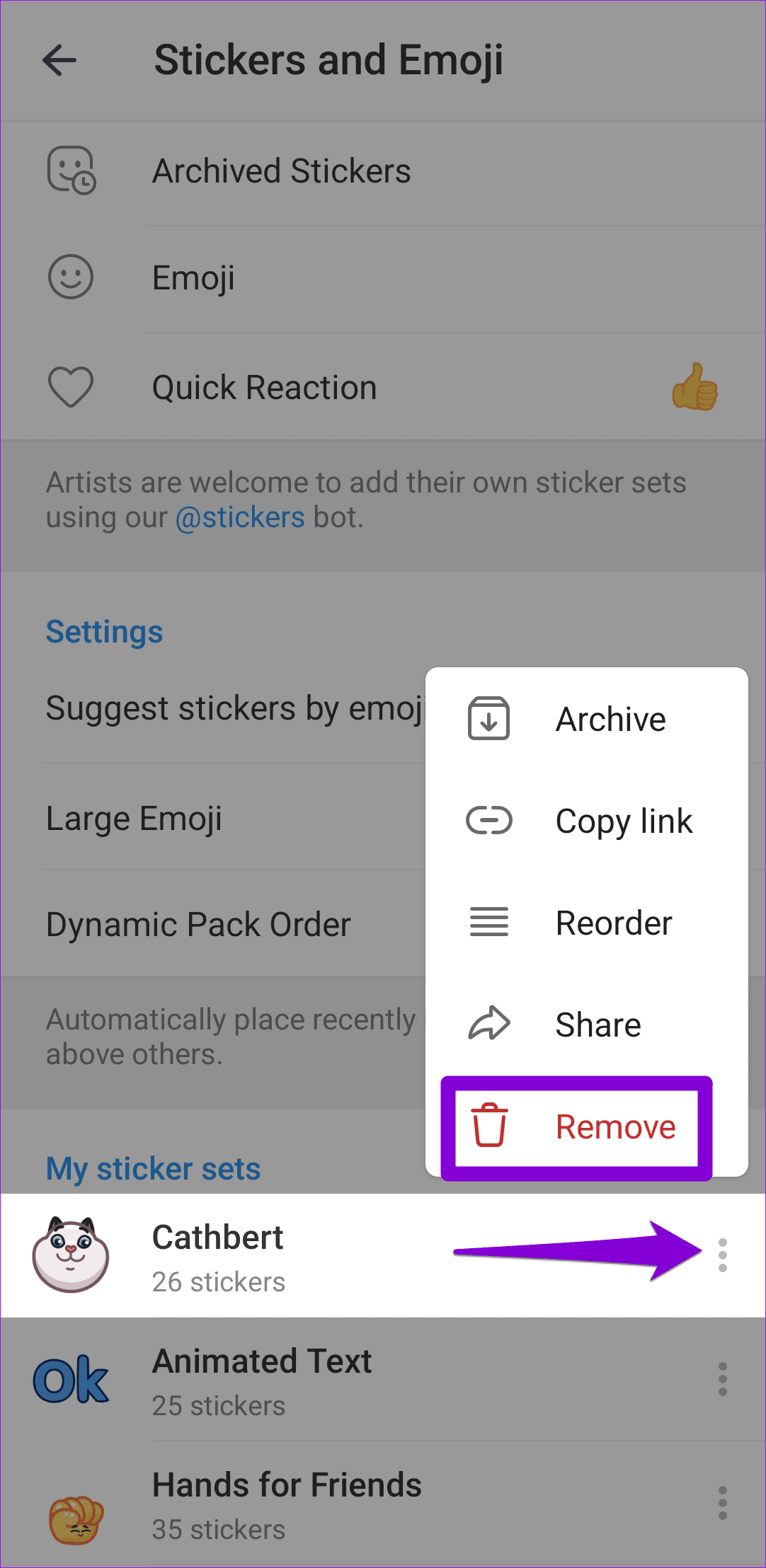
Step 1: In the Telegram app, head to Settings > Chat Settings > Stickers and Emoji.
Step 2: Here, you’ll find all the sticker packs downloaded on your phone. Tap the three-dot menu icon next to your sticker pack and choose Remove to delete it.


Was this helpful?
Last updated on 13 May, 2024
1 Comment
Leave a Reply
Read Next
 What Happens When You Free Up Space in Google Photos
What Happens on Using Free Up Space in Google Photos?
What Happens When You Free Up Space in Google Photos
What Happens on Using Free Up Space in Google Photos?
 4 Ways to Free Up Space on Android Without Deleting Apps
Basic Fixes: Find and remove large files: You can use Google's Files app to auto-detect and remove large files from your phone.
4 Ways to Free Up Space on Android Without Deleting Apps
Basic Fixes: Find and remove large files: You can use Google's Files app to auto-detect and remove large files from your phone.
 6 Ways to Free Up Space on Windows 11 Without Deleting Apps
Method 1.
6 Ways to Free Up Space on Windows 11 Without Deleting Apps
Method 1.
 How to Free up Space on C Drive in Windows
Fix 1: Clear the Recycle Bin Let's begin with some simple yet effective solutions.
How to Free up Space on C Drive in Windows
Fix 1: Clear the Recycle Bin Let's begin with some simple yet effective solutions.
 How to Use Google Sky Maps to Explore Outer Space
Most individuals might know of Google Maps, but not many people know about Google Sky Maps, another offering for those interested in space.
How to Use Google Sky Maps to Explore Outer Space
Most individuals might know of Google Maps, but not many people know about Google Sky Maps, another offering for those interested in space.
 How to Remove Extra Space Between Words in Microsoft Word
Method 1: Find and Delete Extra Spaces in Microsoft Word Using Find and Replace The first obvious way is to do it manually since you wouldn't want automation to cause
How to Remove Extra Space Between Words in Microsoft Word
Method 1: Find and Delete Extra Spaces in Microsoft Word Using Find and Replace The first obvious way is to do it manually since you wouldn't want automation to cause
 4 Ways to Fix Storage Space Running Out Alert on Android
Basic Fixes: Clear the recycle bin: Most Android apps have a dedicated recycle bin or trash folder that holds deleted items for up to 30 days if you change your
4 Ways to Fix Storage Space Running Out Alert on Android
Basic Fixes: Clear the recycle bin: Most Android apps have a dedicated recycle bin or trash folder that holds deleted items for up to 30 days if you change your
 5 Best Ways to Clear Storage on MIUI for More Space
Over the years, Xiaomi did an excellent job of creating a skin for Android called MIUI.
5 Best Ways to Clear Storage on MIUI for More Space
Over the years, Xiaomi did an excellent job of creating a skin for Android called MIUI.
The article above may contain affiliate links which help support Guiding Tech. The content remains unbiased and authentic and will never affect our editorial integrity.
Yes it helped. Thanks