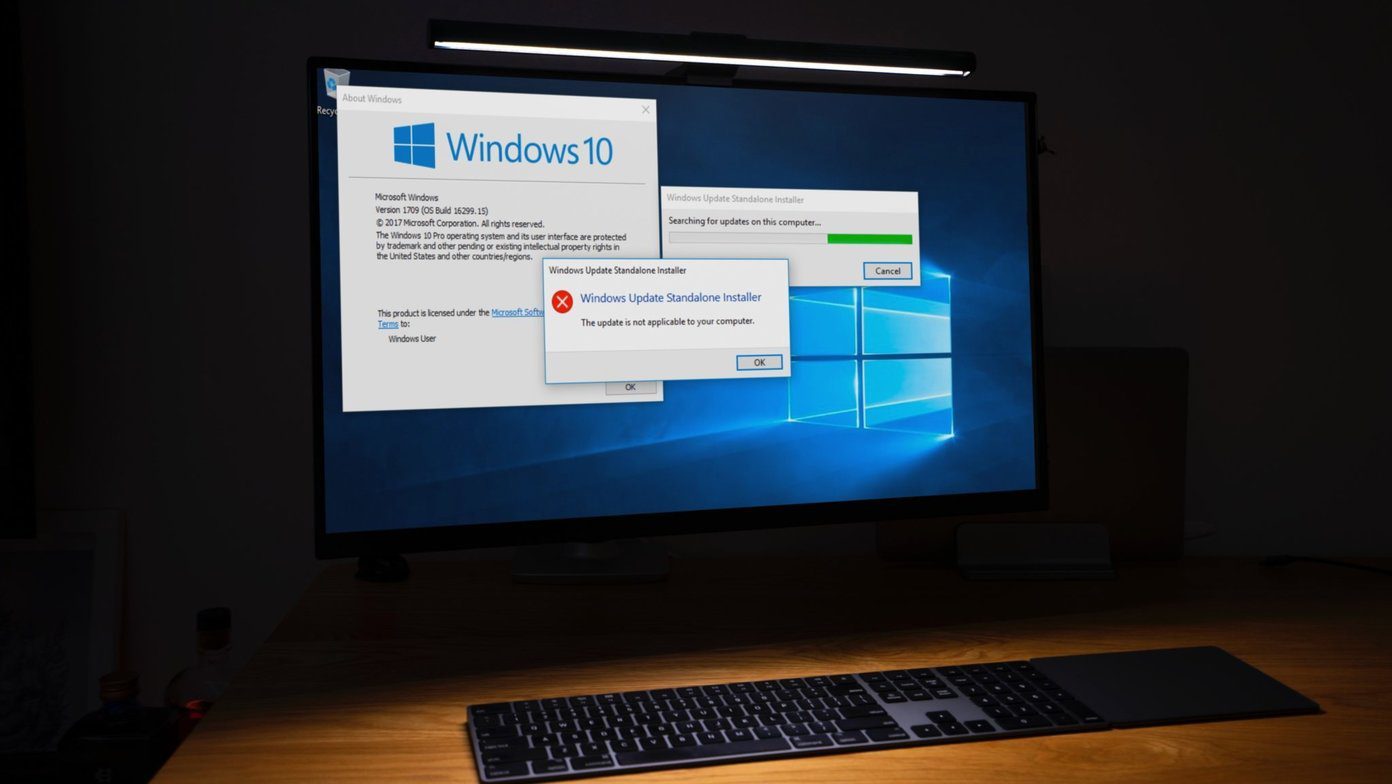
Basic Fixes
- Check your network connection: Ensure your PC has a good internet connection to download games in the Xbox app. Test its speed online.
- Inspect your PC storage: Check your PC has adequate free storage to download new games. Head to Windows Settings > System > Storage, to review and free up occupied storage.
- Check the Xbox server status: Visit the Xbox Support page to check the live status of its servers.
- Install the game from the Microsoft Store: If you can’t download a game in the Xbox app, try searching and downloading it from the Microsoft Store app on Windows 11.
- Correct date and time on your PC: Incorrect date and time can prevent the Xbox app from contacting its servers. To fix it, open Windows Settings, select Time & Language from the sidebar, click Date & time, and turn on the ‘Set time automatically’ toggle.
- Update or reinstall the Xbox app: Open the Microsoft Store, search Xbox, and click Update (if available). Alternatively, uninstall the app from Settings > Apps > Installed apps, and install it afresh from the Microsoft Store.
Fix 1: Force Close the Xbox App and Reopen
Force closing the Xbox app refreshes it, fixing existing glitches preventing you from downloading games on Windows 11.
Step 1: Press the Ctrl + Shift + Esc shortcut to open the Task Manager app, select Processes from the left sidebar, right-click Xbox, and select End task.

Step 2: Reopen the Xbox app and retry downloading your desired game.
Fix 2: Sign Out and Log Back In
Account authentication issues are a common reason behind the Xbox app not downloading games on your PC. Sign out and log back in to restore normalcy.
Step 1: Open the Xbox app, click your account profile at the top left, and select Sign out.

Step 2: Repeat the step to select Sign in and type your account credentials to log back in. Retry downloading your game.
Fix 3: Repair or Reset the Xbox App
Besides authentication issues, the Xbox app on Windows 11 may fail to download new games if its app components are corrupt. Head to Windows Settings to repair or reset the app.
Step 1: Press the Windows key, search Xbox, and right-click it to open its App settings.

Step 2: Scroll down and click Repair. If the issue persists, select Reset to reset the app to its default configuration.

Fix 4: Disable IPv6 on Your Network Adapter
Disabling the IPv6 network protocol or switching to the Google DNS are nifty techniques to resolve game-downloading issues in the Xbox app. Head to the Control Panel app to get started.
Step 1: Press the Windows + R shortcut to open the Run dialog, type control, and press Enter to launch the Control Panel app.

Step 2: Switch View by to Category, and click Network and Internet.

Step 3: Select Network and Sharing Center.

Step 4: Click Change adapter settings in the left sidebar on the next page.

Step 5: Right-click your network connection and open Properties. Approve the UAC prompt when it appears.

Step 6: Uncheck Internet Protocol Version 6 (TCP/IPv6), and click OK to apply changes. Open the Xbox app and retry downloading a new game.

Fix 5: Use the Gaming Services Repair Tool
The recent Xbox app update introduced a new ‘Gaming Services Repair Tool’ to help you investigate and fix issues related to Xbox games and services. Here’s how you can access it:
Step 1: Click your account profile at the top left of the Xbox app, and select Support.

Step 2: Select the Gaming Services Repair Tool to launch it.

Step 3: Finally, click Start repairing and follow the on-screen instructions to resolve the issue.

Was this helpful?
Last updated on 18 July, 2024
Read Next
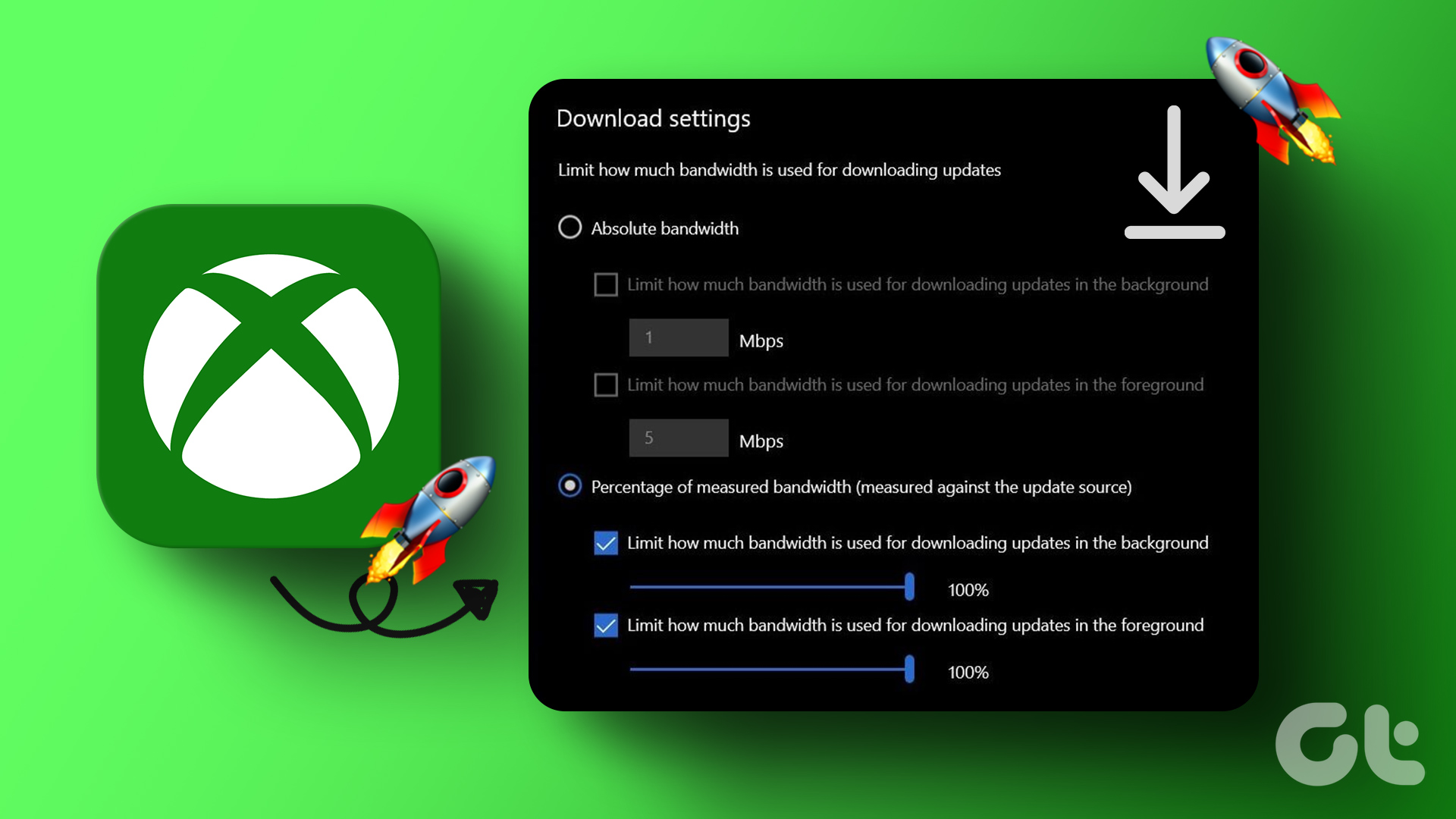 How to Increase Downloading Speed in Xbox App for Windows 11
Try These Things First Restart the Xbox app: At times, the Xbox app might misbehave and cause issues like slow downloading speed due to a temporary glitch or bug.
How to Increase Downloading Speed in Xbox App for Windows 11
Try These Things First Restart the Xbox app: At times, the Xbox app might misbehave and cause issues like slow downloading speed due to a temporary glitch or bug.
 5 Fixes When Xbox App Is Not Showing Installed Games on Windows
Fix 1: Flush DNS and Reset TCP/IP Several users on the Microsoft forums reported fixing this specific issue by flushing the DNS cache and resetting the TCP/IP (Transmission Control Protocol/Internet
5 Fixes When Xbox App Is Not Showing Installed Games on Windows
Fix 1: Flush DNS and Reset TCP/IP Several users on the Microsoft forums reported fixing this specific issue by flushing the DNS cache and resetting the TCP/IP (Transmission Control Protocol/Internet
 6 Ways to Fix Xbox Games Installation Stuck on Windows
Try These Fixes First Restart the Xbox app: You can close the Xbox app and try installing the apps again.
6 Ways to Fix Xbox Games Installation Stuck on Windows
Try These Fixes First Restart the Xbox app: You can close the Xbox app and try installing the apps again.
 7 Ways to Fix Microsoft Store Not Downloading Apps or Games
Fix 1: Restart Microsoft Store Shutting down the app can kill any bugs, and it is unlikely to appear once you open the Microsoft Store again.
7 Ways to Fix Microsoft Store Not Downloading Apps or Games
Fix 1: Restart Microsoft Store Shutting down the app can kill any bugs, and it is unlikely to appear once you open the Microsoft Store again.
 How to Update Epic Games Launcher and Its Games on Windows
How to Check and Update Epic Games Launcher Epic Games Launcher auto-updates along with its games.
How to Update Epic Games Launcher and Its Games on Windows
How to Check and Update Epic Games Launcher Epic Games Launcher auto-updates along with its games.
 Steam Not Downloading Games? Here’s How to Fix It
Basic Fixes: Reboot the home network and fix other network problems: You should restart your home connection since this problem mainly points to a network issue.
Steam Not Downloading Games? Here’s How to Fix It
Basic Fixes: Reboot the home network and fix other network problems: You should restart your home connection since this problem mainly points to a network issue.
 6 Ways to Fix Xbox App Not Opening in Windows 11
Fix 1.
6 Ways to Fix Xbox App Not Opening in Windows 11
Fix 1.
 5 Ways to Fix Xbox App Won’t Let Me Log in on Windows 11
Fix 1: Ensure Xbox Services Are Running The Xbox app for Windows relies on certain background services to work on your computer.
5 Ways to Fix Xbox App Won’t Let Me Log in on Windows 11
Fix 1: Ensure Xbox Services Are Running The Xbox app for Windows relies on certain background services to work on your computer.
The article above may contain affiliate links which help support Guiding Tech. The content remains unbiased and authentic and will never affect our editorial integrity.