


Basic Fixes:
- Try Incognito mode: Open the website you’re trying to access in an incognito window. This loads the website without any add-ons, cache, cookies, or browsing data and helps verify if one of them causes the issue.
- Update Firefox: Browser updates tend to bring security improvements and bug fixes, so it’s best to keep Firefox updated.
- Allow websites to autoplay video: Lack of relevant permissions is another reason websites fail to play videos on Firefox. Click the padlock icon > navigate to Connection secure > More information > click the Permissions tab > select Allow Audio and Video.
Fix 1: Disable Hardware Acceleration
Enabling Hardware acceleration allows Firefox to improve its visual output by assigning graphics-intensive tasks to your GPU. Hence, hardware acceleration comes pre-enabled in Firefox. That said, if you’re having trouble loading videos or Firefox keeps freezing, turn it off.
Step 1: In Firefox, click the menu icon at the top right > Settings.

Step 2: Go to the General tab > uncheck the box for Use hardware acceleration when available under the Performance section.

Restart Firefox and check if it can play videos.
Fix 2: Disable Add-Ons
While Add-ons allow you to enhance Firefox’s functionality in many ways, they could also sometimes interfere with the browser. A quick way to verify this is by launching Firefox in Troubleshooting Mode, where the browser will run without Add-ons, themes, or any other custom settings.
Step 1: Click the menu icon > Help > select Troubleshoot Mode.

Step 2: Select Restart to launch Firefox in Troubleshoot Mode.

Try streaming a video in Firefox. If it is playing all right, it’s one of the Add-ons interfering with the video playback on Firefox. To isolate the one causing the issue, disable them all and enable them individually. Read on to learn how.
Step 3: Launch Firefox > click on the menu icon > select Add-ons and themes.

Step 4: Use the toggles next to Add-ons to turn them off.

Fix 3: Clear Browser Cache
Like any other browser, Firefox also saves cache and cookies, enhancing your browsing experience and reducing loading times. However, old data starts interfering with Firefox’s functionality. For faster page loading times, clear browser cache and cookies often.
Step 1: Open Firefox on your PC. Click on the menu icon > select Settings.
Step 2: In the Privacy & Security tab, scroll down to Cookies and Site Data. Then, tap on the Clear Data button.

Step 3: In the Clear Data panel, check the boxes for Cookies and Site Data and Cached Web Content. Hit the Clear button.

Fix 4: Refresh Firefox
At this point, if the videos are still not playing, resetting Firefox will be your last option. This will remove your add-ons and reset Firefox’s settings preferences. Thankfully, this won’t affect things like your bookmarks and saved passwords.
Step 1: Launch Firefox > click on the menu icon.
Step 2: Navigate to Help > select About Firefox.
Step 3: In the following window, click on the Refresh Firefox button to reset it.

Step 4: Choose Refresh Firefox when prompted.
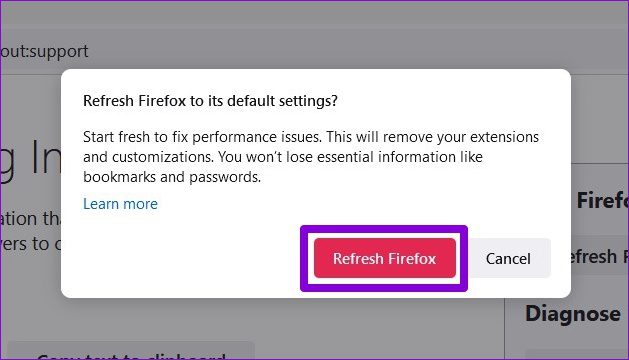
That should do it. Since most of your browser settings are reset to their default value, Firefox should play videos again.
Fix 5: Enable DRM-controlled Content
This is a practical solution when videos not playing are DRM-protected. Follow the steps below.
Step 1: Launch Firefox > click on the menu icon > select Add-ons and themes.
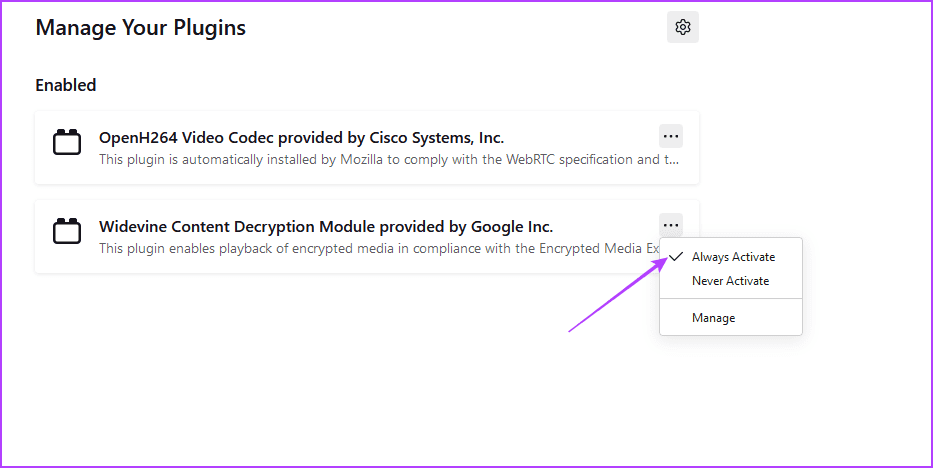
Step 2: Click the three dots for Widevine Content Decryption Module provided by Google Inc. > select Always activate.
Was this helpful?
Last updated on 26 August, 2024
1 Comment
Leave a Reply
Read Next
 4 Fixes for Google Drive Videos Not Playing or Processing Error
Basic Fixes File size is too large: Google Drive supports up to 5TB file size.
4 Fixes for Google Drive Videos Not Playing or Processing Error
Basic Fixes File size is too large: Google Drive supports up to 5TB file size.
 5 Fixes for X (Twitter) Videos Not Playing on iPhone and Android
Basic Fixes Check network connection: If there's a problem with your Wi-Fi or cellular connection, X may be unable to play the video.
5 Fixes for X (Twitter) Videos Not Playing on iPhone and Android
Basic Fixes Check network connection: If there's a problem with your Wi-Fi or cellular connection, X may be unable to play the video.
 3 Fixes for HDR Videos Not Playing on Instagram
Basic Fixes Check internet connection: Ensure that you have a stable internet connection on your device.
3 Fixes for HDR Videos Not Playing on Instagram
Basic Fixes Check internet connection: Ensure that you have a stable internet connection on your device.
 4 Fixes When Videos in PowerPoint Are Not Playing
Basic Fixes: Confirm if the video plays outside PowerPoint: You want to ensure the video file isn't corrupt.
4 Fixes When Videos in PowerPoint Are Not Playing
Basic Fixes: Confirm if the video plays outside PowerPoint: You want to ensure the video file isn't corrupt.
 3 Fixes for YouTube Not Playing 4K Videos on Apple TV 4K
Basic Fixes Check your internet connection: YouTube lets you watch 4K content in Dolby Vision and HDR.
3 Fixes for YouTube Not Playing 4K Videos on Apple TV 4K
Basic Fixes Check your internet connection: YouTube lets you watch 4K content in Dolby Vision and HDR.
 3 Fixes for Google TV Not Playing 4K Videos
Basic Fixes Ensure your TV supports 4K resolution: This is the first and most obvious solution you must consider.
3 Fixes for Google TV Not Playing 4K Videos
Basic Fixes Ensure your TV supports 4K resolution: This is the first and most obvious solution you must consider.
 Firefox vs Firefox Focus: Should You Switch
Firefox Focus is a strange name for a browser, and the fact that it’s developed by none other Mozilla is even weirder.
Firefox vs Firefox Focus: Should You Switch
Firefox Focus is a strange name for a browser, and the fact that it’s developed by none other Mozilla is even weirder.
 5 Ways to Fix Videos Not Playing in Microsoft Edge
Fix 1: Disable Extensions Third-party extensions can occasionally disrupt browser processes, leading to such issues.
5 Ways to Fix Videos Not Playing in Microsoft Edge
Fix 1: Disable Extensions Third-party extensions can occasionally disrupt browser processes, leading to such issues.
The article above may contain affiliate links which help support Guiding Tech. The content remains unbiased and authentic and will never affect our editorial integrity.

Thanks for the help. Turning off the hardware acceleration fixed it for me.