Try Basic Fixes
- Disable Do Not Disturb mode: The Telegram app may not be showing notifications due to the Do Not Disturb mode on your Windows PC. Turn off DND mode on your PC and ensure it isn’t configured to turn on automatically.
- Update the Telegram app: Using an outdated version of the app can also lead to notification issues at times. Update the Telegram app from the Microsoft Store and see if that helps.
Fix 1: Check In-App Notification Settings
It’s a good idea to verify Telegram’s app settings to make sure notifications aren’t disabled. Here’s how to check.
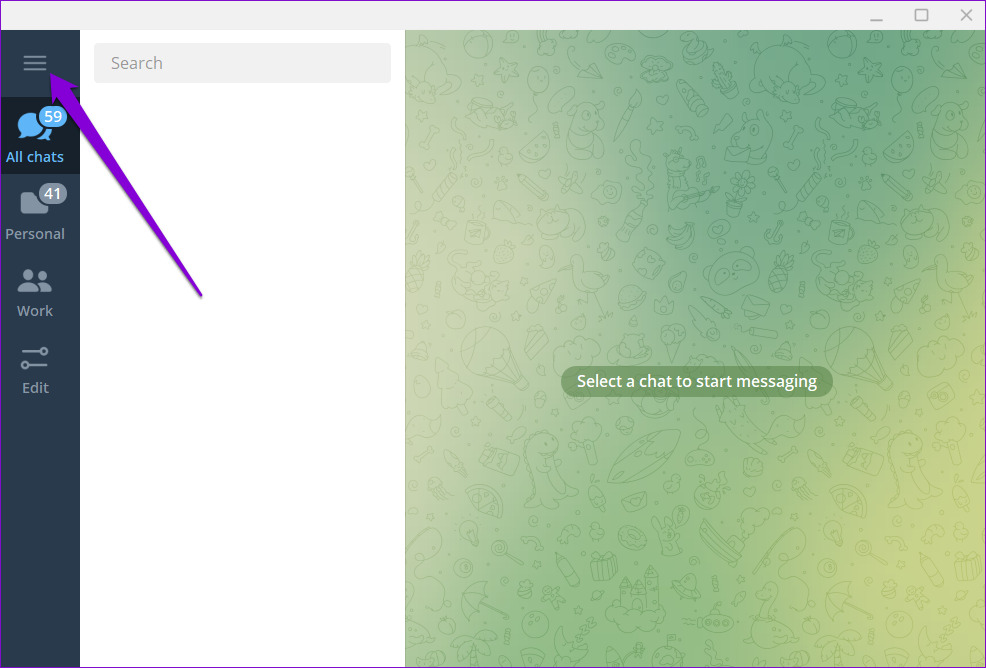
Step 1: Open Telegram on your PC and click the three horizontal lines in the top-left corner.
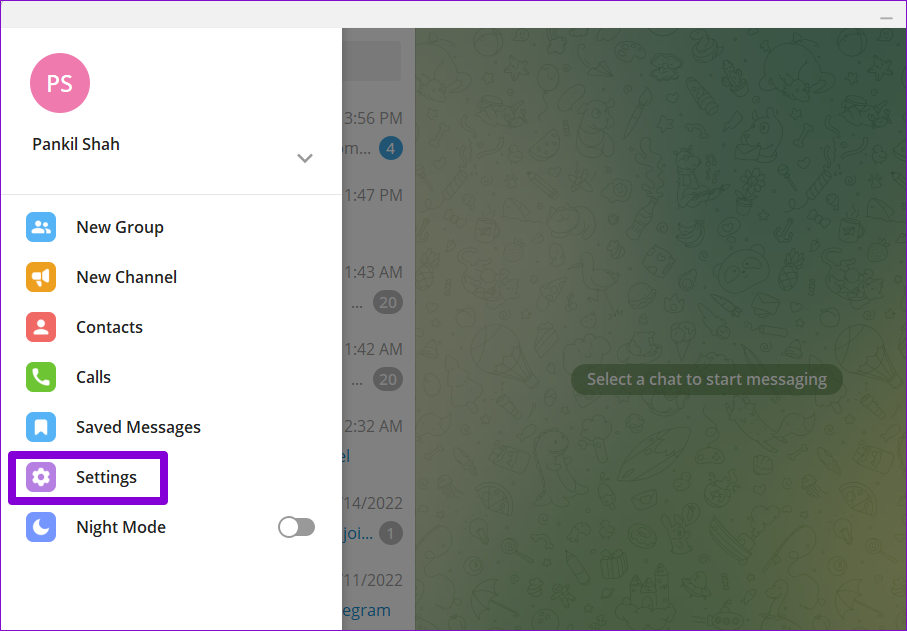
Step 2: Click on Settings.
Step 3: Go to Notifications and Sounds.
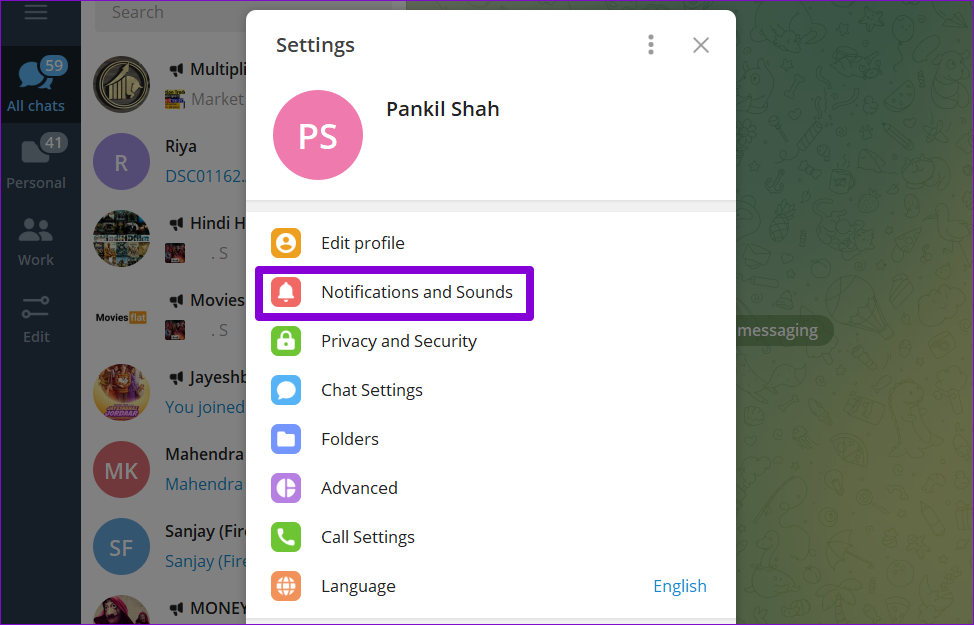
Step 4: Toggle on the switch next to Desktop notifications.

Fix 2: Unmute Conversations
If you’re not receiving notifications from a select few contacts, groups, or channels, you may have muted them previously. Here’s how you can unmute them.
Step 1: In the Telegram app, open the conversation for which notifications aren’t working. Tap the contact’s name at the top.

Step 2: Toggle on the switch next to Notifications.
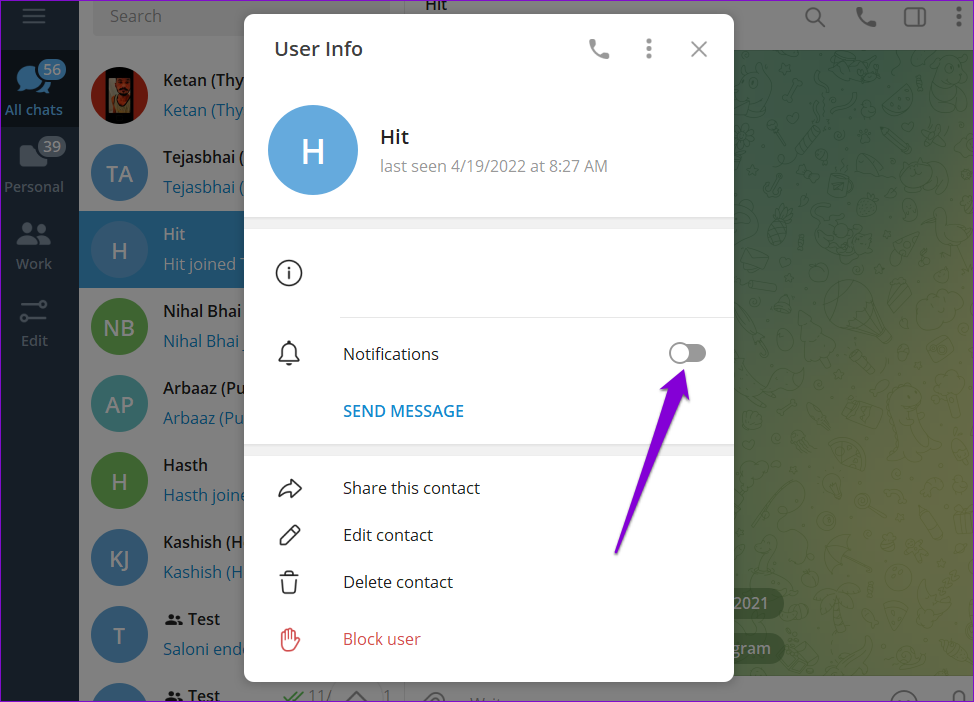
Repeat this process for all the contacts, groups, and channels where notifications are not working.
Fix 3: Allow Telegram to Work In Background
Another reason why Telegram may fail to send notifications is if it doesn’t have permission to work in the background. In that case, Windows will suspend the app’s background activities and that means you won’t get any new messages. Here’s how to change that.
Step 1: Click the search icon on the taskbar, type in telegram desktop in the box, and select App settings.
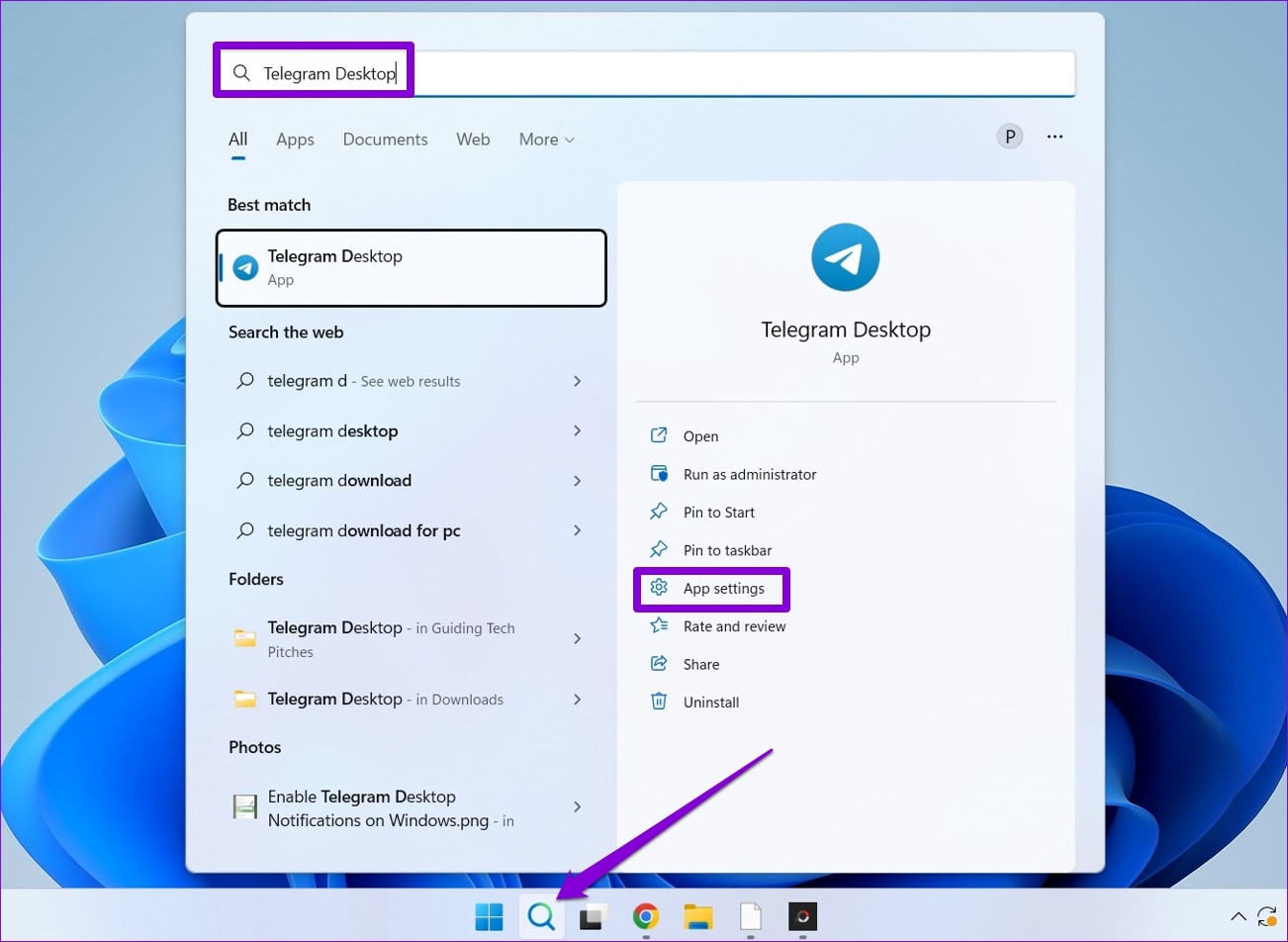
Step 2: Use the drop-down menu under Background apps permissions to select Always from the list.

Fix 4: Repair or Reset the Telegram App
If nothing works, you can use the app repair feature in Windows to see if that gets Telegram notifications to work. Here’s how:
Step 1: Click on the search icon on the taskbar, type in telegram desktop in the box, and select App settings.
Step 2: Scroll down to the Reset section and click the Repair button.

If repairing the app doesn’t work, then you can try resetting it. This is as effective as uninstalling the app and installing it again.
Was this helpful?
Last updated on 05 July, 2024
Read Next
 5 Ways to Fix Telegram Notifications Not Working on Android
Try Basic Fixes Update the Telegram app: Telegram may fail to show any notifications if you’re running an outdated version of the app.
5 Ways to Fix Telegram Notifications Not Working on Android
Try Basic Fixes Update the Telegram app: Telegram may fail to show any notifications if you’re running an outdated version of the app.
 Top 6 Ways to Fix Telegram Web Notifications Not Working
Telegram is one of the most popular instant messaging apps for multiple reasons.
Top 6 Ways to Fix Telegram Web Notifications Not Working
Telegram is one of the most popular instant messaging apps for multiple reasons.
 5 Ways to Fix Telegram Not Showing Notifications on iPhone
Basic Yet Essential Methods to Try Check Telegram servers: It's possible that Telegram servers are down.
5 Ways to Fix Telegram Not Showing Notifications on iPhone
Basic Yet Essential Methods to Try Check Telegram servers: It's possible that Telegram servers are down.
 Top 7 Ways to Fix Gmail Notifications Not Working in Chrome on Windows 10
Notifications make things easy to tend to an update, especially the email app.
Top 7 Ways to Fix Gmail Notifications Not Working in Chrome on Windows 10
Notifications make things easy to tend to an update, especially the email app.
 2 Ways to Fix Microsoft Teams Notifications Not Working on Windows 11/10
Preliminary Fixes Turn off Battery Saver: To ensure Microsoft Teams notifications work properly on Windows 11/10, turning off Battery Saver is essential.
2 Ways to Fix Microsoft Teams Notifications Not Working on Windows 11/10
Preliminary Fixes Turn off Battery Saver: To ensure Microsoft Teams notifications work properly on Windows 11/10, turning off Battery Saver is essential.
 6 Ways to Fix Notifications Not Working on Windows 11
Basic Fixes Restart Your PC: Before trying other things, it's a good idea to restart your Windows PC.
6 Ways to Fix Notifications Not Working on Windows 11
Basic Fixes Restart Your PC: Before trying other things, it's a good idea to restart your Windows PC.
 5 Ways to Fix Google Chrome Notifications Not Working on Windows 11
Basic Fixes Keep the tab open: Google Chrome may fail to send notifications from a particular website if you have closed the website tab.
5 Ways to Fix Google Chrome Notifications Not Working on Windows 11
Basic Fixes Keep the tab open: Google Chrome may fail to send notifications from a particular website if you have closed the website tab.
 6 Ways to Fix Microsoft Edge Notifications Not Working on Windows
Fix 1: Check System Notification Settings The first thing you should do is check the system notification settings and ensure that Microsoft Edge is allowed to send notifications on your
6 Ways to Fix Microsoft Edge Notifications Not Working on Windows
Fix 1: Check System Notification Settings The first thing you should do is check the system notification settings and ensure that Microsoft Edge is allowed to send notifications on your
The article above may contain affiliate links which help support Guiding Tech. The content remains unbiased and authentic and will never affect our editorial integrity.