

Try Basic Fixes
- Install Windows updates: A buggy or outdated Windows build could cause such issues. Hence, install any pending Windows updates first.
- Reinstall the program: If you face this issue with a specific app or program, consider uninstalling and reinstalling it on your PC.
Fix 1: Check Task Manager
This may seem obvious, but it’s essential to ensure that your app or program is configured to run at startup. Here’s how to check.
Step 1: Press Ctrl + Shift + Esc to open the Task Manager. Switch to the Startup apps tab and ensure your program’s status reads Enabled.
Step 2: If your program has a Disabled status, select it and click Enable at the top.

Fix 2: Run SFC and DISM Scans
Corrupted or damaged system files on your PC can prevent programs from running at startup. If that’s the case, running the SFC (System File Checker) and DISM (Deployment Image Servicing and Management) scans should help.
Step 1: Right-click the Start icon > select Terminal (Admin) from the list.
Step 2: In the console, type the following command and press Enter.
SFC /scannow
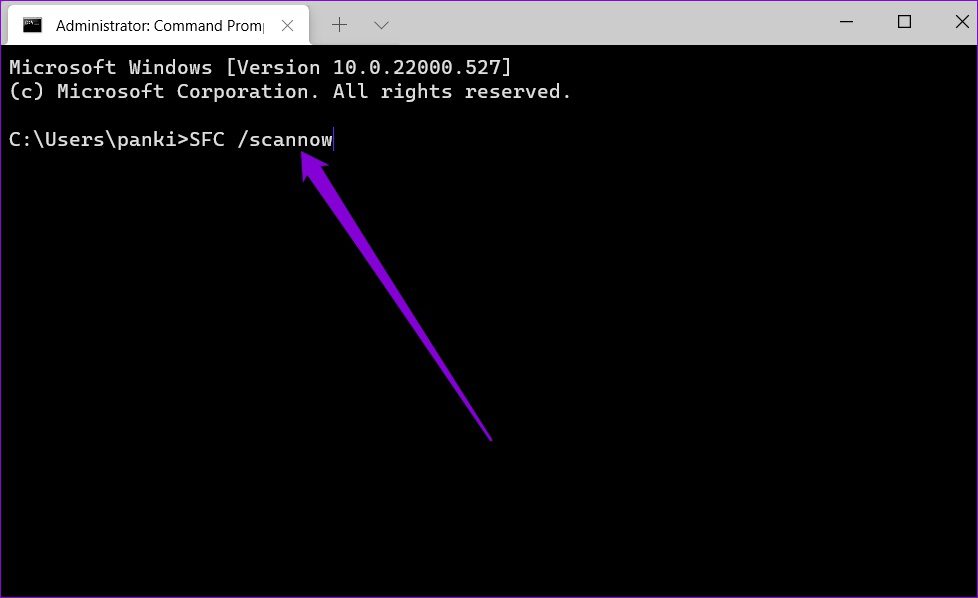
Step 3: Run the following commands one by one and press Enter after each to run the DISM scan:
DISM /Online /Cleanup-Image /CheckHealth
DISM /Online /Cleanup-Image /ScanHealth
DISM /Online /Cleanup-Image /RestoreHealth

Restart your PC after the scan is complete and check if the issue persists.
Fix 3: Turn off User Account Control
Some apps and programs on Windows require administrative permissions every time you run them. If the issue is related to one of these programs, try disabling the UAC (User Account Control) feature to see if that helps.
Step 1: Press the Windows key + S to open the search menu. Type change user account control settings in the box and hit Enter.

Step 2: Move the slider to Never notify and click OK to save changes.

Restart your PC and see if the program launches at startup.
Fix 4: Create a Batch File to Launch Programs
If your apps still won’t run at startup, create a batch file containing the file paths of all the programs you’d like to launch. To do so, use these steps:
Step 1: Open File Explorer > fetch the EXE file of the program you wish to launch at startup. Right-click on it and select Copy as path.

Step 2: Right-click anywhere on the desktop and go to New > Text Document.
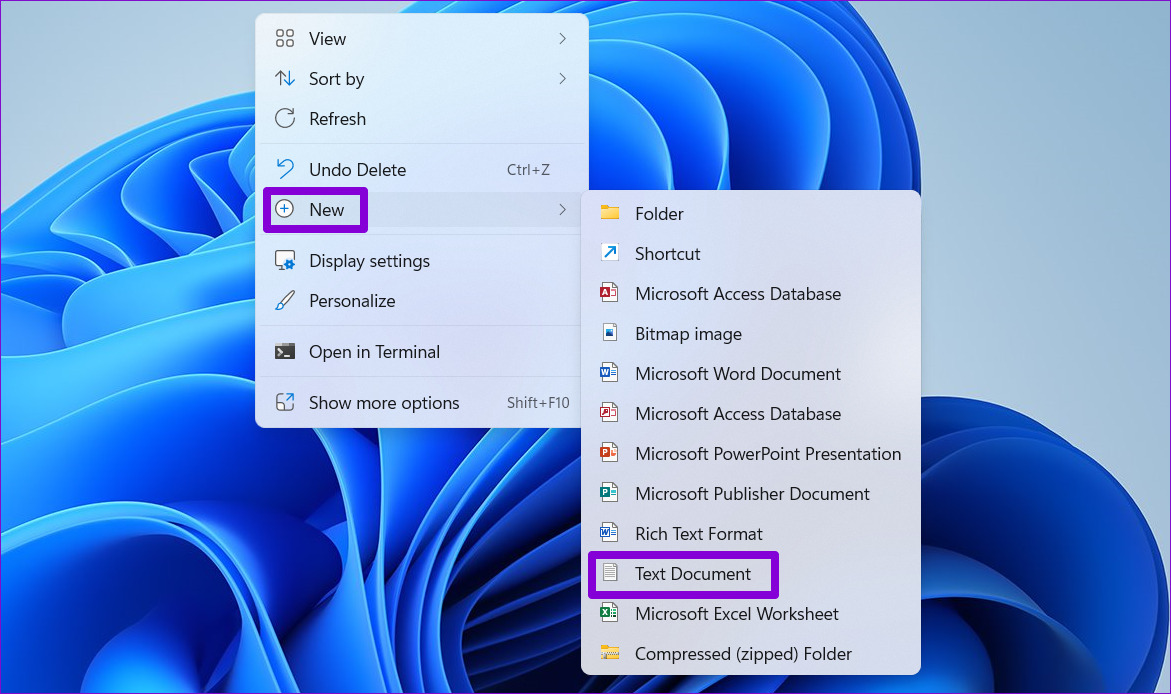
Step 2: In the notepad window, paste the command given below.
@echo off FilePath Exit
Note: Replace FilePath in the above command with the path of the program copied earlier.
Step 3: Press Ctrl + Shift + S to open the Save As dialog. Save the file with the .bat extension instead of the .txt extension.

Step 4: Press the Windows key + R to open the Run dialog box. Type shell:startup and hit Enter.
Step 5: Move your newly created batch file to the Startup folder.
Fix 5: Add Program to Startup via Registry
If nothing else works, modify a few registry files to configure Windows to run your program at the startup. Here’s how to do it.
Step 1: Click the search icon on the taskbar, type registry editor, and select Run as administrator.
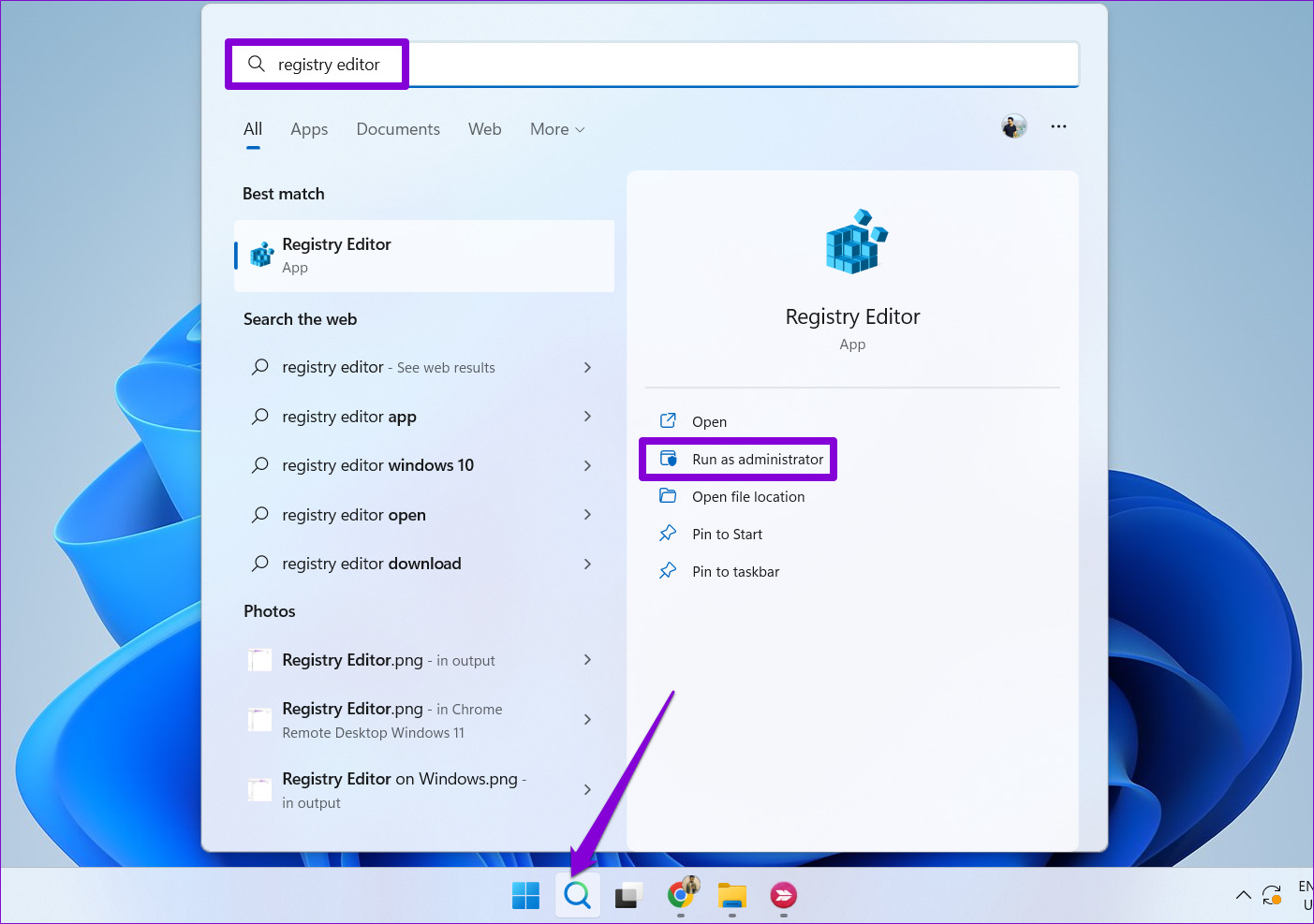
Step 2: Use the address bar at the top to navigate to the following key.
HKEY_LOCAL_MACHINE\Software\Microsoft\Windows\CurrentVersion\Run
Step 3: In the Run key, right-click anywhere in the right pane and choose New > String value. Assign it the exact name of the program you wish to launch.

Step 4: Double-click on the newly created string value to edit it.
Step 5: In the value data field, paste the path of the program you wish to launch and click OK.

Was this helpful?
Last updated on 12 August, 2024
6 Comments
Leave a Reply
Read Next
 3 Ways to Fix Zoom Not Launching on Windows 11 and 10
Preliminary Fixes Restart PC: Refreshing system processes and clearing temporary glitches can resolve the Zoom not launching issue.
3 Ways to Fix Zoom Not Launching on Windows 11 and 10
Preliminary Fixes Restart PC: Refreshing system processes and clearing temporary glitches can resolve the Zoom not launching issue.
 6 Ways to Fix Steam Games Not Launching on Windows 11
Basic Fixes Restart the Steam Client: Before starting the Steam client, close it using the Task Manager.
6 Ways to Fix Steam Games Not Launching on Windows 11
Basic Fixes Restart the Steam Client: Before starting the Steam client, close it using the Task Manager.
 7 Best Ways to Fix Valorant Not Launching on Windows 11
Valorant is a popular free-to-play battle royale game for Windows.
7 Best Ways to Fix Valorant Not Launching on Windows 11
Valorant is a popular free-to-play battle royale game for Windows.
 5 Ways to Fix Rocket League Not Launching in Windows 11
Fix 1: Restart Your Computer Step 1: Press the Windows key to open the Start menu.
5 Ways to Fix Rocket League Not Launching in Windows 11
Fix 1: Restart Your Computer Step 1: Press the Windows key to open the Start menu.
 4 Ways to Fix for NSIS ‘Error Launching Installer’ in Windows
Basic Fixes Download the installer file again: A partially downloaded or corrupt installer file can cause an installer integrity check failure.
4 Ways to Fix for NSIS ‘Error Launching Installer’ in Windows
Basic Fixes Download the installer file again: A partially downloaded or corrupt installer file can cause an installer integrity check failure.
 5 Fixes for Roblox Not Launching on Windows
Try Basic Fixes Close Roblox completely and reopen it: Sometimes, apps and games on your Windows PC may experience problems while opening, causing them to become unresponsive.
5 Fixes for Roblox Not Launching on Windows
Try Basic Fixes Close Roblox completely and reopen it: Sometimes, apps and games on your Windows PC may experience problems while opening, causing them to become unresponsive.
 3 Ways to Change Priority Levels for Programs on Windows 10 and Windows 11
When Should You Change the Priority Level of a Program By default, Windows 11 assigns different priority levels to each process based on its importance.
3 Ways to Change Priority Levels for Programs on Windows 10 and Windows 11
When Should You Change the Priority Level of a Program By default, Windows 11 assigns different priority levels to each process based on its importance.
 Top 9 Ways to Fix Unable to Change Default Programs in Windows 10
The apps offered by Microsoft are great.
Top 9 Ways to Fix Unable to Change Default Programs in Windows 10
The apps offered by Microsoft are great.
The article above may contain affiliate links which help support Guiding Tech. The content remains unbiased and authentic and will never affect our editorial integrity.


Using your guide, I’m down at the Registry Edit to give it a shot as so far nothing has worked.
I have 2 windows 10 desktop Dell computers that are not loading startup stuff. I can enable it in Task Manager, reboot and they don’t start, check Task Manager, they are again disabled.
I have 4-5 things I want started, my wife on her’s needs two items. I’ve been just opening the Shell:common startup and manually starting the items. My wife is doing similar but with two shortcuts where she can double click them and get them running.
Needless to say, this is frustrating. I’m suspicious of Avast One which was recently installed on these computers and at one point after a week or more I let Avast perform a lot of updates on the two machines. I’m thinking I made a mistake doing that maybe.
Anyway, I appreciate your 7 steps but for me, I’ve only the registry edit left and I think I’m just worn out fighting this issue.
Regards,
Gene
I HAVE SAME ISSUE W/A BRAND NEW WINDOWS 10 DELL OPTIPLEX 7000 PC.
THIS IS A GREAT ARTICLE BUT, I’M VERY FRUSTRATED AS NONE OF THESE FIXES RESOLVED IT.
I CALLED DELL UNDER THEIR NEW PC SUPPORT AND THEY WERE OF NO HELP.
I CALLED THE SW MANUFACTURER FOR THE PROGRAM I’M TRYING TO ‘AUTO LAUNCH’ ON BOOT AND THEY SAID THERE ARE NO W10 ISSUES THEY ARE AWARE OF.
THIS HAS TO BE A DELL SPECIFIC ISSUE AS I’VE SET SIMILAR UP CLIENT PC’S FOR THE PAST 10 YEARS AND NEVER HAD AN ISSUE.
PAINFUL…. DELL NEEDS TO GET THEIR SUPPORT TEAM SIGNIFICANTLY IMPROVED.
Method 6: CREATE A BATCH FILE TO LAUNCH PROGRAMS @ Step 4: Double-click on the file to run it and the program should run on startup.
How does the batch file run when it’s saved to the desktop with no intention to run at startup?
Tried all 7 ways. Nothing works. Shortcut was copied in the startup folder. Then registry entry was also created. Now I have two (2) instances of the same program shown in the startup folder, both of them are enabled and the program still would not start. It is SpeedFan, btw. Works fine on Windows 7 and Windows 11 on the same computer (I have multi-boot). But Windows 10 – no go.
cmd did the trick
cmd worked immediately. Restart after doing it, solved the issue. Thank you