Try Basic Fixes
- Free up storage space: If your phone is running low on storage, you might have a hard time downloading new content. Spotify recommends that you keep at least 1 GB of free storage on your Android or iPhone. You can dig into the Settings on your phone to check how much free space you have.
- Check if Spotify is down: It’s a good idea to ensure that Spotify servers are not facing an outage. For that, you can visit a website like Downdetector. If others are reporting similar issues, simply wait for Spotify to fix the issue on its end.
- Update the app: Using an outdated version of the Spotify app can also cause such problems. Head over to the Play Store or App Store to update the Spotify app and try using it again.
Fix 1: Clear Spotify Cache
Spotify collects cache data on your phone to improve your experience. However, if this data becomes old or corrupt, Spotify might malfunction on your Android or iPhone and prevent you from downloading new songs.
For such instances, Spotify allows you to clear cache data from its settings menu. The following steps will work for Android and iPhone.
Step 1: Open the Spotify app on your phone and tap the gear-shaped icon at the top right corner.
Step 2: Scroll down to tap the Clear cache option. Select Clear cache again when the confirmation prompt appears.


Fix 2: Correct the Date and Time on Your Phone
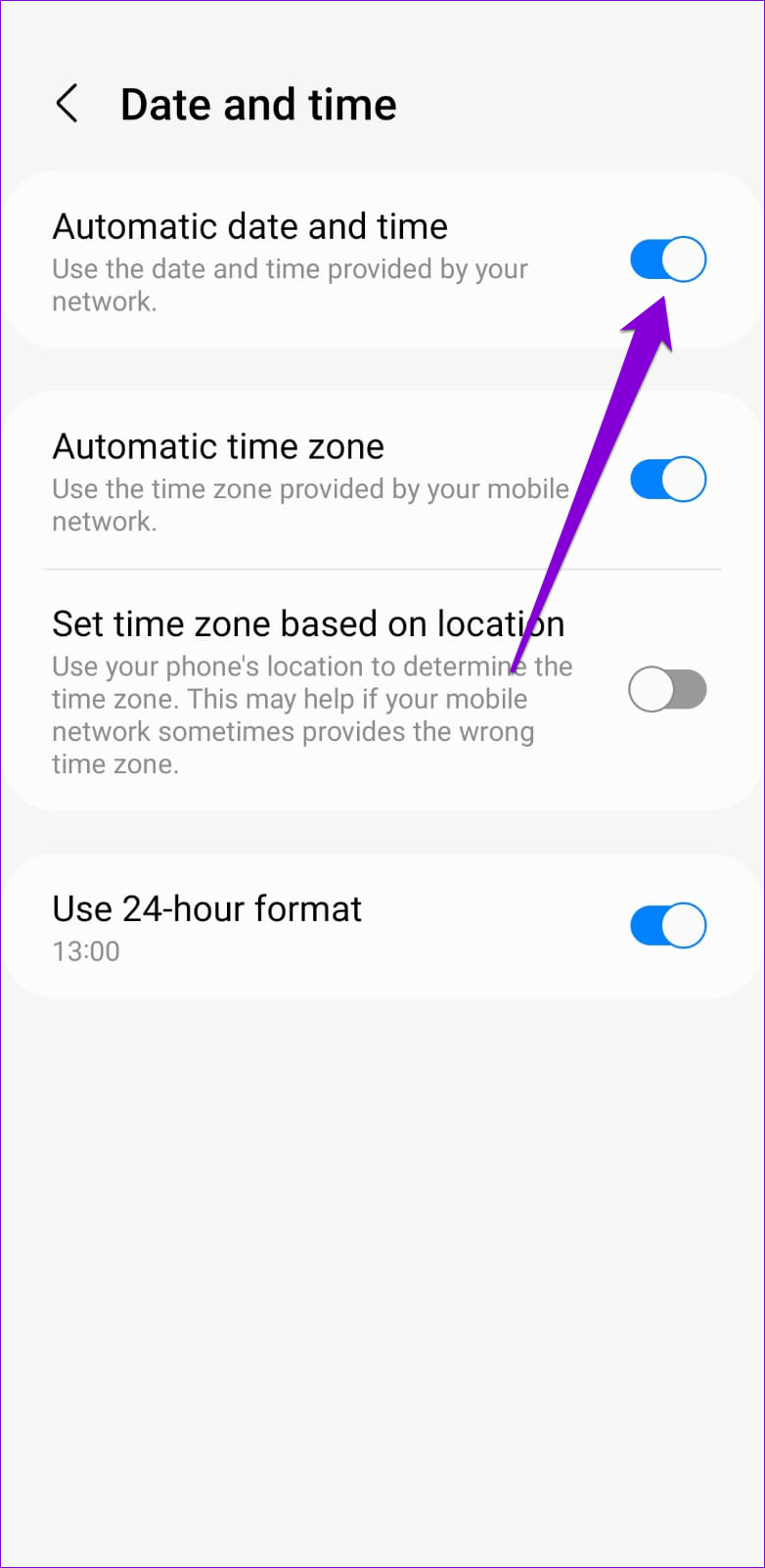
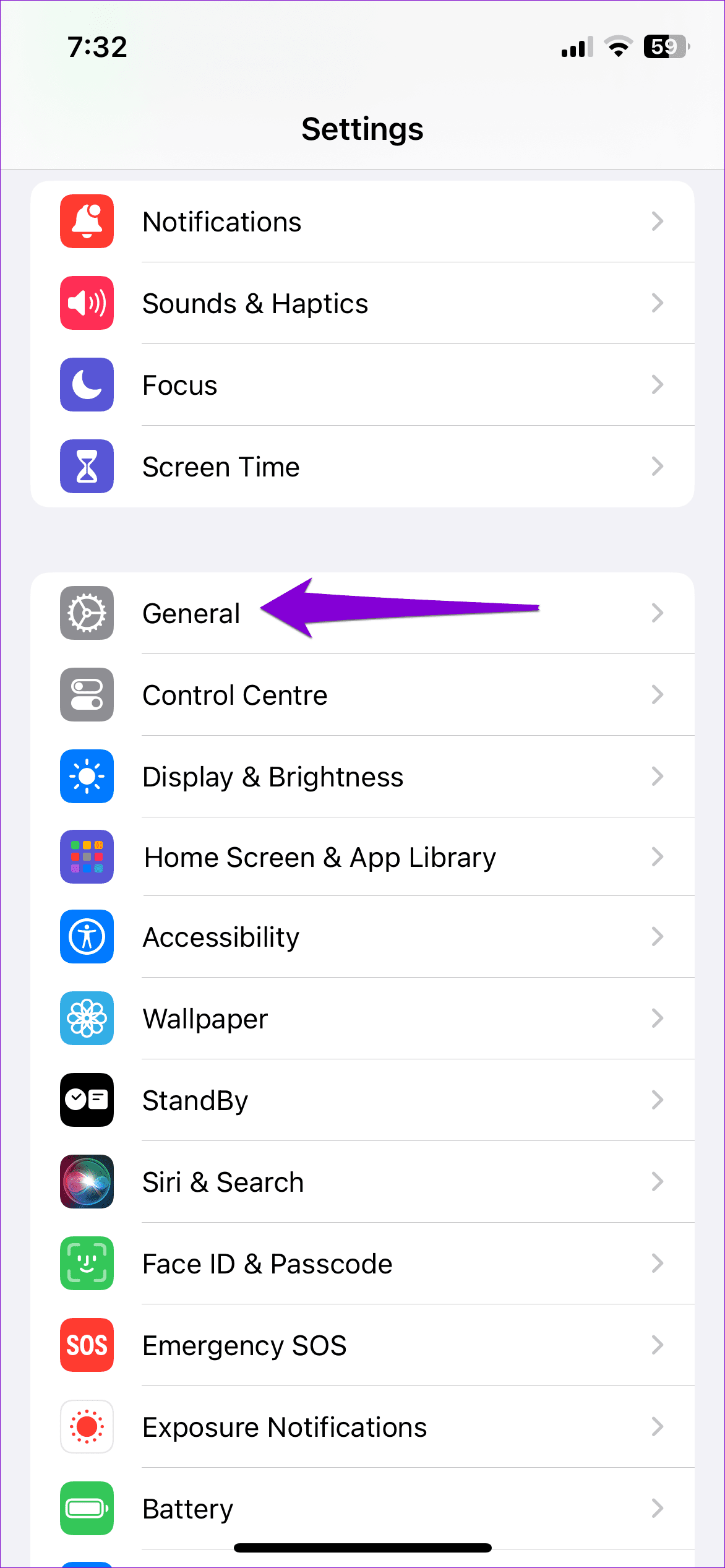
Spotify may fail to connect to its servers if your phone clock is set to an incorrect date or time. To avoid this, it’s best to enable the automatic date and time feature on your phone.
Android
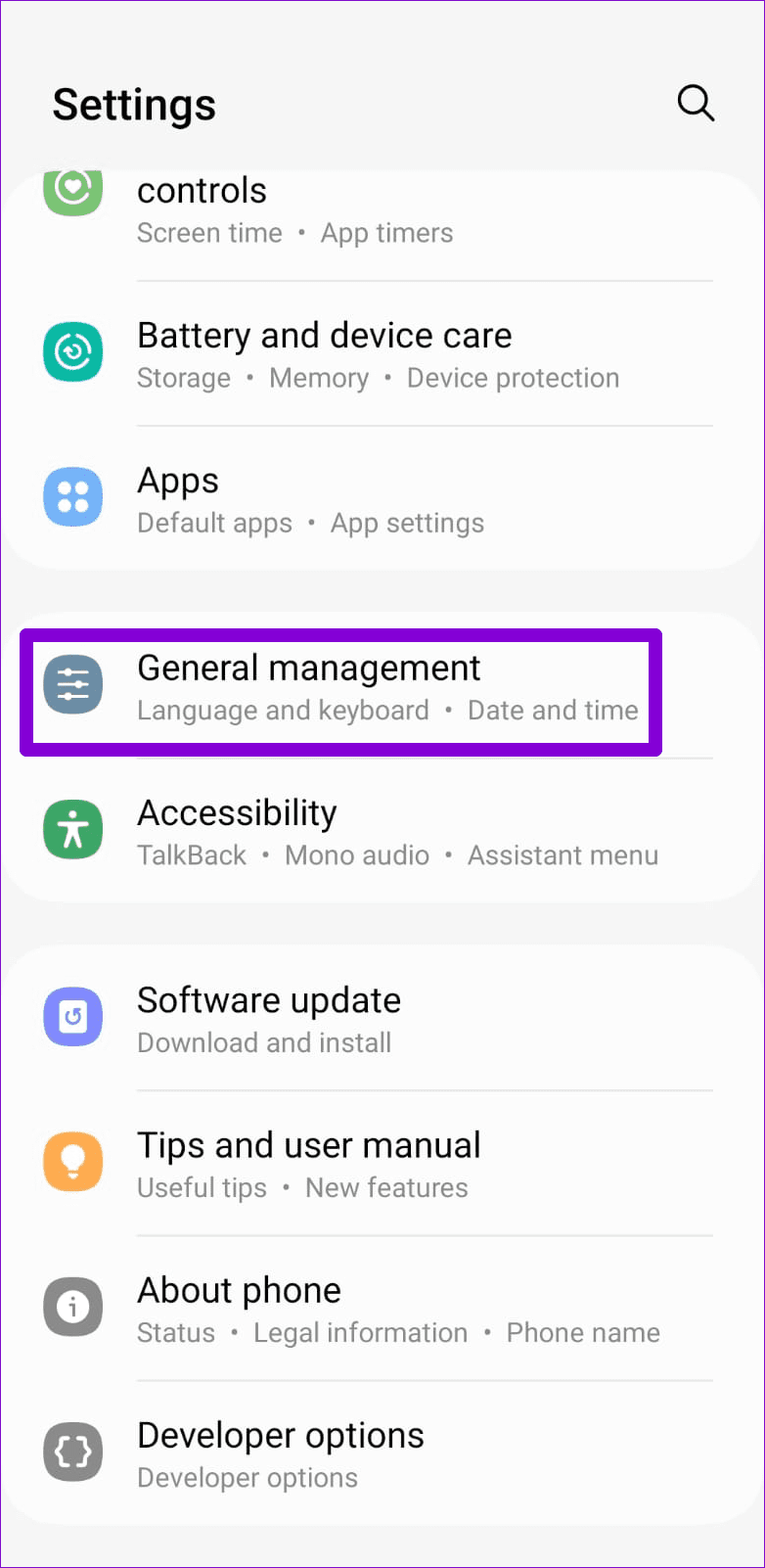
Step 1: Open the Settings app on your phone and go to General management.
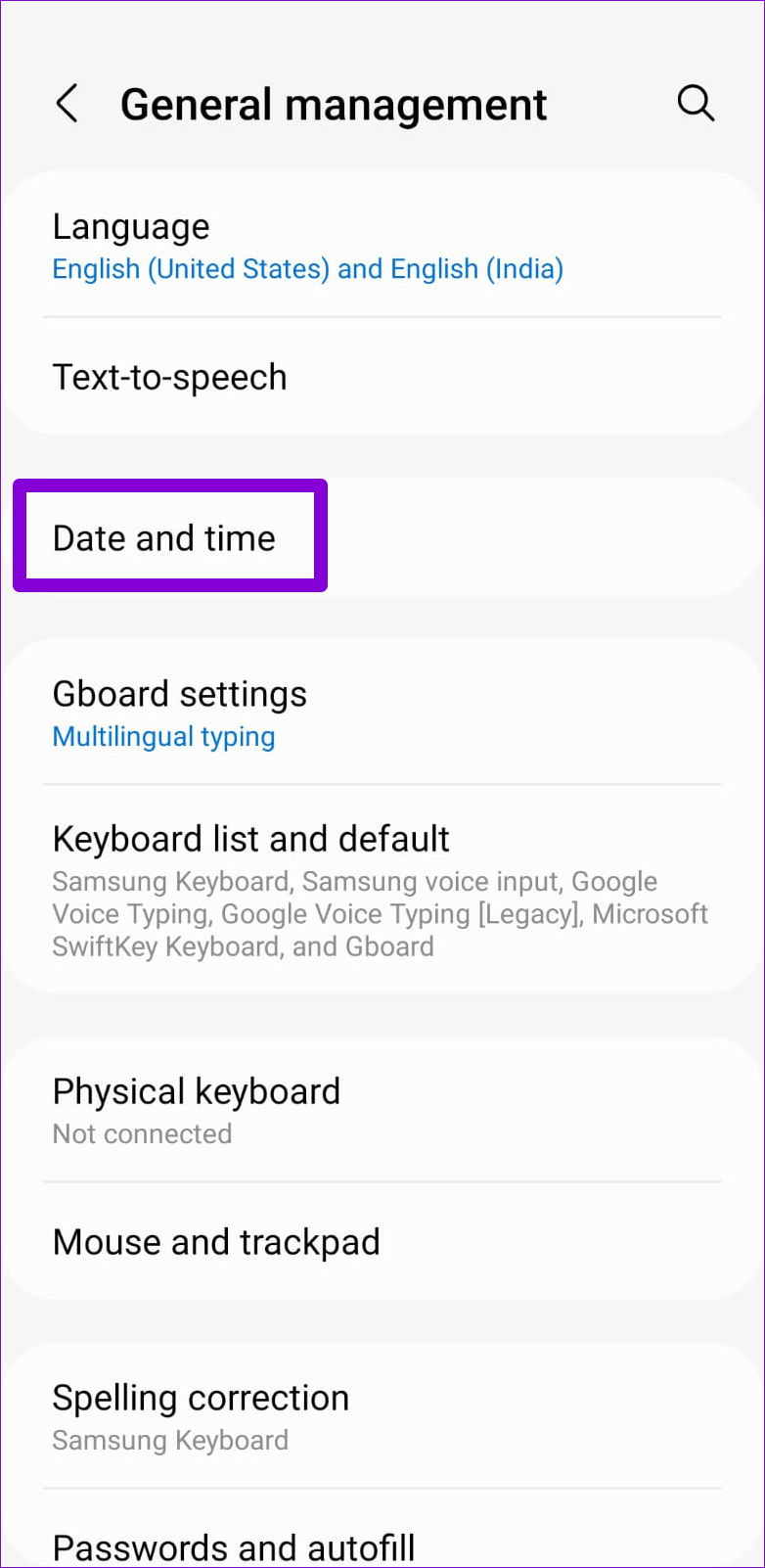
Step 2: Tap on Date and time and enable the toggle for Automatic date and time.
iPhone
Step 1: Launch the Settings app on your iPhone and navigate to General.
Step 2: Tap on Date & Time and toggle on the switch next to Set Automatically.


Fix 3: Reinstall the Spotify App
If you’re still having issues downloading songs from Spotify, you can try uninstalling the app and installing it again. This will remove all the existing app data, fixing issues caused by corrupt or inaccessible files.
Was this helpful?
Last updated on 27 June, 2024
Read Next
 3 Ways to Fix Apple Music Not Downloading Songs
Basic Fixes Check network: If you can't download songs on Apple Music, there is likely a problem with your internet connectivity.
3 Ways to Fix Apple Music Not Downloading Songs
Basic Fixes Check network: If you can't download songs on Apple Music, there is likely a problem with your internet connectivity.
 11 Ways to Fix Spotify Not Playing Songs on Mobile or PC
The second most annoying thing after Spotify ads is Spotify struggling to play songs.
11 Ways to Fix Spotify Not Playing Songs on Mobile or PC
The second most annoying thing after Spotify ads is Spotify struggling to play songs.
 How to Stop Spotify From Adding Songs to Playlist
With a tap away from listening to the music of your choice, Spotify has changed the way we stream music.
How to Stop Spotify From Adding Songs to Playlist
With a tap away from listening to the music of your choice, Spotify has changed the way we stream music.
 5 Fixes for Google Messages Not Downloading MMS
Basic Fixes Switch to Wi-Fi: Some MMS files might require fast internet speeds because of their file size.
5 Fixes for Google Messages Not Downloading MMS
Basic Fixes Switch to Wi-Fi: Some MMS files might require fast internet speeds because of their file size.
 3 Ways to Fix Google Drive Not Downloading Files on Android and iPhone
Try Basic Fixes Ask the file owner to enable download access: If you can't download a file shared with you, the file owner may have restricted your access with the
3 Ways to Fix Google Drive Not Downloading Files on Android and iPhone
Try Basic Fixes Ask the file owner to enable download access: If you can't download a file shared with you, the file owner may have restricted your access with the
 3 Ways to Fix Downloaded Songs Not Showing on Apple Music
Basic Fixes Check internal storage: Your iPhone needs more internal storage to store downloaded songs.
3 Ways to Fix Downloaded Songs Not Showing on Apple Music
Basic Fixes Check internal storage: Your iPhone needs more internal storage to store downloaded songs.
 5 Ways to Fix WhatsApp Not Downloading PDFs on Phone
Basic Fixes Check WhatsApp server status: Use Downdetector to check an active WhatsApp service outage.
5 Ways to Fix WhatsApp Not Downloading PDFs on Phone
Basic Fixes Check WhatsApp server status: Use Downdetector to check an active WhatsApp service outage.
 4 Ways to Fix Gmail App Not Downloading Attachments
Basic Fixes Check network connection: Ensure there's no problem with network connectivity on your smartphone.
4 Ways to Fix Gmail App Not Downloading Attachments
Basic Fixes Check network connection: Ensure there's no problem with network connectivity on your smartphone.
The article above may contain affiliate links which help support Guiding Tech. The content remains unbiased and authentic and will never affect our editorial integrity.