

Fix 1: Check App Permissions
Snapchat requires access to your phone’s microphone to record Voice Notes. If you’ve previously denied Snapchat this permission, you can’t send voice messages. Here’s how to fix that.
On Android
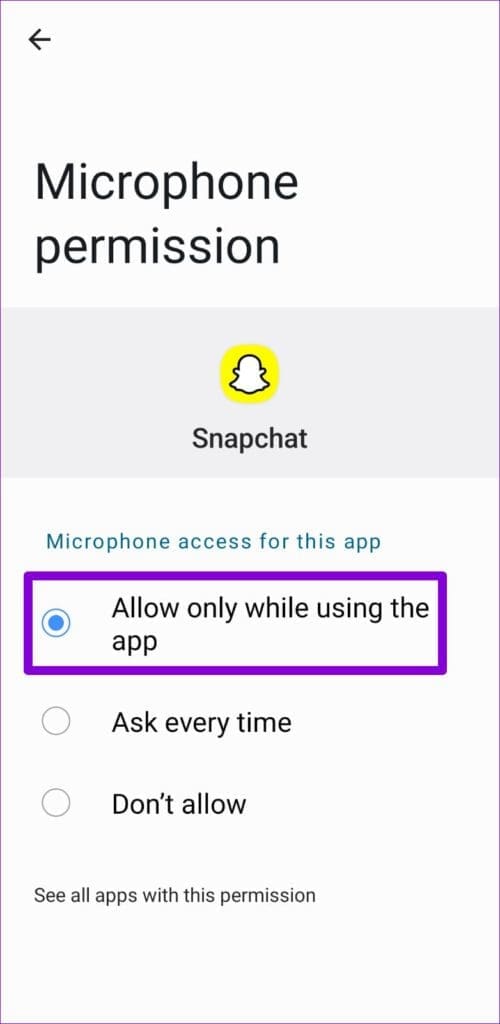
Step 1: Long-press on the Snapchat app icon and tap the info icon from the menu. Then, go to Permissions.


Step 2: Tap on Microphone and select Allow only while using the app.

On iPhone
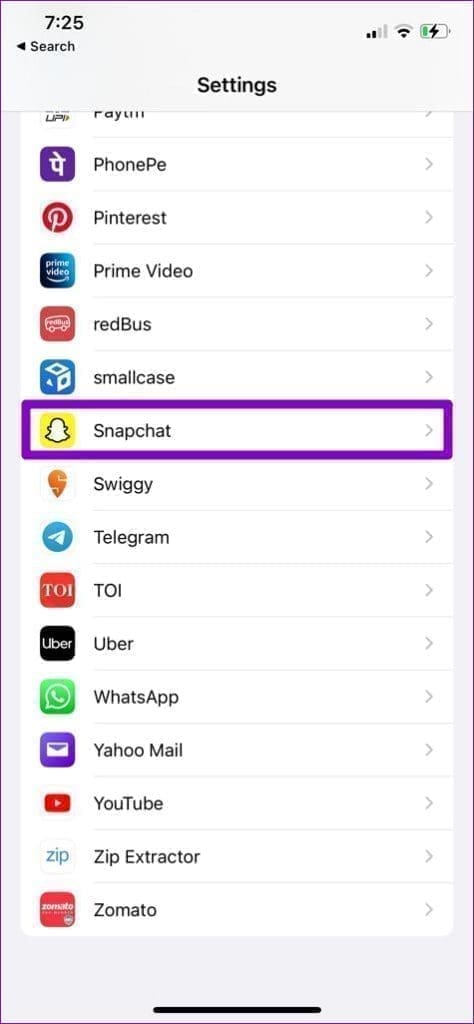
Step 1: Open the Settings app on your iPhone and scroll down to tap on Snapchat.
Step 2: Turn on the toggle for Microphone.

Fix 2: Enable Microphone Access From Privacy (Android)
If your phone runs Android 12 or higher, you need to review your privacy settings and ensure that microphone access isn’t disabled from there.
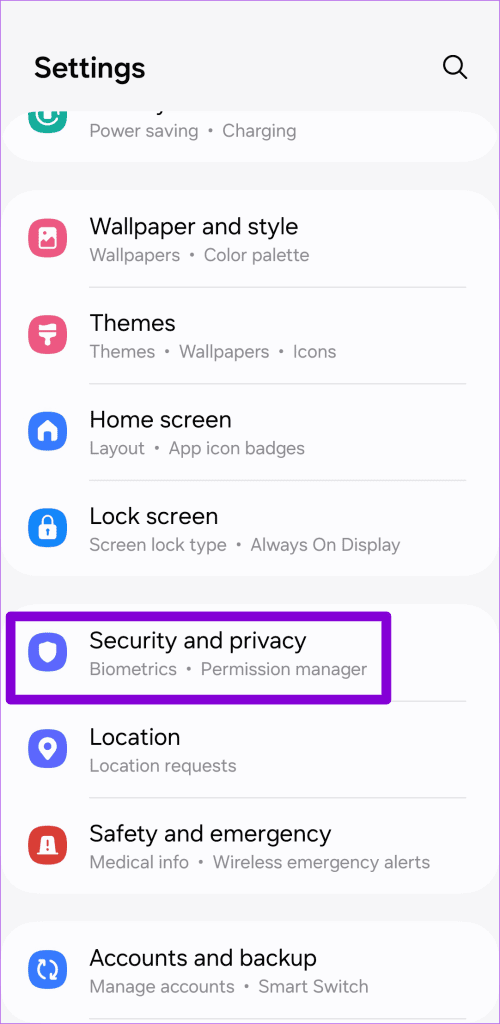
Step 1: Open the Settings app and go to Security and privacy.
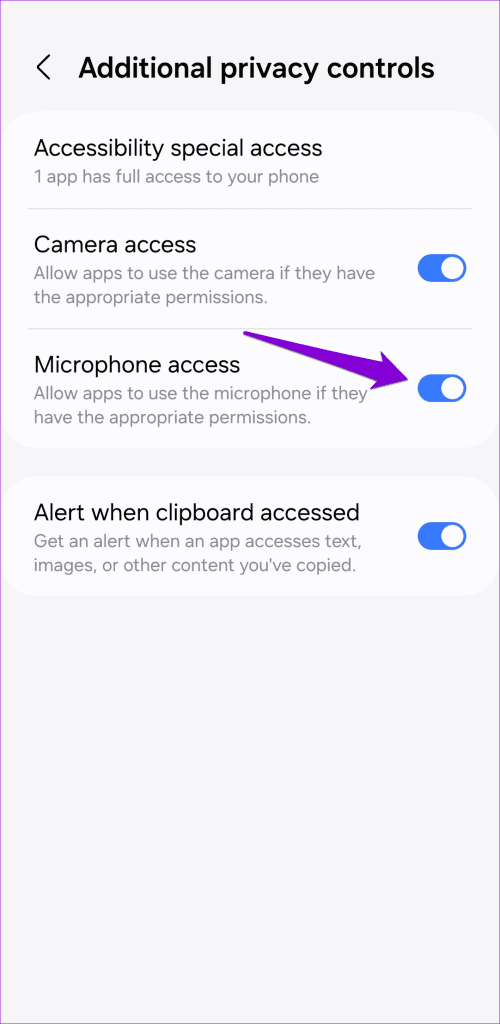
Step 2: Tap on Additional privacy controls and enable the toggle for Microphone access.
Step 3: Now, restart the Snapchat app and try sending Voice Notes again.

Fix 3: Free Up Storage Space
The Snapchat app automatically downloads and saves any Voice Notes you receive. However, if there isn’t enough storage space to accommodate those voice messages, Snapchat will fail to play them.
You can quickly free up storage space on your phone by deleting large files or transferring some of your data to the cloud. This will help you free up storage space on your Android or iPhone without deleting any apps.
Fix 4: Clear Snapchat Cache
Snapchat may malfunction on your phone due to outdated or corrupted cache data. If that’s the case, clearing the Snapchat app cache should fix the issue.
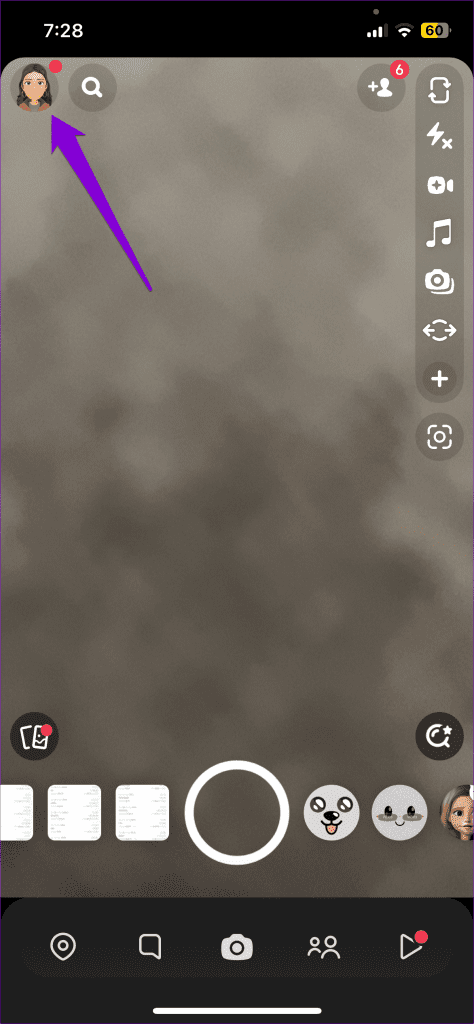
Step 1: Open Snapchat on your phone and tap the profile icon in the top left corner.
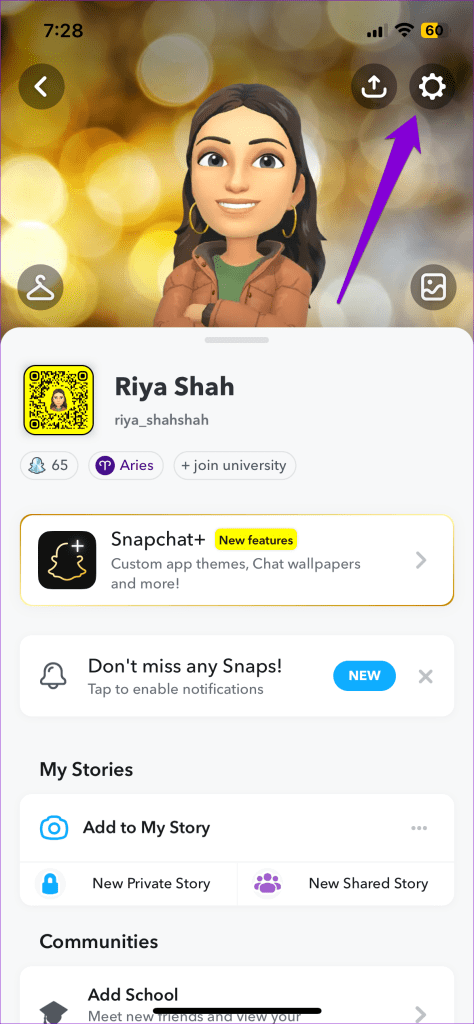
Step 2: Tap the gear icon in the top right corner to visit the settings menu.
Step 3: Scroll down to the Account Actions section and tap on Clear Cache. Select Clear when prompted.

Fix 5: Update Snapchat and Check if Snapchat Is Down
Voice Notes may not be working on Snapchat due to a bug. Hence, updating Snapchat on your Android or iPhone is a good idea if you haven’t done so already.
If nothing else works, there may be an issue on Snapchat’s end. Visit a website like Downdetector to see if others are experiencing similar problems. If there is an issue with the servers, you have no option but to wait for Snapchat to resolve it from their end. After that, Voice Notes should work again.
Was this helpful?
Last updated on 04 April, 2024
Read Next
 4 Ways to Fix Facebook Messenger Voice Messages Not Working
Try Basic Fixes Check the volume level on phone: If the volume level on your phone is too low, you may have trouble hearing your Messenger voice messages.
4 Ways to Fix Facebook Messenger Voice Messages Not Working
Try Basic Fixes Check the volume level on phone: If the volume level on your phone is too low, you may have trouble hearing your Messenger voice messages.
 4 Ways to Fix WhatsApp Voice Messages Not Working
Try These Basic Fixes First Check the phone's volume: If you can't hear a voice message, check whether the speaker volume is high enough.
4 Ways to Fix WhatsApp Voice Messages Not Working
Try These Basic Fixes First Check the phone's volume: If you can't hear a voice message, check whether the speaker volume is high enough.
 5 Ways to Fix Voice-to-Text Not Working on Android
Basic Fixes Enable system-wide microphone access - Go to Settings > Security and Privacy > enable Microphone access.
5 Ways to Fix Voice-to-Text Not Working on Android
Basic Fixes Enable system-wide microphone access - Go to Settings > Security and Privacy > enable Microphone access.
 How to Fix Samsung Notes App Not Working
Basic Fixes Disable Add-Ons: Open the Notes app > Settings > Toolbar Add-on > Disable the Add-Ons.
How to Fix Samsung Notes App Not Working
Basic Fixes Disable Add-Ons: Open the Notes app > Settings > Toolbar Add-on > Disable the Add-Ons.
 Top 4 Ways to Fix Google Docs Voice Typing Not Working
Voice Typing is one of the many hidden features of Google Docs that people are yet to use regularly.
Top 4 Ways to Fix Google Docs Voice Typing Not Working
Voice Typing is one of the many hidden features of Google Docs that people are yet to use regularly.
 6 Ways to Fix Voice Chat Not Working in Steam for Windows
Fix 1: Check the Default Audio Device and Volume Level The first you need to check the default audio input device on your Windows computer and its volume level.
6 Ways to Fix Voice Chat Not Working in Steam for Windows
Fix 1: Check the Default Audio Device and Volume Level The first you need to check the default audio input device on your Windows computer and its volume level.
 4 Ways to Fix Snapchat Notifications Not Working on iPhone
Basic Fixes Enable Background App Refresh for Snapchat: It allows Snapchat to refresh its feed in the background, providing you with real-time notifications.
4 Ways to Fix Snapchat Notifications Not Working on iPhone
Basic Fixes Enable Background App Refresh for Snapchat: It allows Snapchat to refresh its feed in the background, providing you with real-time notifications.
 4 Ways to Fix Snapchat Notifications Not Working on Android
Try These Fixes First Restart your phone: The first thing to do is restart your phone.
4 Ways to Fix Snapchat Notifications Not Working on Android
Try These Fixes First Restart your phone: The first thing to do is restart your phone.
The article above may contain affiliate links which help support Guiding Tech. The content remains unbiased and authentic and will never affect our editorial integrity.

