

Try Basic Fixes
- Use keyboard shortcuts to snap app windows: If you can’t access the snap layout by hovering your mouse over the maximize icon, you can use keyboard shortcuts instead. Press the Windows key + Z to quickly reveal the snap layout options. Alternatively, you can press the Windows key in combination with one of the arrow keys to snap the active window in the direction of the arrow key you press.
- Ensure the app is compatible: While most built-in Microsoft apps and programs support snap layouts, some third-party apps might not be compatible by design. If your snap layout issues are limited to a few specific apps, it’s likely that those apps do not support the feature.
- Remove apps with similar functionality: Third-party apps like PowerToys, MaxTo, AquaSnap, Divvy, and others offer similar window management features to the snap layout in Windows 11. If you’ve been using any of these apps to manage window layouts, remove them and see if that helps.
- Install Windows updates: Using an older version of Windows can also cause such problems. Install pending Windows 11 updates on your PC and then try using snap layouts again.
Fix 1: Make Sure Snap Layouts are Enabled
Next, you need to go through the Settings app on Windows 11 to ensure snap layouts are enabled on your PC. Here’s how.
Step 1: Press the Windows key + I to open the Settings app and head to System > Multitasking.

Step 2: Toggle on the switch next to Snap windows. Once enabled, use the checkboxes to set your preferences.

Fix 2: Enable Snap Layouts via Registry
If enabling snap layouts from the Settings app doesn’t work, you can try using the Registry Editor to enable them.
Step 1: Press the Windows key + R to open the Run dialog. In the Open field, type regedit and press Enter.
Step 2: Use the address bar at the top to navigate to the following key.
Computer\HKEY_CURRENT_USER\Software\Microsoft\Windows\CurrentVersion\Explorer\Advanced
Step 3: Right-click on an empty spot in the right pane, go to New, and select DWORD (32-bit) Value. Name it EnableSnapAssistFlyout.
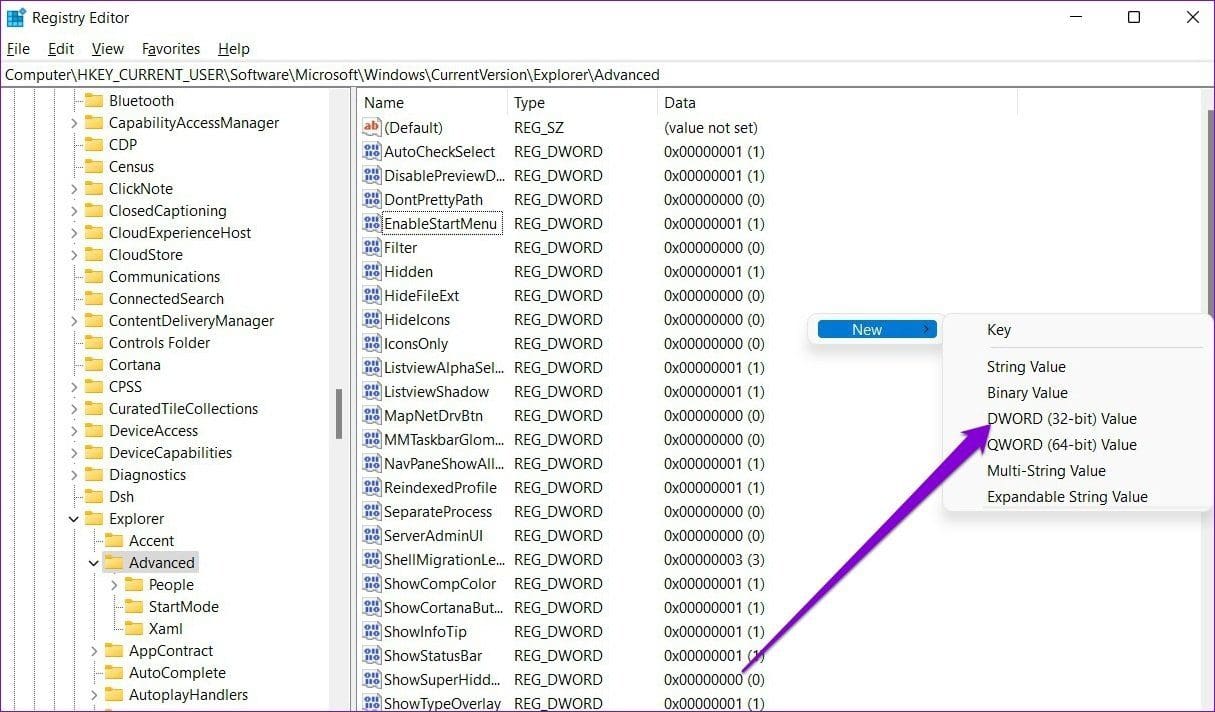
Step 4: Double-click the newly created DWORD and change its value data to 1. Then, click OK.

Exit the Registry Editor and reboot your PC for changes to take effect. This should enable the snap layout on your PC.
Was this helpful?
Last updated on 24 July, 2024
1 Comment
Leave a Reply
Read Next
 How to Fix Windows Snap Assist Not Working
Windows Snap Assist is a productivity tool that portions your screen into quarters or halves, allowing you to have multiple applications open at once.If your Snap Assist isn’t behaving properly,
How to Fix Windows Snap Assist Not Working
Windows Snap Assist is a productivity tool that portions your screen into quarters or halves, allowing you to have multiple applications open at once.If your Snap Assist isn’t behaving properly,
 How to Use Snap Map on Snapchat
How to Set Up Snap Map First, let’s see how you can access and set up Snap Map on Snapchat.
How to Use Snap Map on Snapchat
How to Set Up Snap Map First, let’s see how you can access and set up Snap Map on Snapchat.
 How to Send a Snap to Everyone at Once on Snapchat
If you're a regular Snapchatter, your Snaps sometimes become your calling card.
How to Send a Snap to Everyone at Once on Snapchat
If you're a regular Snapchatter, your Snaps sometimes become your calling card.
 Top 7 Ways to Fix Windows Key Not Working on Windows 10
Windows 10 operating system is full of keyboard shortcuts.
Top 7 Ways to Fix Windows Key Not Working on Windows 10
Windows 10 operating system is full of keyboard shortcuts.
 6 Ways to Fix Windows Security Not Opening or Working on Windows 11
Try Basic Fixes Uninstall any third-party antivirus program: Third-party antivirus programs can sometimes interfere with the Windows Security app and prevent it from opening on your Windows 11 PC.
6 Ways to Fix Windows Security Not Opening or Working on Windows 11
Try Basic Fixes Uninstall any third-party antivirus program: Third-party antivirus programs can sometimes interfere with the Windows Security app and prevent it from opening on your Windows 11 PC.
 7 Ways to Fix Windows Key Not Working in Windows 11
Basic Fixes Check for physical damage: There might be physical damage or dirt buildup on your keyboard.
7 Ways to Fix Windows Key Not Working in Windows 11
Basic Fixes Check for physical damage: There might be physical damage or dirt buildup on your keyboard.
 4 Ways to Fix Telegram Notifications Not Working on Windows 10 and Windows 11
Try Basic Fixes Disable Do Not Disturb mode: The Telegram app may not be showing notifications due to the Do Not Disturb mode on your Windows PC.
4 Ways to Fix Telegram Notifications Not Working on Windows 10 and Windows 11
Try Basic Fixes Disable Do Not Disturb mode: The Telegram app may not be showing notifications due to the Do Not Disturb mode on your Windows PC.
 3 Best Ways to Fix Keyboard Backlight Not Working on Windows 10 and Windows 11
Try Basic Fixes Toggle the keyboard backlight using the hotkey: You can use a key combination to quickly enable or disable the keyboard backlight on your Windows 11 PC.
3 Best Ways to Fix Keyboard Backlight Not Working on Windows 10 and Windows 11
Try Basic Fixes Toggle the keyboard backlight using the hotkey: You can use a key combination to quickly enable or disable the keyboard backlight on your Windows 11 PC.
The article above may contain affiliate links which help support Guiding Tech. The content remains unbiased and authentic and will never affect our editorial integrity.


Thanks a lot. I’ve been looking for the way to make snap layouts works for more than one hour… before I found this note.