Try Basic Fixes
- Switch to windowed mode: It’s important to know that Discord only supports screen sharing for apps and games that are windowed. If the game or program you’re trying to present is in full-screen mode, viewers might see a black screen in their Discord app. Try switching the app to windowed mode and see if screen sharing works.
- Update or reinstall Discord: If the screen share issue occurs due to a bug, updating the app to the latest version might help. If that doesn’t help, uninstall and install Discord again. This should help clear any app data, including cache, and allow the app to run smoothly again.
Fix 1: Run Discord as an Administrator
Such screen-sharing issues in Discord can occur if the app doesn’t have the relevant permissions. To fix this, try running Discord with admin rights.
To do so, right-click on the Discord app icon and select Run as administrator from the resulting menu.
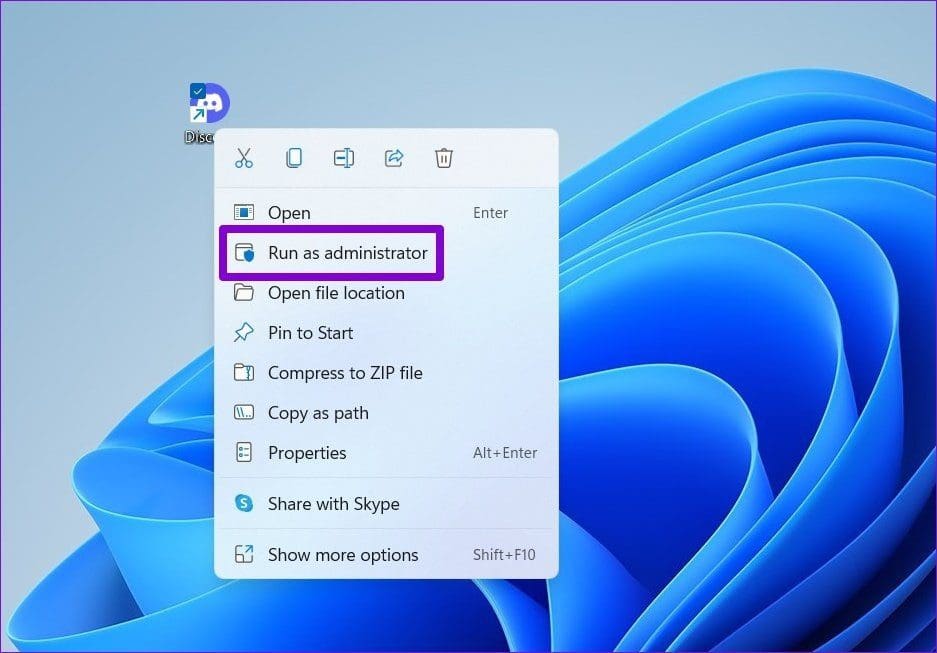
If this solves your problem, configure the Discord shortcut to always launch with administrative rights. To do that, select the Discord shortcut and press Alt + Enter to open its properties. Navigate to the Shortcut tab > click on Advanced. Check the box for Run as Administrator > click OK.

Likewise, if you’re having trouble sharing a particular game or program screen, try launching the same with admin privileges.
Fix 2: Ensure the Application Is Added to Your Profile
If Discord fails to detect the current game or program screen you’re on, it can’t present it on the screen share. Try adding the game or program to your profile and see if that helps.
Step 1: Open the Discord app on your PC and click the gear icon next to your username to open the settings menu.

Step 2: Use the left pane to navigate to Registered Games under Activity Settings. If Discord hasn’t detected your program, you’ll see “No game detected.”
Step 3: Click Add it and use the drop-down menu to choose the game or app you want to share > click Add Game.

Restart the Discord app and try sharing the screen again.
Fix 3: Turn off Discord’s Latest Technology
By default, the Discord app is configured to use the “advanced technology” option when sharing the screen. But if you’re having issues with it, it’s best to turn it off.
Step 1: Launch the Discord app on your PC and click the gear icon at the bottom left.
Step 2: Switch to the Voice & Video tab and scroll down to the Screen Share section. Disable the toggle for Use our latest technology to capture your screen.

Fix 4: Disable Hardware Acceleration in Discord
When hardware acceleration is enabled, some graphics-intensive tasks are assigned to your GPU instead of the CPU to manage system resources more efficiently. However, if your PC is old, this can work against you and lead to screen-sharing issues. Try disabling hardware acceleration on Discord to see if that helps.
Step 1: Open the Settings menu in Discord.
Step 2: Switch to the Advanced tab and turn off Hardware Acceleration.

Was this helpful?
Last updated on 03 September, 2024
Read Next
 How to Share Screen in Discord on Desktop and Mobile
How to Share Your Screen in a Discord Voice Channel As a channel member, Discord lets you share your device’s screen with up to 50 people at once.
How to Share Screen in Discord on Desktop and Mobile
How to Share Your Screen in a Discord Voice Channel As a channel member, Discord lets you share your device’s screen with up to 50 people at once.
 How to Play Discord Games Using Discord Activities
What Are Discord Games?
How to Play Discord Games Using Discord Activities
What Are Discord Games?
 7 Best Ways to Fix Microsoft Teams Won’t Share Screen
Microsoft Teams has come a long way since its inception, and they keep adding new features to their product all the time.
7 Best Ways to Fix Microsoft Teams Won’t Share Screen
Microsoft Teams has come a long way since its inception, and they keep adding new features to their product all the time.
 6 Ways to Fix Discord Notifications Not Working on Android and iPhone
Close the Discord app on your PC: If you have Discord open on your computer, notifications may appear there first instead of on your phone.
6 Ways to Fix Discord Notifications Not Working on Android and iPhone
Close the Discord app on your PC: If you have Discord open on your computer, notifications may appear there first instead of on your phone.
 5 Ways to Fix Discord Mic Not Working on Android and iPhone
https://youtu.be/24cdhNs1yIU Try Basic Fixes Disconnect any Bluetooth devices: Make sure your phone isn't connected to any Bluetooth devices.
5 Ways to Fix Discord Mic Not Working on Android and iPhone
https://youtu.be/24cdhNs1yIU Try Basic Fixes Disconnect any Bluetooth devices: Make sure your phone isn't connected to any Bluetooth devices.
 2 Ways to Fix Discord Not Working on Wi-Fi
Basic Fixes: Restart the Router and Try Again: Try power cycling the router by turning it off, unplugging it, waiting a few minutes, plugging it back in, and attempting to
2 Ways to Fix Discord Not Working on Wi-Fi
Basic Fixes: Restart the Router and Try Again: Try power cycling the router by turning it off, unplugging it, waiting a few minutes, plugging it back in, and attempting to
 3 Ways to Fix Friend Request Not Working in Discord
Try Basic Fixes Double-check the username: This may seem obvious, but if you have made a typo while entering the username, Discord may display the "Friend Request Failed" error on
3 Ways to Fix Friend Request Not Working in Discord
Try Basic Fixes Double-check the username: This may seem obvious, but if you have made a typo while entering the username, Discord may display the "Friend Request Failed" error on
 3 Ways to Fix Discord Invite Not Working
https://youtu.be/YDUXr_-dSqA Try Basic Fixes Try joining other servers: If you are getting the "Whoops, unable to accept invite" error when trying to join a particular server, you may have been
3 Ways to Fix Discord Invite Not Working
https://youtu.be/YDUXr_-dSqA Try Basic Fixes Try joining other servers: If you are getting the "Whoops, unable to accept invite" error when trying to join a particular server, you may have been
The article above may contain affiliate links which help support Guiding Tech. The content remains unbiased and authentic and will never affect our editorial integrity.