

Try Basic Fixes
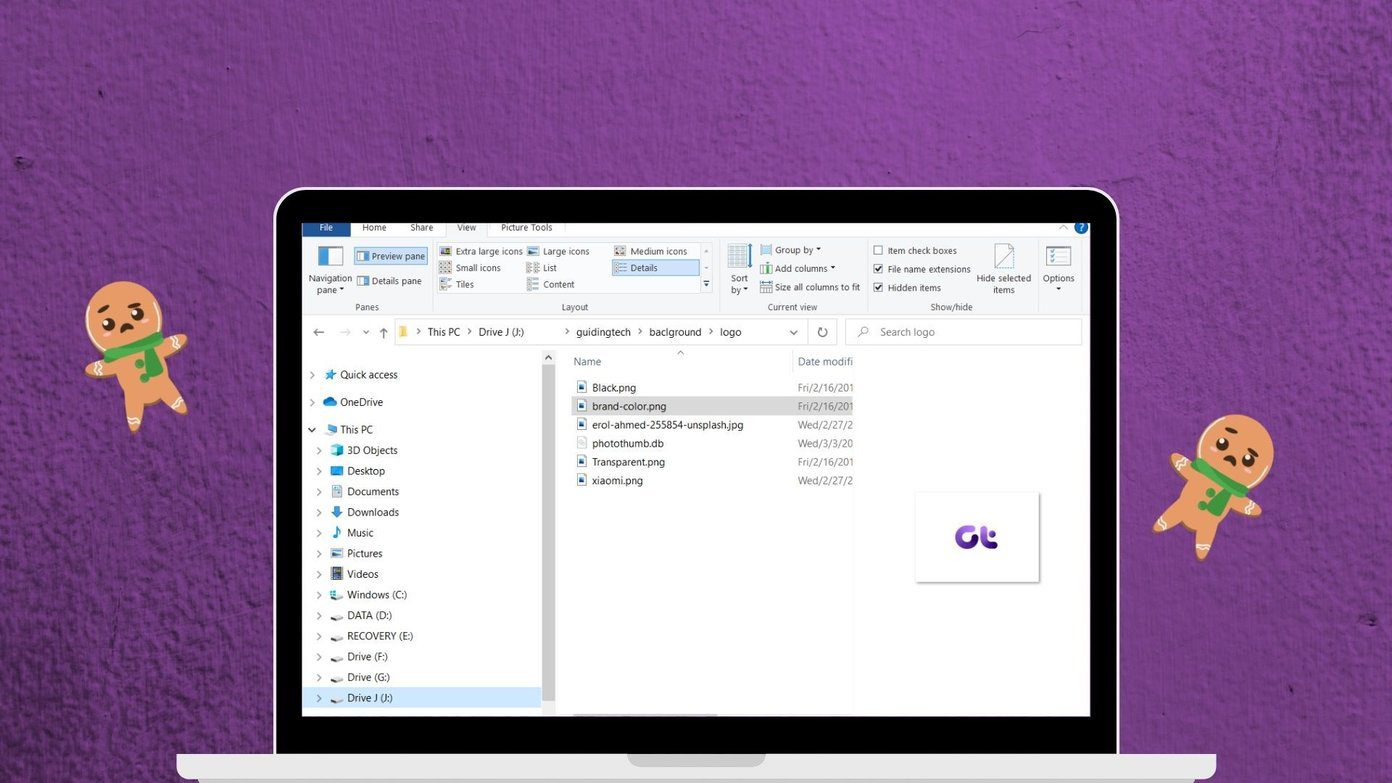
- Ensure Preview Pane is enabled: If the preview pane is missing from File Explorer, it’s likely that you have disabled it previously. To enable it, open a File Explorer window. Click the View menu, go to Show, and check the Preview pane option. Note that the preview pane may not appear if the File Explorer window is too narrow. You’ll need to maximize the window to view the preview pane.
- Restart the Windows Explorer process: Press Ctrl + Shift + Esc to open the Task Manager. In the Processes tab, locate Windows Explorer. Right-click on it and select Restart. The taskbar will disappear for a few seconds before reappearing. After that, check if the preview pane is working.
Fix 1: Check File Explorer Options
Even if the preview pane is enabled, it may fail to function as expected if the preview handlers are disabled. These handlers are responsible for displaying the snapshot of the file you select. Here’s how to enable them.
Step 1: Press the Windows key + E to open File Explorer. Click the three-dot menu icon at the top and select Options.

Step 2: In the File Explorer Options window, switch to the View tab, and tick the Show preview handlers in the preview pane checkbox.

Step 3: Uncheck the Always show icons, never thumbnails box. Then, hit Apply followed by OK.

Fix 2: Tweak Performance Options
The advanced system settings in Windows allow you to change things like visual effects, memory usage, processor scheduling, and more. If you’ve previously tweaked any of these options to prioritize performance, the preview pane may not work on your Windows PC. Here’s what you can do to fix it.
Step 1: Press the Windows key + I to launch the Settings app and head to System > About.

Step 2: Click on Advanced system settings.
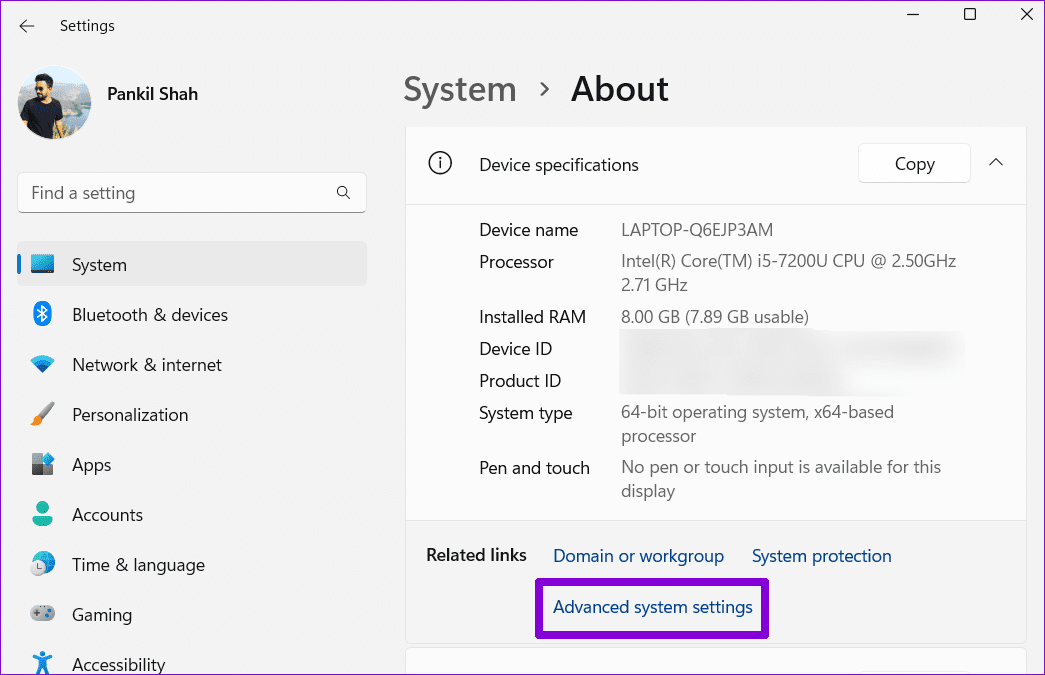
Step 3: On the Advanced tab, click the Settings button under Performance.

Step 4: Select Adjust for best appearance and click Apply followed by OK.

Fix 3: Open File Explorer to This PC
This may seem odd, but several users on a Microsoft Community post reported fixing issues with the preview pane by configuring File Explorer to open to This PC. You can also give this a try.
Step 1: Click the search icon on the taskbar, type in File Explorer Options, and press Enter.

Step 2: Click the drop-down menu next to Open File Explorer to and select This PC. Then, hit Apply followed by OK.

Fix 4: Check the Default App for File Type
If File Explorer is not showing a preview for only a specific file type, you should check the default app configured to handle the file type on your Windows computer. Here’s how to do that.
Step 1: Press the Windows key + I to open the Settings app and go to Apps > Default apps.

Step 2: Type in the file extension for which the preview is not working and select the first result that appears.
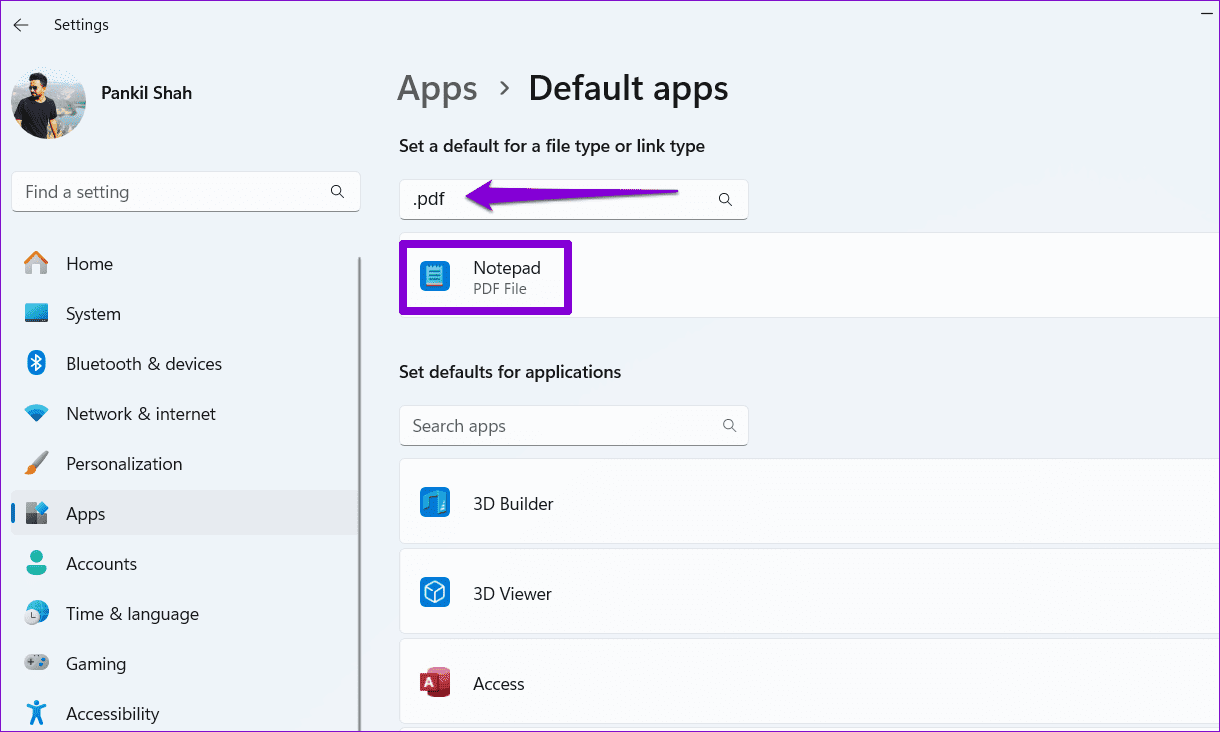
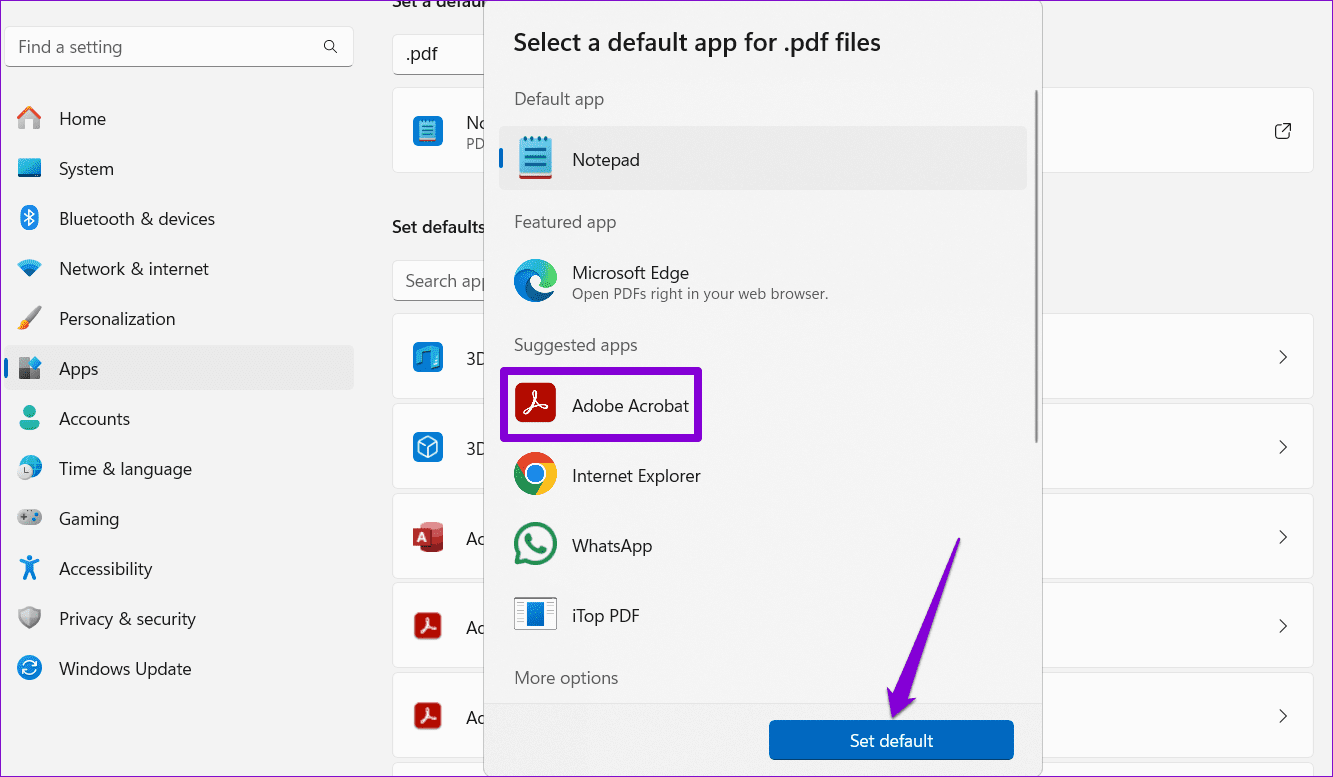
Step 3: Select the appropriate app and click the Set default button.
Fix 5: Run a System File Checker (SFC) Scan
Another reason why you may encounter “This file can’t be previewed” or “No preview available” messages on Windows is if some of your PC’s system files are corrupted or missing. Running an SFC (System File Checker) scan can help you detect and repair such damaged system files on Windows.
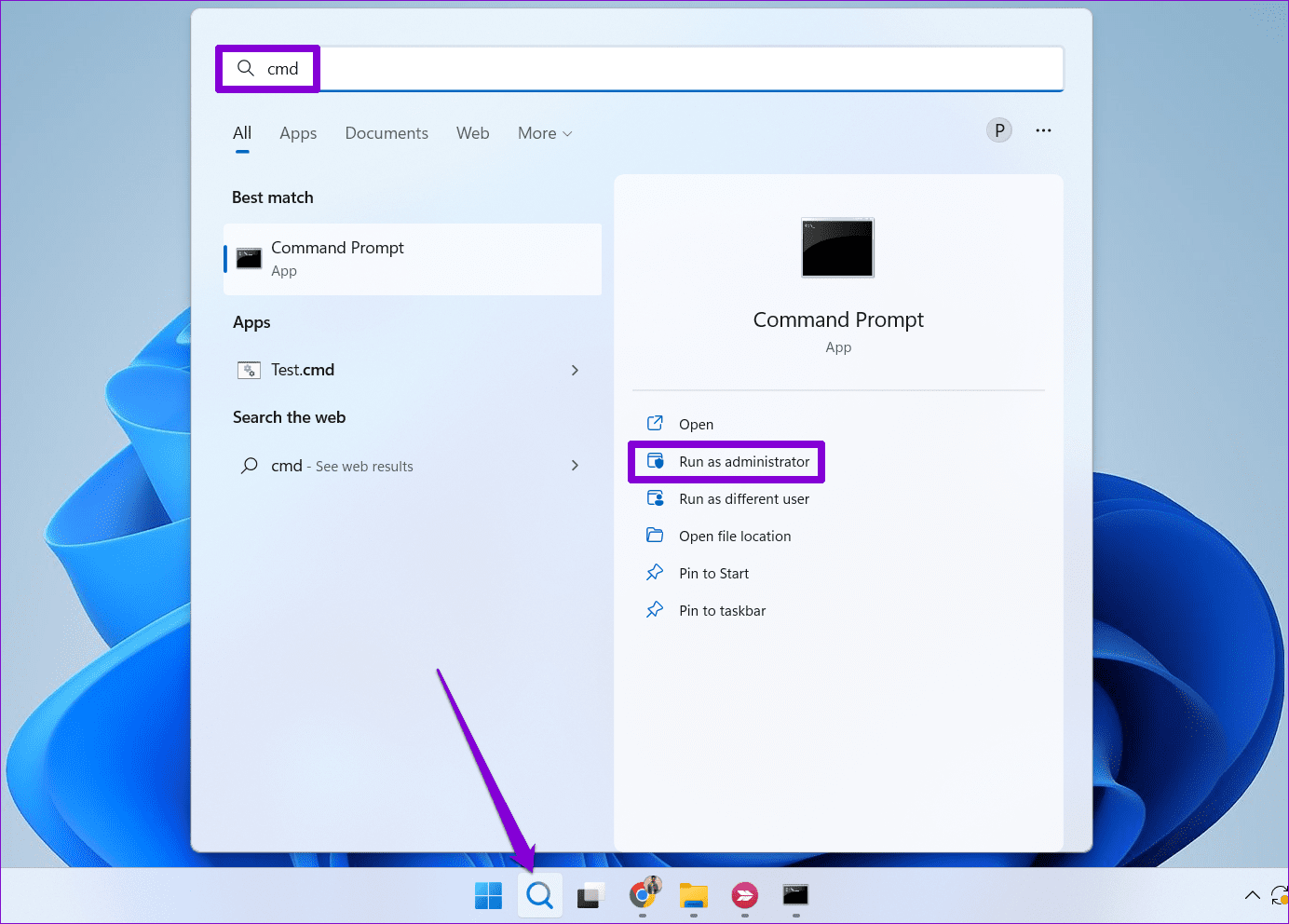
Step 1: Click the search icon on the taskbar, type cmd in the box, and select Run as administrator.
Step 2: In the console, type the following command and press Enter.
sfc /scannow

After the scan is complete, restart your PC and see if the preview pane is working.
Fix 6: Reset File Explorer Settings
If your PDFs, Excel, or other files are still not showing in the preview pane, you can consider resetting File Explorer settings to their default values.
Step 1: Open the search menu, type in File Explorer Options, and select the first result that appears.
Step 2: Under the General tab, click the Restore Defaults button.

Step 3: Switch to the View tab and click the Restore Defaults button. Then, hit Apply followed by OK.

Fix 7: Use Microsoft PowerToys to Enable Preview for Unsupported File Types
While File Explorer’s preview pane offers a convenient way to quickly view commonly used file types like DOC, XLS, PDF, JPG, PNG, and TIF, it falls short when it comes to less common formats. To view unsupported file types in the preview pane, you can use PowerToys’ File Explorer add-on.
Step 1: Download and install PowerToys on your computer.
Step 2: Open the PowerToys app and head to the File Explorer add-ons tab. Then, enable all the toggles under the Preview Pane section.

Was this helpful?
Last updated on 11 July, 2024
11 Comments
Leave a Reply
Read Next
 Top 8 Fixes for Preview Pane Not Working in Windows 10
Microsoft's Windows Explorer lets you take a peek at a file with the Preview Pane.
Top 8 Fixes for Preview Pane Not Working in Windows 10
Microsoft's Windows Explorer lets you take a peek at a file with the Preview Pane.
 How to Hide or Remove the Adobe Reader DC Tools Pane Permanently
Just launch a PDF in Adobe Reader DC, and you should find a Tools pane pop up to the right of the screen.
How to Hide or Remove the Adobe Reader DC Tools Pane Permanently
Just launch a PDF in Adobe Reader DC, and you should find a Tools pane pop up to the right of the screen.
 Top 6 Ways to Fix Preview Not Working on Mac
Preview is a useful image viewer app that handles all your photo viewing and editing necessities.
Top 6 Ways to Fix Preview Not Working on Mac
Preview is a useful image viewer app that handles all your photo viewing and editing necessities.
 3 Ways to Disable Taskbar Thumbnail Preview in Windows 11
Method 1: Disable Taskbar Thumbnail Preview Using the Settings App The Settings app is the primary destination for making important changes to your Windows PC.
3 Ways to Disable Taskbar Thumbnail Preview in Windows 11
Method 1: Disable Taskbar Thumbnail Preview Using the Settings App The Settings app is the primary destination for making important changes to your Windows PC.
 4 Ways to Fix “Couldn’t Preview File” Error on Google Drive
Try Basic Fixes Check if the file format is supported: It's important to note that Google Drive cannot preview every file format.
4 Ways to Fix “Couldn’t Preview File” Error on Google Drive
Try Basic Fixes Check if the file format is supported: It's important to note that Google Drive cannot preview every file format.
 Top 7 Ways to Fix Windows Key Not Working on Windows 10
Windows 10 operating system is full of keyboard shortcuts.
Top 7 Ways to Fix Windows Key Not Working on Windows 10
Windows 10 operating system is full of keyboard shortcuts.
 4 Ways to Fix Telegram Notifications Not Working on Windows 10 and Windows 11
Try Basic Fixes Disable Do Not Disturb mode: The Telegram app may not be showing notifications due to the Do Not Disturb mode on your Windows PC.
4 Ways to Fix Telegram Notifications Not Working on Windows 10 and Windows 11
Try Basic Fixes Disable Do Not Disturb mode: The Telegram app may not be showing notifications due to the Do Not Disturb mode on your Windows PC.
 3 Best Ways to Fix Keyboard Backlight Not Working on Windows 10 and Windows 11
Try Basic Fixes Toggle the keyboard backlight using the hotkey: You can use a key combination to quickly enable or disable the keyboard backlight on your Windows 11 PC.
3 Best Ways to Fix Keyboard Backlight Not Working on Windows 10 and Windows 11
Try Basic Fixes Toggle the keyboard backlight using the hotkey: You can use a key combination to quickly enable or disable the keyboard backlight on your Windows 11 PC.
The article above may contain affiliate links which help support Guiding Tech. The content remains unbiased and authentic and will never affect our editorial integrity.
THANK YOU THANK YOU THANK YOU THANK YOU THANK YOU THANK YOU
Here’s what worked for me: Uncheck the ‘Always show icons, never thumbnails’ box. Then, hit Apply followed by OK.
Thanks. Preview Pane is now working again.
Thank you so very much, Pankil. The SFC scan corrected the issue. Life is good now 🙂
I ran through all 6 ways and none worked.
This is helpful info…except in the 1st step: my Windows 11 Pro file explorer doesn’t have “Show Preview” listed as an option – only “Show Details Pane.” Has this changed? I’m still not seeing previews (at least not how I’d like to see them/the way they used to). ¯\_(ツ)_/¯
Thank you so much, I had the preview function on in windows 10 but on windows 11 explorer competely froze upon even clicking a file as it could not ‘read’ the preview, making work impossible. With your solutions, like Nick, the unticking of the ‘Always show icons, never thumbnails’ box already solved all my problems.
Although I’m very happy with your solution, I wonder how it can possibly happen that upon ‘upgrading’ to W11 my settings were not converted properly and causing these ‘fatal’ problems.
I hope the day will come that Microsoft will compensate for the days lost on trying to figure out WTF happened. My full compensation would go to you! Many, many thanks!
Tom
Tried all you suggested, but still no preview pane. Any other options?
My window explore only previe images, it doesnt preview the coreldraw files,
have tied all the six ways but still the same prolem
None of it worked. Win11 just keeps annoying me…
Darn, I got my hopes up when System File Checker scan found an error, but still no Preview Pane previews for .jpg or .tif files. Interestingly, previews for other file types, including Sony RAW files (.ARW), work fine. Thanks for giving me some new ideas anyways.
When you click the pdf file there should be some options at the top, one should be save to cloud or one drive. if you save to cloud or OneDrive you should get the option to zoom in or out.