

Try Basic Fixes
- Disable power saver mode: When you enable power saver mode, apps may not work efficiently in the background and fail to show any notifications. To avoid missing out on notifications on your Samsung device, consider disabling the power saver mode.
- Disable data saver mode: Similar to power saver mode, enabling data saver mode can prevent apps from fetching new information and displaying notifications. Hence, it’s best to turn off data saver mode when you don’t need it.
- Install app and software updates: Using an older version of an app can lead to such issues. Hence, it’s best to update your apps if you haven’t already done so. While you’re at it, install any pending software updates as well.
Fix 1: Check Notification Settings
It’s a good idea to review the notification settings on your phone and ensure app notifications aren’t disabled. Here’s how to check.
Step 1: Launch the Settings app and go to Notifications.
Step 2: Tap on App notifications and use the toggles in the following menu to enable notifications for your apps.


Step 3: Return to the Notifications page, tap on Lock screen notifications, and enable the toggle in the following menu.


Aside from the system settings, apps like Gmail and Instagram also offer the option to set notification preferences within the app. Therefore, if the notification not working issue is specific to certain apps, be sure to check their in-app settings as well.
Fix 2: Turn Off Do Not Disturb
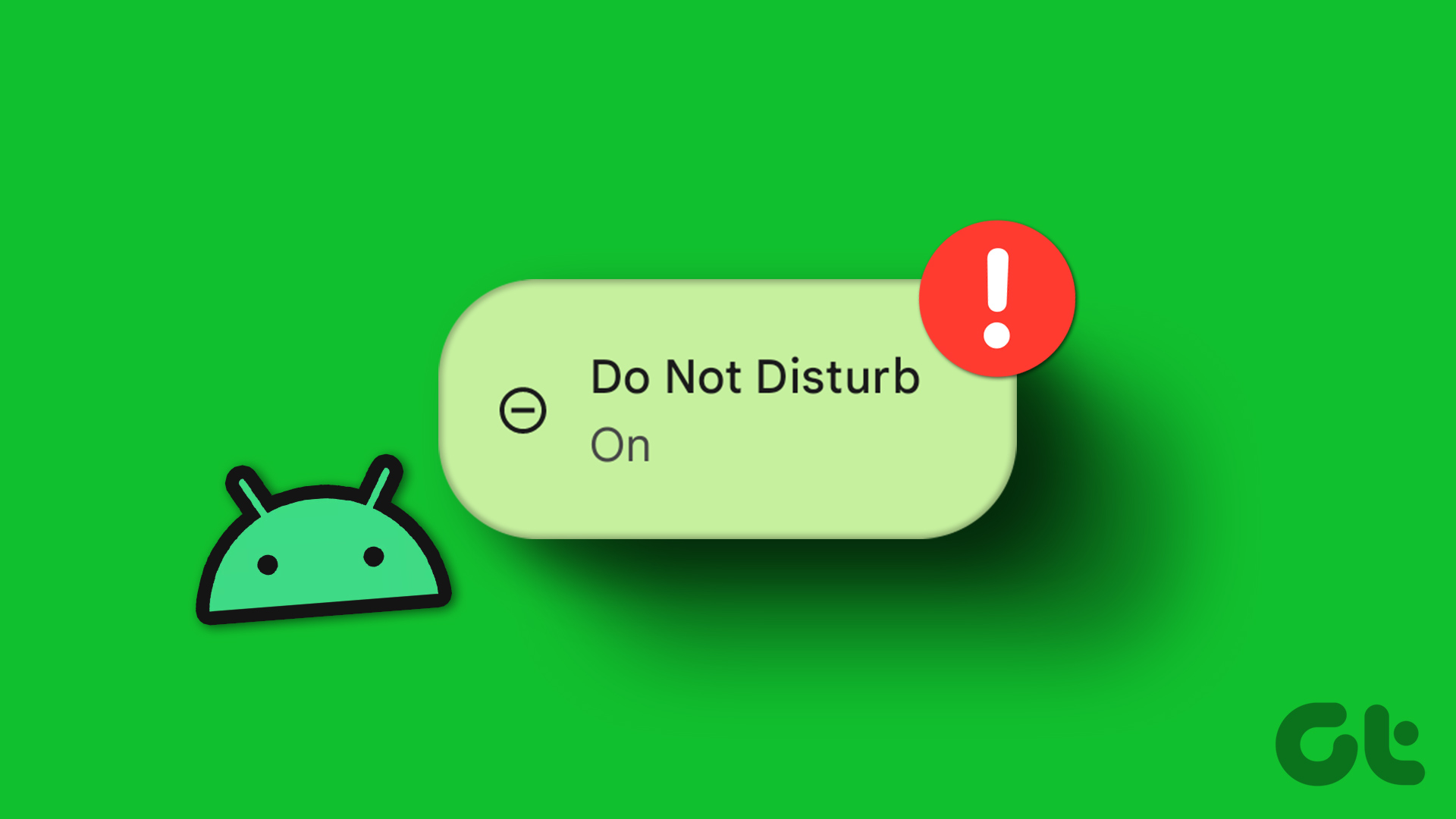
Do Not Disturb is a useful feature on Android that allows you to turn off notifications entirely. This feature may lead you to believe that push notifications are not working on your Samsung phone. To avoid this, make sure to disable Do Not Disturb on your phone.
Step 1: Open up the Settings app and tap on Notifications.
Step 2: Scroll down to select Do not disturb. Then, turn off Do not disturb and make sure it isn’t scheduled to turn on automatically.


Fix 3: Prevent Apps From Sleeping
Another way One UI conserves battery is by putting some of your less frequently used apps to sleep. However, this may result in delayed notifications for those apps. Here’s what you can do to fix that.
Step 1: Launch the Settings app and select Battery.
Step 2: Tap on Background usage limits and turn off the Put unused apps to sleep option.


Fix 4: Modify App Permissions
If you’re still not getting text messages, emails, or other app notifications on your Samsung phone, you can consider reviewing individual app permissions to ensure that your apps aren’t restricted in any way. Here’s how.
Step 1: Open the Settings app and navigate to Apps. Then, tap the troublesome app to open its app info.
Step 2: Go to Mobile data and ensure that the Allow background data usage toggle.


Step 3: Return to the app info page, go to Battery, and select Unrestricted or Optimized from here.


Repeat the above steps for all the apps that are failing to deliver notifications.
Fix 5: Clear App Cache
If the notification not working issue is specific to certain apps, you can attempt to fix it by clearing the cache for those apps on your Samsung phone. Here’s how:
Step 1: Open the Settings app, navigate to Apps, and select the app for which notifications are not working.

Step 2: Select Storage and tap the Clear cache option at the bottom.


Repeat the above process for all the problematic apps and see if that helps.
Fix 6: Reset App Preferences
Notification issues in One UI can also occur if you have disabled any system apps or changed their permissions. Instead of going through all of your system apps one by one, it’s easier to reset app preferences on your Samsung Galaxy phone and start over. Here’s how to do that.
Step 1: Open the Settings app and tap on Apps.
Step 2: Tap the three-dot menu icon in the top right corner and select Reset app preferences. Then, select Reset to confirm.


Was this helpful?
Last updated on 24 July, 2024
3 Comments
Leave a Reply
Read Next
 5 Ways to Fix Delayed Notifications on Samsung Galaxy Phones
Common Fixes Turn off Power saver - This mode disables background tasks, syncing, and other activities to save battery, creating notification delays.
5 Ways to Fix Delayed Notifications on Samsung Galaxy Phones
Common Fixes Turn off Power saver - This mode disables background tasks, syncing, and other activities to save battery, creating notification delays.
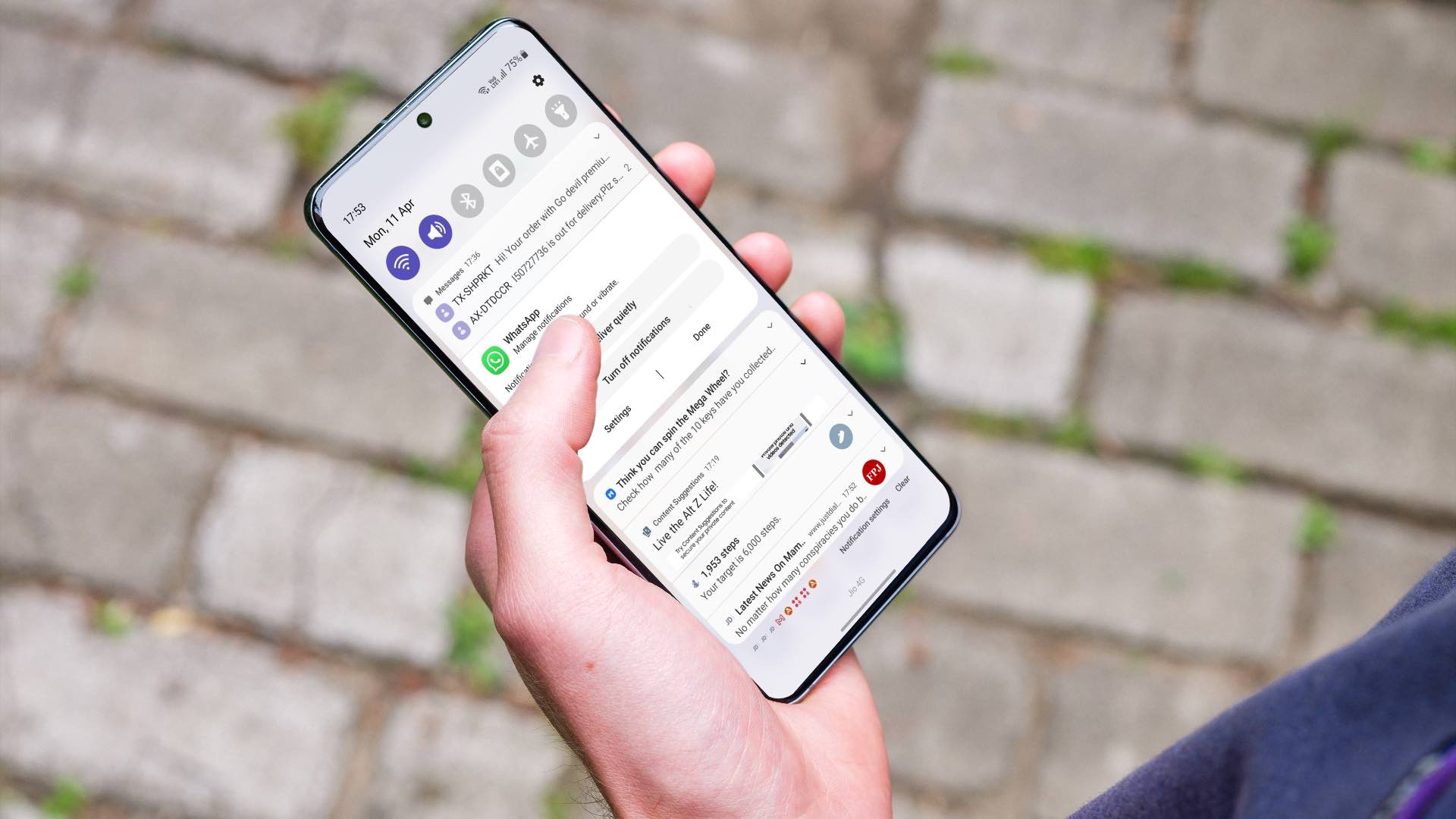 Top 5 Ways to Get Rid of Notifications on Samsung Galaxy Phones
Some Android apps display notifications that continue to stay at top for hours as banner with the app name in the notification center.
Top 5 Ways to Get Rid of Notifications on Samsung Galaxy Phones
Some Android apps display notifications that continue to stay at top for hours as banner with the app name in the notification center.
 Top 9 Ways to Fix Mobile Hotspot Not Working on Samsung Galaxy Phones
Mobile hotspot comes in handy when your office or home Wi-Fi is facing an outage.
Top 9 Ways to Fix Mobile Hotspot Not Working on Samsung Galaxy Phones
Mobile hotspot comes in handy when your office or home Wi-Fi is facing an outage.
 6 Fixes for Google Play Store Not Working on Samsung Galaxy Phones or Tablets
Try Basic Fixes Free up storage space: The Google Play Store may not download or update apps on your Samsung device if there is not enough storage space.
6 Fixes for Google Play Store Not Working on Samsung Galaxy Phones or Tablets
Try Basic Fixes Free up storage space: The Google Play Store may not download or update apps on your Samsung device if there is not enough storage space.
 5 Ways to Fix Samsung Keyboard Not Working on Galaxy Phones
Fix 1: Update the Samsung Keyboard App Running an outdated version of the Samsung Keyboard app can cause it to malfunction and stop working on your phone.
5 Ways to Fix Samsung Keyboard Not Working on Galaxy Phones
Fix 1: Update the Samsung Keyboard App Running an outdated version of the Samsung Keyboard app can cause it to malfunction and stop working on your phone.
 Top 9 Ways to Fix Google Assistant Not Working in Samsung Galaxy Phones
Bixby, Samsung's digital assistant, comes pre-loaded for Galaxy phones despite the popularity of Google Assistant.
Top 9 Ways to Fix Google Assistant Not Working in Samsung Galaxy Phones
Bixby, Samsung's digital assistant, comes pre-loaded for Galaxy phones despite the popularity of Google Assistant.
 5 Ways to Fix Bixby Not Working on Samsung Galaxy Phones
Fix 1: Enable App Permissions for Bixby Bixby requires a few permissions to access your phone's microphone, location, sensors, and other features.
5 Ways to Fix Bixby Not Working on Samsung Galaxy Phones
Fix 1: Enable App Permissions for Bixby Bixby requires a few permissions to access your phone's microphone, location, sensors, and other features.
 4 Best Ways to Fix Smart View Not Working on Samsung Galaxy Phones
Basic Fixes: Restart devices: If the Smart View feature isn’t working on your Samsung Galaxy phone, the first thing you must do is restart it.
4 Best Ways to Fix Smart View Not Working on Samsung Galaxy Phones
Basic Fixes: Restart devices: If the Smart View feature isn’t working on your Samsung Galaxy phone, the first thing you must do is restart it.
The article above may contain affiliate links which help support Guiding Tech. The content remains unbiased and authentic and will never affect our editorial integrity.

Thanx my dear , I should wait for fixing , then i will leave another comment❤????
Your method for alerting and showing notifications was not useful, I went to the settings and search, wrote alerting notification and access, saw that the accesses were removed, activated it and it was fixed.????????
Thank you!!!!!
Ever since my phone updated this last time, it has been acting insane, more so than usual because every time it updates I feel like I have a new phone.???????? but this last time, it has driven me totally Bonkers and I stopped receiving my notifications which is why I was looking online and found this and finally it worked! After 45 minutes of going through tedious trials, but it works! Thank you!