Common Fixes
- Check your internet connection: Ensure your Android TV is connected to a stable internet connection. Netflix recommends an internet speed of at least 3Mbps, 5Mbps, and 15Mbps to stream HD, FHD, and UHD content, respectively.
- Verify Netflix server status: Access the Netflix Help Center to check an active server outage.
- Check your Netflix subscription: Ensure your Netflix subscription is active and you haven’t maxed out on the screens supported in your plan. Check your payment details under Profile icon > Account > Manage payment info.
- Disable active VPN: Open the VPN app and select Disconnect to disable the active connection.
- Reboot your Android TV: Long-press the power button on your Android TV remote and select Restart.
- Update the Netflix app: Head to Google Play Store on your Android TV, search Netflix, and select Update (if available).
Fix 1: Force Stop Netflix and Reopen
Force closing the Netflix app on Android TV effectively troubleshoots its existing issues and glitches.
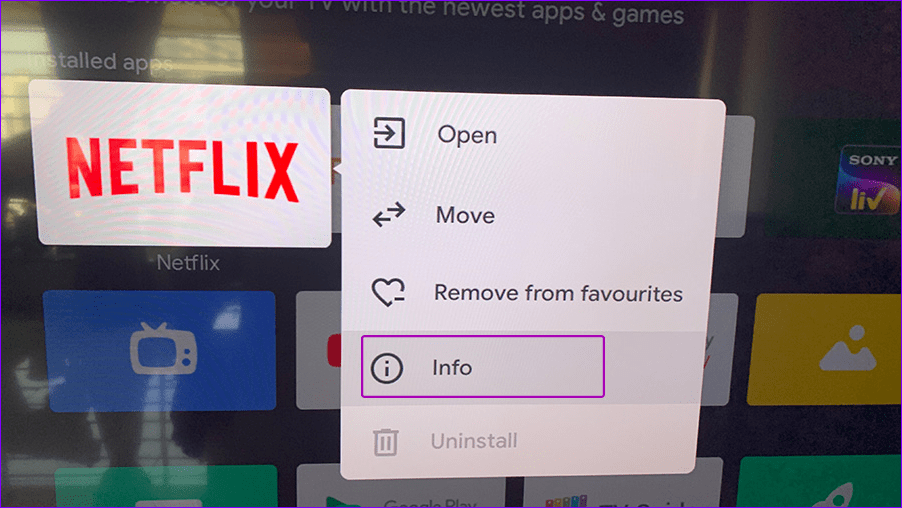
Step 1: Open the Apps menu on your Android TV home screen and use the remote button to long-press Netflix.

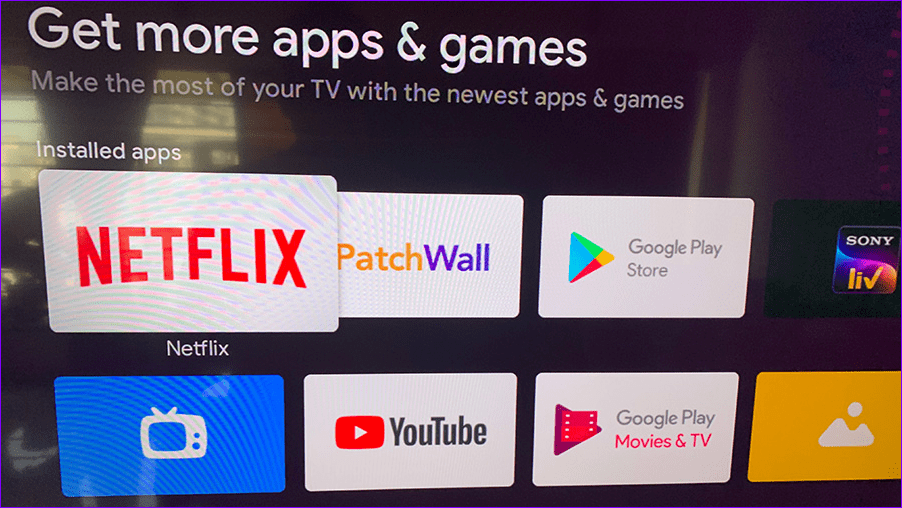
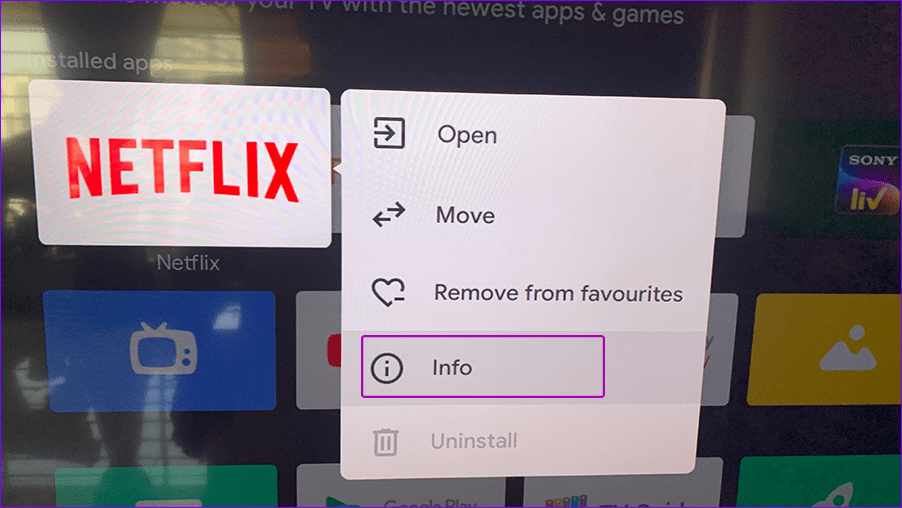
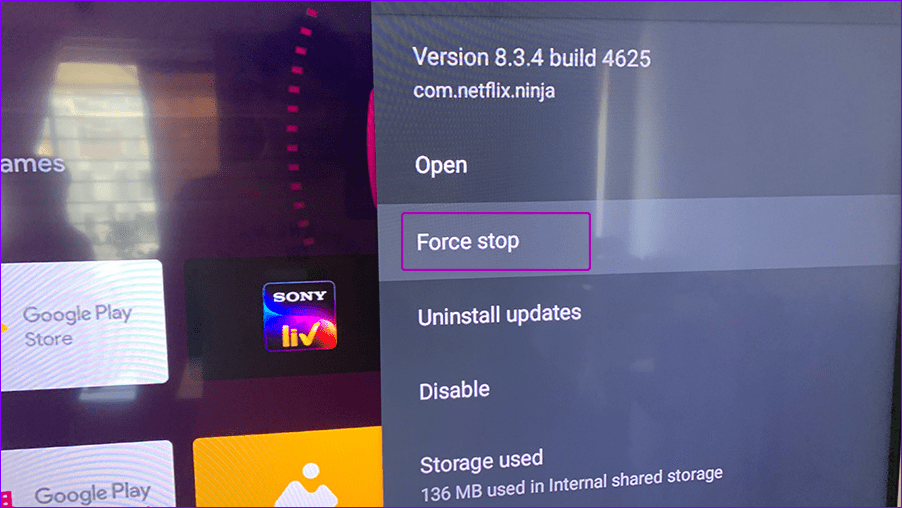
Step 2: Tap Info and select Force stop. Reopen the Netflix app on your Android TV.
Fix 2: Uninstall Netflix Updates
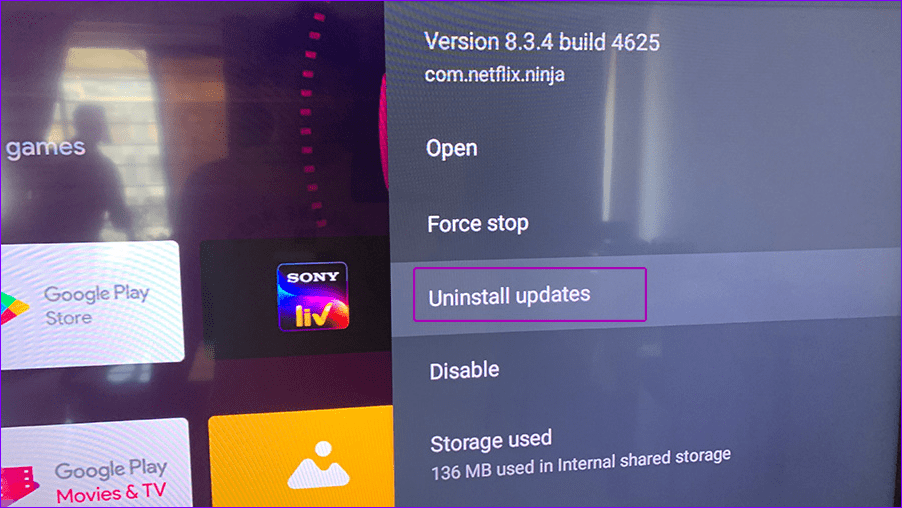
Netflix may fail to start on Android TV if its recent update didn’t install accurately. Head to the app settings to uninstall the buggy update.
Step 1: Long-press the Netflix app icon and open Info.
Step 2: Select Uninstall updates to revert to the stable Netflix app version.
Fix 3: Clear the Netflix App Cache
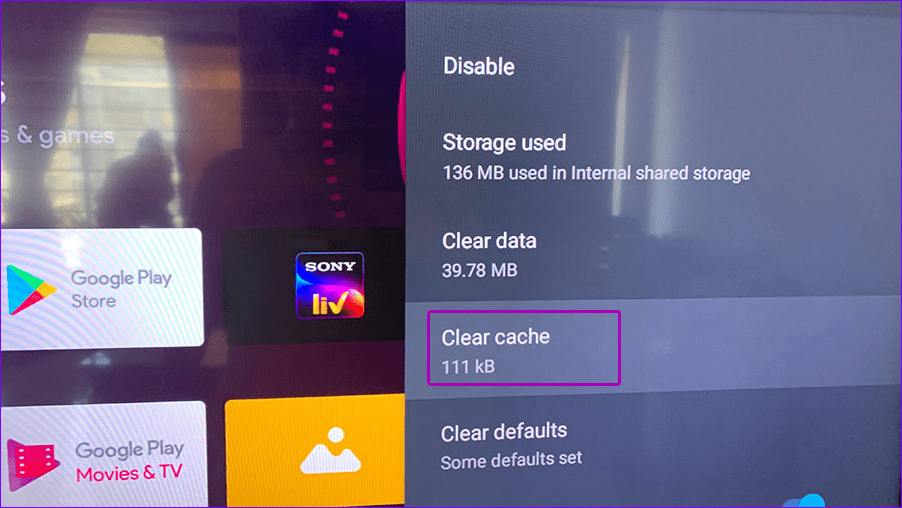
A corrupt or obsolete app cache is a common culprit behind Netflix not working on Android TV. Clearing it manually should restore normalcy.
Long-press the Netflix app icon, open Info, and scroll down to select Clear cache.
Fix 4: Disable Test Participation
Netflix constantly improves its app viewing experience by offering a default-enabled test participation feature. However, if the new feature is unstable, the app may crash. Toggle it off to fix the issue.
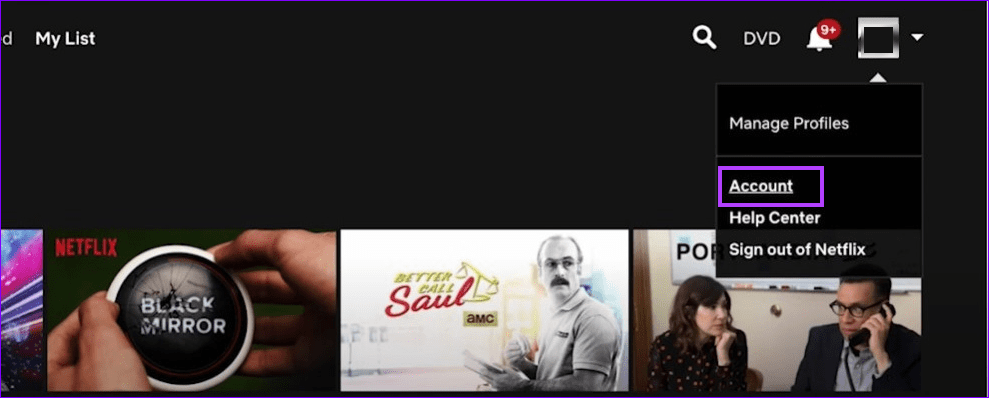
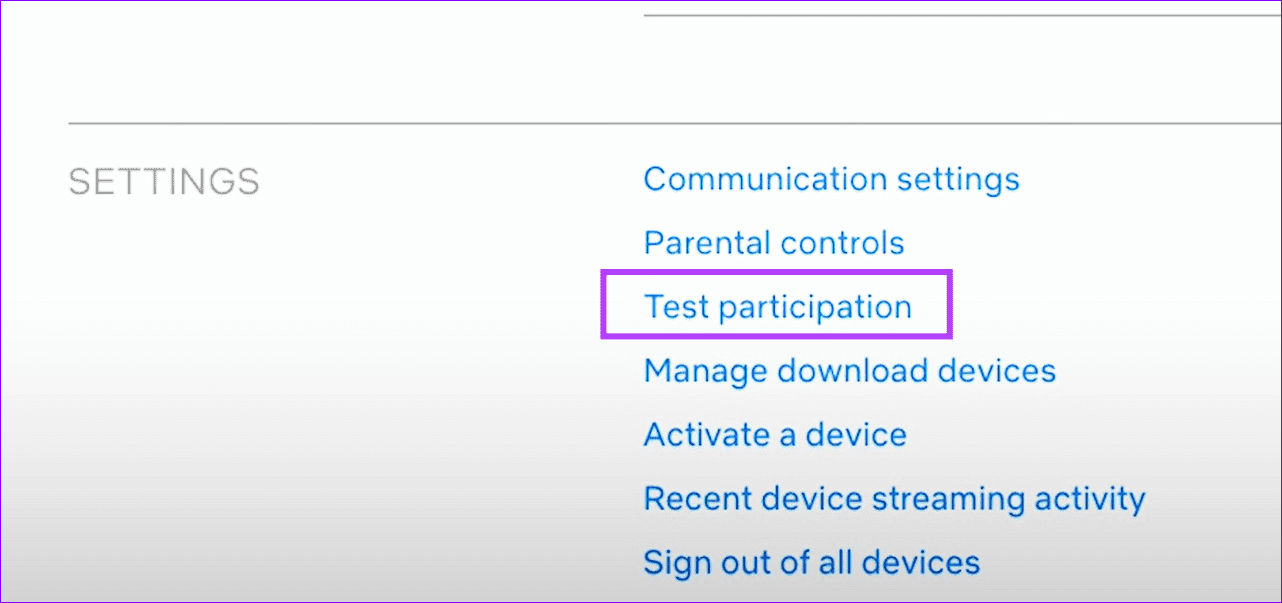
Step 1: Open Netflix in a browser, select your profile icon at the top right, and pick Account.
Step 2: Select Test participation under Settings and toggle it off on the next page.
Was this helpful?
Last updated on 21 May, 2024
Read Next
 Netflix Standard vs. Premium: Which Netflix Plan Is Best for You
Netflix Subscription Plans At a Glance While Netflix provides three plans in total, the Standard and Premium plans take the cake.
Netflix Standard vs. Premium: Which Netflix Plan Is Best for You
Netflix Subscription Plans At a Glance While Netflix provides three plans in total, the Standard and Premium plans take the cake.
 How to Fix Netflix Not Working on Amazon Fire TV Stick
Basic Fixes Check Netflix server status: You can visit DownDetector to see if the Netflix servers are working for your area.
How to Fix Netflix Not Working on Amazon Fire TV Stick
Basic Fixes Check Netflix server status: You can visit DownDetector to see if the Netflix servers are working for your area.
 5 Ways to Fix Netflix Streaming in Low Quality on Android and iPhone
Common Fixes Check internet speed - I recommend at least 5Mbps to stream Netflix in high definition (HD) and a minimum of 25Mbps for Ultra HD and 4K video quality.
5 Ways to Fix Netflix Streaming in Low Quality on Android and iPhone
Common Fixes Check internet speed - I recommend at least 5Mbps to stream Netflix in high definition (HD) and a minimum of 25Mbps for Ultra HD and 4K video quality.
 3 Fixes for Netflix Picture-In-Picture Mode Not Working on Android
Fix 1: Upgrade Netflix Plan If you are from a country where Netflix offers an ad-supported version, you must upgrade to a premium plan.
3 Fixes for Netflix Picture-In-Picture Mode Not Working on Android
Fix 1: Upgrade Netflix Plan If you are from a country where Netflix offers an ad-supported version, you must upgrade to a premium plan.
 How to Fix Netflix Subtitles Not Working or Missing Error
Basic Fixes Check internet connection: Check whether your internet connection is stable.
How to Fix Netflix Subtitles Not Working or Missing Error
Basic Fixes Check internet connection: Check whether your internet connection is stable.
 3 Fixes for Netflix App Not Showing in Play Store on Android TV
Basic Fixes Check for Netflix app support: Newer versions of the Netflix app don't run properly on older Android TV models that have stopped receiving software updates.
3 Fixes for Netflix App Not Showing in Play Store on Android TV
Basic Fixes Check for Netflix app support: Newer versions of the Netflix app don't run properly on older Android TV models that have stopped receiving software updates.
 How to Fix Netflix App Overriding Brightness on Android
Basic Fixes Use PiP Mode - Some Netflix users have suggested that switching to the picture-in-picture mode of Netflix fixed the overriding brightness issue.
How to Fix Netflix App Overriding Brightness on Android
Basic Fixes Use PiP Mode - Some Netflix users have suggested that switching to the picture-in-picture mode of Netflix fixed the overriding brightness issue.
 Top 4 Ways to Fix Netflix T1 Error on Windows 10
Picture this - you've just launched the Netflix app on your Windows 10 computer to watch a new episode of your favorite show.
Top 4 Ways to Fix Netflix T1 Error on Windows 10
Picture this - you've just launched the Netflix app on your Windows 10 computer to watch a new episode of your favorite show.
The article above may contain affiliate links which help support Guiding Tech. The content remains unbiased and authentic and will never affect our editorial integrity.