

Try Basic Fixes
- Restart Google Chrome: Press Ctrl + L to access the address bar at the top, type in chrome://restart and press Enter. This should close all the tabs and extensions running on Chrome and give them a fresh start.
- Disable tablet mode: If you’re on Windows 10, the mouse cursor might also have disappeared if you’ve accidentally enabled the tablet mode. To disable it, open the Action Center on your PC and turn off the Tablet Mode option.
Fix 1: Disable Hardware Acceleration
Enabling hardware acceleration on Chrome assigns graphics-intensive tasks to your GPU instead of the CPU to enhance the browser’s visual output and performance. You can try disabling it momentarily to see if that brings the mouse pointer back.
Step 1: Launch Google Chrome on your PC. Press Ctrl + L to access the address bar, type in chrome://settings/system and press Enter.
Step 2: Use the Tab key on your keyboard to navigate to the switch next to Use hardware acceleration when available and press Enter to turn it off.
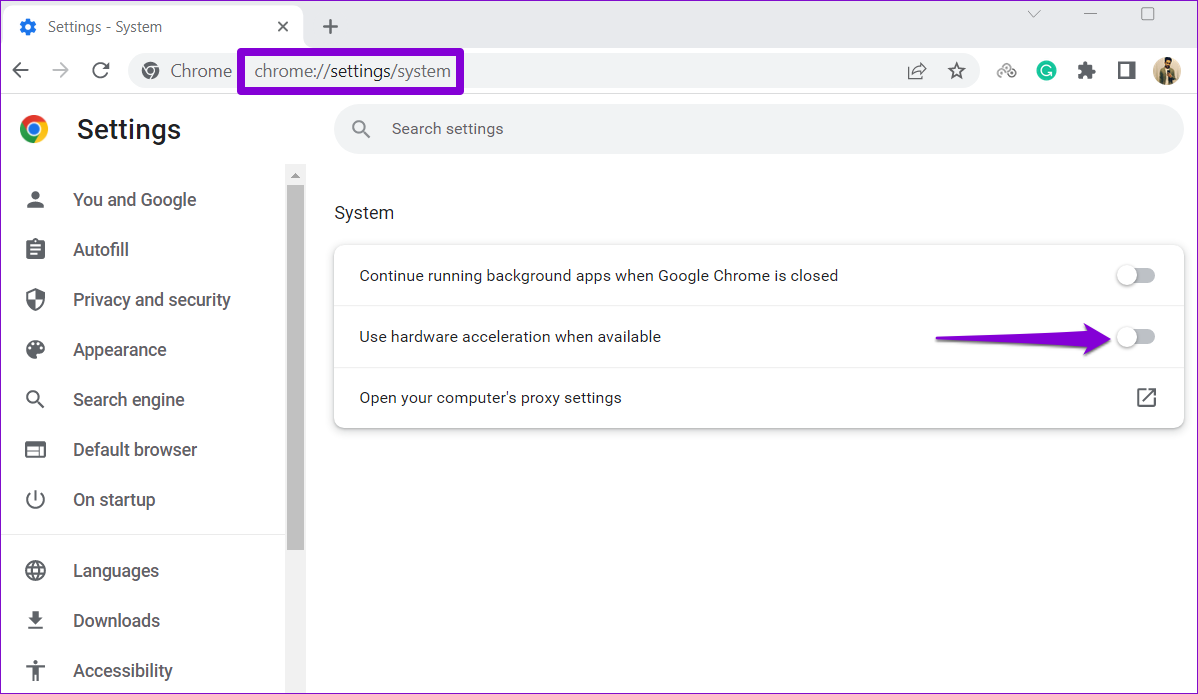
Restart Chrome after this and check if the mouse cursor appears now.
Fix 2: Update Mouse Driver
If the mouse pointer is missing entirely from Windows or isn’t working as intended, it could be due to outdated or corrupted mouse drivers on your PC. Here’s how to fix them.
Step 1: Click the search icon on the taskbar, type in device manager, and select the first result that appears.
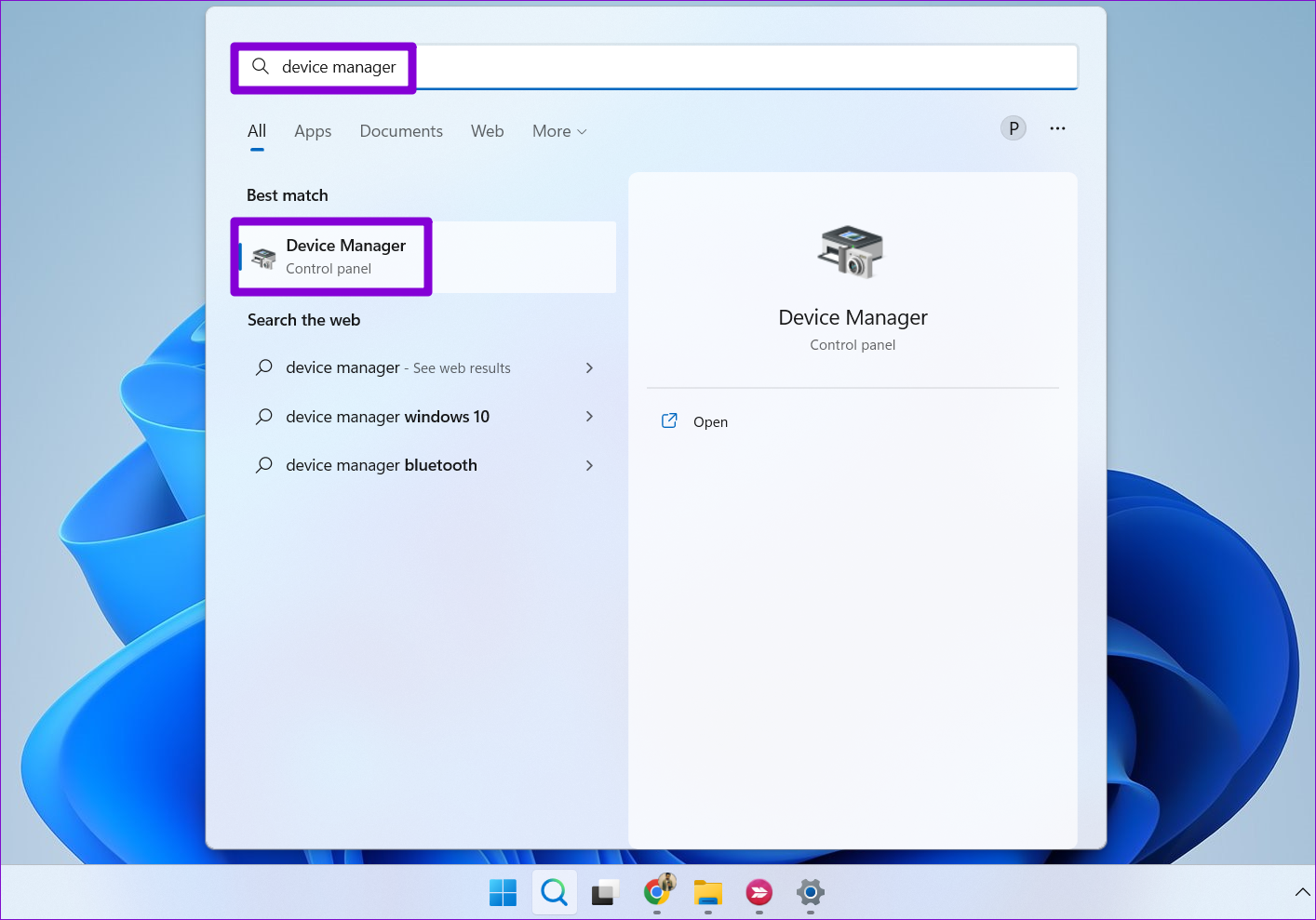
Step 2: Find and expand Mice and other pointing devices. Right-click on your mouse driver and choose the Update driver option.

From there, follow the on-screen instructions to update the driver.
Fix 3: Reset or Reinstall Chrome
If all else fails, you might need to reset Chrome to its default settings to resolve the issue. Doing so will remove all extensions, cache, and history. Here’s how to do it.
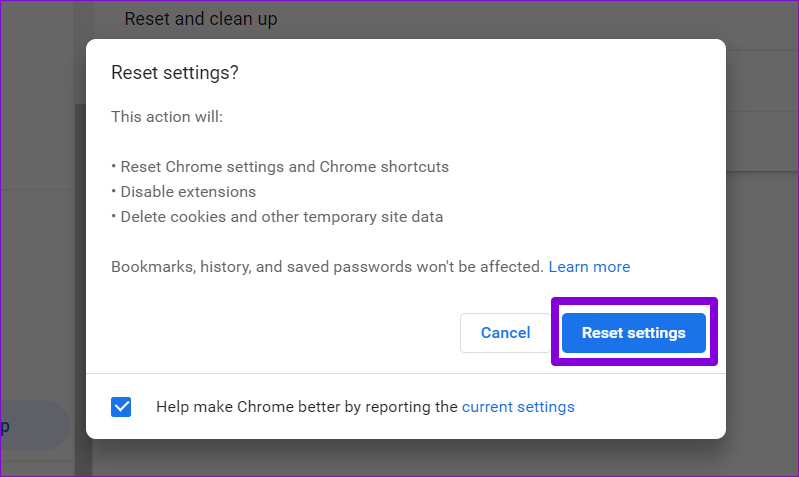
Step 1: Press Ctrl + L to navigate to the address bar in Chrome, type in chrome://settings/reset and press Enter. Use the Tab key to highlight the arrow next to Restore settings to their original defaults and press Enter.

Step 2: On the confirmation pop-up box, go to Reset Settings and press Enter to confirm.
If you want a more comprehensive solution, consider uninstalling and reinstalling Chrome instead of just resetting it. This approach provides a fresh start and ensures that Chrome is updated to the latest version.
Was this helpful?
Last updated on 01 August, 2024
1 Comment
Leave a Reply
Read Next
 Top 3 Touch Mouse Alternatives to Apple’s Magic Mouse
The Magic Mouse is useful for plenty of people, but some can get annoyed by its poor ergonomics.
Top 3 Touch Mouse Alternatives to Apple’s Magic Mouse
The Magic Mouse is useful for plenty of people, but some can get annoyed by its poor ergonomics.
 7 Top Ways to Fix OneNote Notebook Disappearing Error on Windows
Microsoft OneNote has gone through a number of iterations.
7 Top Ways to Fix OneNote Notebook Disappearing Error on Windows
Microsoft OneNote has gone through a number of iterations.
 What Is Meant by Disappearing Messages Were Turned off in WhatsApp
What Are Disappearing Messages in WhatsApp If the ephemeral WhatsApp status wasn’t enough, Facebook launched another feature on WhatsApp: Disappearing messages.
What Is Meant by Disappearing Messages Were Turned off in WhatsApp
What Are Disappearing Messages in WhatsApp If the ephemeral WhatsApp status wasn’t enough, Facebook launched another feature on WhatsApp: Disappearing messages.
 Why Do My Telegram Messages Keep Disappearing?
Your Contact Is Deleting Your Messages On WhatsApp, you have a certain time window to delete messages from both sides.
Why Do My Telegram Messages Keep Disappearing?
Your Contact Is Deleting Your Messages On WhatsApp, you have a certain time window to delete messages from both sides.
 How to Send Disappearing Messages in Facebook Messenger
Send Disappearing Messages in Facebook Messenger Mobile App The process of sending disappearing messages on the mobile app is the same for Android and iOS devices.
How to Send Disappearing Messages in Facebook Messenger
Send Disappearing Messages in Facebook Messenger Mobile App The process of sending disappearing messages on the mobile app is the same for Android and iOS devices.
 How to Send Silent and Disappearing Messages on Instagram
Send Silent Messages on Instagram Whether the recipient’s phone is on DND (Do Not Disturb) or not, silent messages won’t produce a notification on their phone.
How to Send Silent and Disappearing Messages on Instagram
Send Silent Messages on Instagram Whether the recipient’s phone is on DND (Do Not Disturb) or not, silent messages won’t produce a notification on their phone.
 How to Fix Desktop Icons Disappearing on Windows 11
Basic Fixes Run a malware scan: Malware is a common source of corruption that may lead to this icon issue.
How to Fix Desktop Icons Disappearing on Windows 11
Basic Fixes Run a malware scan: Malware is a common source of corruption that may lead to this icon issue.
 3 Ways to Fix Mouse Keeps Scrolling Automatically Windows 10 and Windows 11
https://youtu.be/1UZ3PWNr-lE Try Basic Fixes Disconnect and reconnect the mouse: Unplug your mouse cable or wireless adapter from your computer and reconnect it to a different port.
3 Ways to Fix Mouse Keeps Scrolling Automatically Windows 10 and Windows 11
https://youtu.be/1UZ3PWNr-lE Try Basic Fixes Disconnect and reconnect the mouse: Unplug your mouse cable or wireless adapter from your computer and reconnect it to a different port.
The article above may contain affiliate links which help support Guiding Tech. The content remains unbiased and authentic and will never affect our editorial integrity.
Turn off hardware acceleration in the browsers, I have a red mouse pointer, and had to turn that crap off,