Basic Fixes
- Check your network connection: Ensure your iPhone has a good internet connection. Test its speed online.
- Reinstall the Mail app: Long-tap the Mail app icon and select Remove app. Head to the Apple App Store and search Mail to install it.
- Disable Low Power Mode: Open the Settings app, select Battery, and toggle off the Low Power Mode.
- Update iOS: Open iPhone Settings, select General, and tap Software Update. Tap Install to update iOS to the latest version.
Fix 1: Enable Mobile Service for the Mail App
Are you trying to fetch new emails on cellular data? You might not receive new emails if the mobile service toggle is disabled for the Mail app. Head to iPhone settings to enable it.
Open the Settings app, select Mobile Service, and scroll down to enable it for the Mail app.


Fix 2: Adjust Mail Fetch Settings
To avoid missing emails in the Mail app, you must push emails from the server when possible. If Push is unavailable for your email provider (e.g. Gmail), switch to Fetch and increase its frequency.
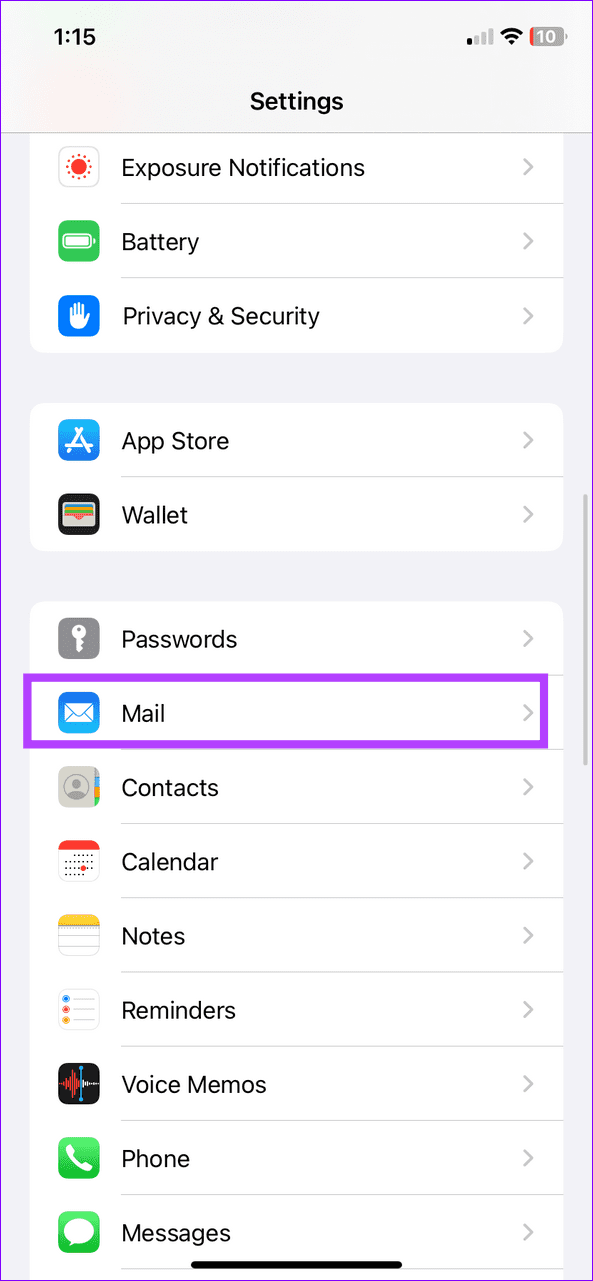
Step 1: Open iPhone settings, select Mail, and tap Accounts.

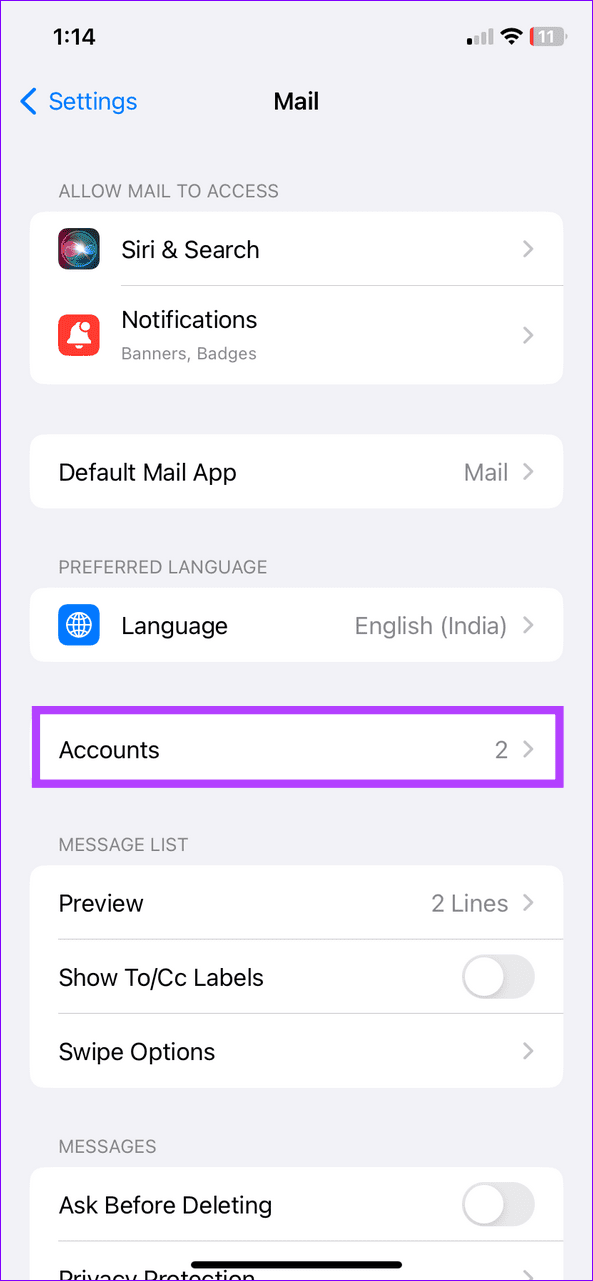
Step 2: Select Fetch New Data, enable Push (if unavailable, pick Fetch) for your email account, and set the Fetch frequency to Every 15 Minutes.


Fix 3: Correct Device Date and Time
If your iPhone has an incorrect date and time, the Mail app may fail to communicate with the server to show new emails. Correct your device date and time and reopen the Mail app.
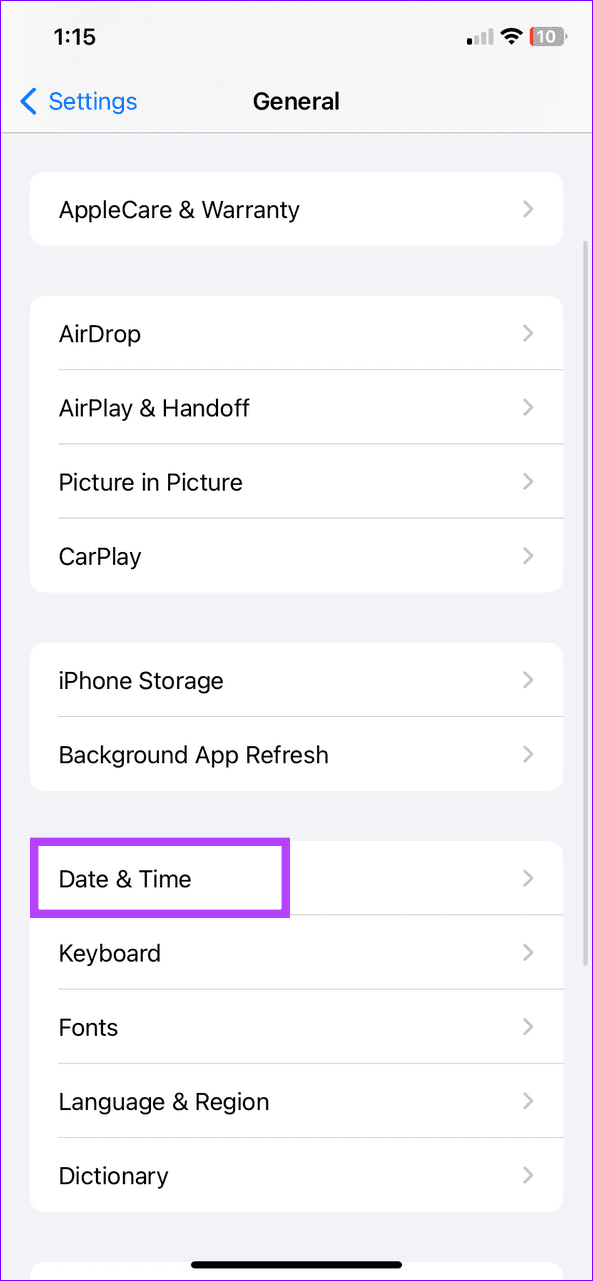
Select General under iPhone Settings, tap Date & Time, and turn on the toggle for Set Automatically.


Fix 4: Disable Mail Privacy Protection
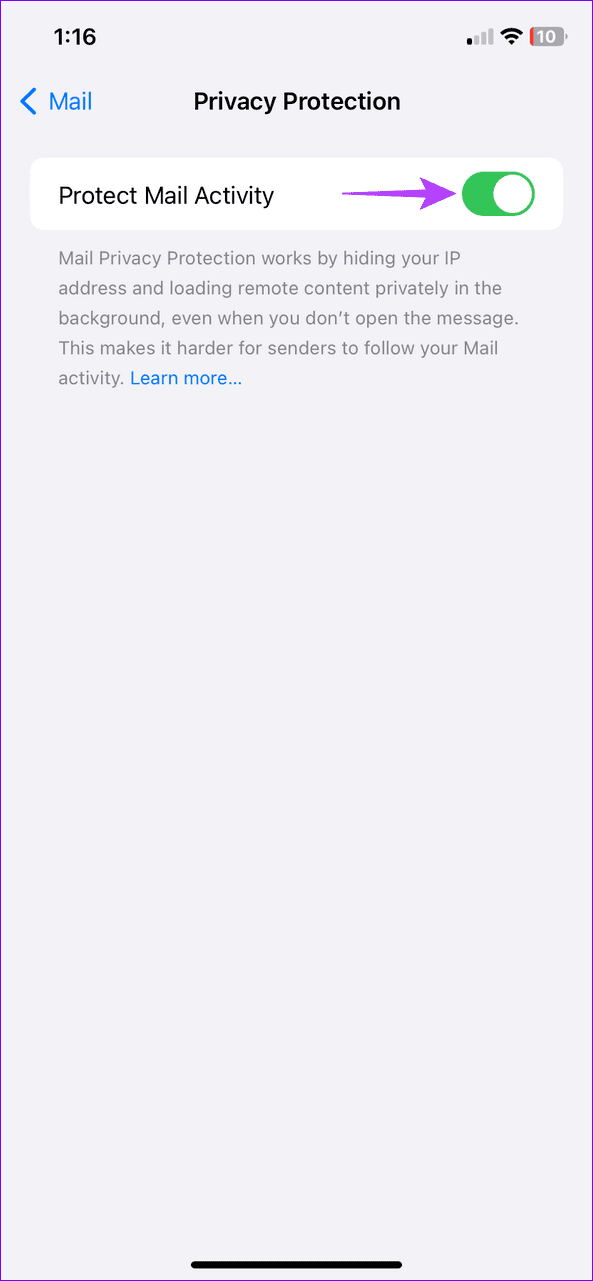
Mail Privacy Protection safeguards your privacy by hiding your IP address so email senders can’t track your online activity. However, an issue with it malfunctions the Mail app and halts fetching new emails. Disable it under Mail settings to restore its normal functioning.
Step 1: Select Mail under iPhone Settings and tap Privacy Protection.
Step 2: Disable the Protect Mail Activity toggle.

Fix 5: Delete and Re-Add Your Account
Lastly, delete and re-add your email account to the Mail app to fix account authentication issues that are preventing you from viewing new emails.
Step 1: Open the Settings app, select Mail, and tap Accounts.

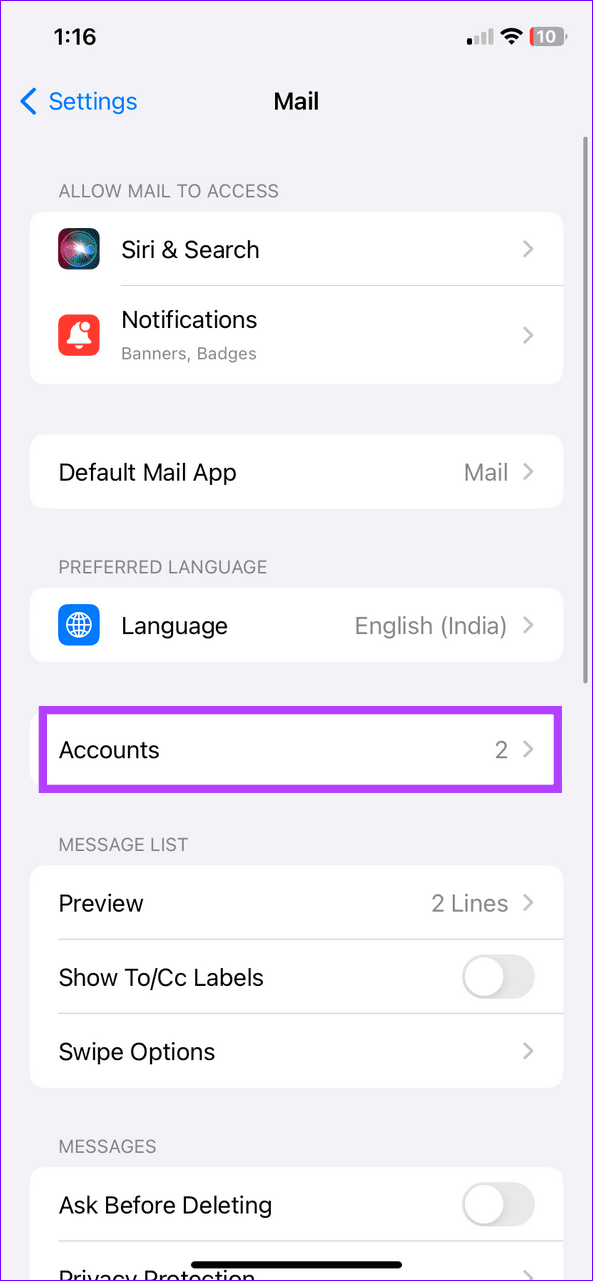
Step 2: Select your configured mail account and tap Delete Account. Tap Delete Account again to confirm.


Step 3: To re-add it, select Add Account on the previous page, pick your desired mail service, and type your credentials to log back in.


Was this helpful?
Last updated on 15 July, 2024
Read Next
 Outlook App vs Apple Mail: Which Is a Better iOS Mail App
Frankly, there are so many mail apps for the iOS platform that it can be difficult to zero in on one.
Outlook App vs Apple Mail: Which Is a Better iOS Mail App
Frankly, there are so many mail apps for the iOS platform that it can be difficult to zero in on one.
 3 Ways to Fix Apple Mail Stuck on Checking for Mail on iPhone
Basic Fixes: Check the network connection: First, check the network connection quality on your iPhone. If you face network issues, you can enable Airplane mode on your iPhone and disable it
3 Ways to Fix Apple Mail Stuck on Checking for Mail on iPhone
Basic Fixes: Check the network connection: First, check the network connection quality on your iPhone. If you face network issues, you can enable Airplane mode on your iPhone and disable it
 5 Ways to Fix Delayed Emails in Mail App on iPhone
Common Fixes Enable Background App Refresh - Access General settings on iPhone, tap Background App Refresh, and enable the toggle for the Mail app.
5 Ways to Fix Delayed Emails in Mail App on iPhone
Common Fixes Enable Background App Refresh - Access General settings on iPhone, tap Background App Refresh, and enable the toggle for the Mail app.
 7 Best Ways to Fix Mail App Not Syncing With Outlook on iPhone
The default Mail app on your iPhone lets you quickly sign in to your Outlook account.
7 Best Ways to Fix Mail App Not Syncing With Outlook on iPhone
The default Mail app on your iPhone lets you quickly sign in to your Outlook account.
 3 Fixes for Mail App Notifications Not Working on iPhone
Basic Fixes Enable Mail app notifications: Open Settings > Mail > Notifications > Customize Notifications > enable alerts.
3 Fixes for Mail App Notifications Not Working on iPhone
Basic Fixes Enable Mail app notifications: Open Settings > Mail > Notifications > Customize Notifications > enable alerts.
 How to Create an Email Group in Mail App on iPhone
Create a New Group Using Contacts App Let's start by creating a new group using the Contacts app on your iPhone to create an email group.
How to Create an Email Group in Mail App on iPhone
Create a New Group Using Contacts App Let's start by creating a new group using the Contacts app on your iPhone to create an email group.
 3 Fixes for Images Not Loading in Mail App for iPhone
Try Basic Fixes Turn off VPN: Since VPNs route your internet traffic through different servers, they can sometimes lead to delays or issues loading content, such as images in emails.
3 Fixes for Images Not Loading in Mail App for iPhone
Try Basic Fixes Turn off VPN: Since VPNs route your internet traffic through different servers, they can sometimes lead to delays or issues loading content, such as images in emails.
 3 Ways to Fix Mail Attachment Not Showing on iPhone
https://youtu.be/wDn36aqyRvE Basic Fixes Check network connection: Ensure you are on a good internet connection to fully load the received email and all of its parts.
3 Ways to Fix Mail Attachment Not Showing on iPhone
https://youtu.be/wDn36aqyRvE Basic Fixes Check network connection: Ensure you are on a good internet connection to fully load the received email and all of its parts.
The article above may contain affiliate links which help support Guiding Tech. The content remains unbiased and authentic and will never affect our editorial integrity.