Try Basic Fixes
- Disable the antivirus program: Sometimes antivirus programs on your PC can interfere with Windows and force it to log you in with a temporary profile. If that’s the case, disabling your antivirus program temporarily should help. Restart your PC after disabling the antivirus program and check if the issue is still there.
- Install Windows updates: Windows may be logging you in with a temporary profile due to a buggy or outdated software build. Hence, it’s a good idea to install pending Windows updates and see if that helps.
Fix 1: Enter and Exit Safe Mode
To start, you can try booting your Windows PC into safe mode and then exiting it. This should take care of any temporary glitches that may be causing Windows to log you in with a temporary profile repeatedly.
Step 1: Press the Windows + R keys to open the Run dialog box. Type msconfig in the text field and click OK.
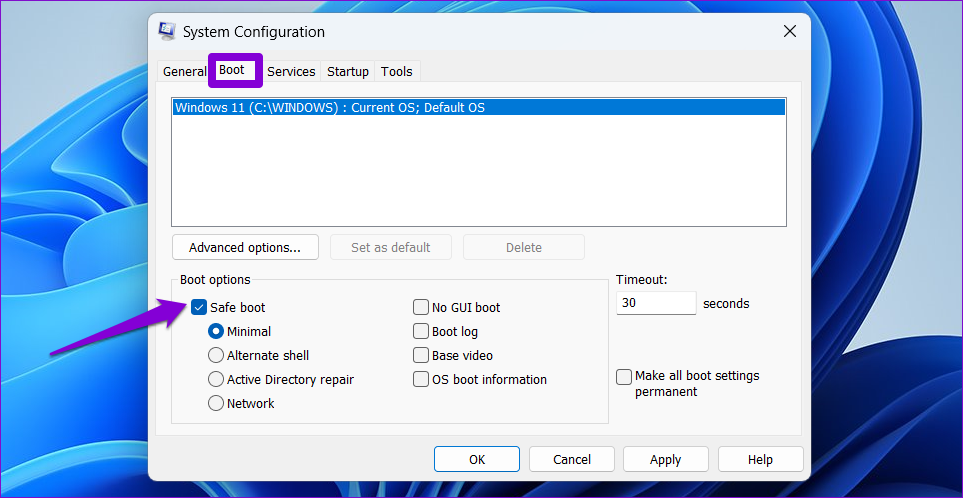
Step 2: Switch to the Boot tab and tick the checkbox that reads Safe boot.
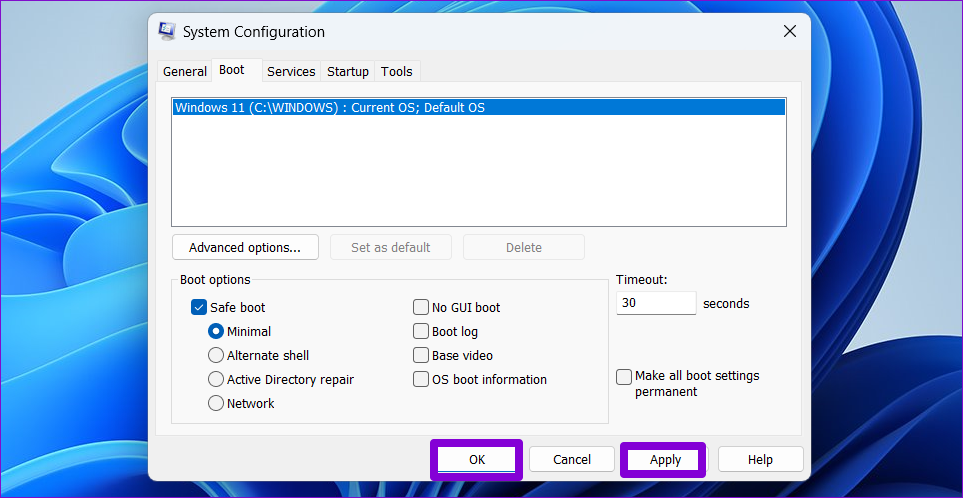
Step 3: Click Apply and then OK.
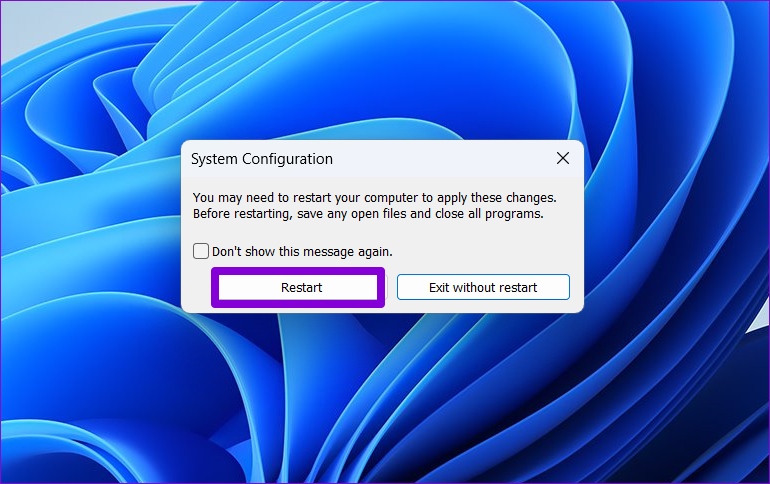
Step 4: Select the Restart option to boot your PC into safe mode.
After your PC boots into safe mode, repeat the above steps to uncheck the safe boot option. Then, restart your PC and see if Windows boots with your profile.
Fix 2: Modify Registry Files
Several users on a Microsoft Community post reported fixing the temporary profile issue on Windows by modifying a few registry files. Here’s how to do it.
Step 1: Right-click on the Start icon and select Terminal (Admin) from the list.

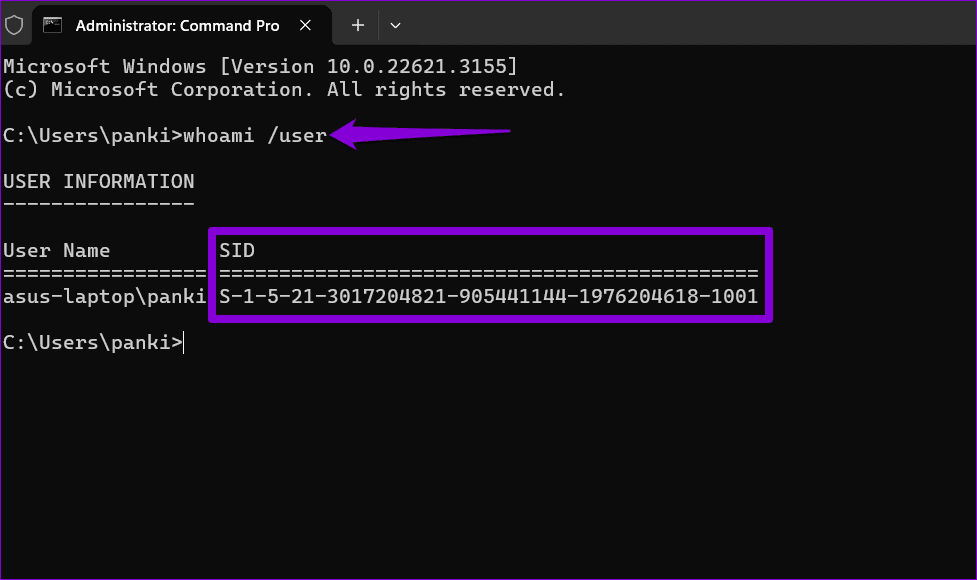
Step 2: In the Command Prompt window, type whoami /user and press Enter to get the SID (security ID). Note the value under SID.
Step 3: Press the Windows key + R to open the Run dialog. Type in regedit and hit Enter.
Step 4: In the address bar of the Registry Editor, copy and paste the path given below and press Enter.
HKEY_LOCAL_MACHINE\SOFTWARE\Microsoft\Windows NT\CurrentVersion\ProfileList
Step 5: Within the ProfileList subkey, find and click the SID noted earlier. Then, double-click the ProfileImagePath entry on the right.
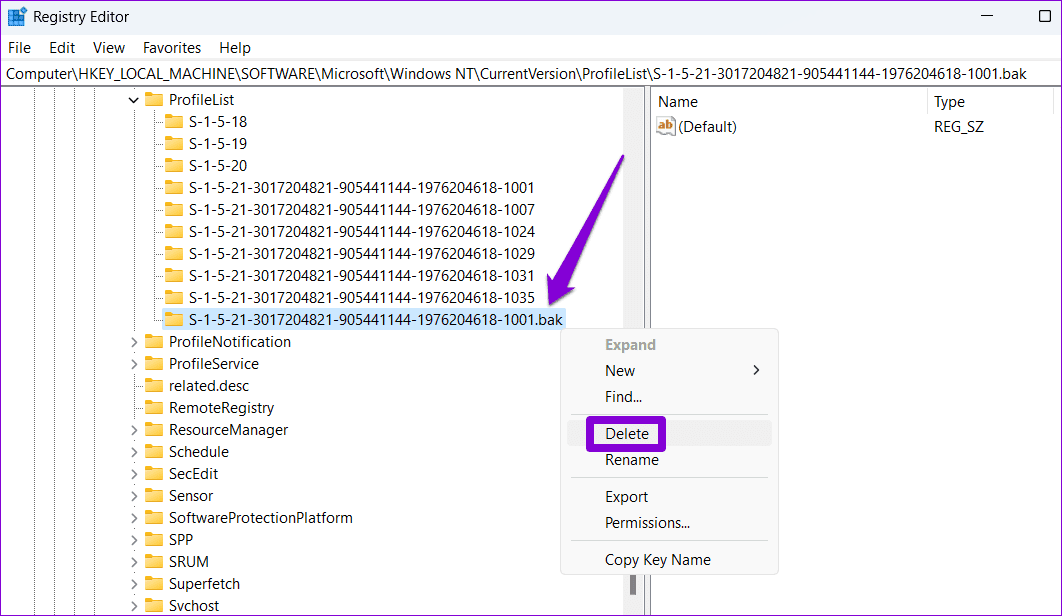
Note: If you see two identical SID keys under the ProfileList subkey, select the one without “.bak” at the end.
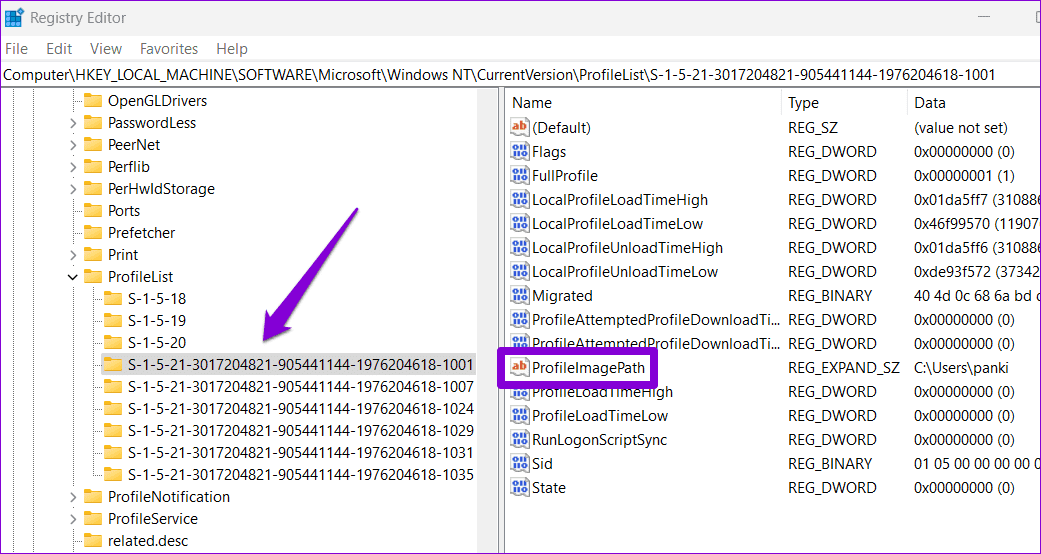
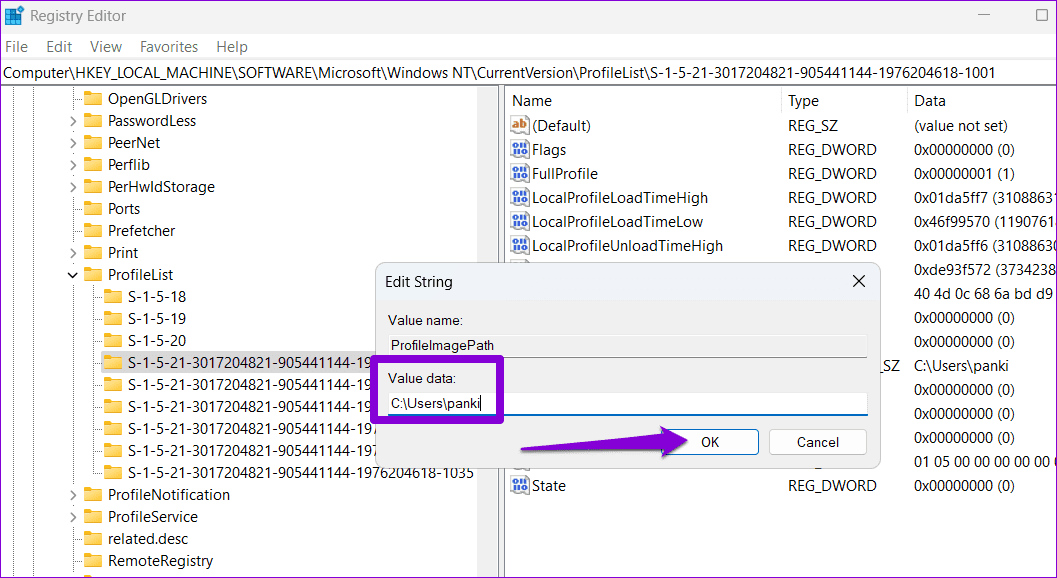
Step 6: Type the correct profile path and click OK. Your profile path is C:\Users\YourProfileName, where YourProfileName is the name of your profile.
Step 7: Within the ProfileList key, right-click on the duplicate SID key (with .bak at the end) and select Delete.
Restart your computer after this and Windows should sign you in to your profile instead of a temporary one.
Fix 3: Configure Windows Services
Another way to stop Windows from logging you in with a temporary profile involves modifying a few system services. Here are the steps for the same.
Step 1: Press the Windows key + R to open the Run dialog box. Type services.msc in the box and press Enter.
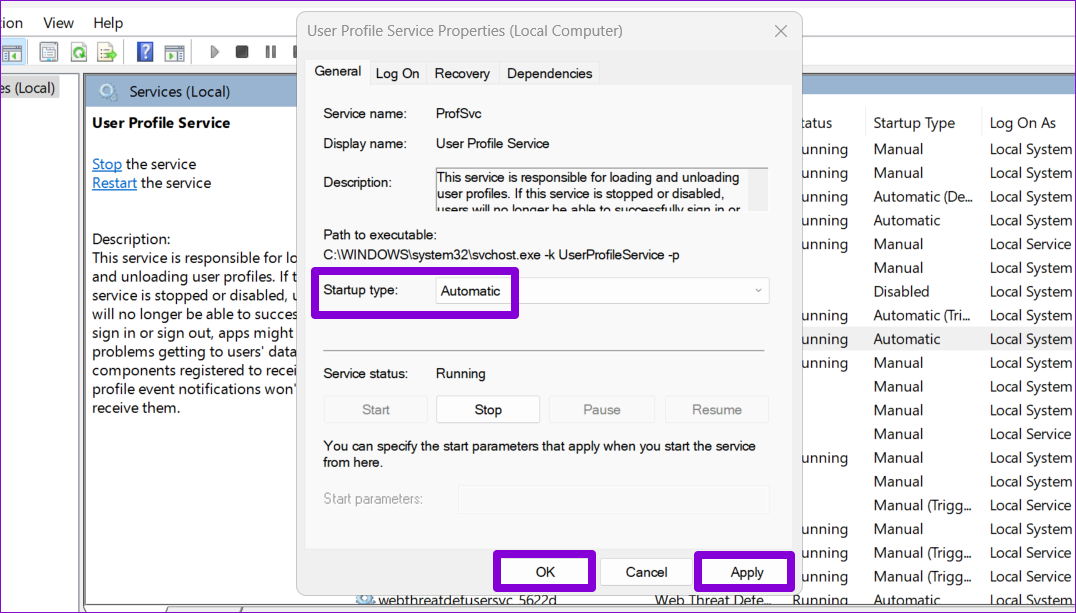
Step 2: Double-click on User Profile Service.
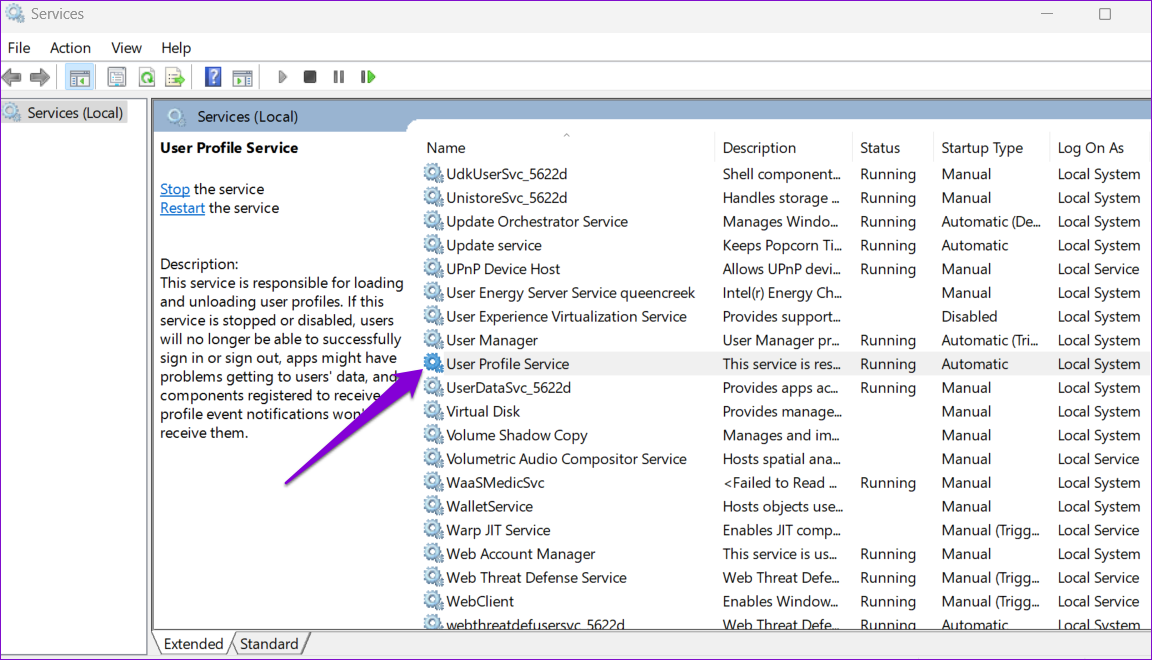
Step 3: Click the drop-down menu next to Startup type to select Automatic. Then, hit Apply and then OK.
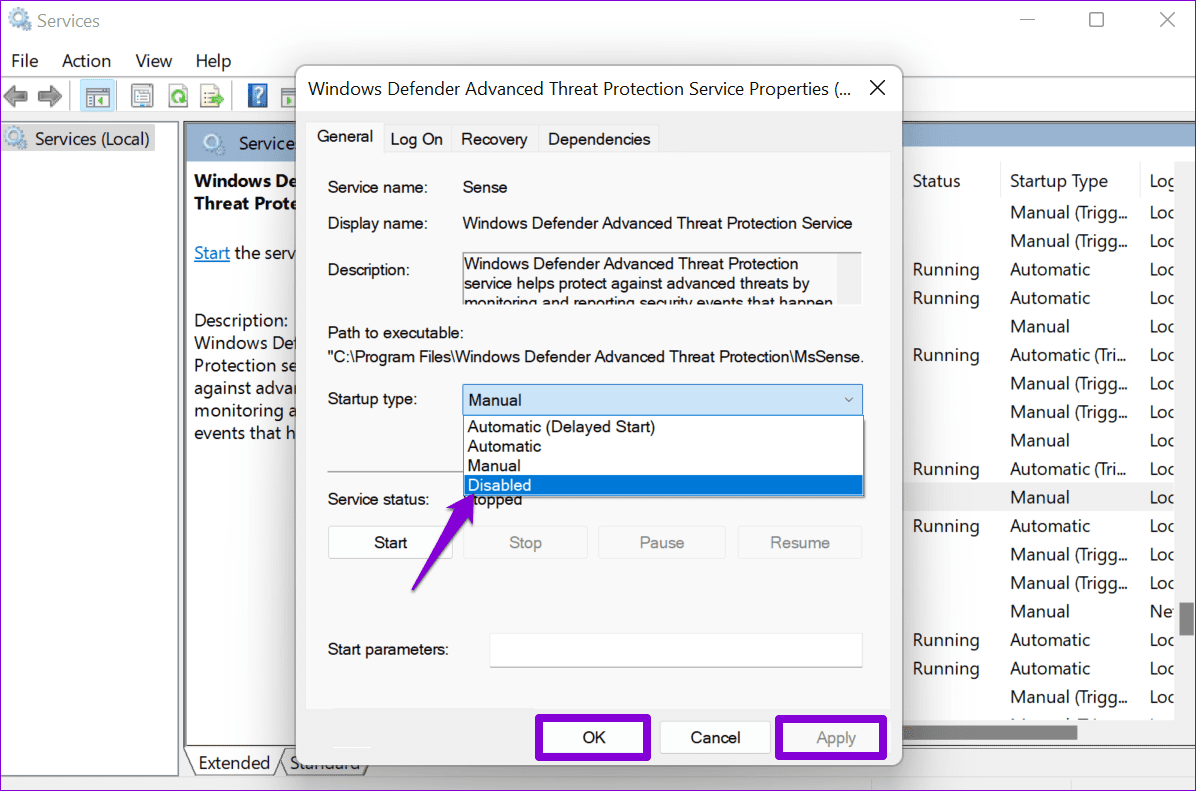
Step 4: Double-click the Windows Defender Advanced Threat Protection service. Change the startup type to Disabled and hit Apply followed by OK.
Fix 4: Run the SFC Scan
Corrupt or damaged system files can also give rise to such issues on a PC. Fortunately, Windows includes a tool called System File Checker (SFC) that can automatically identify and repair such system files.
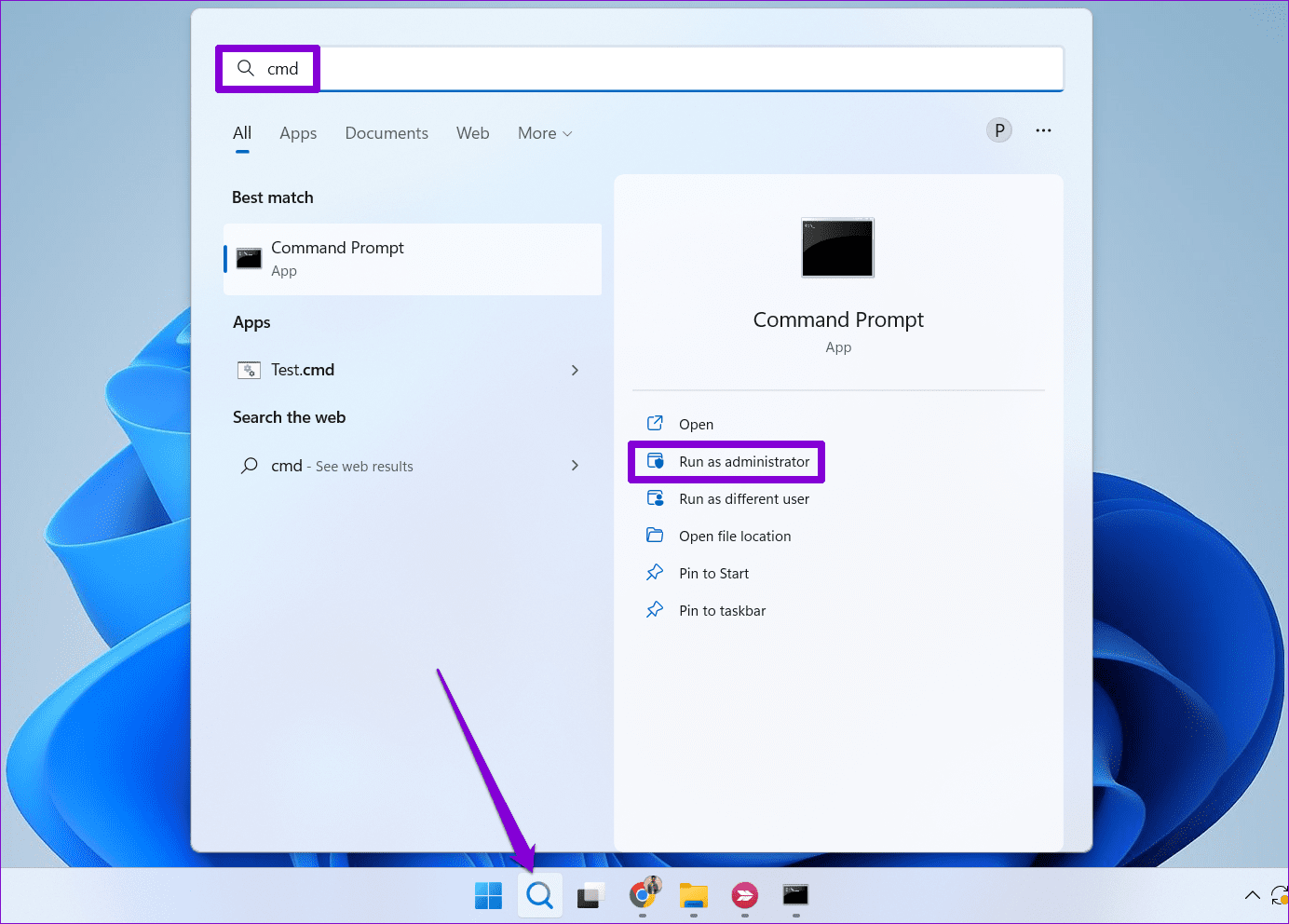
Step 1: Click the search icon on the taskbar, type in cmd and select Run as administrator.
Step 2: Type the following command and press Enter.
SFC /scannow

Wait for the process to complete and then restart your PC. After that, check if the issue is still there.
Fix 5: Create a New User Account
There’s a chance that Windows is showing you the “You’ve been logged on with a temporary profile” error because some of the data in your user account has become corrupted. If that’s the case, your best option is to create and switch to a new user account.
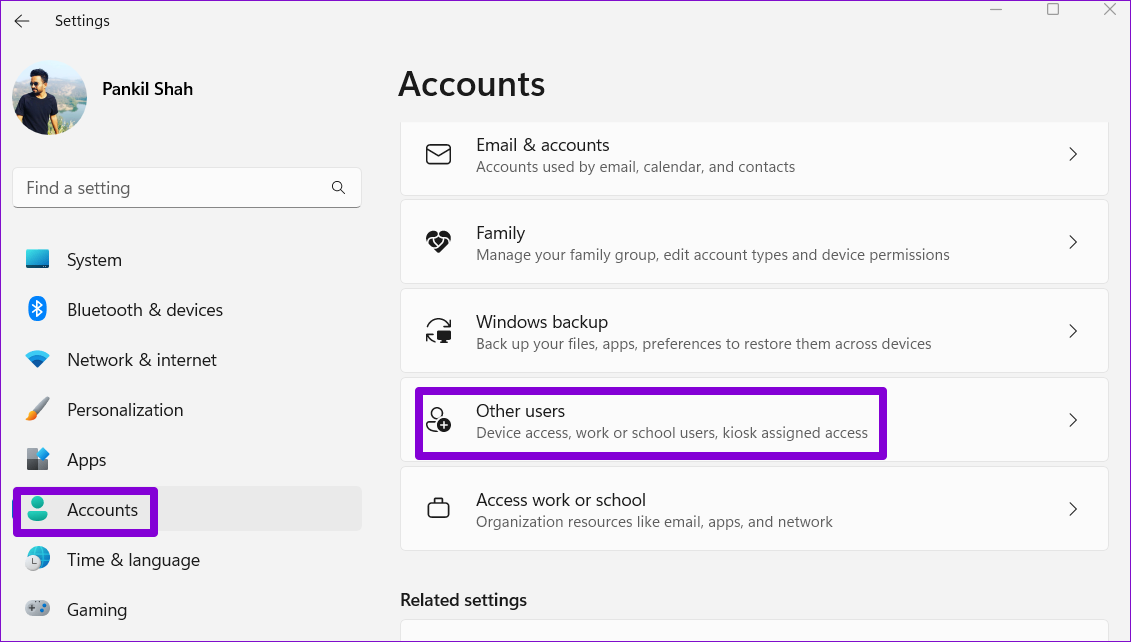
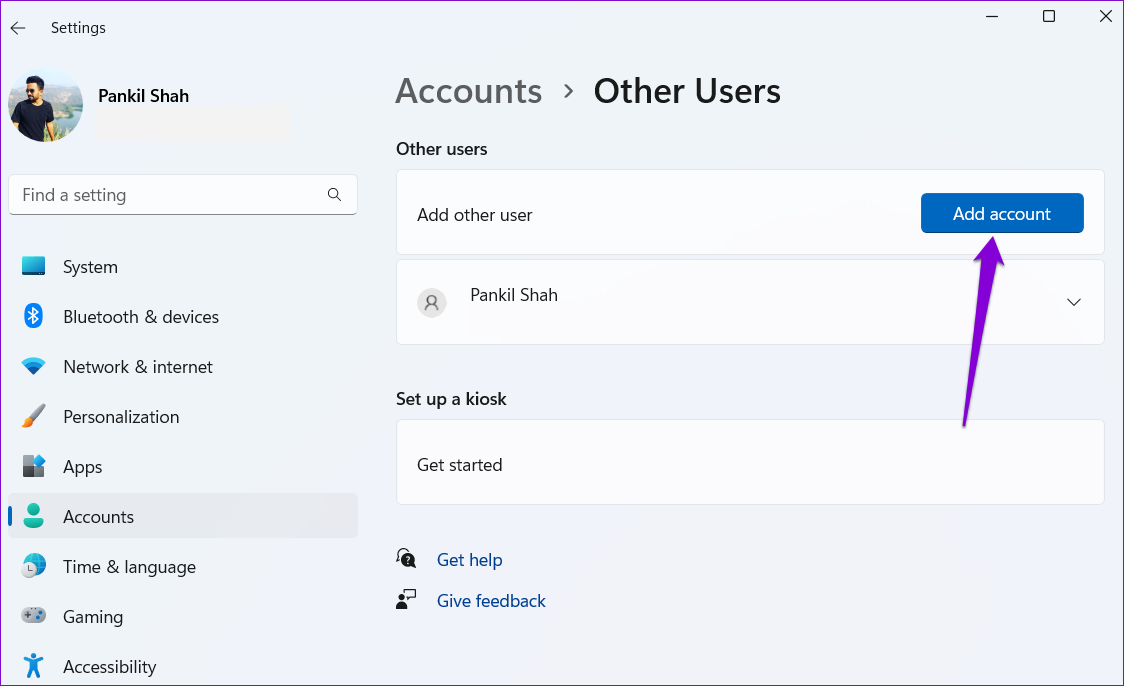
Step 1: Press the Windows key + I to launch the Settings app. In the Accounts tab, click on Other users.
Step 2: Click the Add account button.
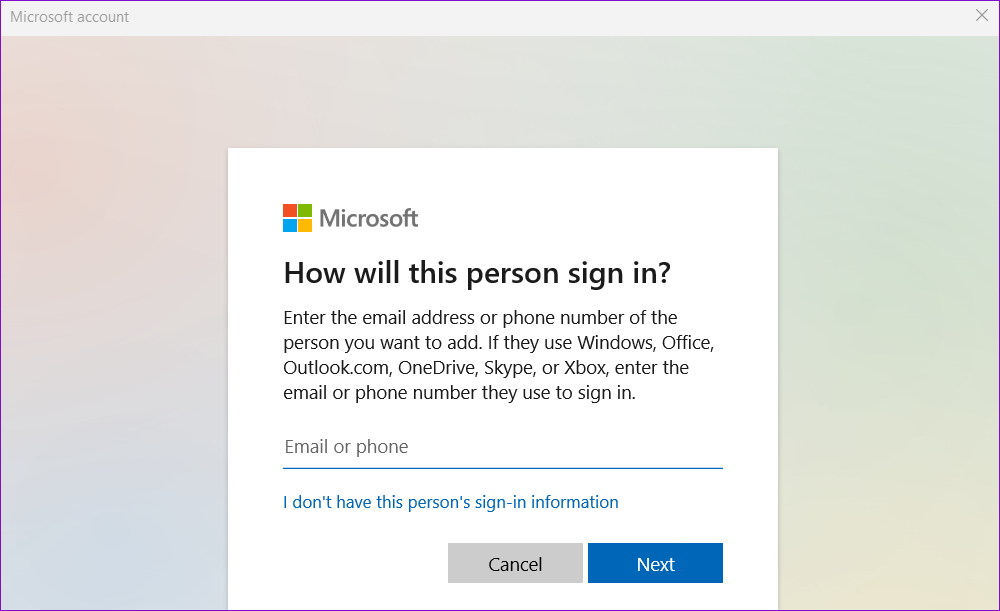
Step 3: Type in your email address and follow the on-screen instructions to create a new user account on Windows.
Switch to your newly created user account, and Windows should no longer log you in with a temporary profile.
Was this helpful?
Last updated on 18 July, 2024
Read Next
 How to Fix Chrome If It Doesn’t Keep You Logged in Windows
Chrome's ability to keep you logged into sites that offer to remember you saves a ton of time otherwise spent on manual logins.
How to Fix Chrome If It Doesn’t Keep You Logged in Windows
Chrome's ability to keep you logged into sites that offer to remember you saves a ton of time otherwise spent on manual logins.
 How to Find Who Is Currently Logged Into Your Windows Computer
Method 1: Use the Start Menu The simplest and quickest method to view all the users who are currently logged in to Windows is through the Start menu.
How to Find Who Is Currently Logged Into Your Windows Computer
Method 1: Use the Start Menu The simplest and quickest method to view all the users who are currently logged in to Windows is through the Start menu.
 Top 3 Ways to Fix Windows Temporary Files Not Deleting
Fix 1: Use Disk Cleanup Disk Cleanup is a disk maintenance utility built into the Windows operating system to help users clear unwanted system files from their PC's hard drive.
Top 3 Ways to Fix Windows Temporary Files Not Deleting
Fix 1: Use Disk Cleanup Disk Cleanup is a disk maintenance utility built into the Windows operating system to help users clear unwanted system files from their PC's hard drive.
 5 Ways to Delete Temporary Files on Windows 11
Method 1: Clear Temporary Files Using the Settings App The Settings app on Windows gives you a complete breakdown of different temporary files stored on your PC.
5 Ways to Delete Temporary Files on Windows 11
Method 1: Clear Temporary Files Using the Settings App The Settings app on Windows gives you a complete breakdown of different temporary files stored on your PC.
 How to Disconnect iPhone From Mac (Temporary or Permanently)
Basic Ways Unpair Bluetooth connection: Do note that turning off Bluetooth will also disconnect your Mac and iPhone from other Apple devices.
How to Disconnect iPhone From Mac (Temporary or Permanently)
Basic Ways Unpair Bluetooth connection: Do note that turning off Bluetooth will also disconnect your Mac and iPhone from other Apple devices.
 5 Fixes for “User Profile Service Failed the Sign-In” Error in Windows 11
Fix 1: Configure the User Profile Service If the User Profile Service on your PC is not set to run automatically, you could encounter the "User Profile Service failed the
5 Fixes for “User Profile Service Failed the Sign-In” Error in Windows 11
Fix 1: Configure the User Profile Service If the User Profile Service on your PC is not set to run automatically, you could encounter the "User Profile Service failed the
 How to Fix “This Setting Has Been Configured by a Profile” on Mac
Before moving on with the fixes, we suggest installing the latest software version on your Mac.
How to Fix “This Setting Has Been Configured by a Profile” on Mac
Before moving on with the fixes, we suggest installing the latest software version on your Mac.
 5 Fixes for “Word Experienced an Error Trying to Open the File” Error in Windows
Fix 1: Unblock Your Word File Microsoft Word may fail to open a document if it has been altered by third-party software.
5 Fixes for “Word Experienced an Error Trying to Open the File” Error in Windows
Fix 1: Unblock Your Word File Microsoft Word may fail to open a document if it has been altered by third-party software.
The article above may contain affiliate links which help support Guiding Tech. The content remains unbiased and authentic and will never affect our editorial integrity.