

Basic Fixes
- Disconnect and reconnect the keyboard: If your keyboard is lagging due to a minor connection issue, disconnecting and reconnecting it should help. If it’s a wired keyboard, try connecting it to a different USB port. If it’s a Bluetooth keyboard, try unpairing it and pairing it again.
- Replace the batteries or charge your keyboard: You might face input lag while typing if your keyboard is low on battery. To avoid this, recharge your keyboard by connecting it to a power source or replacing its batteries.
- Keep the USB receiver close to the keyboard: If you use a wireless keyboard, consider connecting the USB receiver to the front port. This should prevent the receiver signal from getting obstructed.
Fix 1: Run the Keyboard Troubleshooter
Windows 11 offers several troubleshooters for fixing system-level issues. One of these is the keyboard troubleshooter, which can detect and fix any minor issues responsible for typing lag on Windows. Here’s how to run it.
Step 1: Press the Windows key + I to open Settings. In the System tab, scroll down to select Troubleshoot.
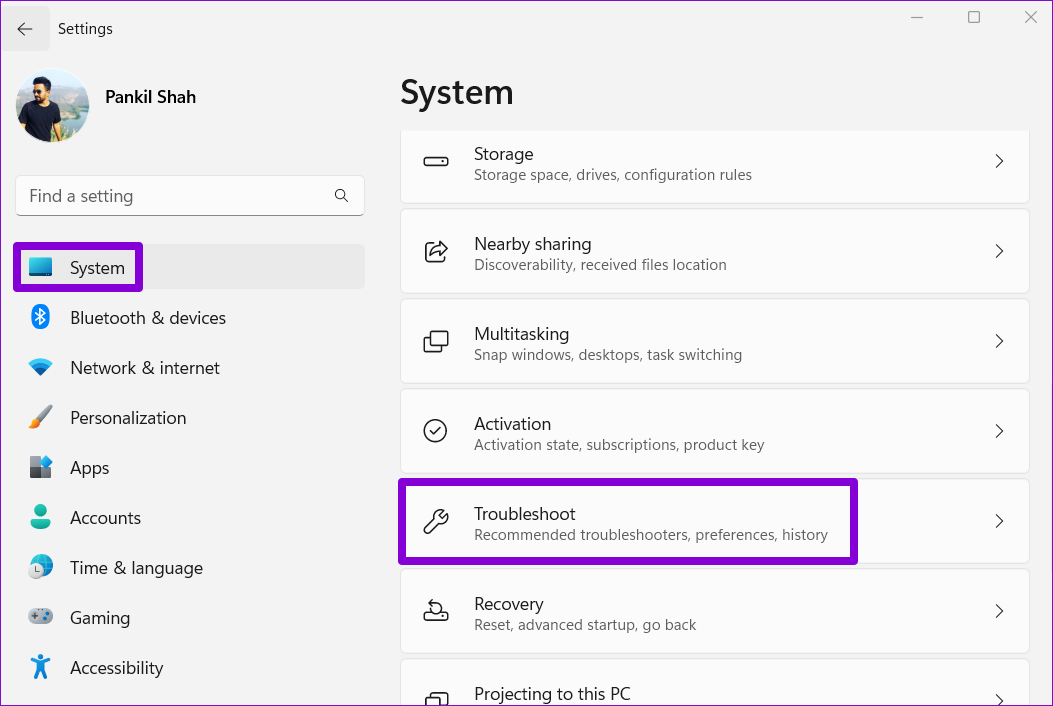
Step 2: Go to Other troubleshooters.

Step 3: Click the Run button next to Keyboard and follow the on-screen instructions to finish the troubleshooting process.

Fix 2: Turn off Filter Keys
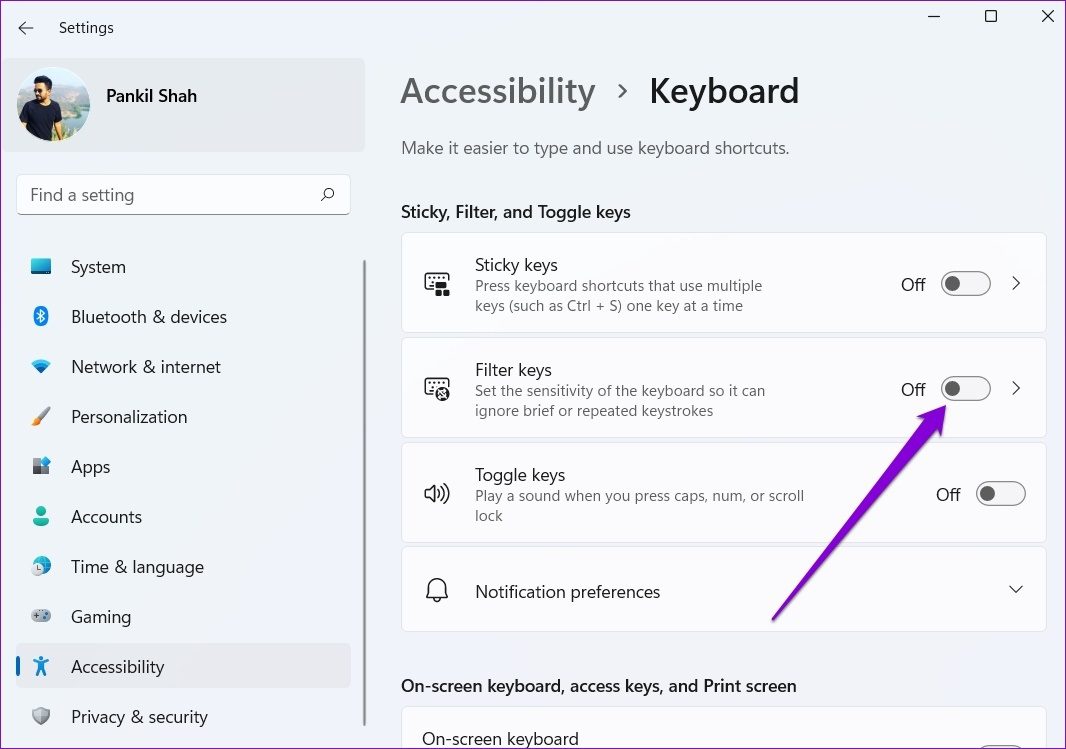
Filter Keys is an accessibility feature on Windows that automatically adjusts the keyboard response to ignore repeated keystrokes. If you’ve accidentally enabled Filter Keys on Windows 11, such keyboard lag issues may arise. Here’s how to fix that.
Step 1: Open the Start menu and click the gear-shaped icon to launch the Settings app.

Step 2: Head to Accessibility > Keyboard.

Step 3: Turn off the toggle for Filter Keys.
Fix 3: Change the Keyboard Repeat Rate
If you only experience lag while typing on your Windows 11 PC, you can try modifying the keyboard properties to adjust the character repeat rate. Here’s how.
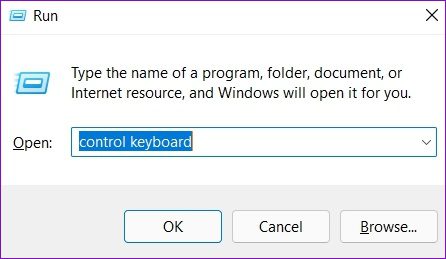
Step 1: Press the Windows key + R to launch the Run dialog box. Type control keyboard in the box and press Enter.
Step 2: In the Keyboard Properties window, use the slider to set the Repeat rate to Fast. Hit Apply to save changes.
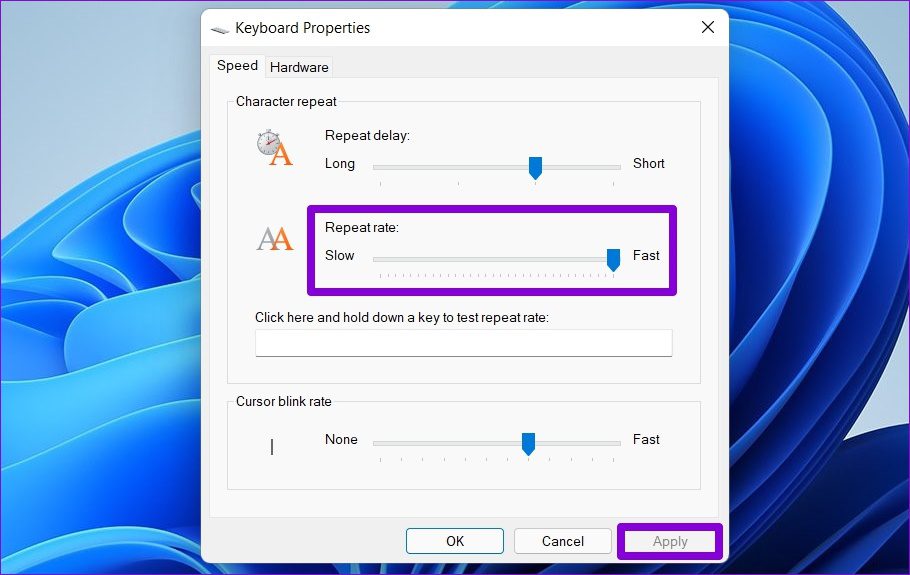
You may have to experiment with the Repeat rate settings till you find the one that hits your preference spot.
Fix 4: Update Keyboard Drivers
Issues with the current keyboard driver installed on your PC could prevent Windows from communicating with the keyboard effectively, leading to lag and other performance issues. To fix this, you can try updating the keyboard drivers on your PC using these steps:
Step 1: Click on the search icon from the taskbar, type device manager, and select the first result.
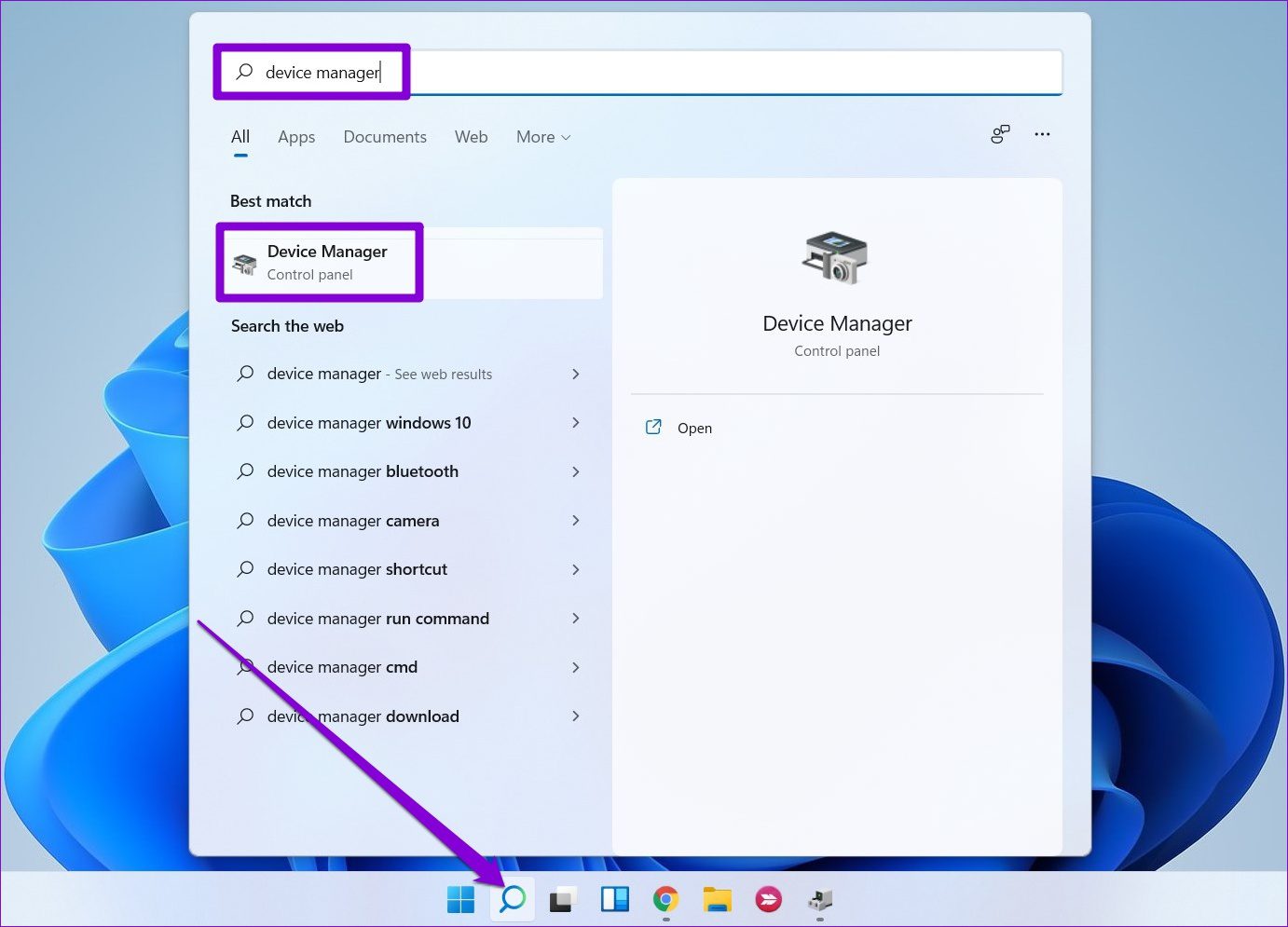
Step 2: Find and expand Keyboards, right-click on the keyboard, and select Update driver from the list.

Fix 5: Run DISM Scan
DISM (or Deployment Image Servicing and Management) is a handy command-line tool that can help fix any issues with the Windows system image that might have been responsible for such anomalies. Here’s how to run it.
Step 1: Right-click on the Start icon and select the Terminal (Admin) option from the resulting menu.

Step 2: Type the following commands one by one and press Enter after each of them.
DISM /Online /Cleanup-Image /CheckHealth
DISM /Online /Cleanup-Image /ScanHealth
DISM /Online /Cleanup-Image /RestoreHealth

Restart your PC after running the above commands and check if the issue persists.
Was this helpful?
Last updated on 08 May, 2024
3 Comments
Leave a Reply
Read Next
 6 Ways to Fix Keyboard Typing Lag on Android
Basic Fixes: Let your phone cool down: After a long gaming season or extensive video recording, your Android phone might feel warm to touch on the sides.
6 Ways to Fix Keyboard Typing Lag on Android
Basic Fixes: Let your phone cool down: After a long gaming season or extensive video recording, your Android phone might feel warm to touch on the sides.
 Top 8 Ways to Fix Mouse Lag on Windows 11
A mouse that often stutters or lags can result in an unpleasant computing experience.
Top 8 Ways to Fix Mouse Lag on Windows 11
A mouse that often stutters or lags can result in an unpleasant computing experience.
 Top 8 Ways to Fix Windows 11 Lag After an Update
While Windows 11 is a welcome change with the start menu, taskbar, and other design improvements, the upgrade didn’t go well with some users.
Top 8 Ways to Fix Windows 11 Lag After an Update
While Windows 11 is a welcome change with the start menu, taskbar, and other design improvements, the upgrade didn’t go well with some users.
 Top 7 Ways to Fix Zoom Lag on Windows 10
Even after fierce competition from the likes of Google Meet and Microsoft Teams, Zoom continues to grow its market share in the video calling market.
Top 7 Ways to Fix Zoom Lag on Windows 10
Even after fierce competition from the likes of Google Meet and Microsoft Teams, Zoom continues to grow its market share in the video calling market.
 5 Ways to Fix Discord Lag on Windows and Mac
Basic Fixes Close unused apps: Unused open apps could cause lag in Discord.
5 Ways to Fix Discord Lag on Windows and Mac
Basic Fixes Close unused apps: Unused open apps could cause lag in Discord.
 4 Fixes for Roblox Lag on Windows
Fix 1: Change Graphics Preference for Roblox Windows lets you set graphics preferences for each app and program separately.
4 Fixes for Roblox Lag on Windows
Fix 1: Change Graphics Preference for Roblox Windows lets you set graphics preferences for each app and program separately.
 5 Ways to Fix Instagram Lag on iPhone and Android
Preliminary Fixes Use Fast Internet Speeds: A slow or unstable internet connection is one of the primary causes of lag on Instagram.
5 Ways to Fix Instagram Lag on iPhone and Android
Preliminary Fixes Use Fast Internet Speeds: A slow or unstable internet connection is one of the primary causes of lag on Instagram.
 7 Best Ways to Fix Lag on Amazon Fire TV Stick
Amazon Fire TV Stick is a wonderful streaming device.
7 Best Ways to Fix Lag on Amazon Fire TV Stick
Amazon Fire TV Stick is a wonderful streaming device.
The article above may contain affiliate links which help support Guiding Tech. The content remains unbiased and authentic and will never affect our editorial integrity.


I had tried all the above except number 7, and had no benefit. I found another website that suggested – if a person is using a wireless keyboard – the likely problem is the usb dongle is too far away from the keyboard. I moved the dongle from behind the PC to a USB port at the front of the PC, which moved my keyboard about 18 inches closer to the usb dongle that was plugged into my PC. It solved my problem.
Windows 11: Fix for me “Accessibility -> Keyboard -> Sticky Keys
-> Lock shortcuts keys when pressed twice in a Row = OFF
This page’s recommendations are completely the wrong way around. If you’ve just installed/upgraded to Windows 11 and you are finding your keyboard response is sluggish, chances are you are experiencing Windows 11 “features” that someone at Microsoft though “wow these are great feature, let’s switch them on for all users”. The Windows 11 version of the paperclip.
So my top tips would be:
– Control panel>Keyboard>Repeat delay: Short….Repeat rate: Fast
– Windows Settings>Accessibility (+U)>Visual effects>Animation effects >> off
– Windows Settings>Accessibility (+U)>keyboard>Filter Keys >> off
Still lacking?
– Try plugging in another keyboard, if no difference, then forget steps 2, 3, 5, & 6 above.