

Try Basic Fixes
- Turn off VPN: If you’re using a VPN connection on your PC, you may want to turn it off. Google may block access to its web service if it detects your VPN IP as unauthorized. To ensure this isn’t the issue, try disabling your VPN temporarily and then using Google Messages for Web again.
- Update the app: Using an outdated version of the Google Messages app can also cause such problems. To avoid this, you must update the Google Messages app on your phone from the Play Store.
Fix 1: Reactivate Your Web Session
Another thing you can do is try disconnecting your phone from Messages for Web and connecting it again. This should help rule out any pairing issues.
Step 1: Access Google Messages for Web on your PC. Click the three-dot menu icon at the top and select Unpair from the list.

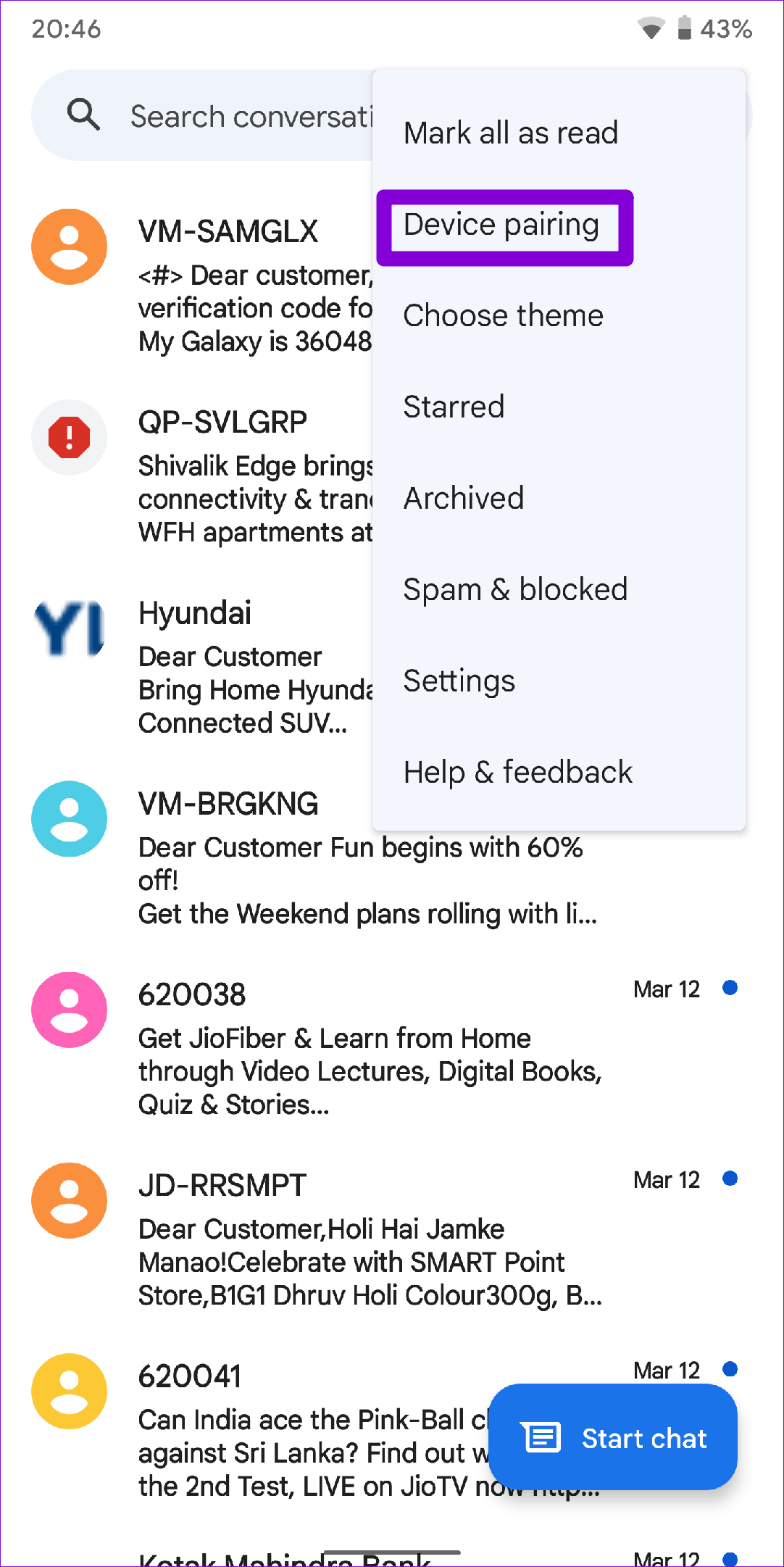
Step 2: Open the Google Messages app on your phone. Tap the three-dot menu icon in the top right corner and select Device pairing.
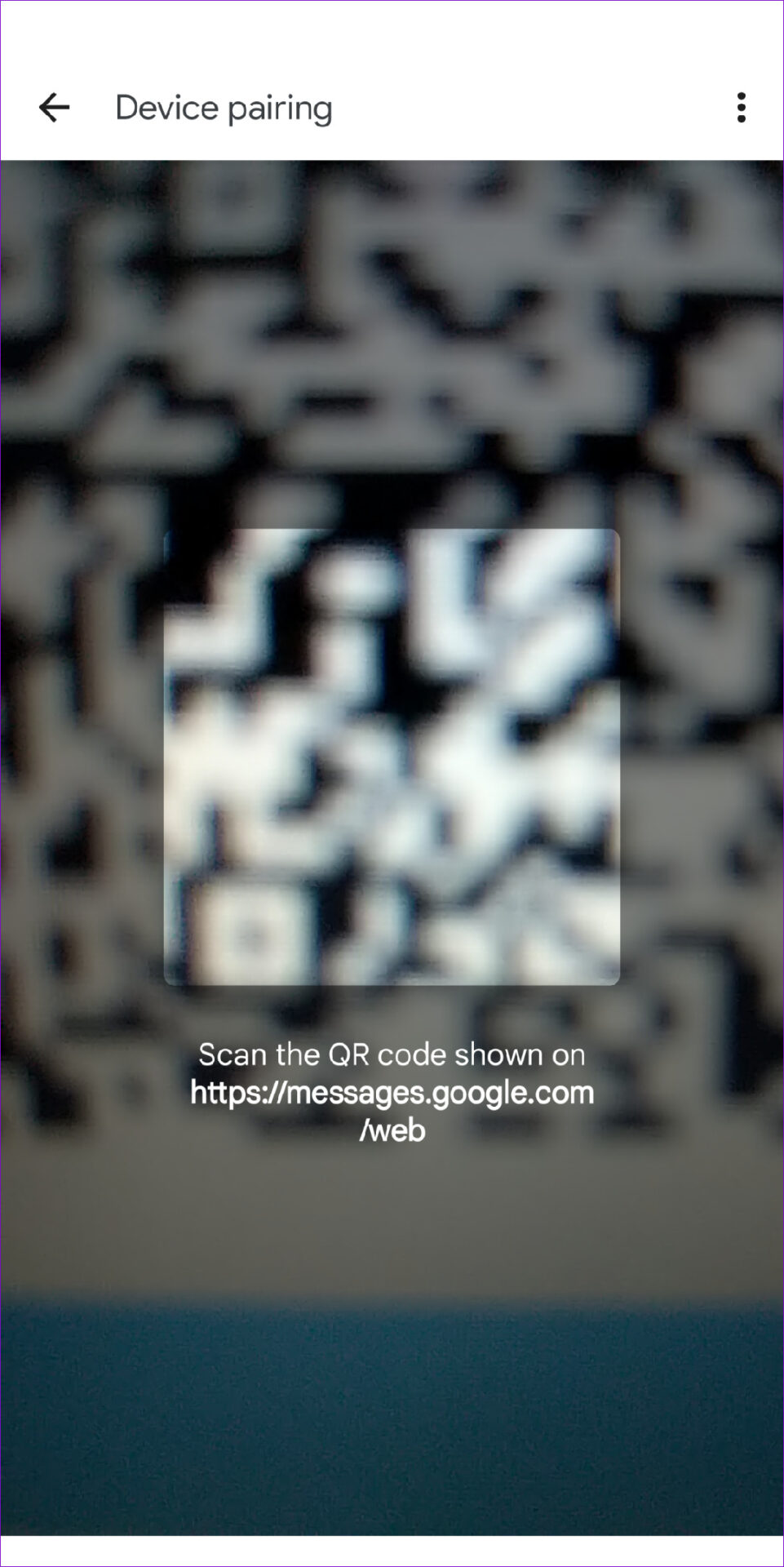
Step 3: Tap the QR code scanner button and point your phone’s camera towards the QR code displayed on your PC’s screen.

Fix 2: Enable Background Data for the Google Messages App (On Phone)
Google Messages for Web will fail to sync new data if you restrict background data usage for the Messages app on your phone. To avoid this, you must allow unrestricted data usage to the Google Messages app.
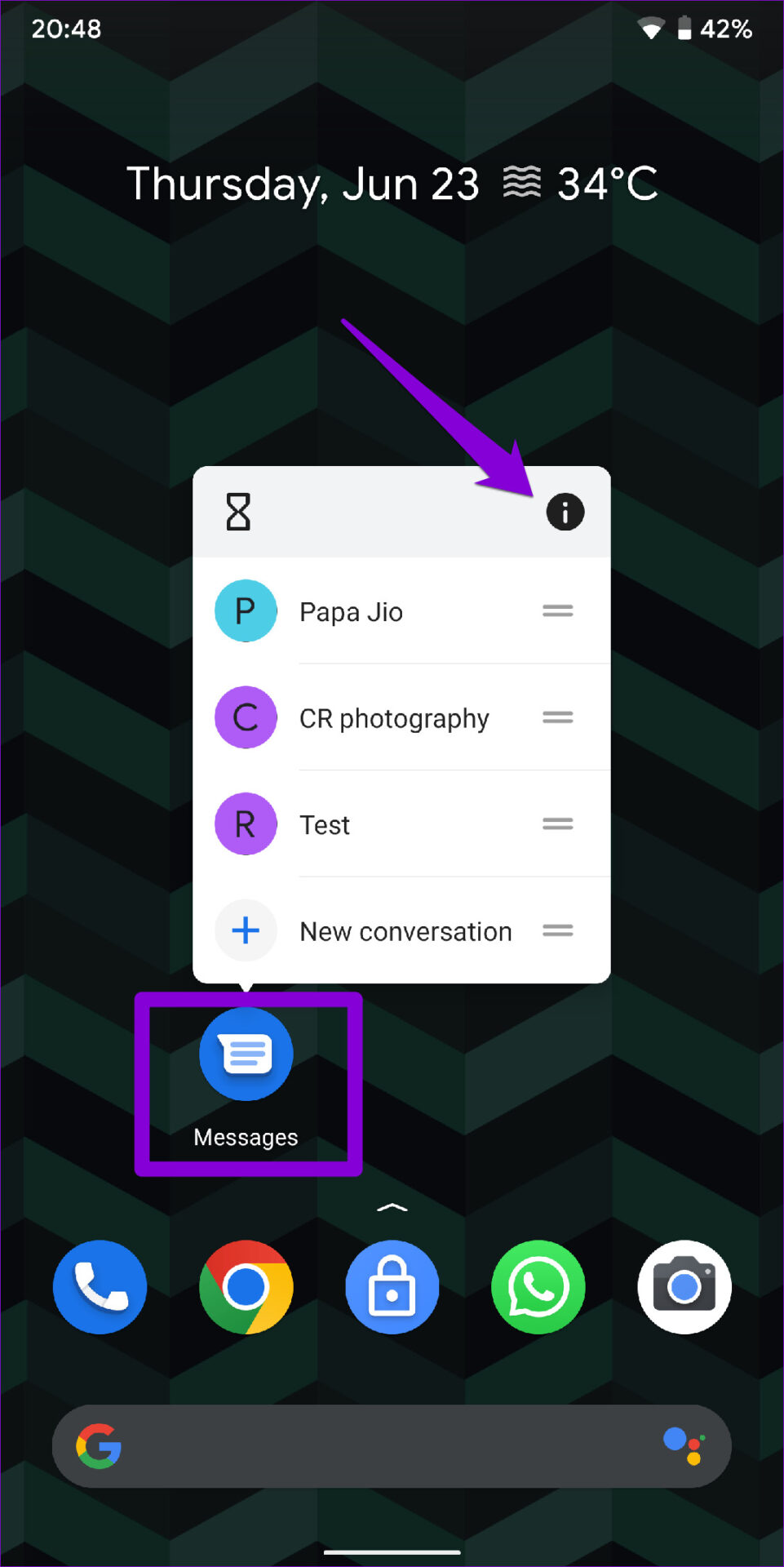
Step 1: Long-press on the Google Messages app icon and tap the info icon from the menu that appears.
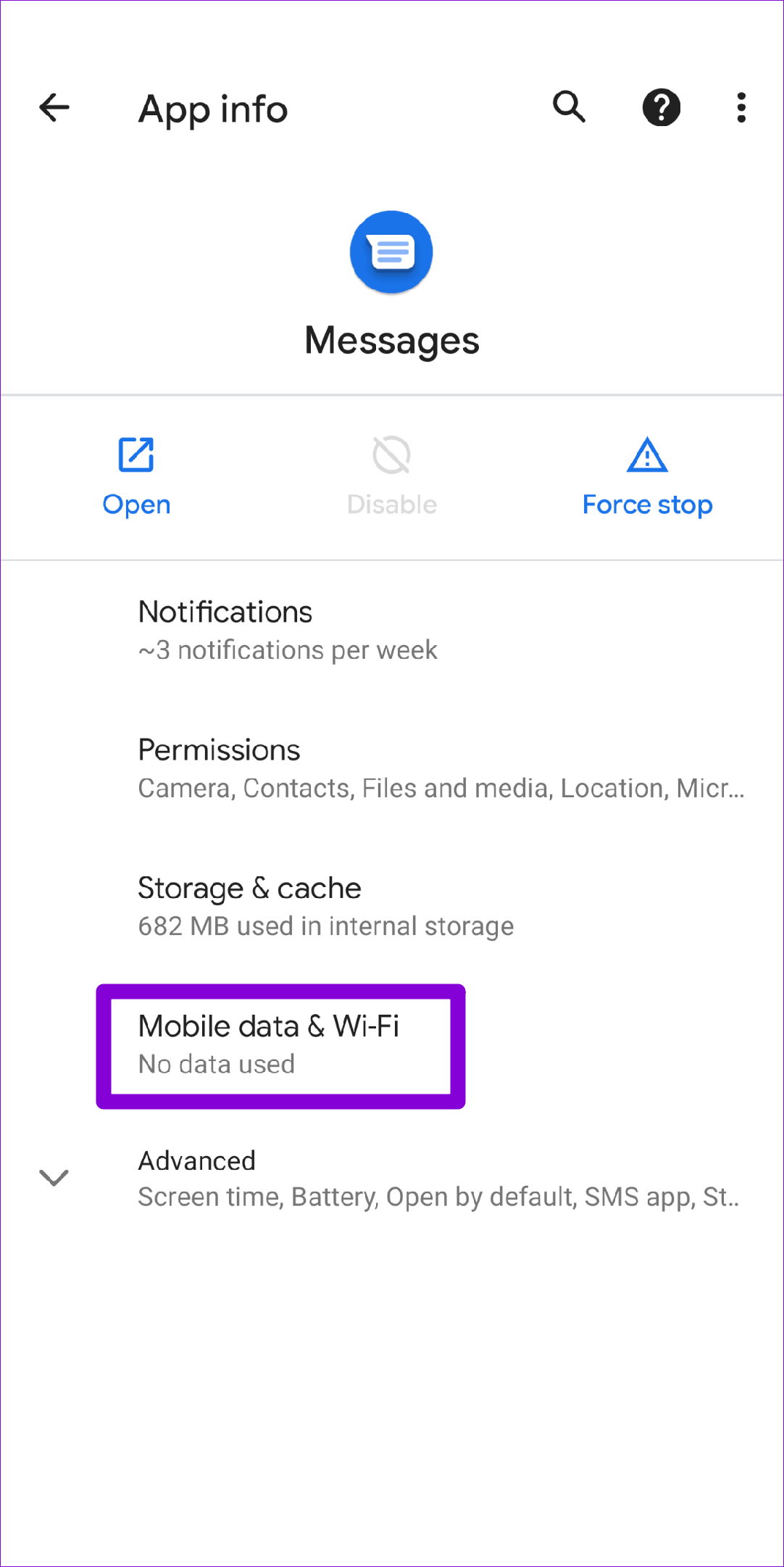
Step 2: Go to Mobile data & Wi-Fi. Then, enable the switches next to Background data and Unrestricted data usage.

Fix 3: Clear Messages App Cache (On Phone)
Outdated or corrupt cache data collected by the Google Messages app can cause it to malfunction. As a result, you may encounter issues while using Google Messages for Web. Here’s what you can do to fix it.
Step 1: Long-press the Messages app icon and tap the info icon from the menu that pops up.
Step 2: Go to Storage & cache and tap the Clear cache option from the following screen.


Fix 4: Disable Browser Extensions
Third-party extensions running on your browser can also affect browser processes and lead to problems. One way to rule out this possibility is by disabling all the extensions and using Google Messages for Web again.
Type in chrome://extensions (Chrome) or edge://extensions (Edge) in the address bar and press Enter. Use the toggles to turn off all the extensions.

Similarly, you can disable extensions in any other browser you may be using. Once disabled, restart your browser. If Google Messages for Web works fine after this, you can enable all the extensions individually to isolate the one causing the issue.
If disabling browser extensions doesn’t work, you can try using Google Messages for Web in a different browser. This will help you determine whether the issue is browser-related.
Was this helpful?
Last updated on 26 June, 2024
3 Comments
Leave a Reply
Read Next
 3 Ways to Fix Telegram Web Not Working
Try Basic Fixes Check if Telegram is down: It's a good idea to check Telegram's server status before proceeding with the other solutions on this list.
3 Ways to Fix Telegram Web Not Working
Try Basic Fixes Check if Telegram is down: It's a good idea to check Telegram's server status before proceeding with the other solutions on this list.
 Top 6 Ways to Fix Telegram Web Notifications Not Working
Telegram is one of the most popular instant messaging apps for multiple reasons.
Top 6 Ways to Fix Telegram Web Notifications Not Working
Telegram is one of the most popular instant messaging apps for multiple reasons.
 4 Ways to Fix Microsoft Outlook Web Not Working
Try Basic Fixes Check if Outlook is down: If Outlook servers are having an off day, you can't use Outlook in your web browser.
4 Ways to Fix Microsoft Outlook Web Not Working
Try Basic Fixes Check if Outlook is down: If Outlook servers are having an off day, you can't use Outlook in your web browser.
 5 Ways to Fix Microsoft Teams Web Not Working
Basic Fixes Sign out and sign back in: Authentication issues with your Microsoft account can sometimes cause Teams to stop working.
5 Ways to Fix Microsoft Teams Web Not Working
Basic Fixes Sign out and sign back in: Authentication issues with your Microsoft account can sometimes cause Teams to stop working.
 3 Ways to Fix TikTok Not Working in Web Browser
Preliminary Fixes Check network connection: Ensure your device has a stable network connection.
3 Ways to Fix TikTok Not Working in Web Browser
Preliminary Fixes Check network connection: Ensure your device has a stable network connection.
 3 Ways to Fix Paramount Plus Not Working on Web
Basic Fixes Check your network connection: Ensure your device has a good internet connection.
3 Ways to Fix Paramount Plus Not Working on Web
Basic Fixes Check your network connection: Ensure your device has a good internet connection.
 How to Transfer Samsung Messages to Google Messages
How to Switch From Samsung Messages to Google Messages on the Same Phone If you want to switch to the Messages by Google app on your Samsung phone, you only
How to Transfer Samsung Messages to Google Messages
How to Switch From Samsung Messages to Google Messages on the Same Phone If you want to switch to the Messages by Google app on your Samsung phone, you only
 Google Messages vs. Samsung Messages: Which Is Better
1.
Google Messages vs. Samsung Messages: Which Is Better
1.
The article above may contain affiliate links which help support Guiding Tech. The content remains unbiased and authentic and will never affect our editorial integrity.

Solution #1 worked for me! ie w/only mobile data enabled (network attached to number used by messages)
Nothing worked for me. It just suddenly stopped working yesterday, and I cannot get it to come back on. I tried each one of the fixes.
This worked for me!!! My app was still working, but messages I sent from the phone would not appear on the browser and messages I sent from the browser would not appear on the phone. I had to use all of your suggestions to fix this. Thank you!